

Try Basic Fixes
- Launch the app as an administrator: If an app lacks the necessary permissions to work on your computer, it could fail to launch and trigger the “This app can’t run on your PC” error. If that’s the case, running the app as an administrator should help.
- Reinstall the problematic app: If the “This app can’t run on your PC” error only occurs when you try to launch a specific program, you can try reinstalling it on your computer. This will help fix any issues caused by improper installation. To fix it, uninstall the problematic app from your PC and install it again.
Fix 1: Run the Compatibility Troubleshooter
Windows 11 includes a compatibility mechanism to let you run the apps in an older Windows version mode. For that, you can run the Program Compatibility troubleshooter on Windows to identify the suitable version.
Step 1: Right-click on the app that is failing to launch and select Properties.
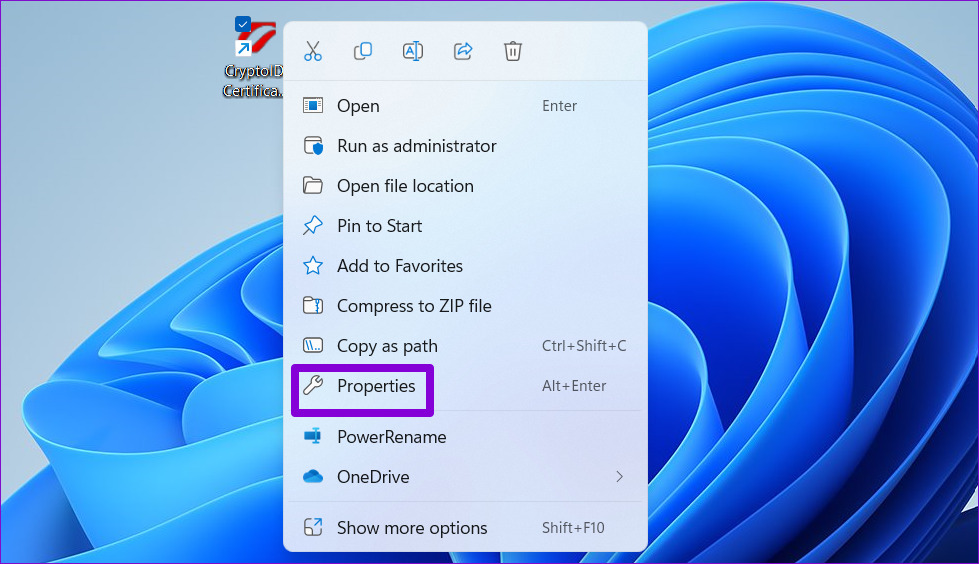
Step 2: Under the Compatibility tab, click Run compatibility troubleshooter.

Step 3: Select Try recommended settings.

Step 4: Click on Test the program to launch your app in compatibility mode.

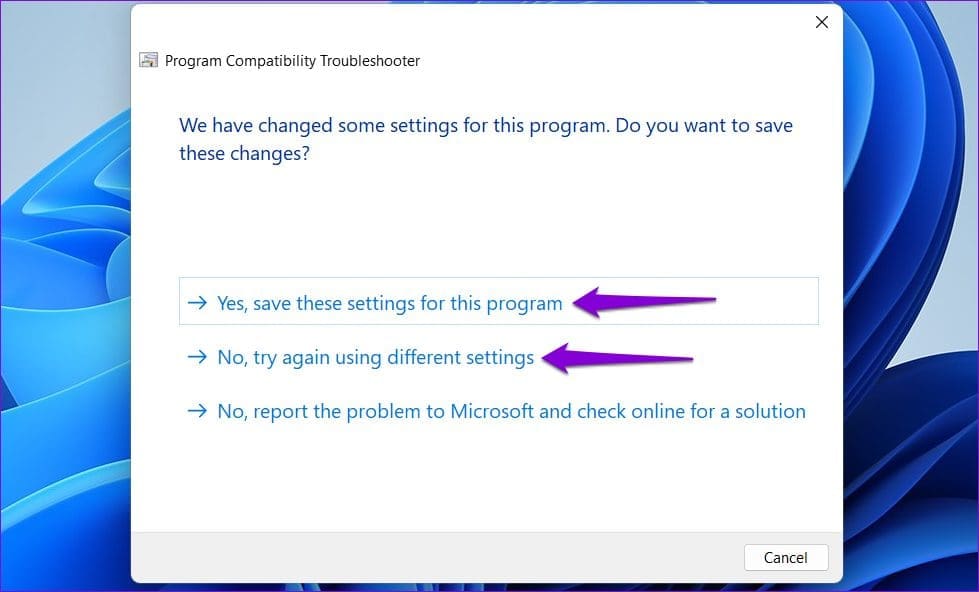
Step 5: If your app opens and works as expected, click Yes, save these settings for this program. If not, click No, try again using different settings to run the troubleshooter again.
Fix 2: Enable Developer Mode
Enabling Developer Mode in Windows 11 allows you to sideload and run apps from almost any source. You can try enabling this option to see if that gets your app to work.
Step 1: Press the Windows key + I to open the Settings app and navigate to Privacy & security > For developers.

Step 2: Enable the toggle next to Developer Mode.

Fix 3: Scan for Corrupt System Files
Another possible cause of this error is corrupt system files. In that case, you’ll have to run the SFC (System File Check) and DISM (Deployment Image Servicing and Management) scans on your computer to detect and repair any damaged system files.
Step 1: Right-click on the Start icon and select Terminal (Admin) from the list.
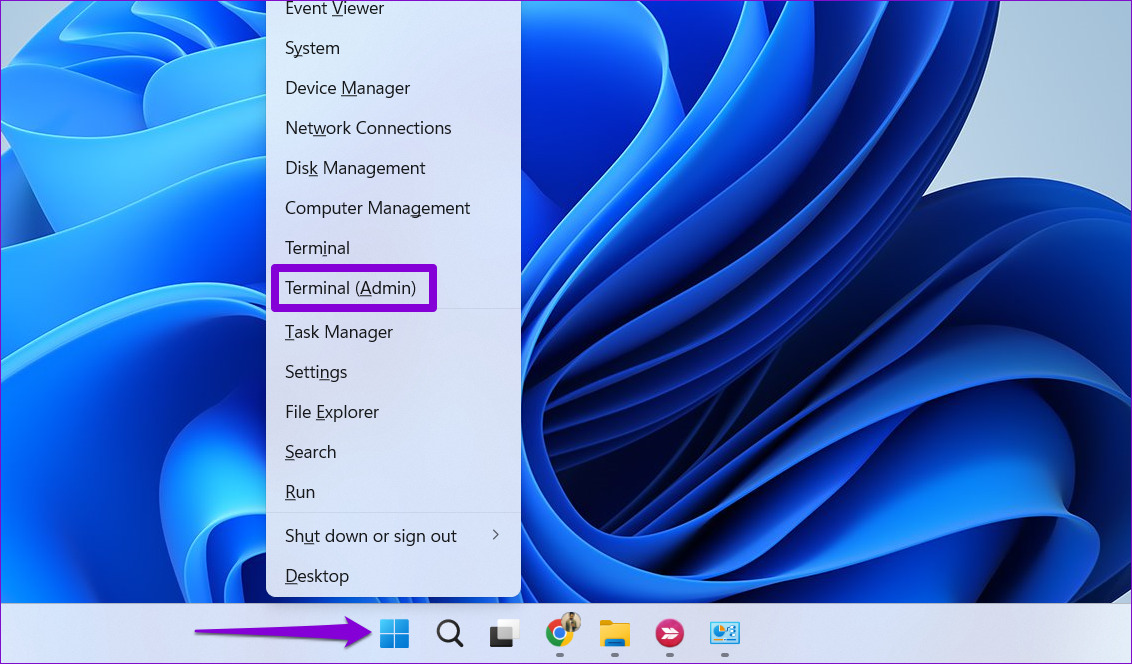
Step 2: Type the following command in the console and press Enter.
SFC /scannow

Step 3: After the SFC scan is complete, run the following commands one by one, and press Enter after each command:
DISM /Online /Cleanup-Image /CheckHealth
DISM /Online /Cleanup-Image /ScanHealth
DISM /Online /Cleanup-Image /RestoreHealth
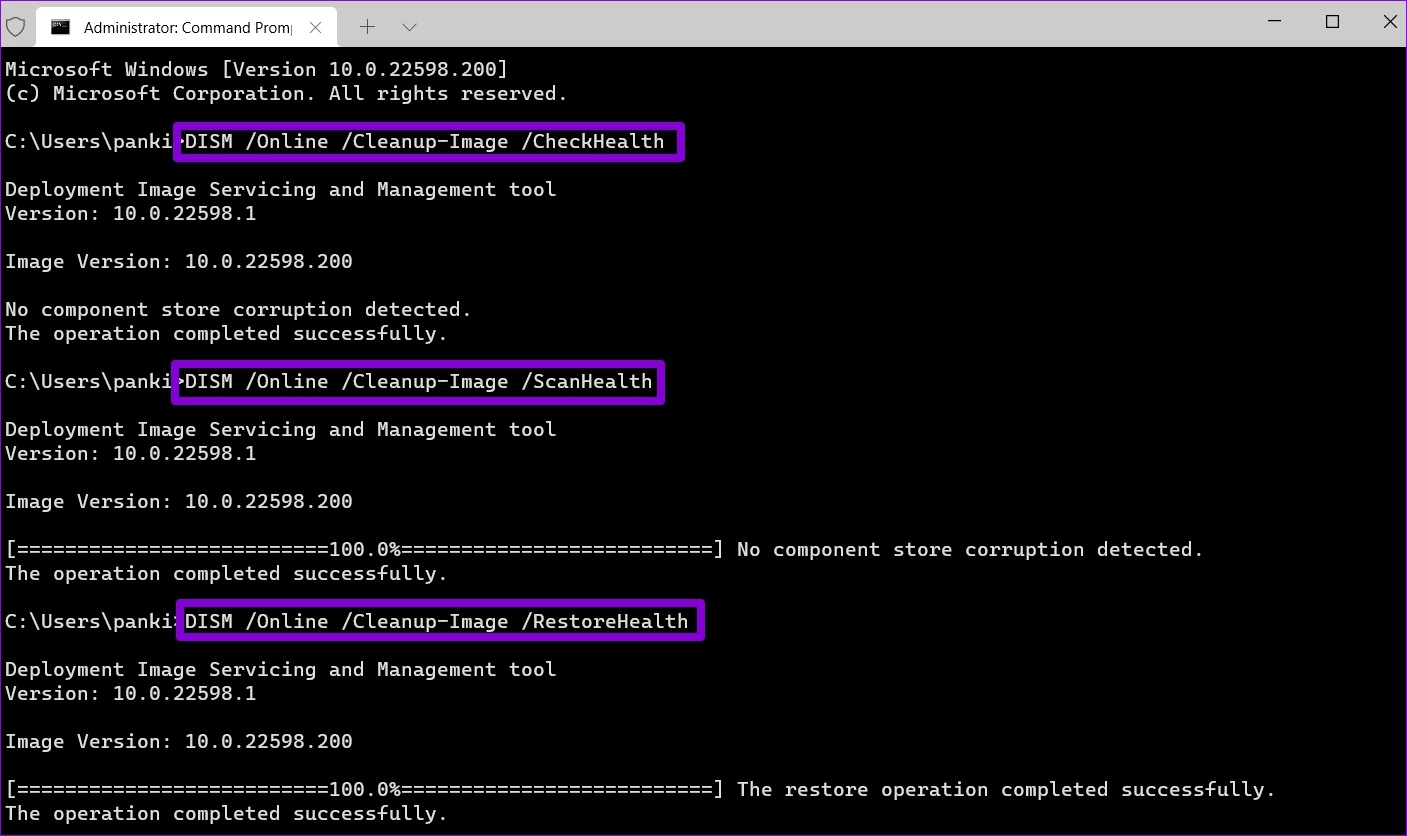
Wait for the DISM scan to complete and then restart your PC. After that, try to open your apps again.
Fix 4: Try Clean Boot
When you run Windows in a clean boot state, it only loads essential services and programs. This can help you determine if a third-party program or service is interfering with Windows and preventing it from launching apps.
Step 1: Press the Windows key + R to open the Run dialog box, type msconfig in the Open field, and press Enter.
Step 2: Navigate to the Services tab and tick the box that reads Hide all Microsoft services box. Then, click the Disable all button.

Step 3: Switch to the Startup tab and click on Open Task Manager.
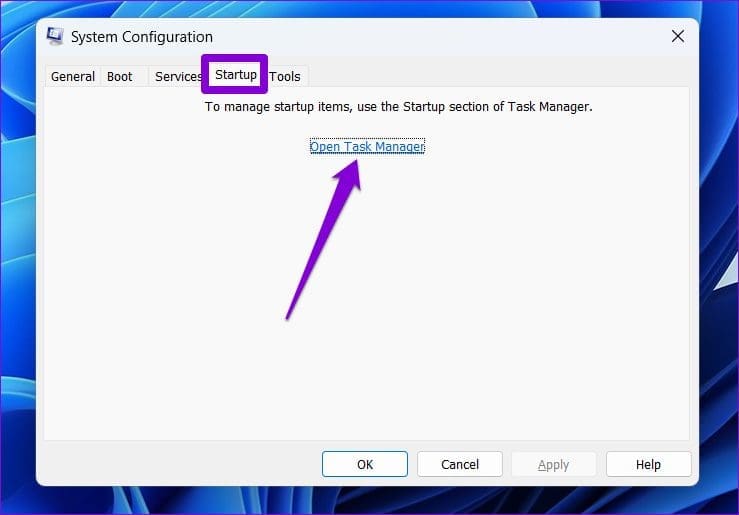
Step 4: Select a third-party app or program and click the Disable button. Repeat this step to disable all third-party apps and programs.

If your app loads normally during a clean boot, it is likely that one of your third-party apps or programs is causing the error. To fix it, you’ll need to remove any recently installed apps and programs individually.
Was this helpful?
Last updated on 10 July, 2024
3 Comments
Leave a Reply
Read Next
 Top 5 Ways to Fix a D3D11-Compatible GPU is Required to Run the Engine Error on Windows 11
Preliminary Fixes Update DirectX: Updating DirectX can resolve compatibility issues and errors related to the D3D11 GPU.
Top 5 Ways to Fix a D3D11-Compatible GPU is Required to Run the Engine Error on Windows 11
Preliminary Fixes Update DirectX: Updating DirectX can resolve compatibility issues and errors related to the D3D11 GPU.
 4 Fixes for Excel Has Run Into an Error Problem on Windows
Fix 1: Open Excel in Safe Mode Opening Excel in safe mode can help you determine whether one of your add-ins is interfering with Excel and causing it to malfunction.
4 Fixes for Excel Has Run Into an Error Problem on Windows
Fix 1: Open Excel in Safe Mode Opening Excel in safe mode can help you determine whether one of your add-ins is interfering with Excel and causing it to malfunction.
 Top 7 Fixes for We’ve Run Into an Issue Error in Microsoft Teams on Windows
Microsoft Teams is a popular business collaboration app among Windows users, and for good reason.
Top 7 Fixes for We’ve Run Into an Issue Error in Microsoft Teams on Windows
Microsoft Teams is a popular business collaboration app among Windows users, and for good reason.
 5 Fixes for “DLL Is Not Designed to Run on Windows” Error
Try Basic Fixes Update or reinstall the problematic software: Compatibility issues with your app or program can trigger the "DLL is not designed to run on Windows" error on your
5 Fixes for “DLL Is Not Designed to Run on Windows” Error
Try Basic Fixes Update or reinstall the problematic software: Compatibility issues with your app or program can trigger the "DLL is not designed to run on Windows" error on your
 6 Ways to Fix Unable to Run EXE Files on Windows 11
Fix 1: Scan for Malware Malware infections can often disrupt Windows operations and prevent EXE files from running on your PC.
6 Ways to Fix Unable to Run EXE Files on Windows 11
Fix 1: Scan for Malware Malware infections can often disrupt Windows operations and prevent EXE files from running on your PC.
 4 Ways to Run Apps at Startup on Windows 11
Method 1: Modify In-App Settings Probably the simplest way to run an app at startup is by tweaking its in-app settings.
4 Ways to Run Apps at Startup on Windows 11
Method 1: Modify In-App Settings Probably the simplest way to run an app at startup is by tweaking its in-app settings.
 6 Ways to Run PowerShell as Administrator in Windows 11
Method 1.
6 Ways to Run PowerShell as Administrator in Windows 11
Method 1.
 4 Ways to Run the Program Compatibility Troubleshooter on Windows 10 and 11
Method 1: Using the Settings App The Settings app has a dedicated Troubleshoot section that contains all types of troubleshooters. To run the Program Compatibility Troubleshooter, you must access the Settings
4 Ways to Run the Program Compatibility Troubleshooter on Windows 10 and 11
Method 1: Using the Settings App The Settings app has a dedicated Troubleshoot section that contains all types of troubleshooters. To run the Program Compatibility Troubleshooter, you must access the Settings
The article above may contain affiliate links which help support Guiding Tech. The content remains unbiased and authentic and will never affect our editorial integrity.

i install itune in my PC running window 11pro but unfortunately it do not works also i try 3uTools also do not work also uTorrent do not work also i don’t know what is problem either during installation or window
The screenshot on top of the article does not provide any details on which app is causing the problem, yet you wrote an entire article on how to resolve these errors, presuming you know which app is causing the problem. That’s wierd. So: rewrite it, but this time assume you have no clue which app is throwing the alert window…
When I open the game Vrally 4 I get the error “This application cannot run on your computer”. To install it it installed without any problems. But when i open it i get this error. And I tried all the solutions but the problem was not solved. This error appeared and appears only when I open the game Vrally 4. Otherwise, I had no problem with anything. Only with Vrally 4 game