Basic Fixes
- Restart your device: Long-press the physical power button or pair it with the volume up key to open the Power menu and select Restart.
- Delete widgets from your home screen: Long-tap a widget on your Android home screen and tap Remove. Repeat it to remove all home screen widgets.
- Free up device storage: Head to Android settings > Storage, and inspect the occupied device storage. Uninstall unnecessary apps to reclaim some free space.
- Update all installed apps: Open the Google Play Store and tap your profile icon at the top right > select Manage apps and device > tap Update all.
- Update system software: Open the Settings app > select System Update > tap Update (if available) to update your Android phone.
Fix 1: Manually Clear the System UI Cache
Corrupt system UI cache files are a common reason behind the dreaded ‘System UI has stopped’ error on Android. Clearing them manually from the Android settings app should fix it.
Step 1: Open the Settings app > select Apps > tap the three-dot menu at the top right > select Show system apps.


Step 2: Tap System UI > select Storage and cache > tap Clear cache.


Fix 2: Clear Launcher Cache
If the error persists after clearing the System UI cache, head to your phone’s launcher settings to clear its temporary cache files.
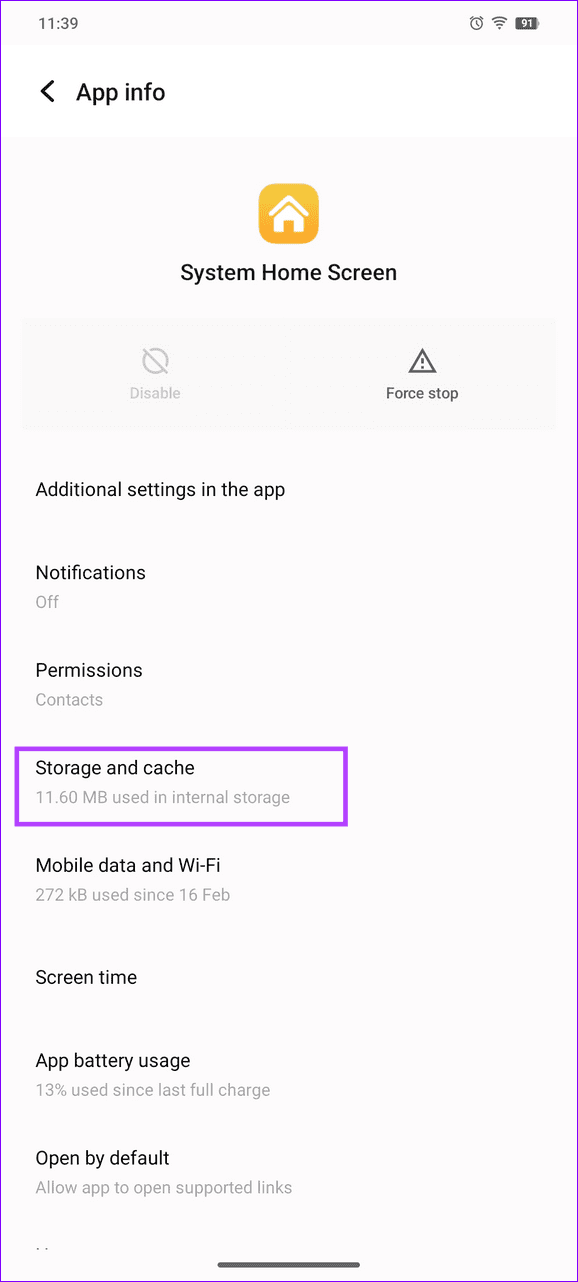
Step 1: Head to Android Settings > Apps, and tap the three-dot menu at the top right to view system apps.
Step 2: Tap the System Home Screen/System Launcher app, select Storage and cache, and tap Clear cache.
Note: The Launcher app name may differ on your Android phone. Google your phone’s brand name to know its default launcher app.


Fix 3: Switch to Default Theme
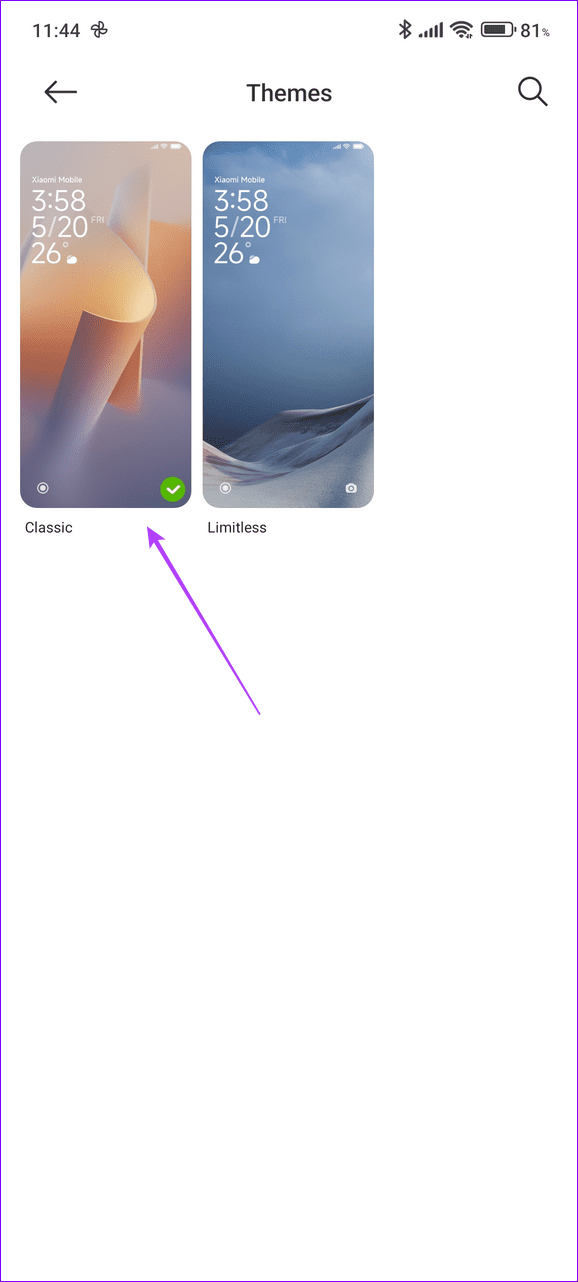
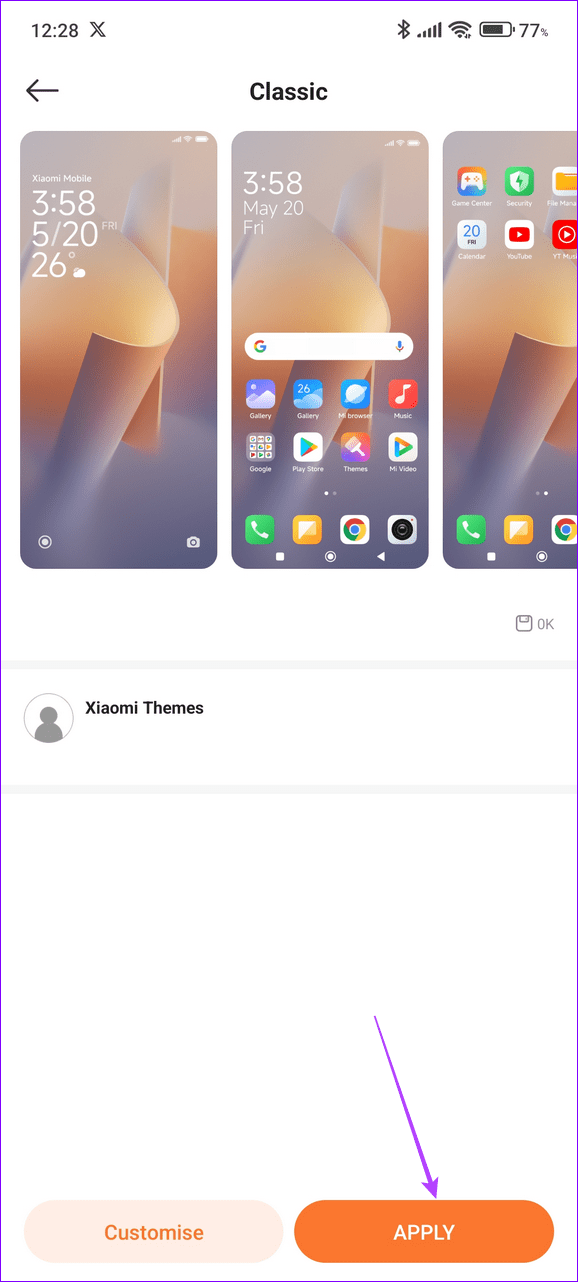
Applying a theme on your Android phone modifies the System UI to change its appearance. However, incompatible and buggy themes can mess it up creating the ‘System UI has stopped’ error. Switch to the default system theme to restore normalcy.
Step 1: Open the Settings app, select Themes, and expand the Themes tab.
Step 2: Choose the default system theme and tap Apply.

Fix 4: Uninstall Google Updates on Android
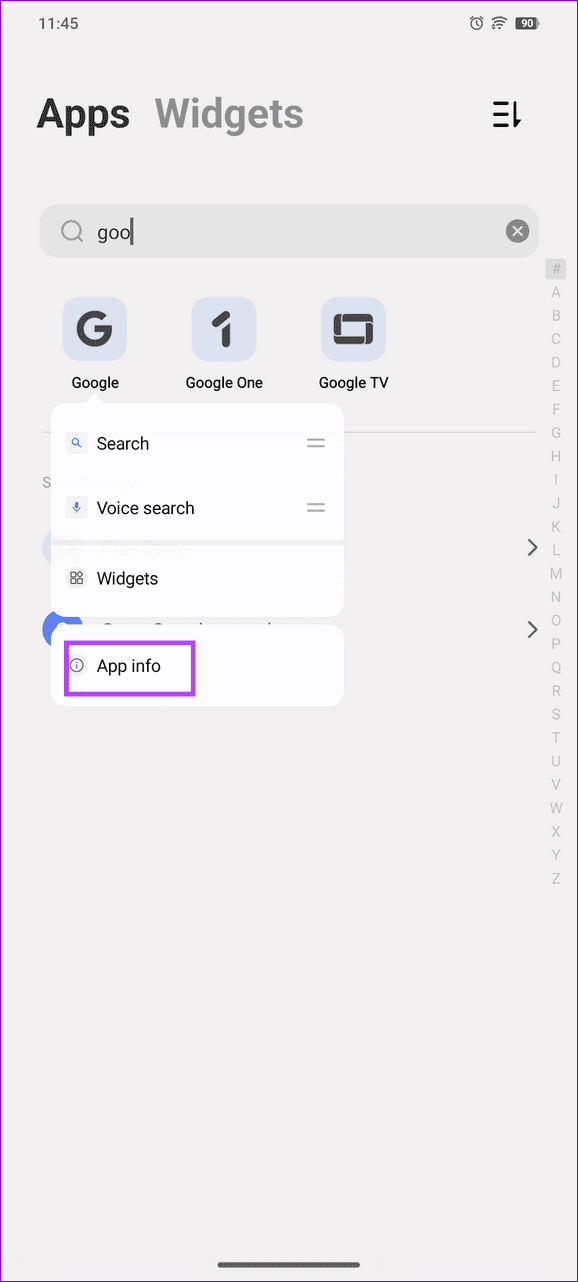
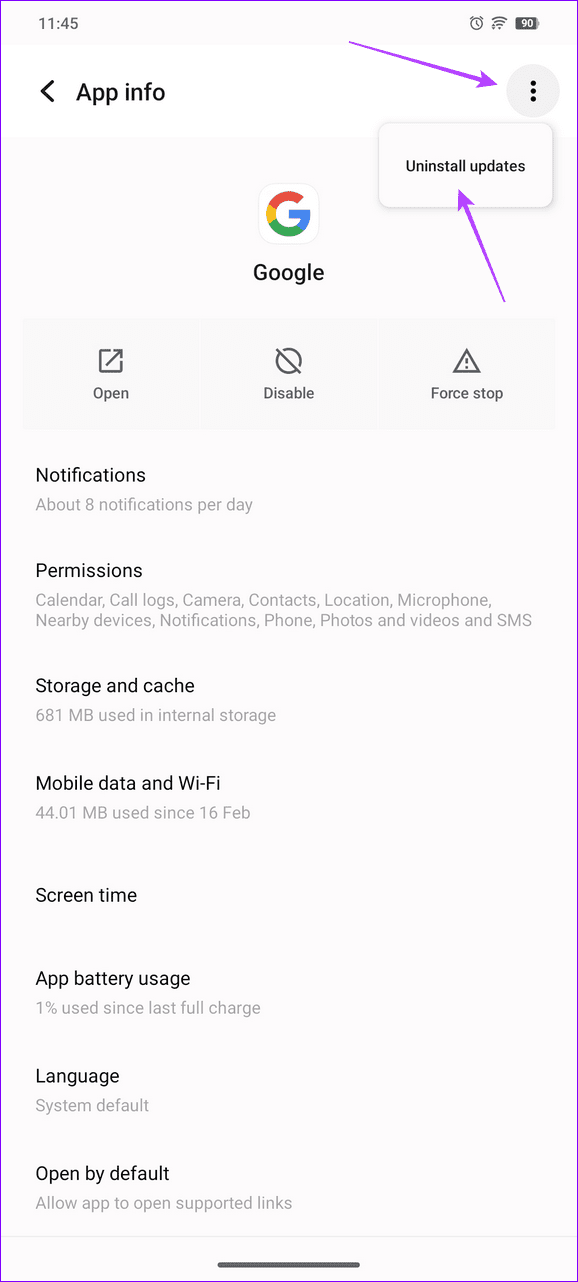
A buggy Google Update is another common culprit for Android System UI stopping abruptly. Access your device settings to uninstall it manually.
Step 1: Long-tap the Google icon in the app drawer and tap App info.
Step 2: Select the vertical three-dot menu at the top right and tap Uninstall updates.
Fix 5: Reset the App Preference
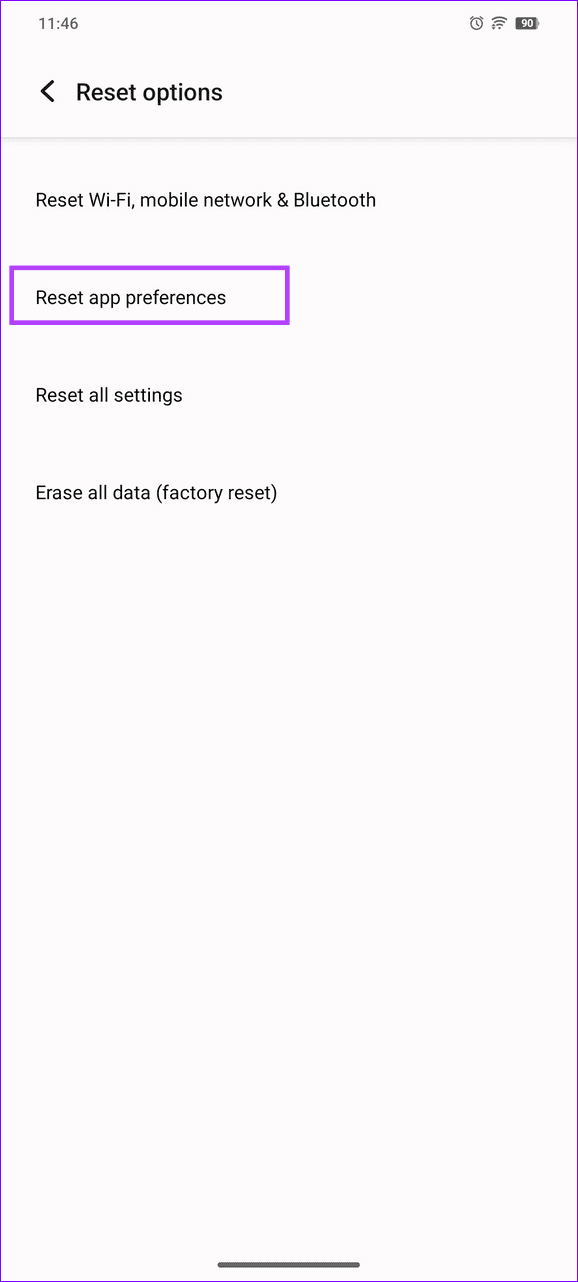
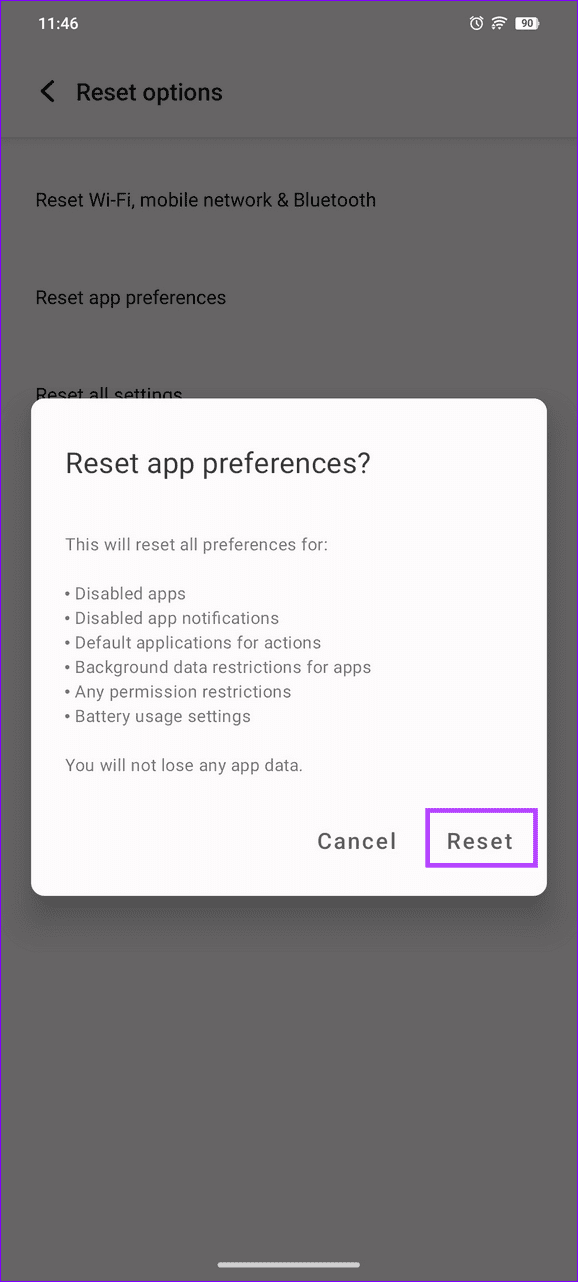
Incorrect app configuration on your Android phone can often result in System UI issues. Reset all app preferences on your device to resolve the error.
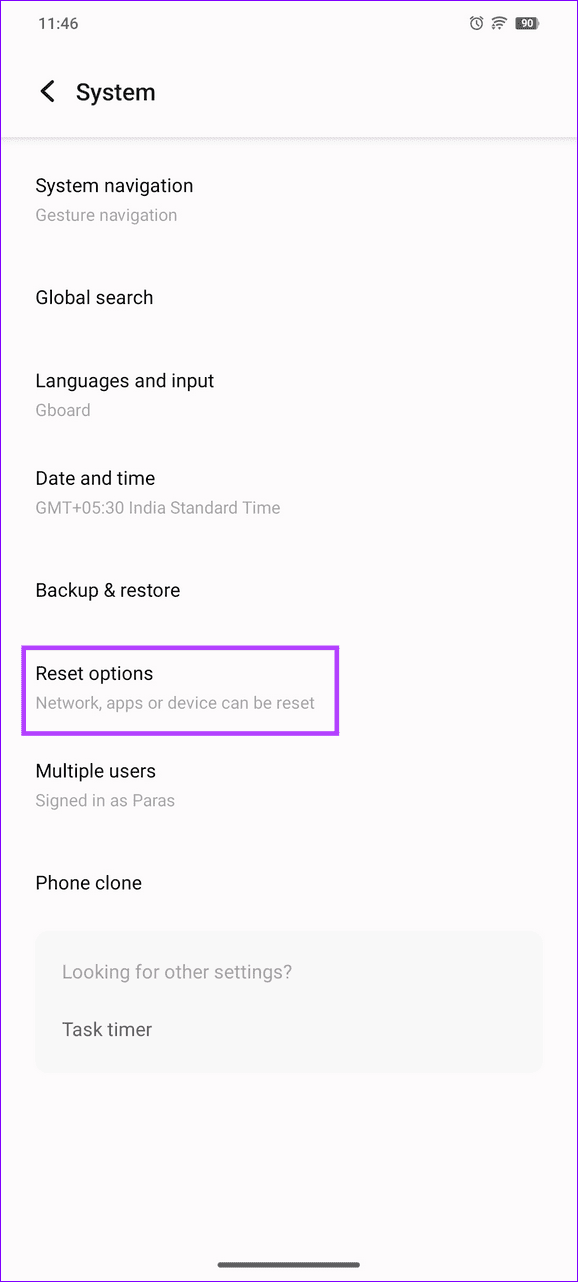
Step 1: Open the Settings app, select System, and tap Reset options.


Step 2: Tap Reset app preferences and select Reset when prompted to confirm the action.
Tip: Search Reset app preferences in the Settings app search bar to locate it quickly.
Fix 6: Factory Reset Your Android Phone
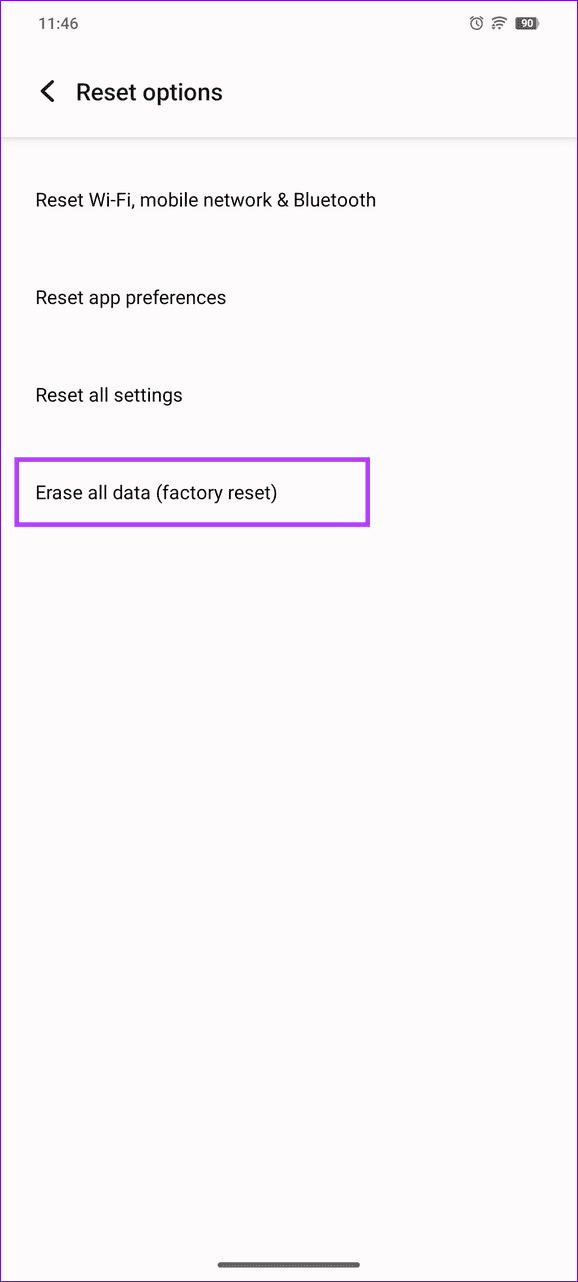
Lastly, if nothing works, reset your phone to factory defaults using the Factory Reset option nested in Android system settings.
Note: Back up your device data safely before performing a factory reset.
Step 1: Open System settings on your Android phone and select Reset options.
Step 2: Tap Erase all data (factory reset) and select Erase all data at the bottom right to flush all existing data and configure the device afresh.

Was this helpful?
Last updated on 12 July, 2024
Read Next
 6 Ways to Fix Google Play Store Has Stopped Error on Android
Common Fixes Restart the device: Long-press the physical Power button and select Restart in the power menu.
6 Ways to Fix Google Play Store Has Stopped Error on Android
Common Fixes Restart the device: Long-press the physical Power button and select Restart in the power menu.
 How to Fix “Unfortunately WhatsApp Has Stopped” Error on Android
Basic Fixes: Check for app updates: Regular updates help ensure your apps get the latest security updates and bug fixes.
How to Fix “Unfortunately WhatsApp Has Stopped” Error on Android
Basic Fixes: Check for app updates: Regular updates help ensure your apps get the latest security updates and bug fixes.
 Top 8 Ways to Fix Unfortunately Messenger Has Stopped Error on Android
Facebook Messenger app is an integral part of the millions of Facebook users.
Top 8 Ways to Fix Unfortunately Messenger Has Stopped Error on Android
Facebook Messenger app is an integral part of the millions of Facebook users.
 3 Ways to Fix the “Recording Stopped” Error in Snipping Tool for Windows 11
Try Basic Fixes Disable screen projection: The Snipping Tool may sometimes have trouble recording the screen if you are using multiple displays.
3 Ways to Fix the “Recording Stopped” Error in Snipping Tool for Windows 11
Try Basic Fixes Disable screen projection: The Snipping Tool may sometimes have trouble recording the screen if you are using multiple displays.
 4 Ways to Fix “Unfortunately, Settings Has Stopped” on Android
Basic Fixes Update Google Play Services: You install the latest version of Google Play Services on your Android phone and check if the problem is solved.
4 Ways to Fix “Unfortunately, Settings Has Stopped” on Android
Basic Fixes Update Google Play Services: You install the latest version of Google Play Services on your Android phone and check if the problem is solved.
 4 Fixes for Bad Module Info Has Stopped Working Error on Windows
Fix 1: Turn off Fullscreen Optimizations Full-screen optimizations in Windows can enhance the performance of your games and programs while they're in full-screen mode.
4 Fixes for Bad Module Info Has Stopped Working Error on Windows
Fix 1: Turn off Fullscreen Optimizations Full-screen optimizations in Windows can enhance the performance of your games and programs while they're in full-screen mode.
 How to Fix Instagram Insights Unavailable or Stopped Working
Basic Troubleshooting Clear Instagram cache: If Instagram collects a corrupt cache, it may fail to load the latest insights.
How to Fix Instagram Insights Unavailable or Stopped Working
Basic Troubleshooting Clear Instagram cache: If Instagram collects a corrupt cache, it may fail to load the latest insights.
 3 Methods to Know Who Stopped Following You on Instagram (With/Without App)
Do you ever wonder who quietly slips away from your Instagram circle?
3 Methods to Know Who Stopped Following You on Instagram (With/Without App)
Do you ever wonder who quietly slips away from your Instagram circle?
The article above may contain affiliate links which help support Guiding Tech. The content remains unbiased and authentic and will never affect our editorial integrity.