

Fix 1: Check the Default Audio Device and Volume Level
The first you need to check the default audio input device on your Windows computer and its volume level. Here’s how to do it.
Step 1: Right-click on the speaker icon on the taskbar and select Sound settings.
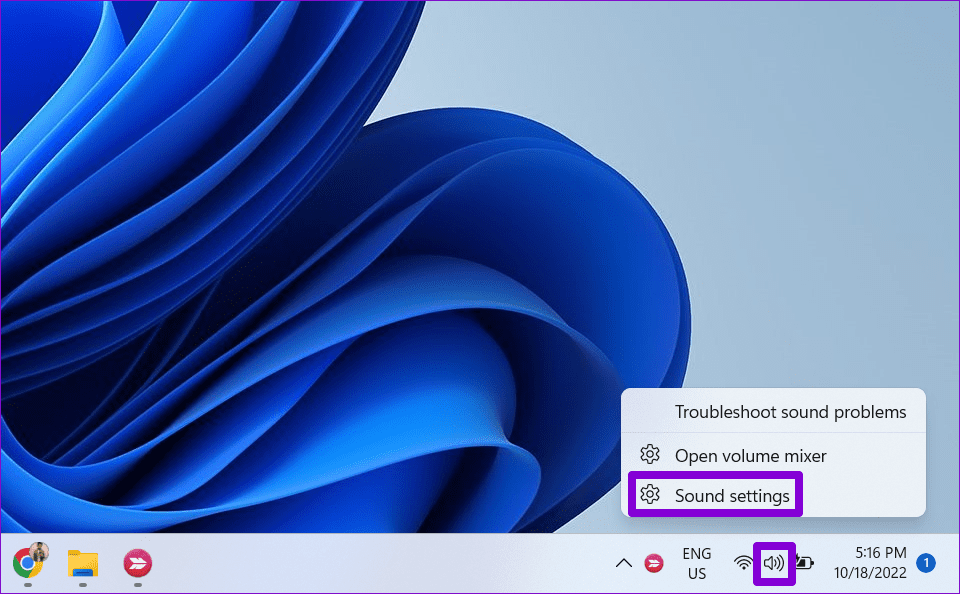
Step 2: Under Input, select the correct audio device. Then, use the slider next to Volume to increase the volume level.

Fix 2: Check Voice Settings in Steam
Next, you need to check the voice settings in Steam and make sure you have configured them correctly. Here are the steps for the same.
Step 1: Open the Steam app on your PC. Click the Steam menu at the top-left corner and select Settings.
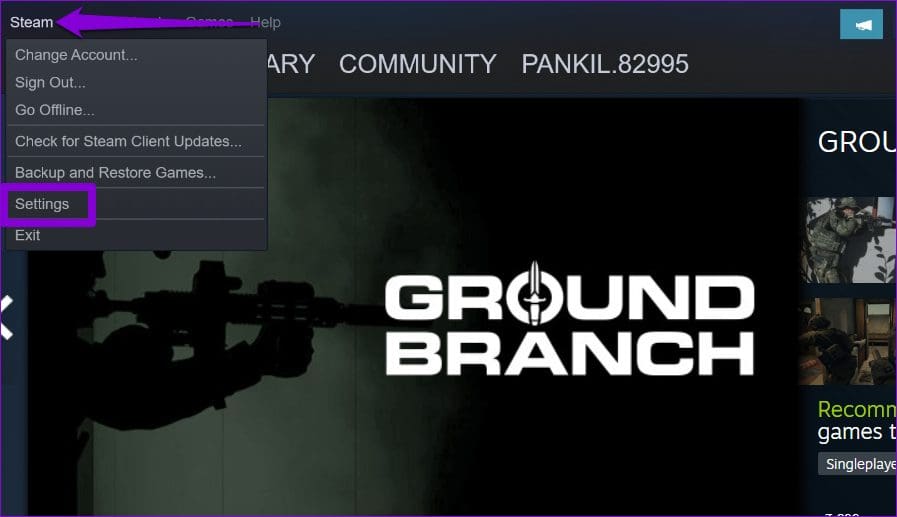
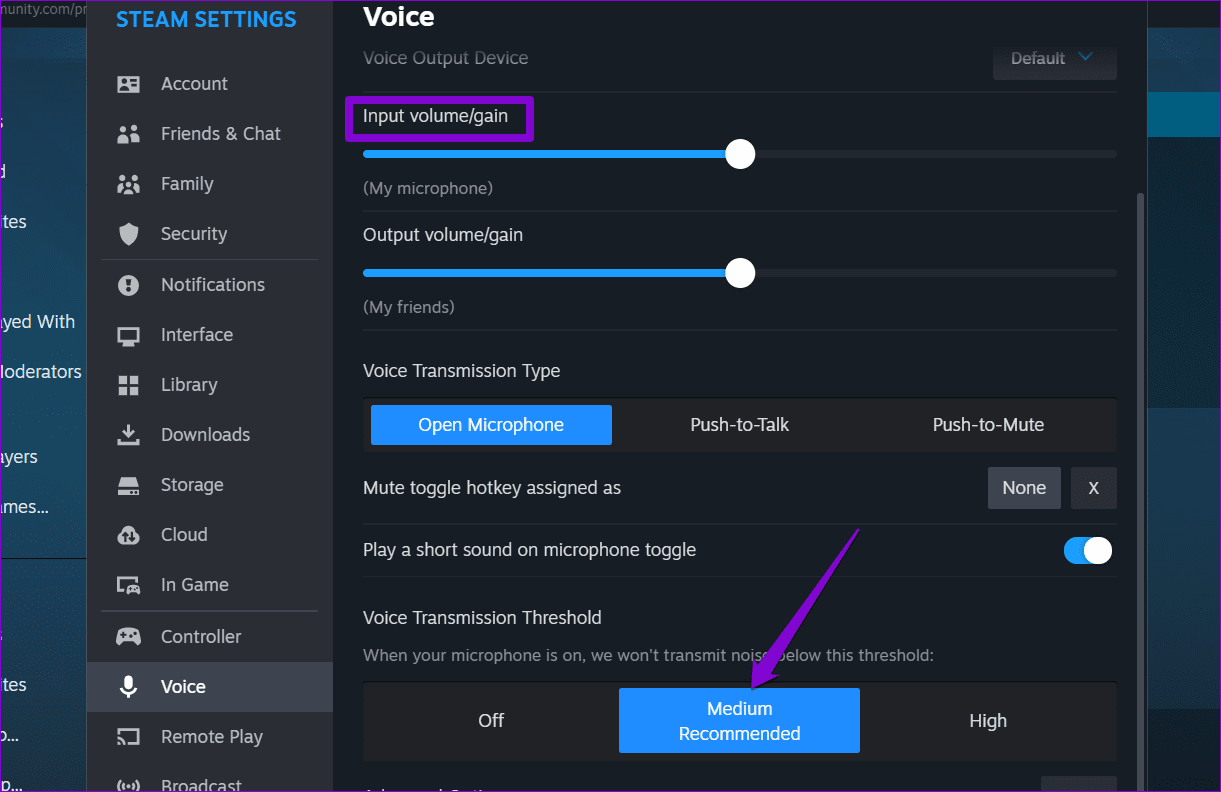
Step 2: In the Steam Settings window, switch to the Voice tab. Then, select Default in the Voice Input Device drop-down menu.

Step 3: Move the slider under Input volume/gain to your right and select Medium under Voice Transmission Threshold.
Fix 3: Sign Out of Steam on Other Devices
Steam voice chat may not connect on your PC if your Steam account is active on another device. You need to log out of Steam on your other devices to avoid any potential conflicts.
To log out of Steam on all the devices at once, use these steps:
Step 1: Open the Steam app on your PC. Click the Steam menu in the top left corner and select Settings.
Step 2: In the Security tab, click the Manage Steam Guard button.

Step 3: Click the Deauthorize all devices option.

Sign back into the Steam app on your PC. Following this, Steam voice chat should work as expected.
Fix 4: Repair the Steam Client Service
Issues with the Steam Client Service can also cause the voice chat to keep closing or become unresponsive. If that’s the case, repairing the Steam Client Service should help.
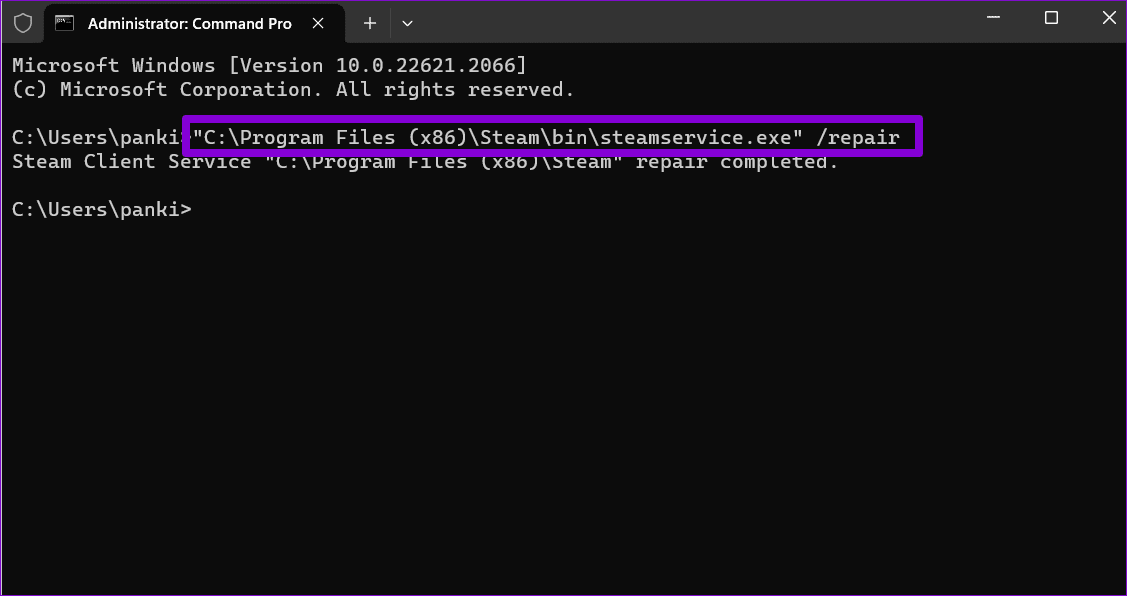
Step 1: Right-click on the Start icon and select Terminal (Admin) from the list.

Step 2: Paste the following command in the console and press Enter.
"C:\Program Files (x86)\Steam\bin\steamservice.exe" /repair
Fix 5: Allow Steam to Run Through Windows Firewall
You are likely to encounter such connection issues in Steam if the app isn’t allowed to run through the Windows firewall. Here’s how you can change that.
Step 1: Press the Windows + S keyboard shortcut to open the search menu, type in allow an app through Windows Firewall and press Enter.

Step 2: Click the Change settings button.
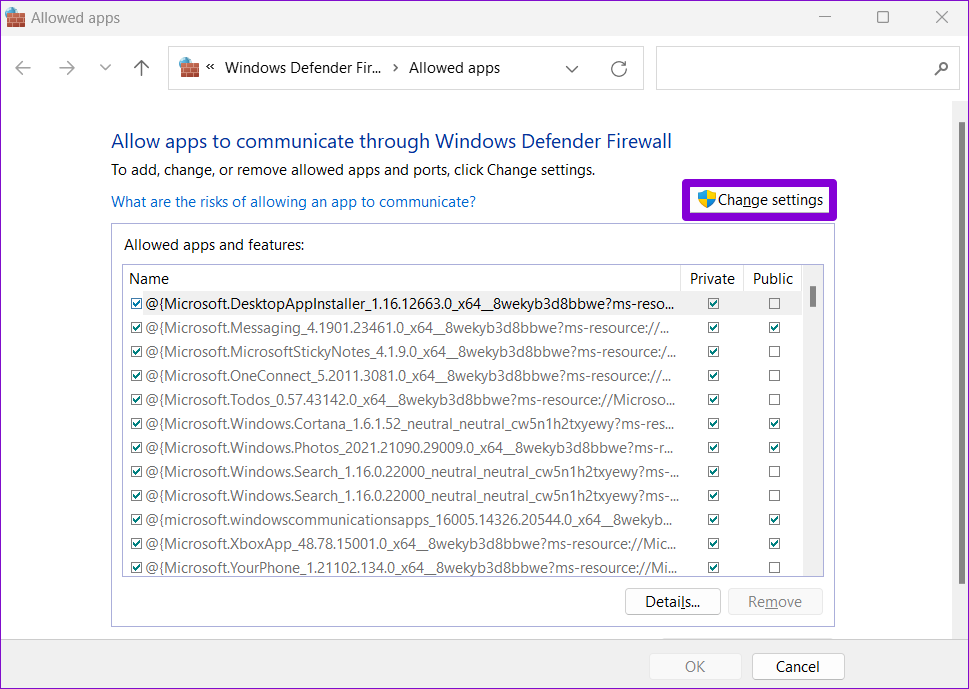
Step 3: Scroll down to locate Steam on the list and tick the Public and Private checkboxes next to it. Then, click OK.

After updating the firewall settings, restart the Steam app and try using voice chat again.
Fix 6: Reset Steam Configuration Settings
If all else fails, you can reset Steam’s configuration settings as a last resort. That will restore Steam’s settings to their default values, resolving any issues.
Step 1: Click the Show hidden icons arrow on the taskbar. Right-click on the Steam icon and select Exit Steam.

Step 2: Press the Windows + R keyboard shortcut to open the Run dialog box.
Step 3: Type steam://flushconfig in the box and press Enter. Then, click OK to confirm.
Was this helpful?
Last updated on 29 July, 2024
Read Next
 How to Fix Valorant Voice Chat or Mic Not Working on Windows
Voice communication is important in multiplayer games like Valorant, enable you to effectively communicate and strategize your next move.
How to Fix Valorant Voice Chat or Mic Not Working on Windows
Voice communication is important in multiplayer games like Valorant, enable you to effectively communicate and strategize your next move.
 Top 4 Ways to Fix Google Docs Voice Typing Not Working
Voice Typing is one of the many hidden features of Google Docs that people are yet to use regularly.
Top 4 Ways to Fix Google Docs Voice Typing Not Working
Voice Typing is one of the many hidden features of Google Docs that people are yet to use regularly.
 6 Fixes for Roblox Chat Not Working on Windows
Fix 1: Modify Roblox Privacy Settings to Unblock Messages A common reason why the chat option may not show up or work in Roblox is if you have previously turned
6 Fixes for Roblox Chat Not Working on Windows
Fix 1: Modify Roblox Privacy Settings to Unblock Messages A common reason why the chat option may not show up or work in Roblox is if you have previously turned
 4 Ways to Fix Steam Family Sharing Not Working on Windows 11
Steam Family Sharing Limitations Steam Family Sharing may not work on your Windows 11 PC due to one of the following limitations: Family Sharing not enabled: Ensure that the Family
4 Ways to Fix Steam Family Sharing Not Working on Windows 11
Steam Family Sharing Limitations Steam Family Sharing may not work on your Windows 11 PC due to one of the following limitations: Family Sharing not enabled: Ensure that the Family
 4 Ways to Fix WhatsApp Voice Messages Not Working
Try These Basic Fixes First Check the phone's volume: If you can't hear a voice message, check whether the speaker volume is high enough.
4 Ways to Fix WhatsApp Voice Messages Not Working
Try These Basic Fixes First Check the phone's volume: If you can't hear a voice message, check whether the speaker volume is high enough.
 4 Ways to Fix Facebook Messenger Voice Messages Not Working
Try Basic Fixes Check the volume level on phone: If the volume level on your phone is too low, you may have trouble hearing your Messenger voice messages.
4 Ways to Fix Facebook Messenger Voice Messages Not Working
Try Basic Fixes Check the volume level on phone: If the volume level on your phone is too low, you may have trouble hearing your Messenger voice messages.
 5 Ways to Fix Snapchat Voice Notes Not Working
Fix 1: Check App Permissions Snapchat requires access to your phone's microphone to record Voice Notes.
5 Ways to Fix Snapchat Voice Notes Not Working
Fix 1: Check App Permissions Snapchat requires access to your phone's microphone to record Voice Notes.
 5 Ways to Fix Voice-to-Text Not Working on Android
Basic Fixes Enable system-wide microphone access - Go to Settings > Security and Privacy > enable Microphone access.
5 Ways to Fix Voice-to-Text Not Working on Android
Basic Fixes Enable system-wide microphone access - Go to Settings > Security and Privacy > enable Microphone access.
The article above may contain affiliate links which help support Guiding Tech. The content remains unbiased and authentic and will never affect our editorial integrity.

