Preliminary Fixes
- Restart Steam with administrator privileges: Steamwebhelper.exe manages all the web features inside the Steam client. Before trying out advanced fixes, restart Steam with administrator privileges to fix permission issues with Steam and its sub-processes.
- Delete web browser data: Corrupt web browser data in Steam can cause this error. So, delete web browser data stored in the app. To do so, launch Steam > navigate to Settings > choose In Game > click Delete Web Browser Data.
- Disable hardware-accelerated GPU scheduling: Hardware-accelerated GPU scheduling allows your CPU to offload tasks to the GPU. However, it is known to cause issues with the steamwebhelper, so you must disable it. To do so, go to Windows Display Settings > Graphics > toggle off Hardware-accelerated GPU scheduling.
- Reset Steam without losing your games: To force Steam to recreate all files and update to the latest version, go to the Steam folder > de-select steam.exe and the Steam apps folder > delete all other files and folders > launch the Steam app.
Fix 1: Delete steamwebhelper.exe to Re-Download It
Step 1: Press the Windows key + E keyboard shortcut to open File Explorer.
Step 2: Click on the address bar, paste the following path, and press Enter:
C:\Program Files (x86)\Steam\bin\cef\cef.win7x64
Step 3: Find the steamwebhelper.exe file and click on it. Press Delete to remove the file.

Step 4: Close the File Explorer.
Step 5: Press the Windows key, type steam in the search box, and press Enter.
Steam will identify that the steamwebhelper.exe file is missing and will re-download it the next time you launch the Steam app.
Fix 2: Whitelist Steamwebhelper.exe in Antivirus Software
Overprotective antivirus programs can block Steam or its associated programs from running on your PC. Here’s how to whitelist steamwebhelper.exe in Windows Defender.
Step 1: Press the Windows key, type virus & threat protection, and press Enter to open Windows Security.
Step 2: Scroll down to the Virus & threat protection history section. Click on Manage settings.

Step 3: Scroll to the Exclusions section and click on Add or remove exclusions.
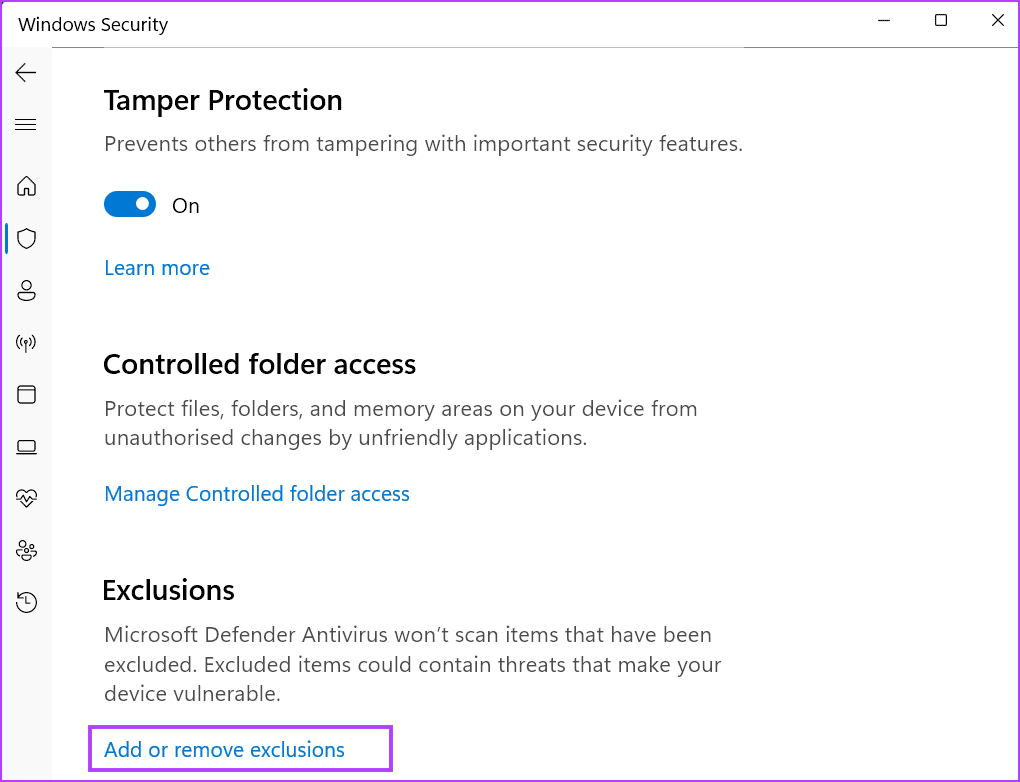
Step 4: When the User Account Control window appears, click on Yes.
Step 5: Click on Add an exclusion > select File.

Step 6: Browse the Steam installation folder and double-click on the steamwebhelper.exe file to select it.

That’s it. You will see that the list now includes the steamwebhelper.exe file.
If adding the steamwebhelper.exe file to a whitelist does not work, try adding the entire Steam folder to the whitelist.
Fix 3: Run Steam Executable With Modified Permissions
Many users faced the steamwebhelper.exe crashing issue with the newer version of the Steam client. You must launch the steam.exe file with modified permissions to fix the issue. Here’s how:
Step 1: Press the Windows key, type steam, and click on Open file location.
Step 2: Right-click on Steam > Properties.

Step 3: Navigate and click on the target field. Press the Spacebar key once and type -vgui in it.

Step 4: Click on Apply > OK.
This should fix the critical Steam component not responding error. Launch Steam and check if the error message appears.
Fix 4: Disable Browser Sandboxing in Steam
Step 1: Press the Windows key, type cmd, and press Enter to open the Terminal app.
Step 2: Type the following command and press Enter to execute it:
"C:\Program Files (x86)\Steam\Steam.exe" –no-cef-sandbox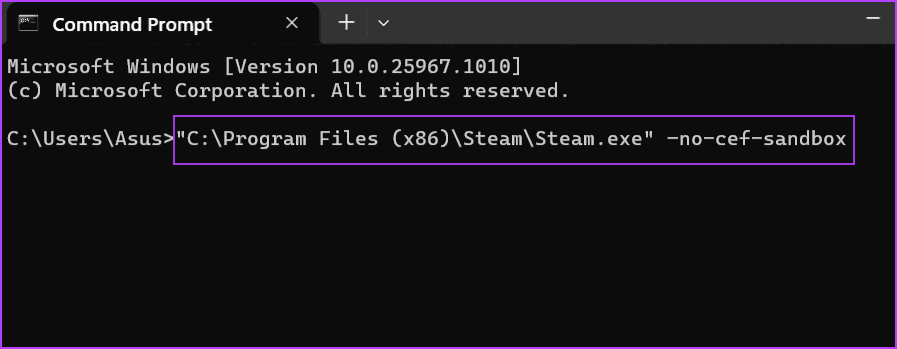
Step 3: Steam will launch without browser sandboxing. Close the Terminal app window.
This should fix the steamwebhelper not responding error. If the issue persists, we recommend contacting Steam Support.
Was this helpful?
Last updated on 20 August, 2024
Read Next
 3 Ways to Fix Microsoft Word Not Responding on Windows 11/10
Preliminary Fixes Relaunch Microsoft Word app: Relaunching the Microsoft Word app can clear temporary glitches or corrupted processes, effectively reset the session, potentially resolve minor software conflicts, and refresh the
3 Ways to Fix Microsoft Word Not Responding on Windows 11/10
Preliminary Fixes Relaunch Microsoft Word app: Relaunching the Microsoft Word app can clear temporary glitches or corrupted processes, effectively reset the session, potentially resolve minor software conflicts, and refresh the
 5 Ways to Fix Windows Explorer Not Responding
Basic Fixes Restart PC: Restart your PC to fix temporary bugs and glitches.
5 Ways to Fix Windows Explorer Not Responding
Basic Fixes Restart PC: Restart your PC to fix temporary bugs and glitches.
 4 Ways to Fix Microsoft Excel Not Responding on Windows 11
Fix 1: Open Microsoft Excel in Safe Mode and Disable Add-Ins You can open Excel in Safe Mode to run the app without add-ins.
4 Ways to Fix Microsoft Excel Not Responding on Windows 11
Fix 1: Open Microsoft Excel in Safe Mode and Disable Add-Ins You can open Excel in Safe Mode to run the app without add-ins.
 3 Ways to Fix Microsoft Access Not Responding on Windows 11
Basic Fixes: Update Windows 11 and Microsoft Office: You should run a Windows update to ensure that an outdated computer is not the problem.
3 Ways to Fix Microsoft Access Not Responding on Windows 11
Basic Fixes: Update Windows 11 and Microsoft Office: You should run a Windows update to ensure that an outdated computer is not the problem.
 Top 6 Ways to Fix Microsoft PowerPoint Not Responding on Windows 11
Microsoft PowerPoint is a popular application for creating visually appealing slideshows business meetings, educational presentations, or conferences.
Top 6 Ways to Fix Microsoft PowerPoint Not Responding on Windows 11
Microsoft PowerPoint is a popular application for creating visually appealing slideshows business meetings, educational presentations, or conferences.
 5 Ways to Fix Firefox Not Responding on Windows 10 and Windows 11
Fix 1: Force Close Firefox Processes Sometimes, Firefox processes may become unresponsive on your PC due to temporary issues.
5 Ways to Fix Firefox Not Responding on Windows 10 and Windows 11
Fix 1: Force Close Firefox Processes Sometimes, Firefox processes may become unresponsive on your PC due to temporary issues.
 5 Ways to Fix Word Not Responding When Printing
Basic Fixes Restart MS Word: If Word is not printing a document or takes forever to do so, try restarting the app.
5 Ways to Fix Word Not Responding When Printing
Basic Fixes Restart MS Word: If Word is not printing a document or takes forever to do so, try restarting the app.
 How to Fix Microsoft Edge Not Responding When Printing
Basic Fixes Disable Edge Extensions: Click the three-dot menu at the top right of Microsoft Edge and select Extensions > Manage extensions.
How to Fix Microsoft Edge Not Responding When Printing
Basic Fixes Disable Edge Extensions: Click the three-dot menu at the top right of Microsoft Edge and select Extensions > Manage extensions.
The article above may contain affiliate links which help support Guiding Tech. The content remains unbiased and authentic and will never affect our editorial integrity.