Try Basic Fixes
- Relaunch Spotify.
- Ensure you have a stable internet connection.
Method 1. Enable or Disable Hardware Acceleration in Spotify
Another thing to try is to turn hardware acceleration for Spotify on or off. Hardware acceleration transfers some computing tasks to specialized hardware to improve the overall performance.
Step 1: First, open Spotify and go to Settings.
Step 2: Scroll down to Compatibility and enable or disable hardware acceleration based on existing settings.

Step 3: After that, try playing a song and see if it’s working for you.
Method 2. Clear Spotify’s Local File Cache
Next, try clearing up Spotify’s local file cache. This will help remove corrupted or outdated files that can lead to various Spotify issues.
Step 1: Go to Spotify Settings > scroll down and look for Cache.

Step 2: Click on Clear cache, then close and reopen Spotify to see if it works.
Method 3. Reinstall Spotify
You should also try reinstalling Spotify so it will get fixed if any corrupted files are causing the issue. To do so, follow these steps:
Step 1: Press Windows Key + I to launch Settings.
Step 2: Go to Apps > Installed Apps.
Step 3: Search for Spotify > click the three dots icon > select Uninstall.

Step 4: Once uninstalled, go to the Microsoft Store > search for Spotify > click the Install button.

The same section also lets you reset or repair the Spotify app, which can help fix any temporary issue.
Method 4. Launch the Spotify App Using the Web Browser
Opening Spotify in a web browser can detect and prompt you to launch the desktop version. In situations like these, where Spotify is not opening the usual way, this can help. If you do not have the app, it will prompt you to install it; otherwise, it will prompt you to open it.
Step 1: Go to Spotify Web and sign in using your account. It will prompt with an Install app pop-up.

Step 2: Click the Install app button > Install in the URL bar to save the Spotify installer on your desktop.
Step 3: Run the installer to install the app on your PC. Check if the issue is fixed.
FAQs
Windows might block Spotify due to firewall or security settings. You must check your Windows Defender or third-party antivirus program settings to see if it’s blocking Spotify. Also, ensure that Spotify is whitelisted.
There are multiple reasons why Spotify might not be able to play a song. Maybe the content is unavailable in your region or for your account tier, or the internet connection is not stable enough. If the Spotify Blend is not working, read the guide.
Was this helpful?
Last updated on 23 August, 2024
Read Next
 4 Ways to Fix Spotify App Not Working On Android TV
Basic Fixes Force quit and relaunch Spotify: Long-press the Spotify App Icon under Apps > Info > Force Stop and then relaunch the app.
4 Ways to Fix Spotify App Not Working On Android TV
Basic Fixes Force quit and relaunch Spotify: Long-press the Spotify App Icon under Apps > Info > Force Stop and then relaunch the app.
 3 Ways to Fix Spotify Sleep Timer Missing or Not Working
Basic Fixes Check Spotify server status: If Spotify is currently facing issues in the backend, it might cause issues with the app.
3 Ways to Fix Spotify Sleep Timer Missing or Not Working
Basic Fixes Check Spotify server status: If Spotify is currently facing issues in the backend, it might cause issues with the app.
 4 Ways to Fix Spotify Jam Not Working Issue
https://youtu.be/VlNJzz-q-Gs Basic Fixes: Check for Spotify app updates: Since Spotify Jam is a recent addition, the Spotify mobile app needs to be updated to use it.
4 Ways to Fix Spotify Jam Not Working Issue
https://youtu.be/VlNJzz-q-Gs Basic Fixes: Check for Spotify app updates: Since Spotify Jam is a recent addition, the Spotify mobile app needs to be updated to use it.
 4 Ways to Fix Spotify Canvas Not Working on Android and iPhone
https://youtu.be/ptmKAurfoyQ Try Basic Fixes Check if Canvas is available in your region: Spotify’s Canvas feature is not available in every region.
4 Ways to Fix Spotify Canvas Not Working on Android and iPhone
https://youtu.be/ptmKAurfoyQ Try Basic Fixes Check if Canvas is available in your region: Spotify’s Canvas feature is not available in every region.
 3 Ways to Fix Spotify Not Working on Apple Watch
Basic Fixes Ensure Apple Watch is connected: Make sure your Apple Watch is connected to your iPhone with an active internet connection.
3 Ways to Fix Spotify Not Working on Apple Watch
Basic Fixes Ensure Apple Watch is connected: Make sure your Apple Watch is connected to your iPhone with an active internet connection.
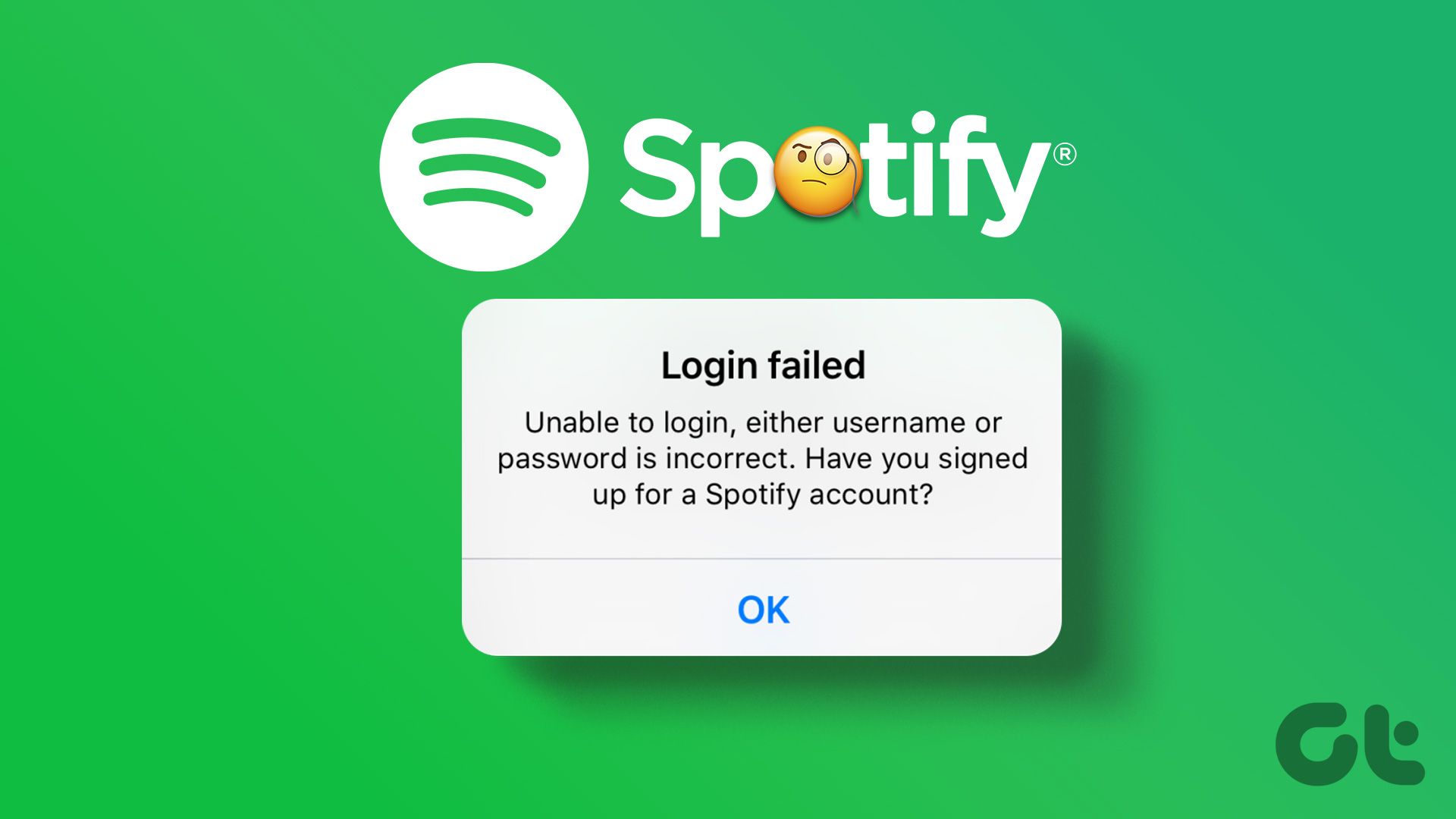 3 Ways to Fix Unable to Log In to Spotify on Android and iPhone
Try Basic Fixes Update the app: The Spotify app on your phone may be outdated or buggy.
3 Ways to Fix Unable to Log In to Spotify on Android and iPhone
Try Basic Fixes Update the app: The Spotify app on your phone may be outdated or buggy.
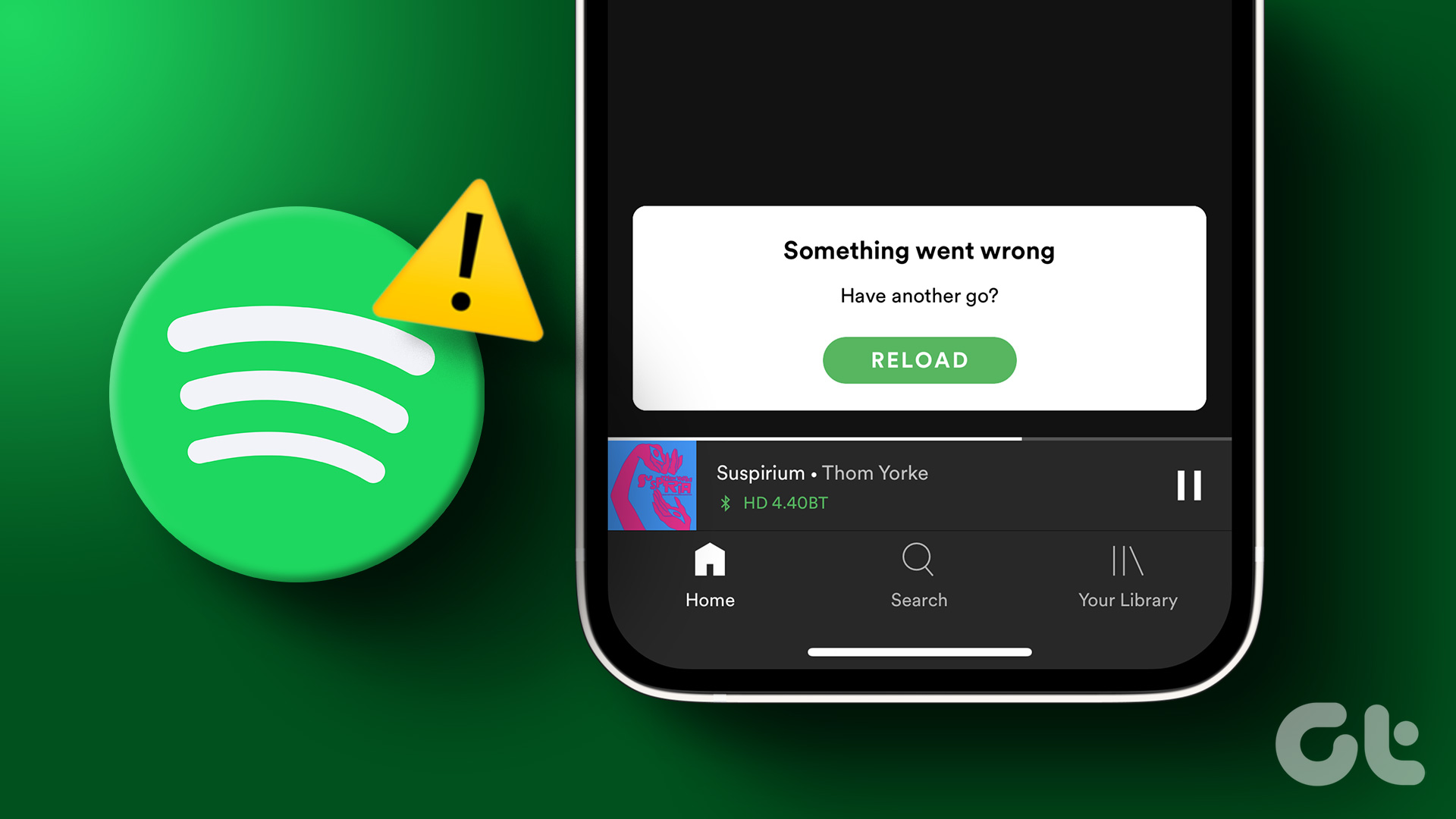 3 Ways to Fix Something Went Wrong Error in Spotify for Android and iPhone
Try Basic Fixes Update the app: Using an outdated version of the Spotify app can also trigger the "Something went wrong" error.
3 Ways to Fix Something Went Wrong Error in Spotify for Android and iPhone
Try Basic Fixes Update the app: Using an outdated version of the Spotify app can also trigger the "Something went wrong" error.
 3 Ways to Fix Lyrics Not Showing on Spotify for Android and iPhone
Basic Fixes Try playing another song: Spotify does not have lyrics for every track in its library.
3 Ways to Fix Lyrics Not Showing on Spotify for Android and iPhone
Basic Fixes Try playing another song: Spotify does not have lyrics for every track in its library.
The article above may contain affiliate links which help support Guiding Tech. The content remains unbiased and authentic and will never affect our editorial integrity.