Basic Fixes
- Ensure Apple Watch is connected: Make sure your Apple Watch is connected to your iPhone with an active internet connection.
- Update Spotify: Update the Spotify app from the App Store on your iPhone – this will also install the update on Apple Watch.
- Restart Apple Watch: Go to Settings > General > Shut Down and turn off your Apple Watch. Press and hold the side button to restart. This can fix temporary bugs and glitches.
Fix 1: Restart Spotify
Restarting Spotify refreshes all the elements and services of the app, and it is likely to fix most issues in the app.
Step 1: Double-press the Digital Crown button on your Apple Watch to open the app switcher.
Step 2: Swipe left on the Spotify card to close the app. Tap on the ‘x’ icon to confirm.
Step 3: Now, press the Digital Crown once to open the App Library and tap on Spotify.


Fix 2: Connect Bluetooth Headphones
The speakers on your Apple Watch only provide an audio output for notifications. You must connect a Bluetooth device for media playback from the Apple Watch.
Step 1: Press Digital Crown once to open the home screen and tap on the Settings app.
Step 2: Tap on Bluetooth. Turn on the toggle for Bluetooth. Put your Bluetooth device into pairing mode.
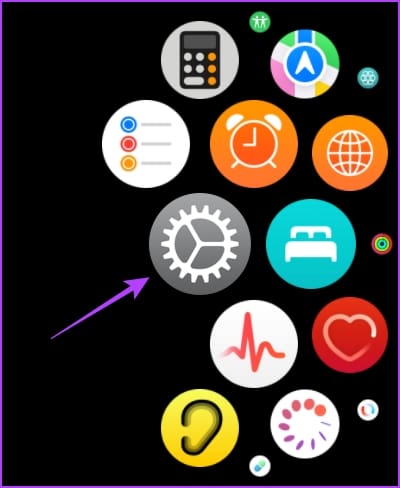


Step 3: Wait until your Bluetooth device is discovered on your Apple Watch. Tap on your Bluetooth device to connect.
Once your device is connected, you can listen to audio from your Apple Watch.
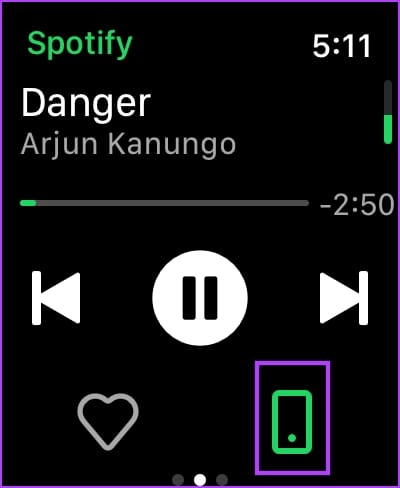
Step 4: To ensure audio output via the connected earphones on your watch, tap on the device icon and select Apple Watch.


Fix 3: Re-Install Spotify
As a last resort, try reinstalling Spotify on your Apple Watch to fix the issue. If a corrupt application package on your Apple Watch was causing the problem, installing it afresh will help fix it. However, note that you will lose all playlists and albums downloaded for offline use on your Apple Watch.
Step 1: Press the Digital Crown once to open the App Library.
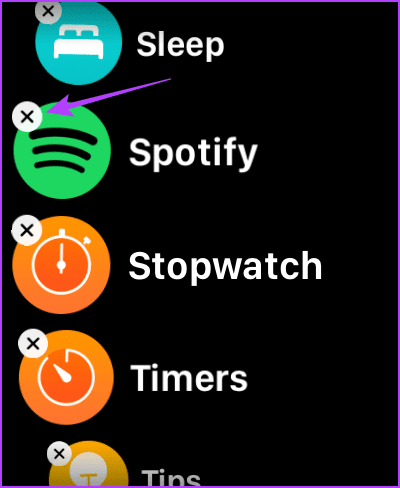
Step 2: Long-tap on the Spotify app icon.
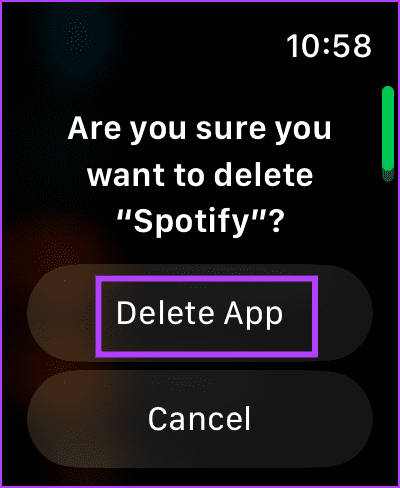
Step 3: Tap on the cross-mark icon to uninstall the app. Tap on Delete App to confirm.
Step 4: Now, open App Store on your Apple Watch, search, and install Spotify.


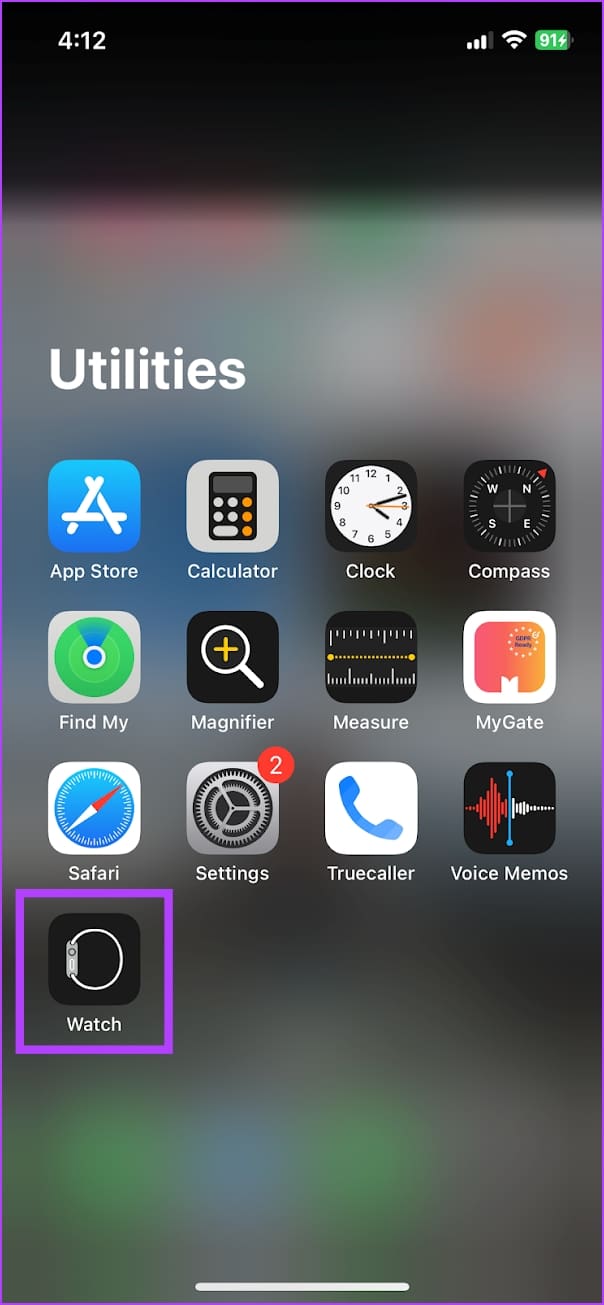
Alternatively, you can open the Watch app on your iPhone. Scroll down to find the available apps, and tap on Install next to Spotify to get the app on your Apple Watch.

Note: If the above solutions don’t work, you can contact Apple Support and Spotify Support for further assistance.
Also Read: How to use Spotify on Apple Watch without iPhone
Was this helpful?
Last updated on 25 July, 2024
Read Next
 How to Use Spotify on Apple Watch Without iPhone
Note: You can only play and download music for offline listening on Apple Watch if you're a Spotify Premium user.
How to Use Spotify on Apple Watch Without iPhone
Note: You can only play and download music for offline listening on Apple Watch if you're a Spotify Premium user.
 How to Change Apple Watch Face from iPhone or Watch
Traditional watches had the problem that you couldn't change their clock face.
How to Change Apple Watch Face from iPhone or Watch
Traditional watches had the problem that you couldn't change their clock face.
 2 Ways to Fix Apple Watch Swipe Up Not Working
Try Basic Fixes Force restart the Apple Watch: Press and hold the side button along with the Apple Watch digital crown simultaneously for 10 seconds.
2 Ways to Fix Apple Watch Swipe Up Not Working
Try Basic Fixes Force restart the Apple Watch: Press and hold the side button along with the Apple Watch digital crown simultaneously for 10 seconds.
 3 Ways to Fix Apple Watch Always On Display Not Working
Basic Fixes Check if your Apple Watch supports Always On: Always On display is available on the Apple Watch Series 5,6,7,8,9 and Apple Watch Ultra 1st and 2nd gen.
3 Ways to Fix Apple Watch Always On Display Not Working
Basic Fixes Check if your Apple Watch supports Always On: Always On display is available on the Apple Watch Series 5,6,7,8,9 and Apple Watch Ultra 1st and 2nd gen.
 3 Ways to Fix Apple Watch Crown Not Working
Before you begin, restart your Apple Watch and update it to the latest version of watchOS.
3 Ways to Fix Apple Watch Crown Not Working
Before you begin, restart your Apple Watch and update it to the latest version of watchOS.
 6 Ways to Fix Apple Watch Wrist Detection Not Working
Basic Fixes: Tighten the Apple Watch band: If your Apple Watch keeps losing contact with your wrist, it might think you've taken the watch off.
6 Ways to Fix Apple Watch Wrist Detection Not Working
Basic Fixes: Tighten the Apple Watch band: If your Apple Watch keeps losing contact with your wrist, it might think you've taken the watch off.
 6 Ways to Fix Microphone Not Working on Apple Watch
Basic Fixes Restart Apple Watch: Restart your Apple Watch to fix temporary bugs and glitches.
6 Ways to Fix Microphone Not Working on Apple Watch
Basic Fixes Restart Apple Watch: Restart your Apple Watch to fix temporary bugs and glitches.
 3 Ways to Fix Speaker Not Working on Apple Watch
Basic Fixes Restart Your Mac: The go-to fix for any issue is the good old restart.
3 Ways to Fix Speaker Not Working on Apple Watch
Basic Fixes Restart Your Mac: The go-to fix for any issue is the good old restart.
The article above may contain affiliate links which help support Guiding Tech. The content remains unbiased and authentic and will never affect our editorial integrity.