Basic Fixes
- Force restart your iPhone: Depending on your model name, we suggest force restarting your iPhone. This should fix the screen time limit issue.
- Update iOS version: Install the latest software version depending on your model name.
Fix 1: Check App Limit Settings
Check and enable the screen time app limit on your iPhone. Do note that if you select an entire app category, the same screen limit time will be applied to all apps of that category. For example, if you choose 15 minutes, all the apps in a category will use the same 15-minute screen limit. You can increase or decrease the time limit for specific apps.
Step 1: Open Settings > Screen Time.
Step 2: Choose App Limits and then tap on the app or category name.
Step 3: Enable the app limit for specific app or category.


Tip: You can also create custom app categories for Screen Time on your iPhone.
Fix 2: Check the Downtime Exclusions List
Even if you’ve configured Screen Time to block your apps properly after reaching their respective time limits, or if you’ve scheduled downtime to kick in at a certain time of the day, those restrictions will not affect any app that’s added to the Always Allowed exclusions list. If that is the case, you need to have it removed.
Step 1: Open Settings > General > Screen Time > Always Allowed.
Step 2: Tap the red-colored icon next to the app that you want to remove from the exclusions list. Alternatively, swipe to the left, and then tap Remove.


Head back, and you won’t find the app usable either after reaching any specified time limits or during downtime.
Fix 3: Reset All Settings
If none of the features work, we suggest resetting your settings. This will restore all settings to default.
Open Settings > General > Transfer or Reset iPhone > Reset > Reset All Settings.


Was this helpful?
Last updated on 08 July, 2024
Read Next
 4 Fixes for Speedometer or Speed Limits Not Showing in Google Maps on Android
Common Fixes Check feature availability - Speedometer or Speed limits may be unavailable in your region.
4 Fixes for Speedometer or Speed Limits Not Showing in Google Maps on Android
Common Fixes Check feature availability - Speedometer or Speed limits may be unavailable in your region.
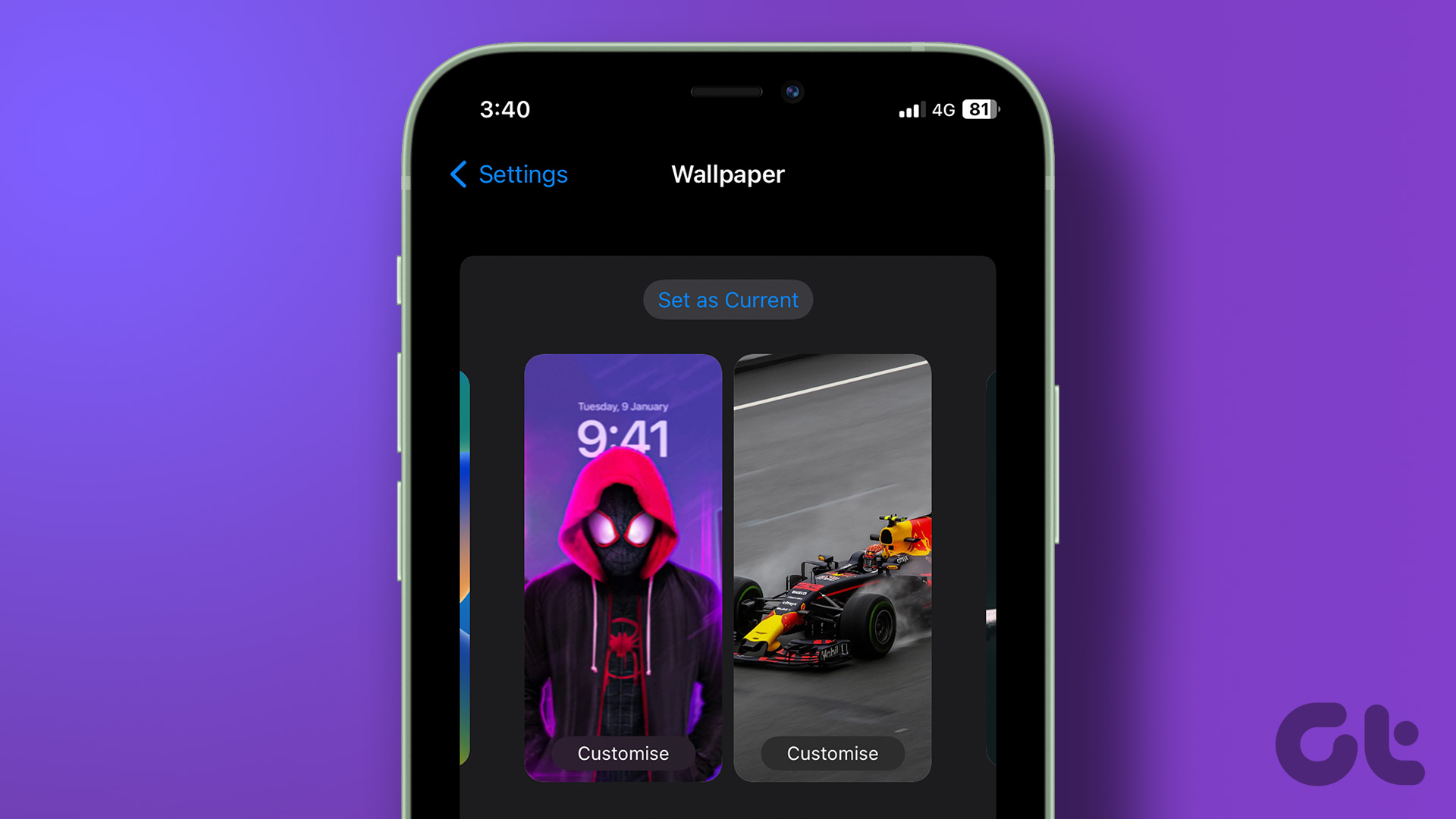 How to Set Different Lock Screen and Home Screen Wallpaper on iPhone
How to Add Different Wallpapers on iPhone Home Screen and Lock Screen Step 1: Open the Settings app > select Wallpaper.
How to Set Different Lock Screen and Home Screen Wallpaper on iPhone
How to Add Different Wallpapers on iPhone Home Screen and Lock Screen Step 1: Open the Settings app > select Wallpaper.
 3 Ways to Fix Screen Recording Not Working on iPhone and iPad
Basic Fixes Restart iPhone: Restarting your iPhone may resolve any software glitches preventing screen recording.
3 Ways to Fix Screen Recording Not Working on iPhone and iPad
Basic Fixes Restart iPhone: Restarting your iPhone may resolve any software glitches preventing screen recording.
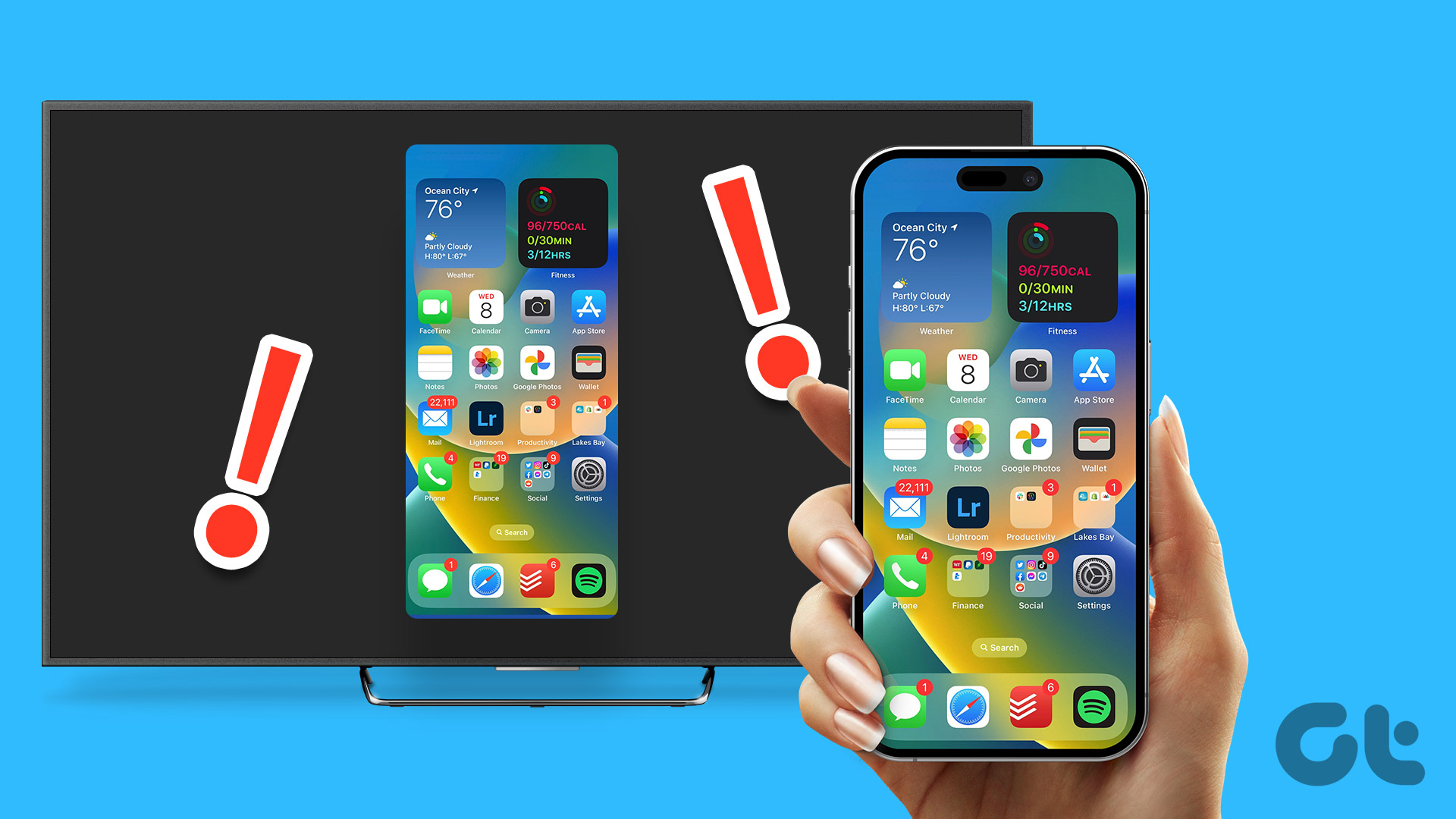 3 Ways to Fix Screen Mirroring Not Working on iPhone
https://youtu.be/yWpGSd6wOa0 Basic Troubleshooting Ensure that your TV supports AirPlay: A quick read of your TV's manual or an internet search could give you the answer.
3 Ways to Fix Screen Mirroring Not Working on iPhone
https://youtu.be/yWpGSd6wOa0 Basic Troubleshooting Ensure that your TV supports AirPlay: A quick read of your TV's manual or an internet search could give you the answer.
 8 Ways to Add an App Back to Home Screen on iPhone and Android
Method 1: Look for the App Inside the Folders If an app has gone missing from your iPhone or Android phone, start by looking in the folders on your phone’s
8 Ways to Add an App Back to Home Screen on iPhone and Android
Method 1: Look for the App Inside the Folders If an app has gone missing from your iPhone or Android phone, start by looking in the folders on your phone’s
 3 Fixes for FaceTime Screen Sharing Not Working on iPhone
Basic Fixes Switch to 5G or Wi-Fi: The ability to share the screen of your iPhone during a FaceTime call depends a lot on your internet speed.
3 Fixes for FaceTime Screen Sharing Not Working on iPhone
Basic Fixes Switch to 5G or Wi-Fi: The ability to share the screen of your iPhone during a FaceTime call depends a lot on your internet speed.
 4 Fixes for Lock Screen Photo Shuffle Not Working on iPhone
Try Basic Fixes Force reboot your iPhone: If your iPhone becomes stuck on the loading or processing icon when you tap the Photo Shuffle option, it might be a minor
4 Fixes for Lock Screen Photo Shuffle Not Working on iPhone
Try Basic Fixes Force reboot your iPhone: If your iPhone becomes stuck on the loading or processing icon when you tap the Photo Shuffle option, it might be a minor
 4 Ways to Fix Files App Not Working on iPhone
Basic Fixes Restart iPhone: If a bug on iOS is causing problems with the Files app, try restarting your iPhone.
4 Ways to Fix Files App Not Working on iPhone
Basic Fixes Restart iPhone: If a bug on iOS is causing problems with the Files app, try restarting your iPhone.
The article above may contain affiliate links which help support Guiding Tech. The content remains unbiased and authentic and will never affect our editorial integrity.