


Why Samsung Limits the Phone Charge to 80 or 85 Percent?
When your Samsung phone’s battery goes through full charging cycles several times, the battery’s health and capability to retain the charge over time might reduce. So, to slow down the battery aging process, Samsung offers an option to limit the battery charge to 80 or 85 percent. This ensures your phone doesn’t go beyond the set limit, ultimately protecting the battery.
Basic Fixes:
- Charge the device using an official charger: Certain chargers might not be able to provide your Samsung phone with sufficient charge. When this happens, the charging might stop at 80 or 85%. So, use the official charger and check.
- Restart your phone: Temporary device glitches can cause issues when charging your Samsung Galaxy phone. To ensure this is not the case, restart your phone. This will restart all device functions and features, fixing any related issues.
- Update One UI Software: Samsung Galaxy phones not charging after 80 or 85 percent can be due to a buggy One UI build. When this happens, a new software update might be available to fix the issue. Install it as soon as possible.
Fix 1: Disable Protect Battery
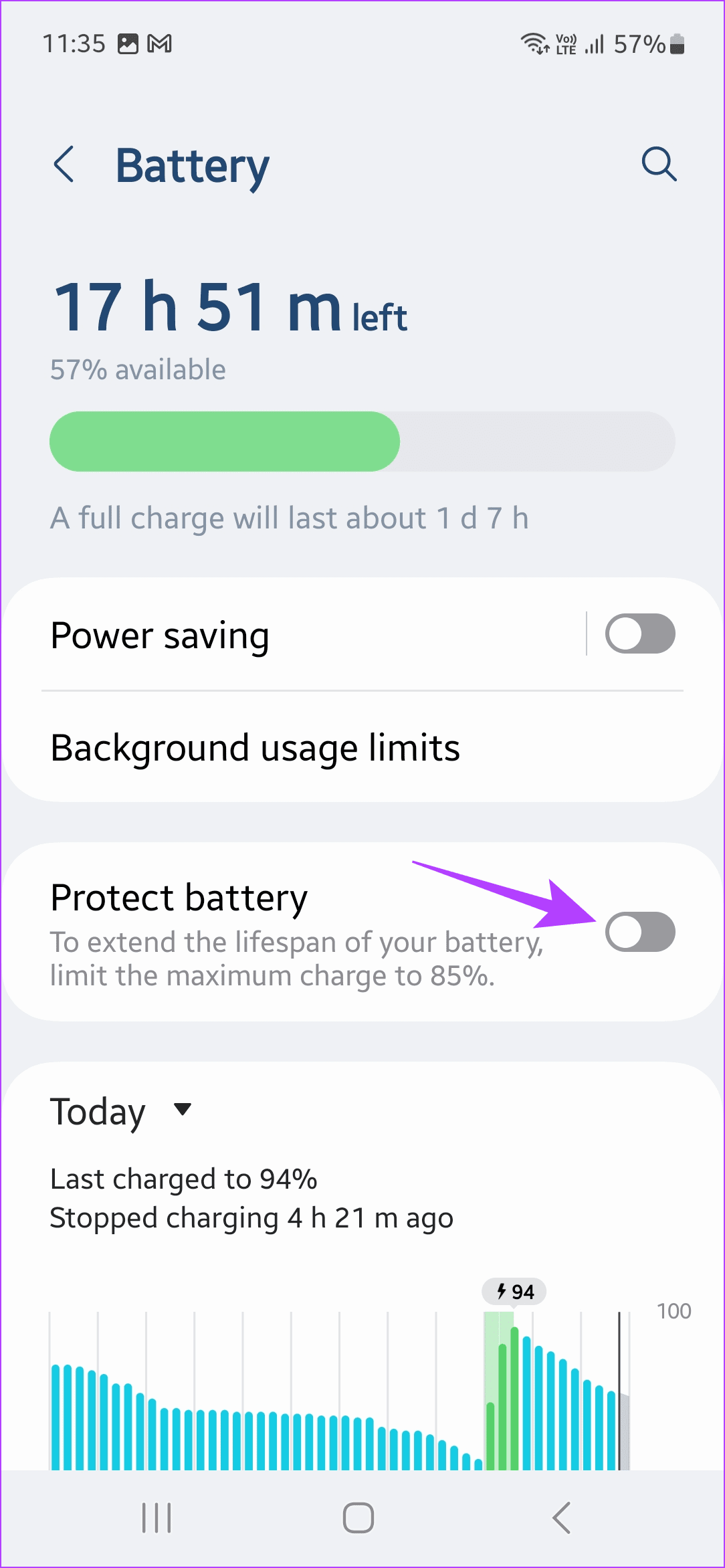
The Protect Battery option is enabled by default on Samsung Galaxy phones. It helps protect your Samsung Galaxy phone’s battery life by ensuring the charge does not go beyond 80 or 85 percent. Disable it to see if this fixes the issue. Here’s how.
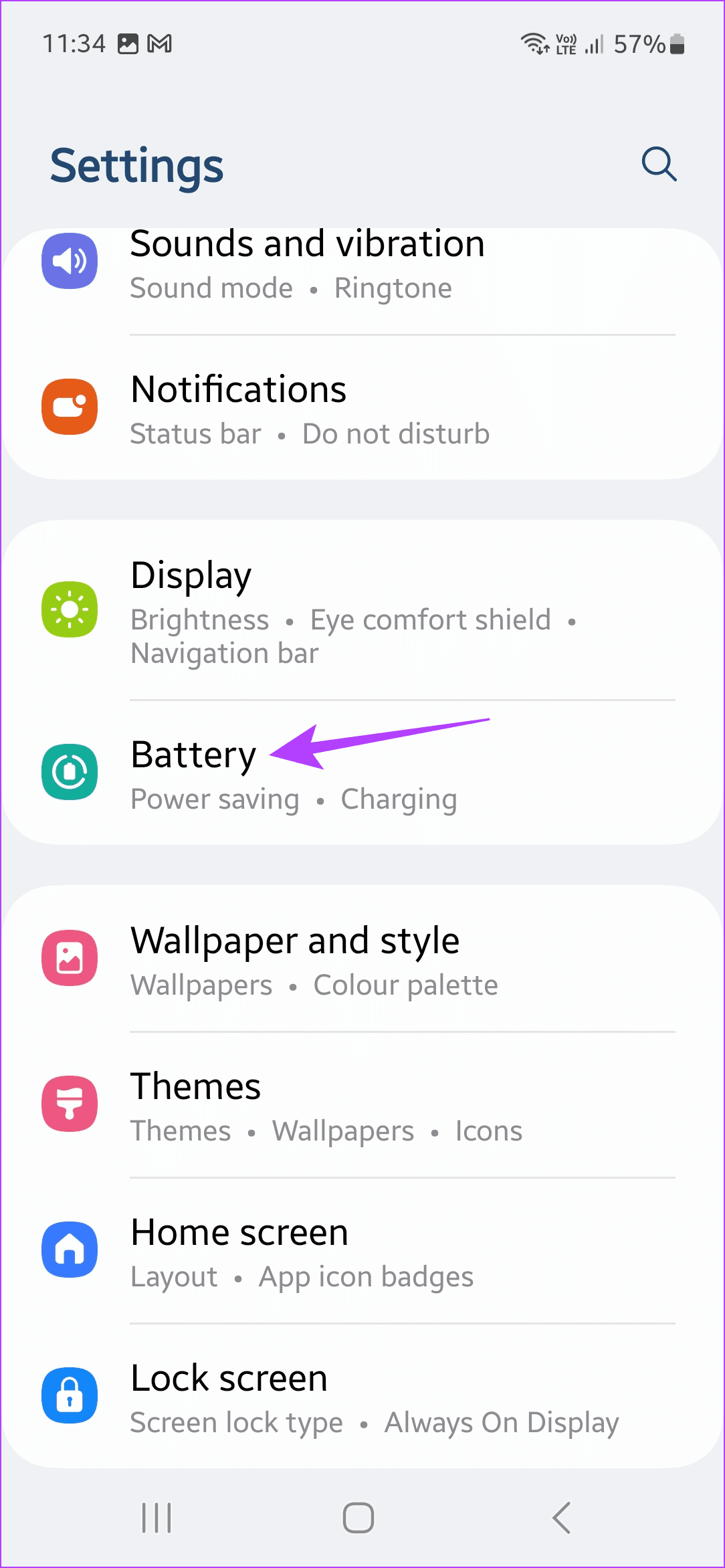
Step 1: Open Settings and tap on Battery. Turn off the Protect battery toggle.
Also Read: How to fix battery drain on Samsung Galaxy phones
Fix 2: Uninstall Third-Party Battery Apps
If you’re using third-party battery apps to limit your Galaxy phone’s charge, these apps may be the culprit behind your Galaxy phone not charging after the 80 or 85 percent issue. You don’t need such apps on your phone. It’s better to identify and uninstall them. Here’s how to do it.
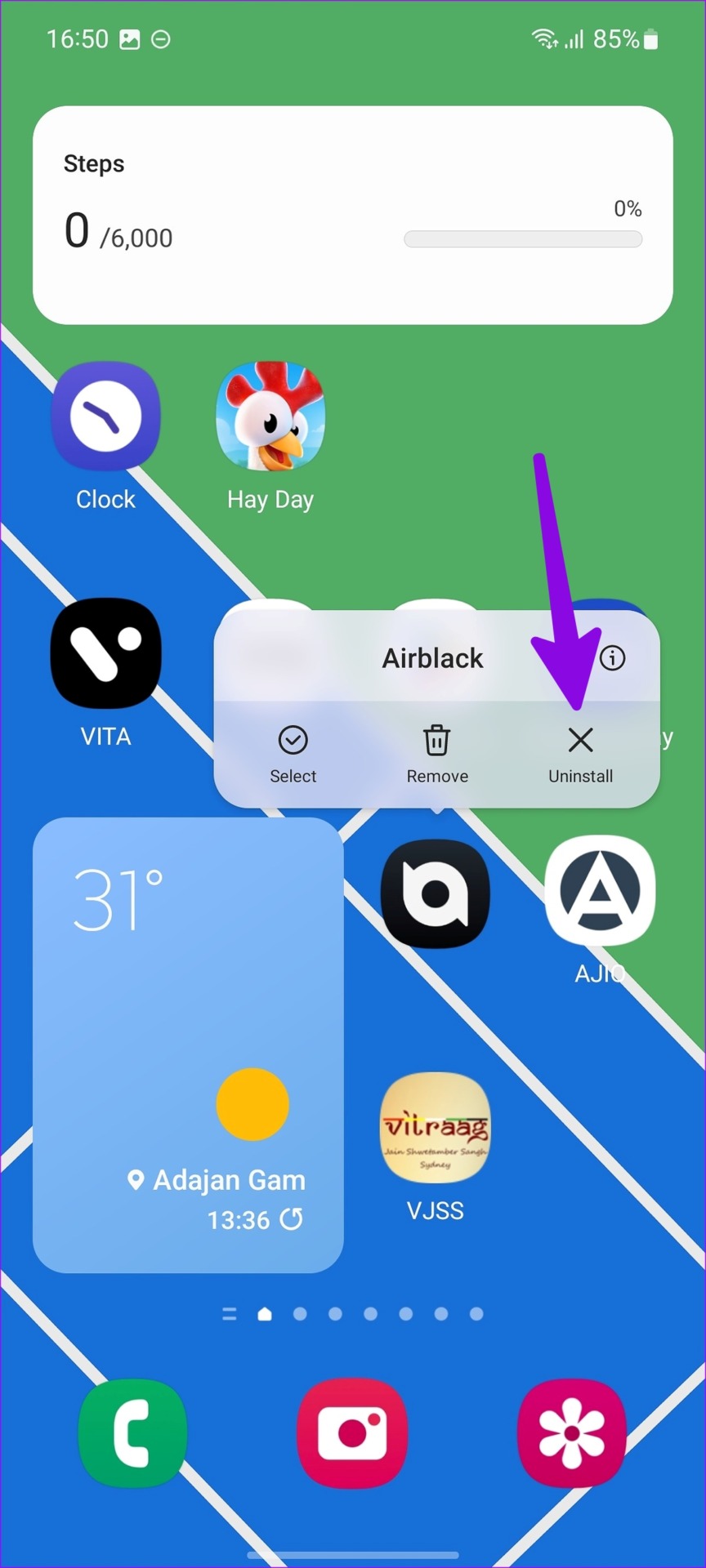
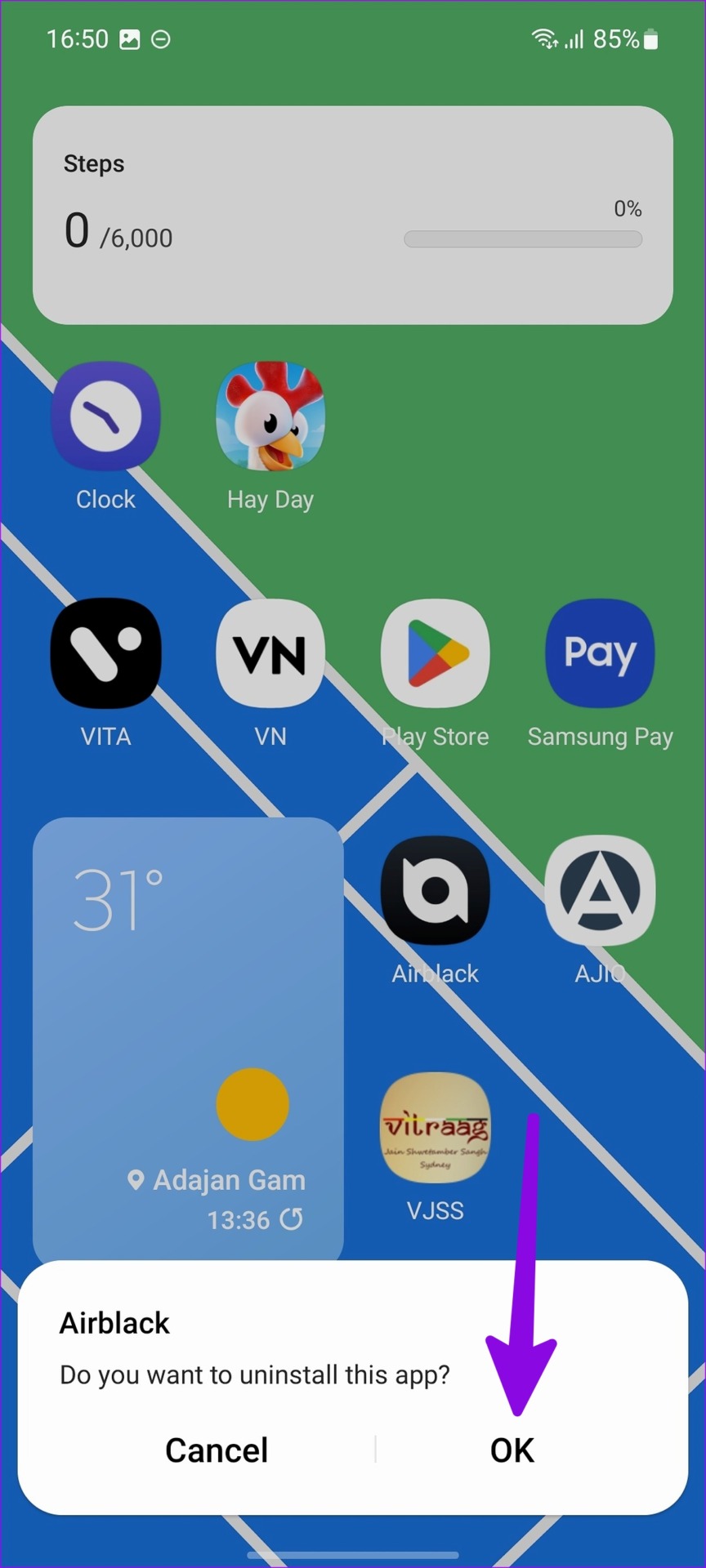
Step 1: Long-press the relevant app and tap on Uninstall. Tap on OK to confirm.
Fix 3: Use Auto Blocker
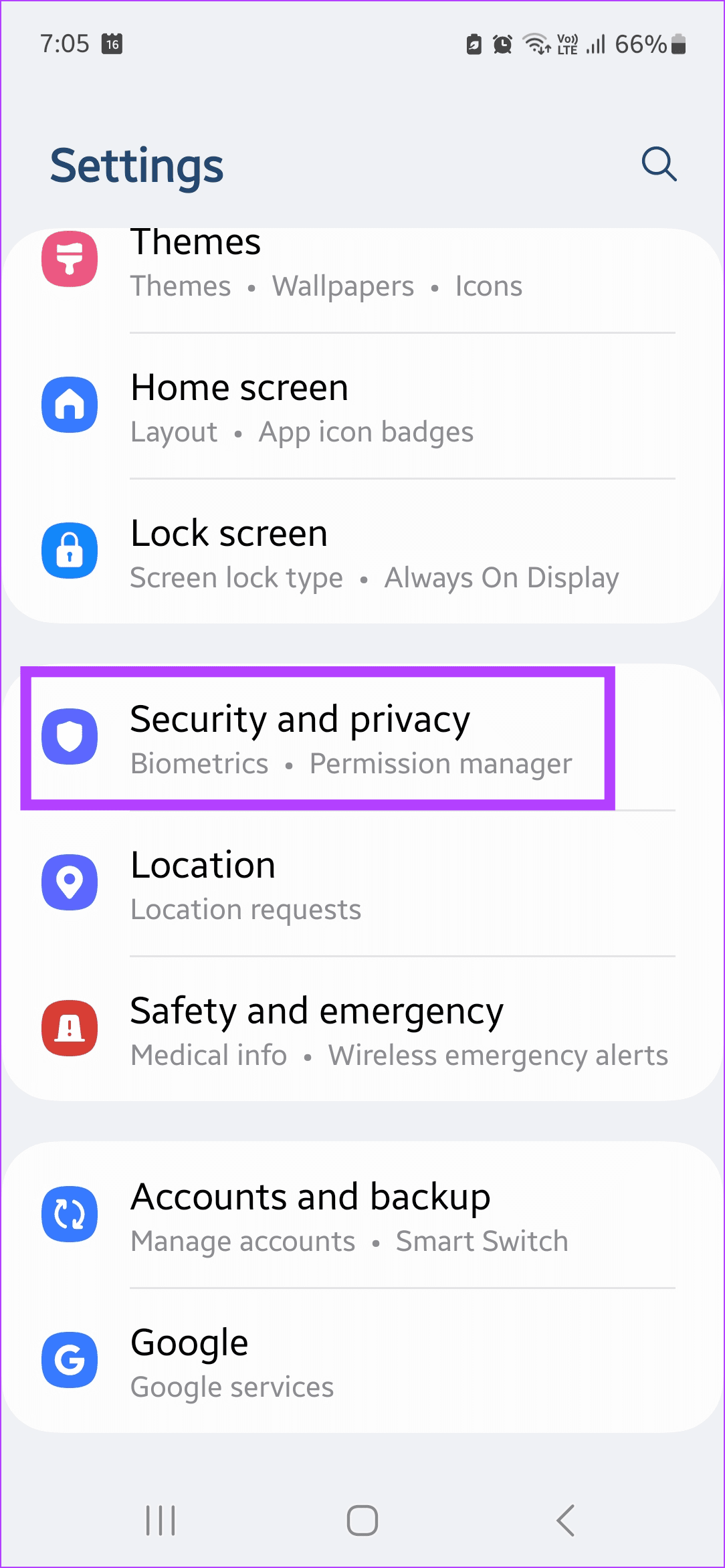
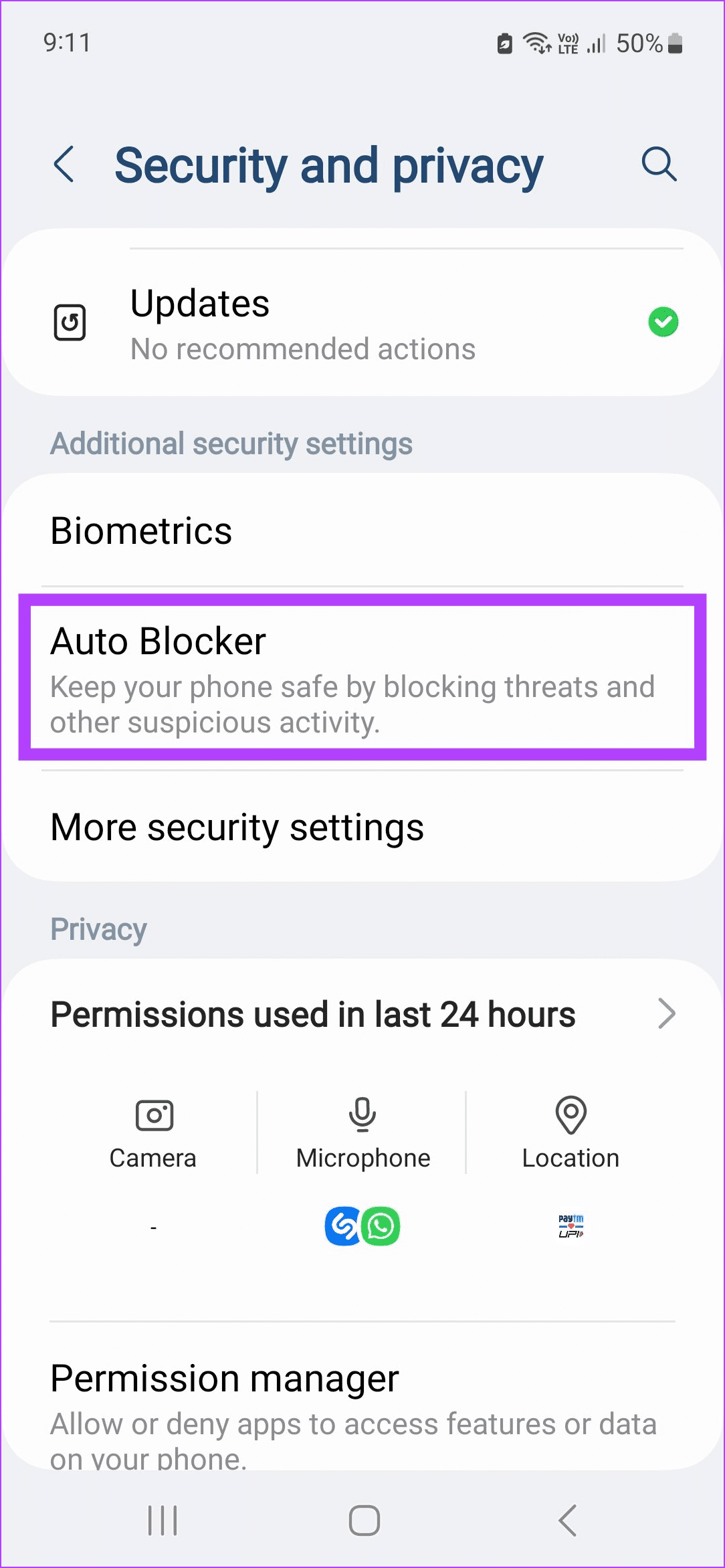
If you are worried about harmful files on your Galaxy phone, you can enable the built-in device protection and get protection against viruses and spyware. Renamed as Auto Blocker in One UI 6, this settings helps protect your phone and ensures all functions, like charging, work as expected. Here’s how to enable it.
Step 1: Open Settings and tap on Security and privacy. Tap on Auto Blocker and turn the toggle on.

Also Read: How to fix Samsung One UI battery drain
Fix 4: Run Battery Diagnostics
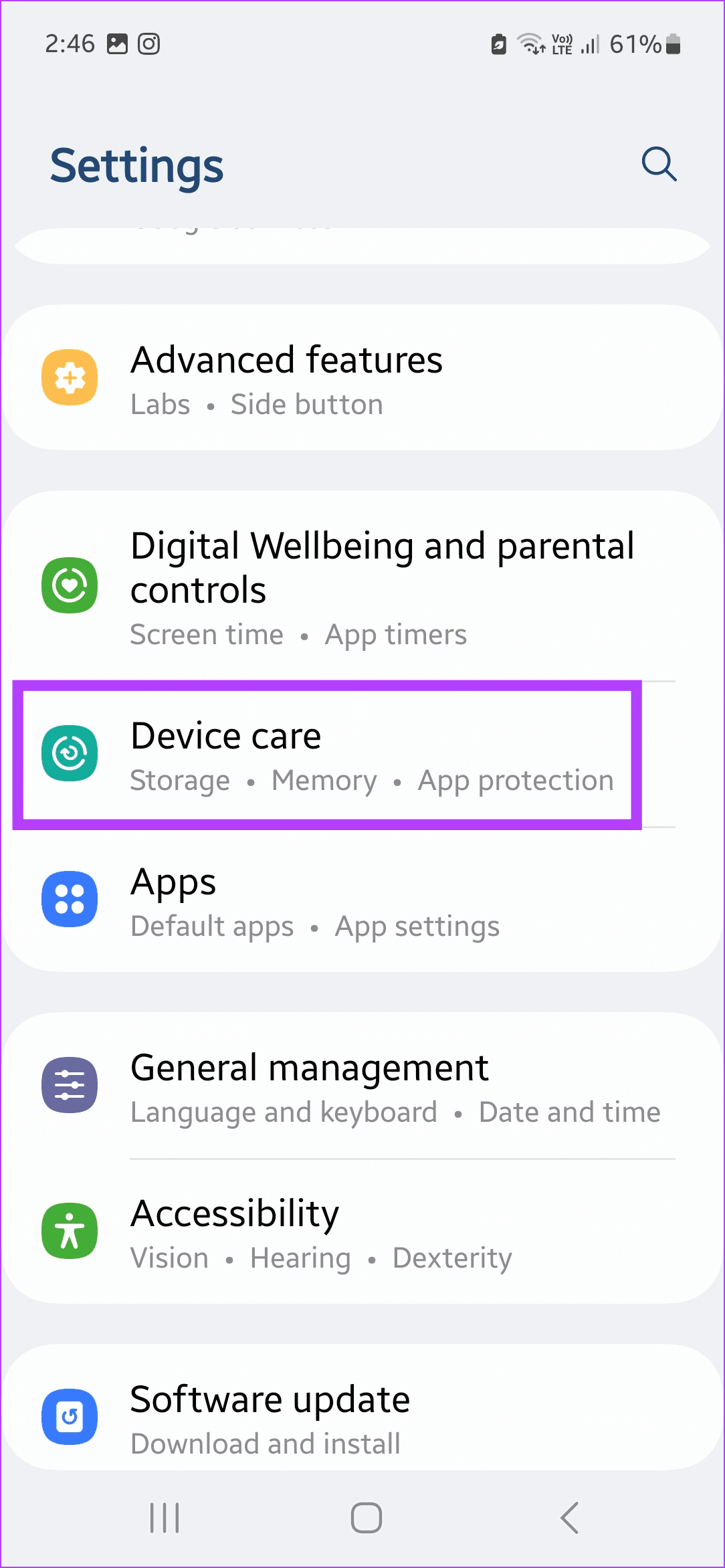
Your Samsung Galaxy phone’s battery may go corrupt over time. It can be one of the reasons behind your phone not charging after 80 or 85 percent. You can run the built-in diagnostic tool to confirm if that’s the issue. Here’s how to do it.
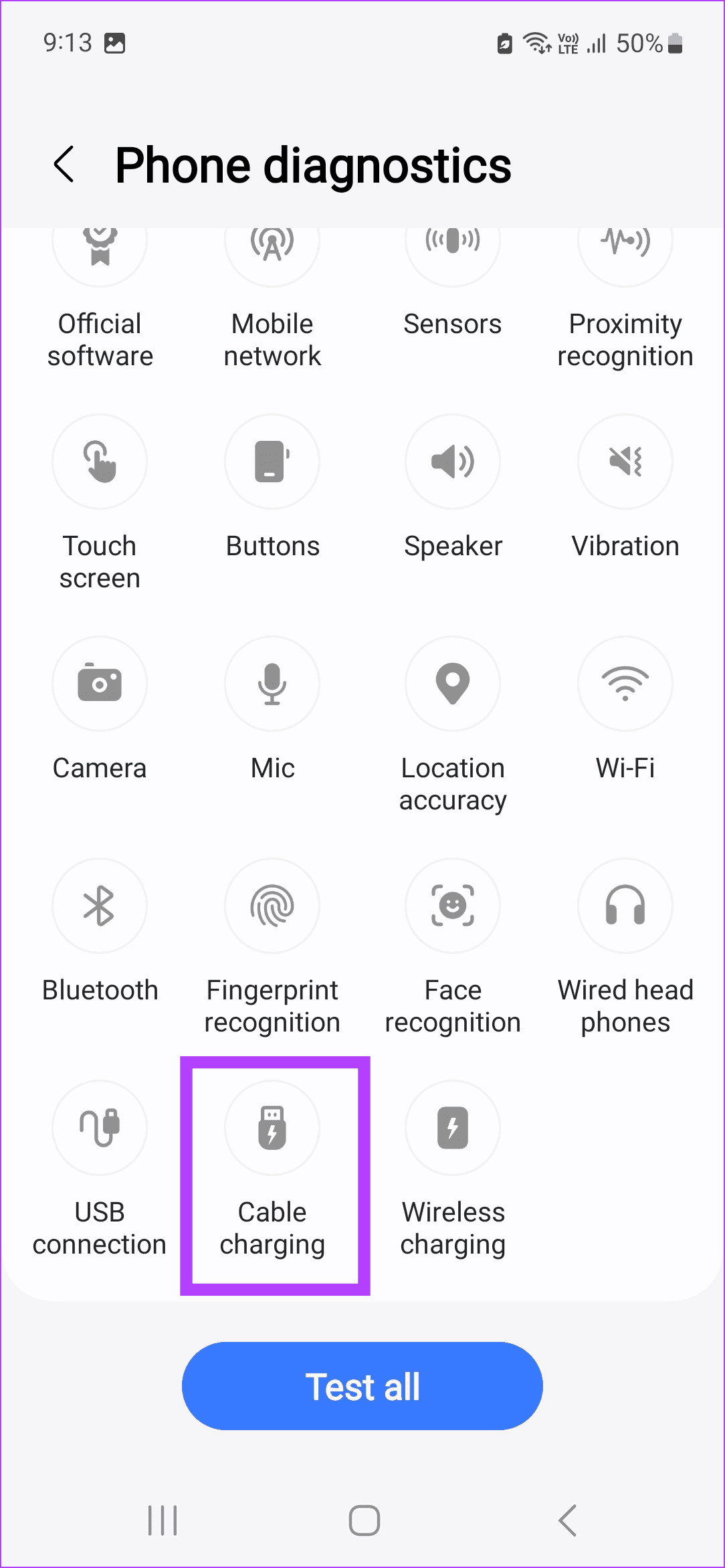
Step 1: Open Settings and tap on Device care. Go to Diagnostics and tap on Phone diagnostics.

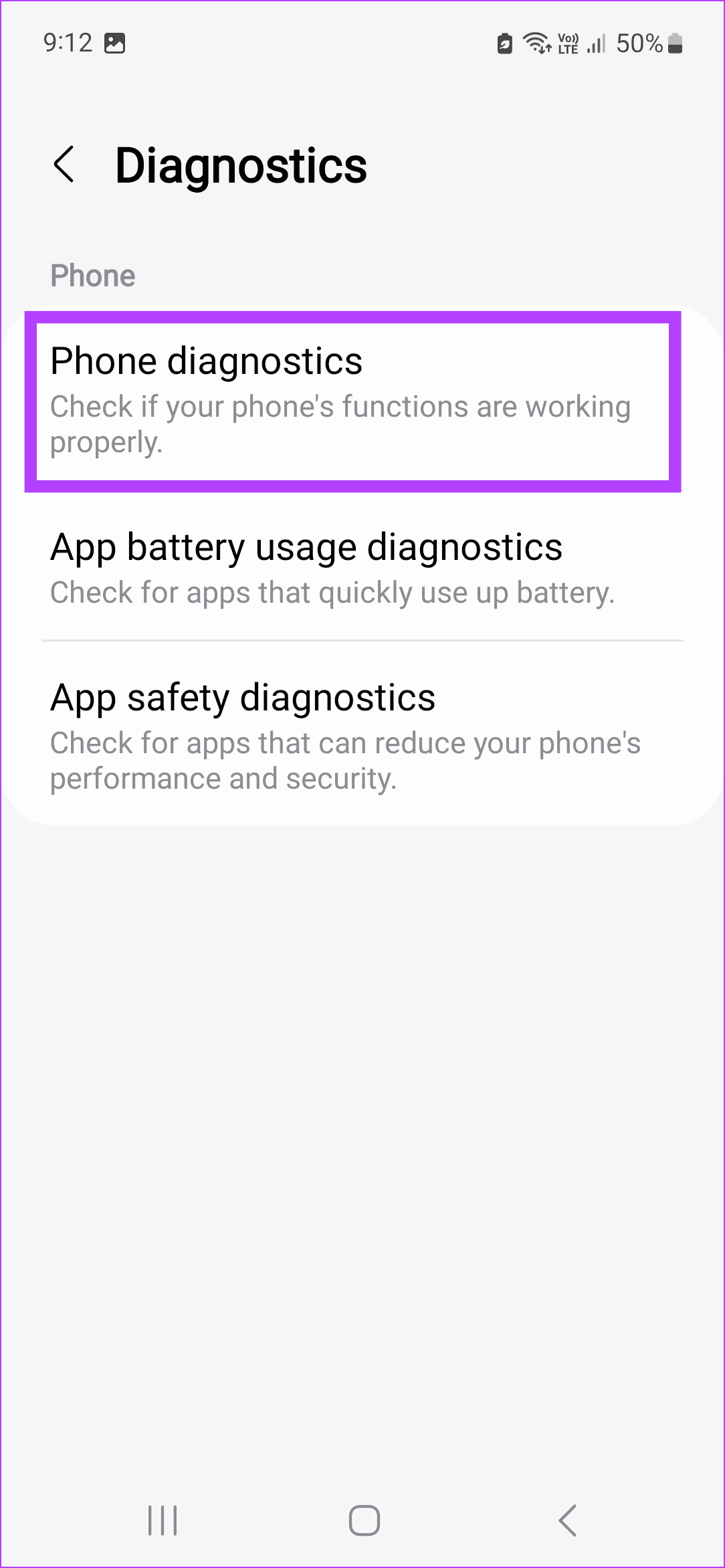
Step 2: Tap on Cable charging. Connect your phone to the charger when prompted and wait.
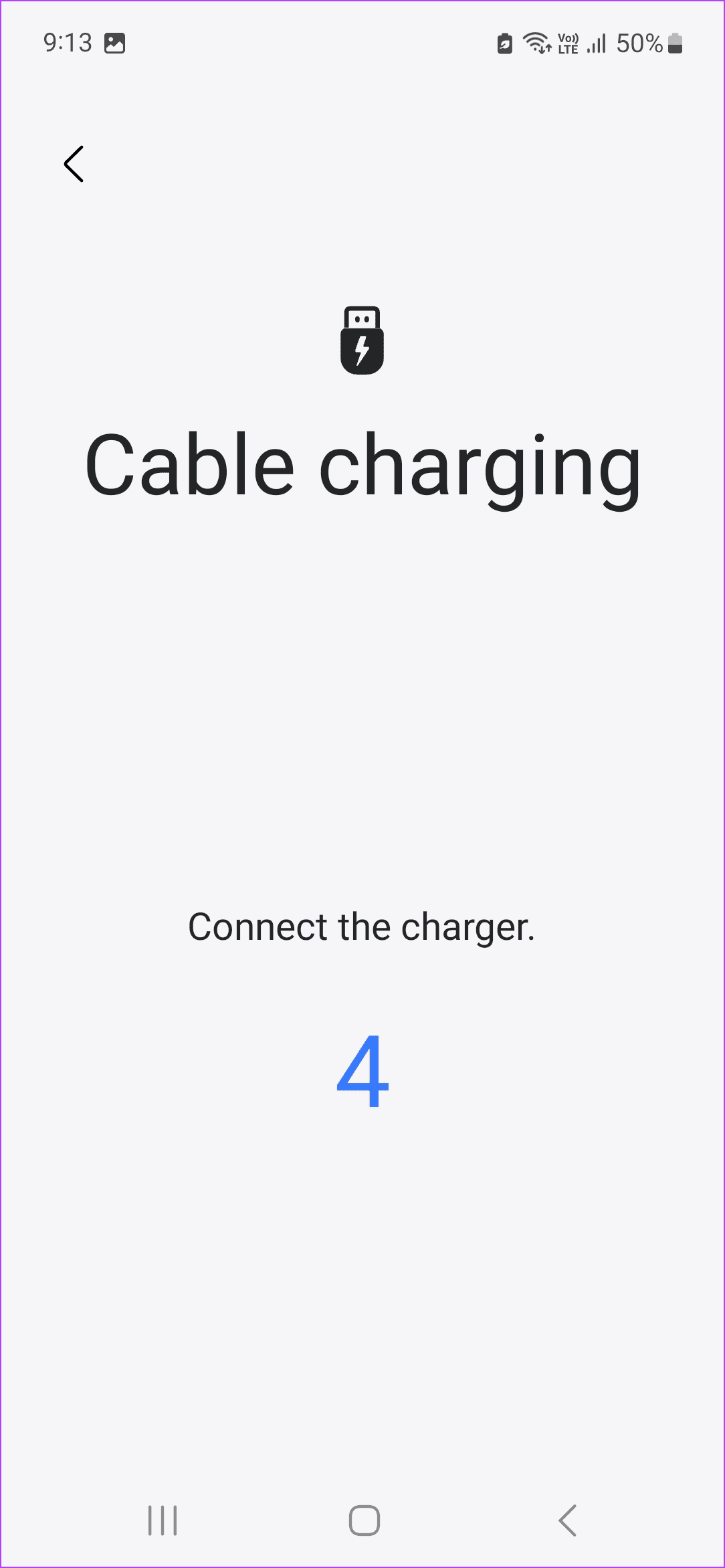
If any issues are detected, we advise you to go to your nearest Samsung service center and get your phone checked for battery-related issues.
Was this helpful?
Last updated on 20 August, 2024
3 Comments
Leave a Reply
Read Next
 3 Ways to Fix Samsung Galaxy Phone Not Charging
https://youtu.be/tAdDbG829DU Basic Fixes: Wait for some time: After a heavy gaming session or a big update on your Samsung Galaxy phone, the device can heat up a little.
3 Ways to Fix Samsung Galaxy Phone Not Charging
https://youtu.be/tAdDbG829DU Basic Fixes: Wait for some time: After a heavy gaming session or a big update on your Samsung Galaxy phone, the device can heat up a little.
 10 Ways to Fix Moisture Detected in Charging Port Error on Samsung Galaxy Phones
Most Samsung Galaxy devices these days come with an IP rating.
10 Ways to Fix Moisture Detected in Charging Port Error on Samsung Galaxy Phones
Most Samsung Galaxy devices these days come with an IP rating.
 7 Best Multi-Charging Cables for Charging Multiple Devices
Most of us nowadays have multiple devices to charge.
7 Best Multi-Charging Cables for Charging Multiple Devices
Most of us nowadays have multiple devices to charge.
 4 Ways to Fix Wireless Charging Not Working With Phone
Fix 1: Try a Different Cable The cable you use to attach the charging brick to the wireless charger plays an important role.
4 Ways to Fix Wireless Charging Not Working With Phone
Fix 1: Try a Different Cable The cable you use to attach the charging brick to the wireless charger plays an important role.
 5 Ways to Fix Android Phone Draining Battery While Charging
Why Is Your Phone Losing Battery While Charging Your Android phone may quickly lose battery while charging due to software or hardware issues, such as: You're charging your phone with
5 Ways to Fix Android Phone Draining Battery While Charging
Why Is Your Phone Losing Battery While Charging Your Android phone may quickly lose battery while charging due to software or hardware issues, such as: You're charging your phone with
 Top 7 Ways to Fix Samsung Galaxy Phone Connected to Wi-Fi But No Internet
Most Samsung Galaxy phone users prefer a robust Wi-Fi connection to download large apps, games, TV shows, movies, and playlists from the likes of Netflix, Disney Plus, and Spotify.
Top 7 Ways to Fix Samsung Galaxy Phone Connected to Wi-Fi But No Internet
Most Samsung Galaxy phone users prefer a robust Wi-Fi connection to download large apps, games, TV shows, movies, and playlists from the likes of Netflix, Disney Plus, and Spotify.
 5 Ways to Fix Samsung Galaxy Phone Not Receiving Calls
https://youtu.be/oL3QSdMsT3o Basic Fixes: Restart your phone: Long-press the power button and select Restart.
5 Ways to Fix Samsung Galaxy Phone Not Receiving Calls
https://youtu.be/oL3QSdMsT3o Basic Fixes: Restart your phone: Long-press the power button and select Restart.
 2 Ways to Remove Ads from Samsung Galaxy Phone Lock Screen
Method 1: Disable Lock Screen Services Lock screen services like Glance will display ads and even promote apps and games directly on the lock screen.
2 Ways to Remove Ads from Samsung Galaxy Phone Lock Screen
Method 1: Disable Lock Screen Services Lock screen services like Glance will display ads and even promote apps and games directly on the lock screen.
The article above may contain affiliate links which help support Guiding Tech. The content remains unbiased and authentic and will never affect our editorial integrity.

My Samsung software is up to date…still my phone is not charging beyond 85%. What to do?
You have to go to settings > Protect Battery > Disable then reboot your phone
My S21 ultra charges upto 85 %
My software upto date.
What must I do?