


Basic Fixes:
- Restart phone and modem: Long-press the power button and use the slider to turn your device off. Then, turn off your modem. Wait a while and turn the modem back on. Once powered on, turn your Apple device back on and wait for it to connect to the Wi-Fi. Then, open Safari and check.
- Turn off VPN: Certain websites block VPN servers and can break if you open them when connected to a VPN. So, disable the VPN on your iPhone or iPad and load the page again on Safari.
- Clear Safari cache and browsing data: Safari uses cache and browsing data from your previous visits to enhance your browsing experience. However, corrupted data can cause issues when loading pages. So, use the settings menu to clear all Safari cache and browsing data.
- Disable Safari extensions: Certain Safari extensions, like ad-blockers, can block page elements. This can prevent the page from loading. When this happens, turn off ad-block and other Safari extensions. Then, try loading the page again.
- Update software: As Safari is part of Apple’s ecosystem, the only way to update the browser is by installing the latest software updates. So, ensure the recent iOS or iPadOS updates have been installed on your Apple device. Then, reopen Safari and load the page again.
Fix 1: Disable Prevent Cross-Site Tracking
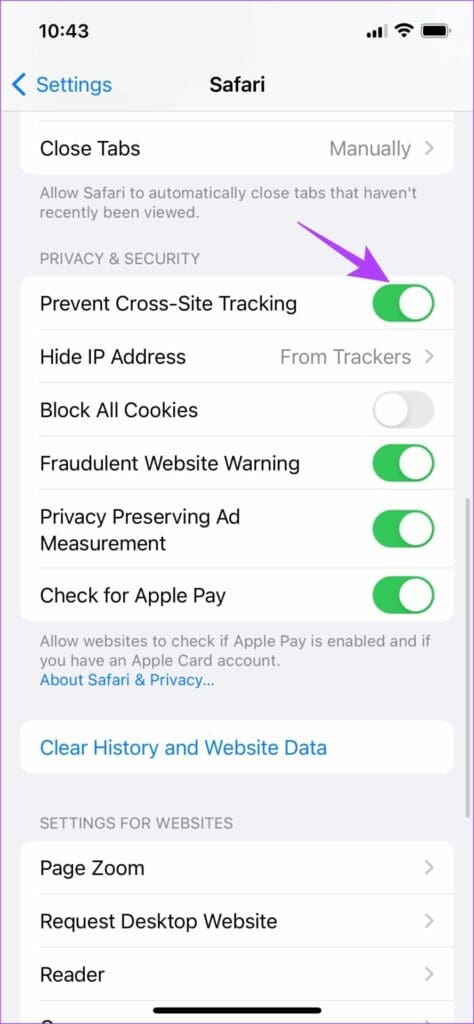
Safari lets users prevent cross-site tracking to ensure their browsing habits are not recorded by the relevant website. However, this can cause webpages not to load properly on Safari. When this happens, disable this feature and check again. Here’s how.
Step 1: Open Settings and tap on Safari. Turn off the Prevent Cross-Site Tracking toggle.

Fix 2: Turn off ‘Hide IP Address’ in Safari
You can hide your IP address using Safari’s built-in tools. However, this can sometimes prevent Safari from loading pages that require IP access. So, disable this option and reload the page in Safari. Here’s how to do it.
Step 1: Open Settings → Safari. Tap on Hide IP Address and select Off.


Fix 3: Check Content Restrictions
If enabled, content restrictions can restrict certain site content in Safari, preventing the page from loading. So, open the relevant setting and disable all content restrictions on your Apple device. Here’s how.
Step 1: Open Settings and tap on Screen Time. Tap on Content & Privacy Restrictions.
Step 2: Turn off the Content & Privacy Restrictions toggle.


Also Read: What are Safari content blockers and should you use them
Fix 4: Enable JavaScript
Certain webpages require JavaScript to load properly. So, if JavaScript is disabled for Safari, it can also cause page loading issues. Open Safari settings and enable JavaScript. Follow the below steps to do it.
Step 1: Go to Settings → Safari. Scroll down and tap on Advanced.
Step 2: Turn on the toggle for JavaScript.


Also Read: How to fix Safari not loading images on iPhone
Fix 5: Switch to Google DNS
Your current DNS server can also be the culprit behind Safari not loading pages. To fix this, change your DNS server to Google DNS and try again. Here’s how.
Step 1: Open Settings and tap on Wi-Fi. Tap the i icon next to your Wi-Fi network.


Step 2: Tap on Configure DNS. From the options, select Manual.
Step 3: Here, remove the currently added DNS servers. Then, tap on Add Server.


Add 8.8.8.8 and 8.8.4.4 for Google DNS and tap on Save. Then, reopen Safari and reload the page.
Fix 6: Reset Network Settings
If pages still don’t load properly in Safari, reset all network settings on your iPhone or iPad. This will delete any custom Wi-Fi settings causing the Safari page-loading issues. Follow the below steps to do it.
Step 1: Open Settings and tap on General → Transfer or Reset iPhone.

Step 2: Tap on Reset → Reset Network Settings.

Follow the on-screen instructions to finish the process. Then, reopen Safari and try loading the page again to see if the issue has been fixed on your iPhone or iPad.
Was this helpful?
Last updated on 28 June, 2024
1 Comment
Leave a Reply
Read Next
 5 Ways to Fix Google Chrome Not Loading Pages on Android and iPhone
Try Basic Fixes Enable or disable the VPN: If webpages are not loading in Chrome, consider disabling your VPN connection temporarily and see if that resolves the problem.
5 Ways to Fix Google Chrome Not Loading Pages on Android and iPhone
Try Basic Fixes Enable or disable the VPN: If webpages are not loading in Chrome, consider disabling your VPN connection temporarily and see if that resolves the problem.
 Top 4 Ways to Fix Facebook Not Loading in Safari
https://youtu.be/rIpRwwjzGtQ Basic Fixes Check Facebook server status - When facing server issues, Facebook won't load properly no matter the browser.
Top 4 Ways to Fix Facebook Not Loading in Safari
https://youtu.be/rIpRwwjzGtQ Basic Fixes Check Facebook server status - When facing server issues, Facebook won't load properly no matter the browser.
 9 Best Ways to Fix Google Chrome Not Loading Pages in Windows 10
Google Chrome is one of the most used browsers in the world, no doubt.
9 Best Ways to Fix Google Chrome Not Loading Pages in Windows 10
Google Chrome is one of the most used browsers in the world, no doubt.
 5 Ways to Fix Samsung Internet Browser Not Loading Pages
Try Basic Fixes Check your internet connection: The Samsung Internet browser may have trouble loading web pages if there is a problem with your internet connection.
5 Ways to Fix Samsung Internet Browser Not Loading Pages
Try Basic Fixes Check your internet connection: The Samsung Internet browser may have trouble loading web pages if there is a problem with your internet connection.
 4 Ways to Fix Safari Not Loading Images on iPhone
https://youtu.be/Fj1KYUokzkI Fix 1: Disable Content Blocker Extensions If you use any content blocker extensions to avoid ads or pop-ups while browsing, they may interfere with Safari and prevent them from
4 Ways to Fix Safari Not Loading Images on iPhone
https://youtu.be/Fj1KYUokzkI Fix 1: Disable Content Blocker Extensions If you use any content blocker extensions to avoid ads or pop-ups while browsing, they may interfere with Safari and prevent them from
 5 Ways to Fix Safari Private Browsing Not Available on iPhone or iPad
Private Browsing, aka, the incognito mode allows you to surf the internet without leaving a trace of your online activities.
5 Ways to Fix Safari Private Browsing Not Available on iPhone or iPad
Private Browsing, aka, the incognito mode allows you to surf the internet without leaving a trace of your online activities.
 6 Ways to Fix Safari Not Working on iPhone and iPad
Basic Fixes Restart iPhone: Restart the Safari app, and restart your iPhone/iPad to fix any temporary bugs and glitches.
6 Ways to Fix Safari Not Working on iPhone and iPad
Basic Fixes Restart iPhone: Restart the Safari app, and restart your iPhone/iPad to fix any temporary bugs and glitches.
 4 Ways to Fix Instagram Not Loading In Safari
Basic Troubleshooting Check Instagram status - If Instagram servers are down, you can't open the app, load the home feed, or post anything during the downtime.
4 Ways to Fix Instagram Not Loading In Safari
Basic Troubleshooting Check Instagram status - If Instagram servers are down, you can't open the app, load the home feed, or post anything during the downtime.
The article above may contain affiliate links which help support Guiding Tech. The content remains unbiased and authentic and will never affect our editorial integrity.
Thanks. I had been having this problem for a year and now it is finally resolved!