


Why Can’t Safari Connect to Server on Mac?
If your Mac has network connection issues, Safari can’t connect to the server normally. You will keep running into the ‘Safari can’t find server’ error. Apart from Wi-Fi problems, here are several reasons behind the irritating problem.
- Wi-Fi connectivity issues
- Router malfunction
- Outdated Safari browser on Mac
- iCloud Privacy Rely outage
- Issues from a specific website
- An active VPN network
- Incorrect URL
Basic Fixes
- Double-check URL: Did you type the correct URL of the website? Even a single typo in a web address can cause the ‘Safari can’t find server’ issue on Mac. You should recheck the URL, fix any typos, and try reloading the webpage.
- Check your network connection: You should ensure a stable network connection on your Mac. Most Macs support dual-band Wi-Fi frequency. We recommend connecting to a 5GHz Wi-Fi frequency on your Mac.
- Check if the website is down or blocked: Every website stores content and other data on a third-party or company’s server. These servers face occasional outrage. You can confirm the issue from Downdetector. If the issue is with the server, you have to wait it out.
- Restart router: Do you face the ‘Safari can’t find server error’ on iPhone and other devices too? If your home or office router is acting up, internet connectivity won’t work. You should turn off the router, remove it from the power plug, and switch it on again.
- Disable VPN: An active VPN connection may interfere with some websites from specific regions. You have two options: continue with the VPN and connect to another server or completely turn off the VPN and try again.
- Update macOS: Notably, Apple bundles Safari with macOS updates. You can update macOS to the latest version to enjoy all the new Safari add-ons and bug fixes.
Fix 1. Clear Safari Cache
Clearing Safari data is one of the effective ways to troubleshoot common browser issues on Mac.
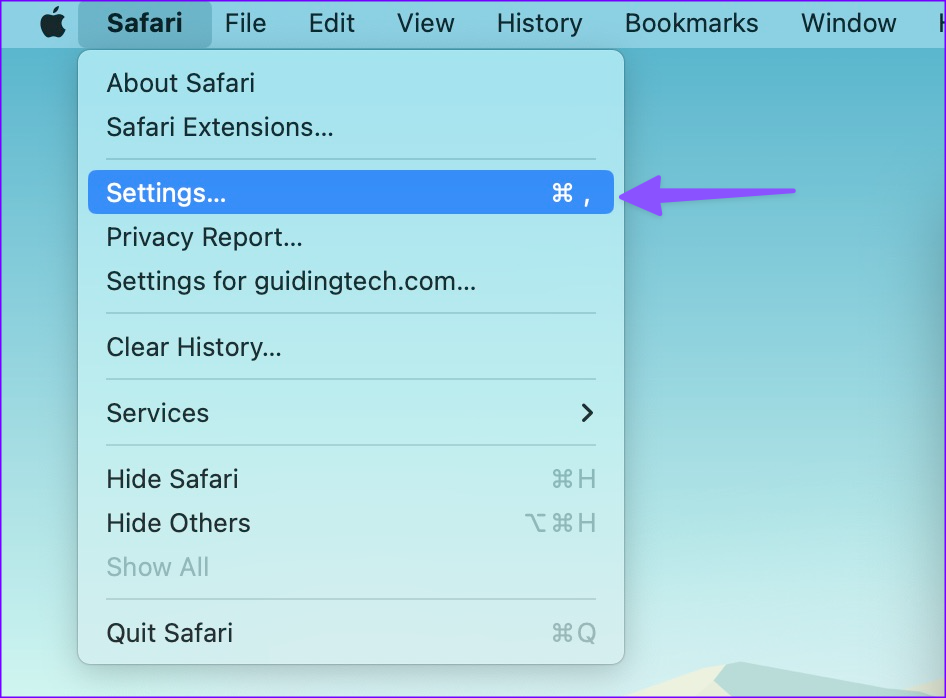
Step 1: Open Safari on Mac. Select Safari at the top and open Settings.
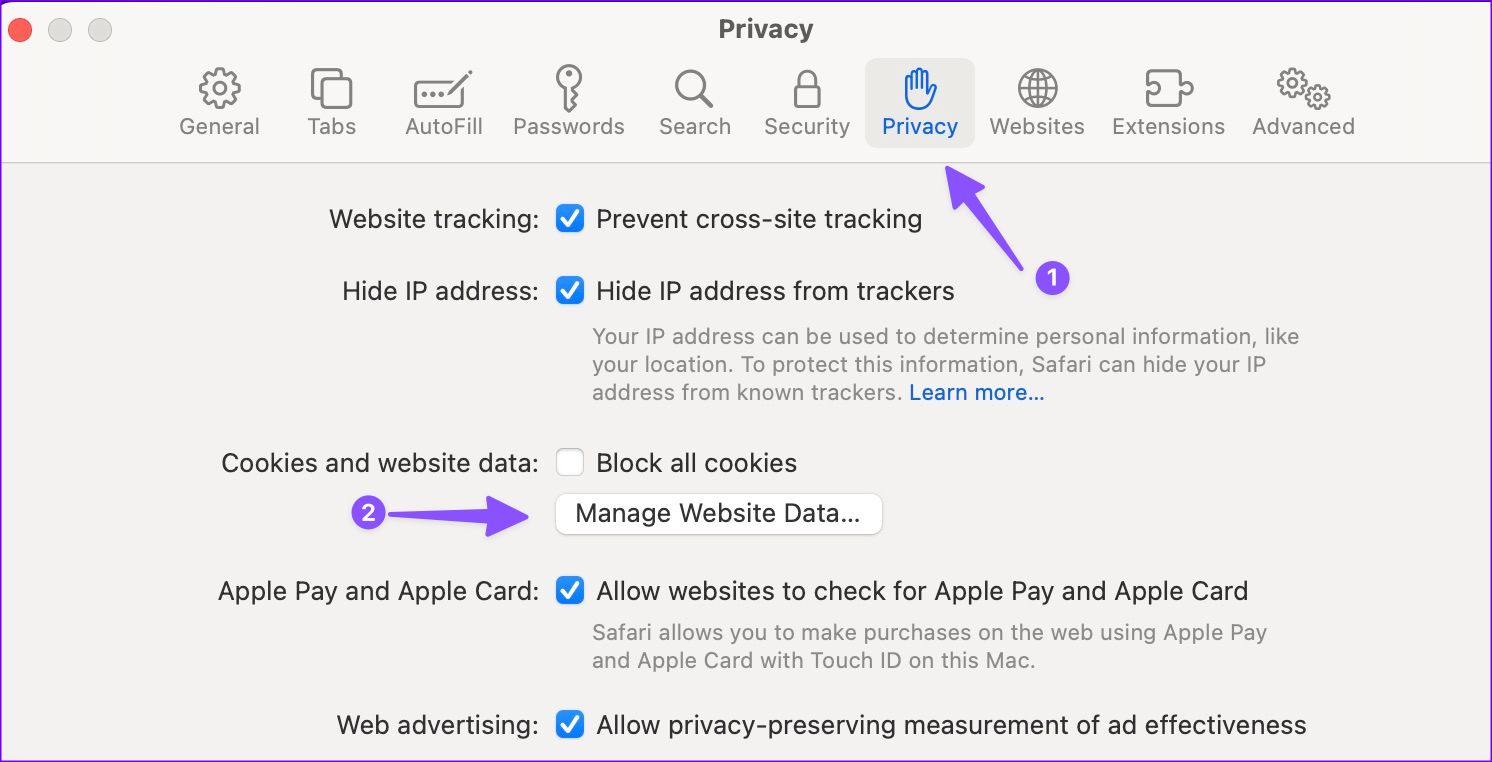
Step 2: Move to the Privacy tab. Click Manage Website Data.
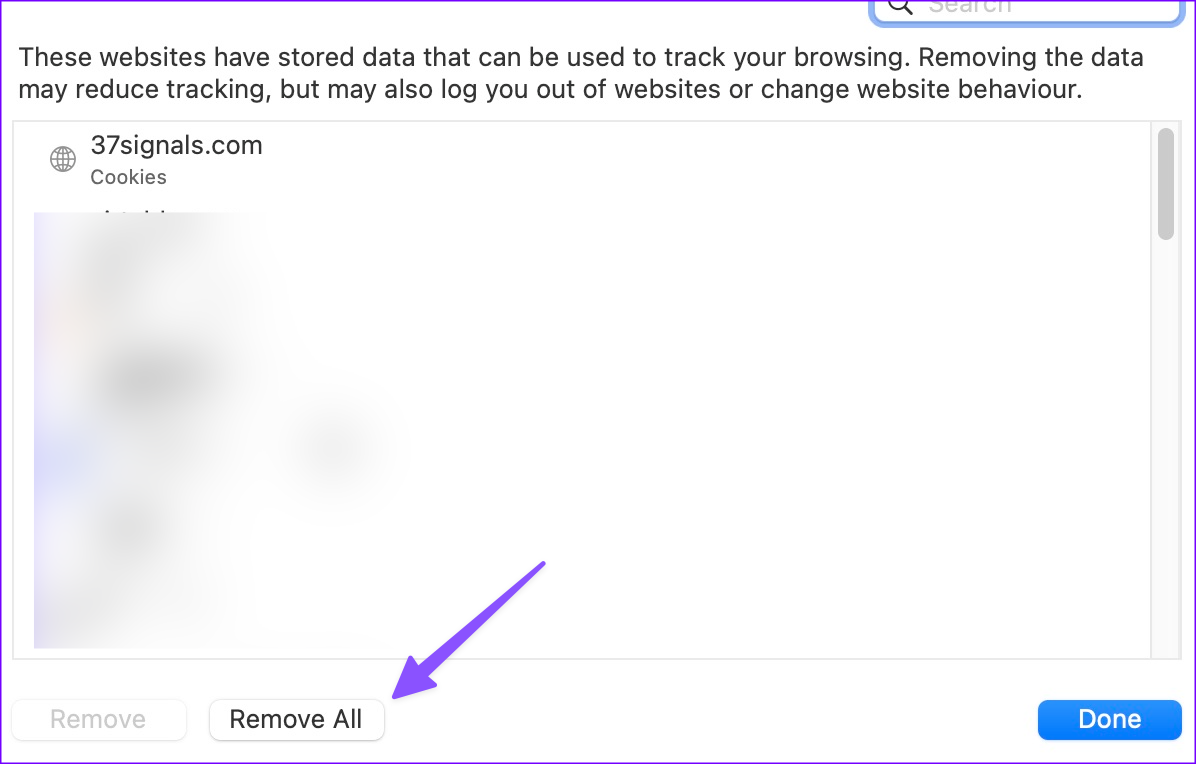
Step 3: Select Remove All and hit Done.
Tip: You can also turn off AdBlock in Safari.
Fix 2. Flush DNS Cache on Mac
Resetting the DNS cache can help when facing connectivity issues. The process differs from flushing DNS on Windows; on Mac, we’ll use a Terminal command.
Step 1: Open Terminal. You can launch Spotlight and search for Terminal or go to Finder → Go → Utilities → Terminal.
Step 2: Type in the following command into Terminal and press return.
"sudo dscacheutil -flushcache; sudo killall -HUP mDNSResponder"
Step 3: Enter your device password and press return.

This will reset DNS cache immediately. Notably, there will be no indication for the same; it is carried out in the background silently.
Fix 3. Renew DHCP Lease
If your device employs the Dynamic Host Configuration Protocol (DHCP), maybe the issue is caused due to it. You can renew DHCP Lease or reset it to resolve the issue.
Step 1: Open the System Settings menu on your Mac.
Step 2: Click Network from the sidebar > select the Wi-Fi from the right > click Details.

Step 3: Select TCP/IP from the sidebar > click Renew DHCP Lease.
Step 4: Click OK.

Fix 4. Modify DNS Settings
You can tweak the default DNS settings with Google’s public DNS and browse Safari without any issues. This is one neat way to fix the ‘Safari can’t open Google’ issue.
Step 1: Go to Mac System Settings/System Preferences. Select Wi-Fi and open Details/Network → Advanced menu.
Step 2: Click DNS. Select + and enter Google’s public DNS entries, i.e.,
- 8.8.8.8
- 8.8.4.4
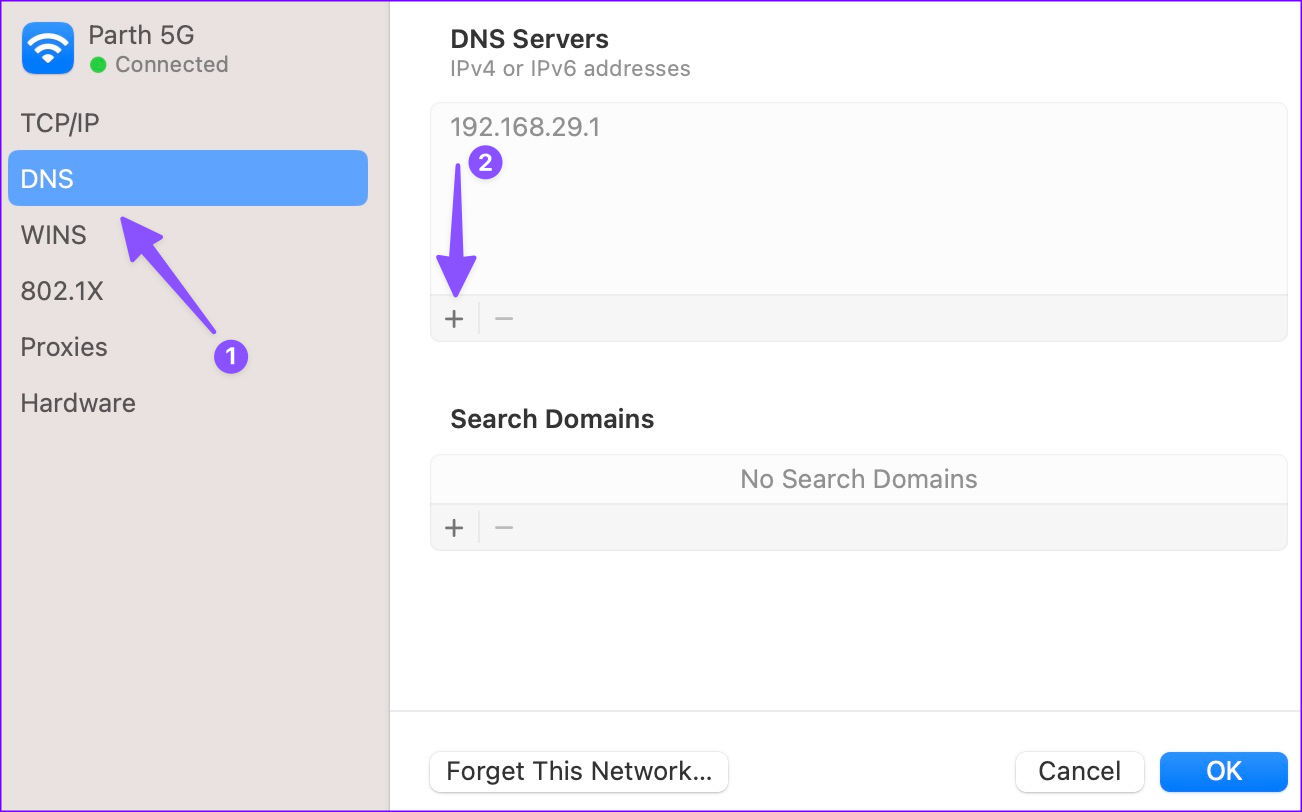
Step 3: Click OK and close the app.
You can now check if Safari is working fine.
Fix 5. Disable Content Blocker for the Website
While content blockers may offer a better reading experience on the Safari browser, they heavily affect the website revenue. That’s why some websites won’t let you read an article unless you disable the content blocker for them.
In this case, you are connecting to a server in the Safari browser. But you can’t browse anything on the website. Here’s what you must do.
Step 1: Hover the mouse to the search bar at the top and right-click on it. If you are using a trackpad, use a two-finger click on the trackpad.
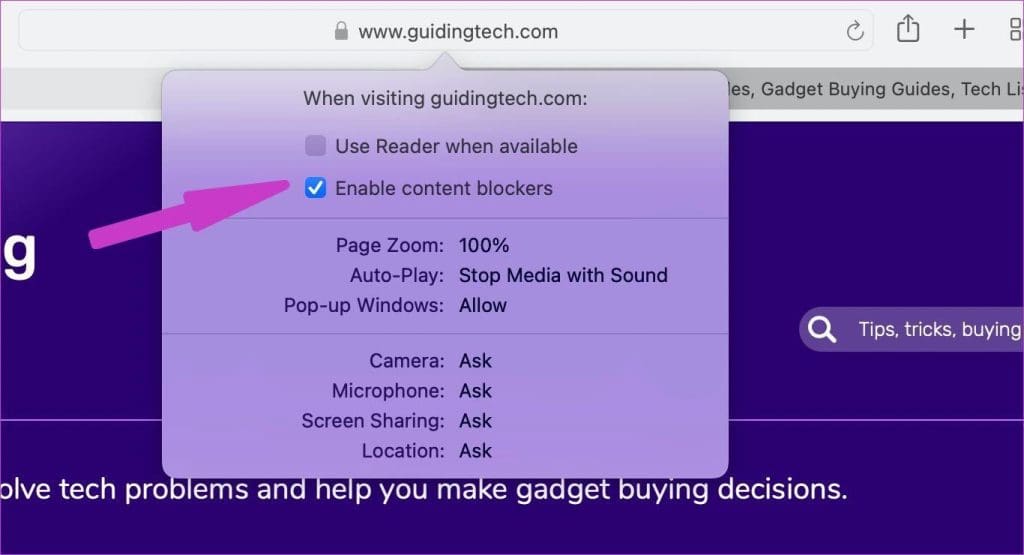
Step 2: It will open a pop-up menu to modify website settings. Disable the content blocker. Reload the website, and you are all set to read the post.
Fix 6. Disable iCloud Private Relay
With the macOS Monterey update, Apple has enabled iCloud Private Relay for iCloud+ subscribers. This service reroutes internet traffic through an Apple-branded server and protects your exact location.
Some location-based websites may require your exact location and have problems working with iCloud Private Relay enabled.
Thankfully, Apple allows users to disable iCloud Private Relay for a specific Wi-Fi connection on a Mac. Here’s how to do it.
Step 1: Open the System Settings/System Preferences menu on Mac.
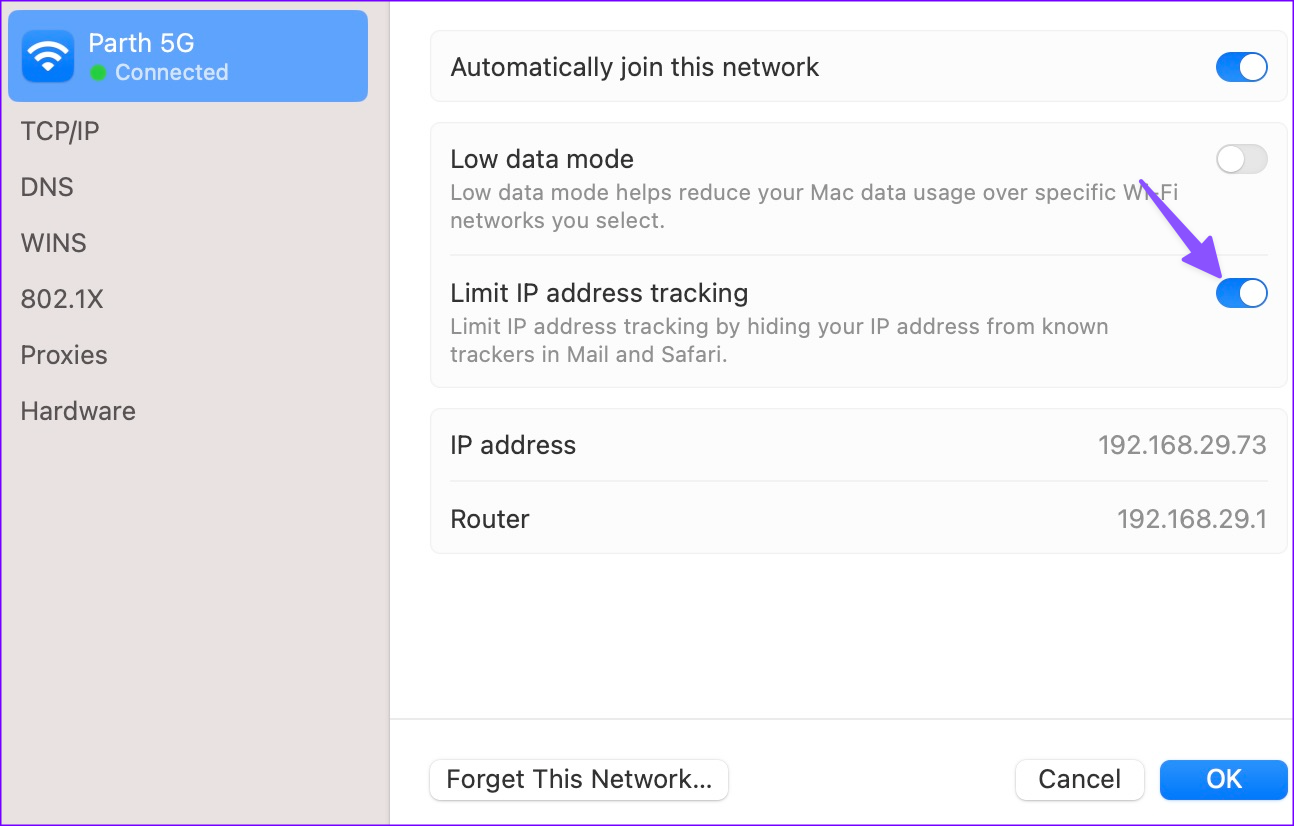
Step 2: Select Wi-Fi and open Details. In the older version of macOS, go to Network → Wi-Fi.
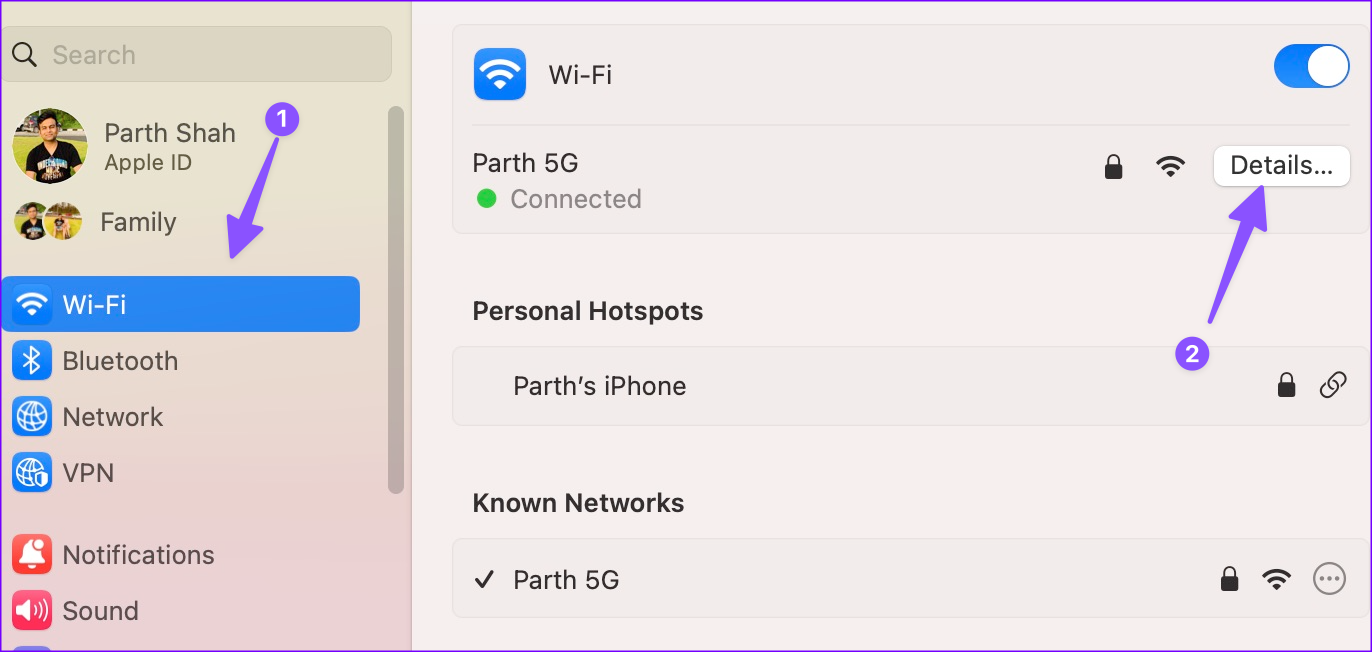
Step 3: Disable the Limit IP address tracking toggle or iCloud Private Relay (for older macOS).
Notably, some websites may not be properly optimized for Safari on Mac. You can temporarily switch to Google Chrome and check if it’s working.
Was this helpful?
Last updated on 16 August, 2024
4 Comments
Leave a Reply
Read Next
 Top 8 Ways to Fix Safari Can’t Find Server Issue
Apple is opening the doors for third-party web browsers on the iPhone.
Top 8 Ways to Fix Safari Can’t Find Server Issue
Apple is opening the doors for third-party web browsers on the iPhone.
 4 Ways to Fix Unable to Contact Your DHCP Server Error on Windows 11
Fix 1: Restart Your DHCP Client service The DHCP Client service registers and updates the PC's IP address and DNS record.
4 Ways to Fix Unable to Contact Your DHCP Server Error on Windows 11
Fix 1: Restart Your DHCP Client service The DHCP Client service registers and updates the PC's IP address and DNS record.
 5 Ways to Fix “Cannot Verify Server Identity” Error on iPhone and iPad
Try Basic Fixes Use a secure network connection: The Mail app may fail to verify the server identity if you're on a public (less secure) network.
5 Ways to Fix “Cannot Verify Server Identity” Error on iPhone and iPad
Try Basic Fixes Use a secure network connection: The Mail app may fail to verify the server identity if you're on a public (less secure) network.
 5 Ways to Fix YouTube Server Error 400 on Android and iPhone
Try Basic Fixes Check if YouTube is down: If there is an issue with YouTube's server, the app will continue to display the 400 error, and you won't be able
5 Ways to Fix YouTube Server Error 400 on Android and iPhone
Try Basic Fixes Check if YouTube is down: If there is an issue with YouTube's server, the app will continue to display the 400 error, and you won't be able
 Top 9 Fixes For ‘There Is Something Wrong With the Proxy Server’ Error in Chrome
Proxy servers are useful when you need to hide your internet traffic from your ISP or connect to blocked websites.
Top 9 Fixes For ‘There Is Something Wrong With the Proxy Server’ Error in Chrome
Proxy servers are useful when you need to hide your internet traffic from your ISP or connect to blocked websites.
 How to Fix Can’t Establish Secure Connection Error in Safari
That nagging feeling of someone looking over your shoulder is quite discomforting.
How to Fix Can’t Establish Secure Connection Error in Safari
That nagging feeling of someone looking over your shoulder is quite discomforting.
 3 Ways to Fix Safari High Memory Usage on Mac
Basic Fixes Close irrelevant tabs: Close the tabs that you don't use frequently in Safari.
3 Ways to Fix Safari High Memory Usage on Mac
Basic Fixes Close irrelevant tabs: Close the tabs that you don't use frequently in Safari.
 3 Ways to Fix Safari Not Playing Videos on Mac
Preliminary Fixes Check the Streaming Service status: Can't play videos from Netflix, Prime Video, Disney+, or YouTube on Safari?
3 Ways to Fix Safari Not Playing Videos on Mac
Preliminary Fixes Check the Streaming Service status: Can't play videos from Netflix, Prime Video, Disney+, or YouTube on Safari?
The article above may contain affiliate links which help support Guiding Tech. The content remains unbiased and authentic and will never affect our editorial integrity.


None of these worked for me I would love to play EverQuest again but can’t find the server
How do I find dns on ventura?
None of these worked for me. I can’t disable ad blockers on the website that I’m unable to access because the lock doesn’t come up in the search bar. Right clicking simply asks copy or paste but that’s it
My result is exactly the same as Bryana’s 🙁