Try Basic Fixes
- Check if Roblox is down: Sometimes, server congestion or other related issues can prevent you from accessing your Roblox account. To investigate this possibility, check Roblox’s server status. If there is an outage, wait for the Roblox servers to return online and then try to access your account again.
- Temporarily turn off VPN: While VPNs are useful for certain activities, they can sometimes lead to slow or unreliable connectivity. Also, Roblox might flag your login attempts as suspicious if it detects unusual network activity caused by a VPN. Try turning off your VPN connection temporarily and see if that helps.
- Update Roblox: You may have trouble logging into your account due to an outdated or buggy version of Roblox. Hence, it’s a good idea to ensure you are running the most recent version of Roblox on your phone or computer.
Fix 1: Correct Date and Time
This may seem odd, but setting your phone or computer to an incorrect date or time can interfere with Roblox’s ability to connect with its servers. To fix this, you can enable the automatic date and time feature on your computer.
Enable Automatic Date and Time on Windows
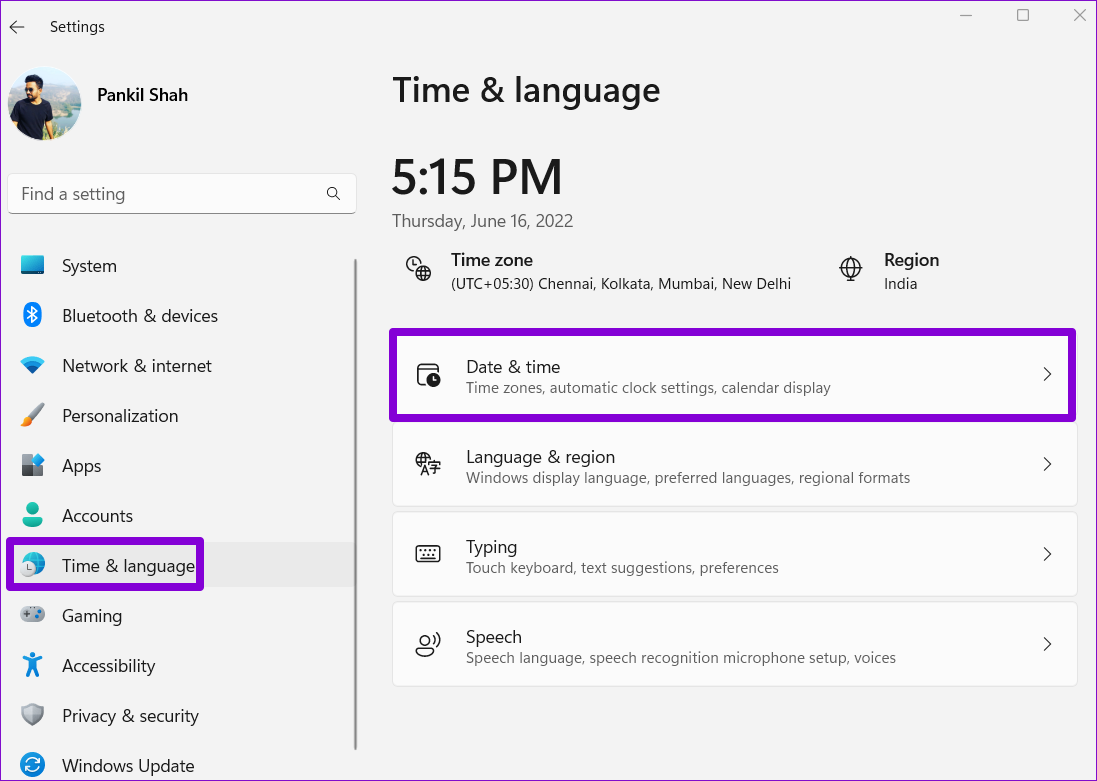
Step 1: Press the Windows key + I to open the Settings app and go to Time & language > Date & time.
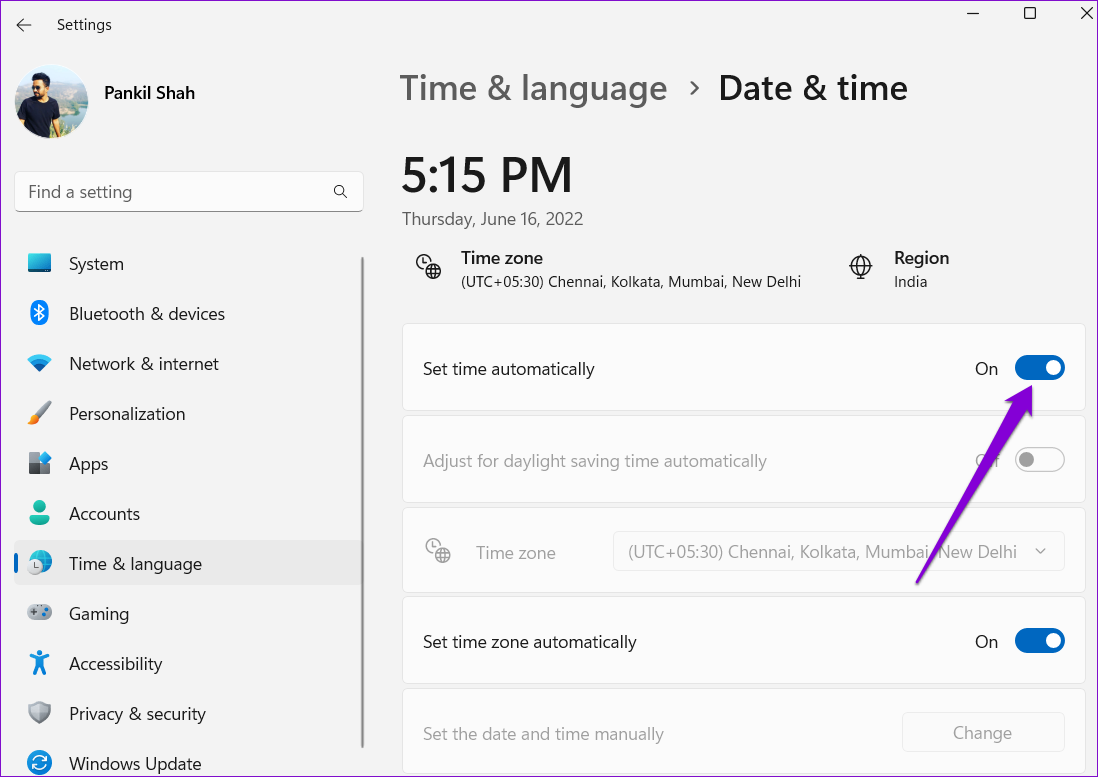
Step 2: Turn on the toggle next to Set time automatically.
Enable Automatic Date and Time on Mac
Step 1: Click the time indicator in the top-right of the menu bar and select the Open Date & Time Preferences option.

Step 2: Under Date & Time, tick the Set date and time automatically checkbox. Then, use the drop-down menu to select the preferred time server.

Similarly, you can fix the wrong date or time on your Android or iPhone. After that, you can log into Roblox.
Fix 2: Reset Your Password
Resetting the password of your Roblox account is an effective way to fix such login issues. To do this, you will need to use the email address associated with your account. Here are the steps for the same.
Step 1: Open a web browser on your computer and head to Roblox’s website. On the login page, click the Forgot Password or Username link.

Step 2: Enter your email ID and click Submit.

Step 3: Open the password reset link received in your email and follow the on-screen prompts to set a new password for your account. After that, you can log in as usual.

Fix 3: Disable Ad-Blocker Extensions (Computer)
Are you experiencing login issues with Roblox in a web browser? That could happen if you are running any extensions to block ads. Try disabling any ad-blocker extensions in your browser and see if that solves the problem.
Type chrome://extensions (Chrome) edge://extensions (Edge) in the address bar at the top and press Enter. Then, turn off the toggle next to the ad-blocker extension.

Restart your browser after disabling the ad-blocker and try to log in to your account one more time.
Fix 4: Clear Browser Cookies (Computer)
If disabling the ad-blocker extension doesn’t help, consider clearing old Roblox site data on your browser. If you use Chrome, follow these steps to clear Roblox cookies:
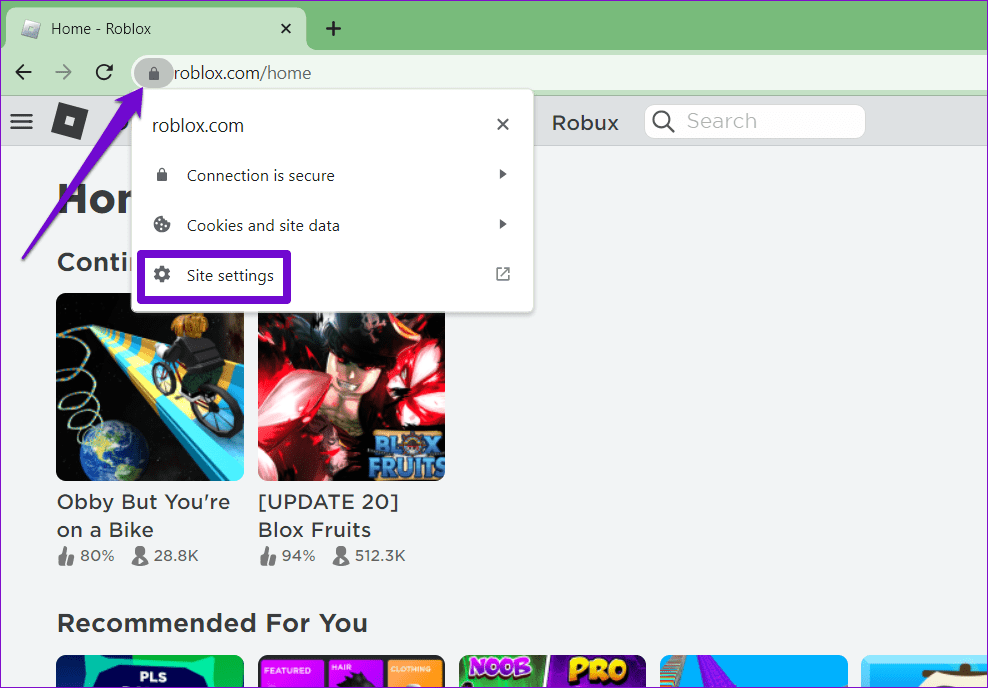
Step 1: Visit the Roblox website, click the padlock icon in the address bar, and select Site settings.
Step 2: Click the Delete data button under the Usage section.
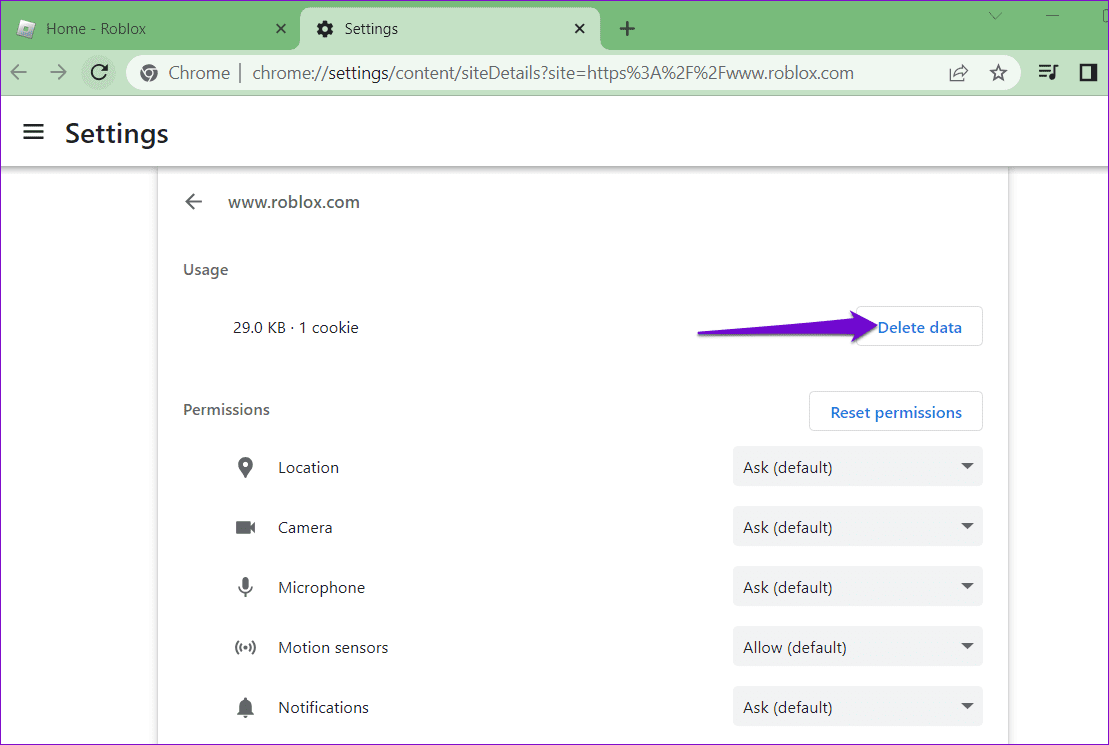
Similarly, you can clear Roblox’s cache and cookies in Edge, Safari, or any other browser you use.
Was this helpful?
Last updated on 27 June, 2024
Read Next
 5 Ways to Fix TikTok Not Letting You Follow Someone
Basic Fixes Check TikTok servers: If TikTok servers are down, you may not be able to follow accounts.
5 Ways to Fix TikTok Not Letting You Follow Someone
Basic Fixes Check TikTok servers: If TikTok servers are down, you may not be able to follow accounts.
 4 Fixes for Can’t Join Roblox Games
Try Basic Fixes Check if your Roblox account is banned: Roblox may suspend your account for a certain time and restrict your access to games if you violate its Community
4 Fixes for Can’t Join Roblox Games
Try Basic Fixes Check if your Roblox account is banned: Roblox may suspend your account for a certain time and restrict your access to games if you violate its Community
 5 Fixes for Roblox Black Screen Issue
Fix 1: Turn On Reduced Motion Is Roblox showing a black screen when you try to join an experience?
5 Fixes for Roblox Black Screen Issue
Fix 1: Turn On Reduced Motion Is Roblox showing a black screen when you try to join an experience?
 4 Fixes for Can’t Purchase Anything on Roblox
Try Basic Fixes Use a different payment method: Roblox supports all major credit and debit cards, prepaid credit cards, and PayPal for payments.
4 Fixes for Can’t Purchase Anything on Roblox
Try Basic Fixes Use a different payment method: Roblox supports all major credit and debit cards, prepaid credit cards, and PayPal for payments.
 5 Fixes for Roblox Not Launching on Windows
Try Basic Fixes Close Roblox completely and reopen it: Sometimes, apps and games on your Windows PC may experience problems while opening, causing them to become unresponsive.
5 Fixes for Roblox Not Launching on Windows
Try Basic Fixes Close Roblox completely and reopen it: Sometimes, apps and games on your Windows PC may experience problems while opening, causing them to become unresponsive.
 4 Fixes for Roblox Lag on Windows
Fix 1: Change Graphics Preference for Roblox Windows lets you set graphics preferences for each app and program separately.
4 Fixes for Roblox Lag on Windows
Fix 1: Change Graphics Preference for Roblox Windows lets you set graphics preferences for each app and program separately.
 6 Fixes for Roblox Chat Not Working on Windows
Fix 1: Modify Roblox Privacy Settings to Unblock Messages A common reason why the chat option may not show up or work in Roblox is if you have previously turned
6 Fixes for Roblox Chat Not Working on Windows
Fix 1: Modify Roblox Privacy Settings to Unblock Messages A common reason why the chat option may not show up or work in Roblox is if you have previously turned
 5 Fixes for Roblox Installer Not Working on Windows
Fix 1: Try Launching Roblox From the AppData Folder The Roblox installation process on Windows can sometimes become stuck for various reasons, making it seem like the installer is not
5 Fixes for Roblox Installer Not Working on Windows
Fix 1: Try Launching Roblox From the AppData Folder The Roblox installation process on Windows can sometimes become stuck for various reasons, making it seem like the installer is not
The article above may contain affiliate links which help support Guiding Tech. The content remains unbiased and authentic and will never affect our editorial integrity.