Try These Things First
- Restart your computer: Resident Evil 4 remake may be crashing on your computer due to a bug or glitch. Restarting your computer will get rid of the bug, ultimately solving the problem.
- Run the game as an administrator: You should try running the game with administrative permissions so it has all the rights to run without any problem. To do this, navigate to the location where you have saved the game files, then right-click on the game .exe file and choose Run as administrator.
- Try changing the Compatibility Mode to Windows 10: The game can also crash on the computer due to a compatibility issue. In this case, change the compatibility mode of the game to Windows 10. To do this, right-click on the game exe file > choose Properties > switch to the Compatibility tab > select Run this program in compatibility mode for > choose Windows 10.
Fix 1: Check Resident Evil 4 Remake System Requirements
Before making any major changes, confirm that your computer can run Resident Evil 4 Remake. If either of the minimum requirements is not met, the game will crash or not run at all on your computer. Below are the minimum requirements to run Resident Evil 4 Remake on a Windows PC:
- OS: Windows 10 (64 bit)
- Processor: AMD Ryzen 3 1200 / Intel Core i5-7500
- Memory: 8GB RAM
- Graphics: AMD Radeon RX 560 with 4GB VRAM / NVIDIA GeForce GTX 1050 Ti with 4GB VRAM
- DirectX: Version 12
Fix 2: Change Resident Evil 4 Remake Graphics Settings
Resident Evil 4 Remake offers different graphics options to enhance your visual experience. However, it’s important to note that certain settings may be incompatible with your system and can lead to game crashes.
In that case, it’s good to have optimized graphics settings that work well in all the systems. Below are the best Resident Evil 4 Remake graphics settings, ensuring that you don’t have to compromise on stability or visual quality.
- Screen Resolution – Default
- Refresh Rate – Default
- Texture Filtering – High
- Ray Tracing – Normal
- FidelityFX Super Resolution 2 – Ultra Performance
- Mesh Quality – High
- Shadow Quality – Mid
- Ambient Occlusion – SSAO
- Anti-aliasing – TAA
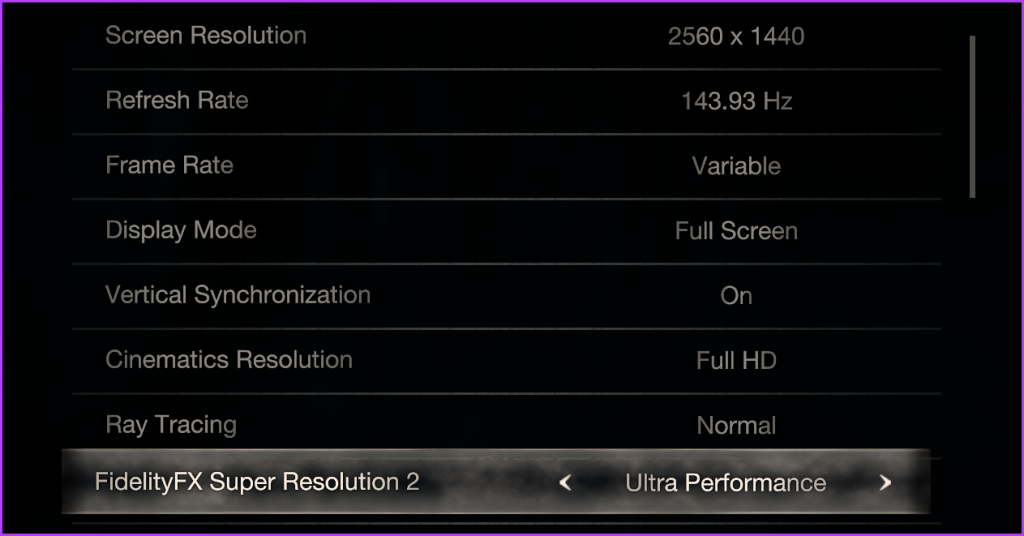
Keep all the other graphic settings to their default values. However, if the game still crashes, lower the Texture, Shadows, and Ray Tracing to decrease the VRAM usage.
Fix 3: Update Graphics Driver
If your graphics driver gets outdated or corrupt, you become prone to various issues, including the one at hand. You should update the graphics driver to fix the problem. Here’s how to do that:
Step 1: Press the Windows + X keyboard shortcut to open the Power User menu and choose Device Manager.
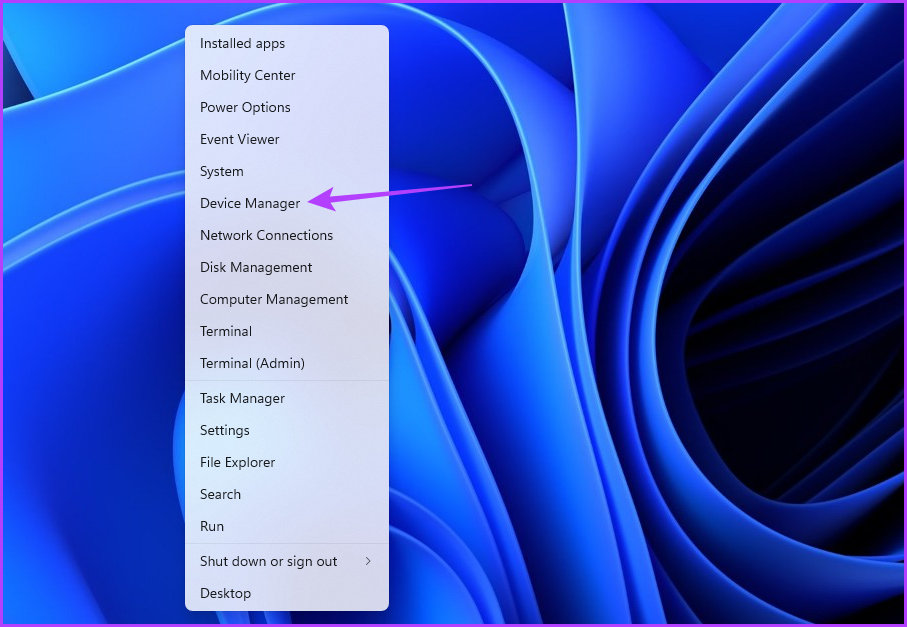
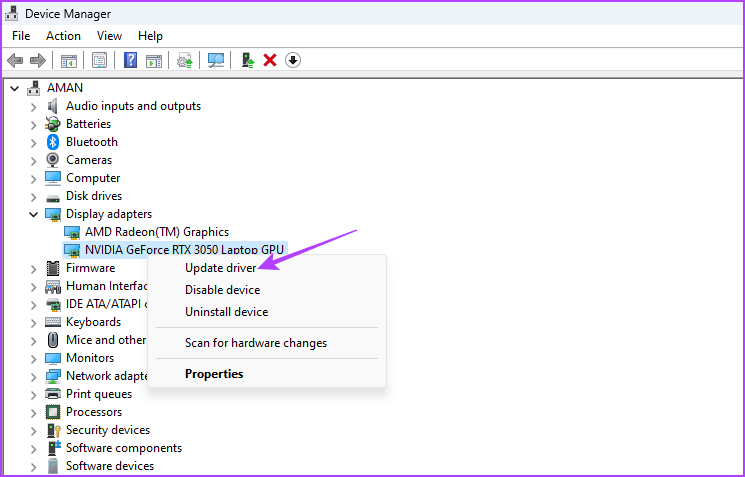
Step 2: Now, double-click the Display adapters, right-click the installed graphics driver, and choose Update driver.
Step 3: Choose Search automatically for drivers.
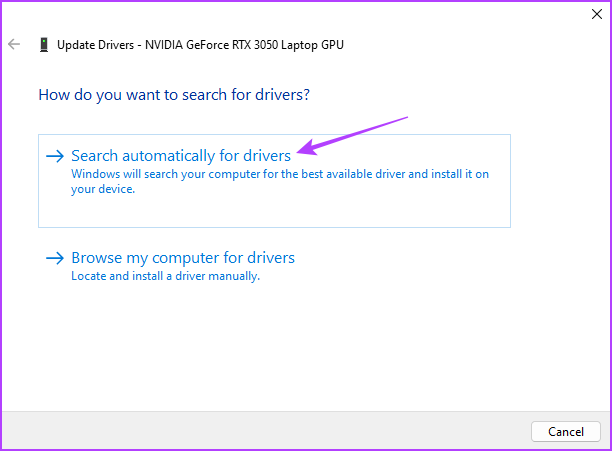
Windows will look for and download any available graphics driver update. After the update process is complete, restart your computer and check for the issue.
Alternatively, head toward your graphics card manufacturer’s website (NVIDIA, AMD, or Intel) and download any available updates for your graphics driver.
Fix 4: Disable GPU Overclocking
Overclocking the GPU is one of many techniques for pushing your GPU performance beyond its limitations. While overclocking can do wonders if done correctly, it can also crash the game.
To check for that possibility, observe if other graphics-oriented applications are crashing on your system. If yes, your overclocked GPU is causing the issue.
To fix that, launch your overclocking tool and reverse all the recent changes in GPU overclocking. Once you’ve done this, restart your system and check if the crashing issue continues.
Fix 5: Verify the Game Files
Another major reason Resident Evil 4 (RE4R) keeps crashing on startup can be its corrupt game files. Fortunately, you can detect and repair these corrupt files using Steam’s file verification feature. Here’s how:
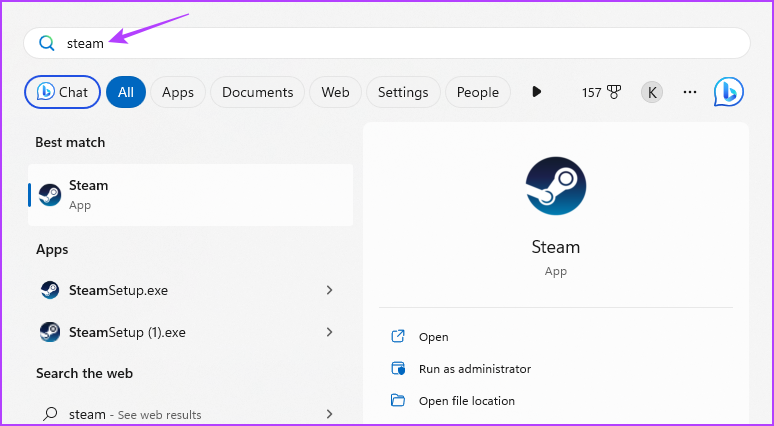
Step 1: Open the Start Menu > type Steam in the search bar > press Enter.
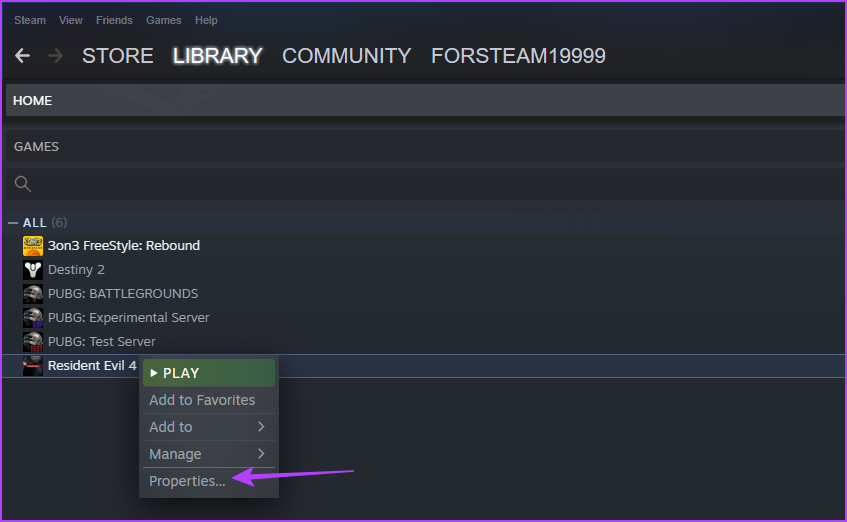
Step 2: Click the Library option at the top, right-click on the Resident Evil 4 Remake in the left sidebar, and choose Properties.
Step 3: Choose Local Files from the left sidebar and click the Verify integrity of game files button in the right pane.
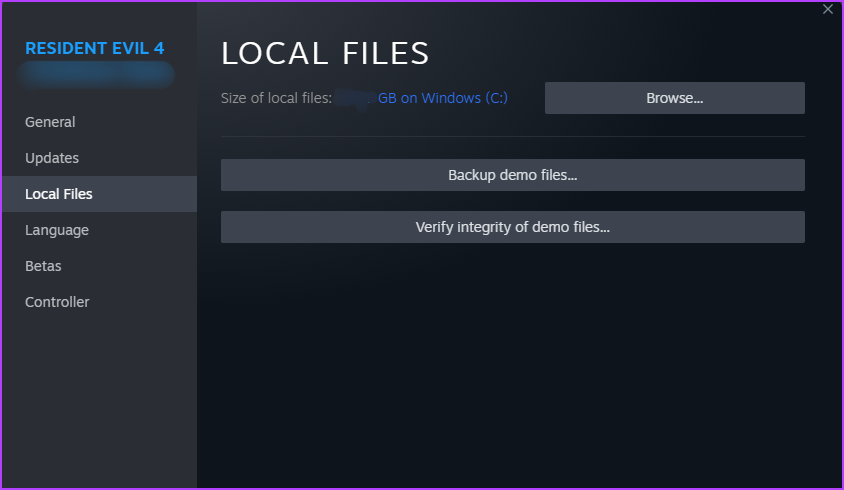
Steam will now compare the game files with the ones available on its servers. If any game files are missing or corrupt, Steam will automatically replace them with their working counterpart.
Also Read: How to fix Instagram not working, loading, or crashing
Was this helpful?
Last updated on 19 July, 2024
Read Next
 2 Ways to Fix the Telegram App Crashing on Windows 11
Basic Fixes Check the Telegram server status: Visit Downdetector to check for an active Telegram server outage.
2 Ways to Fix the Telegram App Crashing on Windows 11
Basic Fixes Check the Telegram server status: Visit Downdetector to check for an active Telegram server outage.
 6 Ways to Fix Microsoft Teams Crashing on Windows 11
Common Fixes Check service outage - Access Microsoft Service health and click Teams in the left sidebar to check service status.
6 Ways to Fix Microsoft Teams Crashing on Windows 11
Common Fixes Check service outage - Access Microsoft Service health and click Teams in the left sidebar to check service status.
 4 Ways to Fix Word Keeps Crashing on Windows
Basic Fixes Restart PC: Restart your PC to eliminate any temporary bugs and glitches.
4 Ways to Fix Word Keeps Crashing on Windows
Basic Fixes Restart PC: Restart your PC to eliminate any temporary bugs and glitches.
 Top 10 Ways to Fix Google Chrome Keeps Freezing or Crashing on Windows 10
Google Chrome is the go-to browser of millions across the world.
Top 10 Ways to Fix Google Chrome Keeps Freezing or Crashing on Windows 10
Google Chrome is the go-to browser of millions across the world.
 5 Ways to Fix Spotify Keeps Crashing Issue on Windows
Basic Fixes Restart Spotify: Open the Task Manager, right-click on Spotify, and select End Task.
5 Ways to Fix Spotify Keeps Crashing Issue on Windows
Basic Fixes Restart Spotify: Open the Task Manager, right-click on Spotify, and select End Task.
 5 Ways to Fix Discord Keeps Crashing on Windows Computer
https://youtu.be/_uU0Ob5vTWM Try Basic Fixes End Discord processes using Task Manager: Press Ctrl + Shift + Esc keys to open Task Manager.
5 Ways to Fix Discord Keeps Crashing on Windows Computer
https://youtu.be/_uU0Ob5vTWM Try Basic Fixes End Discord processes using Task Manager: Press Ctrl + Shift + Esc keys to open Task Manager.
 7 Best Ways to Fix Hogwarts Legacy Crashing Issue on Windows 11
Hogwarts Legacy is an open-world game set in the Harry Potter world.
7 Best Ways to Fix Hogwarts Legacy Crashing Issue on Windows 11
Hogwarts Legacy is an open-world game set in the Harry Potter world.
 7 Ways to Fix Steam Not Opening or Crashing on Windows 11 or 10
Try Basic Fixes Check if Steam is down: If Steam servers face an outage, you might run into errors.
7 Ways to Fix Steam Not Opening or Crashing on Windows 11 or 10
Try Basic Fixes Check if Steam is down: If Steam servers face an outage, you might run into errors.
The article above may contain affiliate links which help support Guiding Tech. The content remains unbiased and authentic and will never affect our editorial integrity.