1. Restart the Printer Spooler From the Task Manager
Step 1: Press the Windows key, type Task Manager, and click Open.
Step 2: Under Process Name, scroll down, find Spooler SubSytem App, and expand the process by clicking the chevron (arrow) icon.
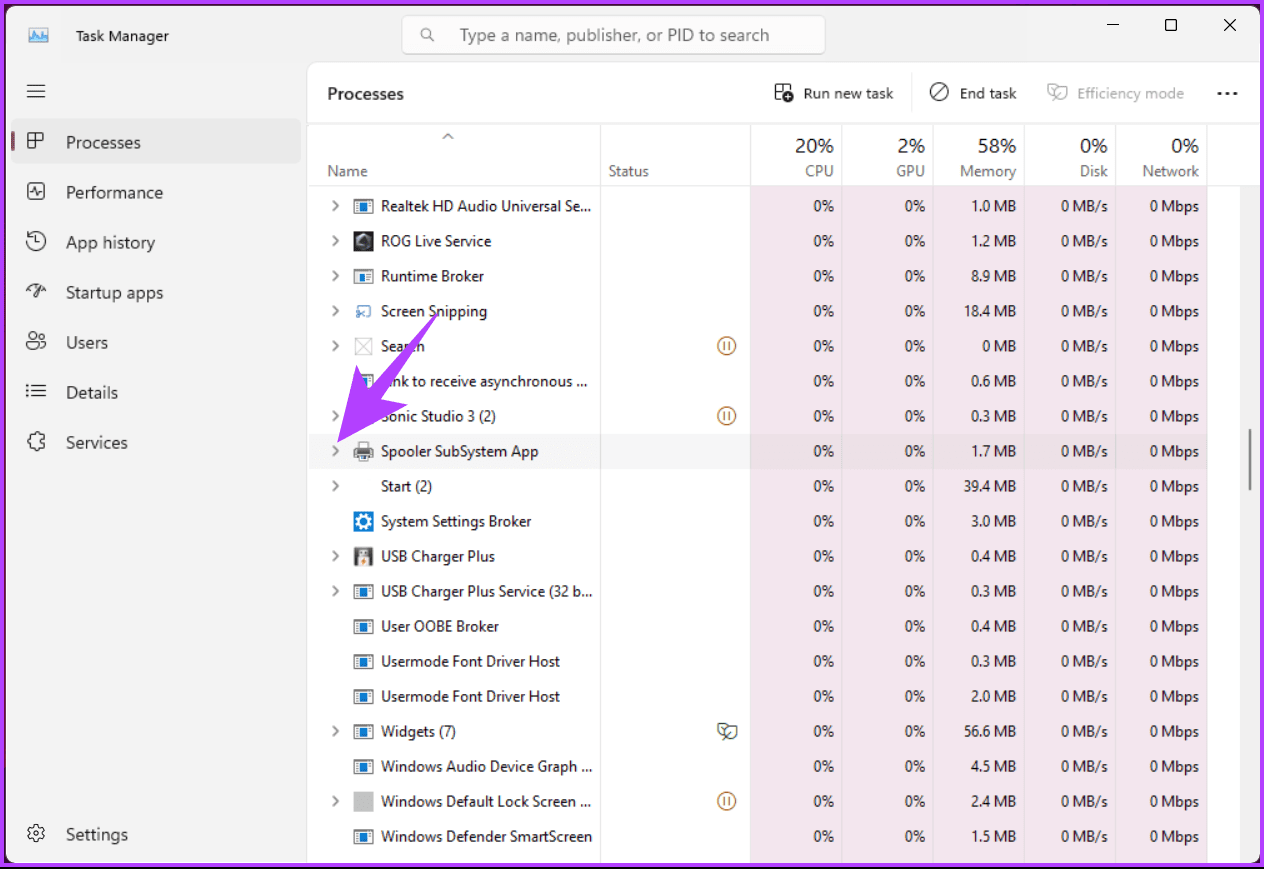
Step 3: Right-click on the Print Spooler, and choose Open Services.
After opening the Services, return to the Task Manager.
Step 4: Right-click on the Print Spooler once more and select Stop to end the process.
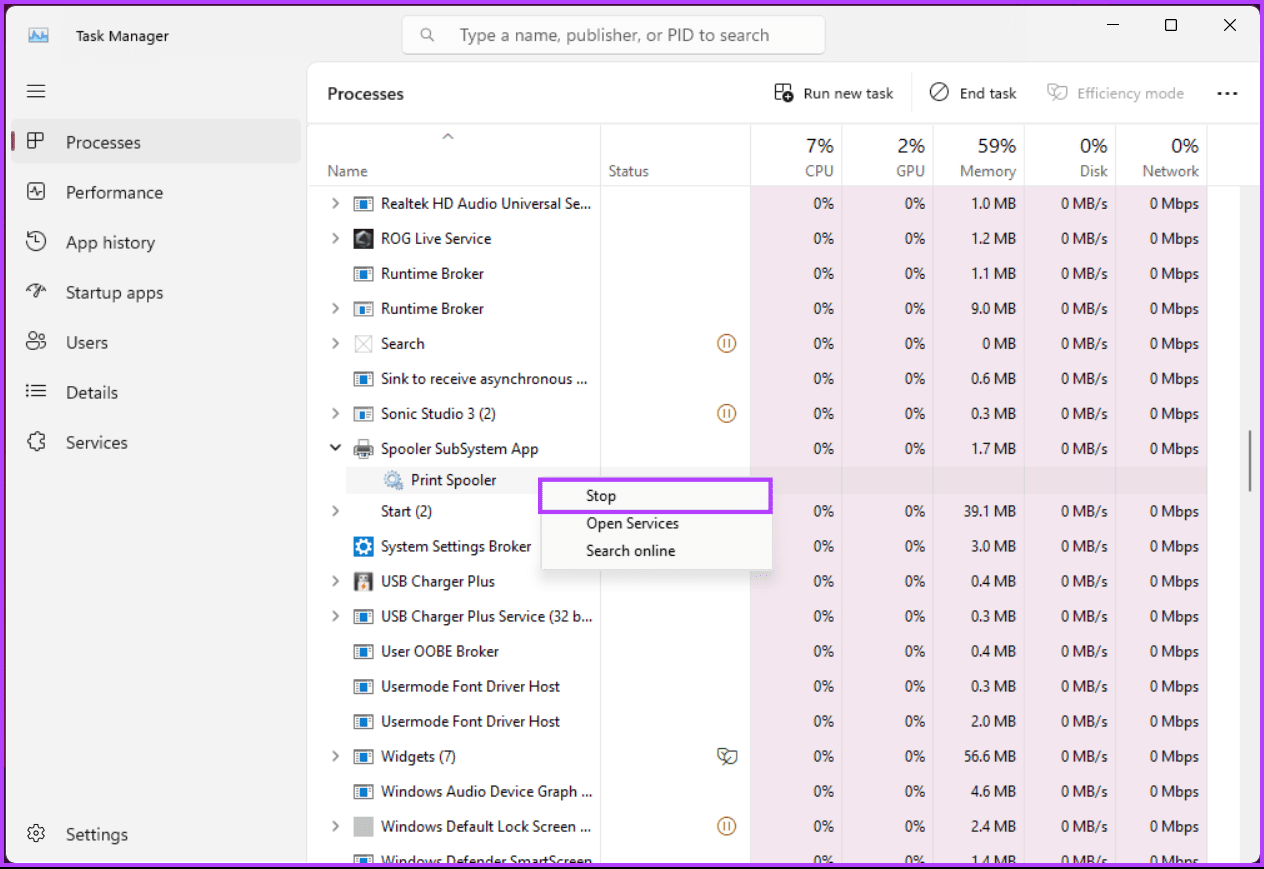
Once it has been stopped, it will be removed from the Task Manager. Finally, go back to the Services tab.
Step 5: In the Services tab, scroll down, find Print Spooler, and right-click on it.
Step 6: From the context menu, choose Start.

After that, you should be able to connect your Windows machine to the Printer without problems. If this method didn’t fix the error, move on to the next one.
Also Read: How to fix printer driver is unavailable error on Windows 11
2. Update your Windows Machine
Step 1: Press the Windows key, type Settings, and click Open.
Step 2: In the Settings window, go to Windows Update.
Step 3: On the right pane, click the Check for updates button.

You may receive a prompt to download the Windows update. After downloading, the update will install automatically, and you’ll receive a prompt to restart your Windows PC.
If this error occurred after you updated your Windows machine, continue reading.
3. Uninstall Recent Windows Updates
Step 1: Press the Windows key, type Control Panel, and click Open.
Step 2: In the Control Panel window, click Programs and Features.
Step 3: Under Uninstall or change a program, click on View installed updates.
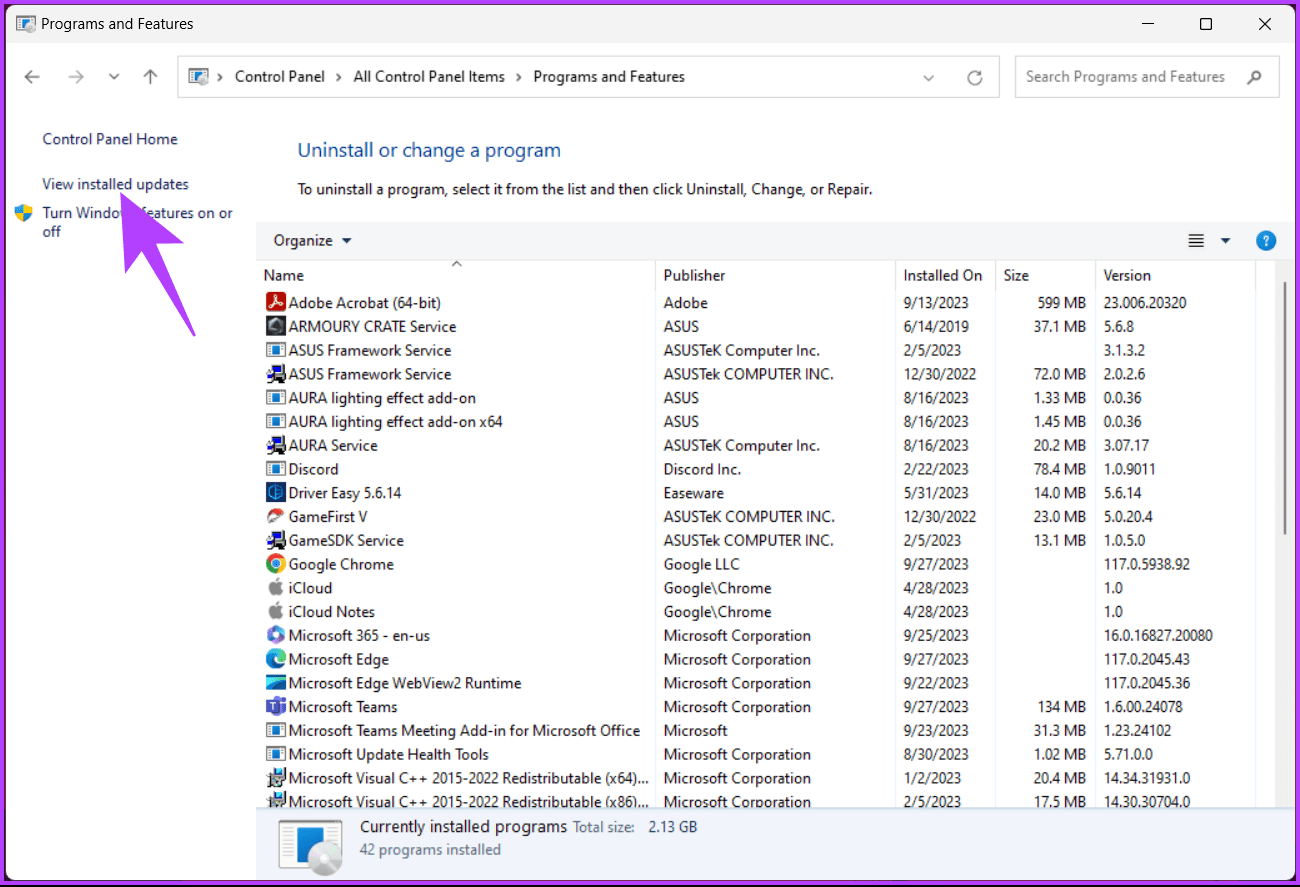
You will be taken to Windows Settings, where you can uninstall the updates.
Step 4: View and click on the Windows Update you want to uninstall.

Using the latest security updates should resolve any issues relating to errors on shared printers or any other problems associated with being unable to access the Printer. If this method doesn’t work, maybe the next one will.
Also Read: Ways to fix printer not showing up on Mac
4. Manually Add the Printer Using Its IP Address
Step 1: Press the Windows key, type Settings, and click Open.
Step 2: In the Settings window, navigate to Bluetooth & devices.
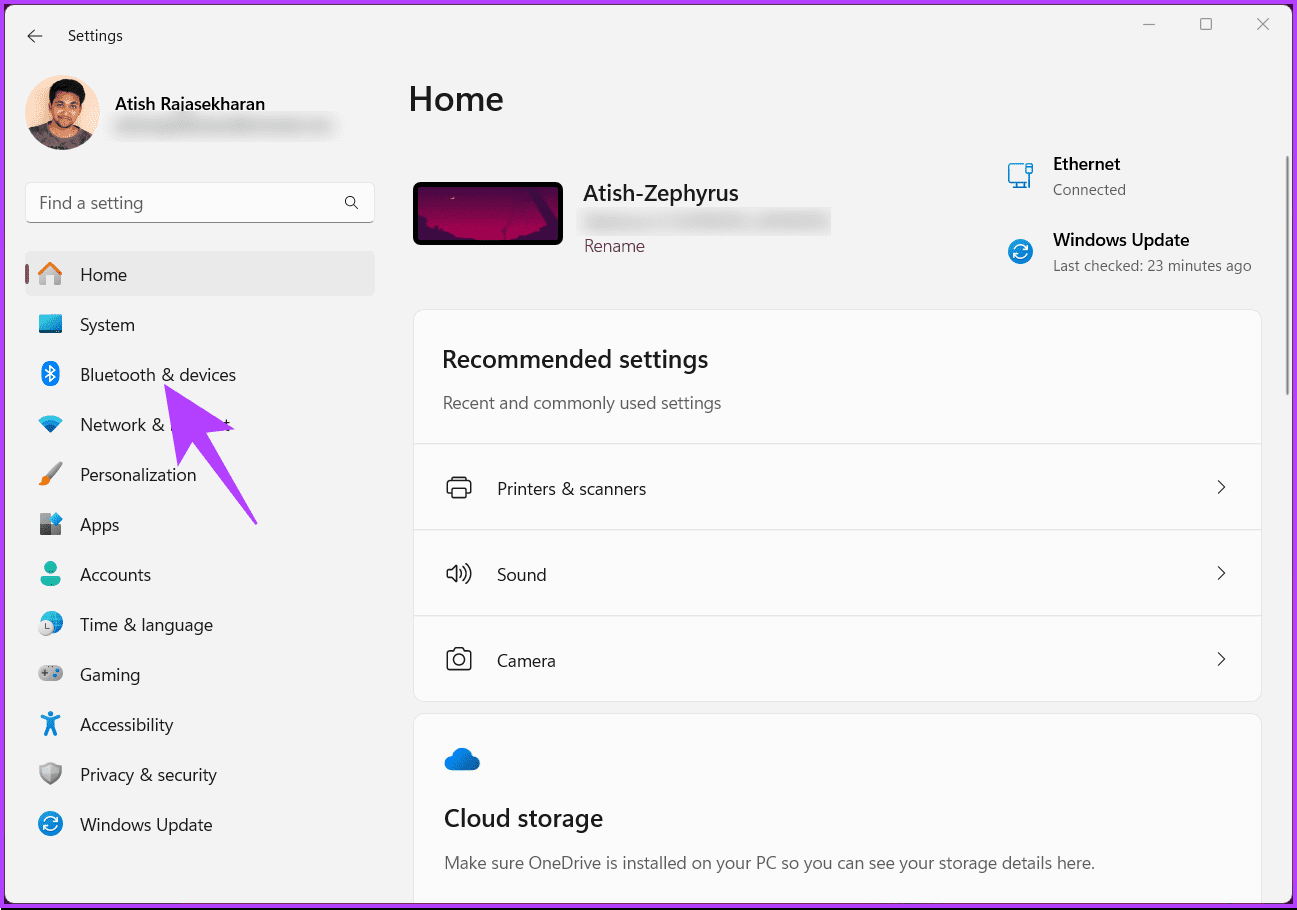
Step 3: Under Bluetooth & devices, scroll down and click on Printer & scanners.
Step 4: Click on the Printer that is causing the issue.
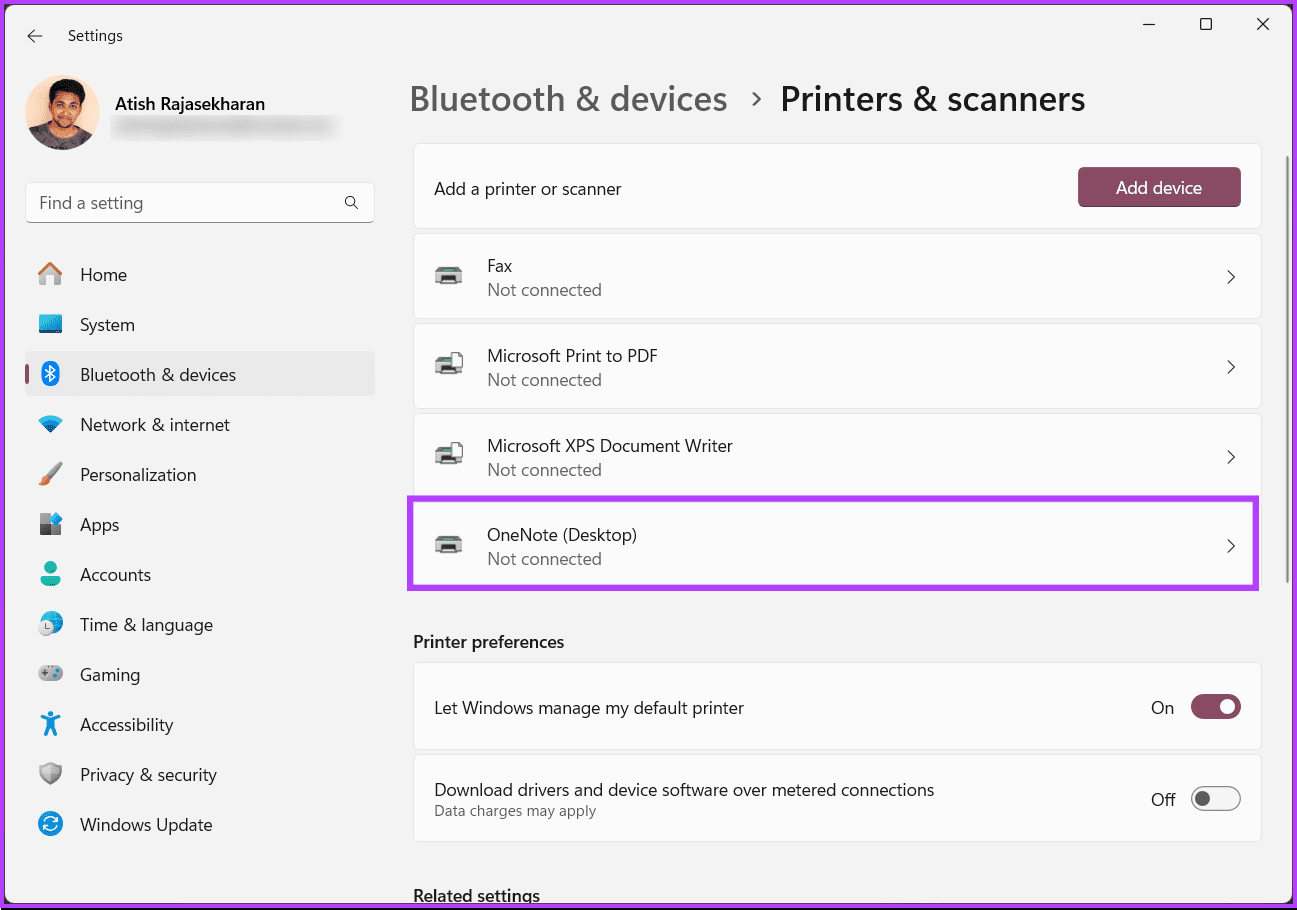
Step 5: On the next screen, remove the Printer from your Windows machine.
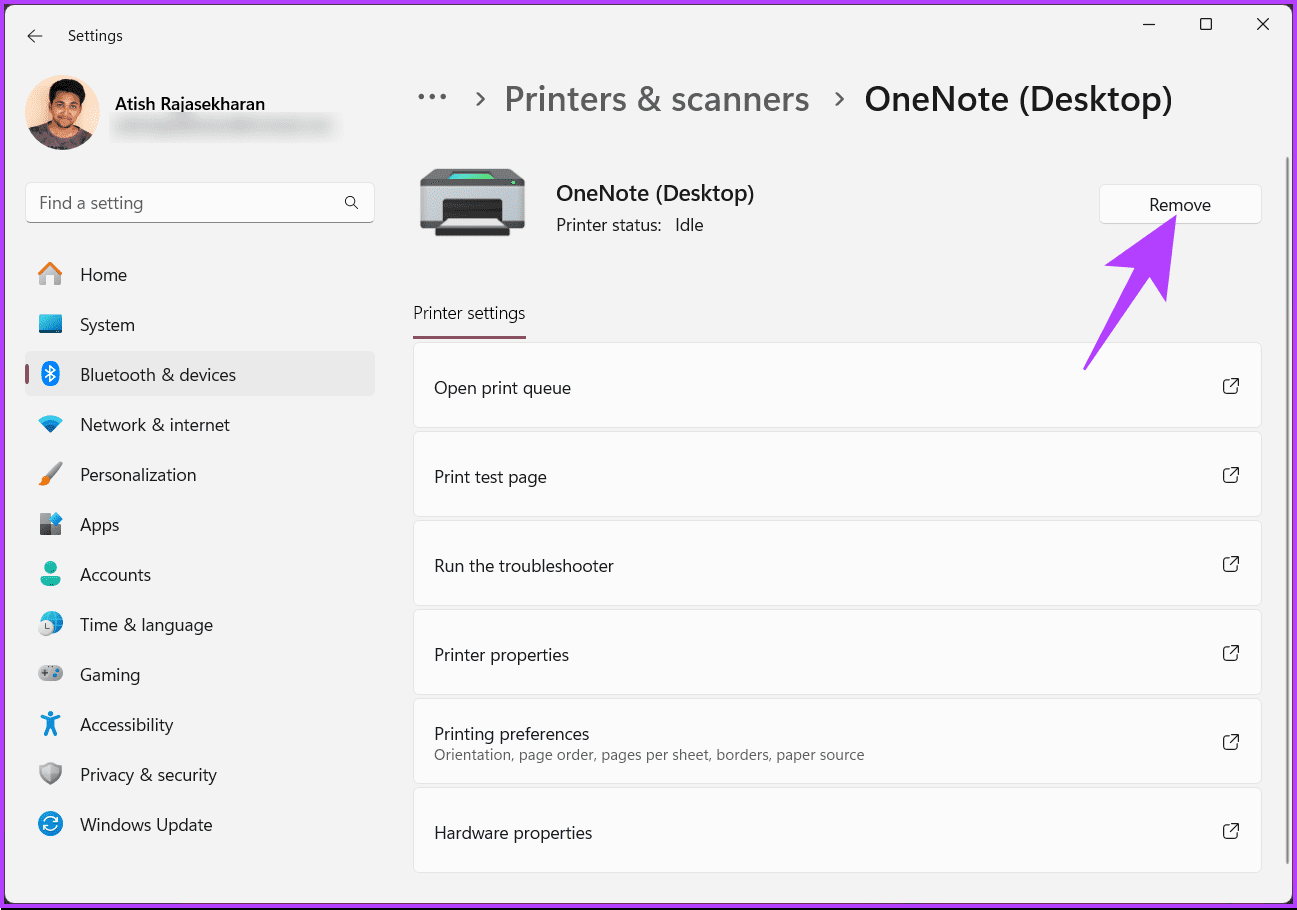
With this, the issue causing your Printer will be removed from your PC, and you will be returned to the Printers & scanners page. Now, it’s time to add it back. Continue with the below steps.
Step 6: Click Add device.
Step 7: Windows searches for the Printer connected via the intranet or locally. If Windows is unable to find it, click Add manually.
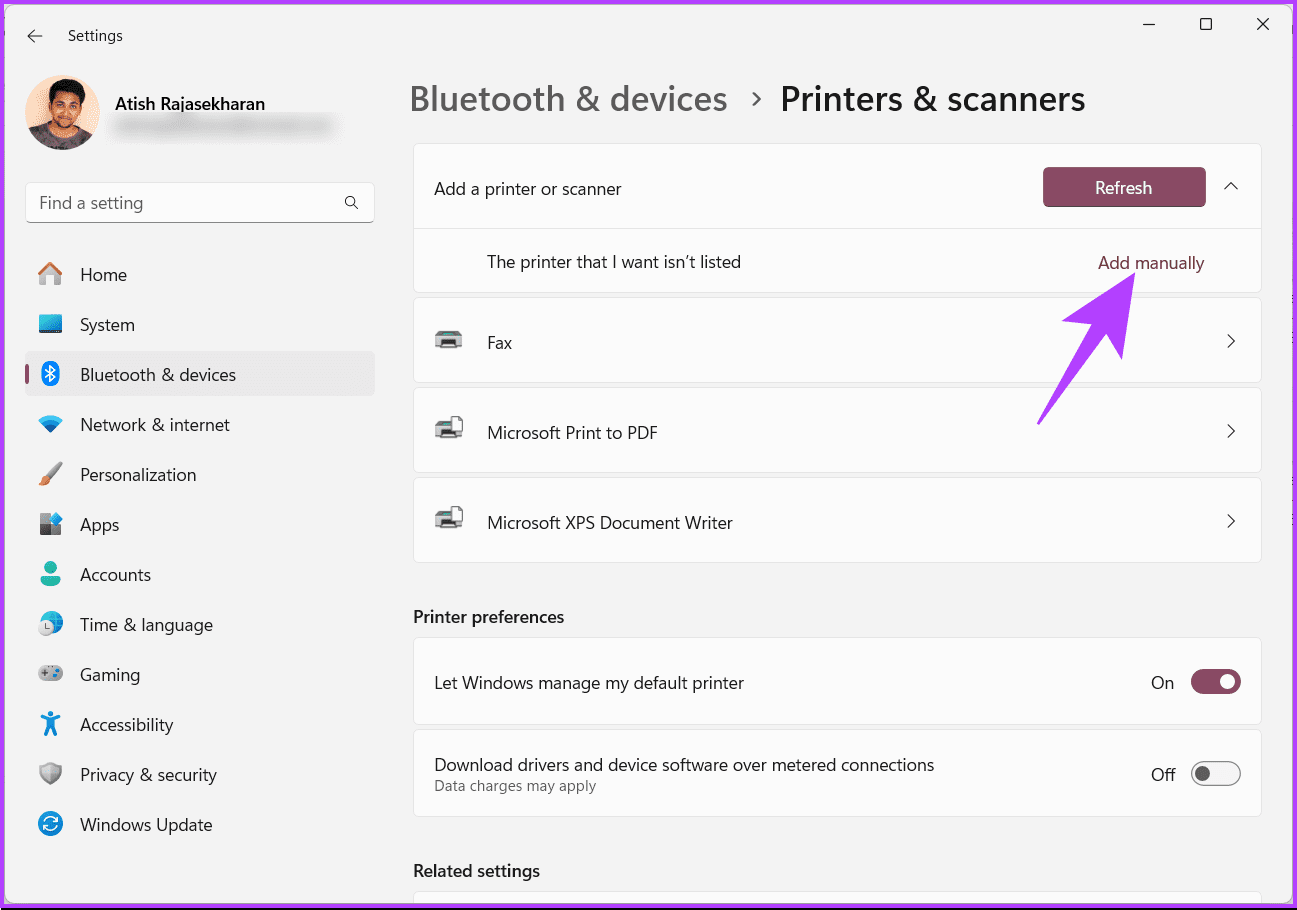
Step 8: In the Add Printer window, select any one of the options you prefer.
For demonstration, we go with Add a printer using an IP address or hostname and click Next.
Step 9: Now, choose the device type, type the Printer’s hostname or IP address, and click Next.
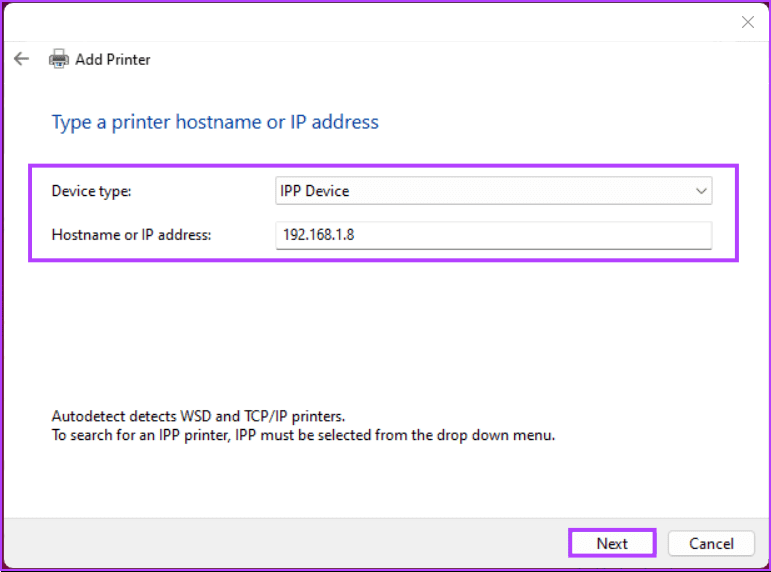
That’s it. Windows will look for the Printer with the IP or hostname in your local network and add it to your machine. This should resolve the errors if it doesn’t check out the next and final method.
5. Disable Print Spooler RPC Encryption Using Windows Registry
Step 1: Open the Start menu, type Registry Editor, and click Run as administrator.
In the prompt, select Yes.
Step 2: In the top address bar, enter the mentioned address and hit Enter.
HKEY_LOCAL_MACHINE\SYSTEM\CurrentControlSet\Control\Print
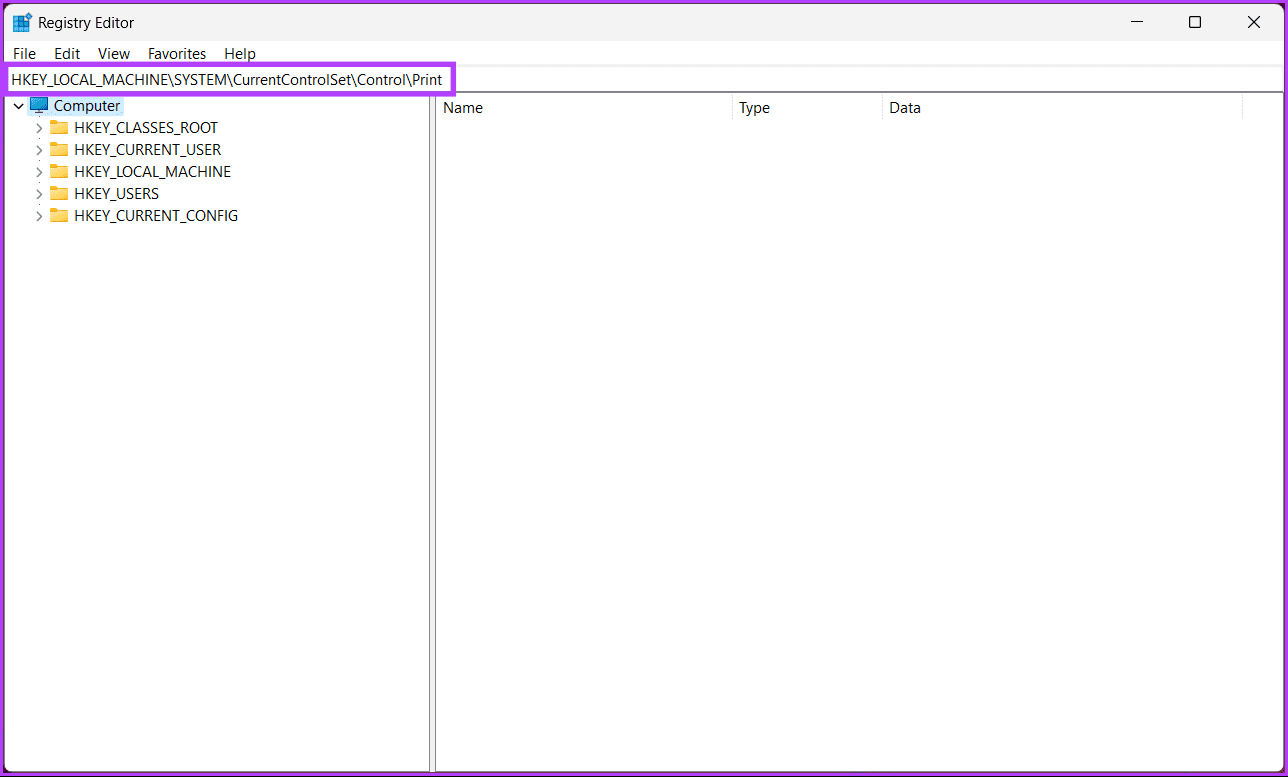
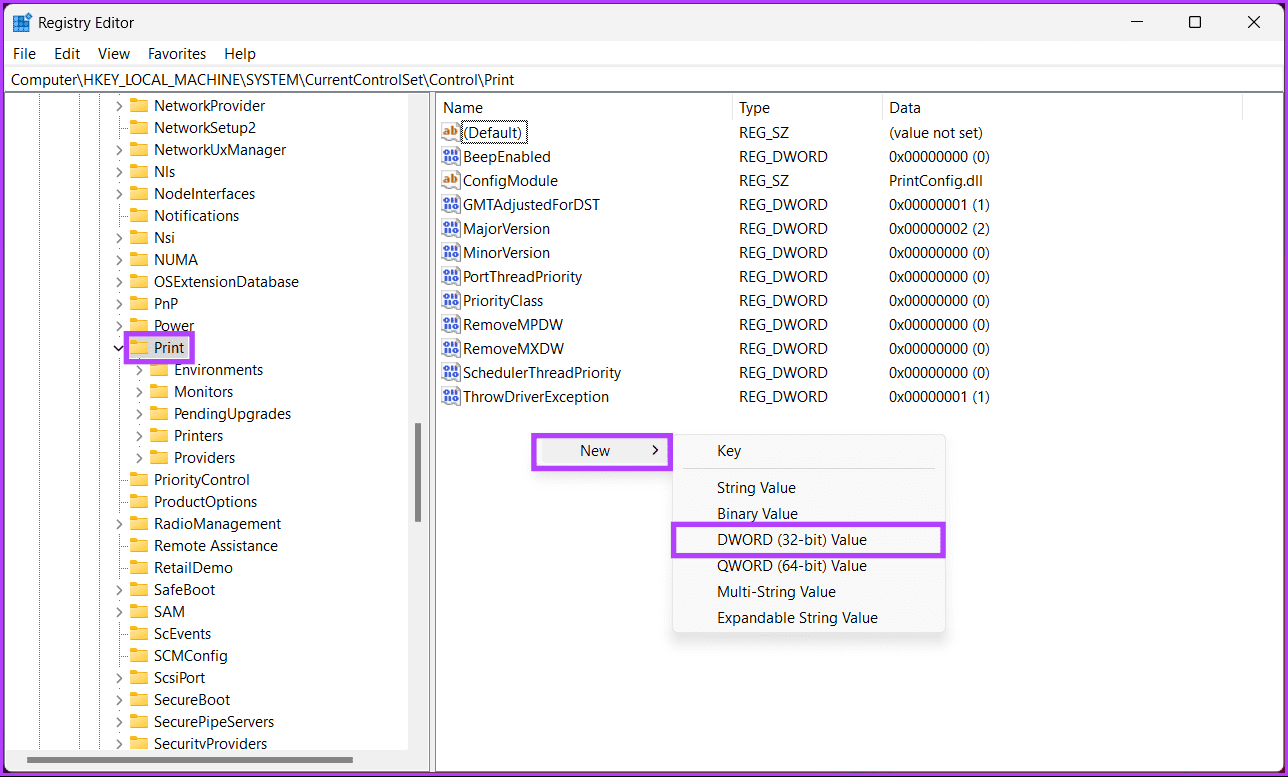
Step 3: Under the Print folder, right-click, select New, and choose DWORD (32-bit) Value.
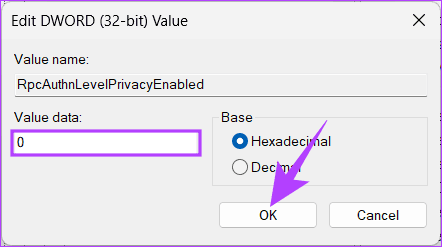
Step 4: Type RpcAuthnLevelPrivacyEnabled in the name field.
Step 5: Double-click the new value, type 0 in the Value Data field, and press OK.
Finally, reboot the system to implement the changes. And that’s it! Any issues relating to the printer error should be resolved upon booting up your PC again.
If there are any queries we missed addressing in this article, check out the FAQ section below.
FAQs on Fixing Windows Printer Error 0x0000011b
Yes, corrupted or outdated printer drivers are a common cause of this error. It’s recommended to update or reinstall the printer drivers to resolve the issue.
If the error continues to occur, you may need to seek help from the printer manufacturer’s support or a professional technician who can diagnose and resolve the issue.
Now that you know how to fix printer error 0x0000011b on Windows, you can easily tackle printer errors related to a problematic printer driver, printer spooler service, or connectivity problems.
Was this helpful?
Last updated on 09 July, 2024
Read Next
 5 Ways to Fix Printer Driver Is Unavailable Error on Windows 11
Fix 1: Run the Printer Troubleshooter Windows 11 includes several troubleshooters that can help you fix common system-level issues.
5 Ways to Fix Printer Driver Is Unavailable Error on Windows 11
Fix 1: Run the Printer Troubleshooter Windows 11 includes several troubleshooters that can help you fix common system-level issues.
 How to Fix Printer Not Activated (Error Code 30) on Windows 11
Basic Fixes Reconnect printer: If you're using a wired printer, its loose USB connection to your PC may result in 'Printer not activated (Error Code 30)'.
How to Fix Printer Not Activated (Error Code 30) on Windows 11
Basic Fixes Reconnect printer: If you're using a wired printer, its loose USB connection to your PC may result in 'Printer not activated (Error Code 30)'.
 4 Ways to Fix Printer Says Documents Are Waiting Error
Preliminary Fixes Check Printer Connection: You should first try power cycling both your computer and printer.
4 Ways to Fix Printer Says Documents Are Waiting Error
Preliminary Fixes Check Printer Connection: You should first try power cycling both your computer and printer.
 5 Ways to Fix Printer Isn’t Available Error on Android
Basic Fixes Restart everything: The first thing you must do is quickly restart all the connected devices.
5 Ways to Fix Printer Isn’t Available Error on Android
Basic Fixes Restart everything: The first thing you must do is quickly restart all the connected devices.
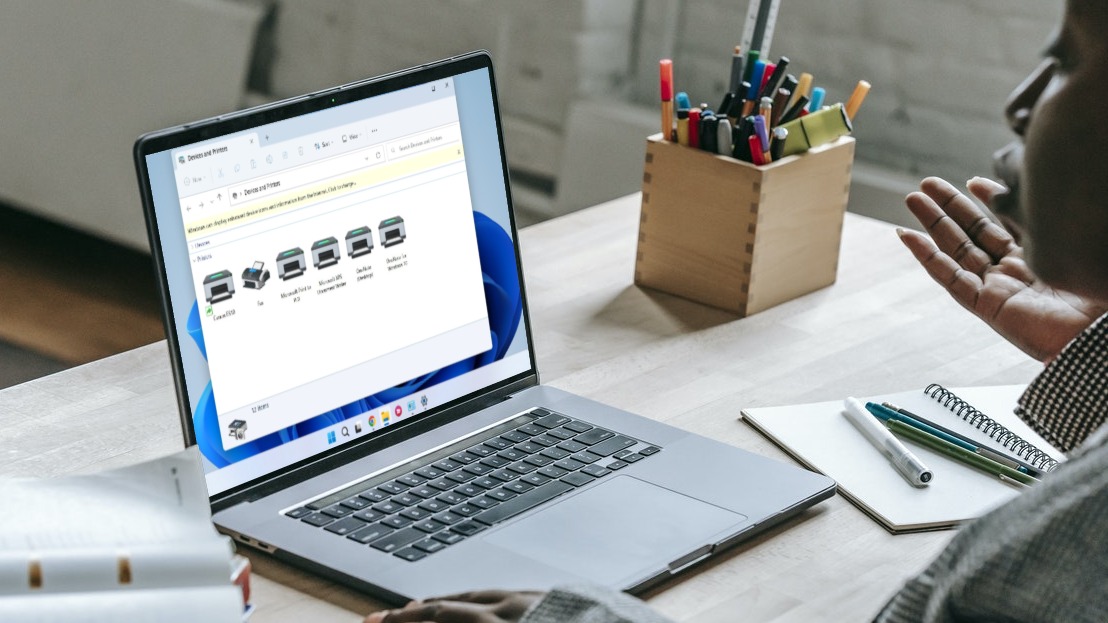 6 Ways to Fix Unable to Remove Printer on Windows 11
Fix 1: Run the Printer Troubleshooter Start by running Windows' built-in printer troubleshooter to see if it can detect and resolve any pending printing errors.
6 Ways to Fix Unable to Remove Printer on Windows 11
Fix 1: Run the Printer Troubleshooter Start by running Windows' built-in printer troubleshooter to see if it can detect and resolve any pending printing errors.
 4 Ways to Fix HP Printer Not Working on Windows 11
Basic Fixes Check the printer cable: Ensure the connected cable isn't loose.
4 Ways to Fix HP Printer Not Working on Windows 11
Basic Fixes Check the printer cable: Ensure the connected cable isn't loose.
 7 Fixes When Printer on Windows 11 Keeps Printing Landscape Instead of Portrait
1.
7 Fixes When Printer on Windows 11 Keeps Printing Landscape Instead of Portrait
1.
 3 Ways to Fix Printer Not Showing Up on Mac
Fix 1: Add Your Printer via IP Address and Set It to Default Step 1: Click the Apple logo at the top-left corner of the menu bar and select System
3 Ways to Fix Printer Not Showing Up on Mac
Fix 1: Add Your Printer via IP Address and Set It to Default Step 1: Click the Apple logo at the top-left corner of the menu bar and select System
The article above may contain affiliate links which help support Guiding Tech. The content remains unbiased and authentic and will never affect our editorial integrity.