

Fix 1: Use the Mailbox Cleanup Tool
Microsoft Outlook includes a Mailbox Cleanup tool that can help reduce your mailbox size by deleting old emails quickly. You can start by running this tool to fix the “Your mailbox is full, you may not be able to send or receive items.” error in Outlook.
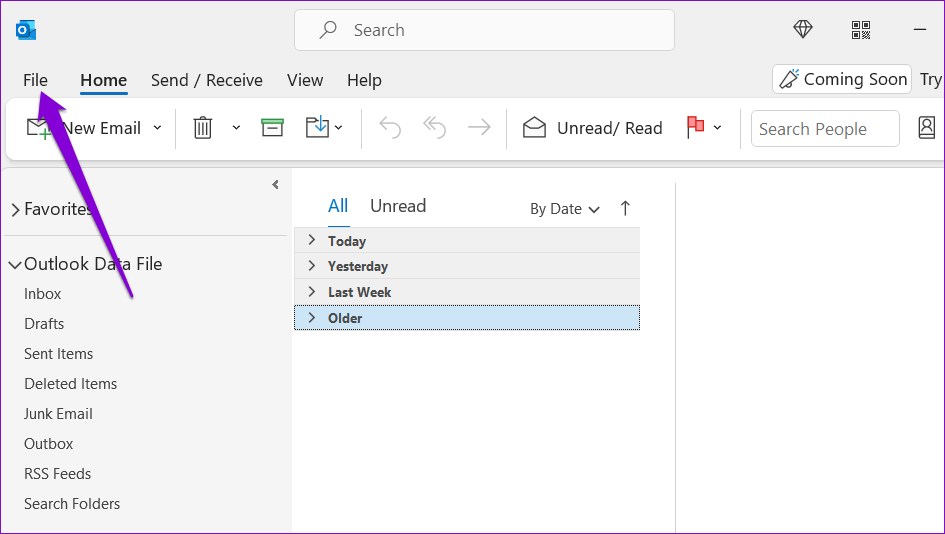
Step 1: Open the Outlook app and click the File menu in the top left corner.
Step 2: In the Info tab, click Tools > Mailbox Cleanup.

Step 3: Select the Find items older than option and enter the value in days in the textbox. Then, click Find.
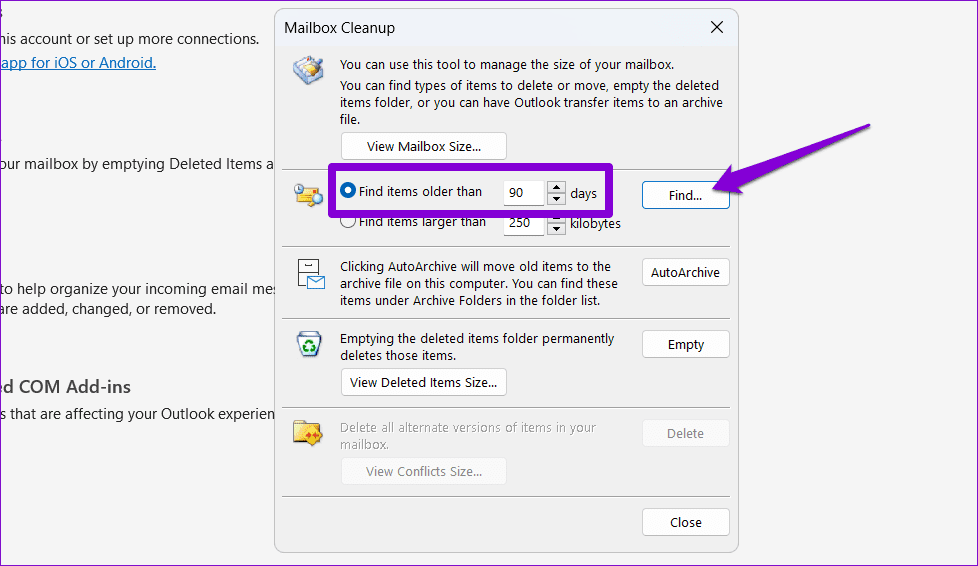
Step 4: Press Ctrl + A keyboard shortcut to select all the old emails. Then, press the Delete key on your keyboard to delete them.

Fix 2: Configure Outlook to Empty Deleted Items on Restart
When you delete unwanted emails, Outlook still stores them in your Deleted Items folder for 30 days. This behavior can cause Outlook to display the Mailbox Full error even after deleting everything. To avoid this, you can configure Outlook to empty the Deleted Items folder when you close the app. Here’s how.
Step 1: Open the Outlook app and click the File menu in the top left corner.
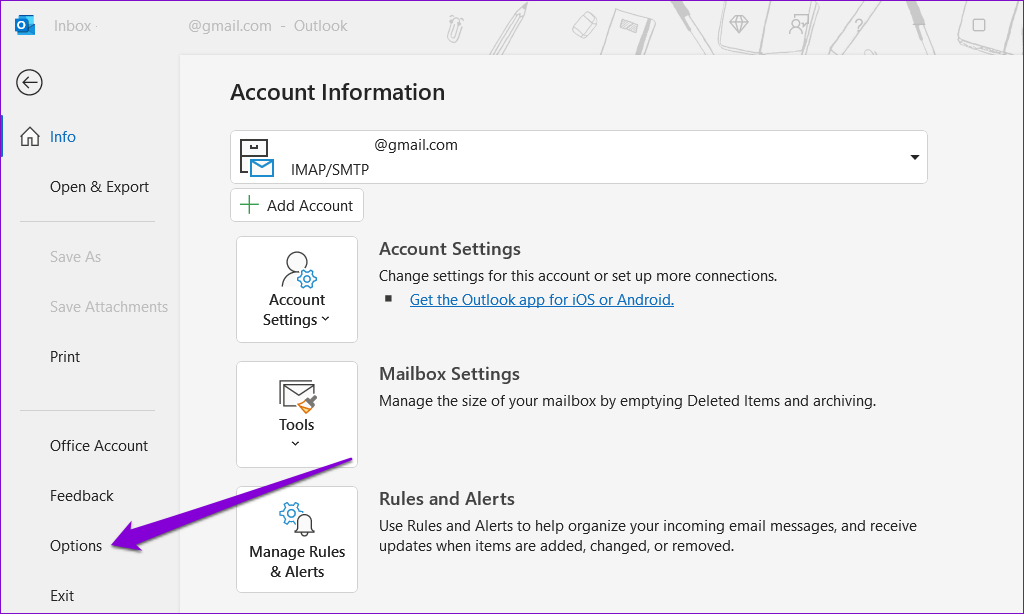
Step 2: Select Options from the left pane.
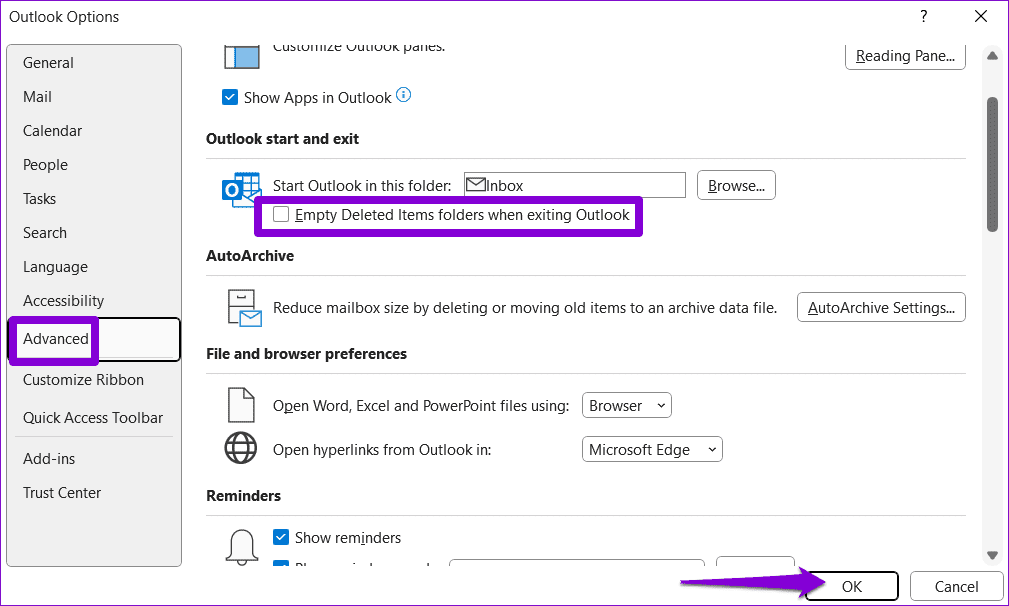
Step 3: Switch to the Advanced tab and clear the Empty Deleted Items folders when exiting Outlook checkbox. Then, click OK.
Fix 3: Delete Large Emails Manually
Another quick way to free up storage in your Outlook mailbox is to delete emails with large attachments. Here’s how you can go about it.
Step 1: Open the Outlook app on your PC. Right-click on the Search Folders entry in the left pane and choose New Search Folder.

Step 2: Under Organizing Mail, select Large mail and specify the minimum email size in the box. Then, click OK.

Step 3: Hold the Ctrl key on your keyboard and select the unwanted emails. Then, click the Delete button at the top.

Fix 4: Enable AutoArchiving in Outlook
Microsoft Outlook includes the AutoArchive feature, which can automatically archive older items to stop your mailbox from getting full. Here’s how to set it up.
Step 1: Open the Outlook app on your PC and go to File > Options.
Step 2: In the Outlook Options window, switch to the Advanced tab and click the AutoArchive Settings button.

Step 3: Tick the Run AutoArchive every checkbox and specify the number of days after which the AutoArchive feature should run.

Step 4: Use the checkboxes to specify how Outlook should handle old items during AutoArchive.

Step 5: Enter the age of the items you want to archive and then click OK.

Fix 5: Store Attachments Outside the Mailbox
If your work involves receiving a lot of attachments throughout the day, you may find yourself encountering the “Your mailbox is full” error too often in Outlook. To avoid this, you can save your attachments outside of Outlook.
Step 1: Launch the Outlook app and open the email containing the attachment you want to save. Click the arrow next to your attachment and select Save As.

Step 2: Select your preferred location for saving the attachment and click Save.

You can then safely delete the email containing the attachment.
Fix 6: Compress the Outlook PST File
Compressing your Outlook PST file on Windows can help eliminate unused space and remove redundant information within the data file, effectively reducing its size. You can try doing this to keep your Outlook from getting full.
Step 1: Open the Outlook app on your PC and click the File menu at the top-left corner.
Step 2: In the Info tab, click on Account Settings and select Account Settings from the resulting menu.
Step 3: Under the Data Files tab, select Outlook Data File and click on Settings.

Step 4: Click the Compact Now button.
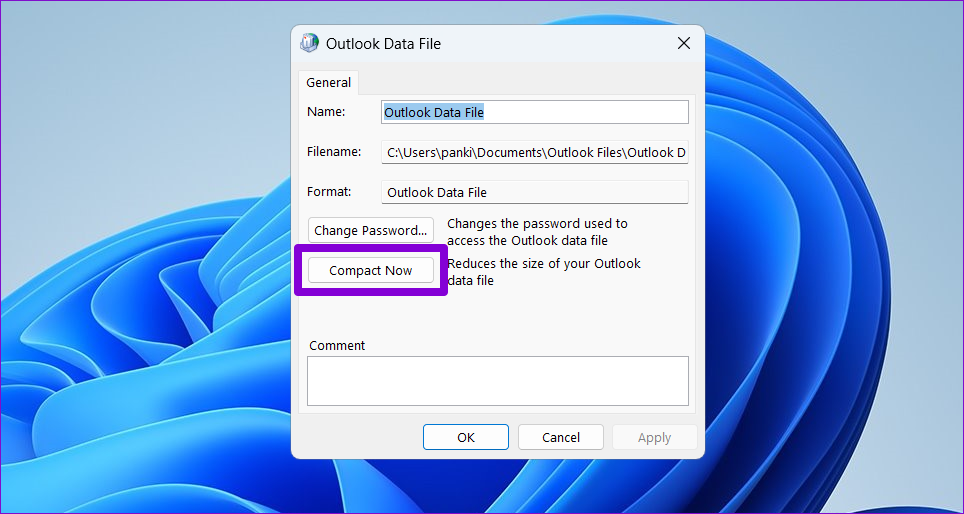
Wait for Outlook to reduce the data file size and then check if the error still appears.
Was this helpful?
Last updated on 12 August, 2024
Read Next
 How to Fit Full Page to Window By Default in Adobe Acrobat DC and Reader DC
Adobe Acrobat DC and Acrobat Reader DC prefer fitting pages by width.
How to Fit Full Page to Window By Default in Adobe Acrobat DC and Reader DC
Adobe Acrobat DC and Acrobat Reader DC prefer fitting pages by width.
 A Complete Guide to OneDrive Storage and Avoiding Disk Full Error
Microsoft OneDrive, previously known as SkyDrive, is a complete cloud storage solution for Windows users.
A Complete Guide to OneDrive Storage and Avoiding Disk Full Error
Microsoft OneDrive, previously known as SkyDrive, is a complete cloud storage solution for Windows users.
 3 Eays to Fix Windows 10 Full Screen Start Menu When It’s Stuck
Fix 1: Turn off the Full-Screen Setting Microsoft offers a native setting that allows users to switch from the normal Start Menu to the expanded one.
3 Eays to Fix Windows 10 Full Screen Start Menu When It’s Stuck
Fix 1: Turn off the Full-Screen Setting Microsoft offers a native setting that allows users to switch from the normal Start Menu to the expanded one.
 Top 6 Ways to Fix Games Not Opening in Full Screen on Windows 11
Fix 1: Use the Keyboard Shortcut Sometimes, the games may open in windowed mode by default, and you might have hit the Maximize window shortcut on your computer.
Top 6 Ways to Fix Games Not Opening in Full Screen on Windows 11
Fix 1: Use the Keyboard Shortcut Sometimes, the games may open in windowed mode by default, and you might have hit the Maximize window shortcut on your computer.
 Top 4 Ways to Change New Outlook Back to Old (Classic View) Outlook on Windows and Mac
The new Outlook app for desktop boasts a modern and simplified design, aligning it more closely with the web version of Microsoft Outlook.
Top 4 Ways to Change New Outlook Back to Old (Classic View) Outlook on Windows and Mac
The new Outlook app for desktop boasts a modern and simplified design, aligning it more closely with the web version of Microsoft Outlook.
 6 Ways to Clear iCloud Storage That Is Full on iPhone and iPad
Method 1: Turn Off iCloud Photos Turning off iCloud Photos will turn off all subsequent backups to iCloud.
6 Ways to Clear iCloud Storage That Is Full on iPhone and iPad
Method 1: Turn Off iCloud Photos Turning off iCloud Photos will turn off all subsequent backups to iCloud.
 Top 11 Red Dead Redemption 2 Wallpapers in 4K and Full HD
Rockstar's Red Dead Redemption 2 was one of the most awaited open world game of 2018.
Top 11 Red Dead Redemption 2 Wallpapers in 4K and Full HD
Rockstar's Red Dead Redemption 2 was one of the most awaited open world game of 2018.
 How to Get Battery Full Notification on Android Phones
1.
How to Get Battery Full Notification on Android Phones
1.
The article above may contain affiliate links which help support Guiding Tech. The content remains unbiased and authentic and will never affect our editorial integrity.

