Basic Fixes
- Check your internet speed: You should check the status of your internet speeds in order to sync your calendar events to Outlook
- Check your Outlook account: If you use the wrong email account, you can remove it from Outlook and add the correct one.
- Force quit and relaunch the Outlook app: This will give the app a fresh task. Go to Task Manager > Choose Outlook > End Task > Relaunch the app.
- Update Outlook app: Install the latest update of the app on your Windows 11 PC to get rid of bugs.
Fix 1: Reset Calendar View
Another reason your Outlook calendar might not show your meetings is because of the custom calendar view hiding your meetings. Here’s how you can reset your Outlook Calendar view.
Step 1: Open the Outlook app > Select Calendar from the left menu.
Step 2: Click on View at the top Menu Bar > Current View > View Settings.

Step 3: In the Advanced View Settings window, click on Reset Current View.

Step 4: Click Yes to confirm.
Step 5: After that, click on Ok, close the window, and then check if the problem is solved.
Fix 2: Check Auto Archive Settings
Outlook will automatically archive all your data after specific intervals of time. If your Outlook calendar events are still not showing up on Windows 11, they may have been archived. You can check the Auto Archive settings and even turn off the feature.
Step 1: Open Outlook > File > Options.
Step 2: Select Advanced from the left menu.

Step 3: Click the AutoArchive Settings button.

Step 4: Check the number of days for running AutoArchive in the background.
You can change the number of days or select the uncheck option to stop using the feature.

Step 5: Click on Ok at the bottom right side to save your preference.
Fix 3: Check Delegate Access
You can delegate access to your Outlook Calendar, let someone else plan your meetings, and make changes. But that also permits the person to remove your events from Calendar. So you need to check the Delegate Access for your Outlook Calendar on your Windows 11 PC.
Step 1: Open Outlook > File > Account Settings.
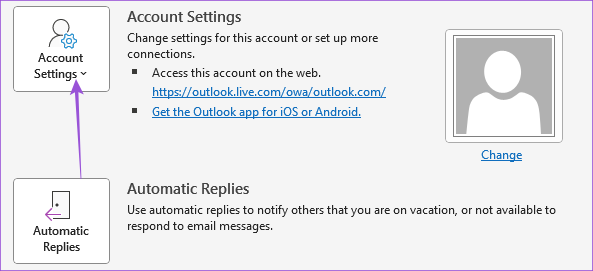
Step 2: Select Delegate Access.
Step 3: Check which account has access to your Outlook Calendar. You can remove the access if you wish to.

Step 4: After you make the changes, click on Ok to confirm. And then check if the problem is solved.
Fix 4: Reset Outlook App
You can choose to reset the Outlook app on your Windows 11 PC. This will restore all settings to default for that specific app.
Open Settings > Apps > Apps and Features > Three dots next to Outlook app name > Advanced > Reset.
Tip: You can also read our post on how to add images to Outlook Email.
Was this helpful?
Last updated on 07 August, 2024
Read Next
 4 Fixes for Samsung Calendar Not Showing Events and Holidays
Basic Fixes Check internet settings: Ensure that you have a high speed internet connection with your Samsung phone.
4 Fixes for Samsung Calendar Not Showing Events and Holidays
Basic Fixes Check internet settings: Ensure that you have a high speed internet connection with your Samsung phone.
 5 Ways to Fix Windows Calendar Not Showing Events
Fix 1.
5 Ways to Fix Windows Calendar Not Showing Events
Fix 1.
 4 Fixes for Events Disappear from Calendar App on iPhone
Basic Fixes Check the internet connection: You must check if you use a strong internet connection to sync all your events quickly.
4 Fixes for Events Disappear from Calendar App on iPhone
Basic Fixes Check the internet connection: You must check if you use a strong internet connection to sync all your events quickly.
 How to Add Zoom Meetings to Outlook Calendar and Google Calendar
How to Add Zoom Meetings to Google Calendar The easiest way is using the Zoom for Google Workspace Google calendar add-on.
How to Add Zoom Meetings to Outlook Calendar and Google Calendar
How to Add Zoom Meetings to Google Calendar The easiest way is using the Zoom for Google Workspace Google calendar add-on.
 How to Connect Outlook Calendar With Google Calendar: 4 Best Ways
Note: The methods recommended in the article allow two-way syncs in the calendar.
How to Connect Outlook Calendar With Google Calendar: 4 Best Ways
Note: The methods recommended in the article allow two-way syncs in the calendar.
 6 Fixes for Sent Items Not Showing in Microsoft Outlook for Windows
Fix 1: Make Sure Outlook Is Configured to Save Sent Items Your sent emails may not show up in Outlook if you have previously configured the app to not save
6 Fixes for Sent Items Not Showing in Microsoft Outlook for Windows
Fix 1: Make Sure Outlook Is Configured to Save Sent Items Your sent emails may not show up in Outlook if you have previously configured the app to not save
 How to Add and Remove Holidays Calendar in Apple Calendar App
How to Use Holidays Calendar on iPhone The Apple Calendar app offers a built-in regional calendar, displaying the common holidays (occasions and festivals) from that area.
How to Add and Remove Holidays Calendar in Apple Calendar App
How to Use Holidays Calendar on iPhone The Apple Calendar app offers a built-in regional calendar, displaying the common holidays (occasions and festivals) from that area.
 6 Best Microsoft Outlook Calendar Tips & Tricks to Manage It Better
The Microsoft Office Calendar is part of Microsoft 365 products and is not a stand-alone program.
6 Best Microsoft Outlook Calendar Tips & Tricks to Manage It Better
The Microsoft Office Calendar is part of Microsoft 365 products and is not a stand-alone program.
The article above may contain affiliate links which help support Guiding Tech. The content remains unbiased and authentic and will never affect our editorial integrity.