


Basic Ways:
- Adjust notification volume: Use the volume buttons or go to the Settings menu to check the current notification volume. Press the volume up button on the side or use the slider in the sound settings menu to increase the ringtone & notification volume to the highest.
- Turn off DND or Vibrate mode: When enabled, DND will effectively silence all your notification alerts. The same can happen if your phone is set to vibrate. So, disable DND and ensure the ringer is turned on to prevent this.
- Turn off Bluetooth: If Bluetooth is enabled and your device connects to an external sound device, all notification alerts will pop up on connected devices. So, disable Bluetooth on your Android phone.
Fix 1: Check Notification Sound Settings for Apps
Do you face notification sound issues with a specific app on Android? It’s time to check the sound settings for that particular app and ensure all the relevant settings are enabled. Follow the steps below.
Step 1: Long-press on the app and tap the i button to open the App info menu. Select Notifications.


Step 2: Ensure all the toggles are enabled. Then, tap the bell icon beside a notification type > select Default.
Tip: You can also open Sound from the same menu and set a custom tone for specific apps.


Also Read: How to fix notification badges not showing on Android
Fix 2: Check Your Smartwatch Settings
Google’s renewed interest in smartwatches brought a fresh take to Android Wear. Most smartwatches come with an option to mute phone notifications when connected. You should open the relevant watch app on your Android phone and disable any such options. Then, check again.
Fix 3: Reset All Settings
A wrong setting tweak can also lead to issues with notification sound on Android. In this case, you can reset all settings on your Android phone and see if this fixes the issue. Here’s how to do it.
Step 1: Open Settings > tap on System > select Reset options.
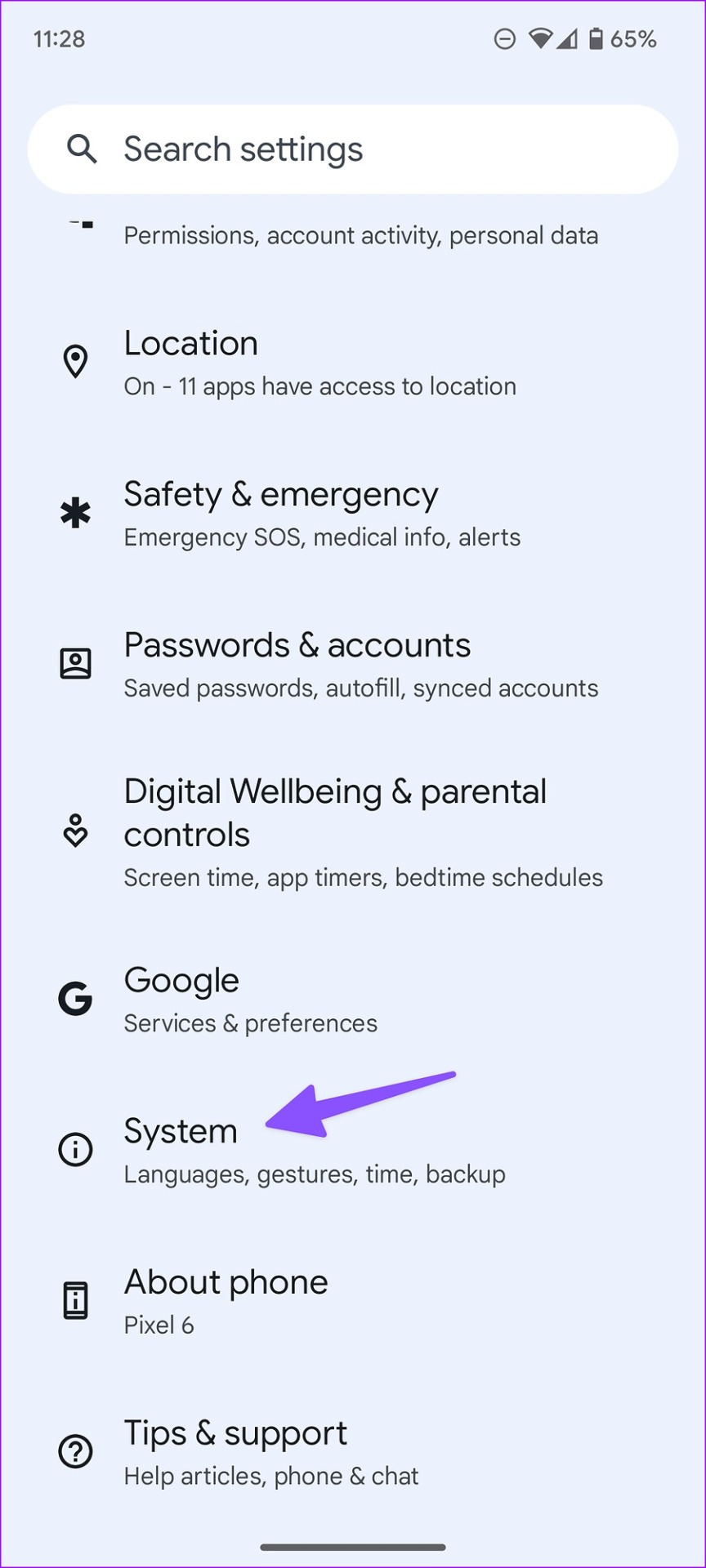

Step 2: Here, tap Reset app preferences and confirm the same.


Wait for the reset process to finish. Then, wait a while and check if notification sounds are working as expected on your Android phone.
Was this helpful?
Last updated on 27 June, 2024
5 Comments
Leave a Reply
Read Next
 How to Fix WhatsApp Notification Sound Not Working
Basic Fixes Ensure silent mode is turned off - The first thing you should do is to check and turn off Vibrate/Silent mode on your iPhone or Android.
How to Fix WhatsApp Notification Sound Not Working
Basic Fixes Ensure silent mode is turned off - The first thing you should do is to check and turn off Vibrate/Silent mode on your iPhone or Android.
 3 Ways to Fix the Notification Sound Not Working on Windows 11
Basic Fixes: Unmute your Windows PC: You might have muted your Windows PC and forgotten to unmute it after an important meeting or work hours.
3 Ways to Fix the Notification Sound Not Working on Windows 11
Basic Fixes: Unmute your Windows PC: You might have muted your Windows PC and forgotten to unmute it after an important meeting or work hours.
 4 Ways to Fix Facebook Messenger Notification Sound Not Working
Try Basic Fixes Close the Messenger app on your computer: If you have the Messenger app open on your computer, notifications may appear there instead of on your phone, and
4 Ways to Fix Facebook Messenger Notification Sound Not Working
Try Basic Fixes Close the Messenger app on your computer: If you have the Messenger app open on your computer, notifications may appear there instead of on your phone, and
 5 Ways to Fix Snapchat Notification Sound Not Working
Basic Fixes Disable the silent profile: Press the Volume Up physical button on your Android phone and tap the sound profile icon to disable the silent mode.
5 Ways to Fix Snapchat Notification Sound Not Working
Basic Fixes Disable the silent profile: Press the Volume Up physical button on your Android phone and tap the sound profile icon to disable the silent mode.
 4 Fixes for Telegram Notification Sound Not Working on Android and iPhone
Try Basic Fixes Close Telegram on your computer: If you have the Telegram app open on your computer, Telegram notifications may not appear or make a sound on your phone.
4 Fixes for Telegram Notification Sound Not Working on Android and iPhone
Try Basic Fixes Close Telegram on your computer: If you have the Telegram app open on your computer, Telegram notifications may not appear or make a sound on your phone.
 3 Fixes for Gmail Notification Sound Not Working on Android and iPhone
Try Basic Fixes Check your phone’s notification volume: Make sure you haven't lowered the notification volume level on your phone unintentionally.
3 Fixes for Gmail Notification Sound Not Working on Android and iPhone
Try Basic Fixes Check your phone’s notification volume: Make sure you haven't lowered the notification volume level on your phone unintentionally.
 How to Fix Microsoft Teams Notification Sound Not Working
On Windows Method 1: Check Notifications Options in the Settings App Step 1: Press the Windows + I keys shortcut to open the Settings app.
How to Fix Microsoft Teams Notification Sound Not Working
On Windows Method 1: Check Notifications Options in the Settings App Step 1: Press the Windows + I keys shortcut to open the Settings app.
 How to Change Instagram Notification Sound (iPhone and Android)
Change Instagram Notification Sound on iPhone Unfortunately, iOS doesn't allow you to change the notification sound for individual apps.
How to Change Instagram Notification Sound (iPhone and Android)
Change Instagram Notification Sound on iPhone Unfortunately, iOS doesn't allow you to change the notification sound for individual apps.
The article above may contain affiliate links which help support Guiding Tech. The content remains unbiased and authentic and will never affect our editorial integrity.
It was my watch (#8) and I would NEVER have figured that out. Thank you!
It was my bluetooth! Thank you!
It was the bluetooth on my hearing aids. Thanks.
eSIM 1 somehow was changed to ‘Silent” ?? Was working OK.
Settings > Sounds and vibration > Notification sound > eSIM 1 then,
Changed it from Silent to Spaceline. All is good.
It was my Samsung smart watch turning off phone notification sounds.
Thanks, you saved my sanity.