1. How to Remove Netflix’s Too Many Devices Error
The ‘Too Many Devices’ error occurs when you have downloaded titles on multiple devices or profiles. Netflix allows video downloads to one device per account.
To remove this error, delete the older stuff from your other devices. To do so, tap on the Exclamation icon next to a downloaded title and select Delete Download.
2. Downloaded Titles Showing Expired Tag
Downloaded shows do not stay on your phone forever. Some titles are available for offline viewing for only a few weeks. Naturally, when a show passes the stipulated time, the Expired tag will appear next to the content’s thumbnail.
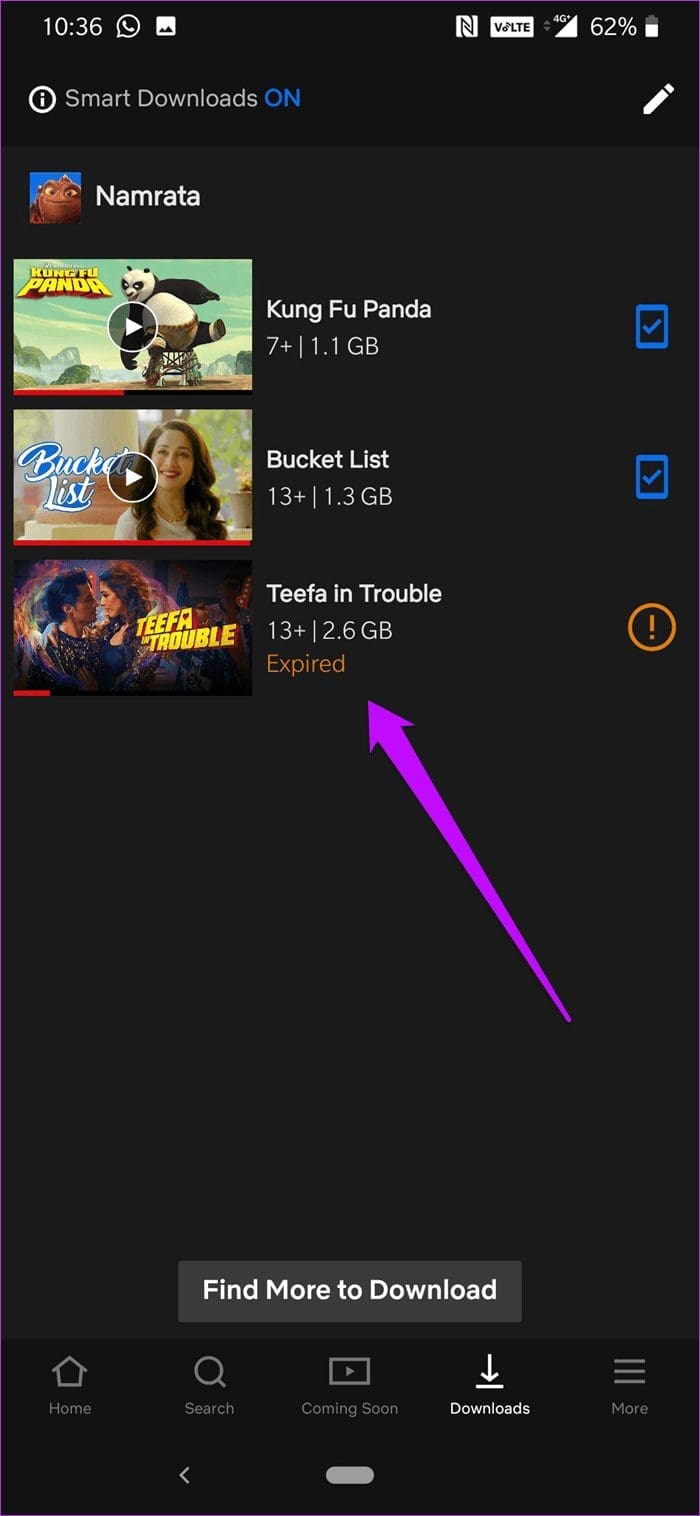

Though many titles let you renew the download easily, it isn’t the case for all. Some studios allow only a fixed number of downloads. If in any case, you can’t do so, the only solution is to stream it online.
3. Yearly Download Limit Error
This error is related to the one above. As we mentioned earlier, some content rights holders allow a fixed number of downloads for their creations. In this case, makers restricted the number of downloads per year.

Again, there is no workable solution to this error except to wait a few months or stream it online.
4. Netflix Downloads Not Showing Up/Disappeared
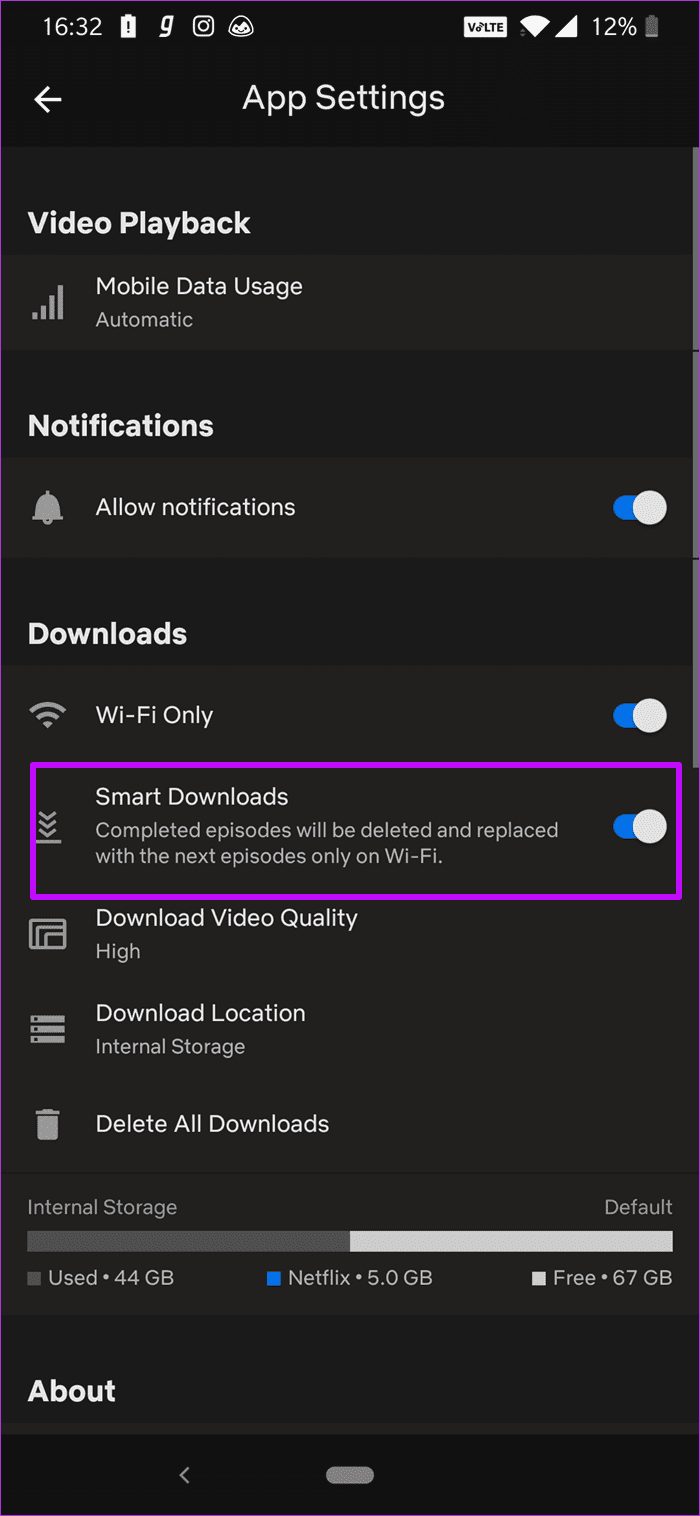
If your downloaded TV shows start disappearing, the Smart Downloads feature may be enabled. This feature deletes the episode you’ve watched only to replace it with the next one.
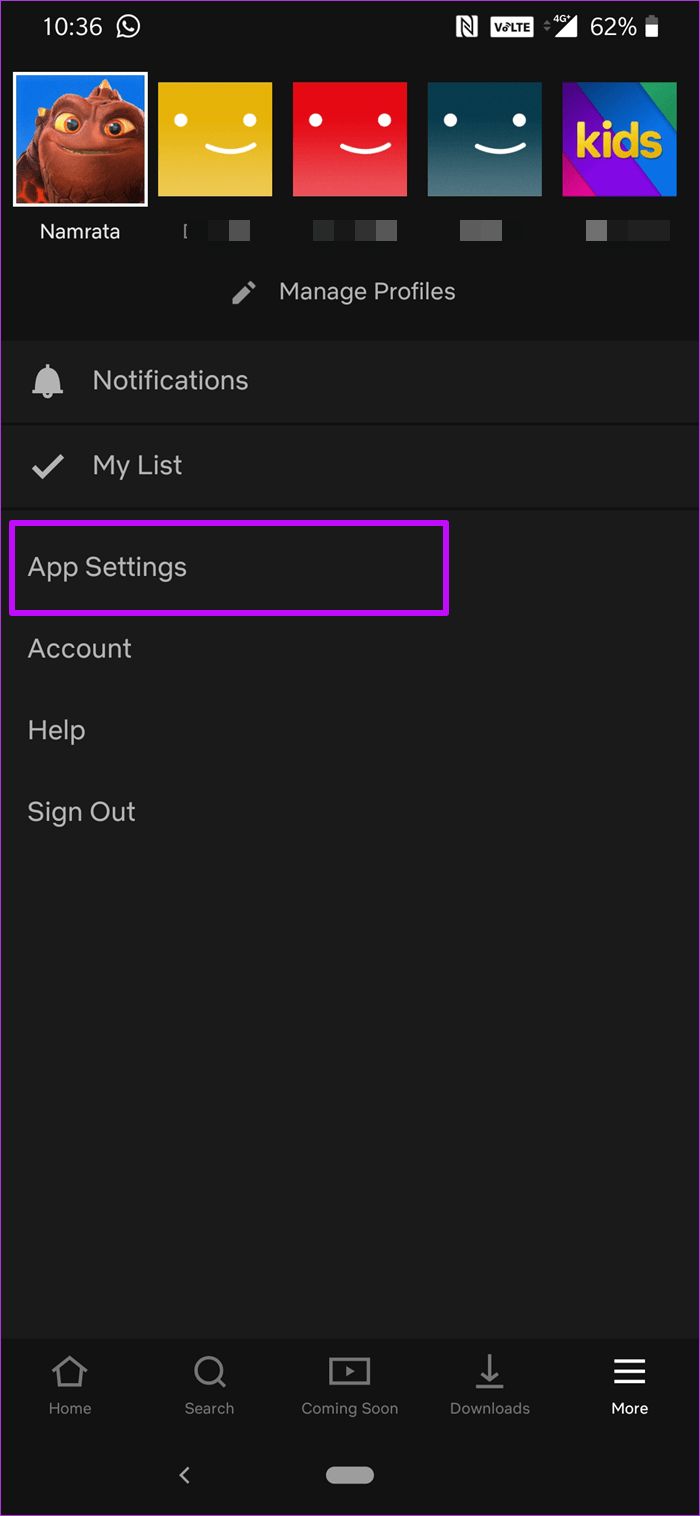
I was puzzled the first time it happened to me. Tap on your profile icon, go to Settings, and disable Smart Downloads to prevent this from happening.
5. Netflix Downloads Showing Unavailable
This error occurs mostly with old downloaded files. If you haven’t watched any of the downloaded content, you’ll see the Unavailable error.
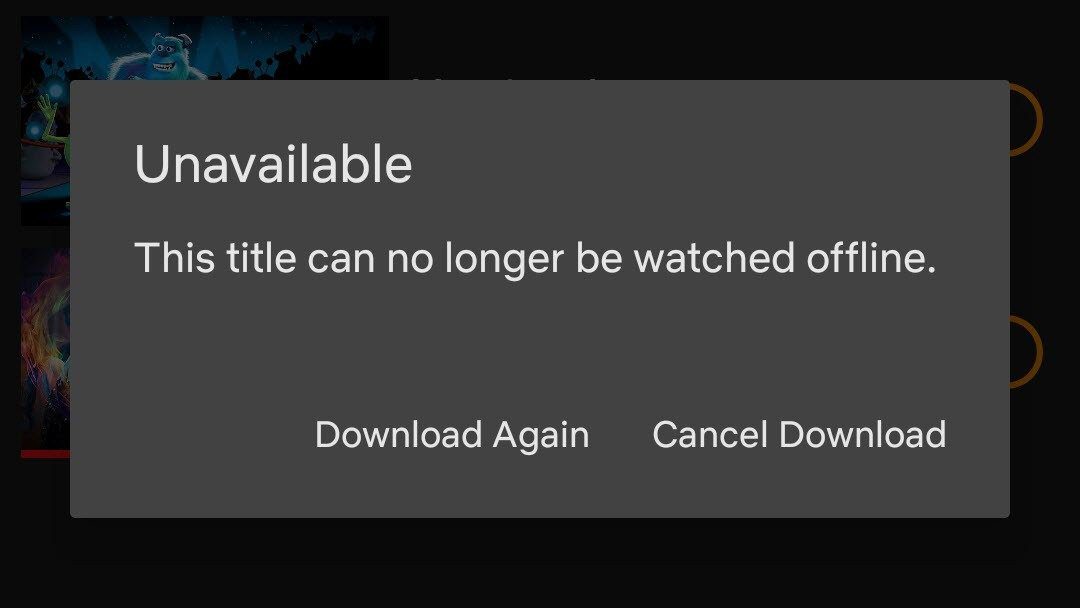
Thankfully, you can solve that too easily. Just tap on the Download Again button. The usual rule applies — restart the app if the download doesn’t resume.
6. Titles Not Downloading
Sometimes, downloads do not initiate even when you tap on the Download button multiple times, and they do not resume after tapping on the Renew button.
In such a scenario, a wise thing to do is to restart the app and start the process from scratch. It’s also worth checking if you have free storage on your phone since downloaded shows/movies consume offline storage.
If you’ve tried all solutions but still have issues downloading on Netflix, clearing the cache and data of the app might be a good idea.
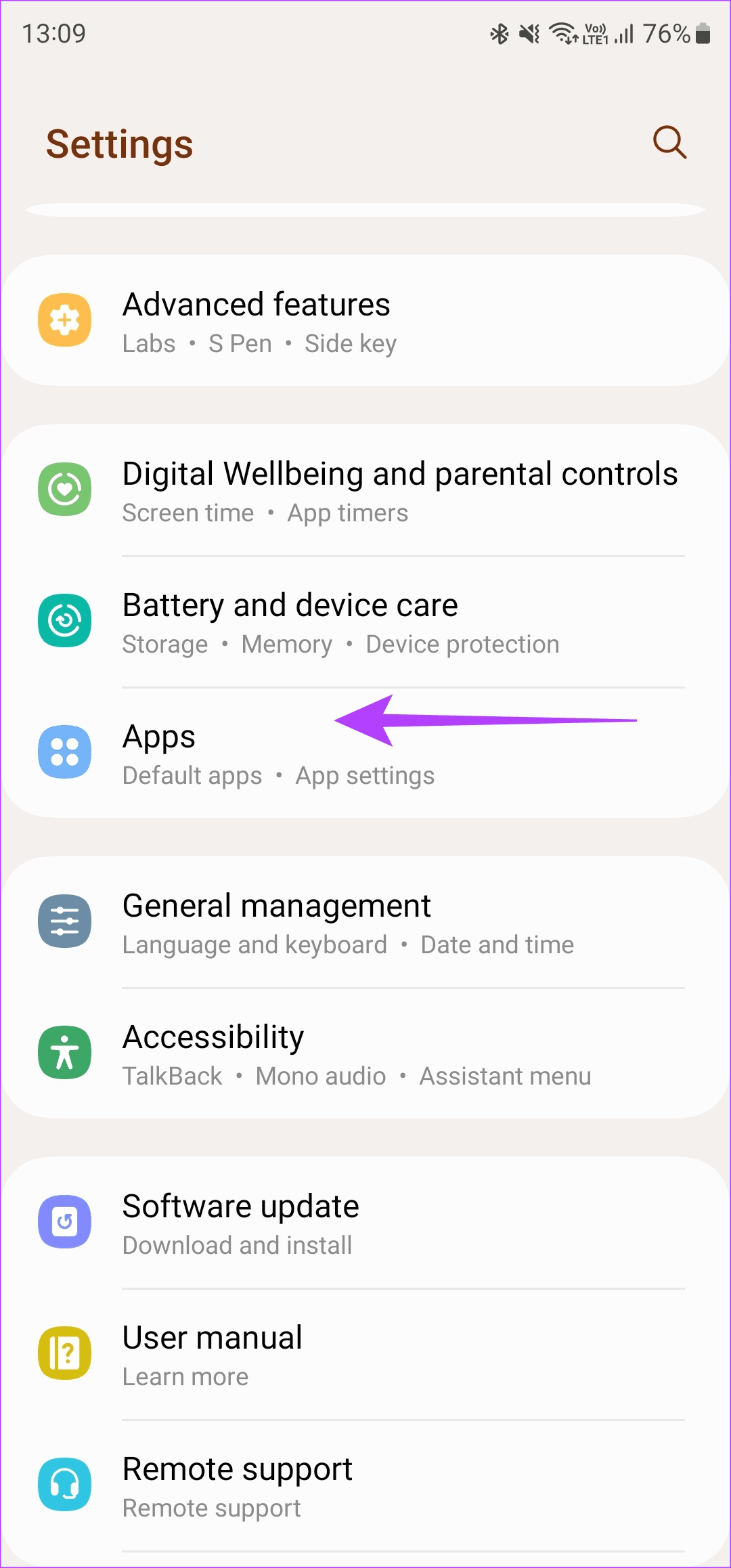
Step 1: Open the Settings app on your smartphone and tap on Apps.
Step 2: Scroll through the apps list and tap on Netflix.

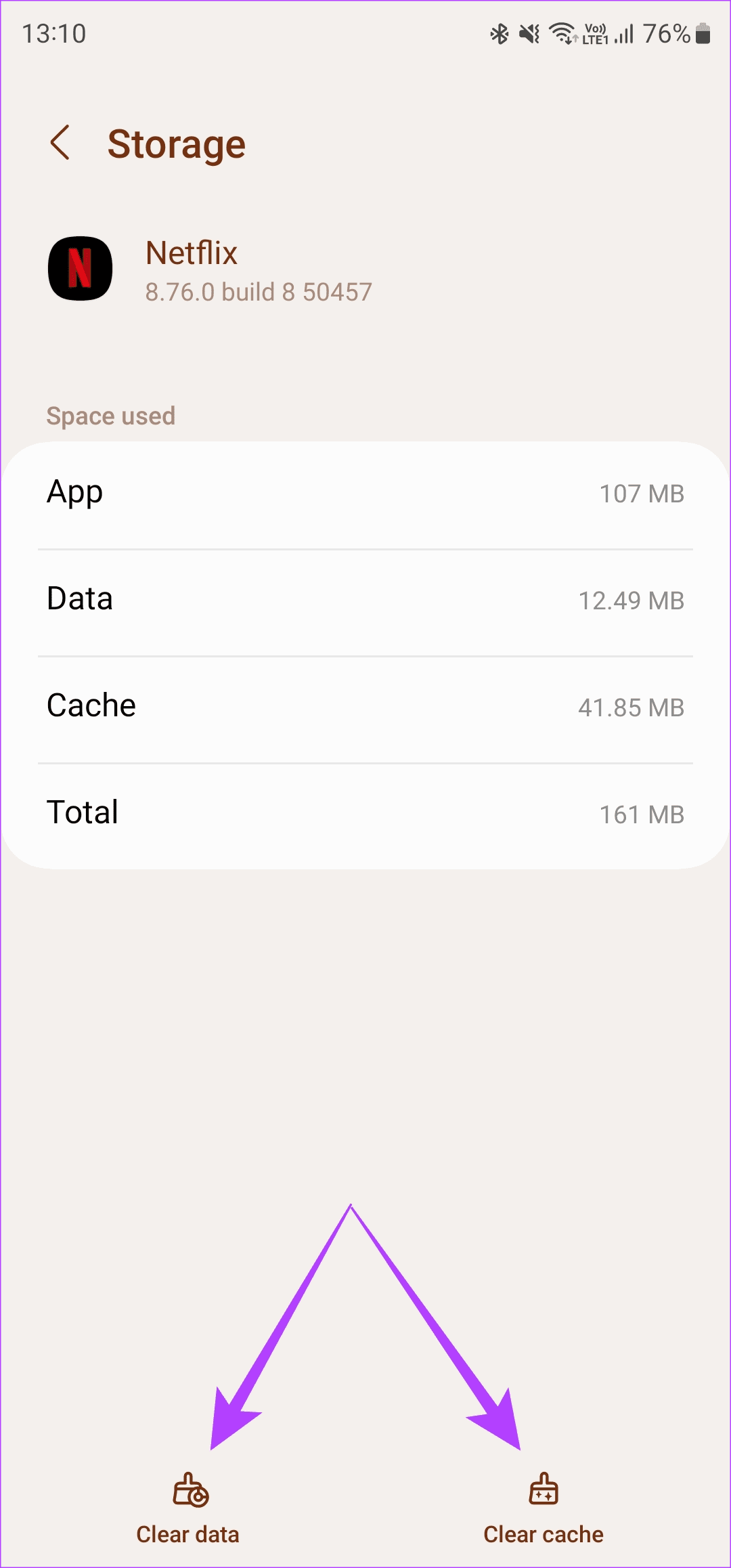
Step 3: Select the Storage option. Then, tap on Clear cache, followed by Clear data.

Was this helpful?
Last updated on 09 May, 2024
Read Next
 7 Ways to Fix Netflix Black Screen With Sound Issues on Mobile and Desktop
Fix 1: Disable Extensions (Windows and macOS) While third-party extensions can help you watch Netflix with friends or enhance your experience in many ways, they can also interfere with Netflix's
7 Ways to Fix Netflix Black Screen With Sound Issues on Mobile and Desktop
Fix 1: Disable Extensions (Windows and macOS) While third-party extensions can help you watch Netflix with friends or enhance your experience in many ways, they can also interfere with Netflix's
 3 Ways to Fix PS4 Controller Not Connecting to iPhone Issues
Basic Fixes: Restart iPhone: Yes, this simple action sometimes does the magic.
3 Ways to Fix PS4 Controller Not Connecting to iPhone Issues
Basic Fixes: Restart iPhone: Yes, this simple action sometimes does the magic.
 4 Best Ways to Fix WhatsApp Reconnecting Issues on iPhone
Basic Fixes Restart iPhone: Restart your iPhone to fix any temporary bugs and glitches.
4 Best Ways to Fix WhatsApp Reconnecting Issues on iPhone
Basic Fixes Restart iPhone: Restart your iPhone to fix any temporary bugs and glitches.
 Netflix Standard vs. Premium: Which Netflix Plan Is Best for You
Netflix Subscription Plans At a Glance While Netflix provides three plans in total, the Standard and Premium plans take the cake.
Netflix Standard vs. Premium: Which Netflix Plan Is Best for You
Netflix Subscription Plans At a Glance While Netflix provides three plans in total, the Standard and Premium plans take the cake.
 Top 6 Ways to Fix Microsoft Edge Black Screen Issues on Windows 10
Microsoft Edge continues to quickly pace ahead in the browser race on mobile and desktop.
Top 6 Ways to Fix Microsoft Edge Black Screen Issues on Windows 10
Microsoft Edge continues to quickly pace ahead in the browser race on mobile and desktop.
 3 Ways to Fix Microsoft Teams Connection Issues
Preliminary Fixes Check internet connection: Ensure that your laptop is connected to the internet.
3 Ways to Fix Microsoft Teams Connection Issues
Preliminary Fixes Check internet connection: Ensure that your laptop is connected to the internet.
 7 Ways to Fix High Ping and Lagging Issues in Valorant
Why Is My Ping So High in Valorant High ping in Valorant can be frustrating, but there are a few reasons behind it.
7 Ways to Fix High Ping and Lagging Issues in Valorant
Why Is My Ping So High in Valorant High ping in Valorant can be frustrating, but there are a few reasons behind it.
 5 Ways to Fix Intel Wi-Fi 6 AX201 Adapter Driver or Hardware Issues
Fix 1: Update or Reinstall Driver The software drivers for the Intel Wi-Fi 6 AX201 on your Windows PC may be outdated and are due for an update.
5 Ways to Fix Intel Wi-Fi 6 AX201 Adapter Driver or Hardware Issues
Fix 1: Update or Reinstall Driver The software drivers for the Intel Wi-Fi 6 AX201 on your Windows PC may be outdated and are due for an update.
The article above may contain affiliate links which help support Guiding Tech. The content remains unbiased and authentic and will never affect our editorial integrity.