Basic Fixes
- Switch to a wired or gaming mouse: Most wired and gaming mice have higher DPI (dots per inch), allowing fast cursor movement.
- Re-pair your wireless mouse: Unpair your Bluetooth mouse from Windows Settings > Bluetooth & devices > Devices, and connect it again.
- Change mouse sensitivity from game settings: Look for the ‘Mouse Sensitivity’ control under your game settings and increase it to fix the mouse delay.
- Reduce screen resolution in games: A mouse with low DPI (dots per inch) causes a delay in playing games on high resolution. Head to the in-game settings to lower the screen resolution.
- Update Windows 11: Open Windows Settings, select Windows Update from the left sidebar and install available system updates.
Fix 1: Enable Game Mode
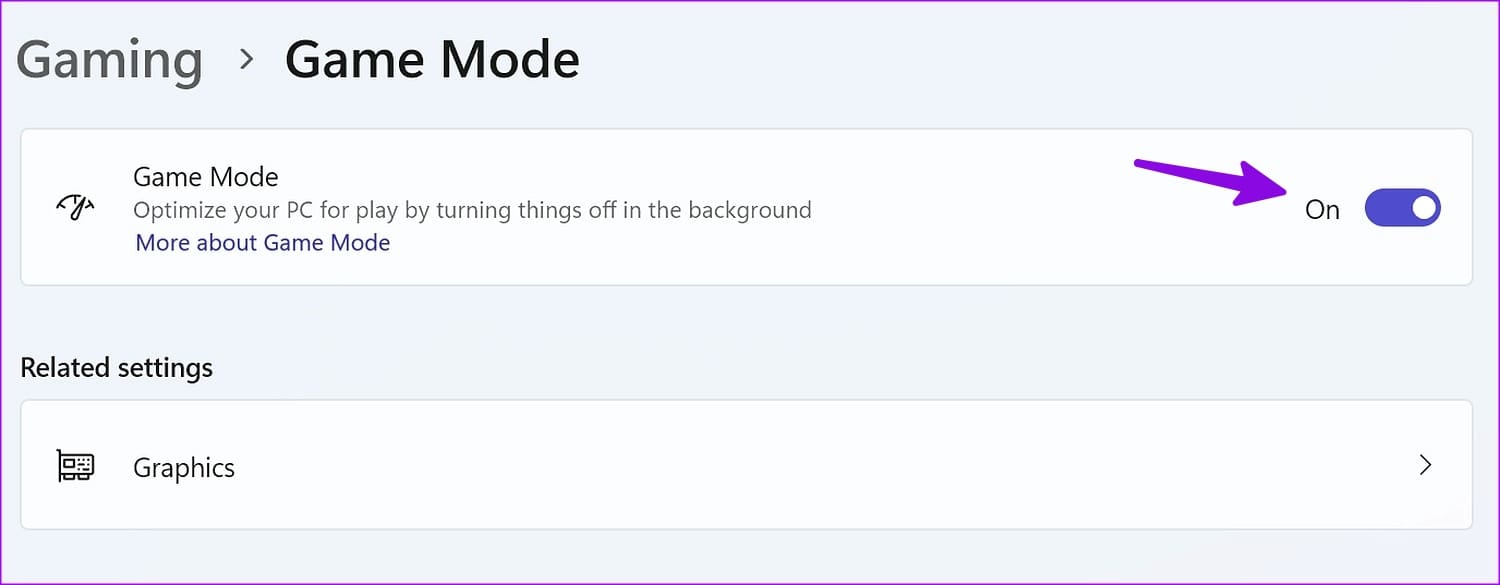
Windows 11 has a dedicated Game Mode to optimize your PC for play by turning things off in the background. It helps you achieve a stable frame rate and reduce mouse delay in games.
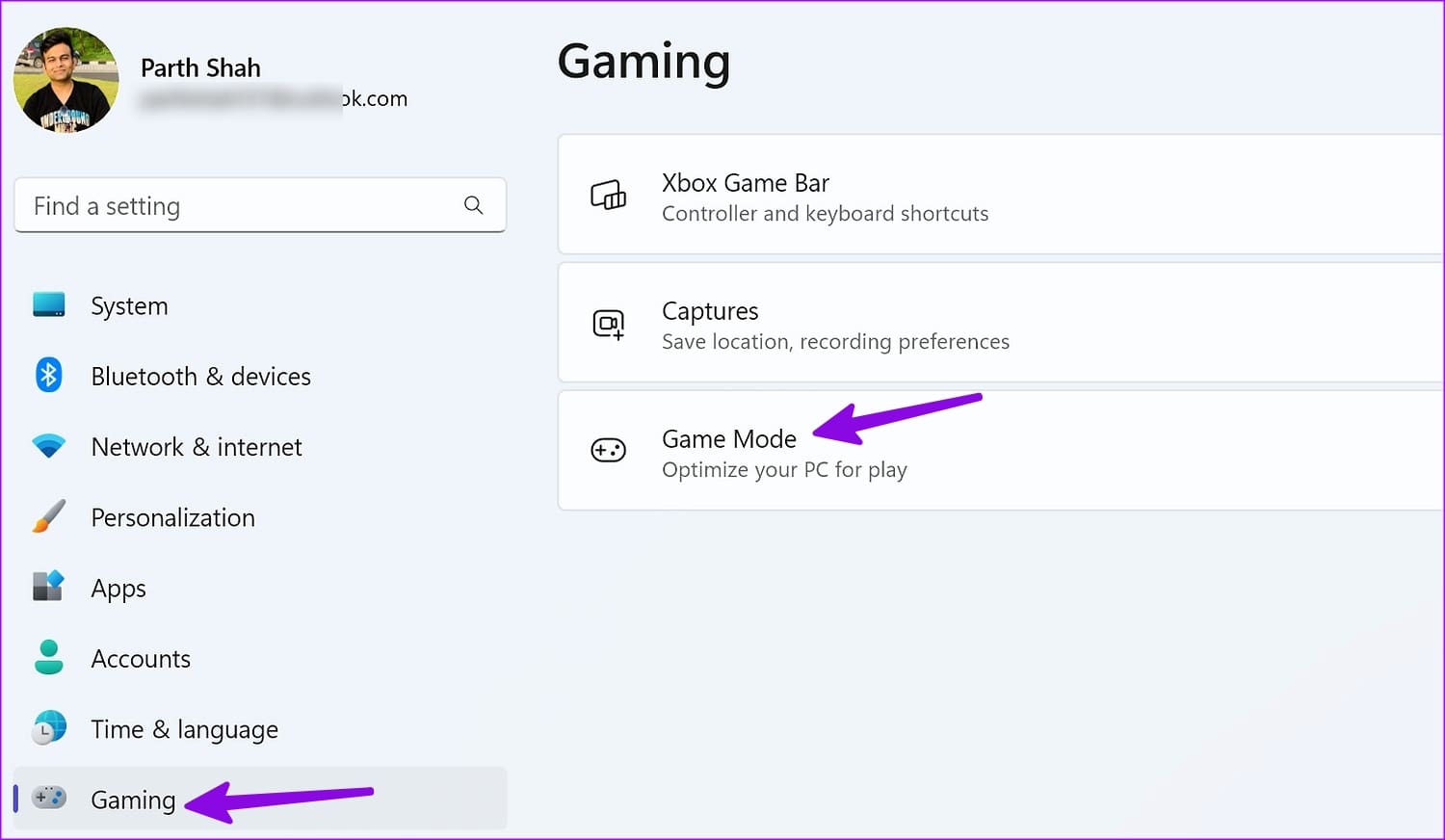
Step 1: Press the Windows + I shortcut to open the Settings app, select Gaming from the sidebar, and click Game Mode.
Step 2: Toggle on Game Mode to enable it.
Fix 2: Manually Update Mouse and Graphics Drivers
Outdated graphics drivers can result in below-average performance and mouse delay in games. Microsoft usually bundles graphics drivers with OS updates, but you can use the Device Manager app to update drivers on Windows 11.
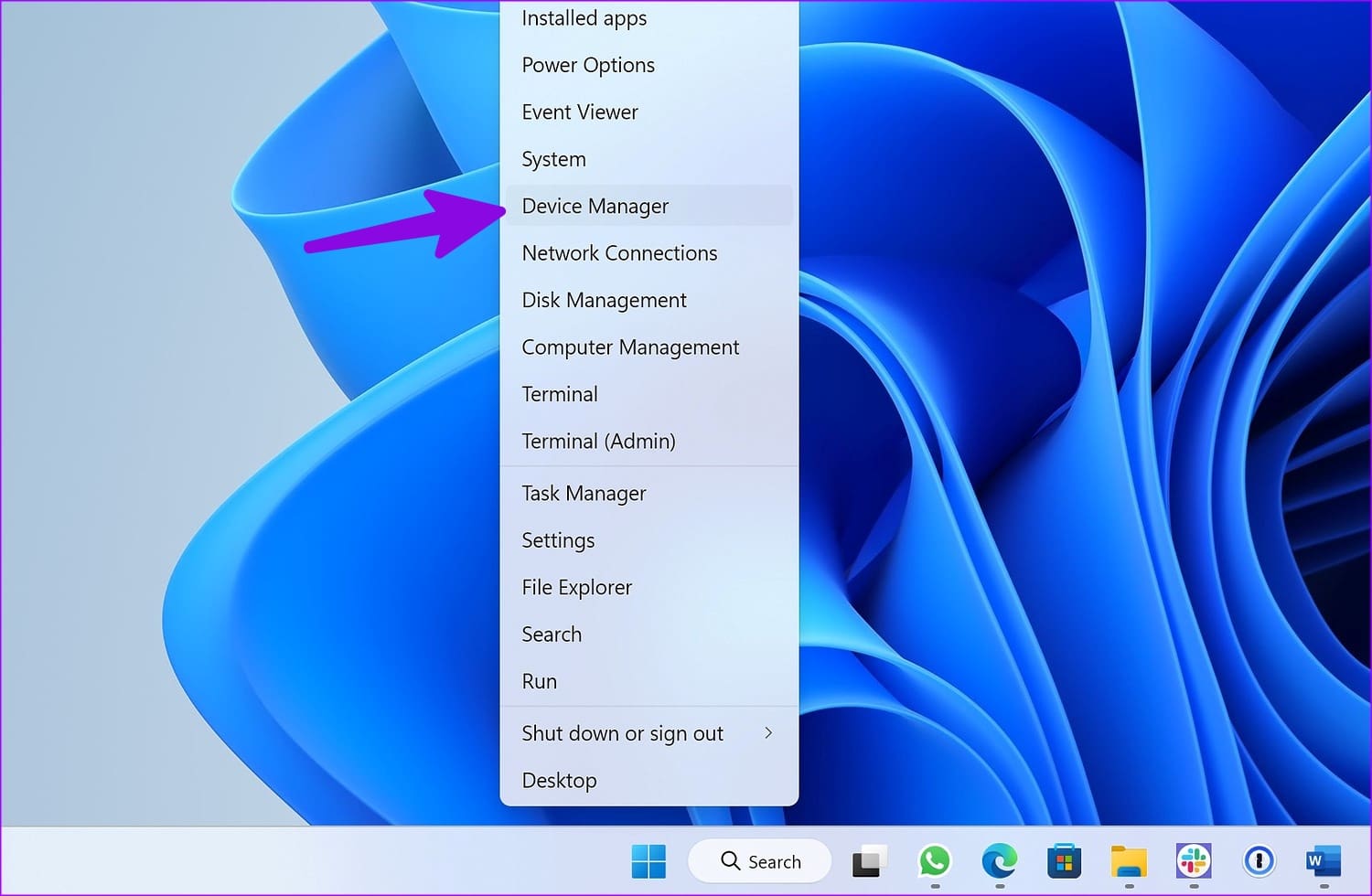
Step 1: Press the Windows + X shortcut to open the Power User Menu, and select Device Manager.
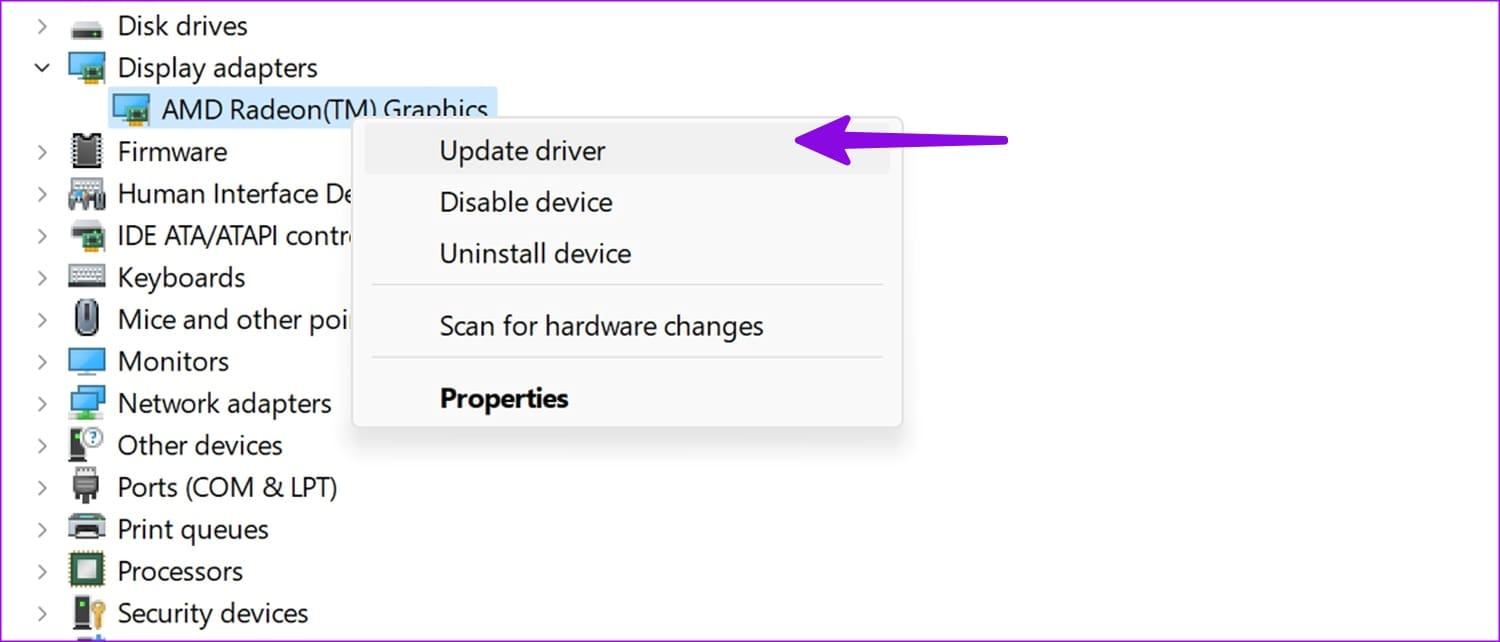
Step 2: Expand Display adapters, right-click your graphics adapter, and select Update driver.
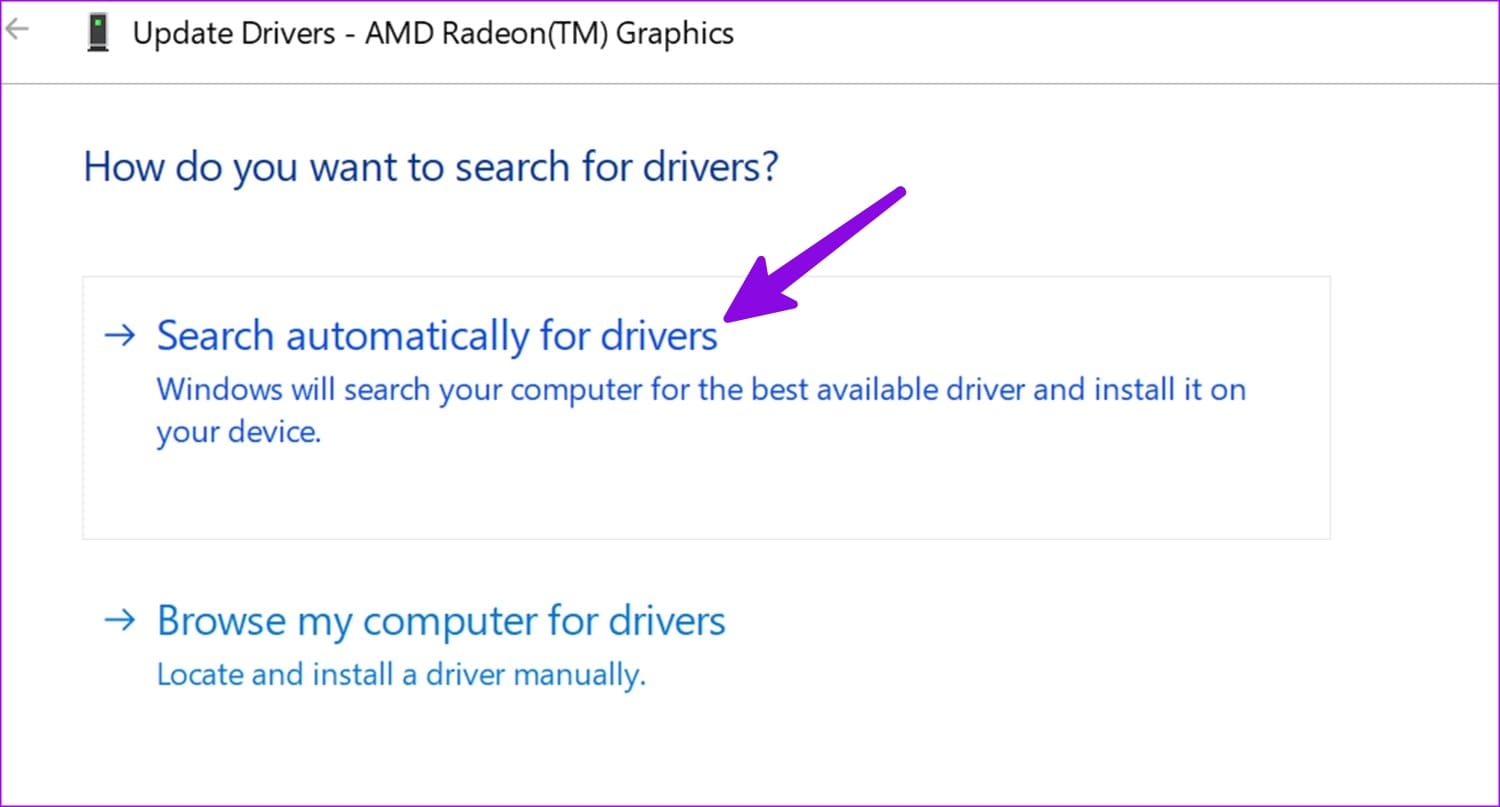
Step 3: Click Search automatically for drivers to install the latest compatible graphics driver online.
Fix 3: Disable Mouse Trails
A visible mouse trail may cause lag while playing games on your Windows PC. Head to the Settings app to turn it off.
Step 1: Press the Windows key, search Mouse settings, and click to open it.

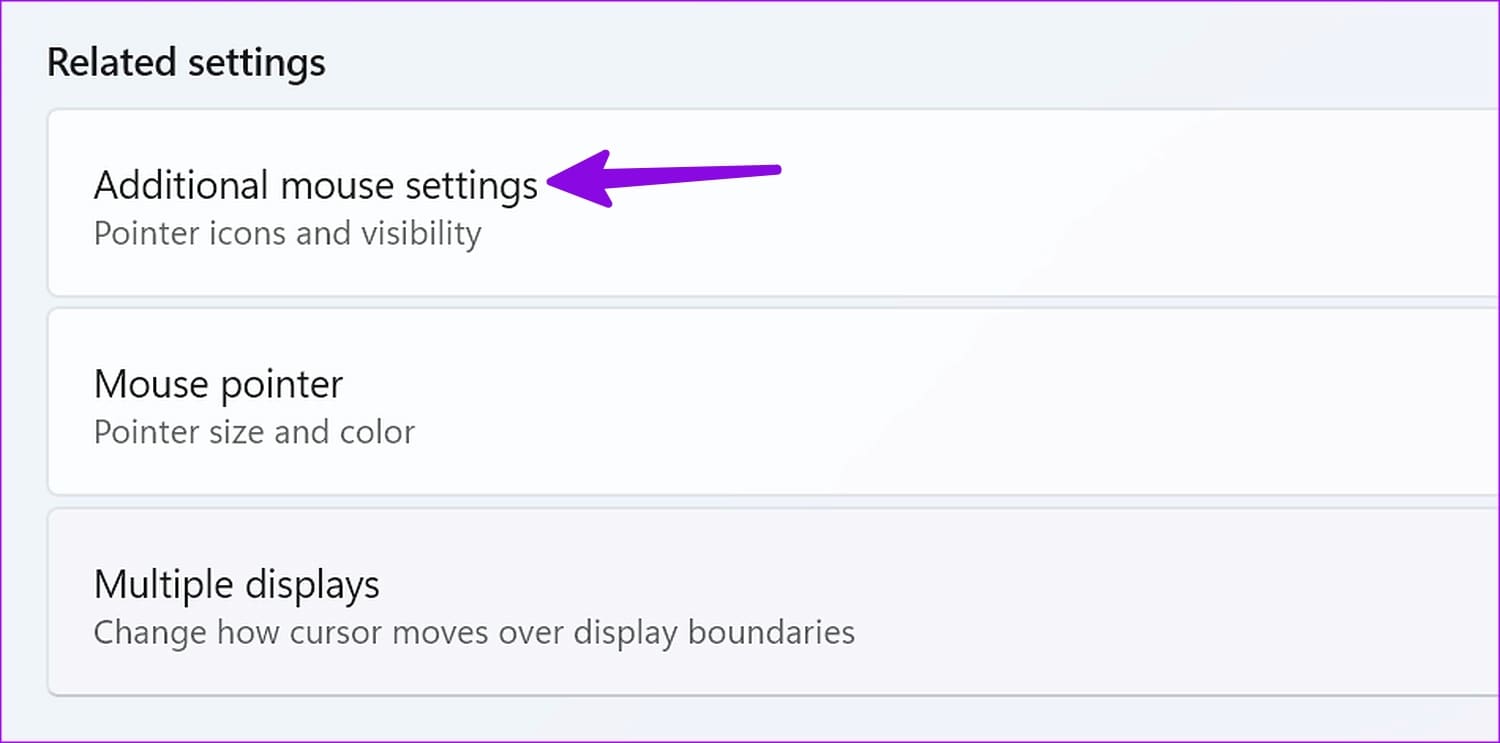
Step 2: Select Additional mouse settings under Related settings.
Step 3: Move to the Pointer Options tab, uncheck Display pointer trails, and click Apply followed by OK to save changes.

Fix 4: Turn off Animation Effects in Windows Settings
Lastly, disable animation effects from Windows Settings on your PC to fix mouse delay in games.
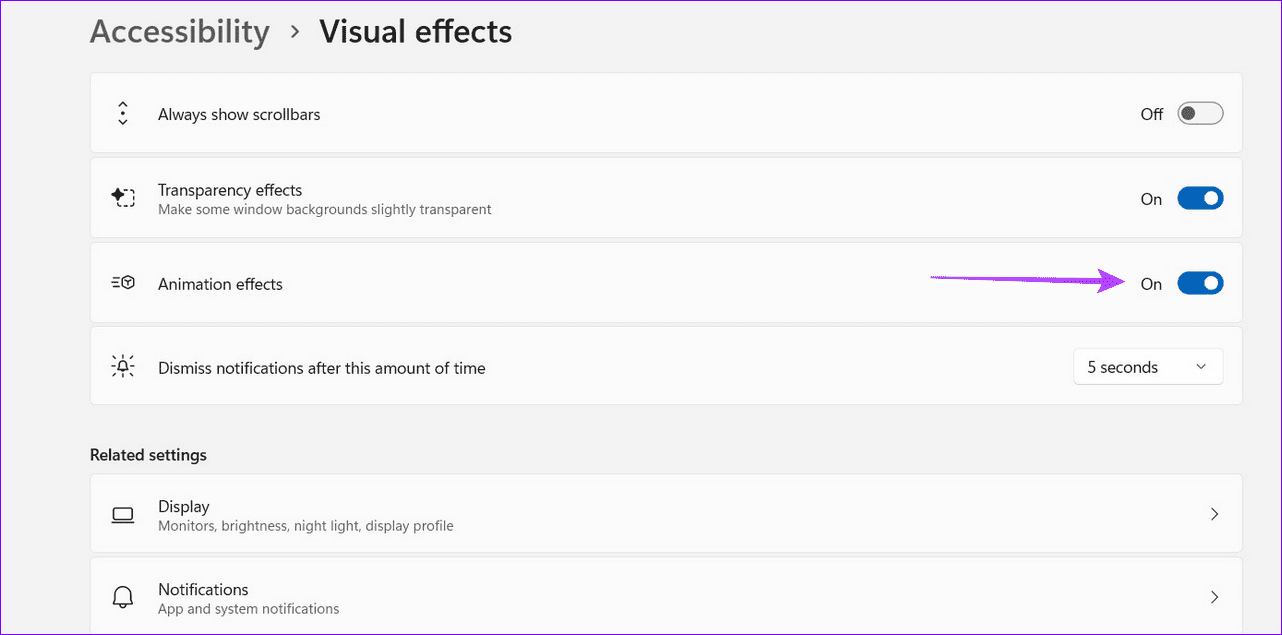
Step 1: Open Windows Settings, select Accessibility from the sidebar, and click Visual effects.

Step 2: Toggle off Animation effects to turn it off.
Was this helpful?
Last updated on 19 July, 2024
Read Next
 6 Best Ways to Fix Bluetooth Delay on Windows 10
Say you're watching a movie or playing a game on your Windows PC.
6 Best Ways to Fix Bluetooth Delay on Windows 10
Say you're watching a movie or playing a game on your Windows PC.
 4 Ways to Fix Zoom Audio Delay on Windows 11
Basic Fixes Check your network connection: Ensure your PC has a good internet connection.
4 Ways to Fix Zoom Audio Delay on Windows 11
Basic Fixes Check your network connection: Ensure your PC has a good internet connection.
 Top 3 Touch Mouse Alternatives to Apple’s Magic Mouse
The Magic Mouse is useful for plenty of people, but some can get annoyed by its poor ergonomics.
Top 3 Touch Mouse Alternatives to Apple’s Magic Mouse
The Magic Mouse is useful for plenty of people, but some can get annoyed by its poor ergonomics.
 How to Update Epic Games Launcher and Its Games on Windows
How to Check and Update Epic Games Launcher Epic Games Launcher auto-updates along with its games.
How to Update Epic Games Launcher and Its Games on Windows
How to Check and Update Epic Games Launcher Epic Games Launcher auto-updates along with its games.
 4 Ways to Fix Bluetooth Audio Delay on iPhone and Android
How to Fix Bluetooth Audio Lag on Your Smartphones Minimize interference: If you notice an audio delay only when other wireless devices are around, turn off the device that is
4 Ways to Fix Bluetooth Audio Delay on iPhone and Android
How to Fix Bluetooth Audio Lag on Your Smartphones Minimize interference: If you notice an audio delay only when other wireless devices are around, turn off the device that is
 5 Ways to Fix Microsoft Teams Delay When Typing
Fix 1: Close Background Apps Microsoft Teams may sometimes cause high CPU and memory usage, which could easily lead to lag problems.
5 Ways to Fix Microsoft Teams Delay When Typing
Fix 1: Close Background Apps Microsoft Teams may sometimes cause high CPU and memory usage, which could easily lead to lag problems.
 3 Ways to Fix iPhone Lock/Wake Screen Delay
https://youtu.be/94mfnn8hCSw Why Is There a Delay When Locking or Waking up Your iPhone If you have mapped a double/triple click shortcut to the power button of your iPhone, and when
3 Ways to Fix iPhone Lock/Wake Screen Delay
https://youtu.be/94mfnn8hCSw Why Is There a Delay When Locking or Waking up Your iPhone If you have mapped a double/triple click shortcut to the power button of your iPhone, and when
 3 Ways to Fix VLC Subtitle Delay on Desktop and Mobile
How to Adjust Subtitle Timing in VLC on Windows PC and Mac While your video is running, you can use the keyboard shortcuts to speed up (or down) the subtitles.
3 Ways to Fix VLC Subtitle Delay on Desktop and Mobile
How to Adjust Subtitle Timing in VLC on Windows PC and Mac While your video is running, you can use the keyboard shortcuts to speed up (or down) the subtitles.
The article above may contain affiliate links which help support Guiding Tech. The content remains unbiased and authentic and will never affect our editorial integrity.