


Basic Fixes:
- Disable DND: If your Android phone is currently on DND, you will not be able to receive any missed call notifications as your device actively blocks any distractions. So, disable DND on your Android phone and check again.
- Update your phone and Phone app: Regular software updates help ensure the Phone app is also updated, especially if you’re using a Samsung phone. However, if you’re using a third-party Phone app, install the latest app updates and check again.
Fix 1: Enable All Phone App Notifications
If the Phone app currently has notifications disabled, you will not be informed of any incoming or missed calls on your Android phone. To ensure this is not the case, open the Phone app settings and ensure all notifications are enabled using the below steps.
Step 1: Open Settings and tap on Apps. Tap on Phone app.
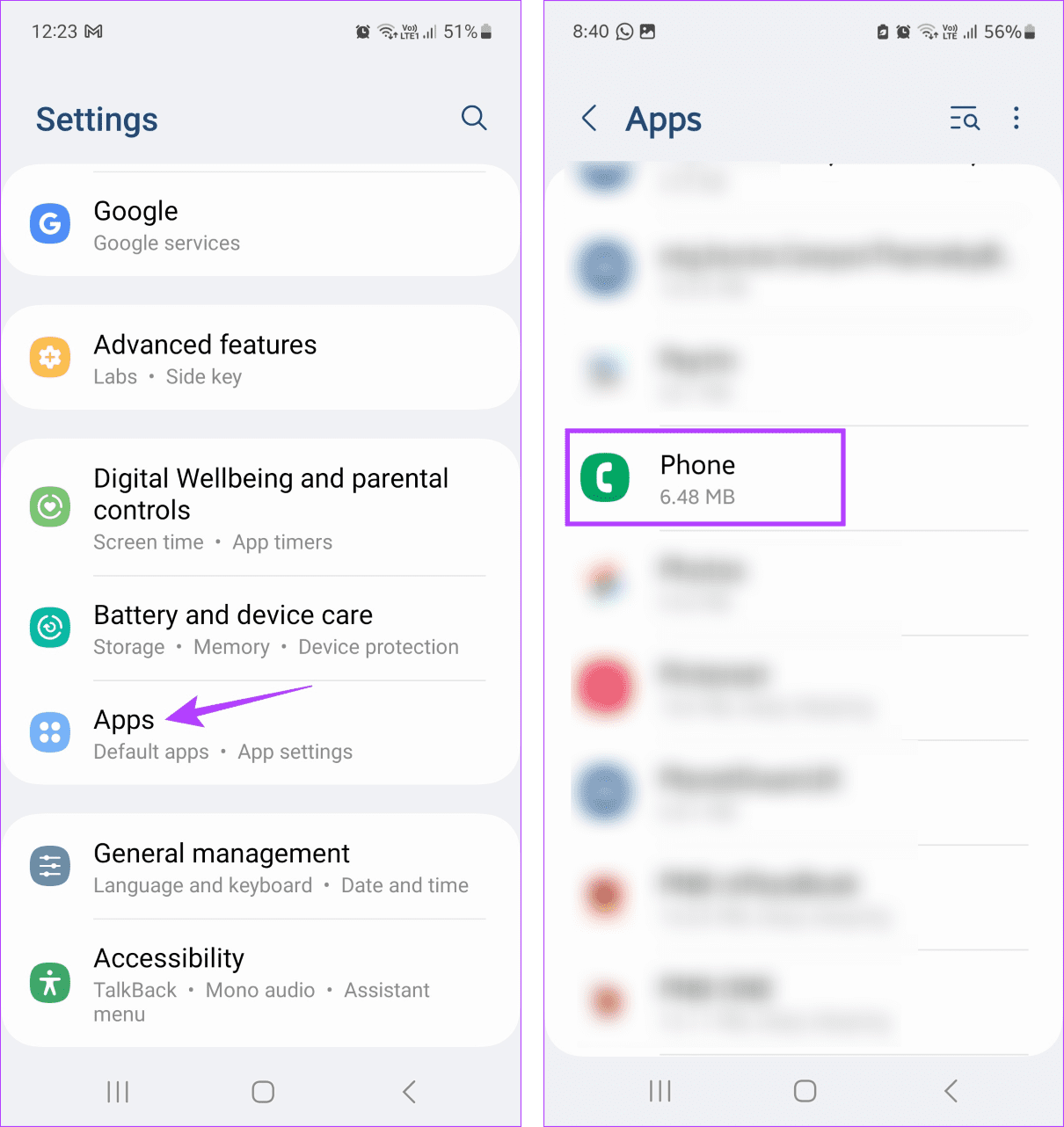
Step 2: Tap on Notifications and turn the Allow notifications toggle on.


Fix 2: Change the Default Phone App
Certain third-party Phone apps might not work properly on your Android phone. So, if you’ve been having issues receiving missed call notifications for a while, try switching back to the default Phone app on your Android phone. Here’s how to do it.
Step 1: Open Settings and tap on Apps. Tap on Choose default apps.


Step 2: Tap on Phone app. From the options, select the Phone app.


Also Read: How to fix incoming calls go straight to voicemail on Android
Fix 3: Allow Calls From Unknown Numbers
If you have enabled call block for unknown numbers, you will not receive the missed call notifications for them either. To fix this, ensure calls from unknown numbers are enabled using the below-mentioned steps.
Step 1: Open the Phone app and tap on Keypad. Tap the three-dot icon and select Settings.

Step 2: Tap Block numbers and turn off the Block calls from unknown numbers toggle.

Fix 4: Enable or Disable Wi-Fi Calling
While Wi-Fi calling helps ensure you receive important calls and, their notifications, even in areas of low network, sometimes it can cause the calls to not go through as well. So, depending on the current setting, turn Wi-Fi calling on or off and check again. Here’s how.
Step 1: Open Settings and tap on Connections. Turn the toggle for Wi-Fi Calling on or off.

Fix 5: Reset App Preferences
If certain apps, like the Phone app, are not performing as expected, you can use the reset all app settings feature to fix them. This will reset any custom app settings that might be causing missed call notifications to not show up. Follow the below steps to do it.
Step 1: Open Settings and tap on Apps. Tap the three-dot icon.
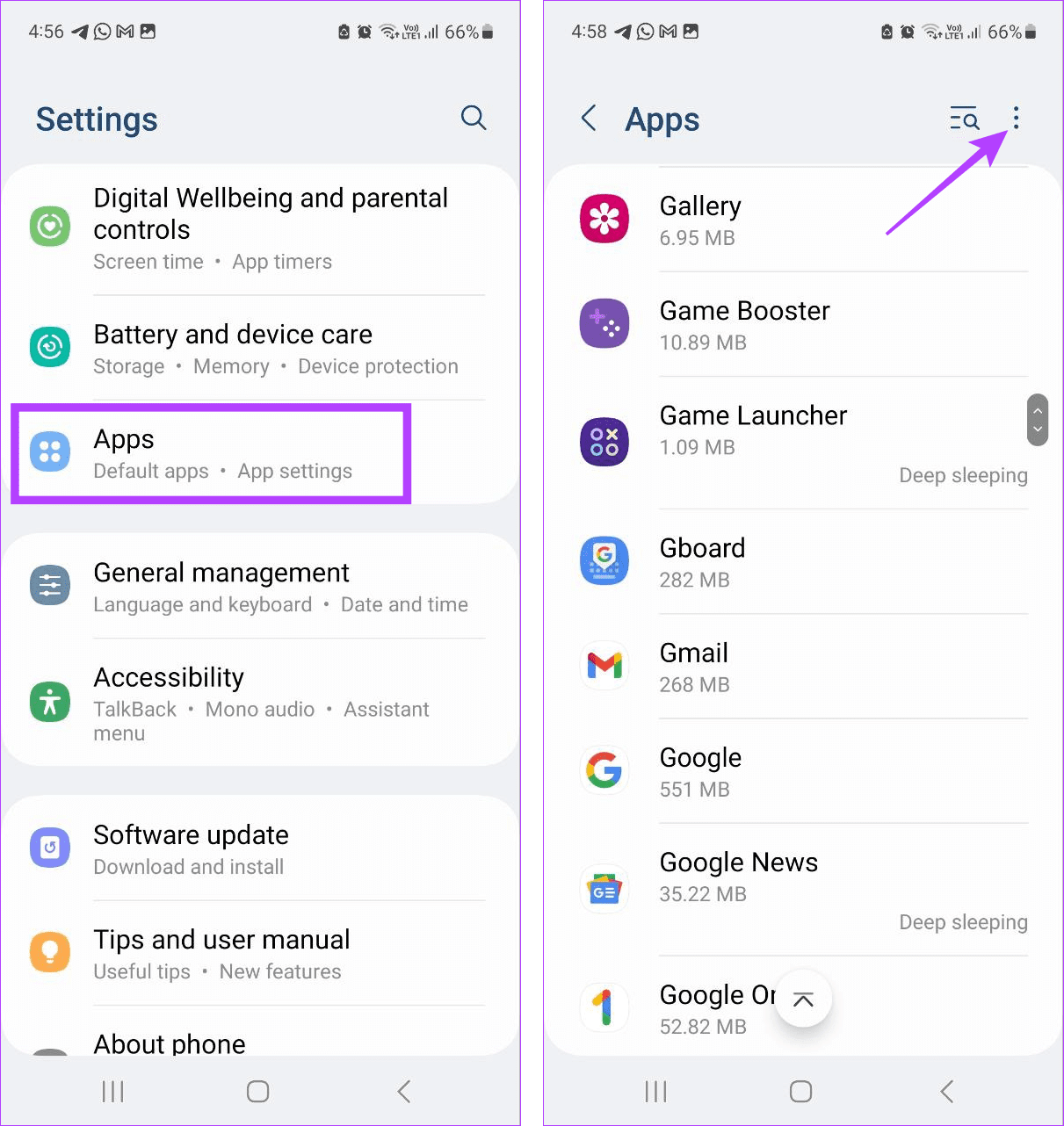
Step 2: Select Reset app preferences and tap on Reset to confirm.
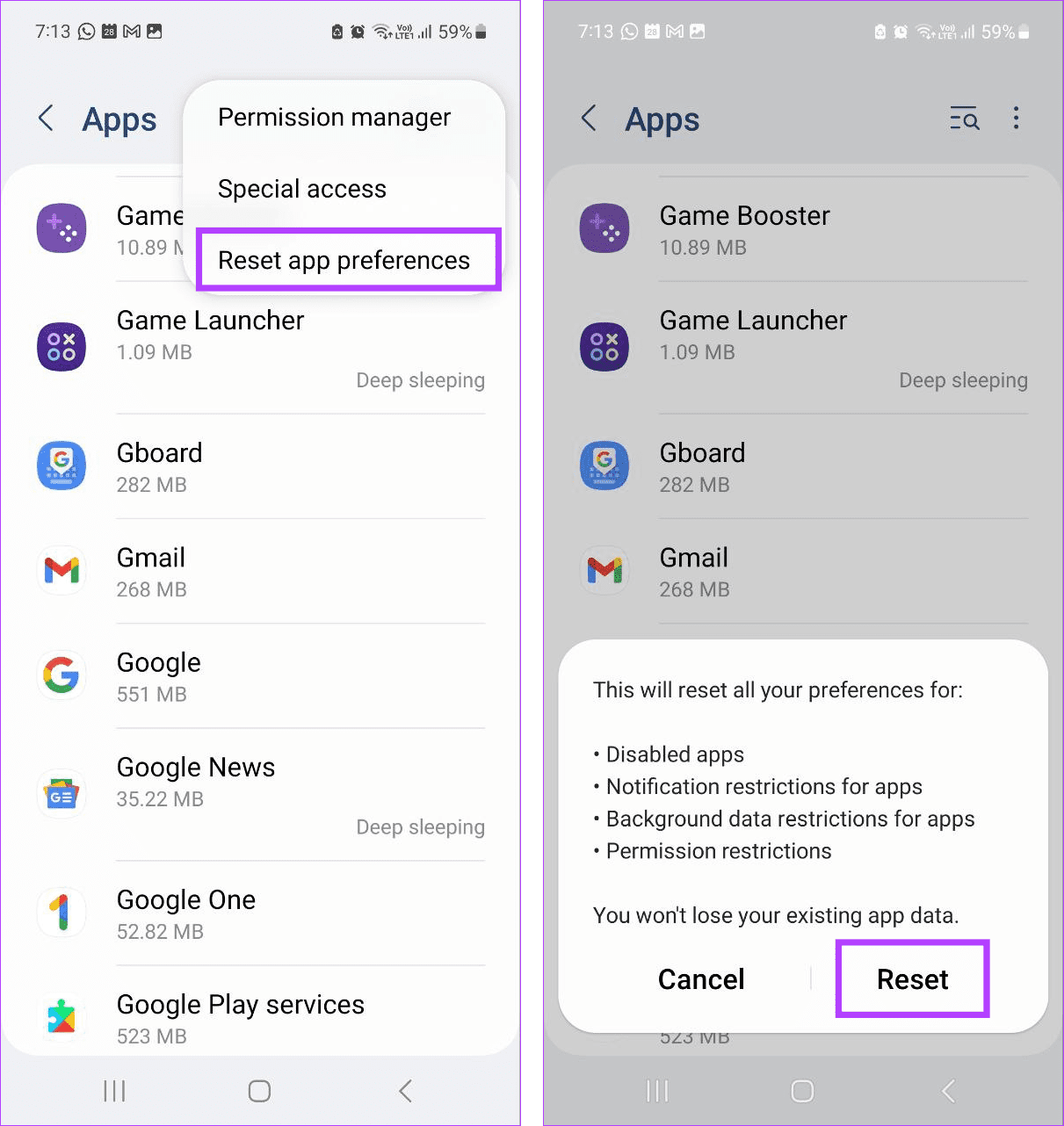
Once done, close all background apps. Then, ask someone to leave a missed call on your Android phone to check if the issue has been resolved.
Was this helpful?
Last updated on 23 August, 2024
Read Next
 2 Ways to Fix Missed Call Notifications Not Showing on iPhone
Fix 1: Review Notification Settings for the Phone App Missed call notifications may not show up on your iPhone if you've accidentally disabled notification access for the Phone app.
2 Ways to Fix Missed Call Notifications Not Showing on iPhone
Fix 1: Review Notification Settings for the Phone App Missed call notifications may not show up on your iPhone if you've accidentally disabled notification access for the Phone app.
 6 Ways to Fix Call History Not Showing on Android
Fix 1: Allow the Phone App to Access Call Logs The Phone app may not show any call history if it does not have the necessary permissions to access and
6 Ways to Fix Call History Not Showing on Android
Fix 1: Allow the Phone App to Access Call Logs The Phone app may not show any call history if it does not have the necessary permissions to access and
 6 Ways to Fix Notification Badges Not Showing on Android
https://youtu.be/rY1b6h5xFJI Fix 1: Enable Notification Badges on Your Phone First up, you need to go through the notification settings on your phone and ensure that app icon badges are enabled.
6 Ways to Fix Notification Badges Not Showing on Android
https://youtu.be/rY1b6h5xFJI Fix 1: Enable Notification Badges on Your Phone First up, you need to go through the notification settings on your phone and ensure that app icon badges are enabled.
 Normal Call vs. WhatsApp Call: What’s the Difference?
Comparison Table of Normal vs.
Normal Call vs. WhatsApp Call: What’s the Difference?
Comparison Table of Normal vs.
 5 Ways to Fix Notification Badges Not Showing on iPhone
Basic Fixes: Restart your iPhone: It's a good idea to restart your iPhone, especially if you don't remember when you last did that.
5 Ways to Fix Notification Badges Not Showing on iPhone
Basic Fixes: Restart your iPhone: It's a good idea to restart your iPhone, especially if you don't remember when you last did that.
 Top 7 Fixes for Incoming Call Screen Not Showing Up on iPhone
The typical functionality of a phone is to show you the incoming caller’s name or number when the phone rings, along with the answer and decline buttons.
Top 7 Fixes for Incoming Call Screen Not Showing Up on iPhone
The typical functionality of a phone is to show you the incoming caller’s name or number when the phone rings, along with the answer and decline buttons.
 Top 8 Fixes for Call History Not Showing on iPhone
Your iPhone keeps a log of incoming, outgoing, and missed calls as Call History.
Top 8 Fixes for Call History Not Showing on iPhone
Your iPhone keeps a log of incoming, outgoing, and missed calls as Call History.
 6 Ways to Stop Call History From Showing on Another iPhone
Basic Ways: Use a different Apple ID on both devices: A sure-shot way of ensuring your call history doesn’t appear on another iPhone is by switching to a different Apple
6 Ways to Stop Call History From Showing on Another iPhone
Basic Ways: Use a different Apple ID on both devices: A sure-shot way of ensuring your call history doesn’t appear on another iPhone is by switching to a different Apple
The article above may contain affiliate links which help support Guiding Tech. The content remains unbiased and authentic and will never affect our editorial integrity.

