

Fix 1: Check Microphone Permission
Windows lets you enable or disable microphone permissions for each app and program individually. If you’ve disabled microphone access for desktop apps on Windows, you may get the “Oops, there was a problem with Dictation” error in Microsoft Word.
Step 1: Press the Windows key + I to open the Settings app.
Step 2: Switch to the Privacy & security tab. Then, scroll down to App permissions and select Microphone.

Step 3: Turn on the toggles for Microphone access and Let apps access your microphone.

Step 4: Scroll down and enable the toggle for Let desktop apps access your microphone.

If you’re having trouble using the dictation tool in Word Online, it’s possible that the browser doesn’t have permission to access your computer’s microphone.
Open Microsoft Word for the web > click the tiny padlock icon on the left of the URL > select Site settings. Under Permissions, use the drop-down menu next to Microphone and select Allow.
Fix 2: Rule Out Issues With Your Microphone
Problems with your microphone can also lead you to believe that Word’s dictation tool is broken. If you use an external microphone on your PC, check its physical connection to see if it’s properly connected.
You must ensure that your preferred microphone is set as the default audio input device. Here’s how to do it.
Step 1: Right-click on the speaker icon on the taskbar and select Sound settings from the resulting menu.
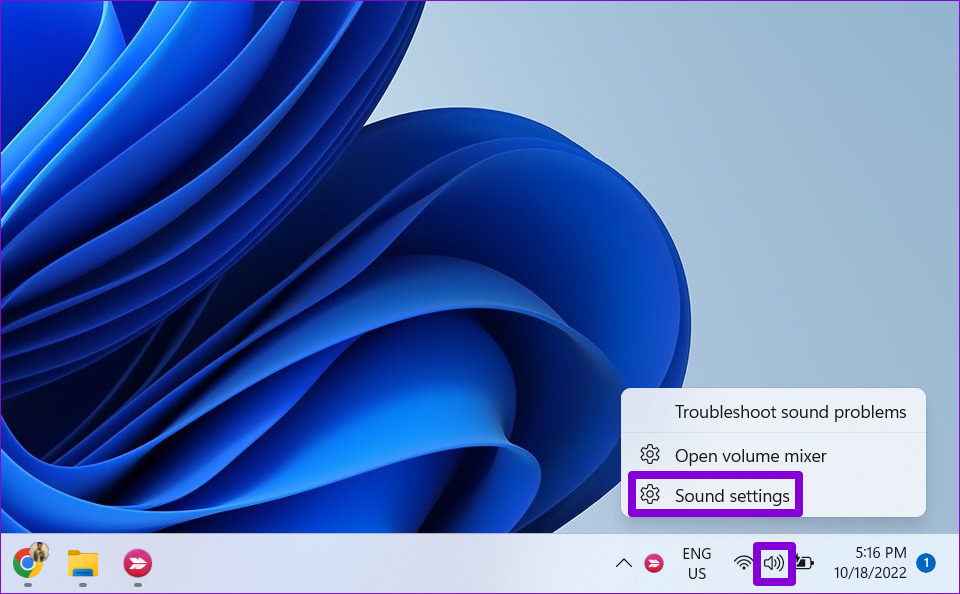
Step 2: Choose your preferred microphone under Input and check its volume level.

Step 3: Click your audio input device and use the Start test button to see if the microphone works.

After you’ve selected the right input device, use the dictation tool again.
Fix 3: Run the Recording Audio Troubleshooter
Windows has various troubleshooters to fix most system-level issues. So, if the dictation tool still doesn’t work properly, run the Recording Audio troubleshooter on Windows. Here’s how to do it.
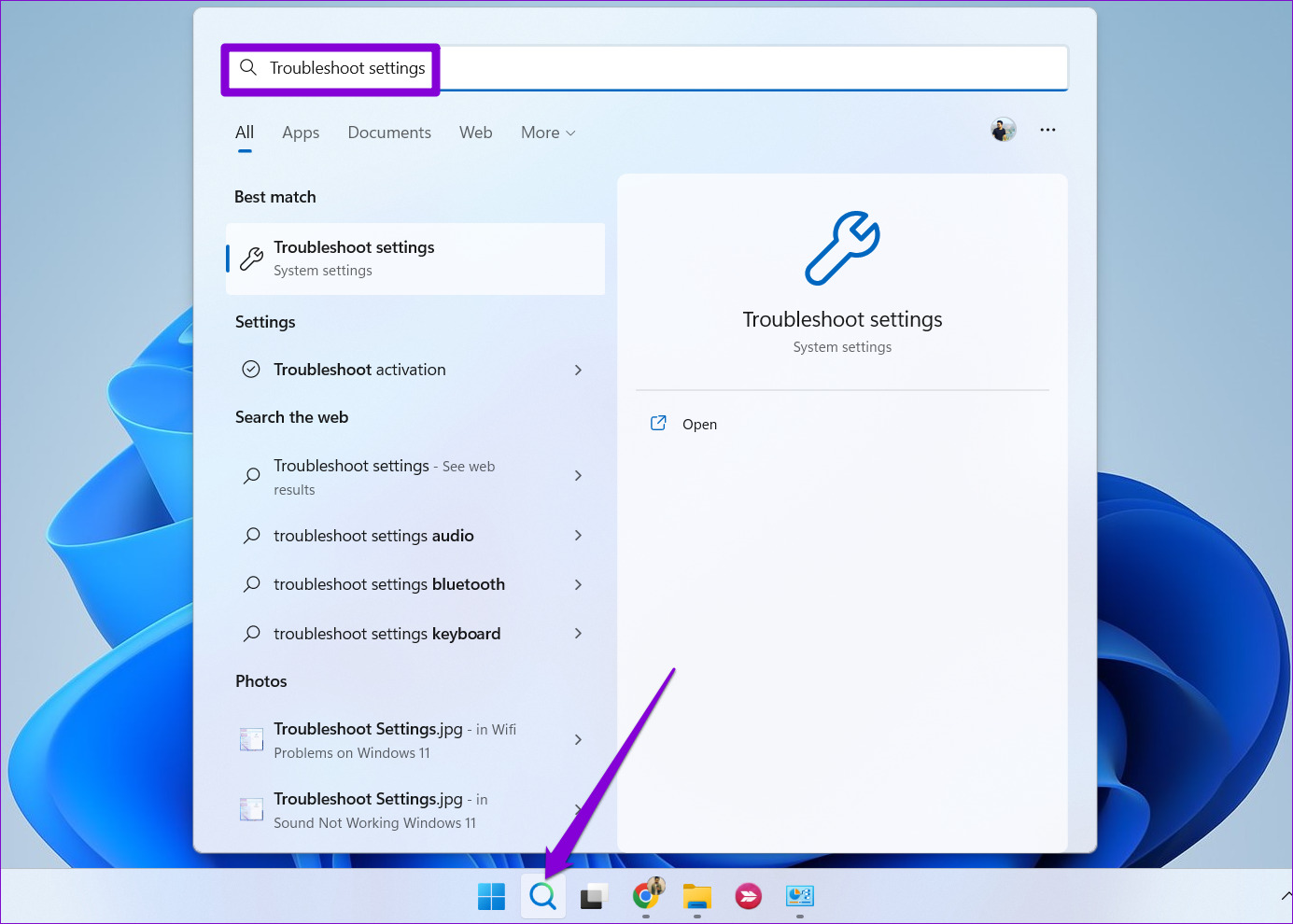
Step 1: Click on the search icon on the taskbar, type troubleshoot settings in the box, and press Enter.
Step 2: Go to Other troubleshooters.
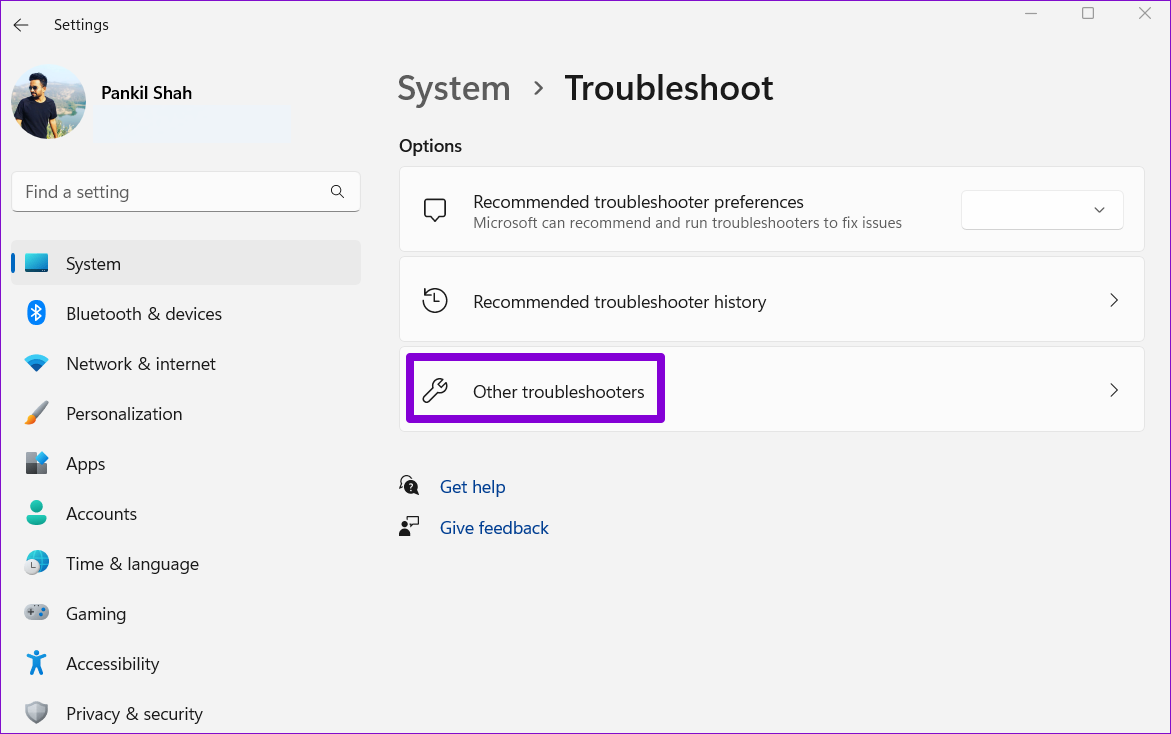
Step 3: Click on the Run button next to the Recording Audio troubleshooter and follow the on-screen instructions to finish the process.

Fix 4: Repair Microsoft Office
If the microphone works fine in other apps, there could be a problem with the Microsoft Word app on your PC. As Microsoft Word is part of the Office suite, run Microsoft’s Office repair tool on Windows to fix any issues and get the dictation tool working again.
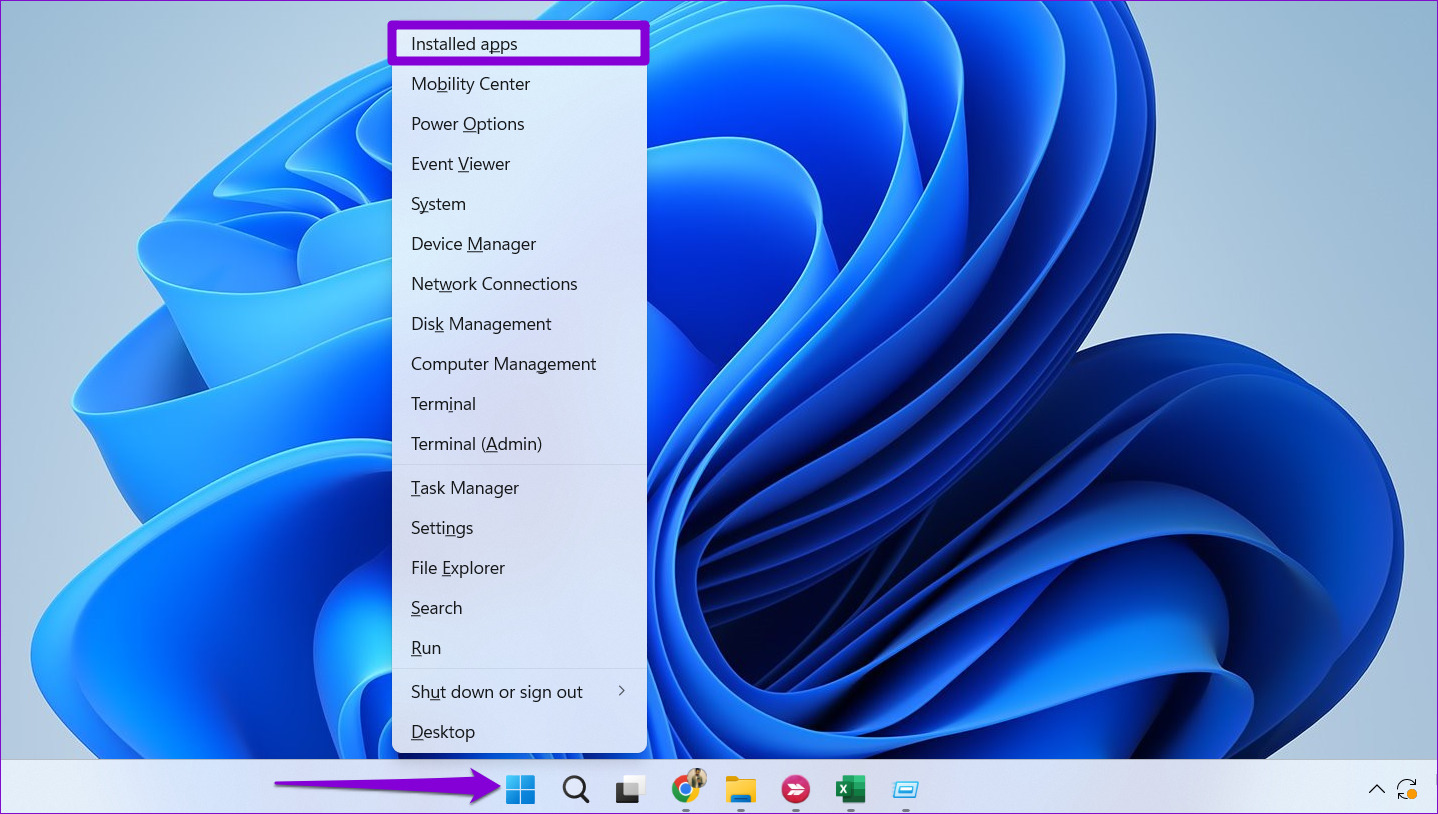
Step 1: Right-click on the Start icon and select Installed apps from the list.
Step 2: Scroll down to locate the Microsoft Office product on the list. Click the three-dot menu icon next to it and select Modify.

Step 3: Select Online Repair and hit Repair.

Was this helpful?
Last updated on 08 April, 2024
2 Comments
Leave a Reply
Read Next
 How to Use the Dictation Tool in Microsoft Word
On Microsoft Word for PC or Mac After you’ve connected a microphone to your computer, you can start using the dictation tool in Microsoft Word.
How to Use the Dictation Tool in Microsoft Word
On Microsoft Word for PC or Mac After you’ve connected a microphone to your computer, you can start using the dictation tool in Microsoft Word.
 4 Fixes for Dictation Not Working on Mac
Basic Fixes Disable Bluetooth devices: This can prevent you from using the built-in microphone on your Mac.
4 Fixes for Dictation Not Working on Mac
Basic Fixes Disable Bluetooth devices: This can prevent you from using the built-in microphone on your Mac.
 How to Fix iPhone Dictation Not Working
Basic Fixes Restart iPhone - The first thing that you must do if voice-to-text functionality isn’t working on your iPhone is to restart it.
How to Fix iPhone Dictation Not Working
Basic Fixes Restart iPhone - The first thing that you must do if voice-to-text functionality isn’t working on your iPhone is to restart it.
 5 Fixes When Read Aloud Is Not Working in Microsoft Word for Windows
Fix 1: Add the Read Aloud Option Is the Read Aloud option missing from Microsoft Word?
5 Fixes When Read Aloud Is Not Working in Microsoft Word for Windows
Fix 1: Add the Read Aloud Option Is the Read Aloud option missing from Microsoft Word?
 6 Ways to Spell Check Is Not Working in Microsoft Word
Before you begin, try to restart Microsoft Word to fix temporary bugs and glitches.
6 Ways to Spell Check Is Not Working in Microsoft Word
Before you begin, try to restart Microsoft Word to fix temporary bugs and glitches.
 4 Fixes for Can’t Select or Highlight Text in Microsoft Word for Windows
Try Basic Fixes Rule out issues with your mouse or touchpad: A malfunctioning mouse or touchpad might fail to register clicks and drag motions.
4 Fixes for Can’t Select or Highlight Text in Microsoft Word for Windows
Try Basic Fixes Rule out issues with your mouse or touchpad: A malfunctioning mouse or touchpad might fail to register clicks and drag motions.
 Apple Pages vs Microsoft Word: Which Word Processing Software Is Better
Every major tech company out there is offering their version of the productivity suite.
Apple Pages vs Microsoft Word: Which Word Processing Software Is Better
Every major tech company out there is offering their version of the productivity suite.
 Google Docs vs. Microsoft Word Online: Which Word Processor Is Better
Google Docs vs.
Google Docs vs. Microsoft Word Online: Which Word Processor Is Better
Google Docs vs.
The article above may contain affiliate links which help support Guiding Tech. The content remains unbiased and authentic and will never affect our editorial integrity.

Option 5 was the issue.
One more suggestion to add to your list. “Dictate” kept throwing errors at me until and recorded nothing until I turned off my VPN. The VPN apparently prevented essential communication back to Microsoft’s servers to parse my words. The moment I turned off the VPN, voila.