


Preliminary Fixes
- Check Internet Connection: A stable internet connection is essential for Microsoft Teams to function correctly. If your device has a weak or unstable connection, it could lead to syncing issues.
- Force Restart App: Sometimes, the simplest solution is to force quit the app and restart it. This can resolve any temporary glitches that might be causing the syncing issue.
- Check Microsoft Teams Server Status: If Microsoft Teams’ servers are down, it may not sync properly, regardless of your internet connection or app settings. Go to the official Microsoft 365 Service Status page or visit Downdetector to see if other users report similar issues.
- Contact Admin: If Microsoft Teams is still not syncing on desktop and mobile, you need to contact your company IT admin. The IT admin might have removed you from Teams channels.
Fix 1: Clear Teams Cache
Step 1: Press the Windows + R keys to open a Run dialog box, type %appdata%, and press Enter.

Step 2: Double-click on the Microsoft folder and find Teams from the following subfolders.
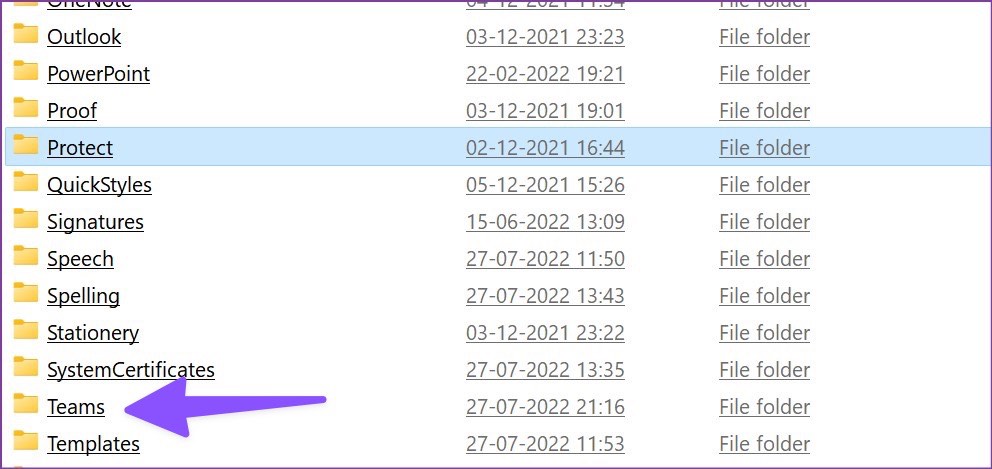
Step 3: Select all folders and delete them.

Next, clear the Recycle Bin, too. Follow the steps below to fix syncing issues on the Teams Android app.
Step 1: Long-press the Team app and choose App info menu.
Step 2: Select the Storage & cache menu and choose Clear cache.


Fix 2: Log Out and Log In to Your Microsoft Teams Account
Step 1: Open the Microsoft Teams app on the desktop.
Step 2: Select the profile picture in the top menu bar. Select Sign out.
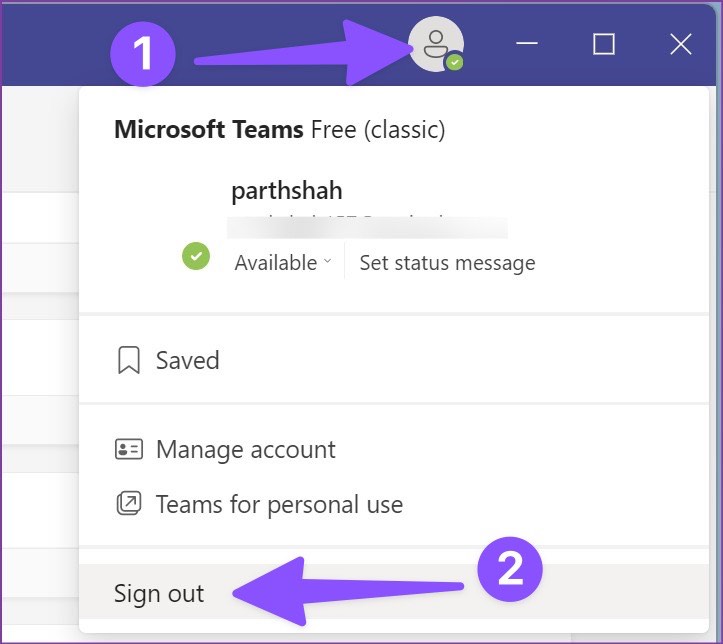
Teams’ mobile users can go through the steps below.
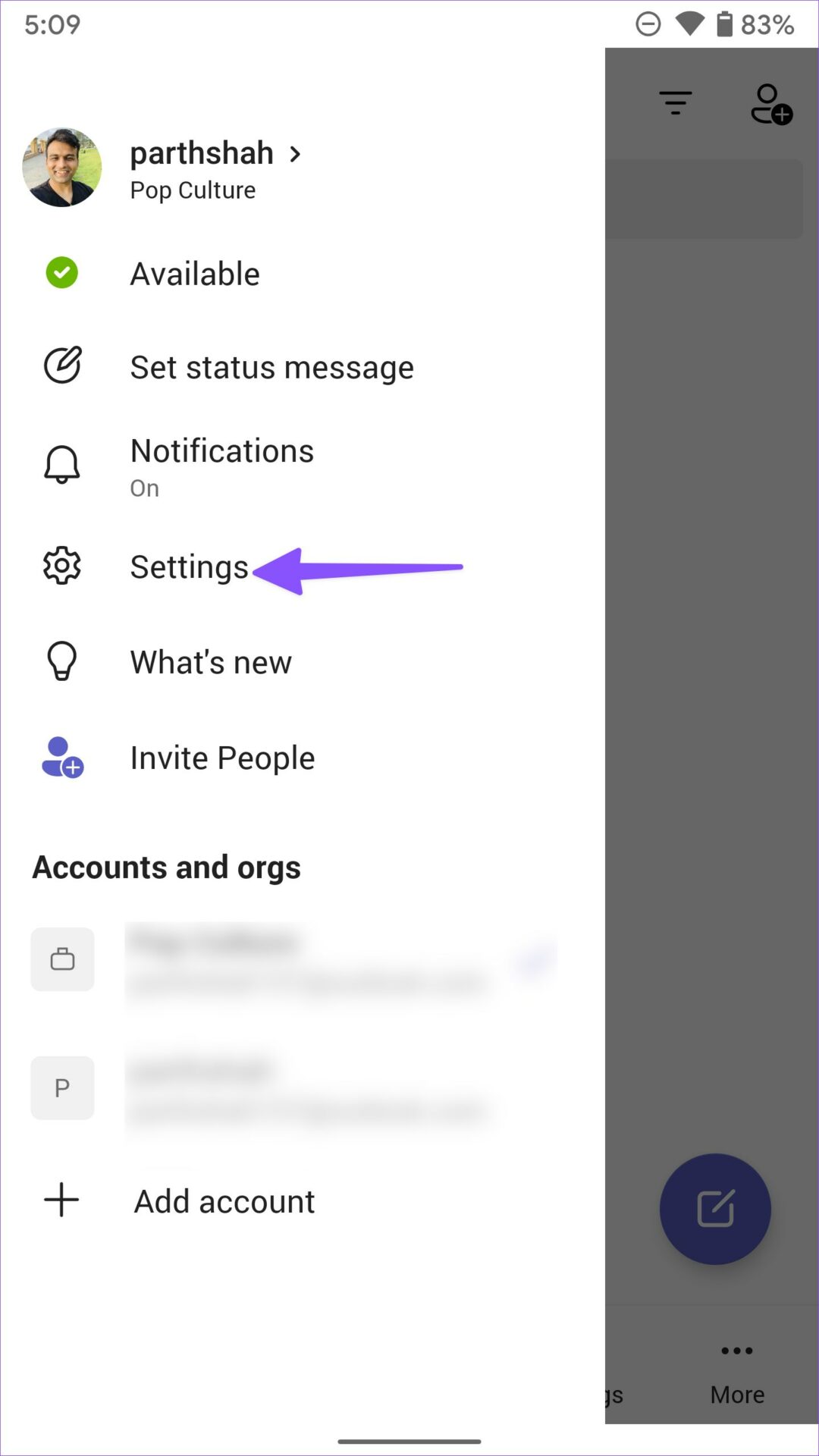
Step 1: Open the Teams app and select your profile picture in the top-left corner.
Step 2: Select Settings and tap Sign out.

Fix 3: Update the Microsoft Teams App
You can update Teams to the latest version and fix glitches like sync not working. Mobile users can install the latest Teams update from the Play Store or App Store.
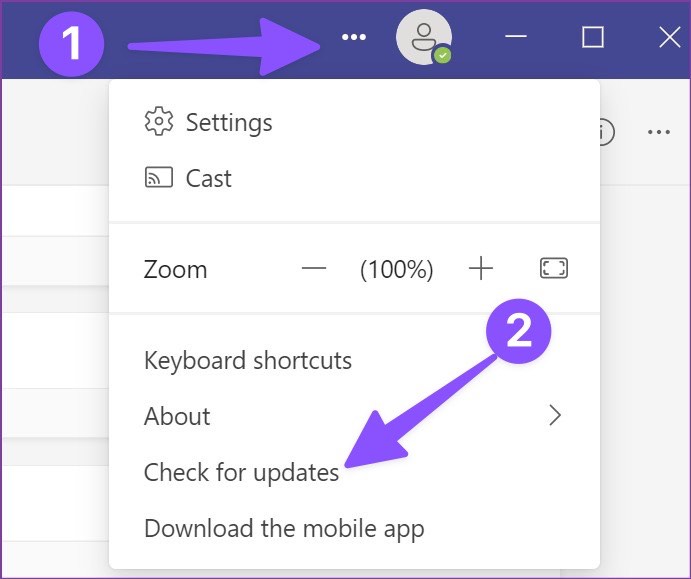
On the desktop, launch Teams, click the three vertical dots menu in the top-right corner, and select check for updates to install the pending update.
Before you miss an important company update or message, use the tricks above and get your messages on time.
Was this helpful?
Last updated on 26 August, 2024
1 Comment
Leave a Reply
Read Next
 4 Fixes for Spotify Not Syncing Between Mobile and Desktop
Basic Fixes Use the same account on multiple devices: Sometimes you don't realize, but you must have the same account on all your devices.
4 Fixes for Spotify Not Syncing Between Mobile and Desktop
Basic Fixes Use the same account on multiple devices: Sometimes you don't realize, but you must have the same account on all your devices.
 4 Ways to Fix Microsoft To Do App Not Syncing on Windows
Try Basic Fixes Check Microsoft To Do service status: Microsoft maintains a service status page for all its services, including Microsoft To Do.
4 Ways to Fix Microsoft To Do App Not Syncing on Windows
Try Basic Fixes Check Microsoft To Do service status: Microsoft maintains a service status page for all its services, including Microsoft To Do.
 Top 5 Ways to Fix Microsoft Teams Not Displaying Images on Windows
Preliminary Fixes Check the Internet Connection: A stable internet connection is crucial for Microsoft Teams to properly load images and other media content.
Top 5 Ways to Fix Microsoft Teams Not Displaying Images on Windows
Preliminary Fixes Check the Internet Connection: A stable internet connection is crucial for Microsoft Teams to properly load images and other media content.
 Top 3 Ways to Stop Microsoft Teams From Starting Automatically on Windows 10
Microsoft Teams app is great for team management and communication.
Top 3 Ways to Stop Microsoft Teams From Starting Automatically on Windows 10
Microsoft Teams app is great for team management and communication.
 How to Remove Profile Picture From Microsoft Teams on Mobile and PC
Microsoft uses your name’s initials as your profile picture in Microsoft Teams.
How to Remove Profile Picture From Microsoft Teams on Mobile and PC
Microsoft uses your name’s initials as your profile picture in Microsoft Teams.
 Top 4 Ways to Fix Microsoft Teams Notifications Not Working on Mac
Basic Fixes Check Microsoft Teams Status: If Microsoft suffers from an outage, you might want to confirm the issue via Downdetector.
Top 4 Ways to Fix Microsoft Teams Notifications Not Working on Mac
Basic Fixes Check Microsoft Teams Status: If Microsoft suffers from an outage, you might want to confirm the issue via Downdetector.
 Top 9 Ways to Fix Microsoft Teams Not Opening on Mac
While Microsoft Teams is jam-packed with useful features, the software puts a huge question mark over the overall reliability.
Top 9 Ways to Fix Microsoft Teams Not Opening on Mac
While Microsoft Teams is jam-packed with useful features, the software puts a huge question mark over the overall reliability.
 4 Ways to Fix Microsoft Teams Meeting Add-in Won’t Appear in Outlook for Windows
Fix 1: Enable the Teams Add-In A common reason the Microsoft Teams meeting option may disappear from Outlook is if you have accidentally disabled the related add-in.
4 Ways to Fix Microsoft Teams Meeting Add-in Won’t Appear in Outlook for Windows
Fix 1: Enable the Teams Add-In A common reason the Microsoft Teams meeting option may disappear from Outlook is if you have accidentally disabled the related add-in.
The article above may contain affiliate links which help support Guiding Tech. The content remains unbiased and authentic and will never affect our editorial integrity.

All well and good to reset but this happens during a meeting and then it drops it’s syncing. I ain’t going to close a meeting to reset. Should be an inbackground refresh service posiblitiy at worst. You can see most of these solutions are not valid in this case.