


Basic Fixes
- Restart Chrome and the computer – A simple reboot can fix minor glitches that may cause the volume problem.
- Update Chrome – Chrome is mostly updated automatically in the background. In rare circumstances, if it hasn’t, you should update the browser.
- Remove conflicting or problematic extensions – Did you recently install any extension in Chrome, especially related to YouTube or audio? If yes, disable it and see if the YouTube low volume issue is fixed.
Fix 1: Check and Increase YouTube Volume
Despite being easily visible on the YouTube player, sometimes we forget that YouTube has volume control. If the volume is low, you will hear low audio even if your PC’s volume is high, check and change that.
To do this, follow the steps below.
Step 1: Hover your mouse over the sound icon in the YouTube player.
Step 2: Increase the volume using the slider. Alternatively, hold down the Shift key and use the up or down arrows to increase or decrease the volume.
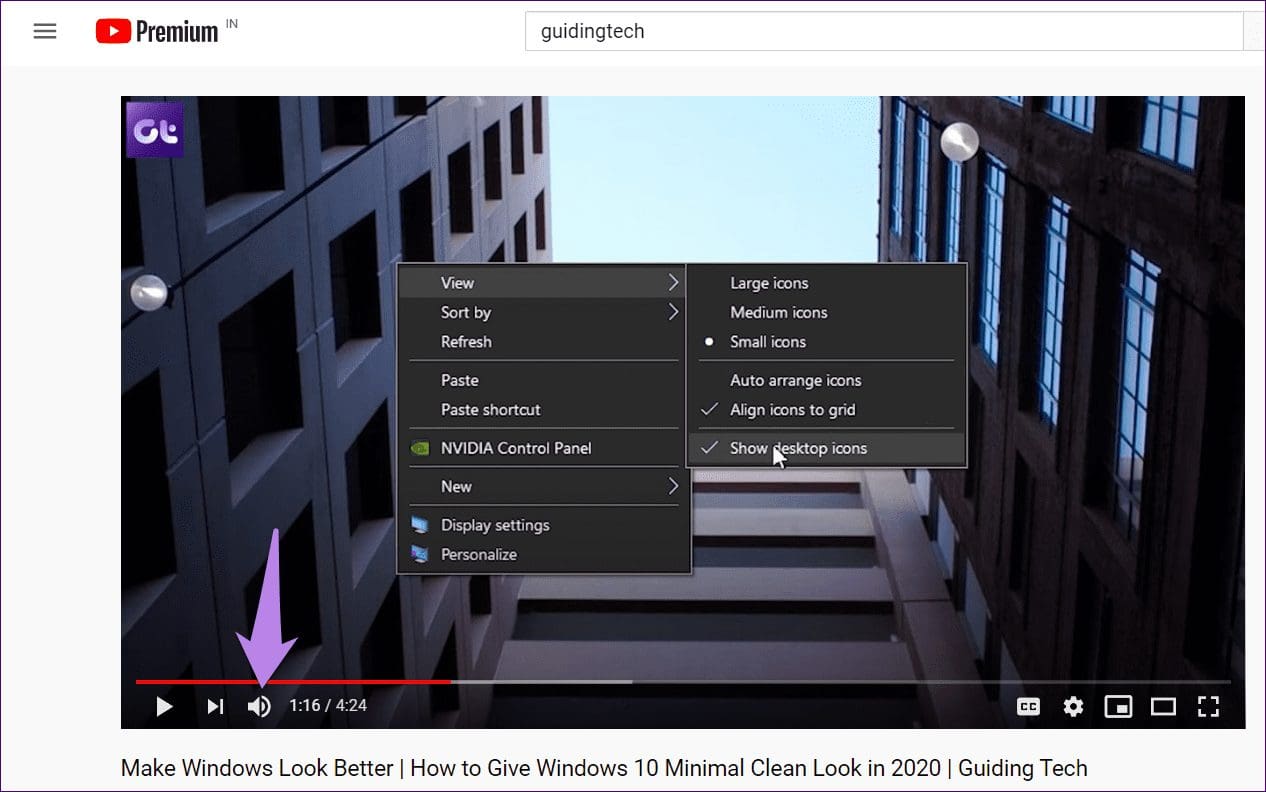
Pro Tip: If YouTube has no volume, right-click on the YouTube tab in the top bar and select unmute.
Fix 2: Check and Increase the Volume of Chrome
In Windows, each app has a separate volume setting. You can have the maximum volume in one app and 50% in another. Sometimes, this setting changes for Chrome, so you get low volume on YouTube. Here’s how to fix it.
Step 1: Press Windows + I to open the Settings app.
Step 2: Click System on the left pane, then Sound on the right.
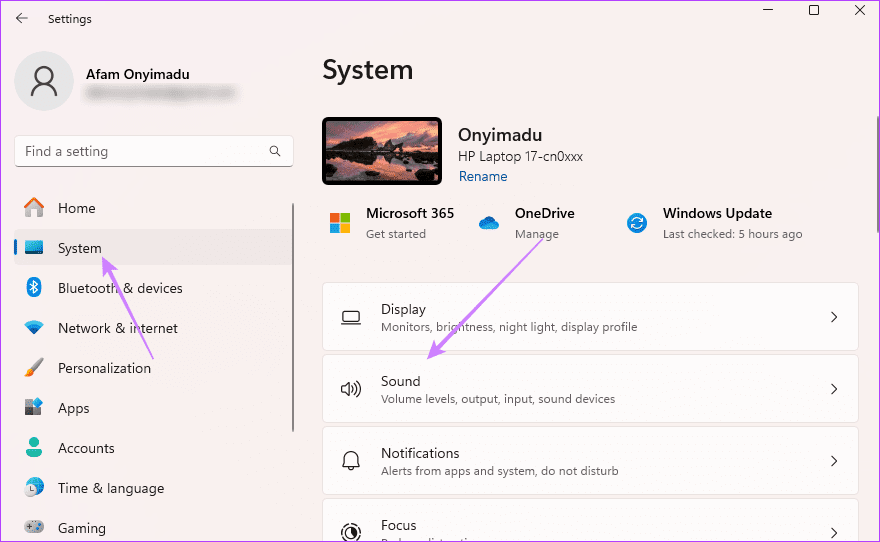
Step 3: Scroll down and click Volume Mixer.
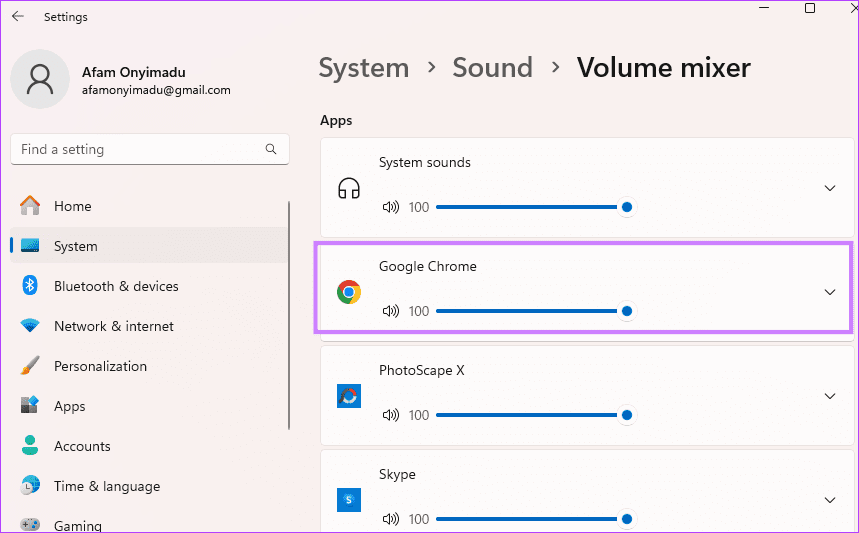
Step 4: Increase the Google Chrome volume using its slider.
Fix 3: Run the Audio Troubleshooter
Windows comes with a built-in Audio troubleshooter. This utility can detect and fix audio faults. Follow the steps below to run the troubleshooter.
Step 1: Press Windows + I to open the Settings app.
Step 2: Click System on the left pane > Troubleshoot on the right.
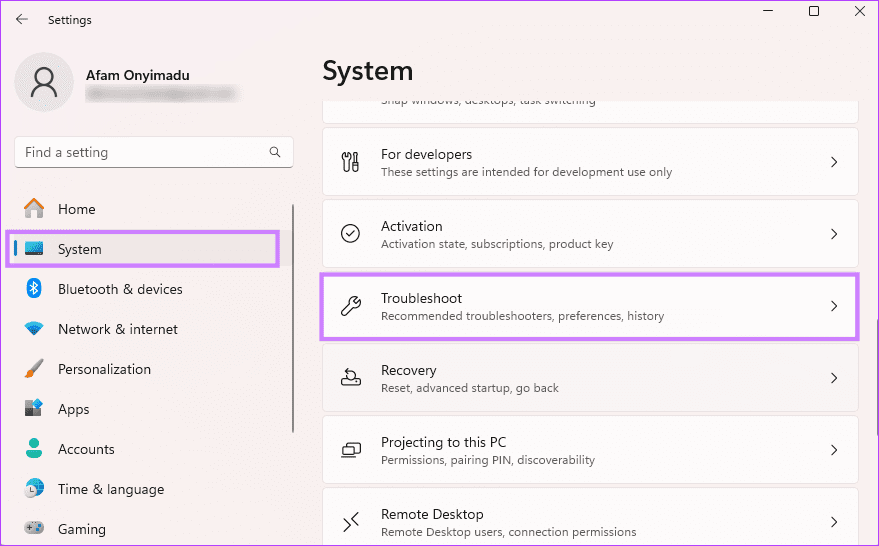
Step 3: Click Other troubleshooters.
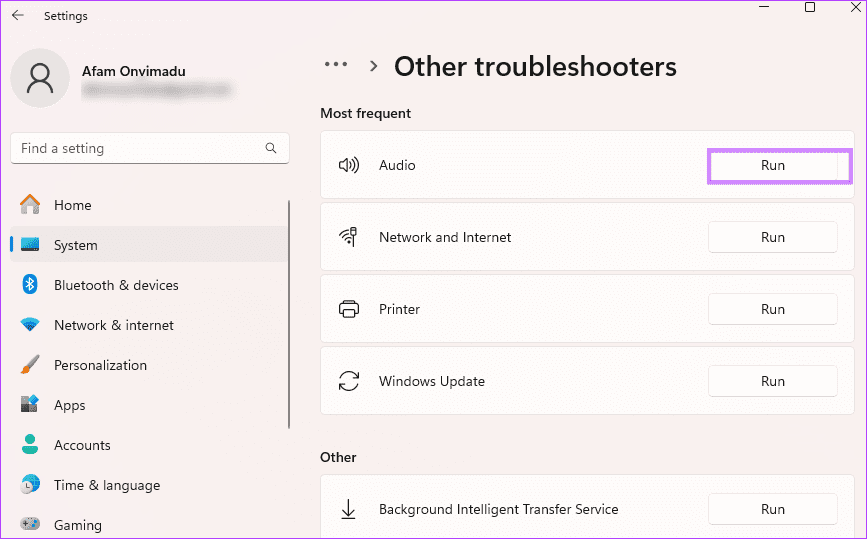
Step 4: Hit the Run button for Audio and follow the wizard to complete the troubleshooting.
Fix 4: Reset Sound Settings to Default
You can also try resetting sound settings to their original values. This will help if certain sound settings have been changed in the past. Follow the steps below.
Step 1: Press Windows + I to open the Settings app.
Step 2: Click System on the left pane > Sound on the right.
Step 3: Scroll down and click Volume Mixer.
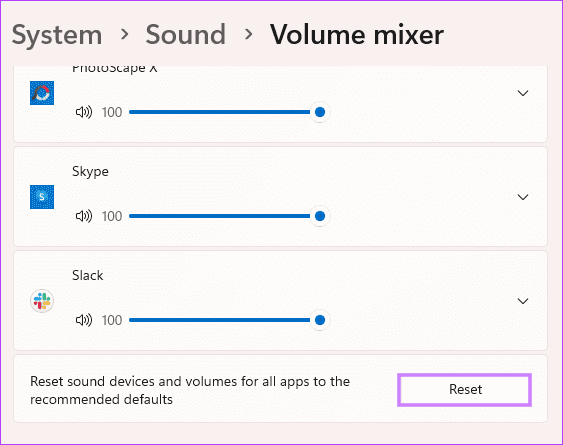
Step 4: Select Reset.
Fix 5: Change Output Device
Sometimes, a different output device is selected, so you hear low or no volume from your computer. To fix it, change the output device in sound settings.
Here are the steps:
Step 1: Press Windows + I to open the Settings app.
Step 2: Click System on the left pane > Sound on the right.
Step 3: Scroll down and click More Sound Settings.
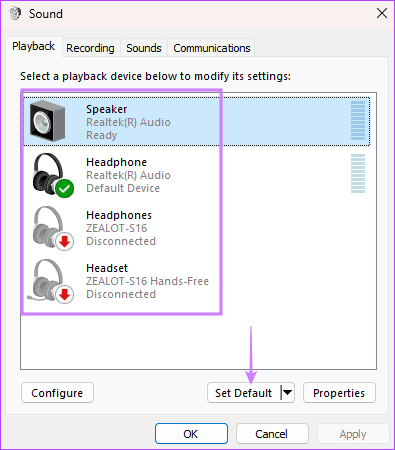
Step 4: You will see the output devices listed on the screen. If multiple speakers show up, click on a different one > click Set Default.
Fix 6: Disable Audio Enhancements
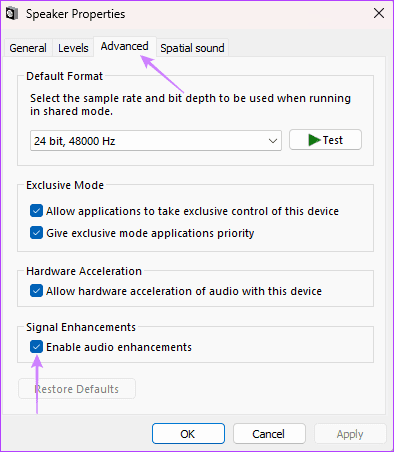
You should also try disabling audio enhancements, as these may interfere with the Chrome YouTube audio. Follow the steps below.
Step 1: Press Windows + I to open the Settings app.
Step 2: Click System on the left pane, then Sound on the right.
Step 3: Scroll down and click More Sound Settings.
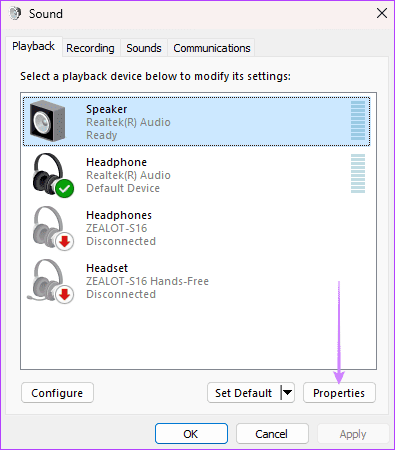
Step 4: Click on the Properties button below the Sound window.
Step 5: Go to the Advanced tab. Uncheck the box next to Enable audio enhancements, then click on OK and Apply buttons.
Fix 7: Disable Spatial Sound
For many users, disabling Spatial sound on their Windows PC improved the volume levels on YouTube. To turn it off, follow the steps below:
Step 1: Press Windows + I to open the Settings app.
Step 2: Click System on the left pane, then Sound on the right.
Step 3: Scroll down and click More Sound Settings.
Step 4: Click on your audio device, then click the Properties button.
Step 5: Click the Spatial sound tab > set Spatial sound format to Off.
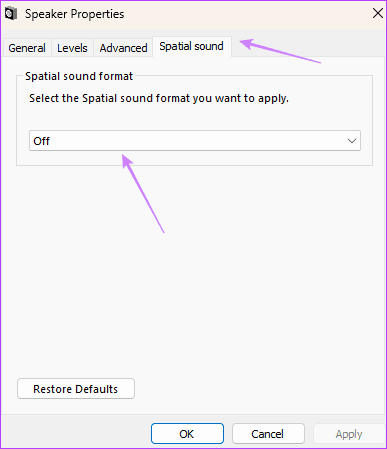
Step 6: Click Apply and OK.
Was this helpful?
Last updated on 02 May, 2024
Read Next
 7 Ways to Fix Low Volume on Windows 11
https://youtu.be/1snNqM2ZcwI Try Basic Fixes Check the volume mixer: Right-click the speaker icon on the taskbar and select the Open volume mixer option.
7 Ways to Fix Low Volume on Windows 11
https://youtu.be/1snNqM2ZcwI Try Basic Fixes Check the volume mixer: Right-click the speaker icon on the taskbar and select the Open volume mixer option.
 5 Ways to Fix Low or Loud Alarm Volume on iPhone
Common Fixes Restart iPhone - Press and hold either of the volume buttons with the side button and drag the power off slider to shut down.
5 Ways to Fix Low or Loud Alarm Volume on iPhone
Common Fixes Restart iPhone - Press and hold either of the volume buttons with the side button and drag the power off slider to shut down.
 5 Ways to Fix Low Call Volume on iPhone
Basic Fixes Clean earpiece - Gently clean the earpiece cavity to remove accumulated dust and debris.
5 Ways to Fix Low Call Volume on iPhone
Basic Fixes Clean earpiece - Gently clean the earpiece cavity to remove accumulated dust and debris.
 4 Ways to Fix Apple Music Low Volume Issue on iPhone
Basic Fixes: Check volume levels on iPhone: If the volume levels are set to low, it might result in an overall low volume when using Apple Music.
4 Ways to Fix Apple Music Low Volume Issue on iPhone
Basic Fixes: Check volume levels on iPhone: If the volume levels are set to low, it might result in an overall low volume when using Apple Music.
 3 Fixes for iMessage Voice Messages Playing in Low Volume
Basic Fixes Check iPhone volume levels: You may have reduced the volume levels previously to avoid disturbing others while using your iPhone to consume media.
3 Fixes for iMessage Voice Messages Playing in Low Volume
Basic Fixes Check iPhone volume levels: You may have reduced the volume levels previously to avoid disturbing others while using your iPhone to consume media.
 3 Fixes for WhatsApp Voice Message Playing at Low Volume on iPhone
Basic Fixes Avoid proximity sensor activation: Don't bring your iPhone closer to your ear while listening to the voice messages.
3 Fixes for WhatsApp Voice Message Playing at Low Volume on iPhone
Basic Fixes Avoid proximity sensor activation: Don't bring your iPhone closer to your ear while listening to the voice messages.
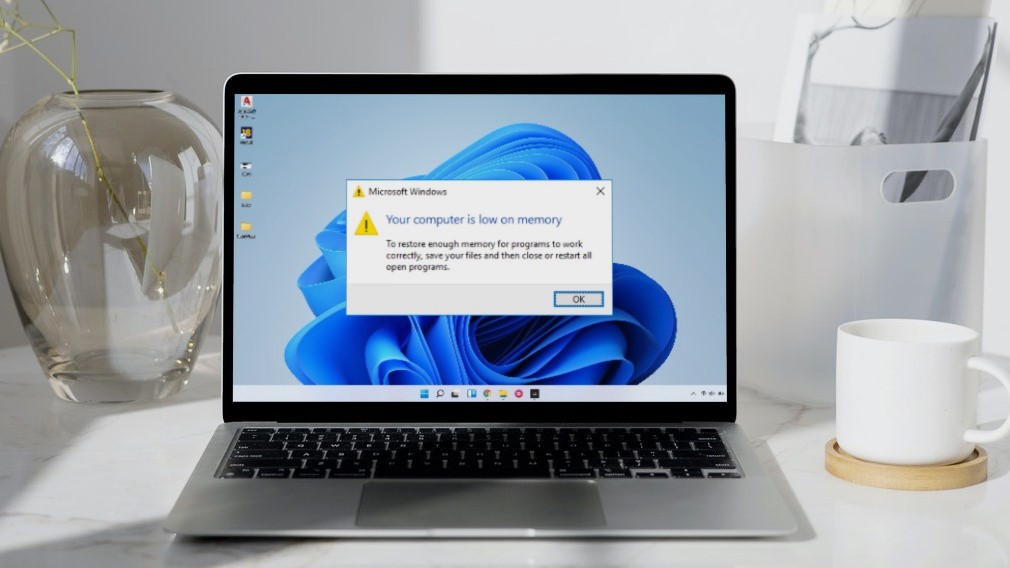 5 Ways to Fix “Your Computer Is Low on Memory” Error on Windows 10 and Windows 11
Try Basic Fixes Close unwanted apps and programs: Start by closing any unwanted apps and programs on your computer, especially the ones consuming a major chunk of your PC’s memory.
5 Ways to Fix “Your Computer Is Low on Memory” Error on Windows 10 and Windows 11
Try Basic Fixes Close unwanted apps and programs: Start by closing any unwanted apps and programs on your computer, especially the ones consuming a major chunk of your PC’s memory.
 4 Ways to Fix YouTube Not Playing Videos on PC
Basic Fixes Check your network connection: Ensure your device has a good internet connection.
4 Ways to Fix YouTube Not Playing Videos on PC
Basic Fixes Check your network connection: Ensure your device has a good internet connection.
The article above may contain affiliate links which help support Guiding Tech. The content remains unbiased and authentic and will never affect our editorial integrity.

