

Basic Fixes
- Remove the case: The case might be tight and restrict the volume buttons from clicking. Or, a few particles might be stuck between the case and the volume buttons.
- Clean volume button: A few particles might stick in between the volume buttons and their casing. You can gently clean your volume buttons using a soft brush to get these particles out.
- Re-install app: If the volume buttons are not working within a particular app, the issue is with the app, not your iPhone. You can try reinstalling the app.
- Restart iPhone: Restarting your iPhone can fix any temporary bugs and glitches.
Fix 1: Check Volume Settings
The volume buttons only change your media volume by default. So, you can change the volume settings on your iPhone to enable the buttons to control the ringer volume too.
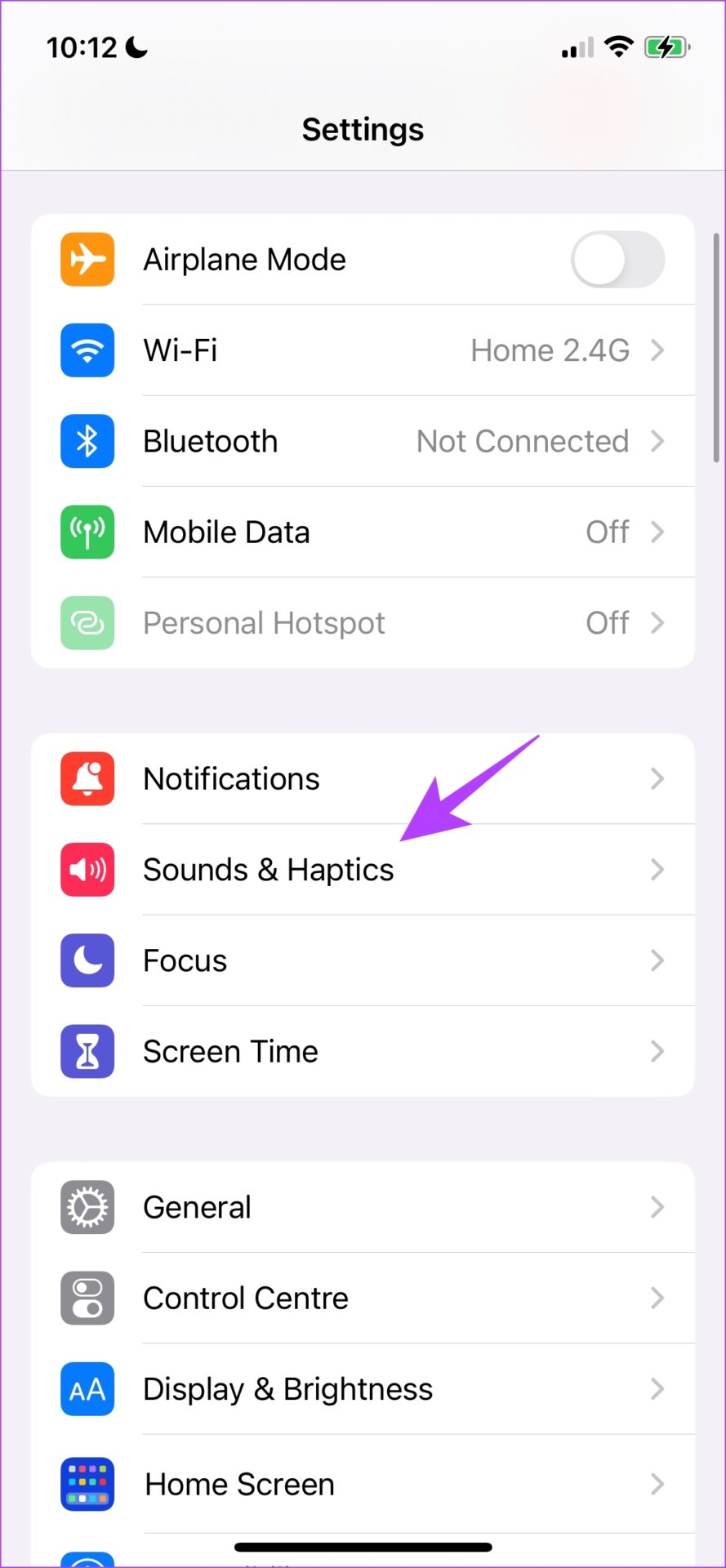
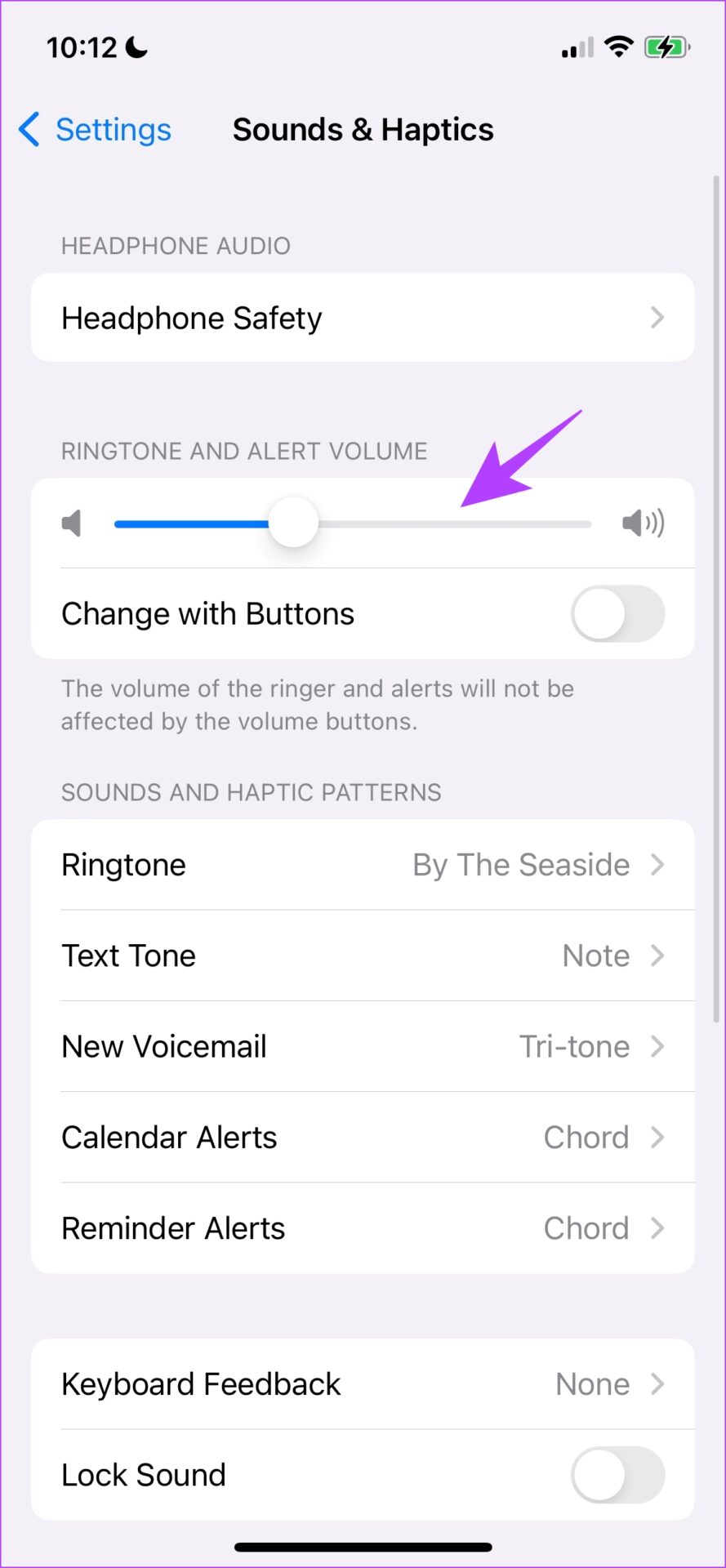
Step 1: Open the Settings app > go to Sound & Haptics.
Step 2: Turn on Change With Buttons.
This will ensure you can change your ringer volume level using the volume buttons.

Also Read: How to fix volume level keeps going up or down on iPhone
Fix 2: Contact Apple Support
If your volume buttons are damaged, there’s little you can do to fix the issue by yourself. Therefore, contact Apple customer support to fix the issue.
Fix 3: Temporary Workarounds to Adjust Sound on iPhone
While you wait for the issue to get fixed, here are a few alternate methods to control the volume on your iPhone without using buttons.
1. Use the Volume Slider in the Control Center
The control center provides a slider to control the volume. Here’s how to access the control center on your iPhone to adjust the sound.
- iPhone X and later: Swipe down from the top-right corner of your screen to open Control Center.
- iPhone SE, iPhone 8, and earlier: Swipe up from the bottom edge of your screen to open Control Center.

2. Use AssistiveTouch
AssistiveTouch provides a set of controls for using your iPhone and has volume control settings.
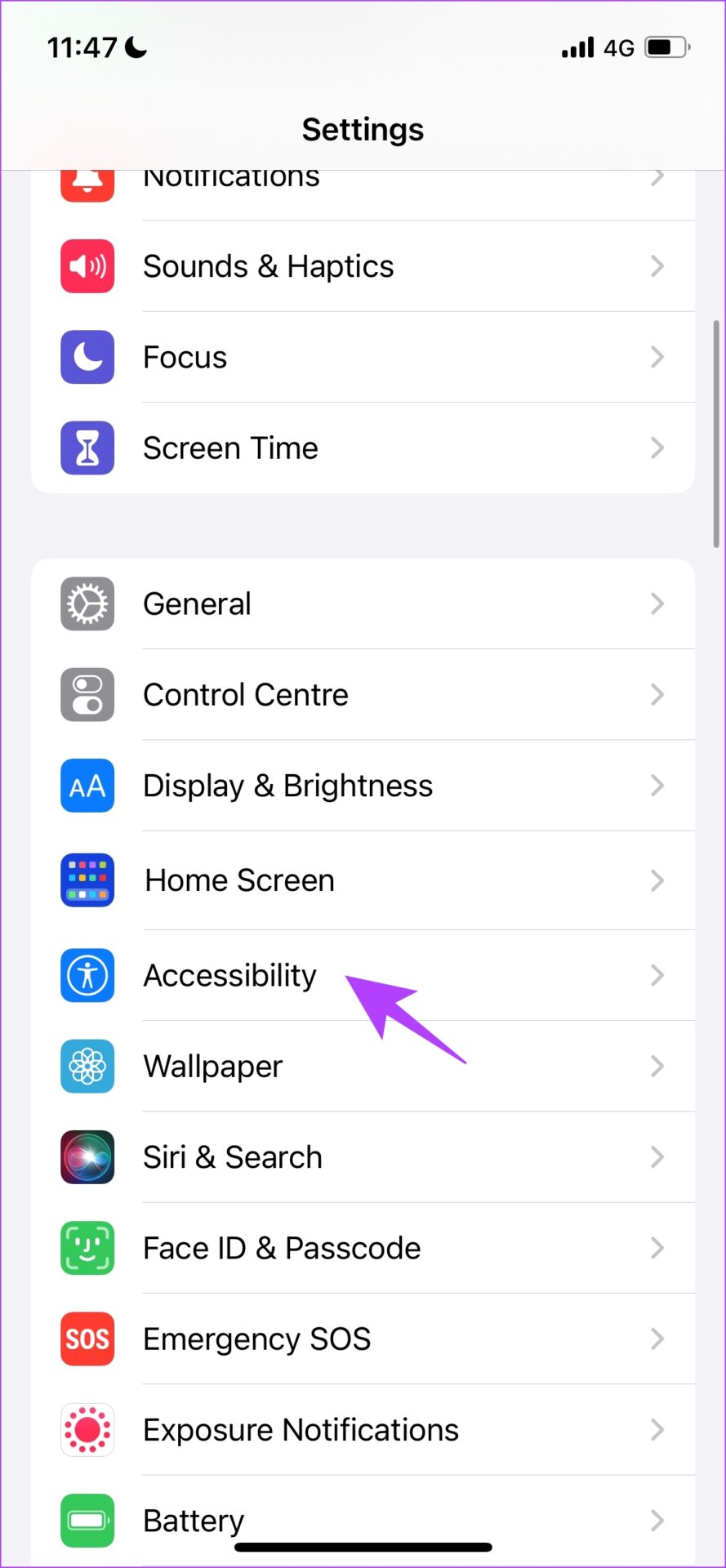
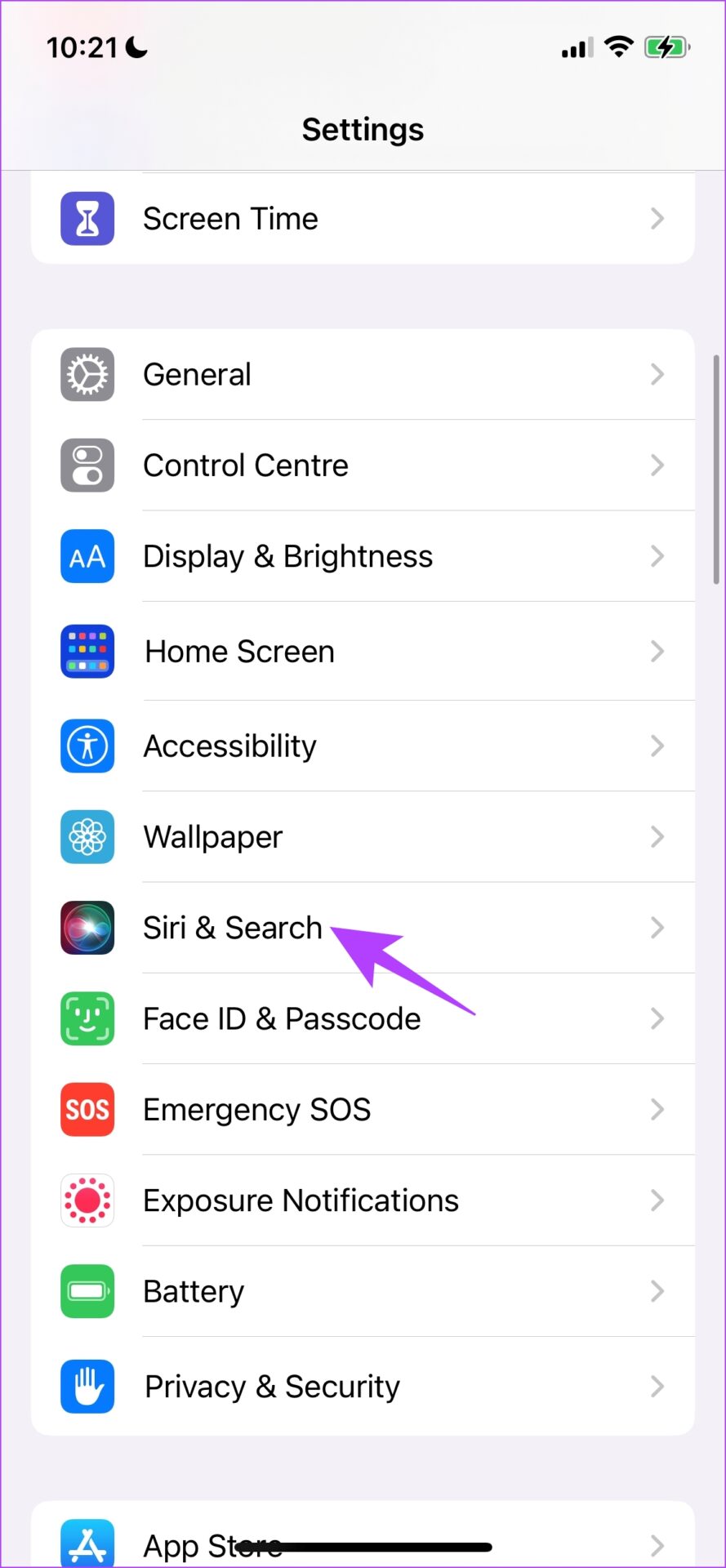
Step 1: Open the Settings app > select Accessibility > Touch

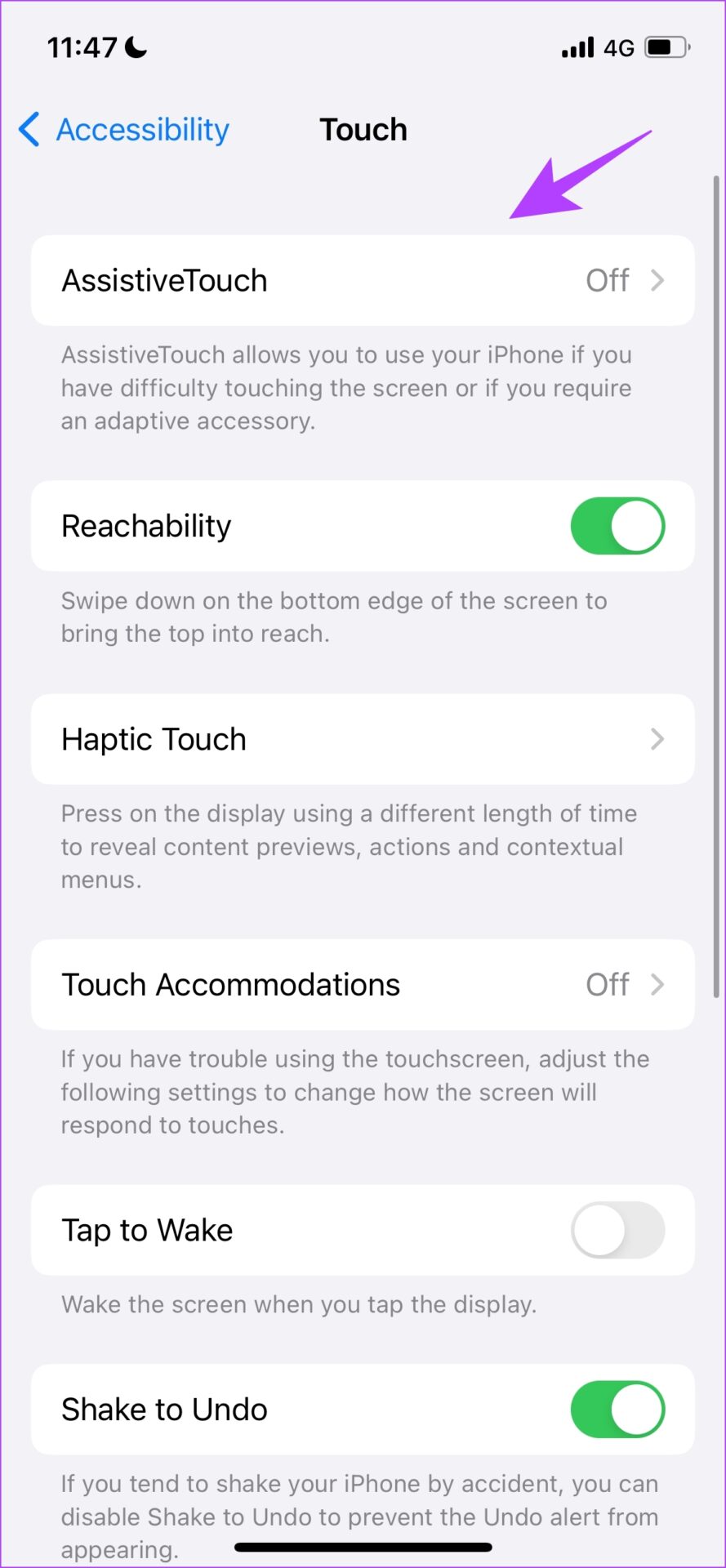
Step 2: Now, select AssistiveTouch > toggle on AssistiveTouch.

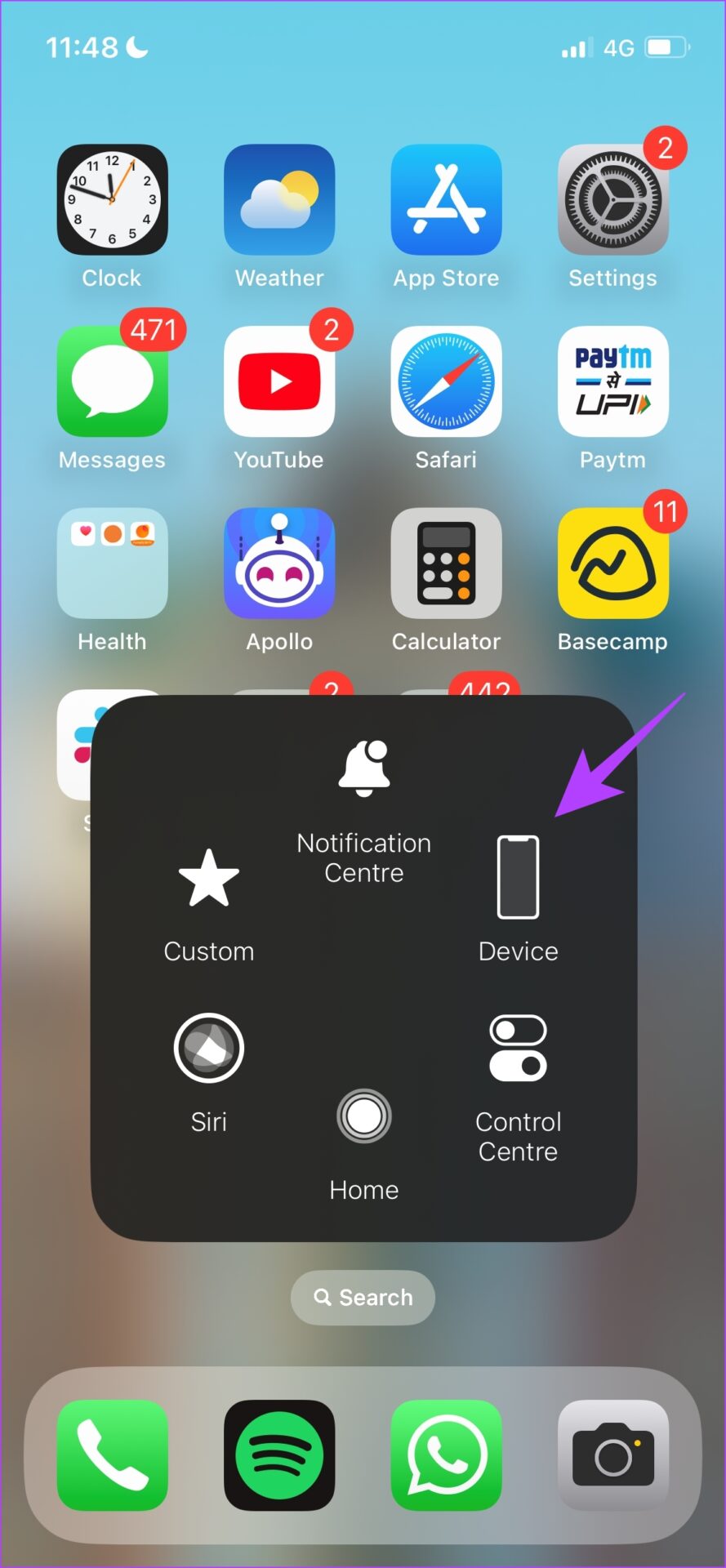
Step 3: You will see a floating button on the home screen. When you click on it, a box of controls opens. Click on Device > tap on Volume Up or Volume Down to adjust the sound.

3. Control Volume Within Settings
Apple also provides a slider within the sound settings to control the volume.
Step 1: Open the Settings app > click on Sound and Haptics.
Step 2: You will find a slider for volume control. Use it to adjust the volume.
4. Ask Siri
Here’s how to use the voice assistant to adjust the volume of your iPhone.
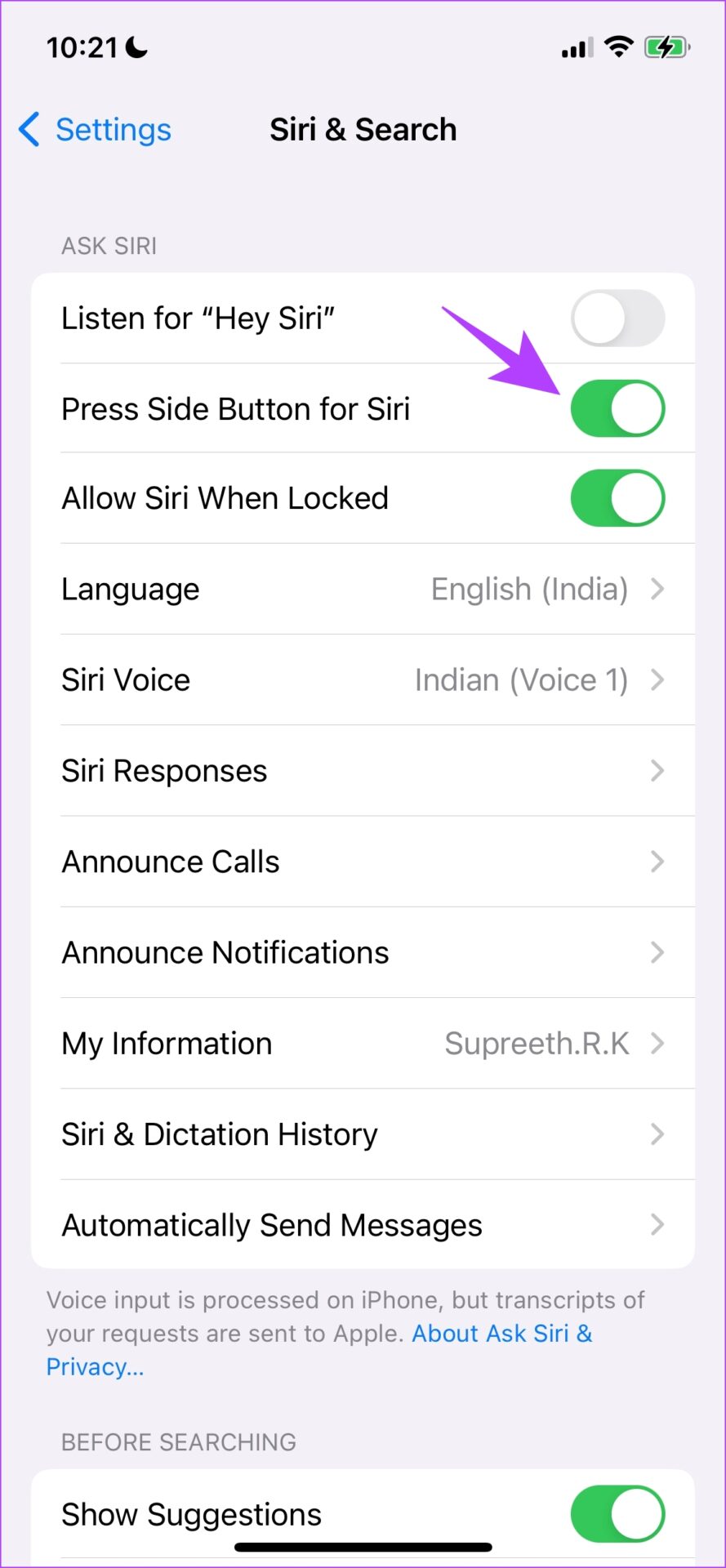
Step 1: Open the Settings app > select Siri & Search > turn on Press Side Button for Siri.
Step 3: Now, press and hold the side button for a few seconds to summon Siri.
Step 4: To adjust the sound, use a simple phrase like ‘decrease the media volume‘ or ‘increase the ringer volume’. Siri will also give you feedback.

Also Read: How to personalize Siri’s response and actions on iPhone
Was this helpful?
Last updated on 02 August, 2024
Read Next
 5 Ways to Fix Volume Buttons Not Working on Android
Fix 1: Remove a Case if You’re Using One Oftentimes, the buttons on your phone may not work properly if you're using a thick or rugged case.
5 Ways to Fix Volume Buttons Not Working on Android
Fix 1: Remove a Case if You’re Using One Oftentimes, the buttons on your phone may not work properly if you're using a thick or rugged case.
 7 Best Gaming Mouse with Side Buttons
If you often play games, you must already know that a mouse with just two buttons and a scroll wheel doesn't quite cut it.
7 Best Gaming Mouse with Side Buttons
If you often play games, you must already know that a mouse with just two buttons and a scroll wheel doesn't quite cut it.
 7 Best Mouse With Programmable Buttons: Wired and Wireless
A mouse with programmable buttons can significantly enhance your gaming and productivity experience.
7 Best Mouse With Programmable Buttons: Wired and Wireless
A mouse with programmable buttons can significantly enhance your gaming and productivity experience.
 5 Ways to Fix Low or Loud Alarm Volume on iPhone
Common Fixes Restart iPhone - Press and hold either of the volume buttons with the side button and drag the power off slider to shut down.
5 Ways to Fix Low or Loud Alarm Volume on iPhone
Common Fixes Restart iPhone - Press and hold either of the volume buttons with the side button and drag the power off slider to shut down.
 5 Ways to Fix Low Call Volume on iPhone
Basic Fixes Clean earpiece - Gently clean the earpiece cavity to remove accumulated dust and debris.
5 Ways to Fix Low Call Volume on iPhone
Basic Fixes Clean earpiece - Gently clean the earpiece cavity to remove accumulated dust and debris.
 3 Ways to Fix Volume Level Keeps Going Up or Down on iPhone
Try These Basic Fixes Remove the phone case: If your iPhone's case remains pressed against one of the volume buttons, the volume level can increase or decrease.
3 Ways to Fix Volume Level Keeps Going Up or Down on iPhone
Try These Basic Fixes Remove the phone case: If your iPhone's case remains pressed against one of the volume buttons, the volume level can increase or decrease.
 4 Ways to Fix Apple Music Low Volume Issue on iPhone
Basic Fixes: Check volume levels on iPhone: If the volume levels are set to low, it might result in an overall low volume when using Apple Music.
4 Ways to Fix Apple Music Low Volume Issue on iPhone
Basic Fixes: Check volume levels on iPhone: If the volume levels are set to low, it might result in an overall low volume when using Apple Music.
 3 Ways to Fix Fire TV Stick Remote Volume Not Working
Basic Fixes: Check the remote batteries: Fire TV Stick relies on batteries to work properly.
3 Ways to Fix Fire TV Stick Remote Volume Not Working
Basic Fixes: Check the remote batteries: Fire TV Stick relies on batteries to work properly.
The article above may contain affiliate links which help support Guiding Tech. The content remains unbiased and authentic and will never affect our editorial integrity.

