Fix 1: Use the Default Apple Keyboard
If you’re using a third-party keyboard, switch to the default Apple keyboard when an OTP arrives and see if you can view the code right on your keyboard.
Open a text field by tapping on it. When the keyboard pops up, hit the globe icon in the bottom-left corner of the screen. This will switch to the default iOS keyboard.


Once you’ve entered the OTP, you can switch to a different keyboard by tapping on the same button.
Fix 2: Enable Password AutoFill
iOS gives you the option to fill in saved passwords in your iCloud Keychain automatically. If this option is disabled, your verification codes will not be automatically entered when signing in. Here’s how to turn on the passcode autofill toggle.
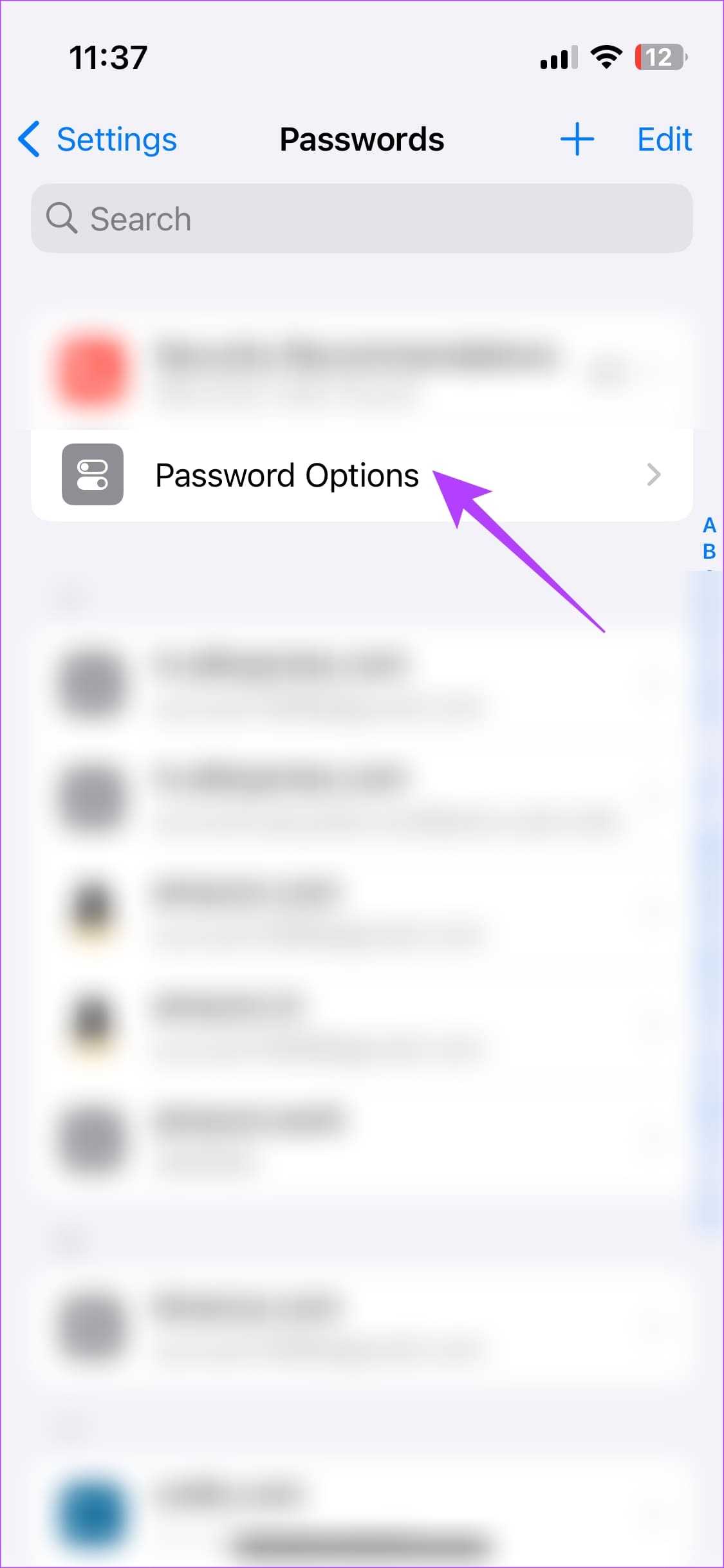
Step 1: Open the Settings app on your iPhone. Navigate to the Passwords tab and select Password Options.
Step 2: Turn on the toggle next to AutoFill Passwords and Passkeys to enable the automatic fill-in SMS passcodes option on your iPhone.
Note: If it’s already on, turn it off and turn it back on after a few seconds.


Fix 3: Turn On Message Notifications
Your iPhone detects OTPs and verification codes from incoming text messages. So, if your message notifications are off, iOS may be unable to read the relevant code. Thus, enable notifications for the Messages app if you’d previously turned it off. Here’s how.
Step 1: Open the Settings app on your iPhone. Navigate to the Notifications section and select Messages.


Step 2: Enable the toggle at the top that says Allow Notifications.
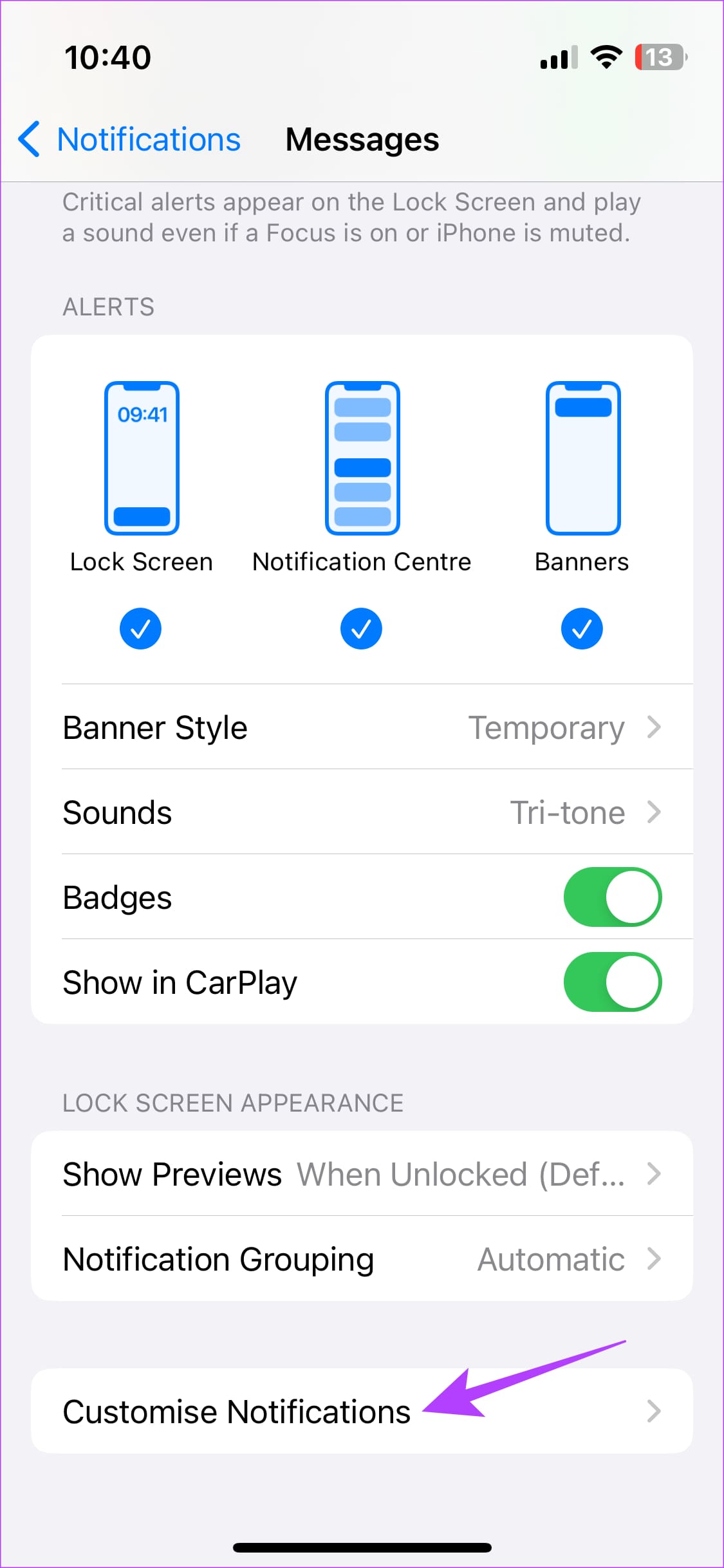
Step 3: Scroll to the bottom and select Customize Notifications. Then, enable the toggle for Transactions.


Additionally, ensure that Do Not Disturb mode is turned off on your iPhone so that you can receive and autofill OTPs as expected.
Fix 4: Allow Full Access to Third-Party Keyboards
Thanks to the emphasis on privacy, iOS doesn’t allow third-party keyboards to access much of your data, including OTPs, by default. You’ll have to grant what Apple refers to as Full Access to the keyboard to allow it to access certain data.
So, if you’re using a third-party keyboard and don’t want to switch to the Apple one, here’s what you need to do.
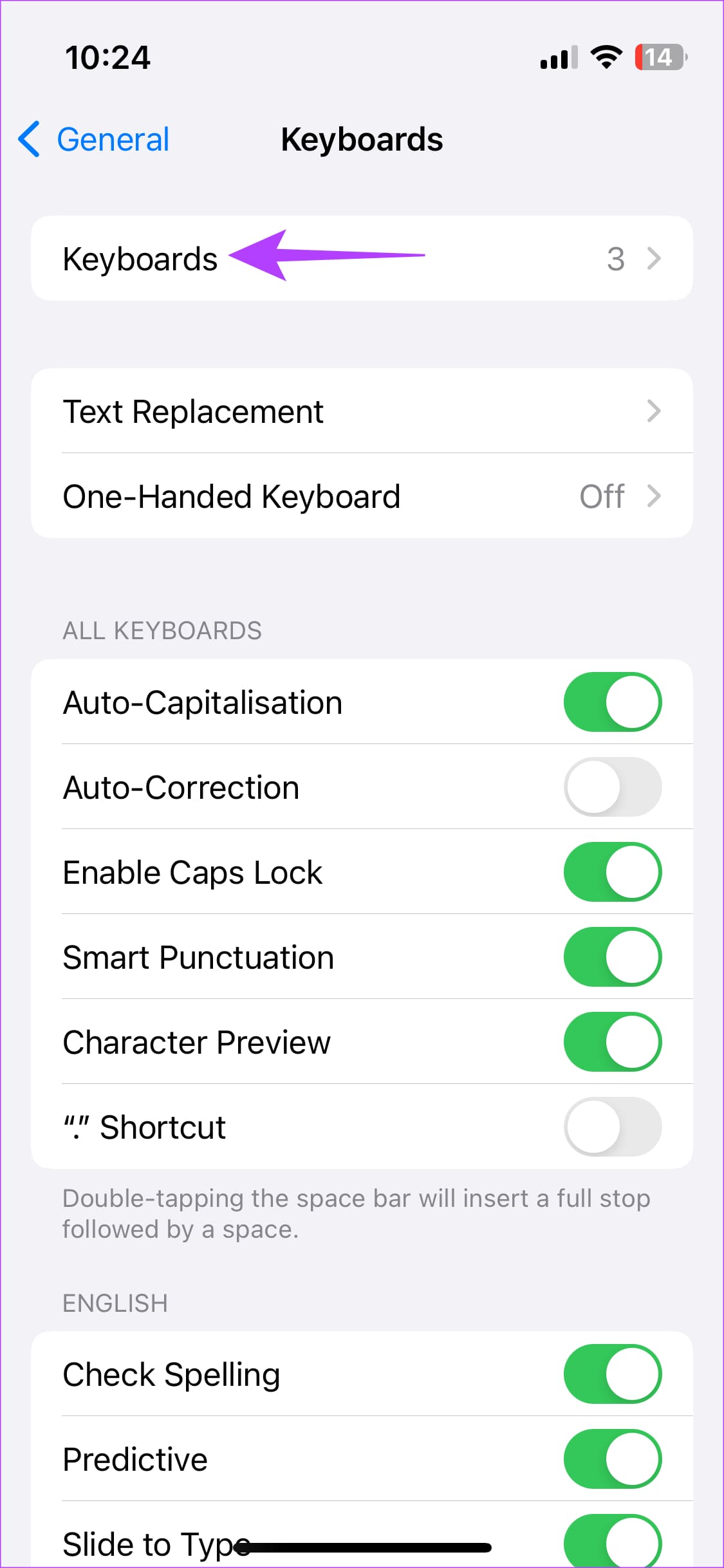
Step 1: Open the Settings app on your iPhone and navigate to General > Keyboard.


Step 3: Tap on Keyboards at the top to see all the enabled input methods. Then, select your keyboard app.
Step 4: Enable the toggle next to Allow Full Access. If it’s already on, turn it off and back on after a few seconds.


Was this helpful?
Last updated on 03 September, 2024
Read Next
 3 Ways to Fix AutoFill Passwords Not Working on iPhone and iPad
Basic Fixes Turn off private browsing mode: The autofill feature does not work when you browse in private mode on your iPhone or iPad.
3 Ways to Fix AutoFill Passwords Not Working on iPhone and iPad
Basic Fixes Turn off private browsing mode: The autofill feature does not work when you browse in private mode on your iPhone or iPad.
 6 Ways to Fix Chrome Autofill Not Working Issue
Fix 1: Check Chrome’s Autofill Settings Usually, Google Chrome automatically saves your passwords, addresses, or payment methods.
6 Ways to Fix Chrome Autofill Not Working Issue
Fix 1: Check Chrome’s Autofill Settings Usually, Google Chrome automatically saves your passwords, addresses, or payment methods.
 5 Ways to Fix AutoFill Not Working in Microsoft Excel for Windows
Basic Fixes Try a different workbook: Testing the AutoFill feature in a different workbook will help determine if the issue is limited to a specific Excel file.
5 Ways to Fix AutoFill Not Working in Microsoft Excel for Windows
Basic Fixes Try a different workbook: Testing the AutoFill feature in a different workbook will help determine if the issue is limited to a specific Excel file.
 4 Ways to Fix Password Autofill Not Working on Android
Basic Fixes App developers have disabled autofill: While most Android apps support password auto-filling, some developers skip the function due to privacy reasons.
4 Ways to Fix Password Autofill Not Working on Android
Basic Fixes App developers have disabled autofill: While most Android apps support password auto-filling, some developers skip the function due to privacy reasons.
 How to Remove an Email Address From Gmail Autofill List
Method 1: Remove Saved Email Address From Gmail on Desktop You can’t view or modify saved Gmail contacts from the Gmail web.
How to Remove an Email Address From Gmail Autofill List
Method 1: Remove Saved Email Address From Gmail on Desktop You can’t view or modify saved Gmail contacts from the Gmail web.
 How to Enable or Disable Autofill in Google Chrome for PC and Mobile
Are you tired of entering your personal information every time you fill out a form or make an online purchase?
How to Enable or Disable Autofill in Google Chrome for PC and Mobile
Are you tired of entering your personal information every time you fill out a form or make an online purchase?
 How to Add or Change Autofill Data on Google Chrome
While using Google Chrome on your mobile or computer, you will surely come across websites on which you would want to sign up.
How to Add or Change Autofill Data on Google Chrome
While using Google Chrome on your mobile or computer, you will surely come across websites on which you would want to sign up.
 How to Enable and Disable Autofill on Android
Note: The steps might differ for different Android devices and Android versions.
How to Enable and Disable Autofill on Android
Note: The steps might differ for different Android devices and Android versions.
The article above may contain affiliate links which help support Guiding Tech. The content remains unbiased and authentic and will never affect our editorial integrity.