Basic Fixes
- Force restart your iPhone: Press and quickly release the Volume Up button followed by Volume Down. Press and hold the side button and release it when the Apple logo shows up.
- Follow a charging pattern: If you’ve bought a new iPhone or factory reset the existing one, wait patiently and give it some time to learn your charging pattern.
- Update iOS: Open iPhone Settings, select General, and tap Software Update. Select Install to update iOS to the latest version.
Fix 1: Disable and Enable Optimised Battery Charging
Disabling and enabling Optimised battery charging refreshes the feature, fixing existing issues preventing it from activating.
Step 1: Open the Settings app, select Battery, and tap Battery Health & Charging.
Step 2: Disable the Optimised Battery Charging toggle, wait a few seconds, and turn it back on.


Fix 2: Enable Location Services
The Optimised battery charging feature activates automatically at frequent locations like home or workplace. If you’ve disabled location services, the feature may not engage on your iPhone. Enable location services from iPhone settings to restore its normal functioning.
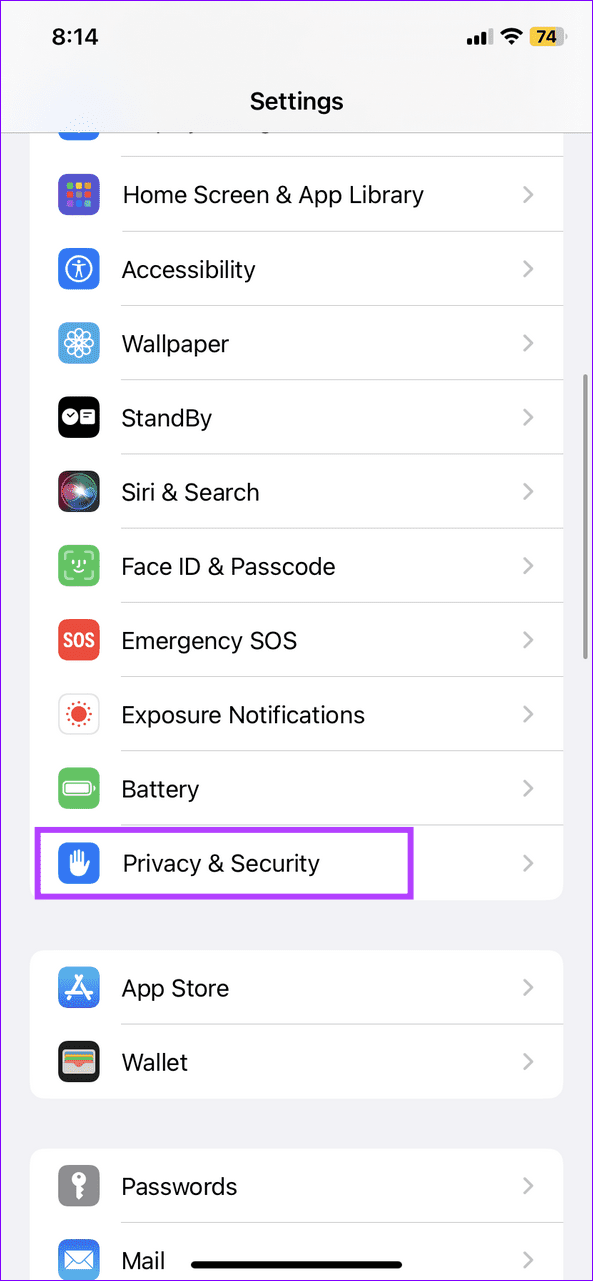
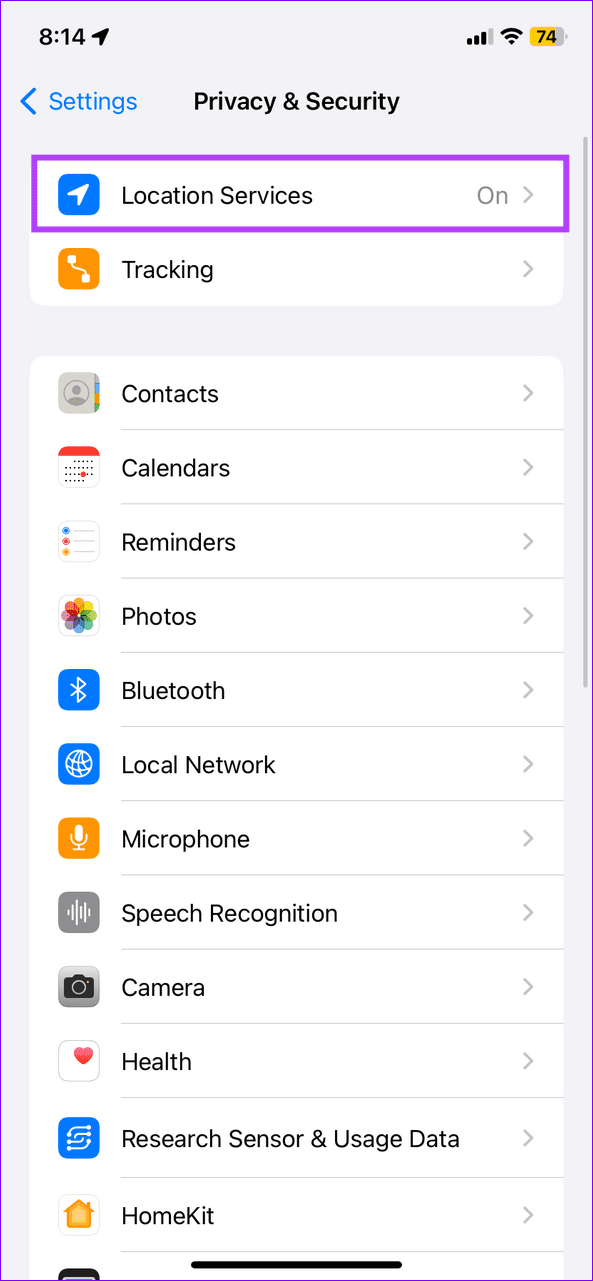
Step 1: Open iPhone Settings, select Privacy & Security, and tap Location Services.
Step 2: Turn on the Location Services toggle to enable it.

Fix 3: Reset All Settings
Incorrect device settings are a common culprit behind Optimised battery charging feature not working on your device. Access your device settings to reset all settings on your iPhone.
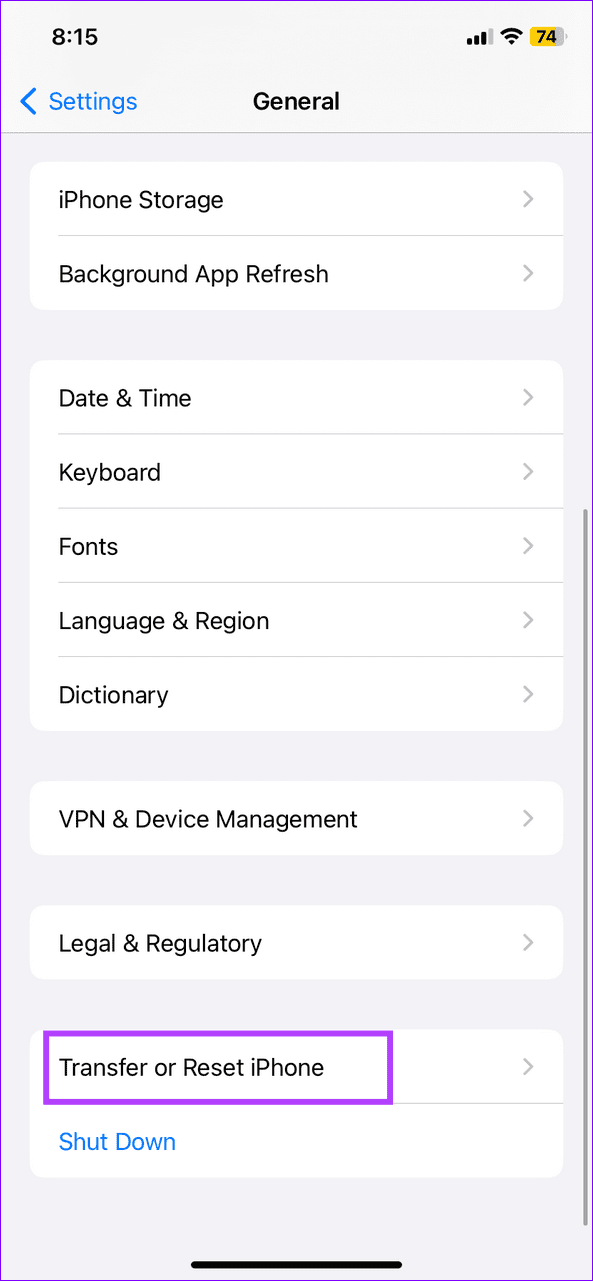
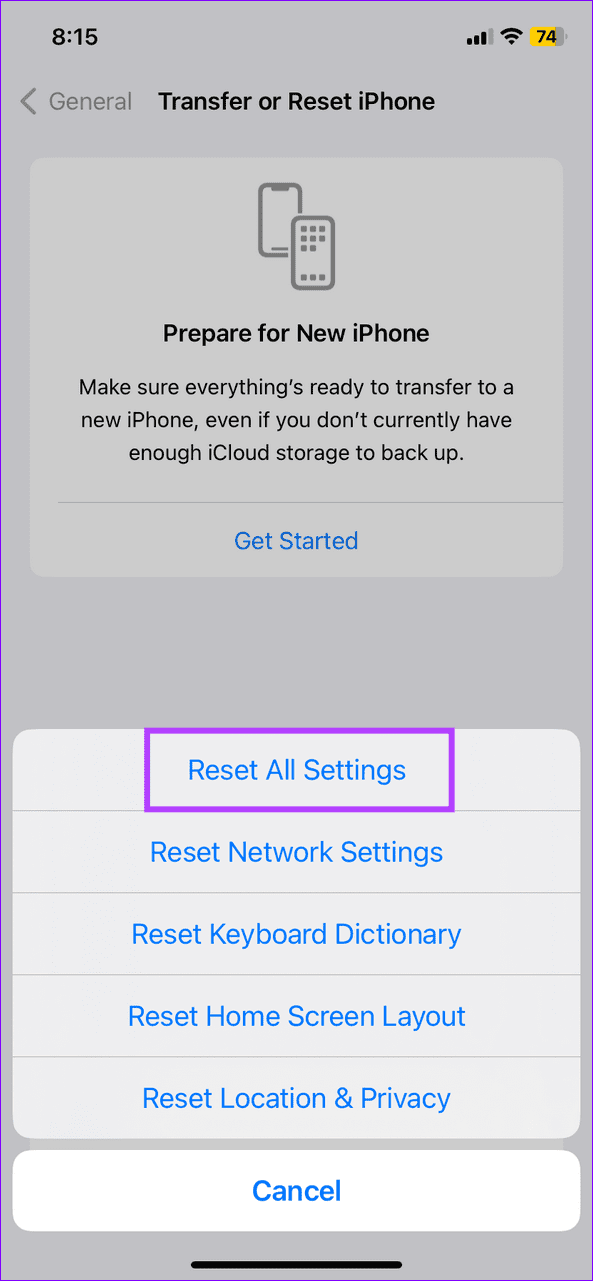
Step 1: Select General under iPhone Settings, and tap Transfer or Reset iPhone.

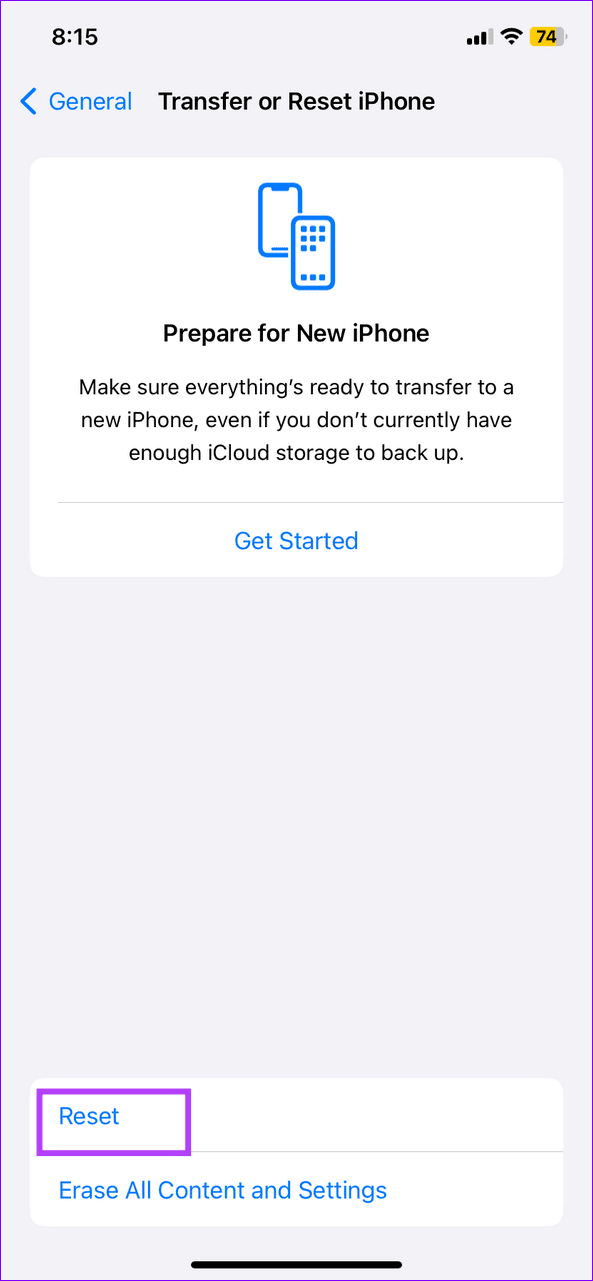
Step 2: Tap Reset and select Reset All Settings. Enter your device passcode when prompted to confirm it.
Fix 4: Set Alarm or Bedtime Schedule
If your phone usage and charging habits vary, the Optimised battery charging feature may struggle to activate. To fix it, set an alarm or a bedtime schedule to help the device’s algorithm enable the feature when needed.
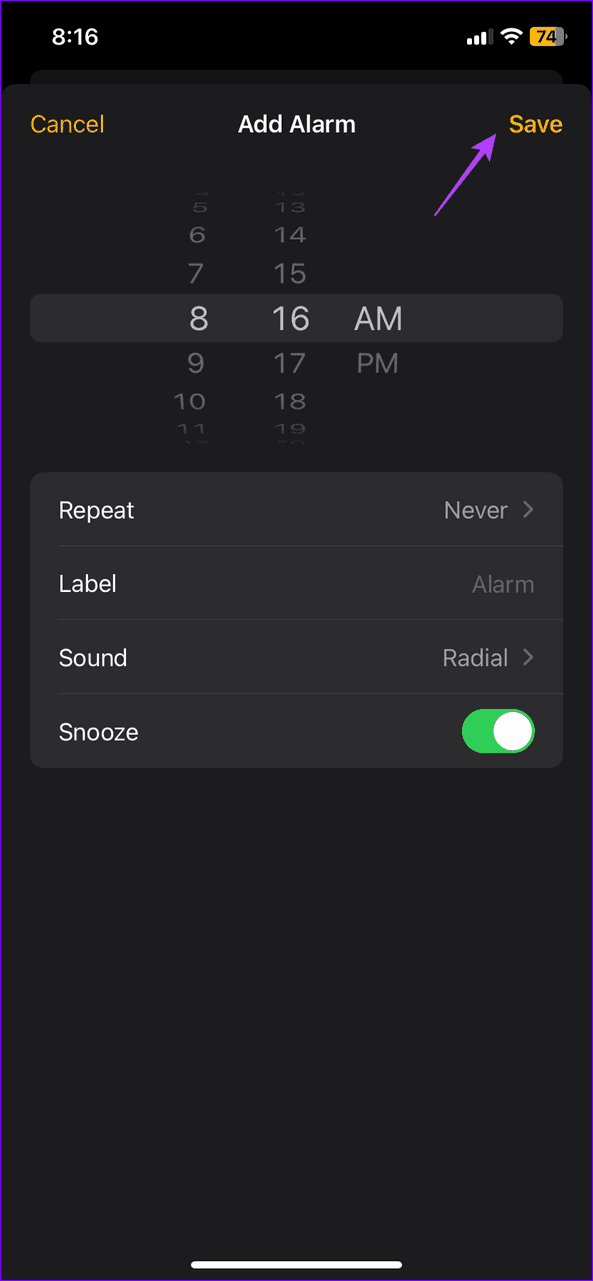
Step 1: Open the Clock app, select Alarm from the bottom, and tap + at the top right corner to create a new alarm.
Step 2: Set your desired time and personalize it by customizing its Repeat schedule, Label, Sound, and Snooze settings. Tap Save at the top right corner to save changes.

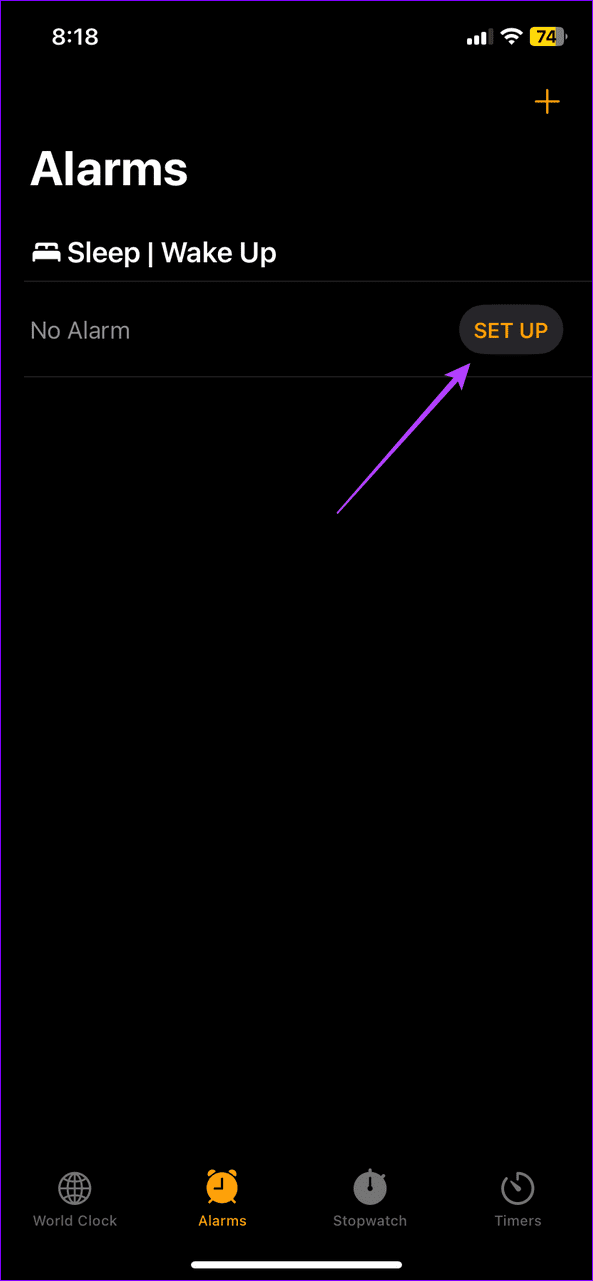
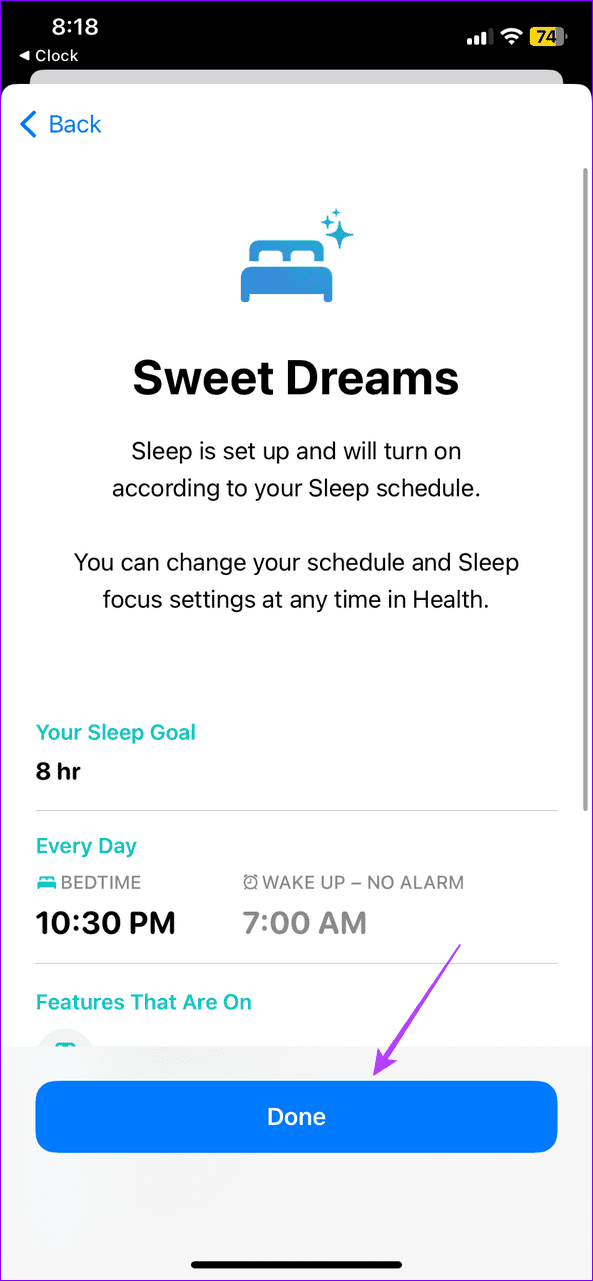
Step 3: To set a Sleep/Wake Up schedule, tap Set Up under Alarms in the Clock app.
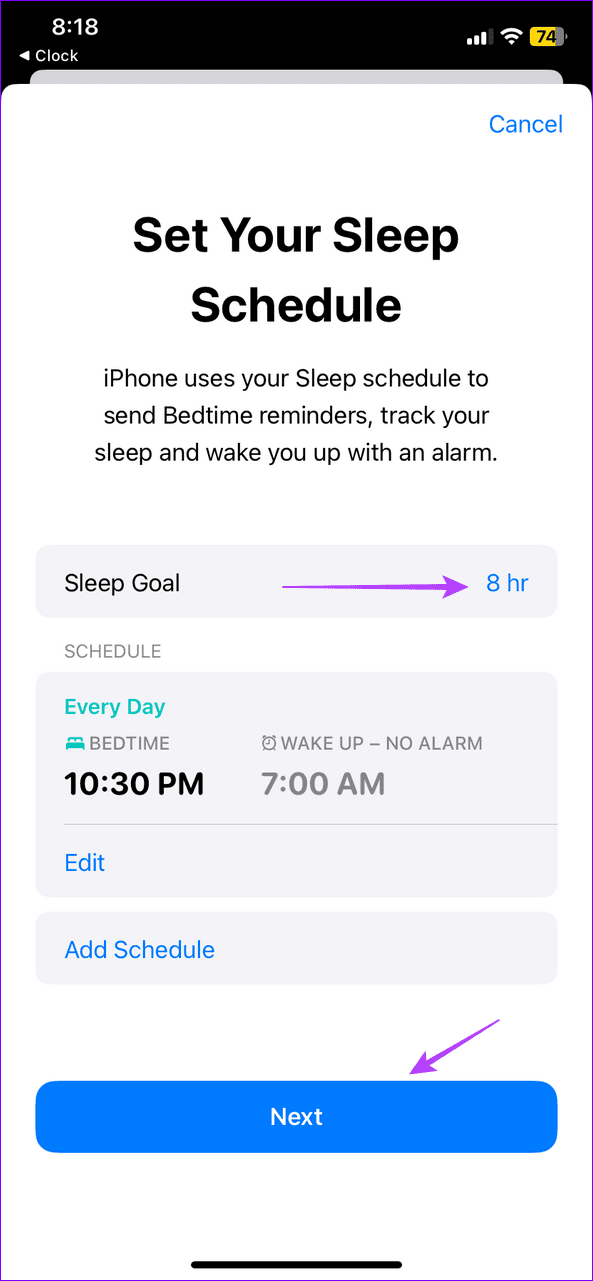
Step 4: Define your Sleep Goal, pick your desired schedule, and tap Next.
Step 5: Tap Enable and select Done to save changes.
Was this helpful?
Last updated on 17 July, 2024
Read Next
 6 Ways to Fix iPhone Battery Draining While Charging
https://youtu.be/Eotj1OWfuME Fix 1: Use MFi-Certified Cables and Adapters It’s advisable to use Apple’s original accessories that ship with the phone.
6 Ways to Fix iPhone Battery Draining While Charging
https://youtu.be/Eotj1OWfuME Fix 1: Use MFi-Certified Cables and Adapters It’s advisable to use Apple’s original accessories that ship with the phone.
 How to Restrict Battery Charging at 80% on iPhone
On iPhone 15 Series The iPhone 15 series has a new feature called 80% Limit that allows you to restrict battery charging to 80%.
How to Restrict Battery Charging at 80% on iPhone
On iPhone 15 Series The iPhone 15 series has a new feature called 80% Limit that allows you to restrict battery charging to 80%.
 7 Best Multi-Charging Cables for Charging Multiple Devices
Most of us nowadays have multiple devices to charge.
7 Best Multi-Charging Cables for Charging Multiple Devices
Most of us nowadays have multiple devices to charge.
 5 Ways to Fix Android Phone Draining Battery While Charging
Why Is Your Phone Losing Battery While Charging Your Android phone may quickly lose battery while charging due to software or hardware issues, such as: You're charging your phone with
5 Ways to Fix Android Phone Draining Battery While Charging
Why Is Your Phone Losing Battery While Charging Your Android phone may quickly lose battery while charging due to software or hardware issues, such as: You're charging your phone with
 4 Ways to Fix Wireless Charging Not Working With Phone
Fix 1: Try a Different Cable The cable you use to attach the charging brick to the wireless charger plays an important role.
4 Ways to Fix Wireless Charging Not Working With Phone
Fix 1: Try a Different Cable The cable you use to attach the charging brick to the wireless charger plays an important role.
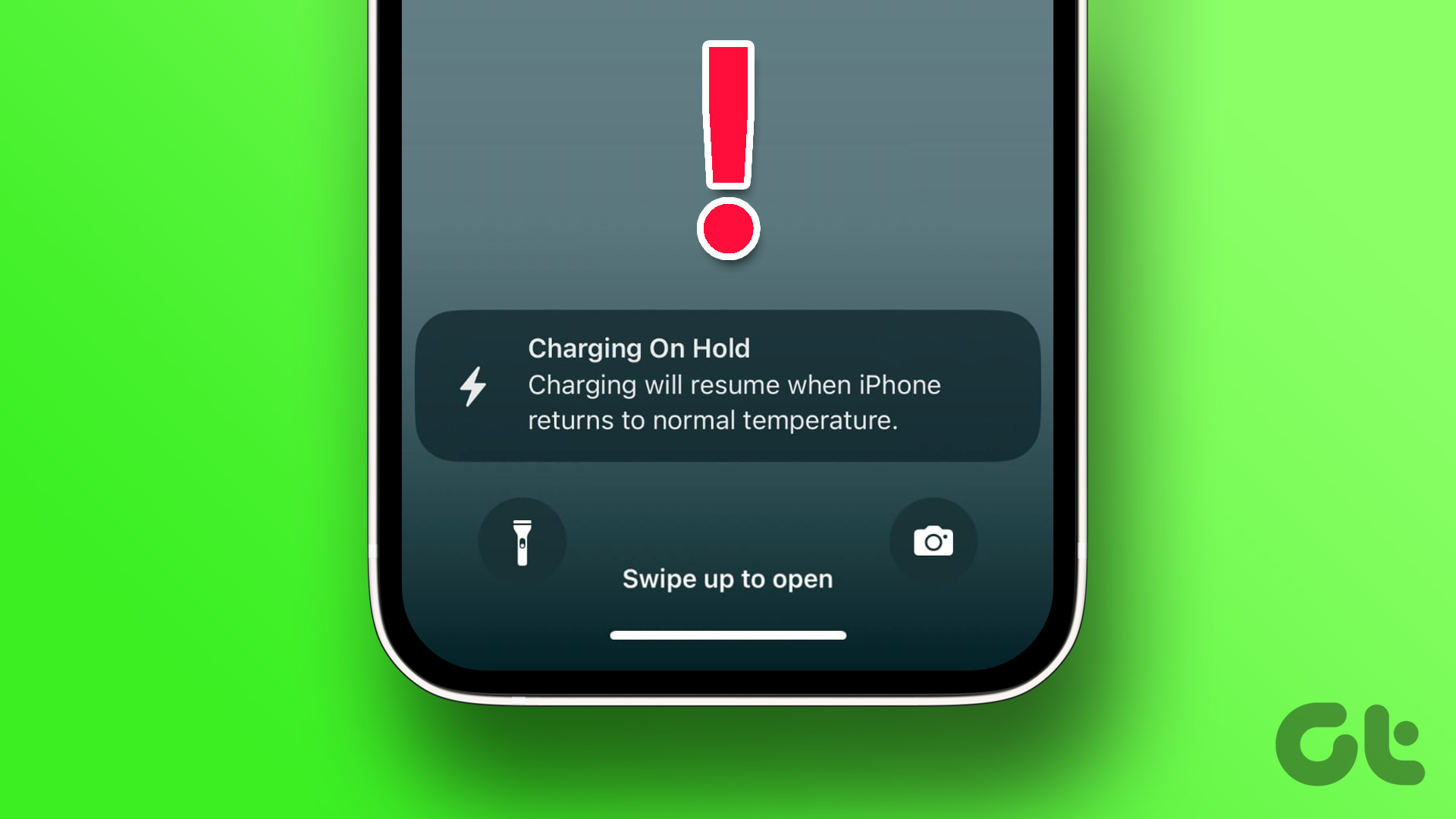 6 Ways to Fix “iPhone Charging on Hold” Error
Charging on Hold Due to iPhone Temperature: A Much-Needed Feature High battery temperatures are the prime reason for the depletion of battery health on your iPhone.
6 Ways to Fix “iPhone Charging on Hold” Error
Charging on Hold Due to iPhone Temperature: A Much-Needed Feature High battery temperatures are the prime reason for the depletion of battery health on your iPhone.
 11 Easy Ways to Fix iPhone Charging Slowly
You have thirty minutes to leave for work and plug your iPhone to charge.
11 Easy Ways to Fix iPhone Charging Slowly
You have thirty minutes to leave for work and plug your iPhone to charge.
 Top 8 Ways to Fix Apple iPad Not Charging
Apple’s iPad is ideal for consuming media, getting some work done, and taking Google Meet/Zoom calls on the go.
Top 8 Ways to Fix Apple iPad Not Charging
Apple’s iPad is ideal for consuming media, getting some work done, and taking Google Meet/Zoom calls on the go.
The article above may contain affiliate links which help support Guiding Tech. The content remains unbiased and authentic and will never affect our editorial integrity.