Basic Fixes
- Connect devices with the same Wi-Fi: Such features work only when your Apple devices are connected to the same Wi-Fi network.
- Update software version: Install the latest software version on your devices to get rid of bugs that might be causing the issue.
Fix 1: Allow Calls On Other Devices on iPhone
Sending and receiving iPhone calls on your Mac requires enabling a feature from the Settings menu of your iPhone. This feature lets you make and receive calls on devices signed in to your iCloud account. Here’s how to enable the same.
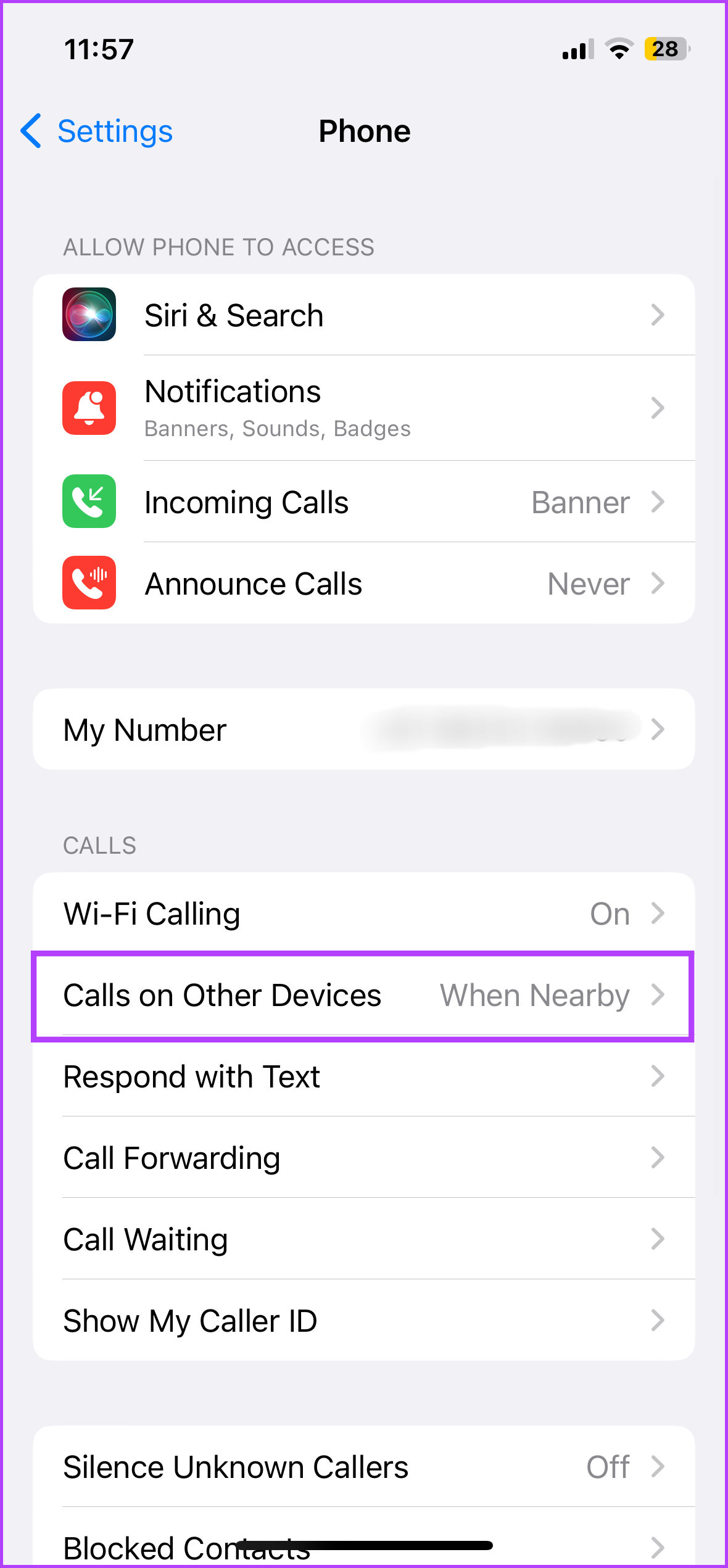
Step 1: Open Settings > Phone.
Step 2: Tap on Calls on Other Devices from the list of options and then enable Allow Calls on Other Devices.
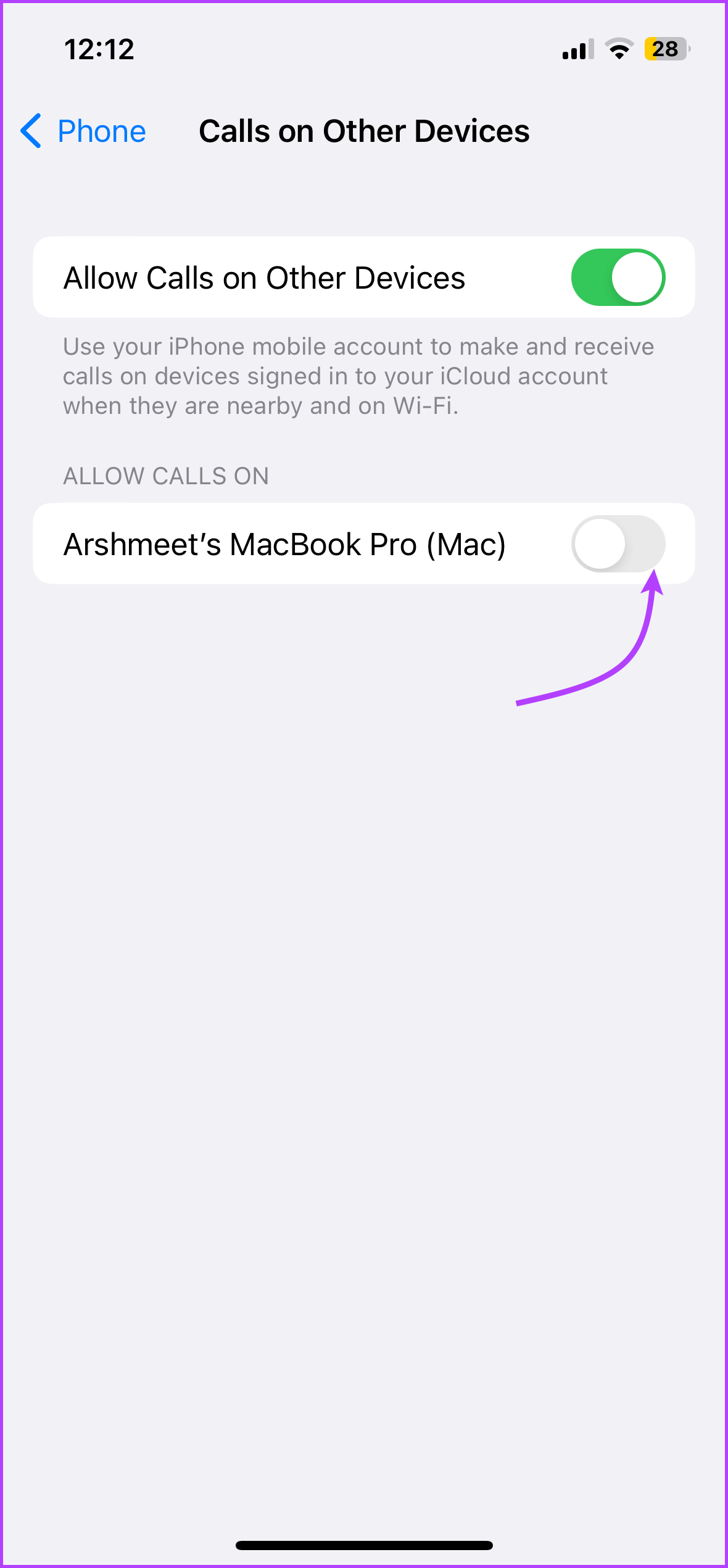
Step 3: Once your iMac or MacBook model name appears on the screen, tap the toggle next to its model name to allow calls.
Fix 2: Disable Focus Mode on Mac
Focus Mode on Mac lets you limit app notifications while working or spending time with family after work. If iPhone calls are not ringing on Mac, you should check your Focus Mode settings for calls and then enable them for your currently active Focus Mode. Here’s how to check it.
Step 1: Click the Control Centre icon at the top-right corner of your Mac Home Screen.
Step 2: Click on the name of your active Focus Mode.
Step 3: Click on your active Focus Mode from the list of options to disable it.

Fix 3: Enable FacTime Notifications on Mac
Along with video calls, FaceTime on Mac also helps in receiving iPhone cellular calls. You might have turned off FaceTime notifications on Mac and forgotten to enable it again. Here’s how you can check the same.
Step 1: Open Settings > Notifications.
Step 2: Click on FaceTime from the left menu.

Step 3: Enable FaceTime notifications.

Tip: You can read our posts suggesting solutions for when iMessage not syncing with iPhone and Mac if you have ever faced such issues.
Was this helpful?
Last updated on 05 July, 2024
Read Next
 6 Ways to Fix iPhone Not Ringing for Incoming Calls
Basic Fixes Disable silent mode: If the color beside the alert slider is orange, your iPhone is set to silent.
6 Ways to Fix iPhone Not Ringing for Incoming Calls
Basic Fixes Disable silent mode: If the color beside the alert slider is orange, your iPhone is set to silent.
 6 Ways to Fix Telegram Calls Not Ringing on iPhone
Basic Fixes: Allow anyone to call you: Telegram offers excellent privacy and security options.
6 Ways to Fix Telegram Calls Not Ringing on iPhone
Basic Fixes: Allow anyone to call you: Telegram offers excellent privacy and security options.
 5 Ways to Fix Apple Watch Not Ringing for Incoming Calls
Basic Fixes Restart Apple Watch: Restarting your Apple Watch can get rid of any temporary bugs and glitches.
5 Ways to Fix Apple Watch Not Ringing for Incoming Calls
Basic Fixes Restart Apple Watch: Restarting your Apple Watch can get rid of any temporary bugs and glitches.
 4 Ways to Fix WhatsApp Calls Not Ringing When Phone is Locked
Basic Fixes Restart device: Restart your smartphone to fix any temporary bugs and glitches.
4 Ways to Fix WhatsApp Calls Not Ringing When Phone is Locked
Basic Fixes Restart device: Restart your smartphone to fix any temporary bugs and glitches.
 5 Ways to Fix Instagram Calls Not Ringing or Working
Try Basic Fixes Check your internet connection: A weak or unstable internet connection can cause Instagram to malfunction.
5 Ways to Fix Instagram Calls Not Ringing or Working
Try Basic Fixes Check your internet connection: A weak or unstable internet connection can cause Instagram to malfunction.
 2 Fixes for iPhone Not Ringing When Facebook App Is Open
Basic Fixes Turn off Silent mode: If your iPhone is not ringing but vibrating when the Facebook app is open, turn off the Silent mode, and it should do the
2 Fixes for iPhone Not Ringing When Facebook App Is Open
Basic Fixes Turn off Silent mode: If your iPhone is not ringing but vibrating when the Facebook app is open, turn off the Silent mode, and it should do the
 4 Ways to Fix Android Phone Ringing But No Call
Basic Fixes Restart device: Restart your Android device to fix any temporary bugs and glitches.
4 Ways to Fix Android Phone Ringing But No Call
Basic Fixes Restart device: Restart your Android device to fix any temporary bugs and glitches.
 2 Ways to Fix WhatsApp Calls Not Working on Mac
Basic Fixes Check your internet speed: WhatsApp calls need a stable internet connection.
2 Ways to Fix WhatsApp Calls Not Working on Mac
Basic Fixes Check your internet speed: WhatsApp calls need a stable internet connection.
The article above may contain affiliate links which help support Guiding Tech. The content remains unbiased and authentic and will never affect our editorial integrity.