Fix 1: Update or Reinstall Driver
The software drivers for the Intel Wi-Fi 6 AX201 on your Windows PC may be outdated and are due for an update. Additionally, if the driver was installed through a corrupt package, it may cause issues with the adapter.
Step 1: Open Device Manager from the start menu.
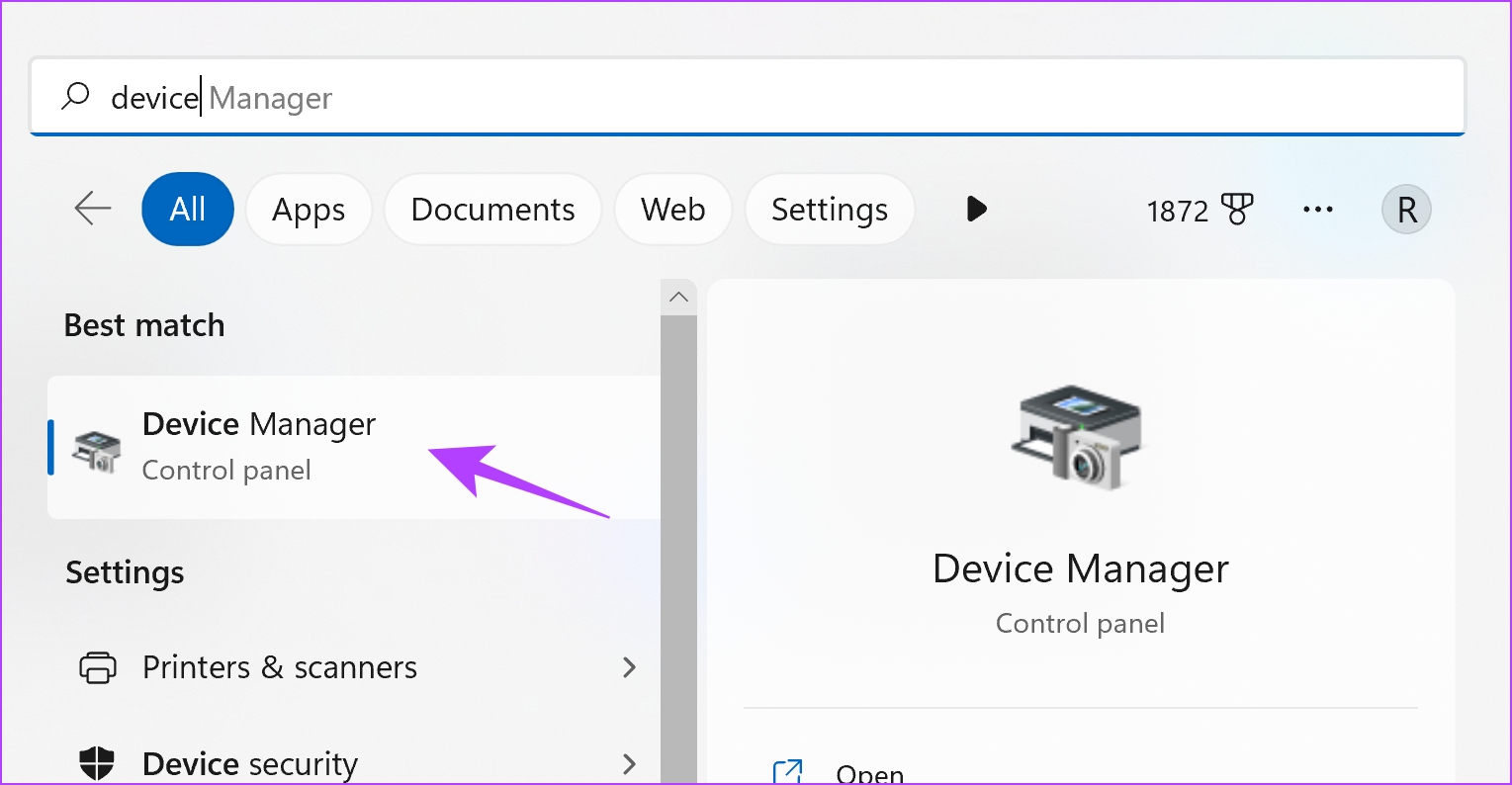
Step 2: Click to expand Network Devices.
Step 3: Right-click on the Intel Wi-Fi 6 AX201 and click on Update driver.

Step 4: Choose whether you want to browse the update file locally or let Windows search the internet for the same.
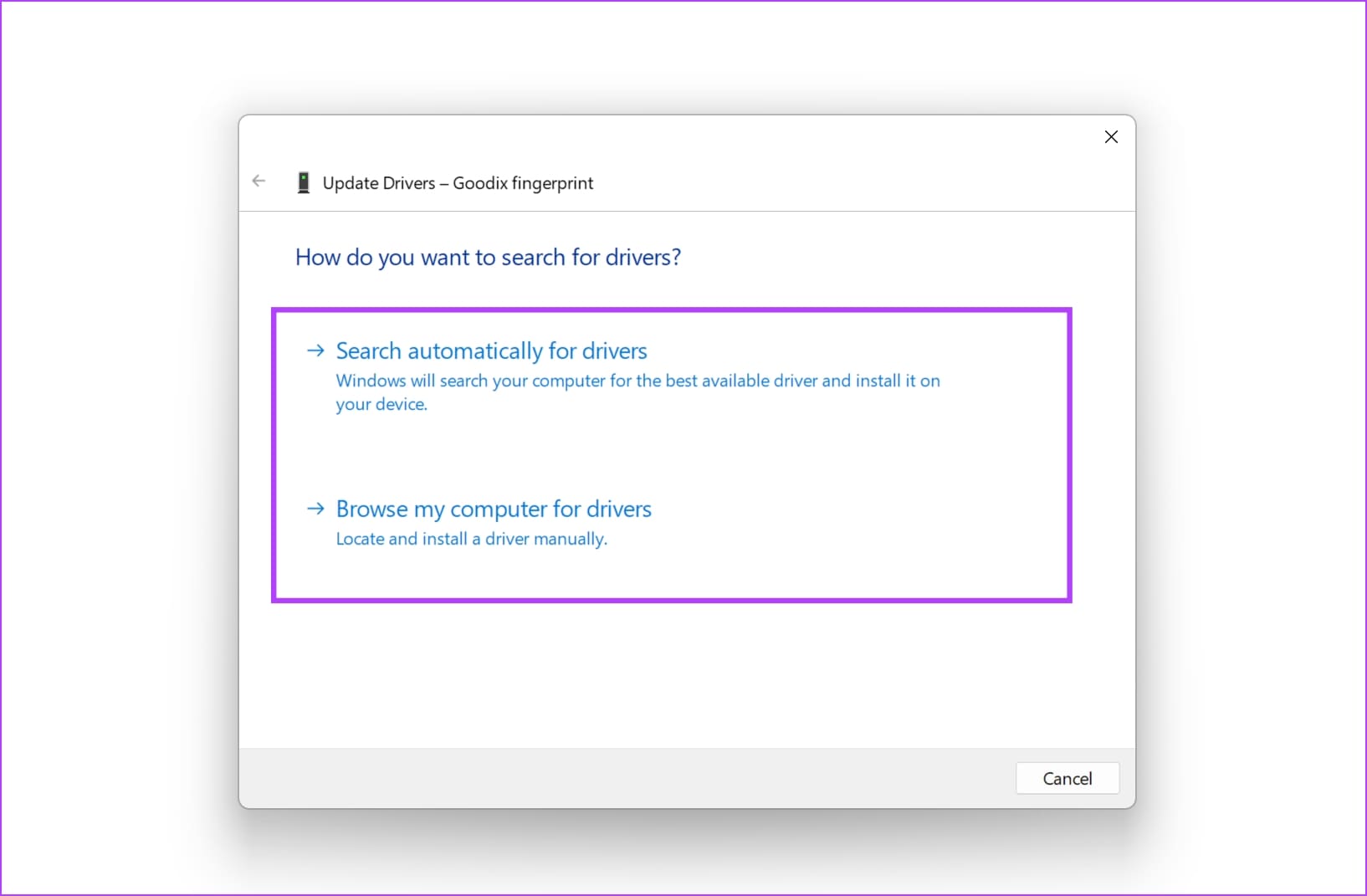
If you want to re-install the driver, click on Uninstall Device, confirm your action, and restart your PC to automatically install the driver.
Alternatively, you can use the Intel Driver & Support Assistant to keep your system up-to-date automatically. This tool keeps your Intel hardware updated. You can download and install the official version from Intel.

Also Read: How to fix can’t connect to 5GHz Wi-Fi on Windows 11
Fix 2: Disable and Enable Device
Disabling and re-enabling the device can establish a fresh connection, which can possibly get rid of bugs causing the problems.
Step 1: Open Device Manager from the start menu.
Step 2: Click to expand Network Devices.
Step 3: Right-click on the Intel Wi-Fi 6 AX201 and click on Disable device.

Step 4: Wait for a few seconds. Right-click on the device and enable it again.

Fix 3: Run SFC Scan
A System File Checker (SFC) scan can help fix issues with the Intel Wi-Fi 6 adapter by checking and repairing corrupted or missing system files.
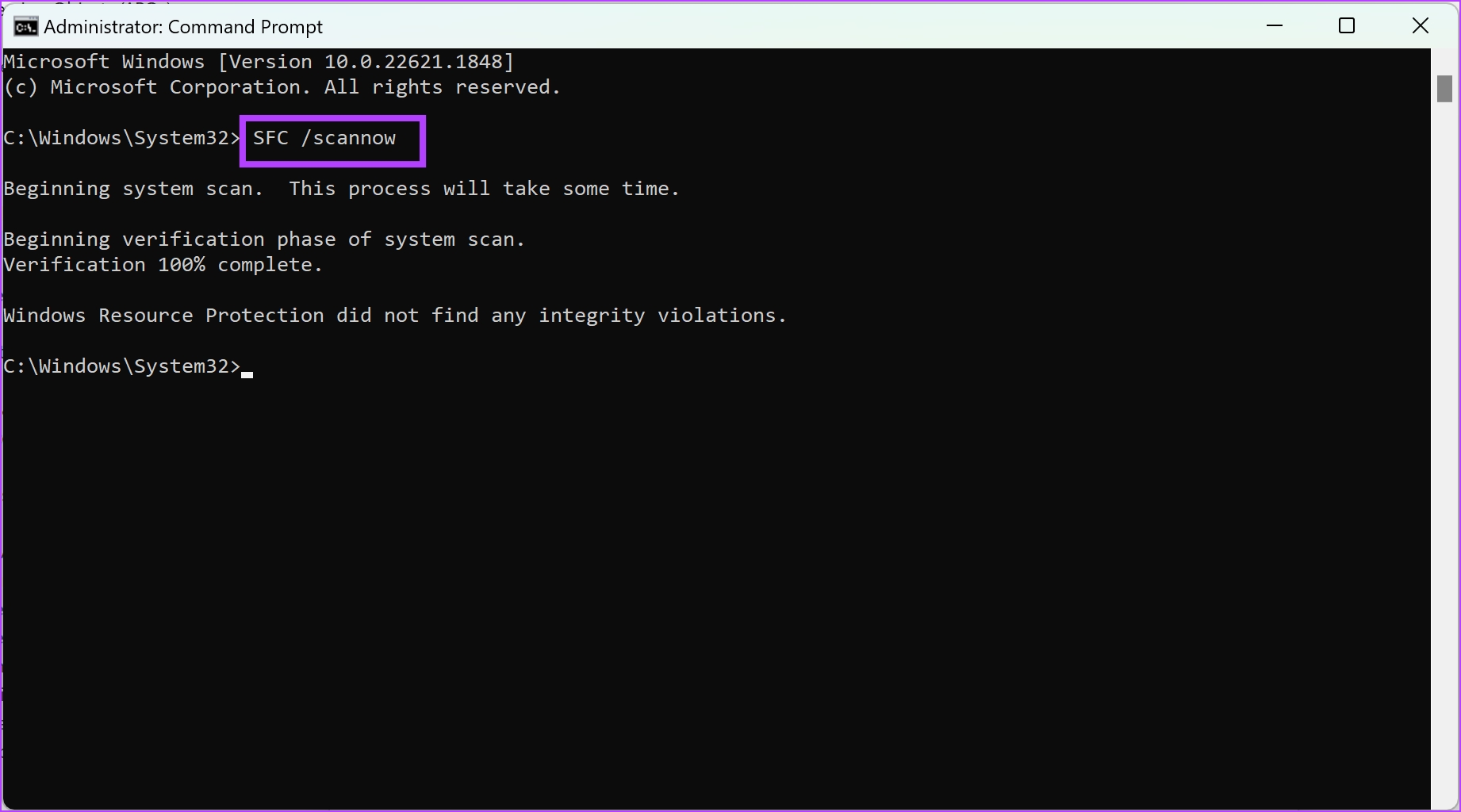
Step 1: Open Command Prompt from the start menu. Right-click, and select Run as administrator.
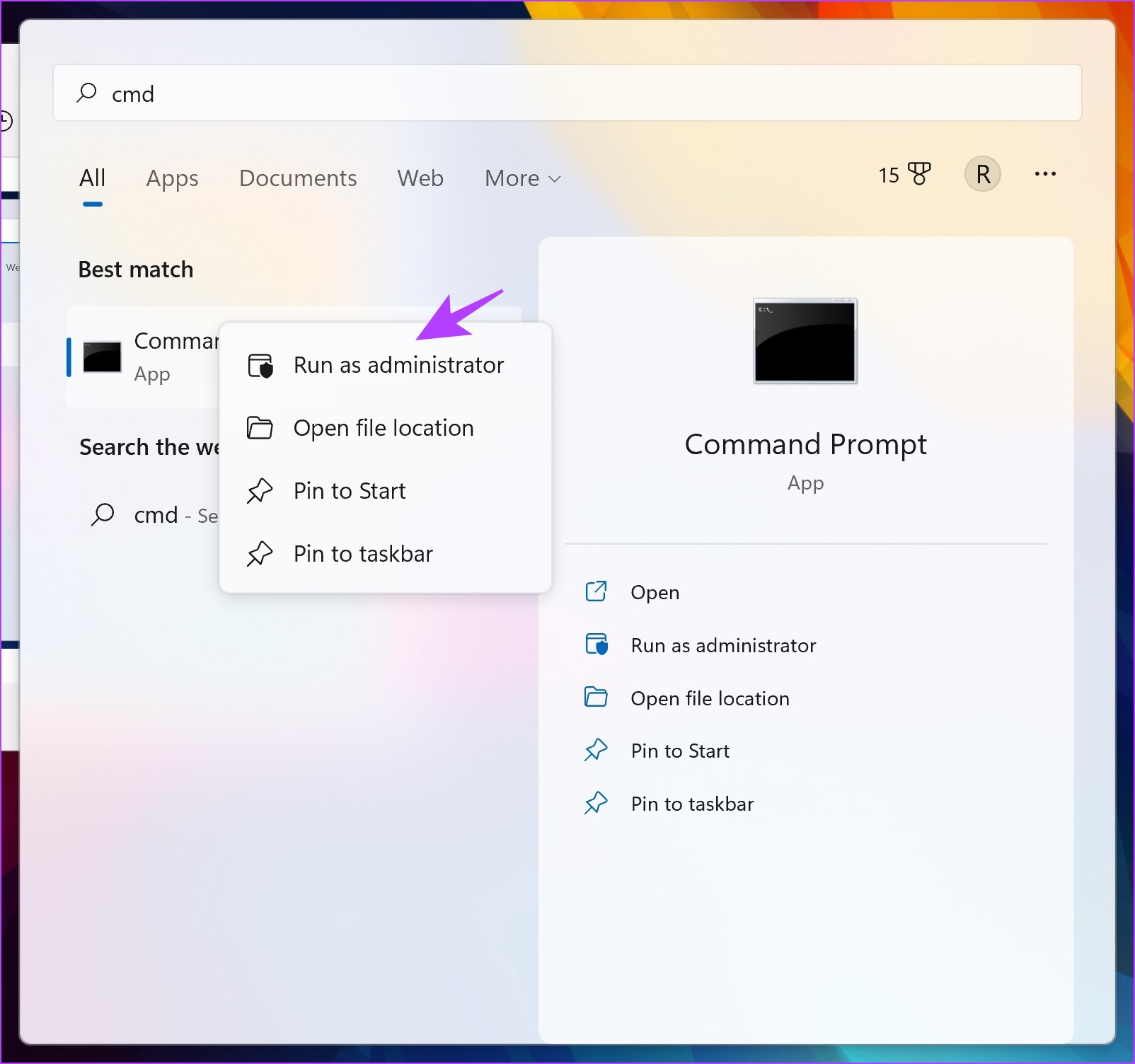
Step 2: Type the following command :
SFC /scannow
As the system scan begins, you can see its progress. Once the system scan is complete, you will see whether it is successful or not.
Fix 4: Change Wireless Mode and Power Management Settings
This problem may have something to do with the device using dual-band. Changing the wireless settings may fix it.
Step 1: Open Device Manager from the start menu.
Step 2: Click to expand Network Devices.
Step 3: Then right-click on your wireless card and select Properties.

Step 3: Select the Advanced tab and change the wireless mode settings from 802.11a/b/g to 1.5 GHz 802.11a. Check if the issue persists.

You can also remove the power saving settings for the Wi-Fi adapter on Windows 10 Only. Click on the Power Management tab in the properties menu. Then disable the option that allows Windows 10 to turn off the wireless adapter to save power.

Fix 5: Reset Network Settings
Resetting network settings can help fix problems with the Intel Wi-Fi 6 Adapter by restoring network-related configurations to their default state.
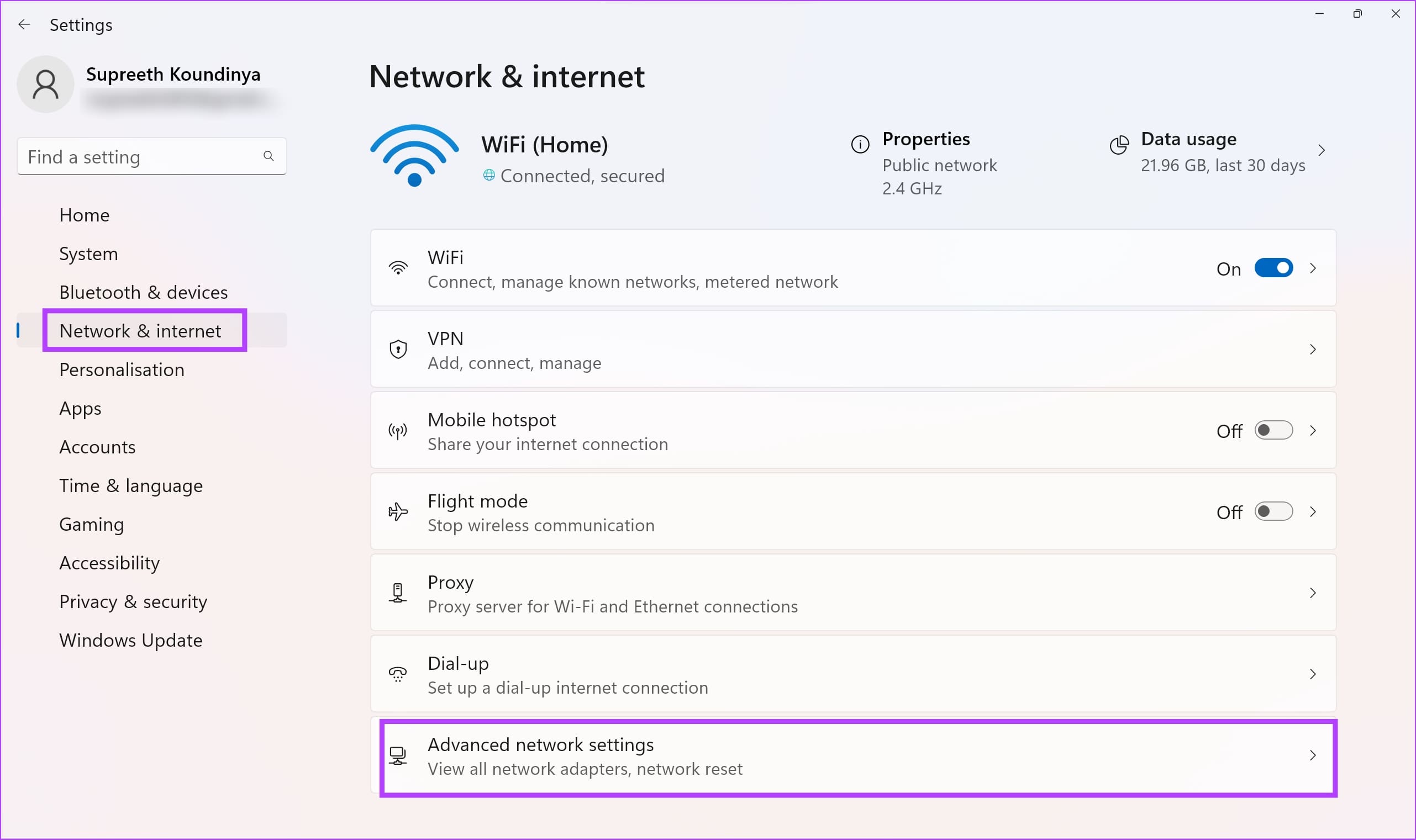
Step 1: Open the Settings app and select Network & Internet.
Step 2: Click on Advanced network settings.
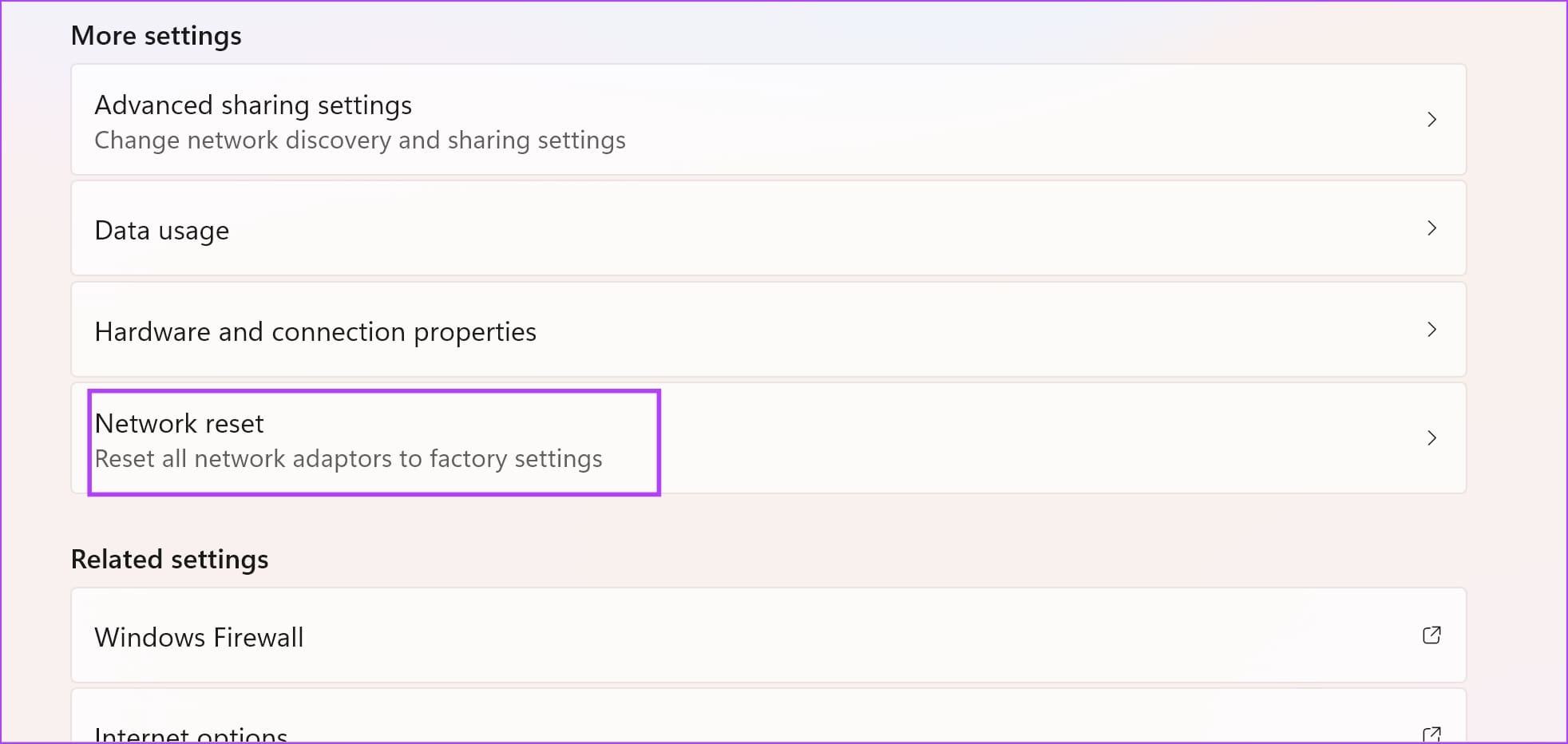
Step 3: Select Network reset.
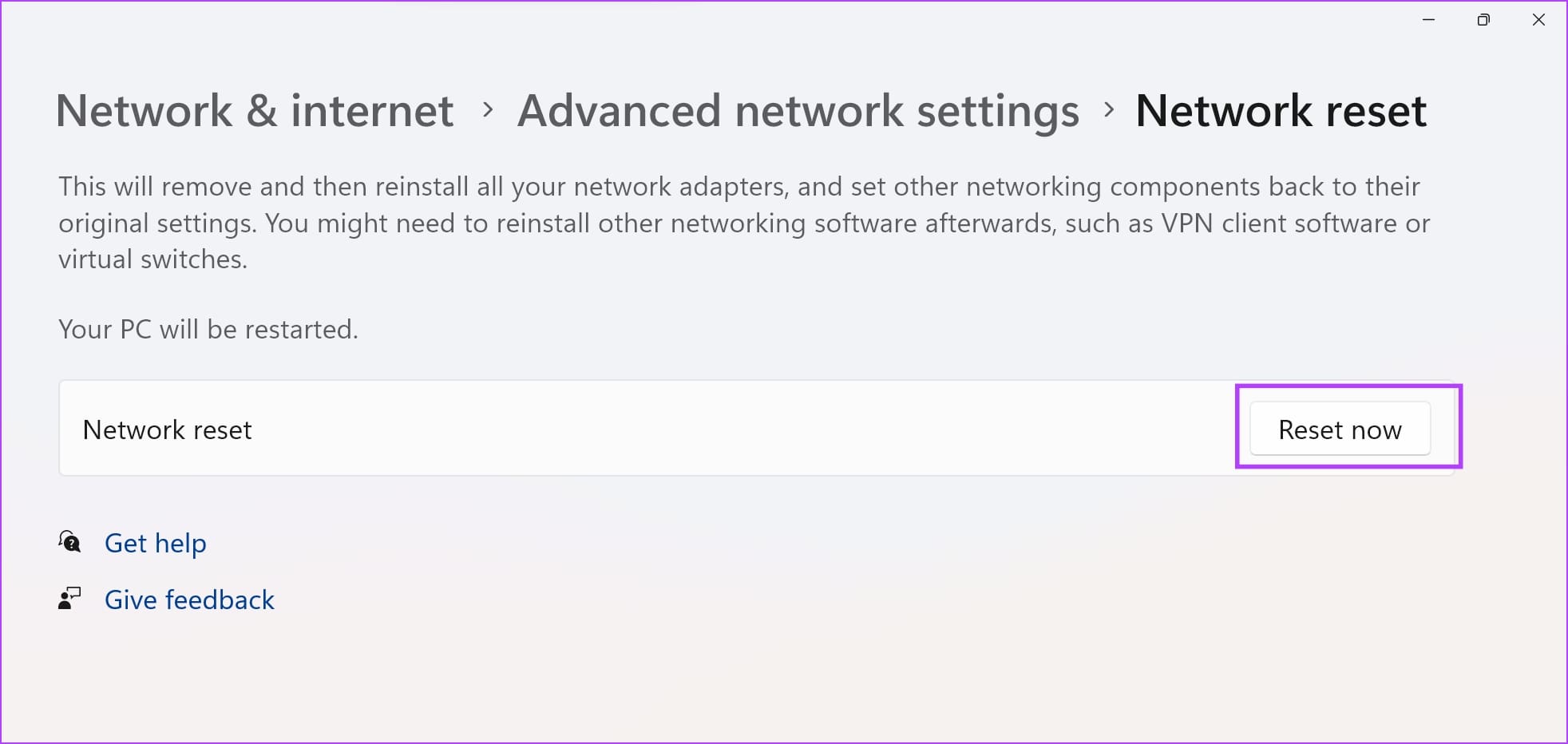
Step 4: Click Reset now.
Step 5: Select Yes to confirm.
If none of the above methods work, we recommend contacting the support services of your device manufacturer. They will be able to guide you and resolve the issue at the earliest.
Was this helpful?
Last updated on 26 June, 2024
Read Next
 4 Ways to Fix “Windows Could Not Find a Driver for Your Network Adapter” Error
Fix 1: Enable Network Adapter Windows may fail to communicate with the network adapter if you've previously disabled it.
4 Ways to Fix “Windows Could Not Find a Driver for Your Network Adapter” Error
Fix 1: Enable Network Adapter Windows may fail to communicate with the network adapter if you've previously disabled it.
 5 Ways to Fix Intel Graphics Control Panel Not Showing After Windows 11 Update
Common Fixes Check the Windows 11 context menu: Right-click the blank space on your desktop and select Show more options.
5 Ways to Fix Intel Graphics Control Panel Not Showing After Windows 11 Update
Common Fixes Check the Windows 11 context menu: Right-click the blank space on your desktop and select Show more options.
 How to Overclock a Monitor: NVIDIA, AMD, and Intel GPUs
When gaming, having a high-performance monitor can make a significant difference in your overall experience.
How to Overclock a Monitor: NVIDIA, AMD, and Intel GPUs
When gaming, having a high-performance monitor can make a significant difference in your overall experience.
 3 Ways to Check Network Adapter Speed on Windows 11
Method 1: Using the Settings App Besides displaying the network adapter speed, the Settings app also provides information about other connection aspects, such as the network band, MAC address, and
3 Ways to Check Network Adapter Speed on Windows 11
Method 1: Using the Settings App Besides displaying the network adapter speed, the Settings app also provides information about other connection aspects, such as the network band, MAC address, and
 Top 6 Ways to Fix Microsoft Edge Black Screen Issues on Windows 10
Microsoft Edge continues to quickly pace ahead in the browser race on mobile and desktop.
Top 6 Ways to Fix Microsoft Edge Black Screen Issues on Windows 10
Microsoft Edge continues to quickly pace ahead in the browser race on mobile and desktop.
 2 Ways to Fix Windows 11 Battery Time Remaining Issues
Try These Things First Restart your computer: The first thing you should try is restarting your computer.
2 Ways to Fix Windows 11 Battery Time Remaining Issues
Try These Things First Restart your computer: The first thing you should try is restarting your computer.
 6 Ways to Fix Audio Distortion Issues While Streaming on Windows 11
Fix 1: Reconnect the Audio Device Your first course of action is to disconnect your audio device and reconnect it.
6 Ways to Fix Audio Distortion Issues While Streaming on Windows 11
Fix 1: Reconnect the Audio Device Your first course of action is to disconnect your audio device and reconnect it.
 4 Ways to Fix Scaling and Zoom Issues in Google Chrome
Basic Fixes Update or reinstall Chrome: Updating Chrome is often an effective way to fix most major issues.
4 Ways to Fix Scaling and Zoom Issues in Google Chrome
Basic Fixes Update or reinstall Chrome: Updating Chrome is often an effective way to fix most major issues.
The article above may contain affiliate links which help support Guiding Tech. The content remains unbiased and authentic and will never affect our editorial integrity.