Why Can’t I Share My Instagram Post to Facebook?
To share your Instagram posts directly from the app to Facebook, it’s mandatory to link the two accounts. Moreover, you should also enable appropriate sharing permissions. For convenience, the setting offers three toggles, one each for Post, Stories, and Reels.
So, if you’re wondering why Instagram won’t share with Facebook, there are two key reasons:
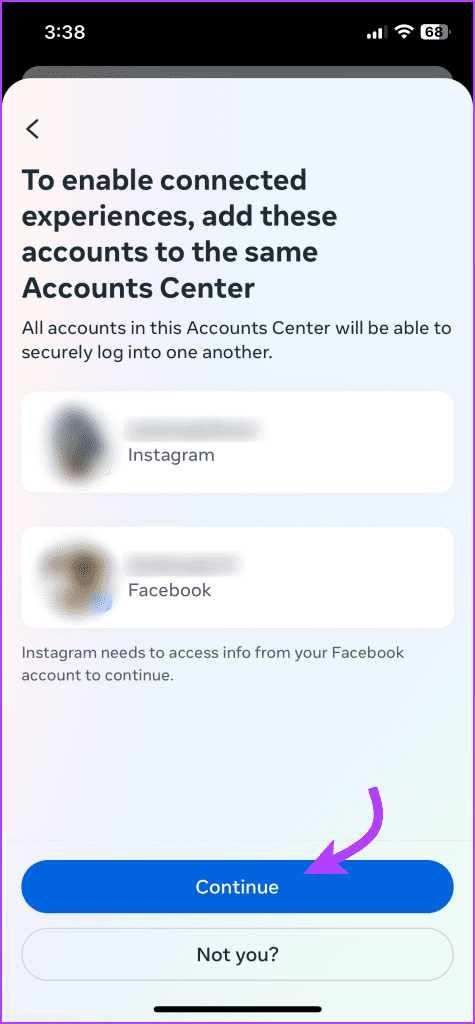
- Accounts aren’t synced – To link your account, go to Instagram Settings → Account Center → Sharing across platforms → Add accounts → Add Facebook account → here, enter your Facebook credentials and select Continue.


- Wrong Instagram account type—Instagram business accounts can post to Facebook Pages but not to profiles, while Instagram creators or personal accounts can share to Facebook profiles. Accordingly, check and switch the profiles.
Basic Fixes for Instagram Not Sharing to Facebook
- Update Facebook and Instagram apps – When a large group of users is facing an issue with IG not posting to FB, the current app version might be at fault. So, keep an eye out and update your Facebook and Instagram apps as soon as possible.
- Change your Facebook password – If you haven’t changed your account password in a long time, change it. That will basically log you out from all the Facebook sessions for all the devices. After that, set a new password for your Facebook account and sign in to the app again.
- Clear Instagram and Facebook app cache (Android) – The bug behind the issue may be hidden in the app cache, and resetting it can resolve the problem. So, start by clearing the cache of the Instagram app and then clear the cache from the Facebook app on your Android device. Sadly, you can’t delete the cache on iPhone.
Fix 1. Re-Link Your Facebook Account
The idea is to break the current link and re-establish (restart) a fresh one without any bugs or network errors. Thankfully, this is pretty simple to do.
Step 1: To unlink Facebook from Instagram, open the Instagram app. Go to the profile tab and tap the three-line icon.
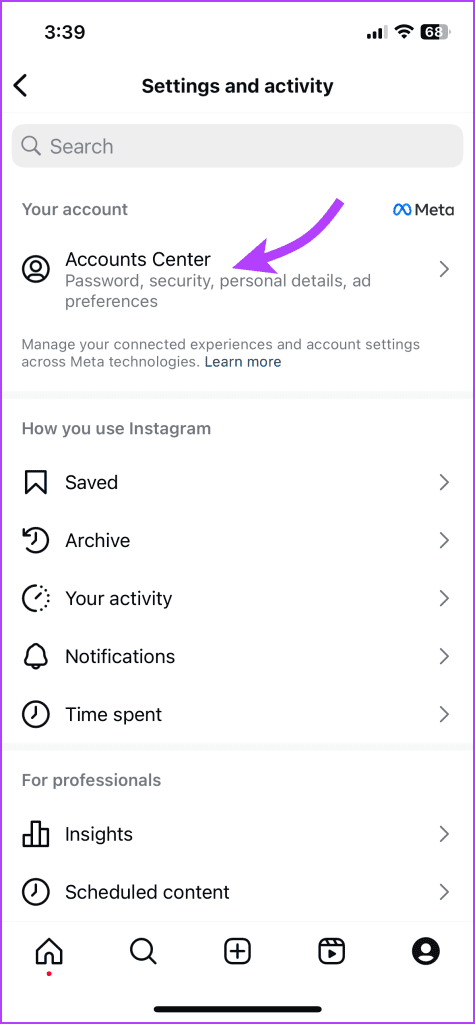
Step 2: Tap Accounts Center. Here, scroll down and select Accounts.


Step 3: Tap Remove next to the Facebook account.
Step 4: Tap Remove account → Continue → Yes, remove account name.

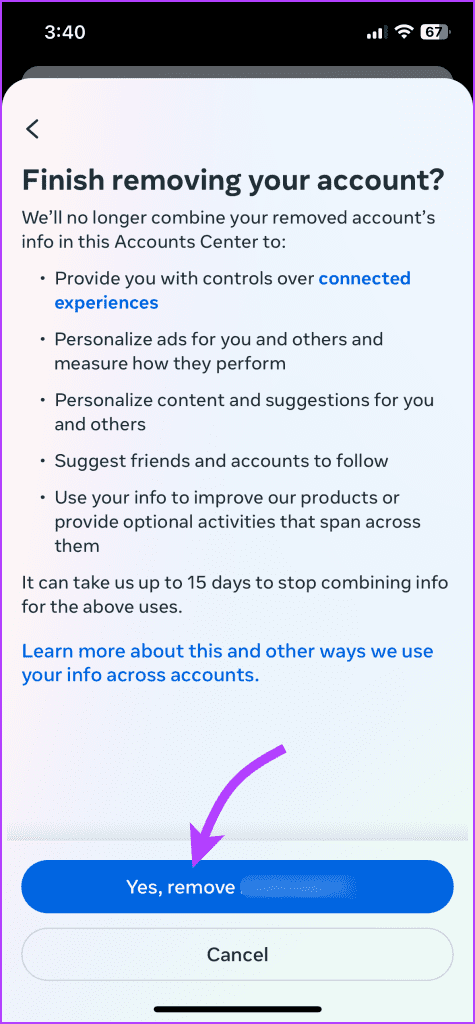
Now, link your accounts again. Once it’s done, try posting again; hopefully it should work like a charm.
Fix 2. Check Instagram sharing preferences in the Accounts Center
If you can’t share a particular type of content, say posts, stories, or reels, ensure the setting is enabled from the Meta Accounts Center.
Step 1: Go to Instagram → Profile tab → three-line icon. Here, select Accounts Centre.
Step 2: Tap Sharing across profiles and select your Instagram profile.
Note: Here, ensure that the correct Facebook account is selected under the Share to section.
Step 3: Toggle on sharing settings for desired content type, i.e., posts, story, reels, or all of them.


Fix 3. Switch to Creators or Personal Account
As mentioned above, your Instagram account type dictates whether you can crosspost to Facebook or not. To check or switch your account, follow the steps below.
Step 1: Go to Instagram → Profile tab → three-line icon.
Step 2: Here, depending on your account, you’ll see one of the following; select it.
- Account type and tools (personal account)
- Business tools and controls (Business account)
- Creators tools and controls (creator account)
Step 3: In the next menu, scroll down to Switch to professional account or Switch account type.
Step 4: Select the account type and follow the on-screen instructions to set it up.


Fix 4. Log Out and Login From Your Facebook and Instagram Accounts
Logging out will cease any pending sessions or activities in the background. This, in turn, will stop/block any bug causing the issue. And when you log in again, hopefully, the issue of Instagram not posting to Facebook is auto-fixed.
Log Out From Instagram
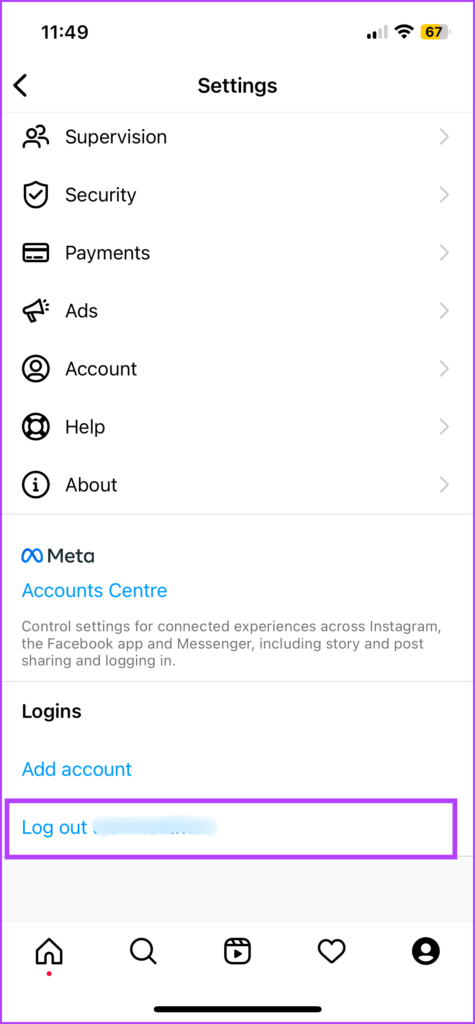
Step 1: Open the Instagram app → profile tab → hamburger (three-line) icon.
Step 2: Scroll down and select Log Out account name. Tap Log Out to confirm the action.

Log Out From Facebook
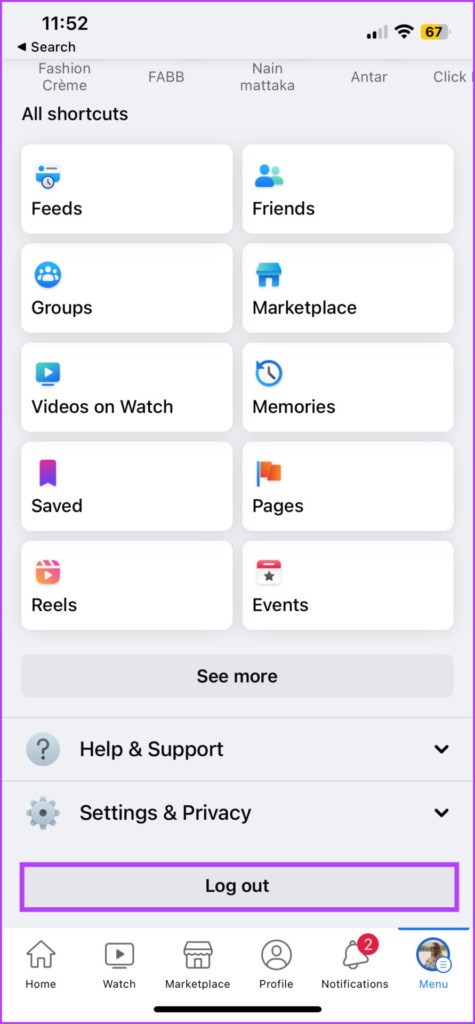
Step 1: Launch the Facebook app → profile tab. Scroll down and tap Log Out.
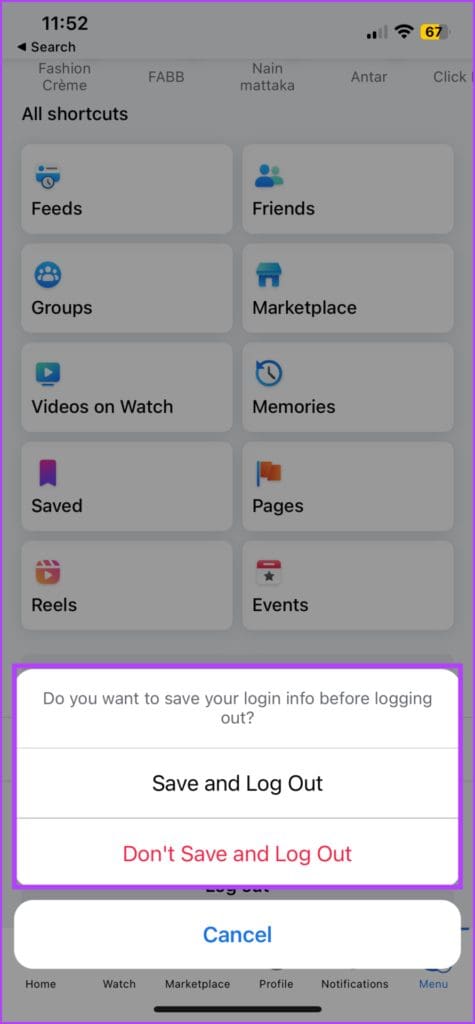
Step 2: Select either of the following,
- Save and Log Out.
- Don’t Save and Log Out.
Next, log in to both Instagram and Facebook and link them (as shown above).
If the issue persists, use the Meta Business suite or third-party services like Hootsuite until Meta fixes the issue.
Was this helpful?
Last updated on 02 September, 2024
Read Next
 Instagram’s Secret Sharing: Unraveling the Close Friends Feature
What Is the Close Friends List on Instagram?
Instagram’s Secret Sharing: Unraveling the Close Friends Feature
What Is the Close Friends List on Instagram?
 7 Best Ways to Fix When Window 10 File Sharing Isn’t Working
In the past few years, Microsoft has simplified file sharing on Windows a lot.
7 Best Ways to Fix When Window 10 File Sharing Isn’t Working
In the past few years, Microsoft has simplified file sharing on Windows a lot.
 4 Ways to Fix FaceTime Screen Sharing Not Working on Mac
Basic Fixes Check device support: Android and Windows users can join a FaceTime call via the web only.
4 Ways to Fix FaceTime Screen Sharing Not Working on Mac
Basic Fixes Check device support: Android and Windows users can join a FaceTime call via the web only.
 6 Best Ways to Fix Wireless Power Sharing Not Working on Samsung Galaxy Phones
Wireless charging is quite common on premium smartphones, you’d be surprised to find a phone without one.
6 Best Ways to Fix Wireless Power Sharing Not Working on Samsung Galaxy Phones
Wireless charging is quite common on premium smartphones, you’d be surprised to find a phone without one.
 5 Ways to Fix Location Sharing Not Updating in Google Maps on Phone
Common Fixes Check your internet connection - Google Maps will fail to update the location if your internet is unstable.
5 Ways to Fix Location Sharing Not Updating in Google Maps on Phone
Common Fixes Check your internet connection - Google Maps will fail to update the location if your internet is unstable.
 6 Ways to Fix Apple Music Family Sharing Not Working on iPhone
Are you facing issues with Apple Music Family Sharing on your iPhone?
6 Ways to Fix Apple Music Family Sharing Not Working on iPhone
Are you facing issues with Apple Music Family Sharing on your iPhone?
 4 Ways to Fix Steam Family Sharing Not Working on Windows 11
Steam Family Sharing Limitations Steam Family Sharing may not work on your Windows 11 PC due to one of the following limitations: Family Sharing not enabled: Ensure that the Family
4 Ways to Fix Steam Family Sharing Not Working on Windows 11
Steam Family Sharing Limitations Steam Family Sharing may not work on your Windows 11 PC due to one of the following limitations: Family Sharing not enabled: Ensure that the Family
 7 Things to Know About Screen Sharing in Microsoft Teams
1.
7 Things to Know About Screen Sharing in Microsoft Teams
1.
The article above may contain affiliate links which help support Guiding Tech. The content remains unbiased and authentic and will never affect our editorial integrity.