


Basic Fixes
- Plug your Mac into a power source: Sometimes your Mac will start syncing when it is plugged into a power source. You can try the same.
- Use the same Apple ID: You should ensure that your iPhone and Mac have the same Apple ID. Only then will iCloud be able to sync messages on both devices.
- Update software version: Install the latest software version on your respective Apple device.
- Check iMessage servers: Apple also offers a dedicated System Status page to let you check services status in real-time.
Fix 1: Disable and Enable iMessage Again
You need to deregister the iMessage service on your iPhone and after a couple of minutes, enable it again. This trick worked wonders for us and enabled iMessage sync on Mac and iPhone. Here’s what you need to do.
Step 1: Open the Settings app on iPhone.
Step 2: Scroll down to Messages.
Step 3: Disable the iMessage toggle.


Enable it again and then check iMessage sync is working or not.
Fix 2: Enable Messages in iCloud
Apple uses iCloud to sync messages among all your devices. By default, the Messages option is enabled for iCloud. You can temporarily disable Messages in iCloud and enable it again. Go through the steps below to make changes.
Step 1: Open Messages on Mac.
Step 2: Click on Messages in the Menu bar.
Step 3: Select Settings.
Step 4: From the iMessage menu, disable Messages in iCloud.

Fix 3: Sync Messages Manually on Mac
If you are still having problems getting the latest messages on the Mac, you need to sync it manually. Here’s how.
Step 1: Open the Messages app on Mac.
Step 2: Go to Messages at the top-left corner > Settings.
Step 4: Slide to the iMessage menu.
Step 5: Click on Sync Now button.
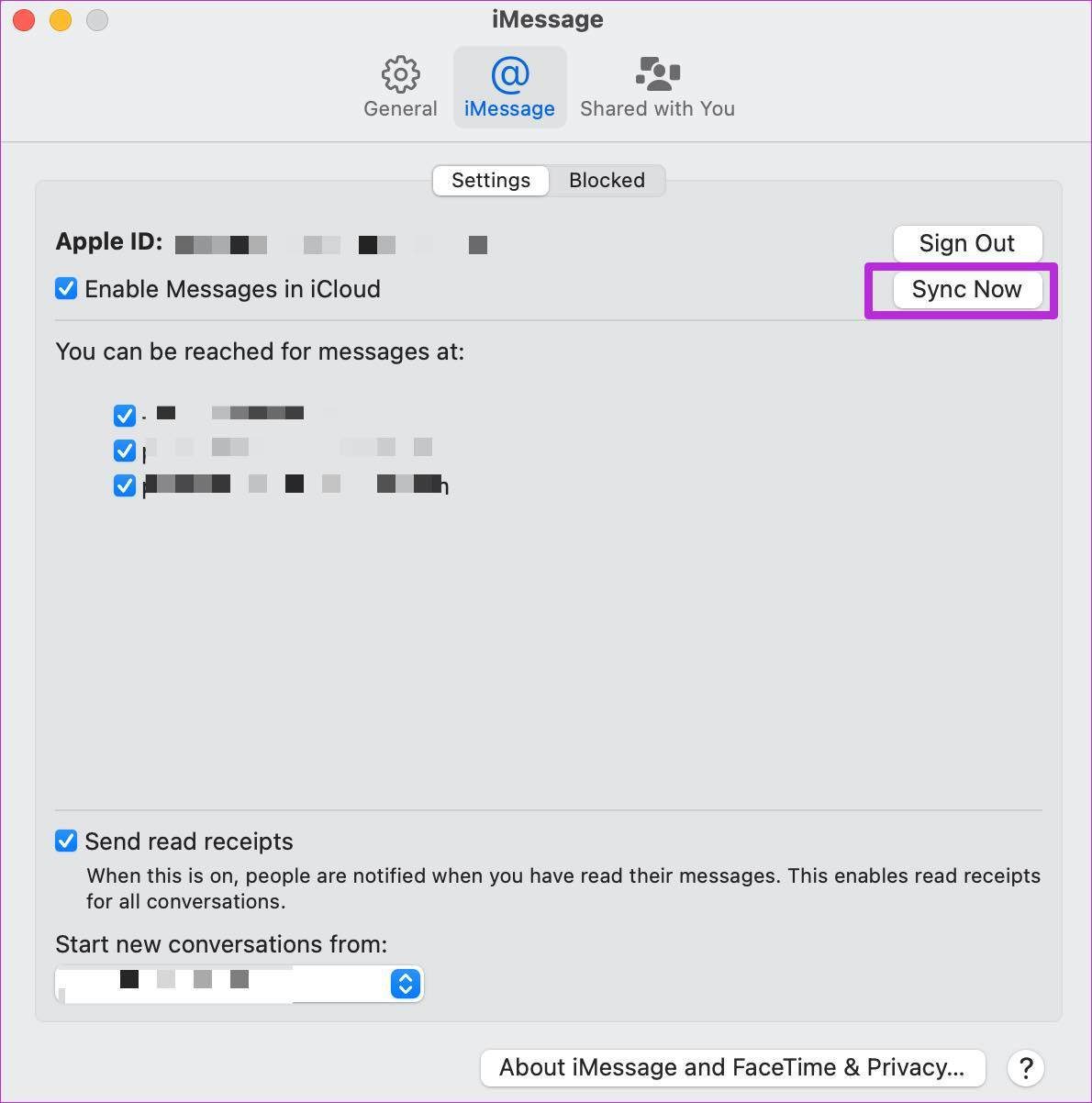
Enable it again and restart the app.
Tip: Learn how to turn iMessage on or off on Mac.
Fix 4: Reset Network Settings
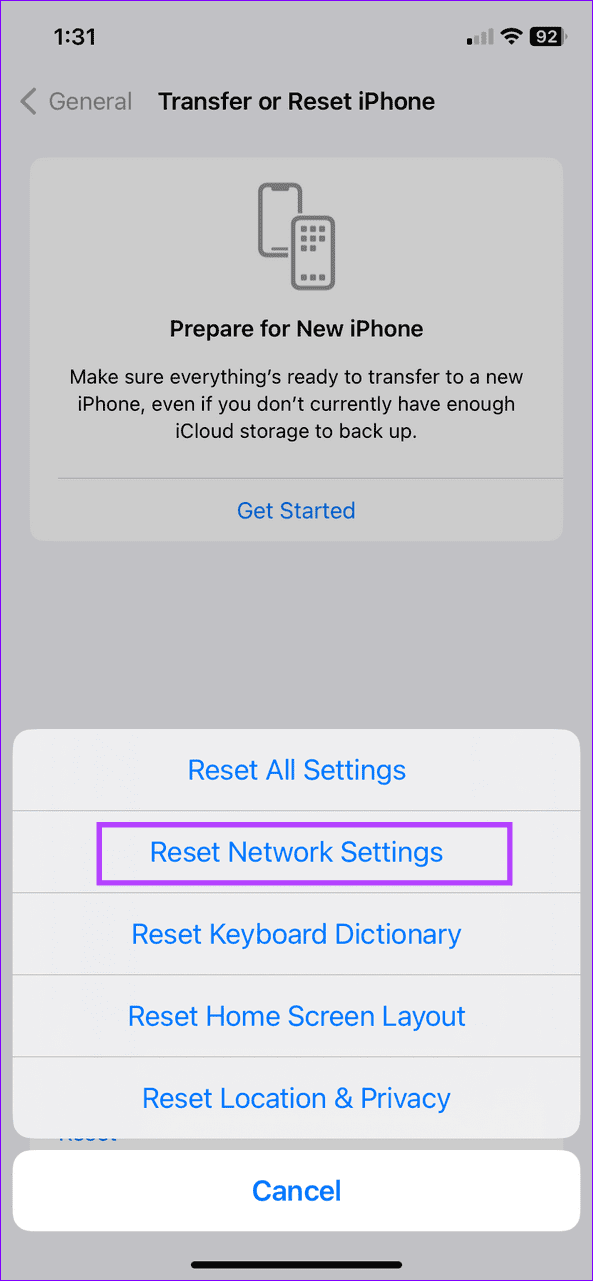
You might face issues with iMessage sync if your iPhone’s network settings are messed up. You must reset network settings and try the sync process again.
On iPhone, open Settings > General > Transfer or Reset iPhone > Reset > Reset Network Settings.

Was this helpful?
Last updated on 05 July, 2024
1 Comment
Leave a Reply
Read Next
 3 Fixes for Voice Memos Not Syncing Between iPhone and Mac
Basic Fixes Use the same Apple account: Apple devices will sync only when they are using the same Apple account.
3 Fixes for Voice Memos Not Syncing Between iPhone and Mac
Basic Fixes Use the same Apple account: Apple devices will sync only when they are using the same Apple account.
 Fix: Apple Music Playlists Not Syncing Between Mac and iPhone
Basic Fixes Use the same Apple account: Once you do that, all your devices will have all your Apple Music data synced.
Fix: Apple Music Playlists Not Syncing Between Mac and iPhone
Basic Fixes Use the same Apple account: Once you do that, all your devices will have all your Apple Music data synced.
 4 Fixes for Spotify Not Syncing Between Mobile and Desktop
Basic Fixes Use the same account on multiple devices: Sometimes you don't realize, but you must have the same account on all your devices.
4 Fixes for Spotify Not Syncing Between Mobile and Desktop
Basic Fixes Use the same account on multiple devices: Sometimes you don't realize, but you must have the same account on all your devices.
 4 Fixes for Kindle Books Not Syncing Between Devices
Basic Fixes Use the same Kindle account: You should be using the same Amazon Kindle account on all your devices.
4 Fixes for Kindle Books Not Syncing Between Devices
Basic Fixes Use the same Kindle account: You should be using the same Amazon Kindle account on all your devices.
 3 Best Ways to Fix Apple Books Not Syncing Between iPhone and iPad
Try Basic Fixes Ensure both devices are connected to Wi-Fi: The syncing of any content between an iPhone and iPad happens via iCloud.
3 Best Ways to Fix Apple Books Not Syncing Between iPhone and iPad
Try Basic Fixes Ensure both devices are connected to Wi-Fi: The syncing of any content between an iPhone and iPad happens via iCloud.
 4 Ways to Fix Messages Not Syncing Between iPhone and iPad
https://youtu.be/L9BxANv4g00 Basic Fixes: Ensure you're using the same Apple account: You need to use the same Apple account on both iPad and iPhone to enable message syncing.
4 Ways to Fix Messages Not Syncing Between iPhone and iPad
https://youtu.be/L9BxANv4g00 Basic Fixes: Ensure you're using the same Apple account: You need to use the same Apple account on both iPad and iPhone to enable message syncing.
 3 Fixes for Apple Mail Not Syncing With Gmail on Mac
Basic Fixes Check internet connection: Check your internet speed and rest assured that your Internet Service Provider is not facing any downtime or undergoing maintenance in your area.
3 Fixes for Apple Mail Not Syncing With Gmail on Mac
Basic Fixes Check internet connection: Check your internet speed and rest assured that your Internet Service Provider is not facing any downtime or undergoing maintenance in your area.
 3 Fixes for Outlook Contacts Not Syncing on iPhone and Mac
Basic Fixes Check internet speed: Check if you are getting good internet speeds on your mobile network or Wi-Fi.
3 Fixes for Outlook Contacts Not Syncing on iPhone and Mac
Basic Fixes Check internet speed: Check if you are getting good internet speeds on your mobile network or Wi-Fi.
The article above may contain affiliate links which help support Guiding Tech. The content remains unbiased and authentic and will never affect our editorial integrity.


So helpful. Very thorough. ????????