

Try Basic Fixes
- Check Apple’s iMessage server status: The iMessage servers may be down, which is why your iPhone’s iMessage is not working. To check if that’s indeed the case, head over to Apple’s System Status website and look for the light next to iMessage.
- Force restart your iPhone: Temporary glitches with your iPhone can cause such problems. To fix this, press and release the Volume Up button, then press and release the Volume Down button. Then, press and hold the Power button until the Apple logo appears.
- Log into iMessage using the same account as your Apple ID: If the account you’re using for iMessage is different from the one you’re using as your Apple ID, you will face the iCloud and iMessage accounts do not match error, which will lead to failed iMessage activation. To fix this, log in with the same account for both services.
- Install iOS updates: The iMessage activation issue may be due to a buggy or outdated iOS build on your iPhone. If that’s the case, installing newer updates should help. Open the Settings app and head to General > Software Update to download and install pending updates.
Fix 1: Set the Date and Time Correctly
Another cause for improper iMessage activation is the incorrect date and time zone information fed to your iPhone. Here’s how to fix that.
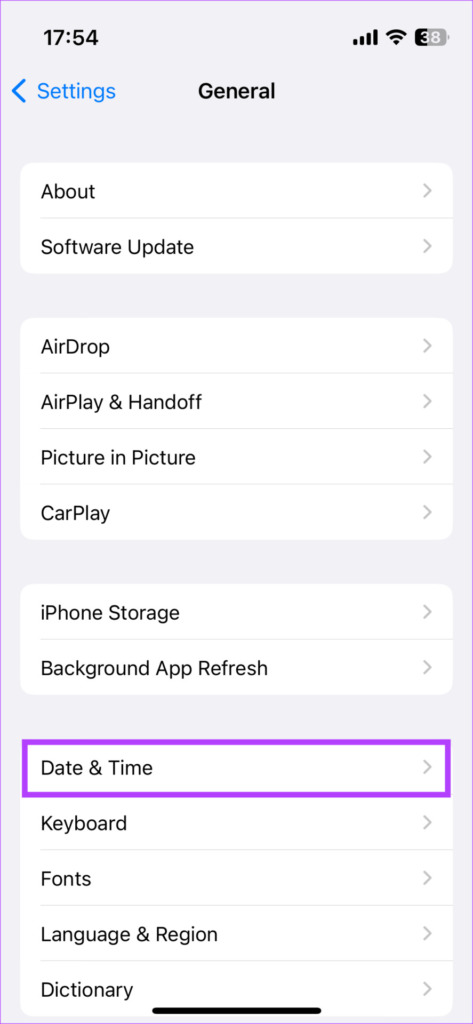
Step 1: Open the Settings app on your iPhone. Navigate to the General option.
Step 2: Tap on Date & Time and enable the Set Automatically toggle.


Fix 2: Check Your Phone Number in iMessage Accounts
Entering an incorrect phone number in your iMessage settings can also prevent it from activating. Hence, it’s a good idea to verify your phone number to ensure it’s correct.
Step 1: Open the Settings app on your iPhone. Scroll down and tap on Messages.
Step 2: Tap Send and Receive.
Step 3: Ensure there’s a checkmark next to the phone number you desire to send and receive iMessages on.


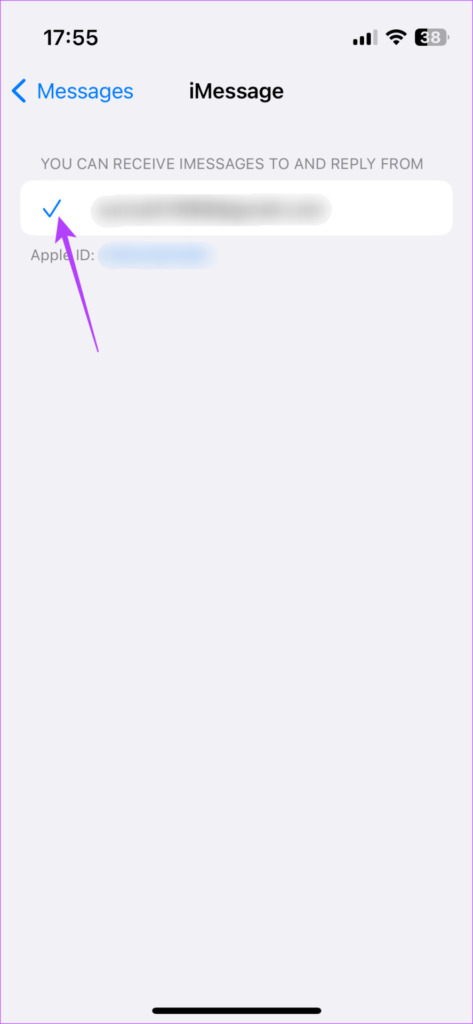
Step 4: Tap the iMessage toggle to turn it on. If it’s already on, turn it off and back on.
Fix 3: Sign Out of Your Apple ID and Sign Back In
Since all of Apple’s services are dependent on the Apple ID, it’s safe to say that any issue with logging into your Apple ID can cause problems with other services — including iMessage. So, try logging out of iMessage and then logging back in to see if it helps with the activation process.
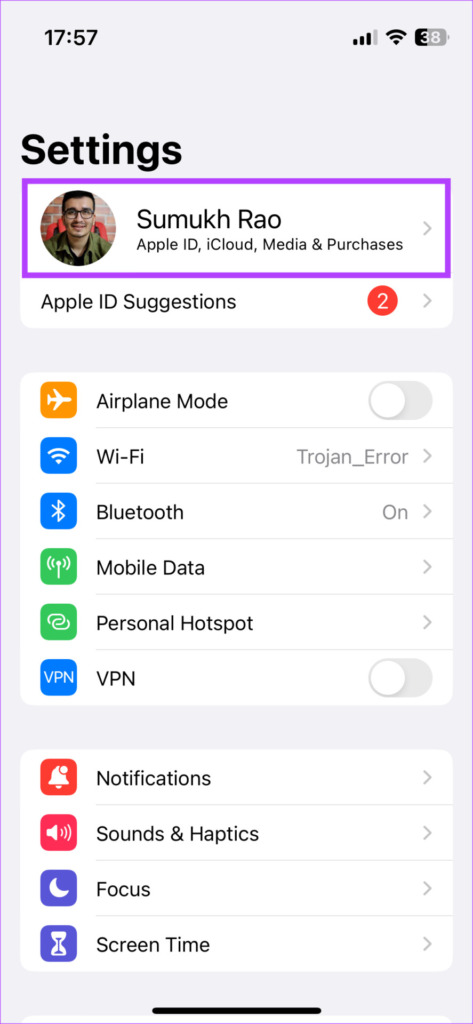
Step 1: Open the Settings app on your iPhone and tap on your name displayed at the top.
Step 2: Scroll down and you will find the Sign Out option. Tap on it.
Step 3: Enter your Apple ID password and select Turn Off in the top-right corner.
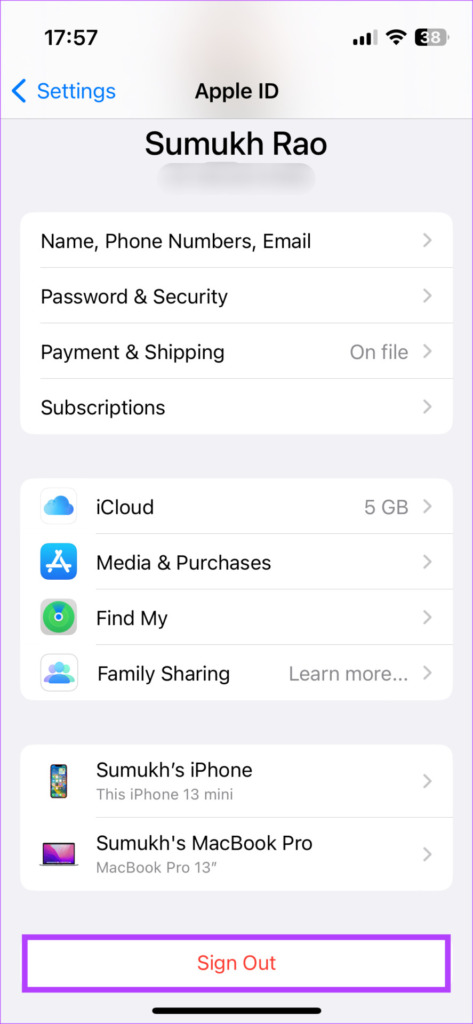

Step 4: You will find the Sign-in option in the same menu. Tap on it and log in to your Apple account once again.
Fix 4: Reset Network Settings
Resetting the network settings is the final step before you call your carrier or Apple for further help. This will reset all network parameters, such as saved Wi-Fi networks, Bluetooth devices, data plans, and more. So, you will have to set them up again manually. While it may seem like a lot of work, it can help fix the issue with iMessage on your device.
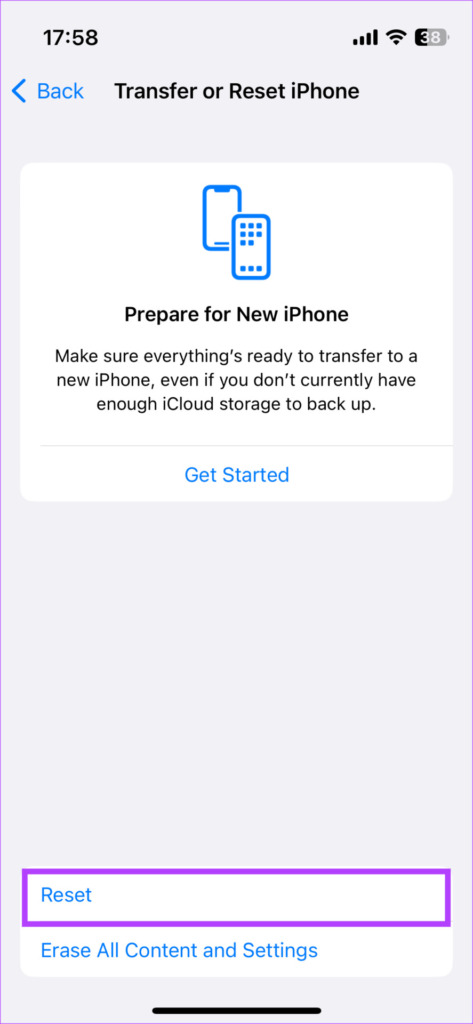
Step 1: Open the Settings app on your iPhone and head to General > Transfer or Reset iPhone.
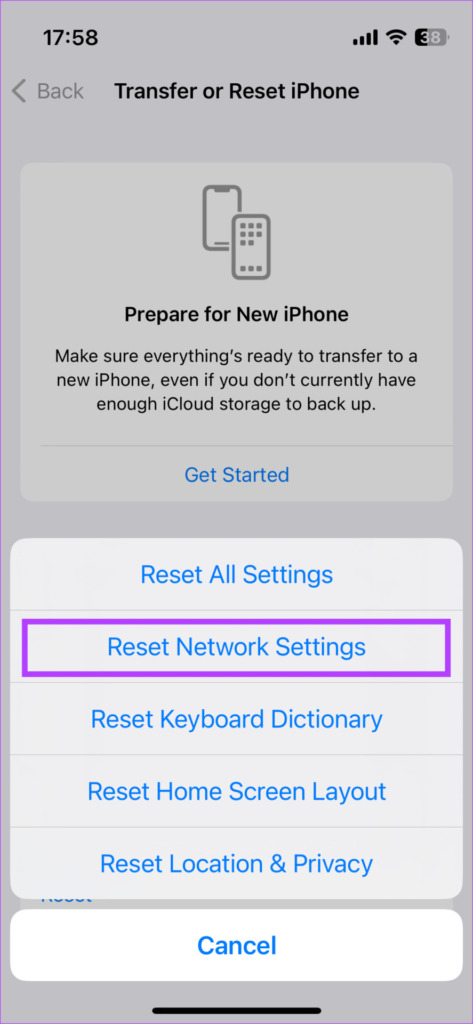
Step 2: Tap Reset at the bottom and select Reset Network Settings.

Was this helpful?
Last updated on 31 August, 2024
1 Comment
Leave a Reply
Read Next
 How to Fix Mouse Drag Issues by Activating ClickLock in Windows
How to Activate ClickLock on Your Windows Device If you're having issues using drag-and-drop on your Windows 11 laptop, you can activate ClickLock.
How to Fix Mouse Drag Issues by Activating ClickLock in Windows
How to Activate ClickLock on Your Windows Device If you're having issues using drag-and-drop on your Windows 11 laptop, you can activate ClickLock.
 6 Ways to Fix “iMessage Is Signed Out” Error on iPhone
Why Does My iMessage Keep Signing Out Firstly, you need to understand that this error differs from the iMessage activation issue.
6 Ways to Fix “iMessage Is Signed Out” Error on iPhone
Why Does My iMessage Keep Signing Out Firstly, you need to understand that this error differs from the iMessage activation issue.
 5 Ways to Fix iMessage Notifications Not Working on iPhone
Basic Fixes Force restart your iPhone: An existing iOS glitch may suppress iMessage notifications.
5 Ways to Fix iMessage Notifications Not Working on iPhone
Basic Fixes Force restart your iPhone: An existing iOS glitch may suppress iMessage notifications.
 5 Best Ways to Fix iMessage Not Working On iPhone and iPad
Try Basic Fixes Check if iMessage is down: Sometimes, it's possible that the iMessage servers are down, which is why your iPhone's iMessage is not working.
5 Best Ways to Fix iMessage Not Working On iPhone and iPad
Try Basic Fixes Check if iMessage is down: Sometimes, it's possible that the iMessage servers are down, which is why your iPhone's iMessage is not working.
 4 Ways to Fix iMessage Apps and Games Not Working on iPhone
Fix 1: Enable the iMessage App and MMS Messaging Step 1: Open the Settings app on your iPhone and select Messages.
4 Ways to Fix iMessage Apps and Games Not Working on iPhone
Fix 1: Enable the iMessage App and MMS Messaging Step 1: Open the Settings app on your iPhone and select Messages.
 4 Ways to Fix iMessage “Not Delivered” Error on iPhone
Why Is Your iMessage Not Being Delivered on iPhone?
4 Ways to Fix iMessage “Not Delivered” Error on iPhone
Why Is Your iMessage Not Being Delivered on iPhone?
 4 Fixes for iMessage Not Showing Contact Names on iPhone
Basic Fixes Enable iMessage again: This will reload all the preferences for iMessages including your chats.
4 Fixes for iMessage Not Showing Contact Names on iPhone
Basic Fixes Enable iMessage again: This will reload all the preferences for iMessages including your chats.
 2 Ways to Change SMS and iMessage Color and Font on iPhone or iPad
What Does the Standard Message Color Represent The message bubbles are available in three different colors.
2 Ways to Change SMS and iMessage Color and Font on iPhone or iPad
What Does the Standard Message Color Represent The message bubbles are available in three different colors.
The article above may contain affiliate links which help support Guiding Tech. The content remains unbiased and authentic and will never affect our editorial integrity.
My Apple ID is not active