Why Does My iMessage Keep Signing Out
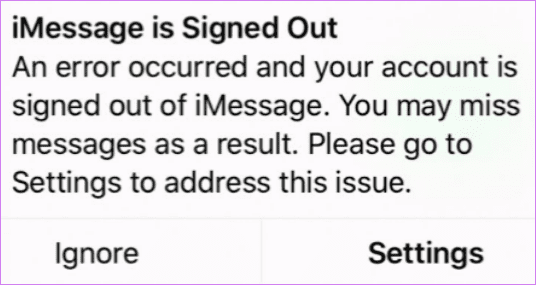
Firstly, you need to understand that this error differs from the iMessage activation issue. You’re basically logged out of iMessage, and there can be multiple reasons behind the issue, such as,
- Server issues from Apple’s end.
- Poor network connectivity, whether Wi-Fi or Cellular data.
- Apple ID connection or sync is disrupted
- Bugs, glitches, or incorrect iPhone or iMessage settings
- Hardware-related problems.
While the list looks exhausting, thankfully, most of the problems can be resolved with some TLC. Just keep reading to find the solution to fix the iMessage issue.
Basic Troubleshooting
- Restart iPhone – Restarting your device will probably fix the minor glitch causing the issue. Even if the restart doesn’t work, it will allow other solutions to work properly.
- Check the network connection – Launch the browser on your phone and open any webpage to ensure a stable connection. If not, use these fixes to get cellular data working.
- Check iMessage server status – Maybe the issue is on Apple’s end. To check, go to Apple’s system status website and see iMessage’s status. If it’s green, i.e., Available move to the next section, otherwise wait for Apple to fix the issue from their end.
- Update iOS – Another way to eliminate bugs and glitches is to update your iPhone or iPad to the latest software, if available. Go to Settings → General → Software Update. If available, tap Download & Update.
Fix 1. Disable and Re-enable iMessage
Ensure that iMessage is enabled on your iPhone or iPad. Moreover, you can always deactivate and reactivate iMessage to reset any settings error.
Step 1: Open Settings and go to Messages.
Step 2: Here, ensure the toggle for iMessage is on. If it’s enabled, disable it and enable it again.

Tip: Don’t see the Messages app on your phone? Find out how to bring back the Messages app.
Fix 2. Check the Apple ID or Number You’re Using for iMessage
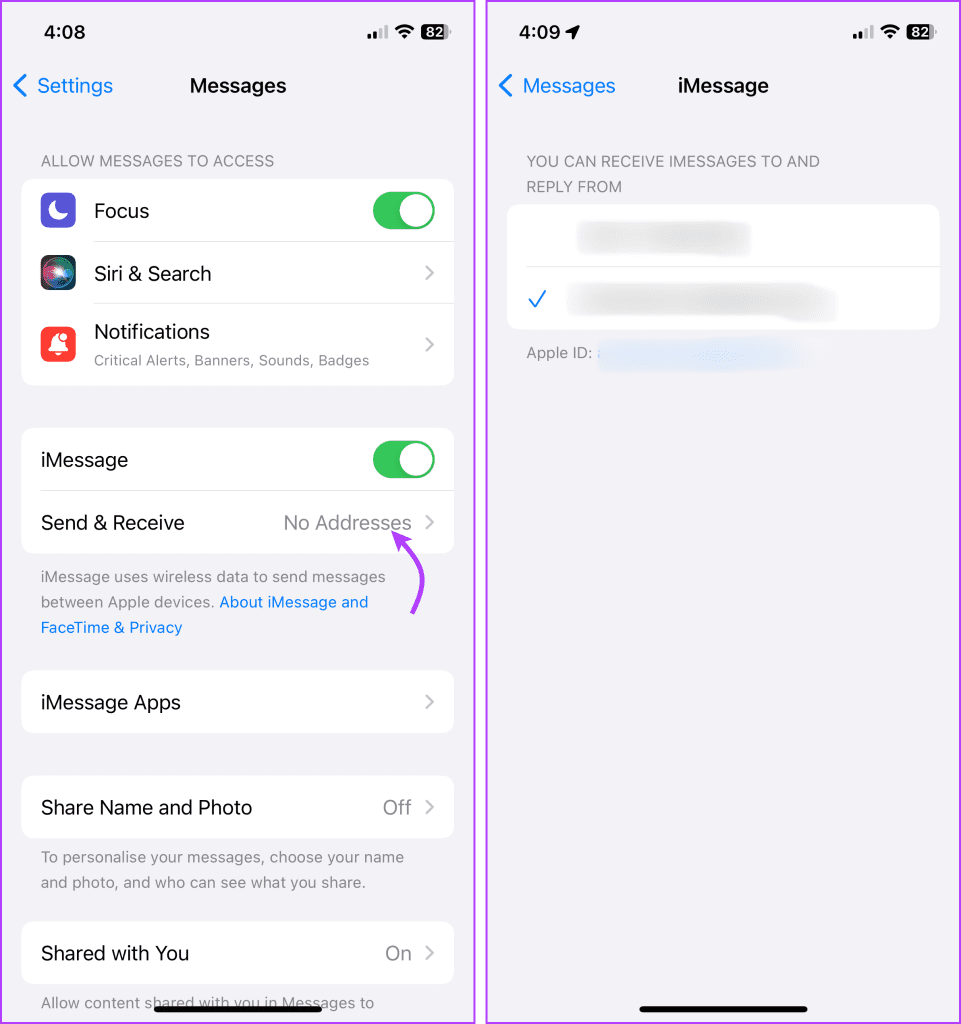
If your iPhone still says iMessage is signed out, ensure that you use the correct Apple ID/Number. You can tap Settings from the pop-up message or go to Settings → Messages.
Here, tap Send & Receive > ensure the correct Apple ID email address or Number is selected. If not, select or add the correct Apple ID or number.
Fix 3. Change the iMessage Region
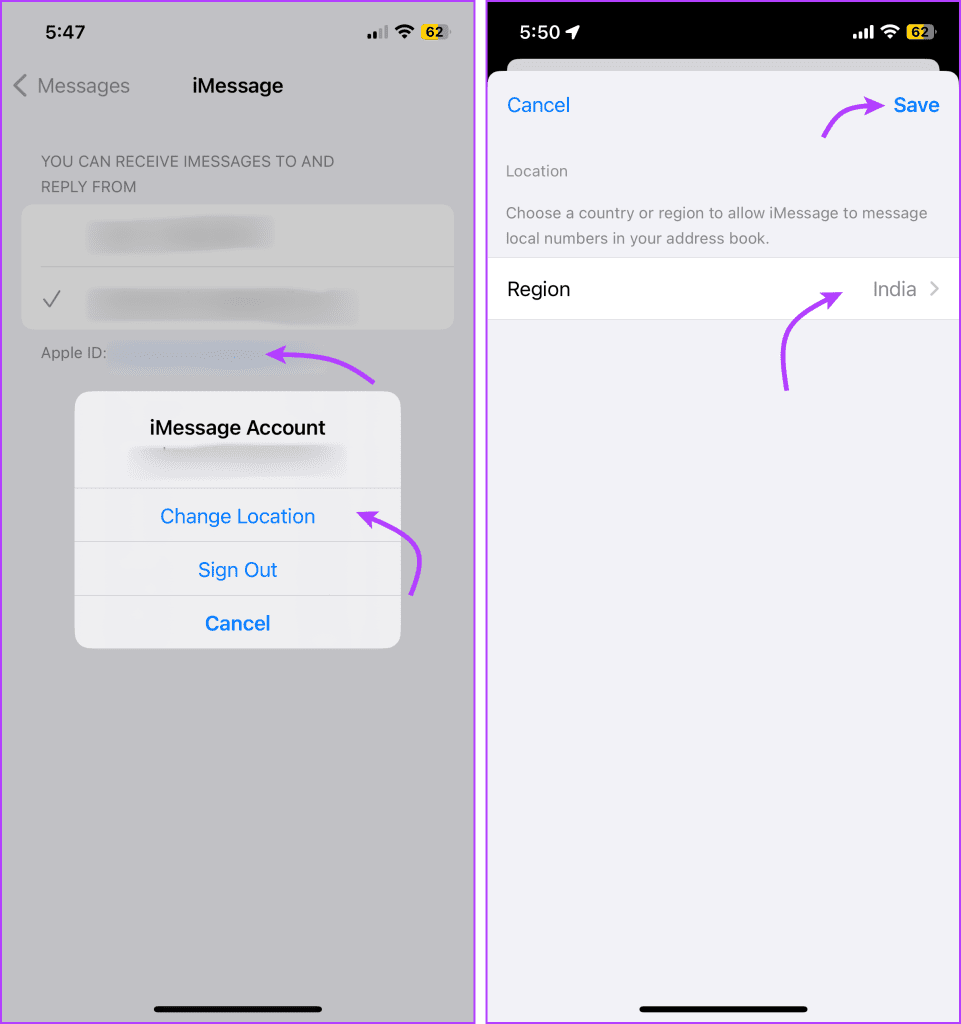
Sometimes, changing the region for your iMessage also helps fix related issues. To change the iMessage location, go to Settings → Messages → Send & Receive. Here, tap on the email ID next to the Apple ID → Change Location → select your current region > tap Save.
Fix 4. Change Date and Time of Your iPhone or iPad
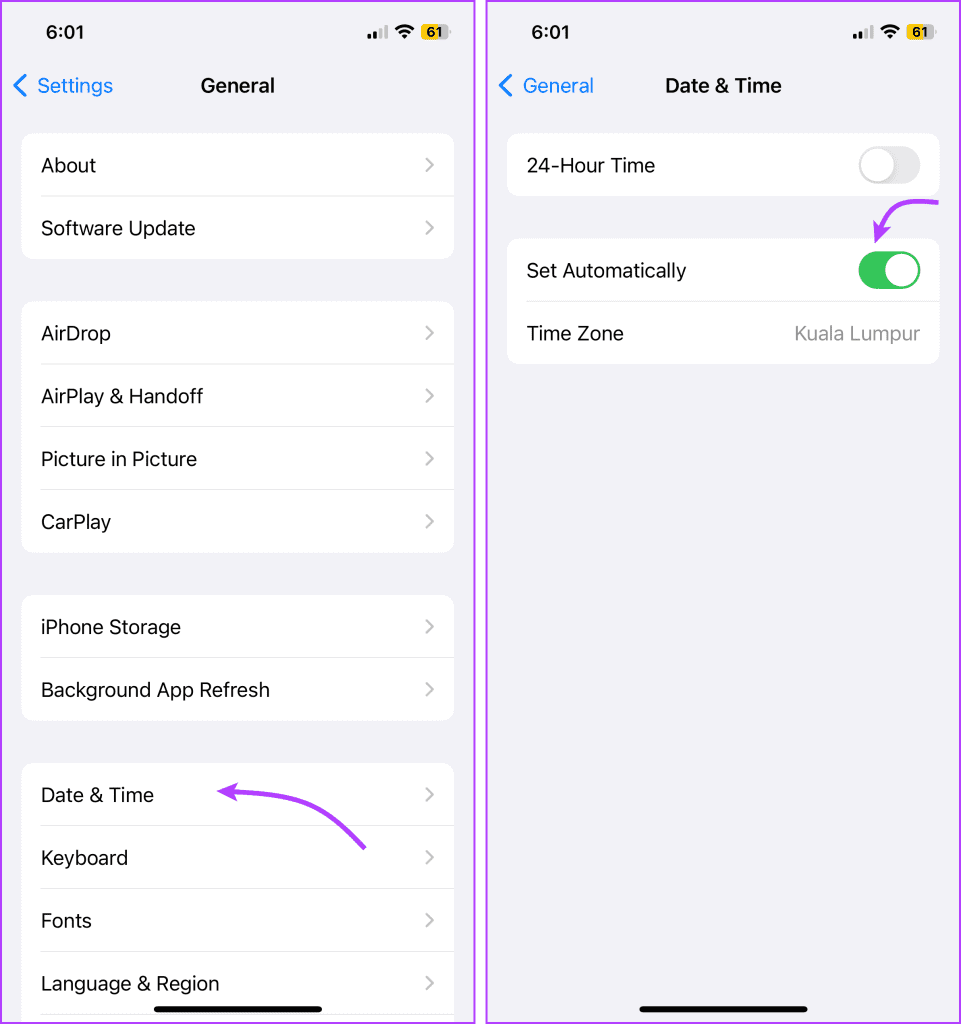
Many iMessage users have also found that changing the time zone and matching it with their correct location works. To do so, go to Settings → General → Date & Time. Next, set the Time Zone manually or enable the toggle next to Set Automatically for better results.
Fix 5. Sign Out and Sign In to Apple ID
You should also check the Messages app settings and the Apple ID settings on your phone. To check if your Apple ID settings are updated, go to Settings. If you spot an update alert, tap it and enter your Apple ID password again.
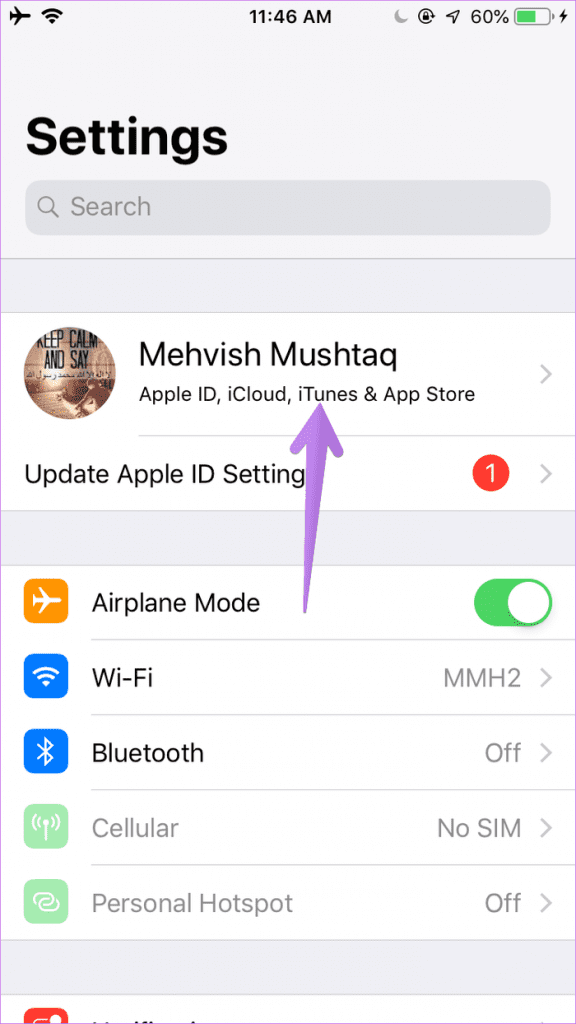
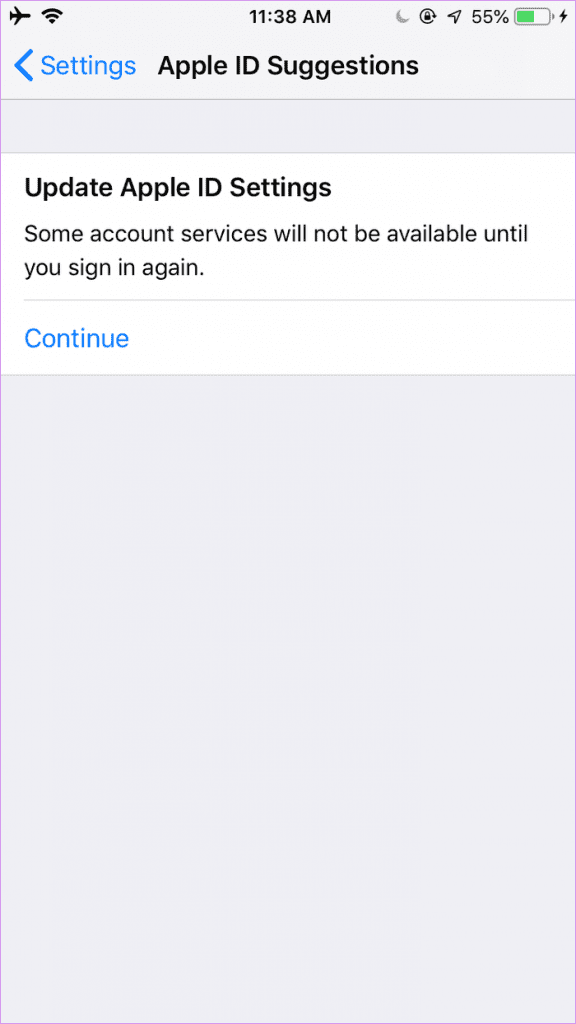
However, if there is no update notification, try to sign out and sign in to your Apple ID to stop iMessage from signing you out. To do so, tap the profile picture → scroll down → tap Sign Out → enter your Apple ID password > Turn Off.

Then, log in with your Apple ID again. Now, check if you can sign back into iMessage; if not, proceed to the next step.
Fix 6. Reset Network Settings
While this will help you fix iMessage is signed out error, it should be your last resort. Only because when you reset network settings on your iPhone, it also clears out all network-related settings, such as Wi-Fi passwords, VPN settings, etc. Here are the steps:
Step 1: Open Settings → go to General → scroll down and tap Transfer or Reset iPhone → tap Reset.
Step 2: Next, tap Reset All Settings and enter your password to confirm.

FAQs
Yes, you can connect iMessage with your phone number. However, certain carrier charges may apply depending on your carrier and plans.
If you sign out of iMessage on your device and then sign back in using the same Apple ID, your messages should remain intact. However, if you sign out of iCloud entirely, there might be some synchronization delays as your device re-establishes the connection.
Your phone number might get signed out of iMessage for various reasons. While you could resolve most issues with the troubleshooting methods mentioned in the article, there might be some carrier restrictions or server problems. So, talk to your carrier provider to resolve that issue.
Was this helpful?
Last updated on 16 July, 2024
Read Next
 4 Ways to Fix iMessage “Not Delivered” Error on iPhone
Why Is Your iMessage Not Being Delivered on iPhone?
4 Ways to Fix iMessage “Not Delivered” Error on iPhone
Why Is Your iMessage Not Being Delivered on iPhone?
 8 Best Ways to Fix iMessage Needs to Enabled to Send This Message Error
Apple's iMessage is the exclusive messaging service separating iOS from Android.
8 Best Ways to Fix iMessage Needs to Enabled to Send This Message Error
Apple's iMessage is the exclusive messaging service separating iOS from Android.
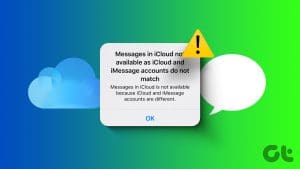 How to Fix iCloud and iMessage Accounts Do Not Match Error on iPhone
How to Make iCloud and iMessage Account the Same Since the problem is caused by different accounts logging into iCloud and iMessage, fixing that discrepancy should solve the issue.
How to Fix iCloud and iMessage Accounts Do Not Match Error on iPhone
How to Make iCloud and iMessage Account the Same Since the problem is caused by different accounts logging into iCloud and iMessage, fixing that discrepancy should solve the issue.
 5 Best Ways to Fix iMessage Not Working On iPhone and iPad
Try Basic Fixes Check if iMessage is down: Sometimes, it's possible that the iMessage servers are down, which is why your iPhone's iMessage is not working.
5 Best Ways to Fix iMessage Not Working On iPhone and iPad
Try Basic Fixes Check if iMessage is down: Sometimes, it's possible that the iMessage servers are down, which is why your iPhone's iMessage is not working.
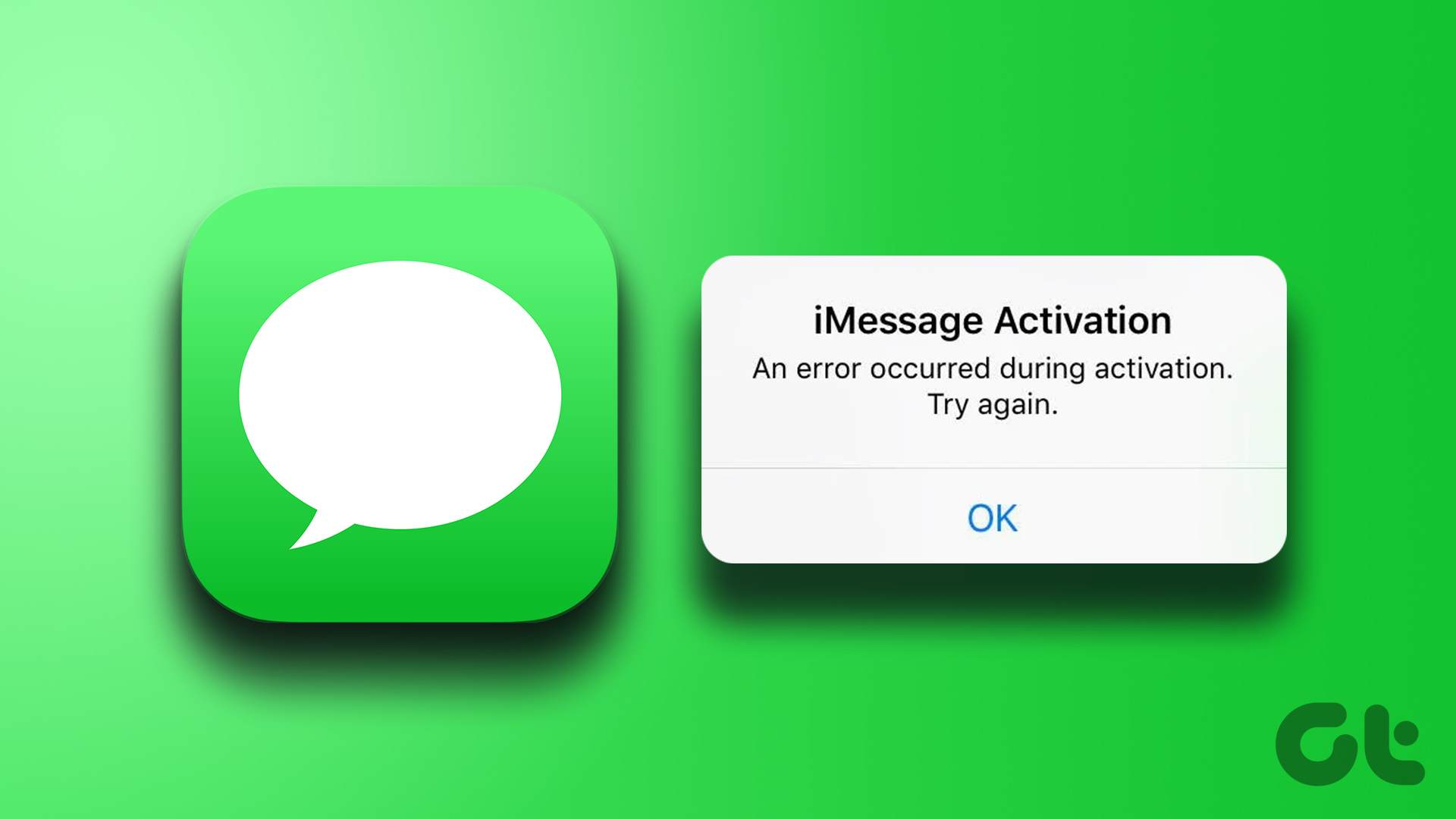 4 Ways to Fix iMessage Not Activating on iPhone
Try Basic Fixes Check Apple's iMessage server status: The iMessage servers may be down, which is why your iPhone’s iMessage is not working.
4 Ways to Fix iMessage Not Activating on iPhone
Try Basic Fixes Check Apple's iMessage server status: The iMessage servers may be down, which is why your iPhone’s iMessage is not working.
 4 Ways to Fix iMessage Apps and Games Not Working on iPhone
Fix 1: Enable the iMessage App and MMS Messaging Step 1: Open the Settings app on your iPhone and select Messages.
4 Ways to Fix iMessage Apps and Games Not Working on iPhone
Fix 1: Enable the iMessage App and MMS Messaging Step 1: Open the Settings app on your iPhone and select Messages.
 2 Ways to Change SMS and iMessage Color and Font on iPhone or iPad
What Does the Standard Message Color Represent The message bubbles are available in three different colors.
2 Ways to Change SMS and iMessage Color and Font on iPhone or iPad
What Does the Standard Message Color Represent The message bubbles are available in three different colors.
 5 Ways to Fix Blurry iMessage Photos and Videos
Before you begin, ensure there's no problem with network connectivity on your iPhone, and restart your iPhone to fix temporary bugs.
5 Ways to Fix Blurry iMessage Photos and Videos
Before you begin, ensure there's no problem with network connectivity on your iPhone, and restart your iPhone to fix temporary bugs.
The article above may contain affiliate links which help support Guiding Tech. The content remains unbiased and authentic and will never affect our editorial integrity.