Basic Fixes
- Check the printer cable: Ensure the connected cable isn’t loose. If it has major cuts on either end, grab a replacement cable.
- Connect your wireless printer and PC to the same network: If you have an HP printer with in-built Wi-Fi, connect it to the same network as your PC. If it fails to connect, restore the printer’s Wi-Fi setup mode.
- Use the HP Smart app: Install the HP Smart app from the Microsoft Store and follow its on-screen instructions to pair the HP printer to your Windows 11 PC.
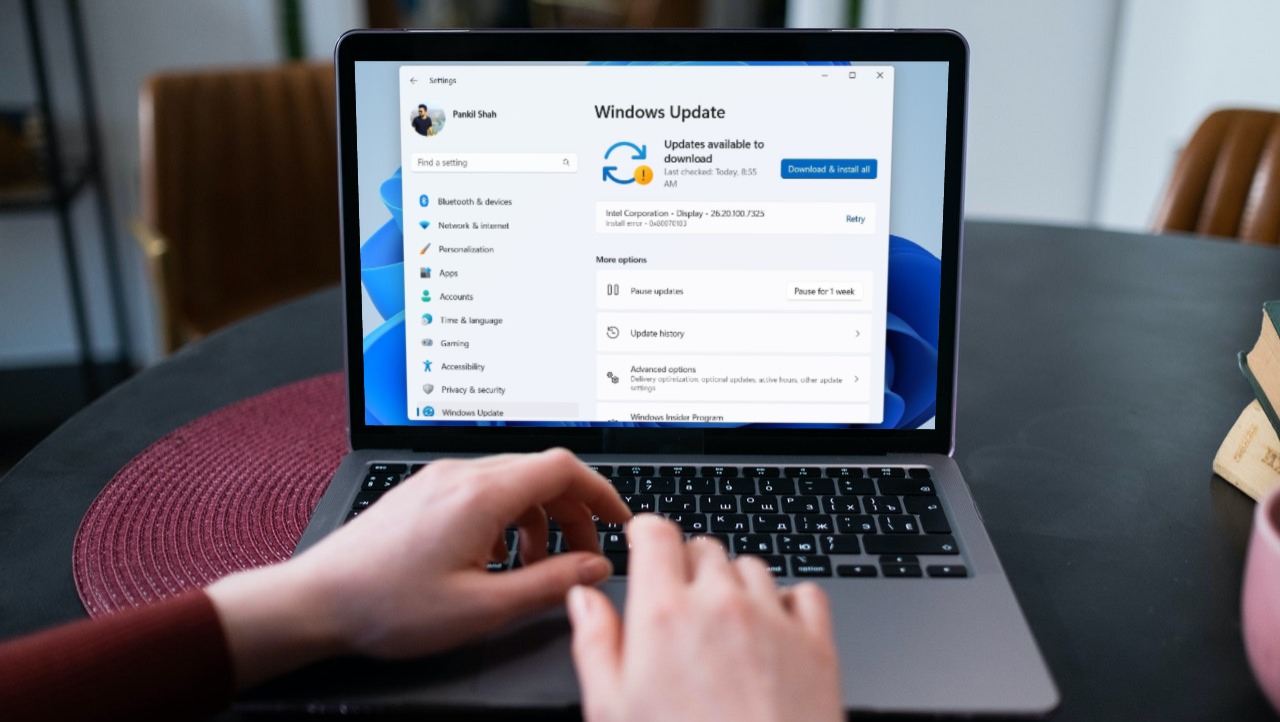
- Download Optional Windows Update: Press the Windows + I shortcut to open the Settings app, select Windows Update from the sidebar, and click Advanced options. Select Optional updates and click Download & install.
- Update Windows 11: Open the Settings app, select Windows Update from the left sidebar, and install available system updates.
Fix 1: Use Windows Settings to Troubleshoot the HP Printer
Windows 11 comes with an in-built troubleshooter to fix HP printer issues. Here’s how to access and use it:
Step 1: Press the Windows + I shortcut to open the Settings app, select Bluetooth & devices from the left sidebar, and click Printers & scanners.
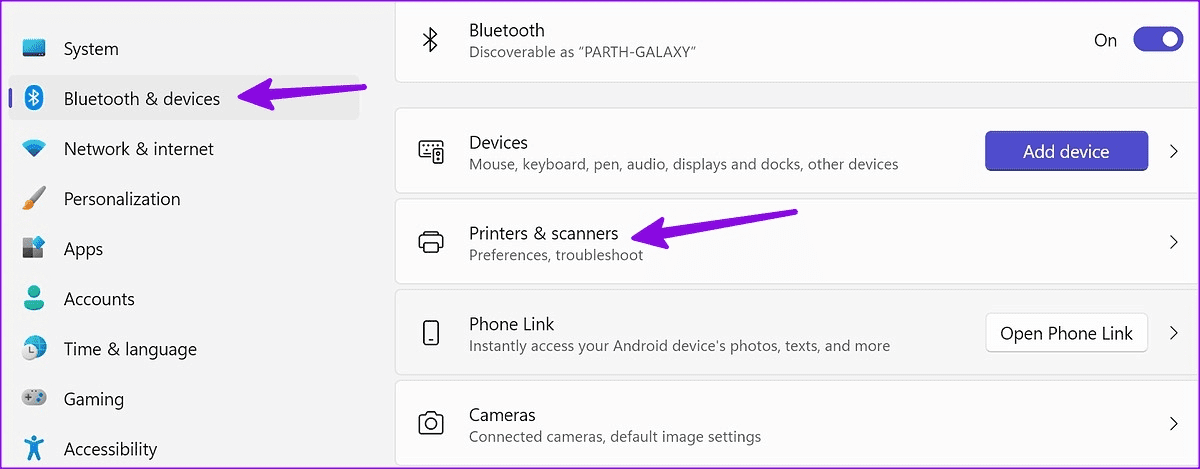
Step 2: Scroll down and select your HP printer.

Step 3: Click Run the troubleshooter and follow the on-screen instructions to fix it.
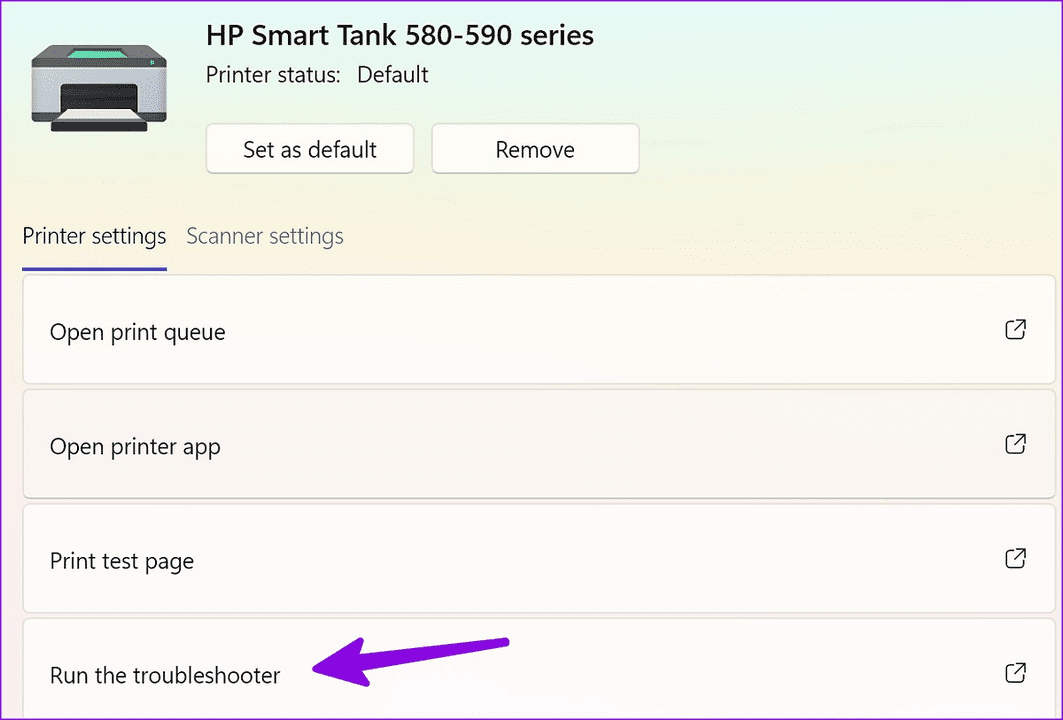
Fix 2: Fix the HP Printer Using the HP Smart App
If the Windows troubleshooter doesn’t help, use the HP Smart App to diagnose and troubleshoot the HP printer that is not working on Windows 11.
Step 1: Install the HP Smart App from the Microsoft Store and follow its on-screen instructions to set up your printer.
Step 2: Select the hamburger menu from the top left and click Diagnose & Fix.

Step 3: Click Start and wait a few seconds to let the app troubleshoot your HP printer issue.

Fix 3: Update or Reinstall HP Printer Drivers
An obsolete printer driver is a common underlying cause of HP printers not working on Windows 11. Use the Device Manager app to update or reinstall it.
Step 1: Press the Windows key, search Device Manager, and click to open it.
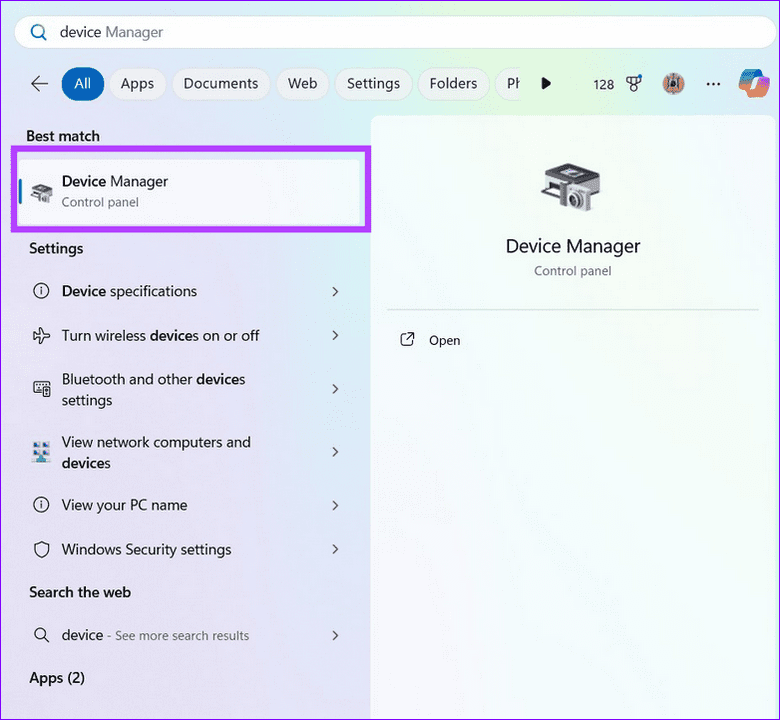
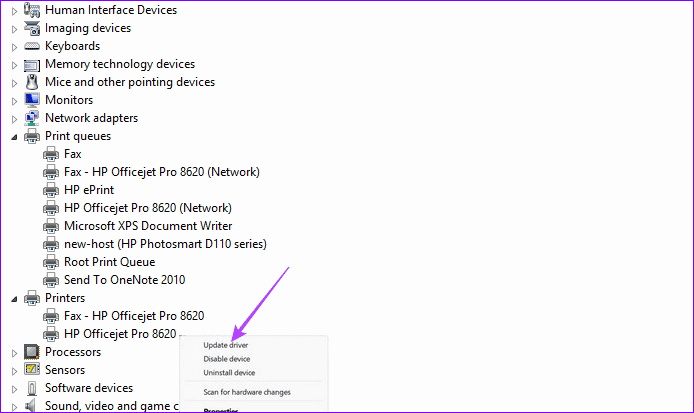
Step 2: Expand Printers, select your HP printer, and right-click to Update driver. If it doesn’t resolve the issue, select Uninstall device, and restart PC to automatically install compatible drivers.
Fix 4: Restart the HP Printer Services
The Print Spooler and Printer Extensions and Notifications services control the functioning of the connected printer on Windows 11. If they stop abruptly, your HP printer might not work. Use the Services app to restart them manually.
Step 1: Press the Windows key, search Services, and click Run as administrator.

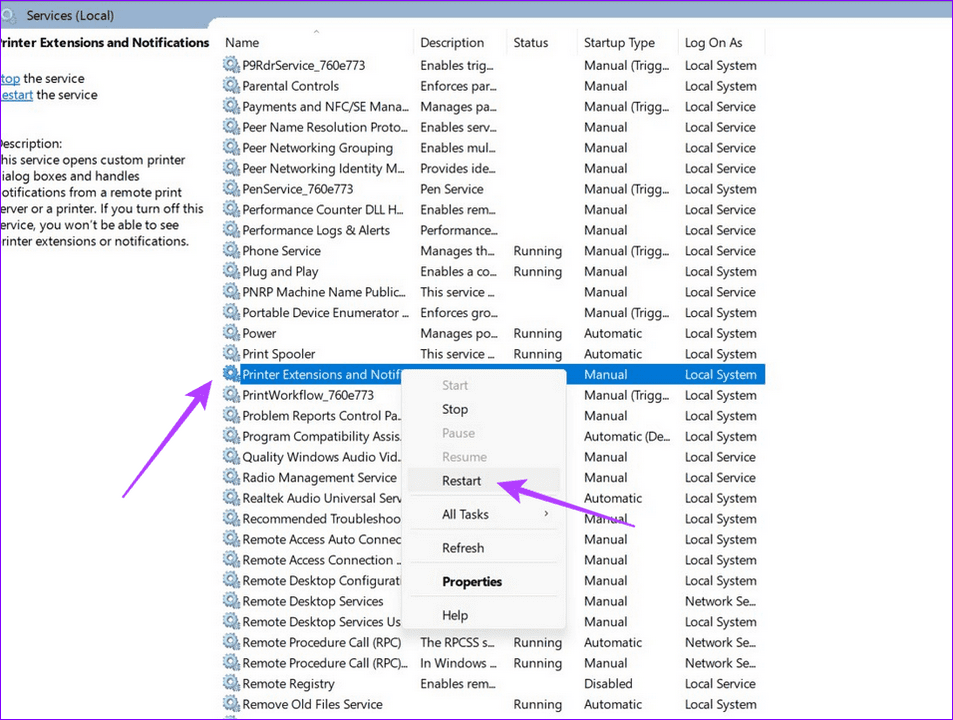
Step 2: Locate Print Spooler, right-click the service, and select Restart.

Step 3: Finally, right-click the Printer Extensions and Notifications service to restart it.
Was this helpful?
Last updated on 12 July, 2024
Read Next
 6 Ways to Fix Unable to Remove Printer on Windows 11
Fix 1: Run the Printer Troubleshooter Start by running Windows' built-in printer troubleshooter to see if it can detect and resolve any pending printing errors.
6 Ways to Fix Unable to Remove Printer on Windows 11
Fix 1: Run the Printer Troubleshooter Start by running Windows' built-in printer troubleshooter to see if it can detect and resolve any pending printing errors.
 5 Ways to Fix Printer Driver Is Unavailable Error on Windows 11
Fix 1: Run the Printer Troubleshooter Windows 11 includes several troubleshooters that can help you fix common system-level issues.
5 Ways to Fix Printer Driver Is Unavailable Error on Windows 11
Fix 1: Run the Printer Troubleshooter Windows 11 includes several troubleshooters that can help you fix common system-level issues.
 How to Fix Printer Not Activated (Error Code 30) on Windows 11
Basic Fixes Reconnect printer: If you're using a wired printer, its loose USB connection to your PC may result in 'Printer not activated (Error Code 30)'.
How to Fix Printer Not Activated (Error Code 30) on Windows 11
Basic Fixes Reconnect printer: If you're using a wired printer, its loose USB connection to your PC may result in 'Printer not activated (Error Code 30)'.
 4 Ways to Fix Printer Says Documents Are Waiting Error
Preliminary Fixes Check Printer Connection: You should first try power cycling both your computer and printer.
4 Ways to Fix Printer Says Documents Are Waiting Error
Preliminary Fixes Check Printer Connection: You should first try power cycling both your computer and printer.
 How to Fix Windows Printer Error 0x0000011b
1.
How to Fix Windows Printer Error 0x0000011b
1.
 7 Fixes When Printer on Windows 11 Keeps Printing Landscape Instead of Portrait
1.
7 Fixes When Printer on Windows 11 Keeps Printing Landscape Instead of Portrait
1.
 3 Ways to Fix Printer Not Showing Up on Mac
Fix 1: Add Your Printer via IP Address and Set It to Default Step 1: Click the Apple logo at the top-left corner of the menu bar and select System
3 Ways to Fix Printer Not Showing Up on Mac
Fix 1: Add Your Printer via IP Address and Set It to Default Step 1: Click the Apple logo at the top-left corner of the menu bar and select System
 5 Ways to Fix Printer Isn’t Available Error on Android
Basic Fixes Restart everything: The first thing you must do is quickly restart all the connected devices.
5 Ways to Fix Printer Isn’t Available Error on Android
Basic Fixes Restart everything: The first thing you must do is quickly restart all the connected devices.
The article above may contain affiliate links which help support Guiding Tech. The content remains unbiased and authentic and will never affect our editorial integrity.