Basic Fixes
- Check your Google account: Open Settings > Accounts and sign in > Check the Google account you are using.
- Log in again to your Google account: Open Settings > Accounts and sign in > Select your Google account > Remove account > Add your account again.
- Update Google TV OS version: Open Settings > System > About > System Update.
Fix 1: Select Google Photos For Ambient Mode
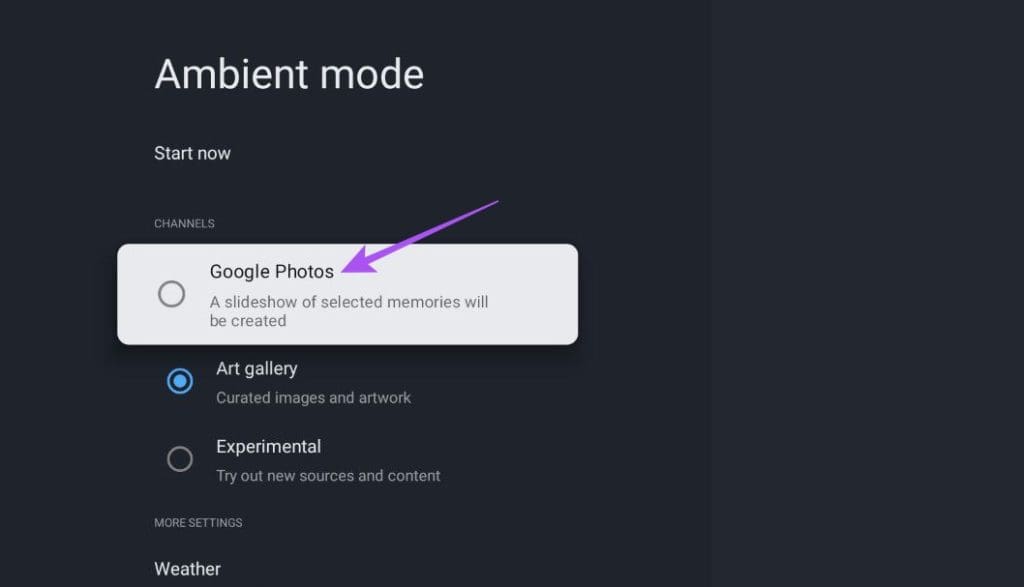
As prefaced previously, Ambient mode can display pre-installed wallpapers, images from other sources, and your Google Photos, too. What’s more, the TV gives you the option to sift between these different categories seamlessly. So, if you wish to display your Google Photos in Ambient Mode, you must have it enabled on your Google TV. Here’s how to check the same.
Open Settings > System > Ambient Mode > Enable Google Photos.
Fix 2: Disable Personal Photo Curation
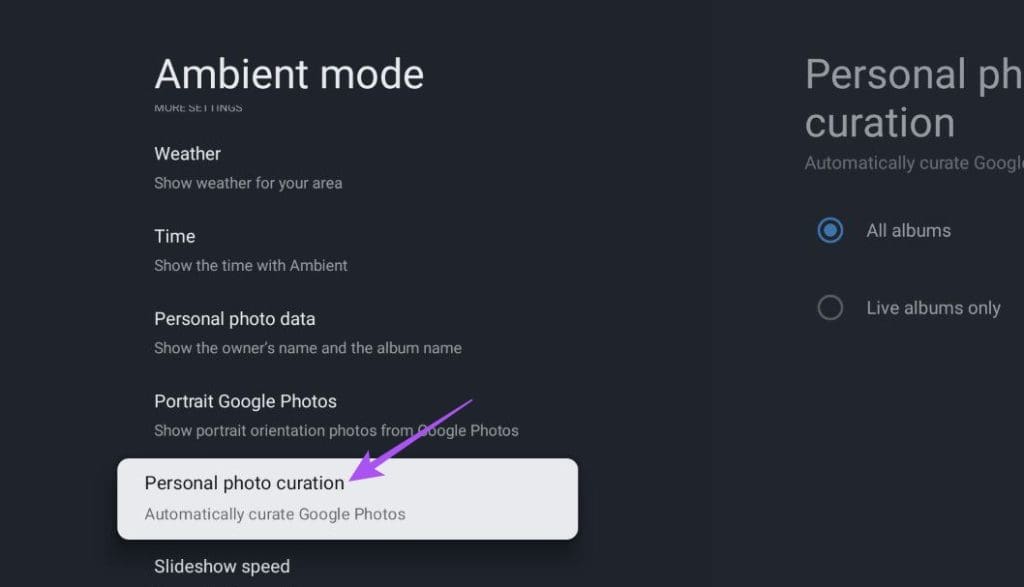
As suggested on the official Google Community forum, disabling the Personal Photo Curation feature is a good fix for this issue. Using this feature enables Google Photos to select the best photos from your Recent Highlights and Live Albums. However, this feature might not show you the photos you want displayed in Ambient Mode. So it is better to turn it off.
Step 1: Open Settings > System > Ambient Mode > Personal photo curation.
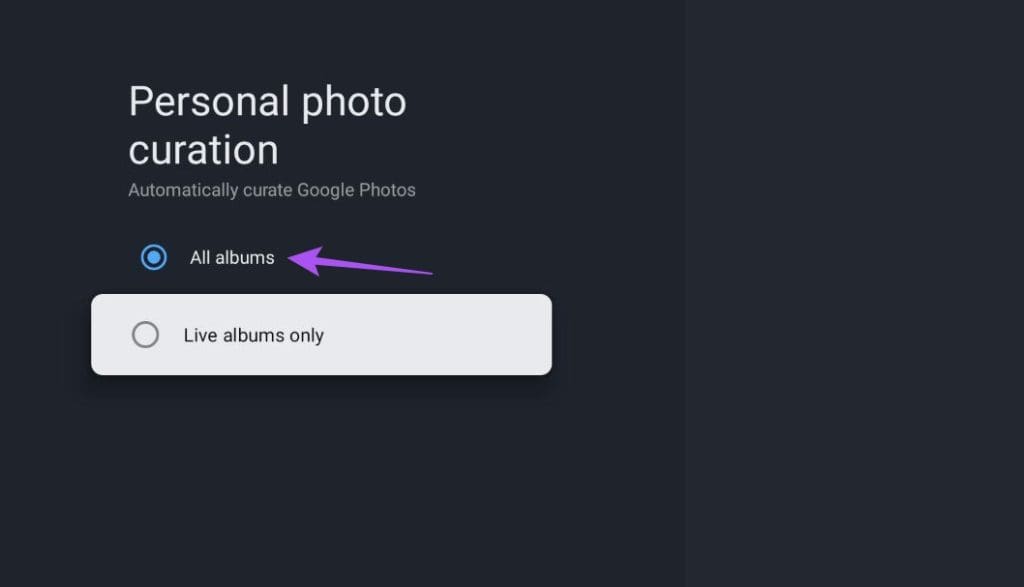
Step 2: Enable All Albums.
Tip: Learn how to sideload apps on your Google TV.
Fix 3: Check Photo Frame Settings For Google TV
If you are still facing the same issue, you can check the Photo Frame settings for your Google TV. The Google Photos app gives you the option to choose what gets displayed on connected devices. Here’s how.
Step 1: Open the Google Photos app on your iPhone or Android phone. Ensure that you use the same Google account as your Google TV.
Step 2: Tap the Profile icon > Google Photos settings.
Step 3: Tap on Apps and Devices > Photo Frames.


Step 4: Tap on your Google TV model name and then select the albums that should be displayed.


Step 5: Tap on Done at the top-right corner to confirm.
Fix 4: Disable Apps Only Mode
As suggested by a user on Reddit, you need to disable this feature and try. When this mode is turned on, your Google recommendations get hidden from the Google TV home screen.
Open Settings > Accounts and sign in > Account name > Disable Apps Only Mode.

Tip: You can also see your pictures on your Google TV by using the built-in Chromecast feature. If you’re unable to cast to Google TV, refer to our post for solutions.
Was this helpful?
Last updated on 26 August, 2024
Read Next
 6 Best Wireless Earbuds With Ambient Sound Feature
Wireless earphones are small, compact, and don't have the most tangled dread - wires.
6 Best Wireless Earbuds With Ambient Sound Feature
Wireless earphones are small, compact, and don't have the most tangled dread - wires.
 3 Fixes for iMessage Photos Not Showing in Photos App
Basic Fixes Force quit and relaunch Messages app: You can force quit and relaunch the Messages app to give it a fresh start on your iPhone.
3 Fixes for iMessage Photos Not Showing in Photos App
Basic Fixes Force quit and relaunch Messages app: You can force quit and relaunch the Messages app to give it a fresh start on your iPhone.
 5 Ways to Fix Google Photos App Not Showing All Photos
Basic Fixes Check your network connection - Ensure your phone is connected to a good internet connection.
5 Ways to Fix Google Photos App Not Showing All Photos
Basic Fixes Check your network connection - Ensure your phone is connected to a good internet connection.
 Google Drive vs Google Photos: Which Is Best for Storing Photos
Google Drive vs Google Photos Comparison Key Differences Feature Google Drive Google PhotosFile Types All types Photos, Videos, GIFsOrganization Folders & Subfolders AlbumsPhoto Quality Original Original, High (compressed), Express (compressed)Storage
Google Drive vs Google Photos: Which Is Best for Storing Photos
Google Drive vs Google Photos Comparison Key Differences Feature Google Drive Google PhotosFile Types All types Photos, Videos, GIFsOrganization Folders & Subfolders AlbumsPhoto Quality Original Original, High (compressed), Express (compressed)Storage
 How to Remove Photos from Google Drive but Not Google Photos
Google Drive and Photos are two similar yet distinct products for storing photos and videos.
How to Remove Photos from Google Drive but Not Google Photos
Google Drive and Photos are two similar yet distinct products for storing photos and videos.
 How to Move Photos from Email to Google Photos
Earlier, when you received photos on Gmail, it was easy to move them to Google Photos.
How to Move Photos from Email to Google Photos
Earlier, when you received photos on Gmail, it was easy to move them to Google Photos.
 What Happens When You Delete Photos from Google Photos
If you use the gallery app on your phone without the cloud storage service, things are pretty easy.
What Happens When You Delete Photos from Google Photos
If you use the gallery app on your phone without the cloud storage service, things are pretty easy.
 How to Download Photos From Google Photos on Desktop and Mobile
If you save photos in Cloud services like Google Photos, you may want to download your precious memories to your local storage.
How to Download Photos From Google Photos on Desktop and Mobile
If you save photos in Cloud services like Google Photos, you may want to download your precious memories to your local storage.
The article above may contain affiliate links which help support Guiding Tech. The content remains unbiased and authentic and will never affect our editorial integrity.