Basic Fixes
- Clear cache for Google Photos: Open Google Photos app info > tap on Storage and cache > Clear cache.
- Force quit and relaunch the Photos app: This will give the app a fresh start on your phone.
Fix 1: Uninstall Updates and Reinstall Google Photos
Check that the Google Photos app installed on your device is up-to-date. Some versions of the app had bugs that prevented images from being edited and saved, particularly on SD cards. Google’s new app updates should fix these bugs.
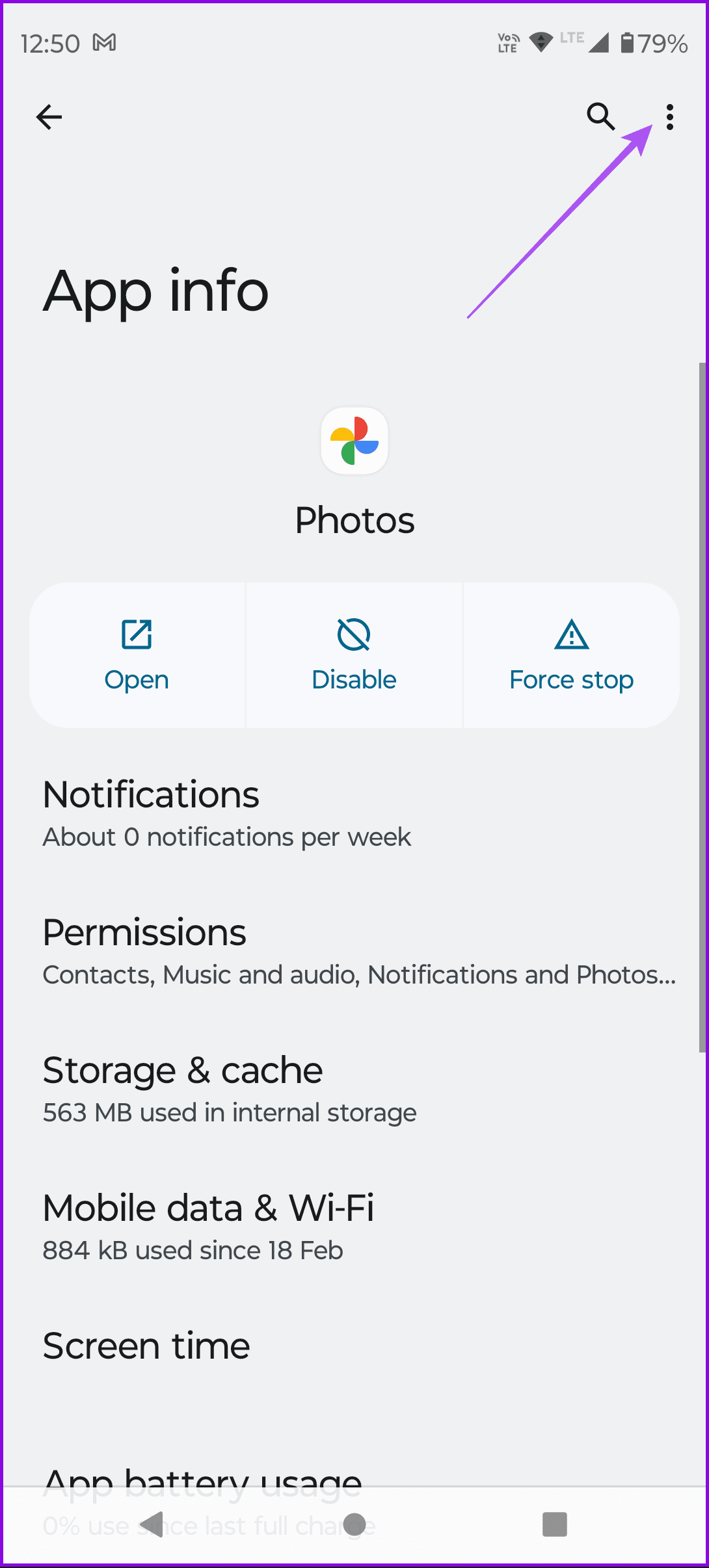
Step 1: Open Settings > Apps > Google Photos.
Step 2: Tap the three dots at the top right and select Uninstall updates.
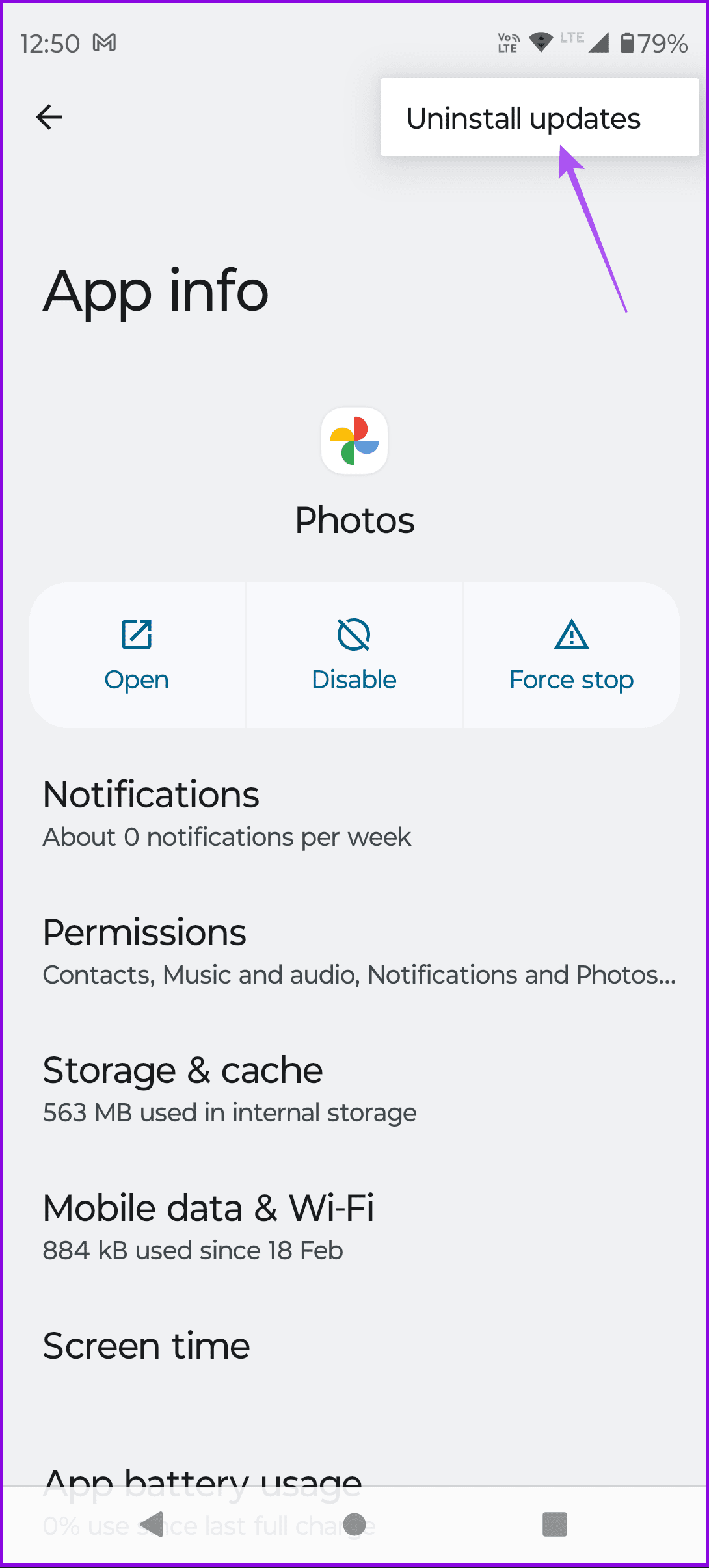
Step 3: Close Settings and open Play Store to reinstall the Google Photos app.
Fix 2: Modify Background Battery & Data Usage
For some reason, refusing Google Photos background access to your device’s internet and battery could cause some features of the app to malfunction. We found that some users could eliminate the “Unable to save changes” error by enabling Background data usage and disabling Background restriction for Google Photos.
Enable Background Data Usage
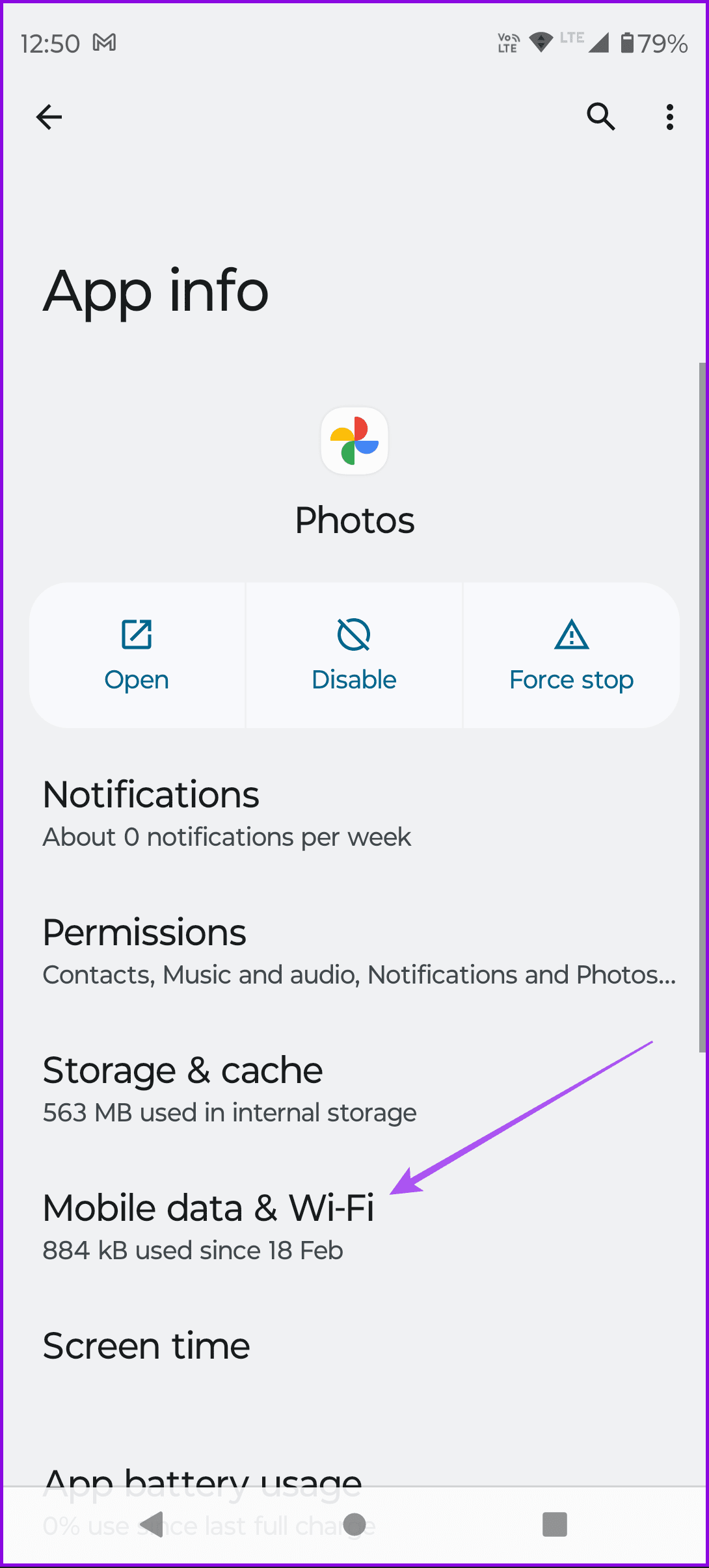
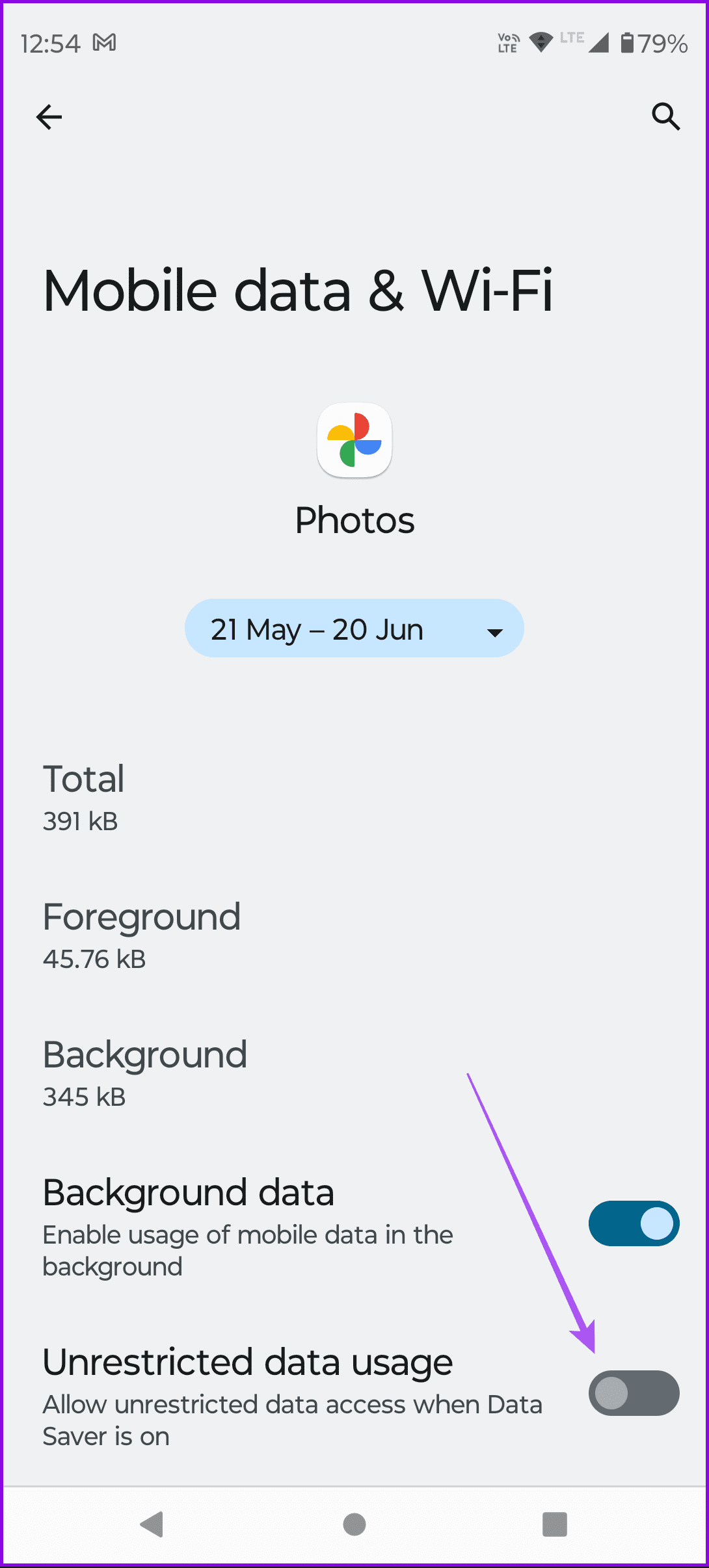
Step 1: Open Google Photos app info > Mobile data and Wi-Fi.
Step 2: Enable Unrestricted Data Usage.
Disable Background Restriction
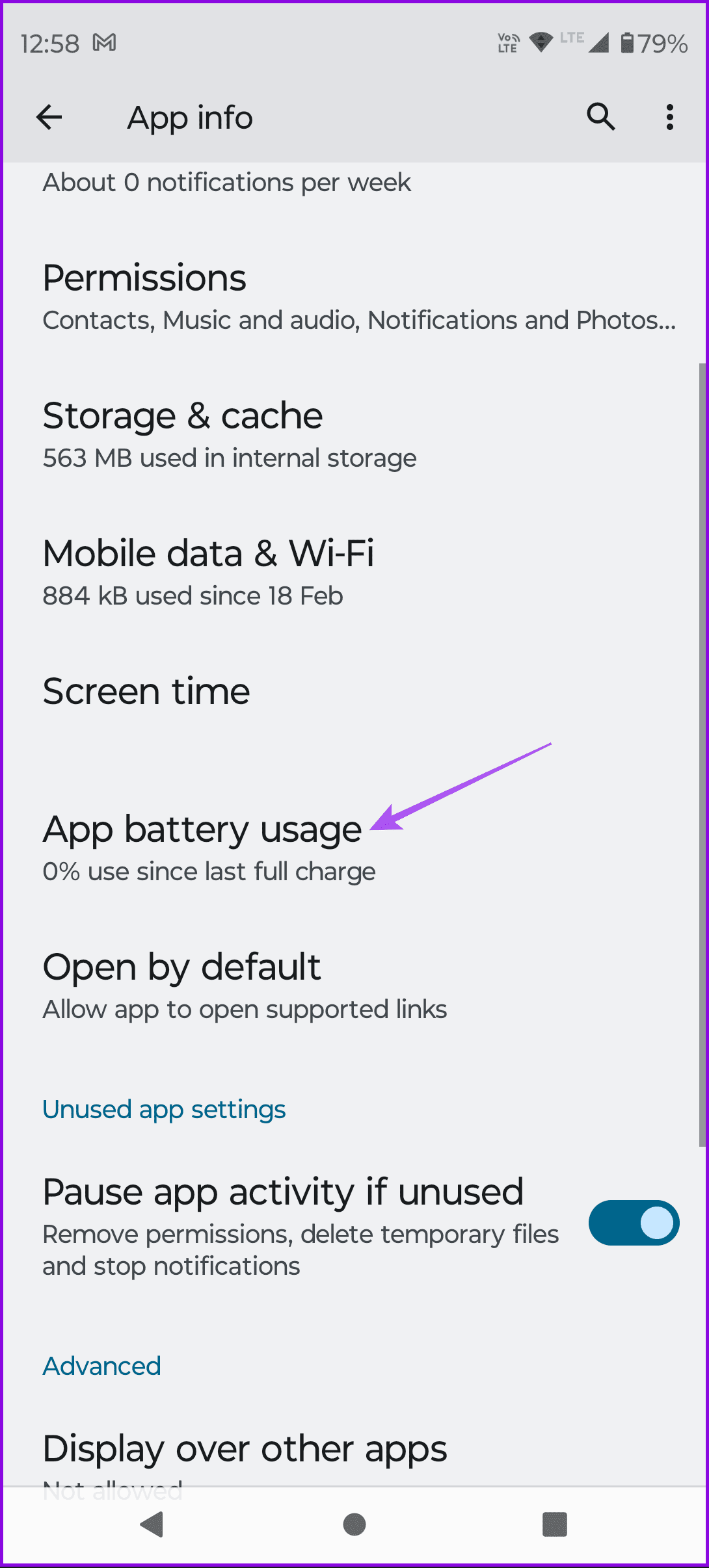
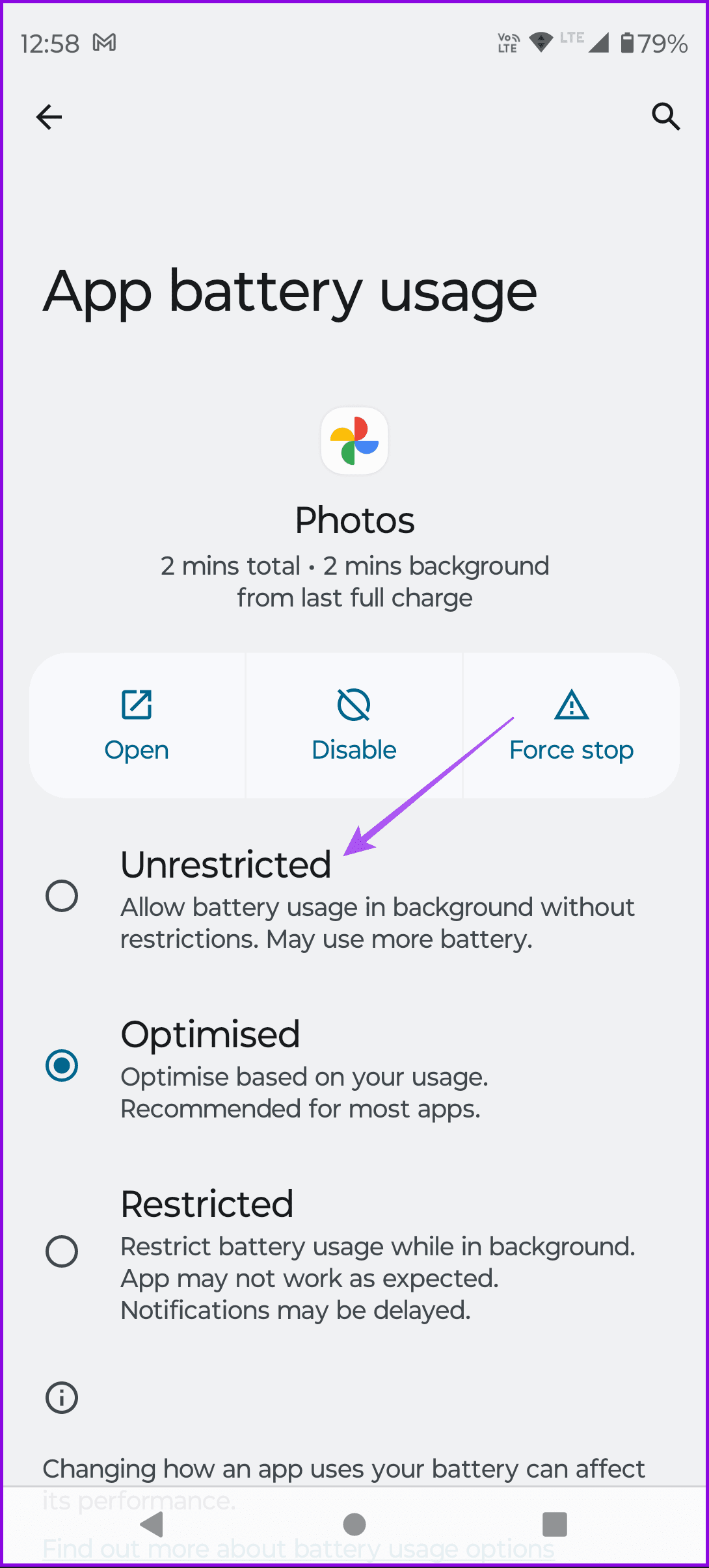
Open Google Photos app info > Battery > select Unrestricted.
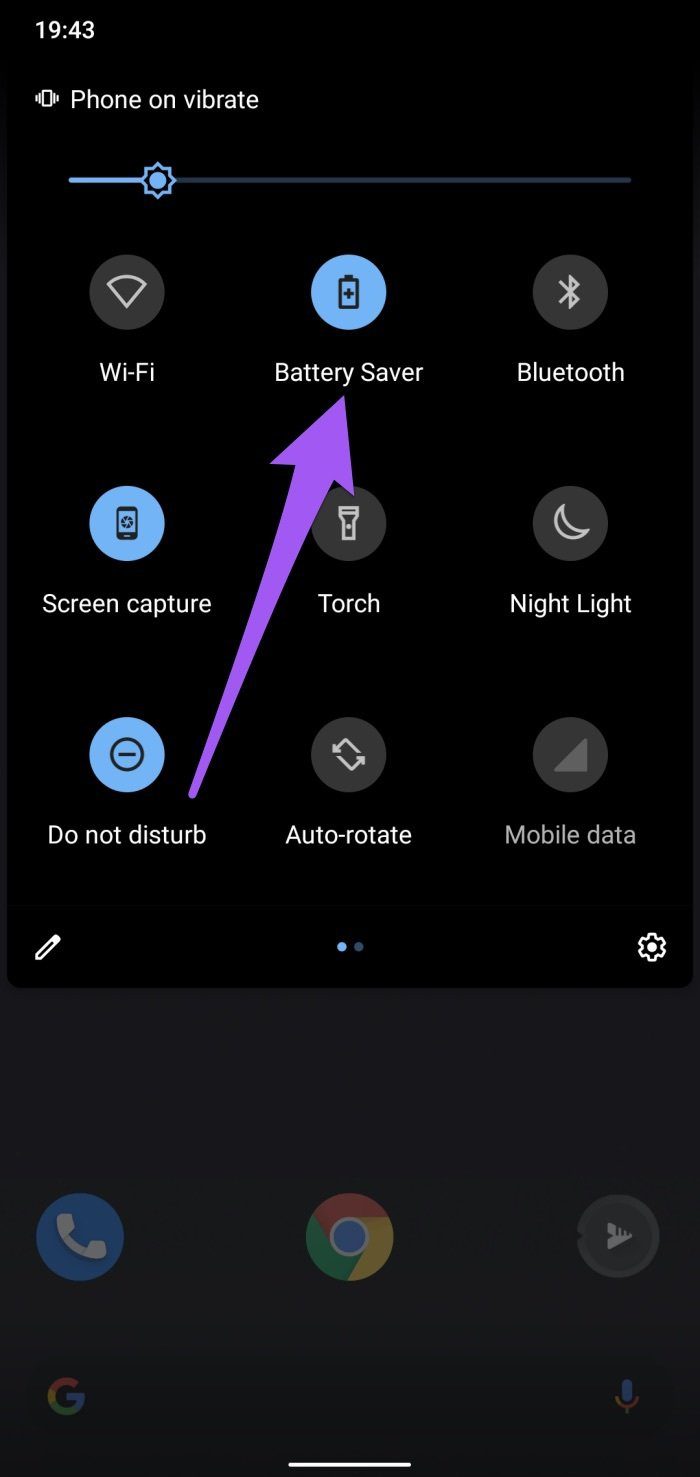
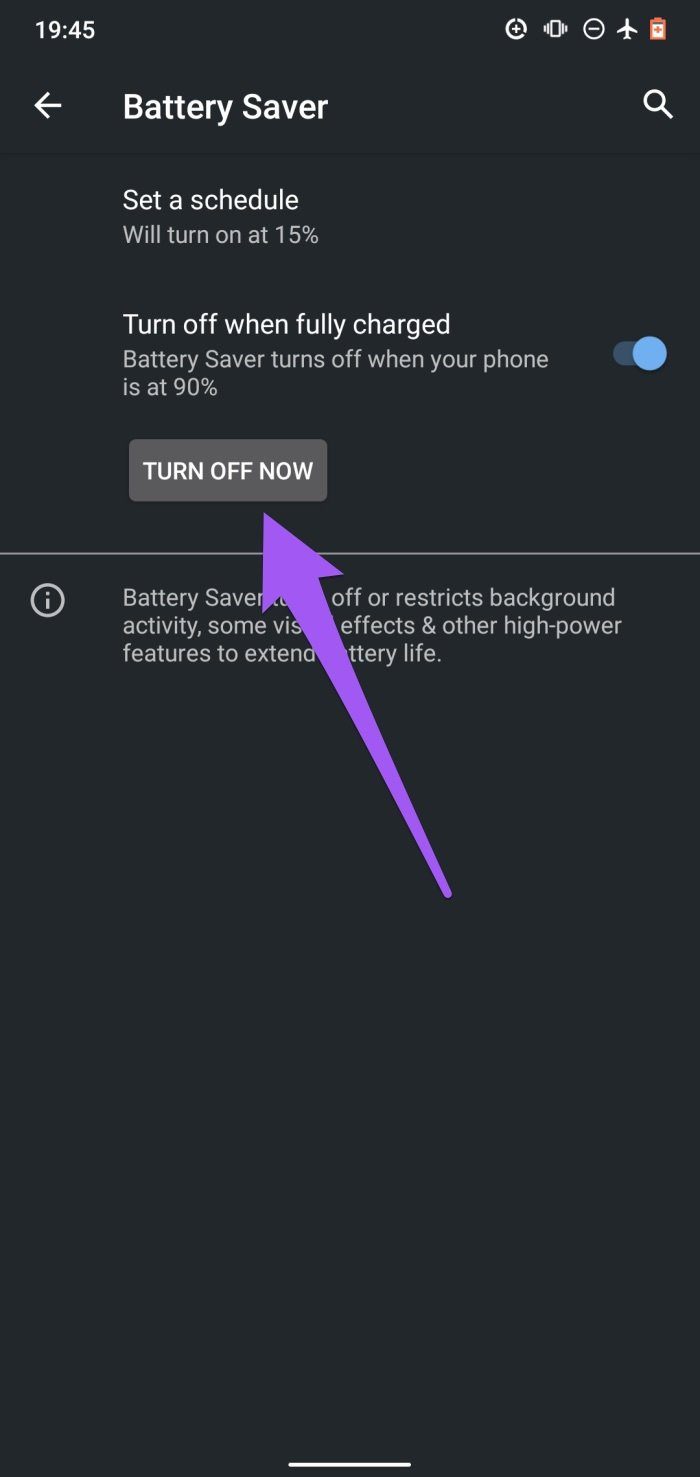
Temporarily disabling Battery Saver could also help fix this issue. You can turn off the Android Battery Saver from the notification panel or by navigating to Settings > Battery > Battery Saver > Turn Off Now.
Fix 3: Modify Storage Location
We also discovered that this error majorly affects images stored on external storage (SD card). Luckily, there are two workarounds. First, configure the app’s storage location to your device’s internal storage. See method #5 for the second workaround.
Follow the steps below to change the Google Photos storage location.
Step 1: Open Google Photos > profile icon > Photos Settings.
Step 2: Select SD Card Access and tap on Get Started.
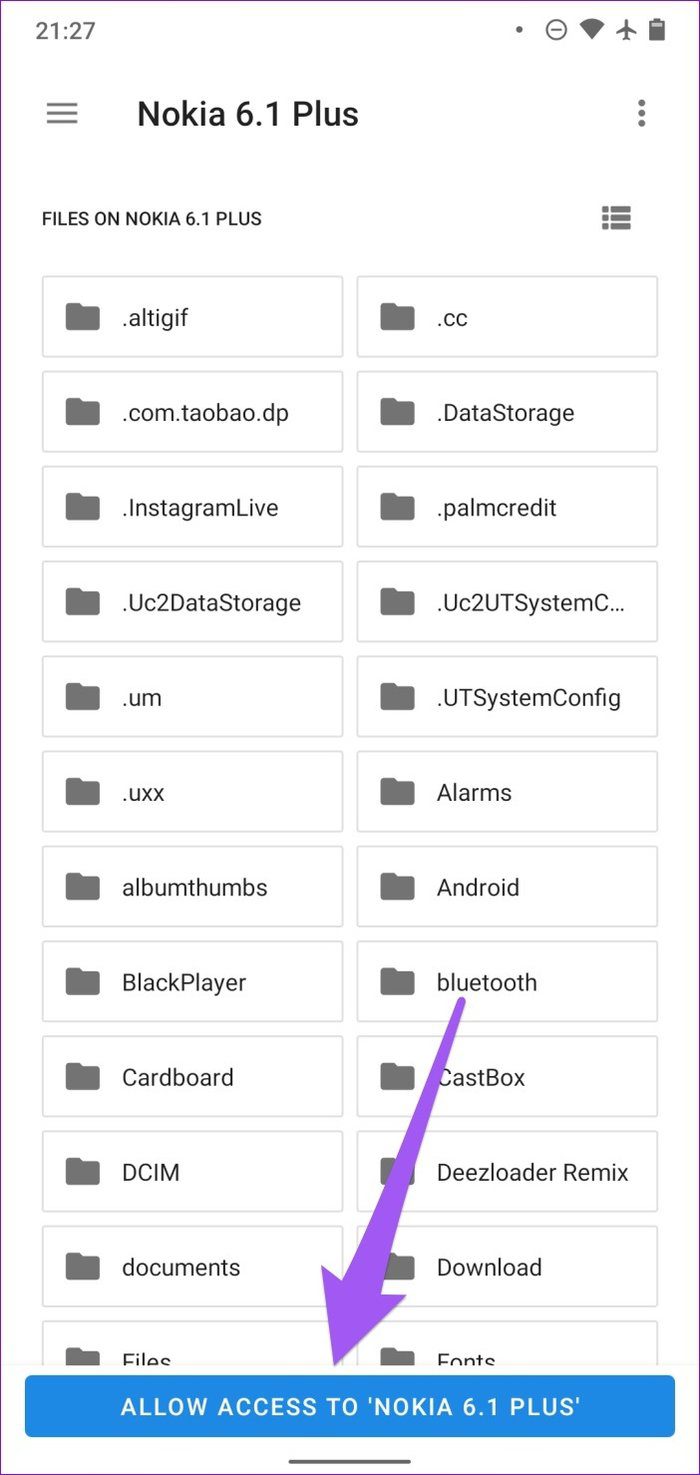
Step 3: Tap the hamburger menu icon and select your phone’s name/internal storage.
Step 4: Finally, tap the Allow Access to [Phone Name] button and tap Allow on the confirmation prompt.
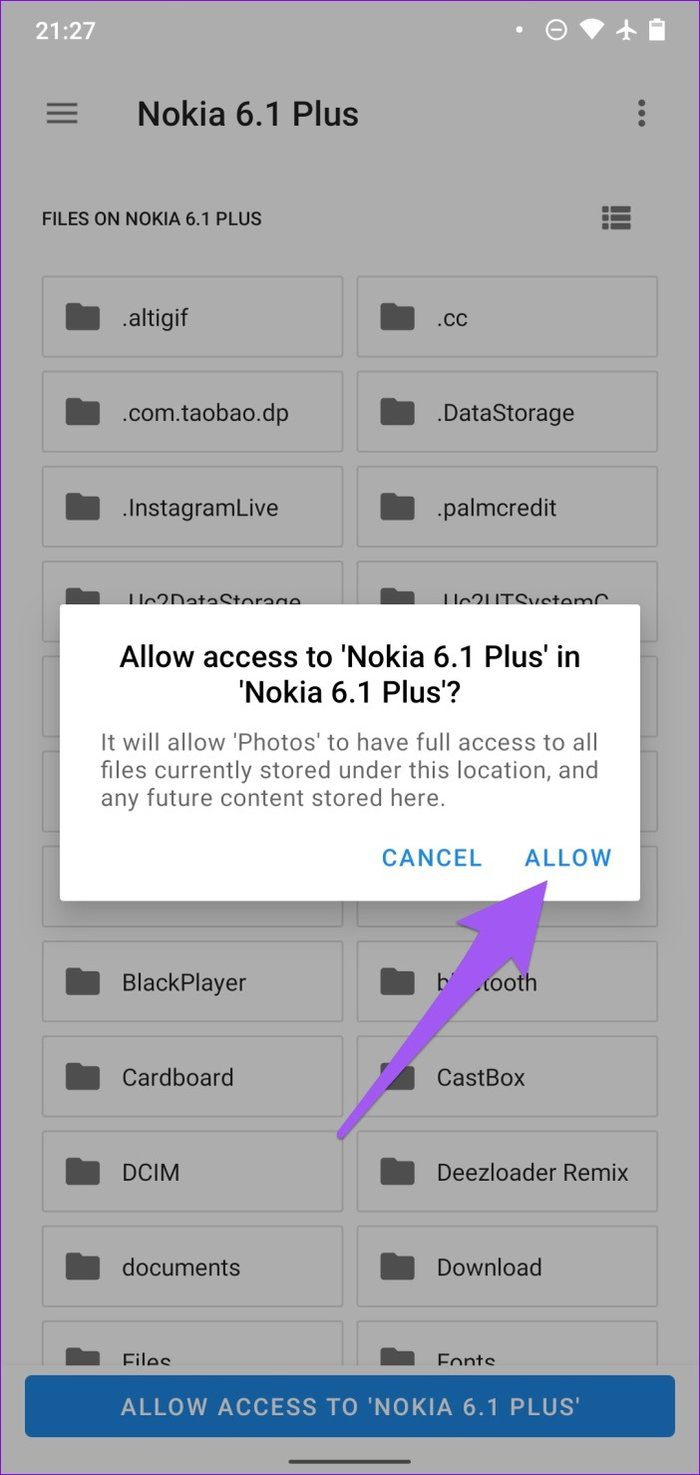
That will give the Photos app access to your device’s internal storage and subsequently store edited photos in the said location.
Fix 4: Move Images From SD Card to Internal Storage
This is another effective troubleshooting fix for Google Photos ‘Unable to save changes’ error. Since the app won’t edit images on the SD card, moving the image(s) you want to edit from the SD card to your device’s internal storage will do the trick. Here’s how to do it.
Step 1: Launch the Files app and select the image or image folder you want to move.
Step 2: Tap the three-dotted menu icon at the top right and tap Select all.
Step 3: Tap the three-dotted menu icon again and select Move to.
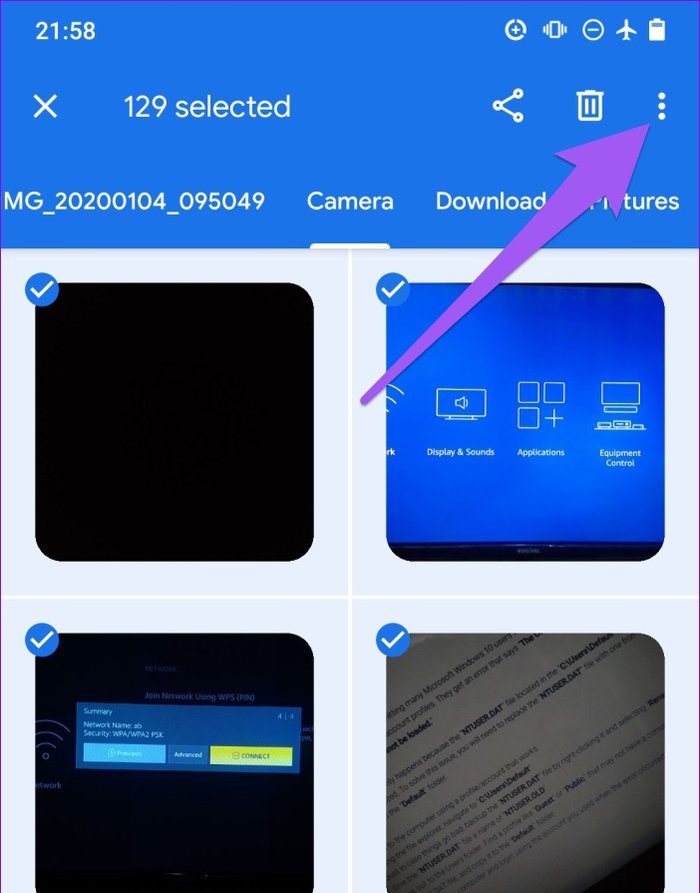
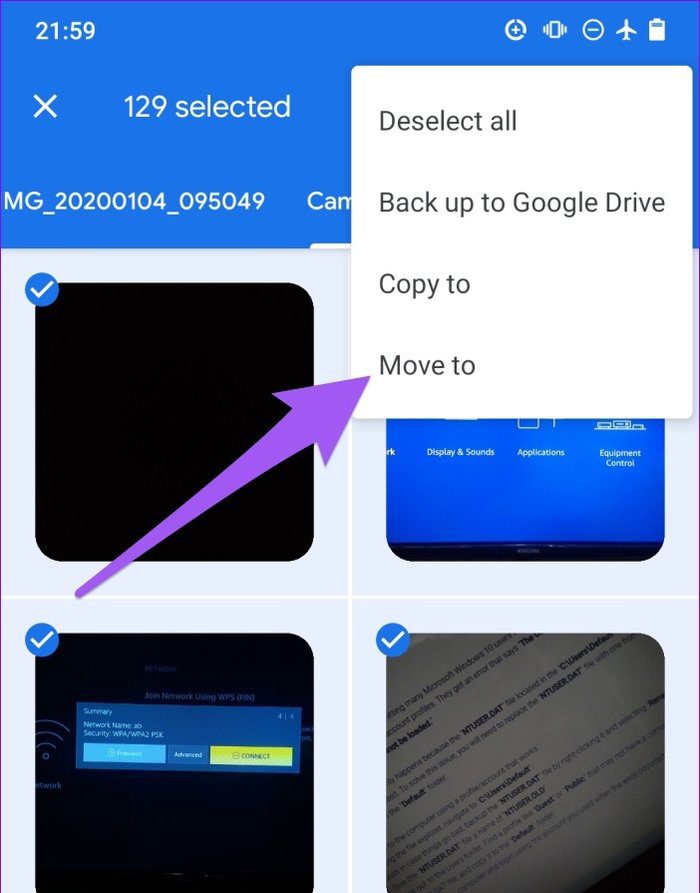
Step 4: Finally, select Internal Storage and wait for the images to be moved.
Tip: Refer to our post if the Google Photos Save to Device feature is not working.
Was this helpful?
Last updated on 07 August, 2024
Read Next
 5 Fixes for “Application Was Unable to Start Correctly (0xc0000142)” Error for Office Apps
Fix 1: Run the Office App as Administrator Lack of relevant permissions can prevent Office apps from accessing essential files, triggering the "The application was unable to start correctly (0xc0000142)"
5 Fixes for “Application Was Unable to Start Correctly (0xc0000142)” Error for Office Apps
Fix 1: Run the Office App as Administrator Lack of relevant permissions can prevent Office apps from accessing essential files, triggering the "The application was unable to start correctly (0xc0000142)"
 4 Fixes for Unable to Log in to Apple Music for Android
Try Basic Fixes Check your Apple ID and password: Accidentally entering an incorrect Apple ID or password in the Apple Music app might be causing the failure to sign in
4 Fixes for Unable to Log in to Apple Music for Android
Try Basic Fixes Check your Apple ID and password: Accidentally entering an incorrect Apple ID or password in the Apple Music app might be causing the failure to sign in
 3 Ways to Fix Google Photos Save to Device Not Working
Basic Fixes Check internet connectivity: If there's a problem with your internet connection, you can't save photos.
3 Ways to Fix Google Photos Save to Device Not Working
Basic Fixes Check internet connectivity: If there's a problem with your internet connection, you can't save photos.
 4 Ways to Fix Unable to Contact Your DHCP Server Error on Windows 11
Fix 1: Restart Your DHCP Client service The DHCP Client service registers and updates the PC's IP address and DNS record.
4 Ways to Fix Unable to Contact Your DHCP Server Error on Windows 11
Fix 1: Restart Your DHCP Client service The DHCP Client service registers and updates the PC's IP address and DNS record.
 5 Ways to Fix “Unable to Load Photo” Error on iPhone
Try Basic Fixes Free up storage space: A lack of storage space could prevent your iPhone from loading photos from the cloud.
5 Ways to Fix “Unable to Load Photo” Error on iPhone
Try Basic Fixes Free up storage space: A lack of storage space could prevent your iPhone from loading photos from the cloud.
 4 Ways to Fix Unable to Load Video or Photo Error on iPhone
Basic Fixes Turn off Low Power Mode: Unless your iPhone is running really low on battery, it's best to turn off Low Power Mode since it limits background activities like
4 Ways to Fix Unable to Load Video or Photo Error on iPhone
Basic Fixes Turn off Low Power Mode: Unless your iPhone is running really low on battery, it's best to turn off Low Power Mode since it limits background activities like
 6 Ways to Fix NVIDIA’s ‘Unable to Change Display Mode’ Error on Windows 11
Method 1: Terminate and Restart the NVIDIA Control Panel It is common for apps and their associated processes to encounter glitches and stop working properly.
6 Ways to Fix NVIDIA’s ‘Unable to Change Display Mode’ Error on Windows 11
Method 1: Terminate and Restart the NVIDIA Control Panel It is common for apps and their associated processes to encounter glitches and stop working properly.
 How to Fix “Unable to Locate Java Runtime” Error
Basic Fixes: Uninstall conflicting Java versions: If conflicts are causing the problem, you can resolve them by completely removing older Java versions and leaving only the most recent one.
How to Fix “Unable to Locate Java Runtime” Error
Basic Fixes: Uninstall conflicting Java versions: If conflicts are causing the problem, you can resolve them by completely removing older Java versions and leaving only the most recent one.
The article above may contain affiliate links which help support Guiding Tech. The content remains unbiased and authentic and will never affect our editorial integrity.