Basic Fixes
- Check internet connection speeds: Switch to 5G or a 5GHz frequency band if you have a dual-band router.
- Check your link again: Check whether the link that you want to share or has been shared to you is working in a browser.
- Force quit and relaunch Messages app: Go to Messages App Info > Force Stop > Ok to confirm.
- Update or reinstall Messages app: Install the latest version of the app from Play Store to check if the issue is solved.
Fix 1: Check Automatic Preview Settings
If the Google Messages app doesn’t show link previews, you may check whether they are permitted on your Android phone. Here’s how you can check and enable automatic link previews.
Step 1: Open the Google Messages app on your Android phone.
Step 2: Tap the profile icon at the top-right corner and then select Messages Settings.
Step 3: Scroll down and then tap on Automatic Previews.
Step 4: Tap the toggle next to Show All Previews to select it. Ensure that Only Download Data Over Wi-Fi is disabled.


Fix 2: Sign in Again to Your Google Account and RCS
If link previews are still not working in the Google Messages app, you can sign in again to your Google account and RCS Messaging. This will download and sync all your chats again on your Android phone.
Step 1: Open the Google Messages app.
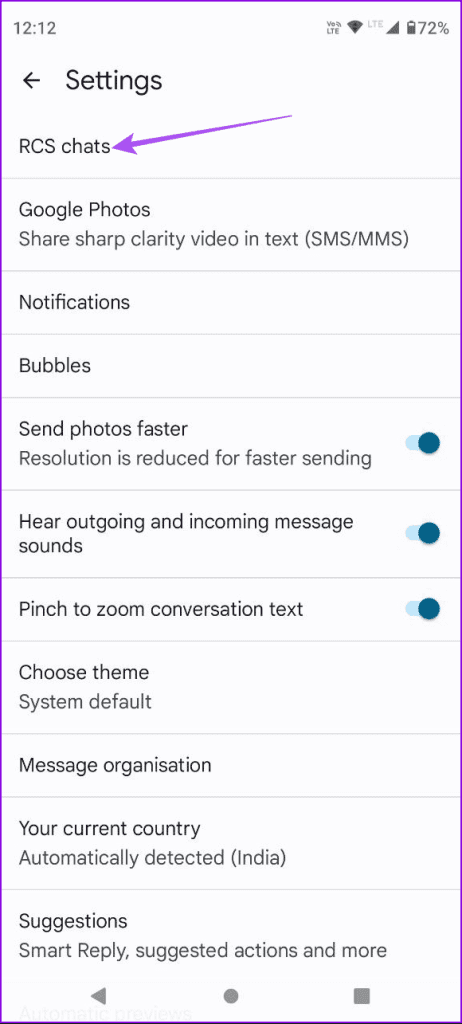
Step 2: Tap on your profile icon at the top-right corner and then select Messages Settings.
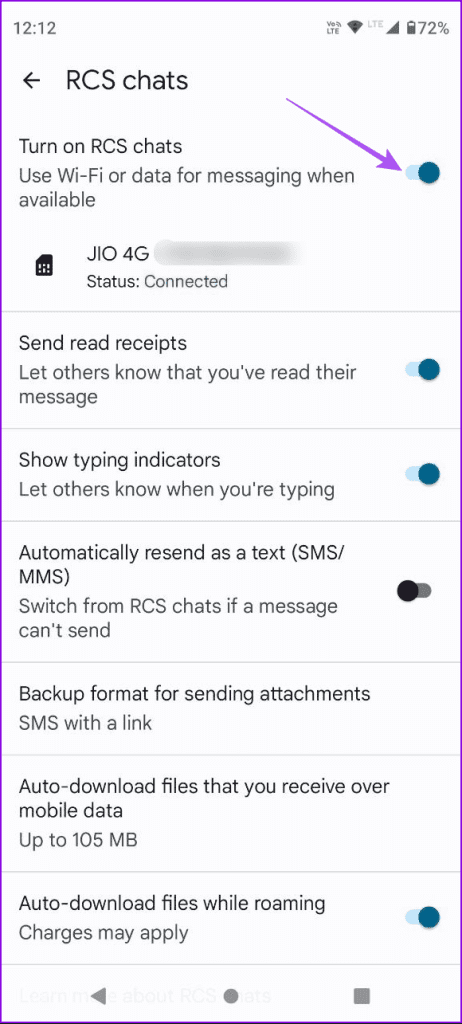
Step 3: Select RCS Chats and then tap the toggle next to RCS Chats to disable it.
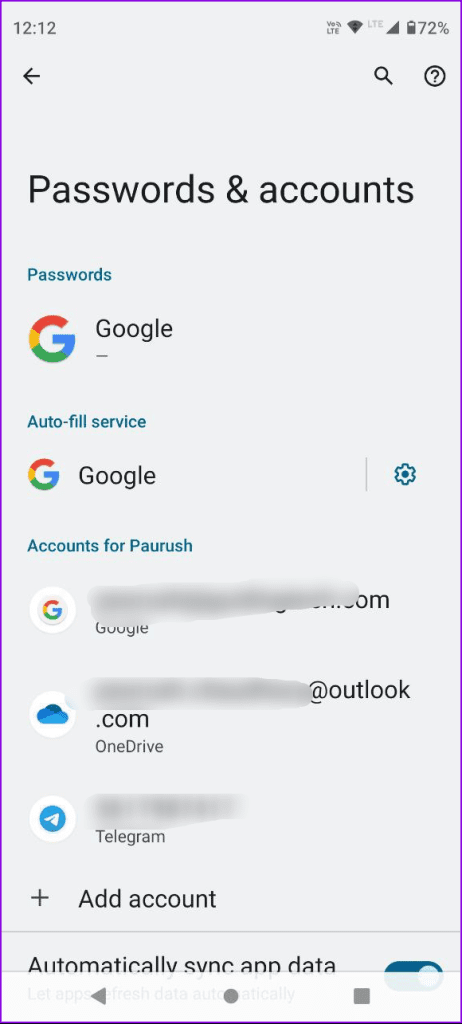
Step 4: Close the Messages app, open Settings, and tap on Passwords and Accounts.
Step 5: Tap on your Google account and then select Remove Account.
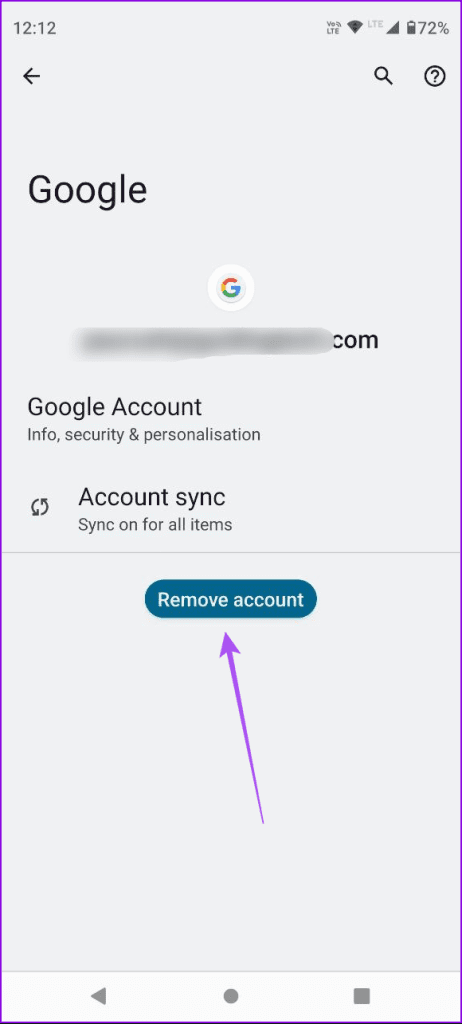
Step 6: Tap on Remove Account again to confirm.
Step 7: Add your Google account again and then open the Messages app.
Step 8: Enable RCS again on your Android phone. Then, check if the Messages app shows link previews.
Fix 3: Clear App Cache
This is an advanced solution and will remove all your chats, data, and in-app preferences. You will have to login again to the Google Messages app.
Step 1: Long-press the Google Messages app icon and then select App Info.
Step 2: Select Storage and Cache and then tap on Clear Cache.

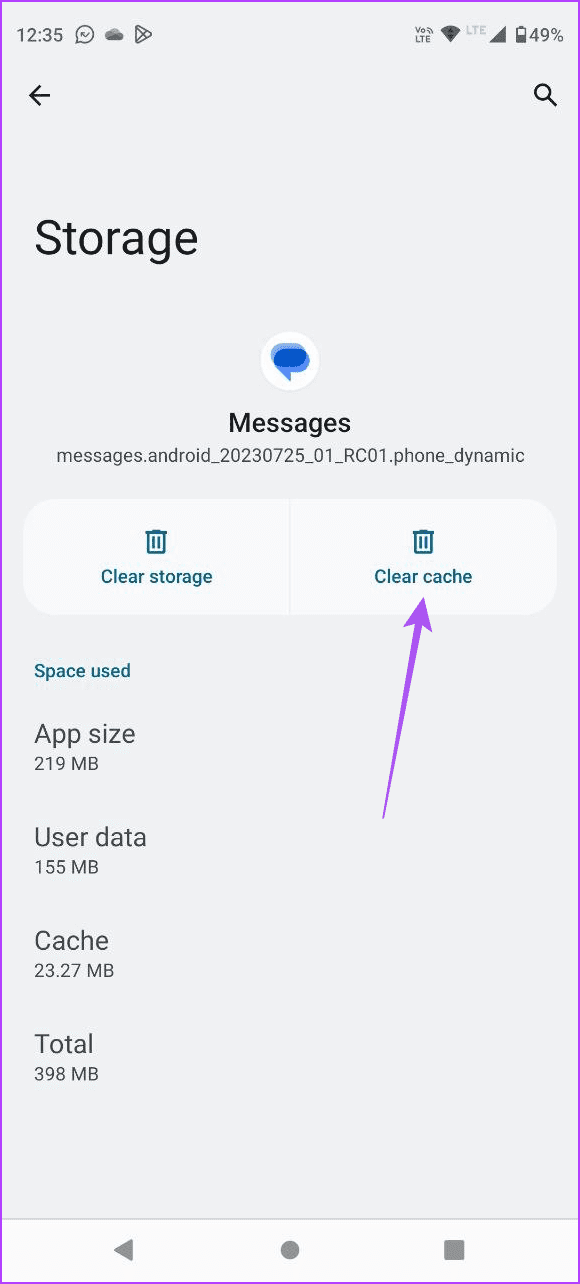
Step 3: Close App Info and then relaunch Google Messages to check if you can see the link previews.
Fix 4: Reset App Settings
If none of the solutions work for you, reset the app permissions for the Messages app on your Android phone.
Open Settings > Apps > Three dots in the top-right corner > Reset app preferences.

Check Link Previews
These solutions will help if Link Previews are not working in the Google Messages app. You can also refer to our post if you are unable to send audio messages to your contacts in the Google Messages app.
Was this helpful?
Last updated on 10 July, 2024
Read Next
 How to Fix iMessage Link Previews Not Working on iPhone
Basic Fixes Add link at the beginning or end of the message: Along with this, ensure that the URL starts with https://.
How to Fix iMessage Link Previews Not Working on iPhone
Basic Fixes Add link at the beginning or end of the message: Along with this, ensure that the URL starts with https://.
 8 Best Fixes for Google Messages App Not Showing Contact Names on Android
The Google Messages app can help you send text messages and react to them as well.
8 Best Fixes for Google Messages App Not Showing Contact Names on Android
The Google Messages app can help you send text messages and react to them as well.
 3 Fixes if Reactions Are Not Working on Google Messages
Basic Fixes Force quit and relaunch Google Messages: This will give the app a fresh start.
3 Fixes if Reactions Are Not Working on Google Messages
Basic Fixes Force quit and relaunch Google Messages: This will give the app a fresh start.
 5 Fixes for Phone Link App Not Showing Notifications on Windows 11
Basic Fixes: Check Wi-Fi and Bluetooth settings: The Phone Link app uses both Bluetooth and Wi-Fi to help sync your phones with your Windows device. So, ensure your Wi-Fi connection is
5 Fixes for Phone Link App Not Showing Notifications on Windows 11
Basic Fixes: Check Wi-Fi and Bluetooth settings: The Phone Link app uses both Bluetooth and Wi-Fi to help sync your phones with your Windows device. So, ensure your Wi-Fi connection is
 How to Transfer Samsung Messages to Google Messages
How to Switch From Samsung Messages to Google Messages on the Same Phone If you want to switch to the Messages by Google app on your Samsung phone, you only
How to Transfer Samsung Messages to Google Messages
How to Switch From Samsung Messages to Google Messages on the Same Phone If you want to switch to the Messages by Google app on your Samsung phone, you only
 Google Messages vs. Samsung Messages: Which Is Better
1.
Google Messages vs. Samsung Messages: Which Is Better
1.
 4 Ways to Fix Google Messages App Not Working
Basic Fixes: Check network connection: If you are dealing with one or two network bars on your phone, you will face issues sending or getting new messages from the Google
4 Ways to Fix Google Messages App Not Working
Basic Fixes: Check network connection: If you are dealing with one or two network bars on your phone, you will face issues sending or getting new messages from the Google
 3 Fixes for Stickers Not Working in iMessage on iPhone
Basic Fixes Disable Low Power Mode: Open Settings > Battery > Disable Low Power Mode.
3 Fixes for Stickers Not Working in iMessage on iPhone
Basic Fixes Disable Low Power Mode: Open Settings > Battery > Disable Low Power Mode.
The article above may contain affiliate links which help support Guiding Tech. The content remains unbiased and authentic and will never affect our editorial integrity.