


Basic Fix:
- Use Google Chrome: Because not all browsers meet the requirements for blur, Google Chrome is the safest choice.
Fix 1: Ensure the Browser Meets the Requirements to Use the Blur Feature
The Google Meet background blur feature doesn’t work on all browsers. Your browser must meet the following criteria:
- Browser architecture: Background blur will only appear on the 64-bit version. If your browser is 32-bit, you can’t use this feature. You may check your Chrome version by navigating to this path: chrome://version/
- WebGL support: WebGL 2.0 graphics technology is necessary for background blur to function. You may check if your browser supports WebGL.
Fix 2: Ensure Background Blur Is Enabled
Follow the proper steps to enable background blur for your Google Meet meetings. There are two ways to do this: before joining a meeting or during a call. To enable the feature, follow these steps:
Step 1: Launch your browser and navigate to your Googe Meet meeting.
Step 2: Click the Apply Visual Effects icon at the bottom right.
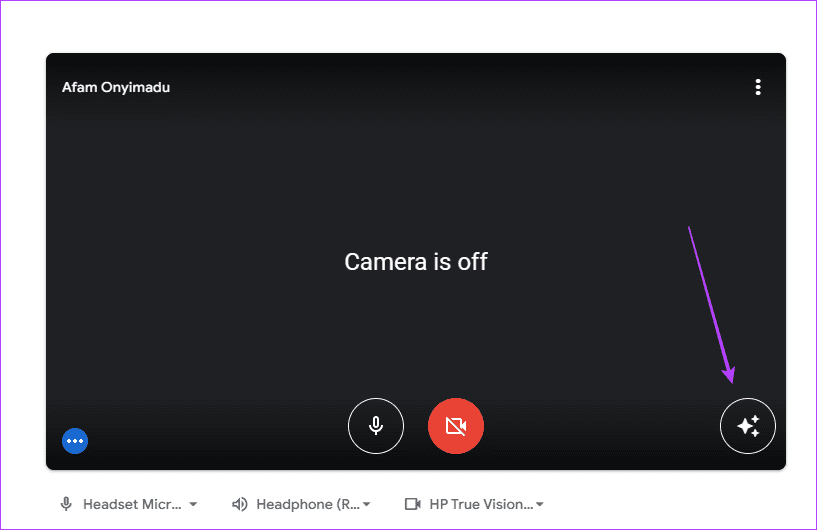
Step 3: Select any of the blur options you want.

Alternatively, you may join the meeting first before enabling Background blur.
Step 1: Once you have joined a meeting, click the three-dot icon at the bottom and select Apply visual effects.

Step 2: Select any of the blur options you want.

Tip: Check our guide on how to hide and unhide yourself on Google Meet.
Fix 3: Enable Hardware Acceleration
Hardware acceleration should be enabled in Chrome settings so that Google Meet’s background blur function will appear and work properly. To enable hardware acceleration for Chrome on Windows or Mac, follow these steps:
Step 1: Launch Chrome.
Step 2: Type the address below into the address bar and click Enter.
chrome://settings/system
Step 3: Toggle on Use graphics acceleration when available.
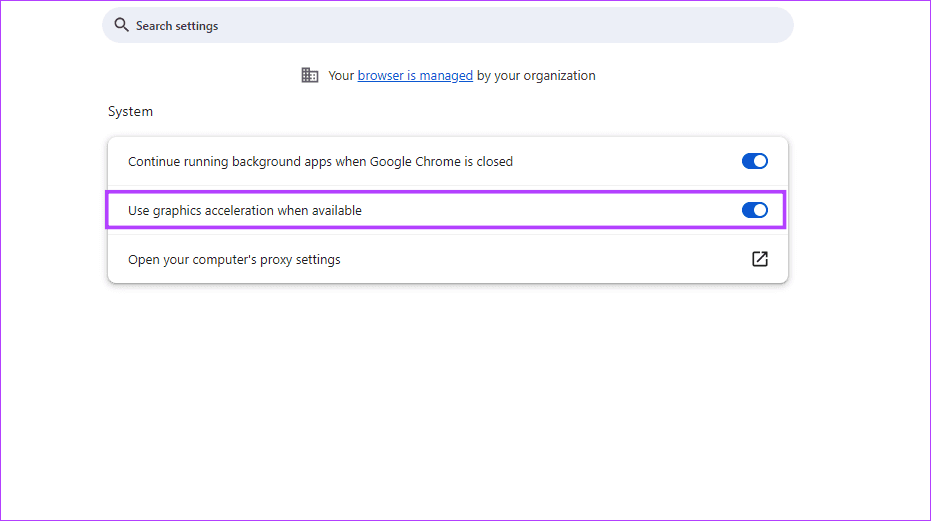
Your browser will restart. Open Google Meet and use the background blur, as shown above.
Fix 4: Update Google Chrome
Since this new feature works only on Chrome browser version M84 and above, use the latest version of Chrome. To update Chrome, follow the steps below.
Step 1: Launch Chrome.
Step 2: Type the address below into the address bar and click Enter.
chrome://settings/help
Now, Chrome should automatically update if needed.
Was this helpful?
Last updated on 30 July, 2024
Read Next
 3 Fixes for Background Blur Not Working in Zoom App
Basic Fixes Clean camera lens: This is something that can cause issues with background blur on the Zoom app.
3 Fixes for Background Blur Not Working in Zoom App
Basic Fixes Clean camera lens: This is something that can cause issues with background blur on the Zoom app.
 How to Blur Background in WhatsApp Video Calls on iPhone and Android
https://youtu.be/QC0vCCGNfsA How to Blur WhatsApp Video Call Background on iPhone You can blur the background of your WhatsApp video call right from the Control Center on your iPhone.
How to Blur Background in WhatsApp Video Calls on iPhone and Android
https://youtu.be/QC0vCCGNfsA How to Blur WhatsApp Video Call Background on iPhone You can blur the background of your WhatsApp video call right from the Control Center on your iPhone.
 How to Use Background Blur in Microsoft Teams
Microsoft answered Slack’s growing popularity with the introduction of the Microsoft Teams in 2016.
How to Use Background Blur in Microsoft Teams
Microsoft answered Slack’s growing popularity with the introduction of the Microsoft Teams in 2016.
 4 Ways to Blur Background or Part of a Picture on Samsung Galaxy Phones
https://youtu.be/ibIZ2QeeIgk Method 1: How to Blur Certain Parts of a Picture on Samsung Step 1: Launch the Samsung Gallery app on your phone.
4 Ways to Blur Background or Part of a Picture on Samsung Galaxy Phones
https://youtu.be/ibIZ2QeeIgk Method 1: How to Blur Certain Parts of a Picture on Samsung Step 1: Launch the Samsung Gallery app on your phone.
 How to Put a Background in Google Meet Using Your Phone
How to Change Background in Google Meet App Keeping a virtual background can be very useful in creating a theme for your video calls, lectures, podcasts, webinars, and interviews.
How to Put a Background in Google Meet Using Your Phone
How to Change Background in Google Meet App Keeping a virtual background can be very useful in creating a theme for your video calls, lectures, podcasts, webinars, and interviews.
 3 Fixes for Google Meet Not Working on iPhone
Basic Fixes Switch to 5GHz network: If you have any dual-band Wi-Fi router, you can connect to a 5GHz network for faster internet speeds.
3 Fixes for Google Meet Not Working on iPhone
Basic Fixes Switch to 5GHz network: If you have any dual-band Wi-Fi router, you can connect to a 5GHz network for faster internet speeds.
 4 Fixes When Google Meet Lags During a Presentation
Basic Fixes Suspend other background activities and apps - Running other background activities, like downloads, may cause lag.
4 Fixes When Google Meet Lags During a Presentation
Basic Fixes Suspend other background activities and apps - Running other background activities, like downloads, may cause lag.
 Top 7 Ways to Fix Google Meet Audio Not Working
Major IT companies, such as Twitter and Spotify, are encouraging employees to work from home.
Top 7 Ways to Fix Google Meet Audio Not Working
Major IT companies, such as Twitter and Spotify, are encouraging employees to work from home.
The article above may contain affiliate links which help support Guiding Tech. The content remains unbiased and authentic and will never affect our editorial integrity.

