Basic Fixes
- Check volume: Check the volume level on your smartphone, and ensure it isn’t low.
- Disconnect Bluetooth device: If your phone is connected to a Bluetooth device, Google Maps may be routing the voice navigation audio over it.
- Restart Google Maps and device: Restart your device, and the Google Maps app to fix temporary bugs and glitches.
- Update Google Maps: For a bug-free experience, update the app to the latest version from the Play Store or App Store.
Fix 1: Unmute Voice Navigation
Ensure voice navigation isn’t on mute. Tap on the speaker icon, and select the unmuted option.


Also Read: How to add a location or missing address in Google Maps
Fix 2: Change Navigation Settings
Step 1: Tap on your profile picture > Settings > Navigation Settings.
Step 2: Check the below settings, and if they’re affecting voice navigation:
- Check Mute State: Ensure you’ve selected Unmuted. This plays the voice out loud.
- Check Guidance volume: Either enable Normal or Loud for guidance volume.
- Try changing voice: If it doesn’t work even when the above settings are enabled, try changing the navigation voice.
- Enable Play voice over Bluetooth: Turn on the toggle for Play voice over Bluetooth to ensure you receive navigation guidance when you are using a Bluetooth device.


Fix 3: Clear Cache
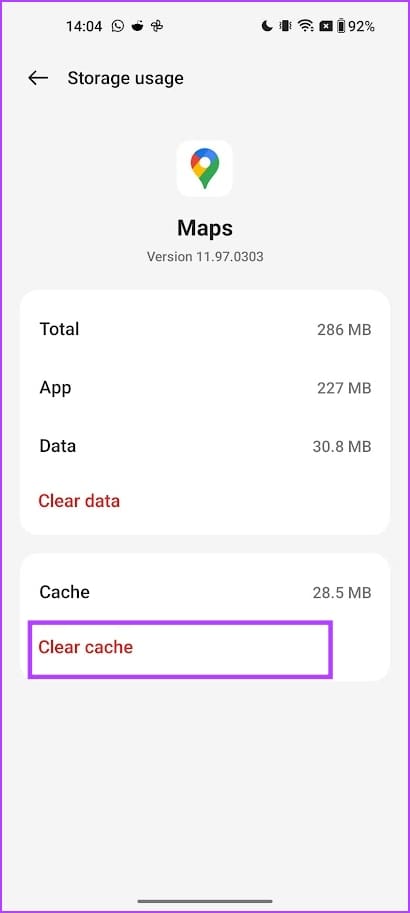
Accumulated cache and junk files may cause issues with the Google Maps app on your device.
On Android
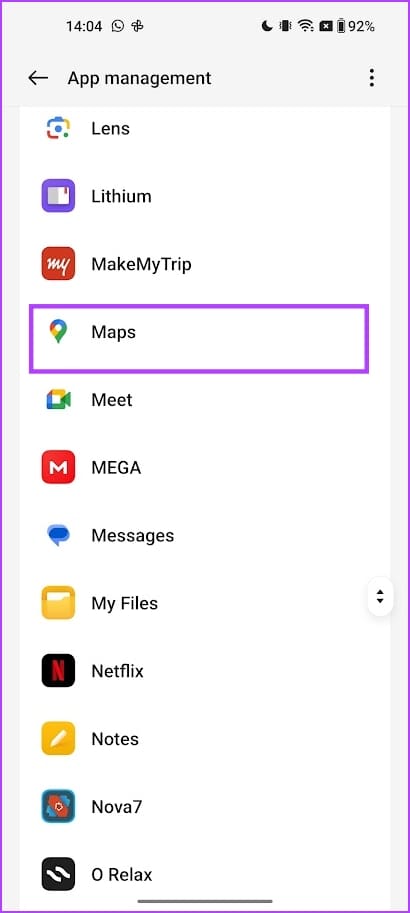
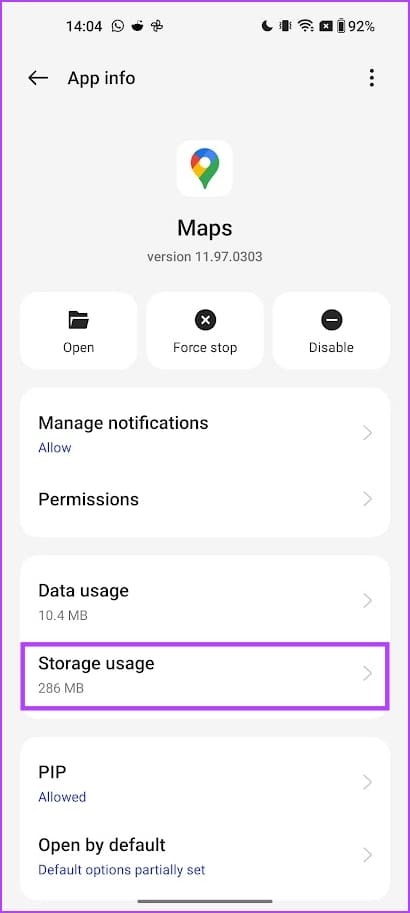
Open Settings > Apps > Maps > Storage Usage and tap Clear cache.
On iPhone
Offloading an app, and re-installing it clears the cache on iPhone.
Open Settings > General > Storage > Google Maps. Tap on Offload App, and then Re-install the app.


Also Read: How to find elevation on Google Maps on desktop and mobile
Was this helpful?
Last updated on 27 August, 2024
Read Next
 How to Turn Off Voice Navigation in Google Maps for Android and iPhone
How to Turn Off Google Maps Voice Navigation From In-App Settings The most straightforward way to turn off or mute voice directions in Google Maps is from the in-app settings
How to Turn Off Voice Navigation in Google Maps for Android and iPhone
How to Turn Off Google Maps Voice Navigation From In-App Settings The most straightforward way to turn off or mute voice directions in Google Maps is from the in-app settings
 5 Fixes for Google Maps Timeline Not Working on Android and iPhone
Fix 1: Configure Location Permission for Google Maps Google Maps requires location access on your Android or iPhone to create an accurate timeline.
5 Fixes for Google Maps Timeline Not Working on Android and iPhone
Fix 1: Configure Location Permission for Google Maps Google Maps requires location access on your Android or iPhone to create an accurate timeline.
 5 Fixes for Telegram Voice Messages Not Working on Android and iPhone
Try Basic Fixes Check if Telegram is down: If Telegram servers are experiencing problems, you may have trouble sending or receiving voice messages.
5 Fixes for Telegram Voice Messages Not Working on Android and iPhone
Try Basic Fixes Check if Telegram is down: If Telegram servers are experiencing problems, you may have trouble sending or receiving voice messages.
 Google Maps vs Maps Go Comparison: Explaining the Difference
Last year, Google announced the optimized version of Android Oreo operating system, Android Go.
Google Maps vs Maps Go Comparison: Explaining the Difference
Last year, Google announced the optimized version of Android Oreo operating system, Android Go.
 How to Switch Between KM and Miles in Google Maps and Apple Maps
How to Change Kilometers to Miles in Apple Maps To change KM to Miles (or vice versa) on iPhone, iPad, and Mac, all you need to do is change your
How to Switch Between KM and Miles in Google Maps and Apple Maps
How to Change Kilometers to Miles in Apple Maps To change KM to Miles (or vice versa) on iPhone, iPad, and Mac, all you need to do is change your
 Top 14 Fixes for Google Maps Only Works on Wi-Fi on Android and iPhone
Google Maps requires mobile data or Wi-Fi to work.
Top 14 Fixes for Google Maps Only Works on Wi-Fi on Android and iPhone
Google Maps requires mobile data or Wi-Fi to work.
 3 Fixes for Google Maps Not Showing Traffic on Android and iPhone
Try Basic Fixes Ensure Google Maps is not in offline mode: While offline mode can help you navigate without an internet connection, no traffic data is available in this mode.
3 Fixes for Google Maps Not Showing Traffic on Android and iPhone
Try Basic Fixes Ensure Google Maps is not in offline mode: While offline mode can help you navigate without an internet connection, no traffic data is available in this mode.
 How to Customize the Navigation Bar on Samsung Galaxy Phones
Over the past few years, the navigation gestures have quietly gotten the lead on the navigation bar on Android phones.
How to Customize the Navigation Bar on Samsung Galaxy Phones
Over the past few years, the navigation gestures have quietly gotten the lead on the navigation bar on Android phones.
The article above may contain affiliate links which help support Guiding Tech. The content remains unbiased and authentic and will never affect our editorial integrity.