

Fix 1: Configure Location Permission for Google Maps
Google Maps requires location access on your Android or iPhone to create an accurate timeline. Hence, the first thing to ensure is that Google Maps can use your location at all times.
On Android
Step 1: Long-press on the Google Maps app icon > tap the info icon from the resulting menu.
Step 2: On the app info page, go to Permissions.


Step 3: Tap on Location > select Allow all the time.


On iPhone
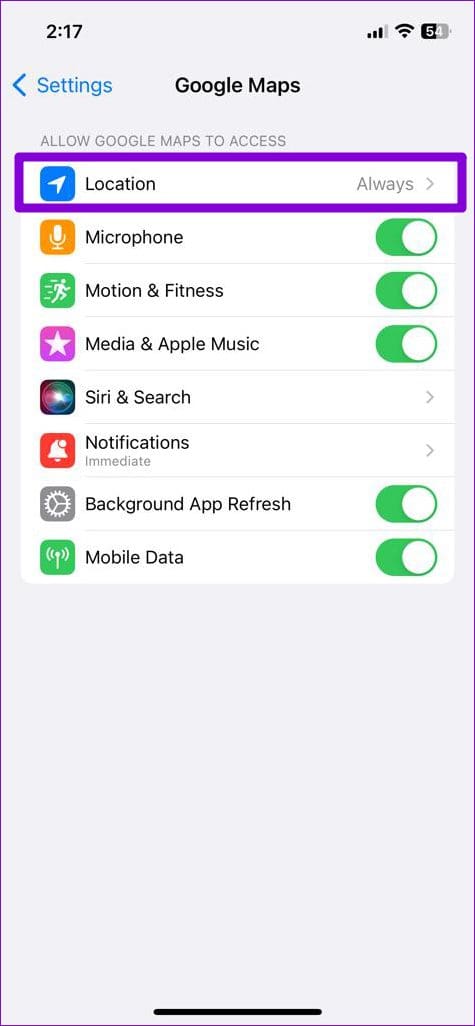
Step 1: Go to the Settings app > scroll down and tap on Google Maps.
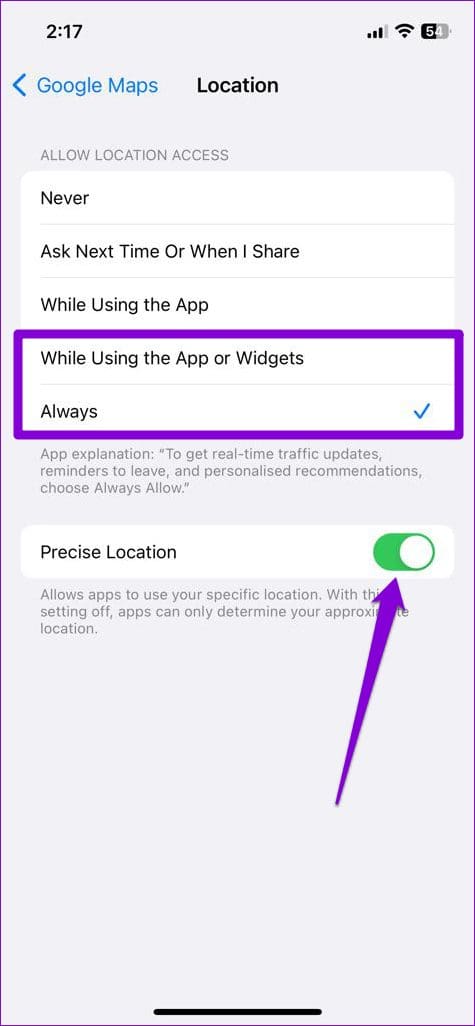
Step 2: Tap on Location > select While Using the App or Widget or Always from the following menu.
Tip: You can enable the Precise Location toggle so that Google Maps can access your location data accurately.
Fix 2: Enable the Location History and Activity Tracking Features
Google Maps may fail to record your movements if you have disabled the Location History feature in the app. Therefore, it is essential to enable it. Additionally, you should turn on web and app activity tracking for your Google account so that Google Maps can use your activities within other Google apps and services to produce a comprehensive timeline.
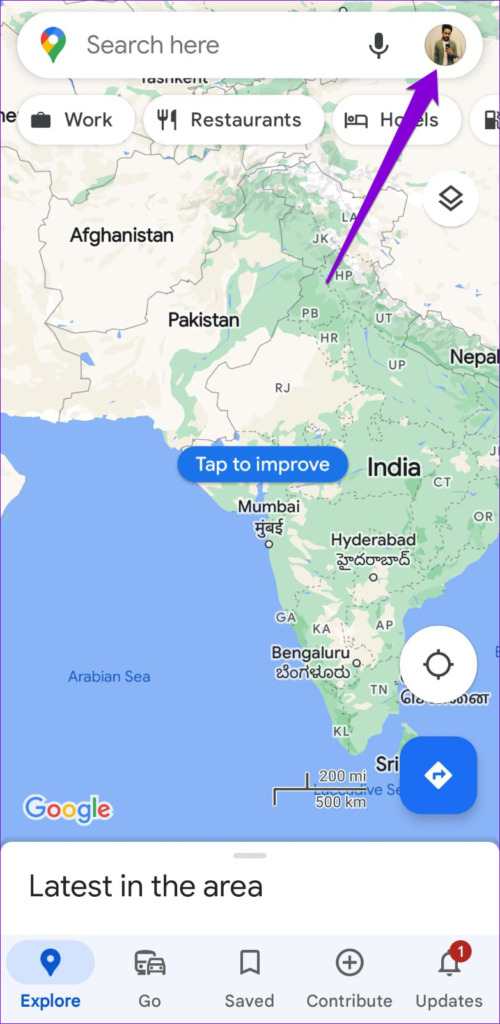
Step 1: Open the Google Maps app on your phone > tap the profile icon at the top right corner > select Your Timeline.
Step 2: Tap the three-dot menu icon at the top > select Settings and privacy.


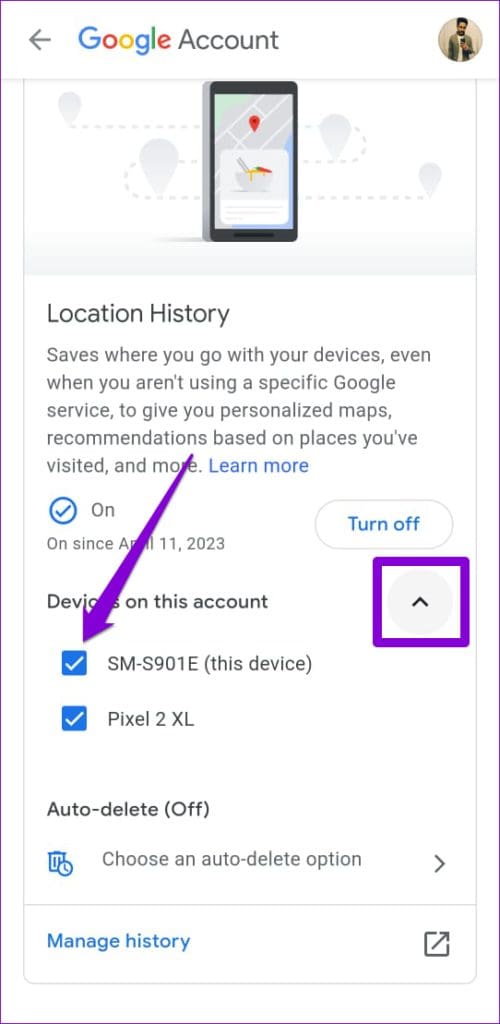
Step 3: Tap on Location History is off > hit the Turn on button under Location History.
Step 4: Tap the arrow next to Devices on this account and ensure to check the box for your phone.
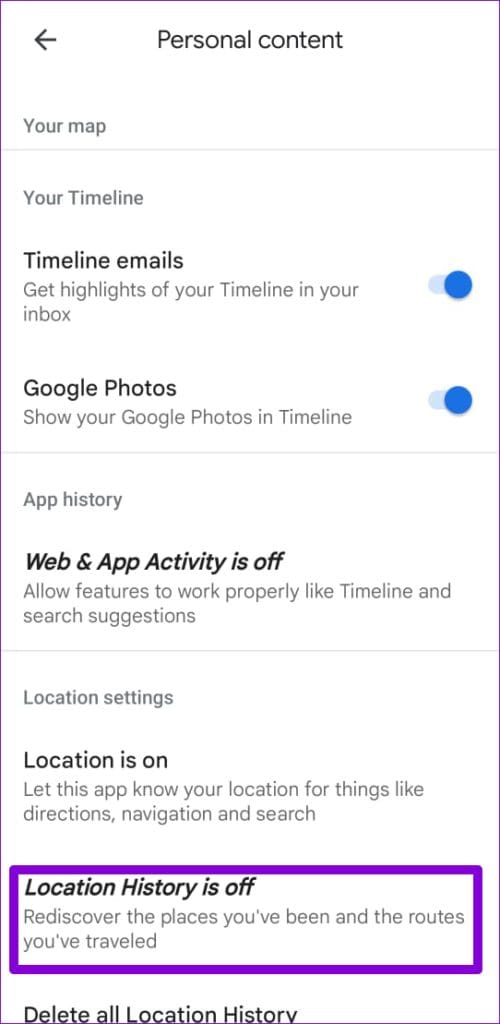

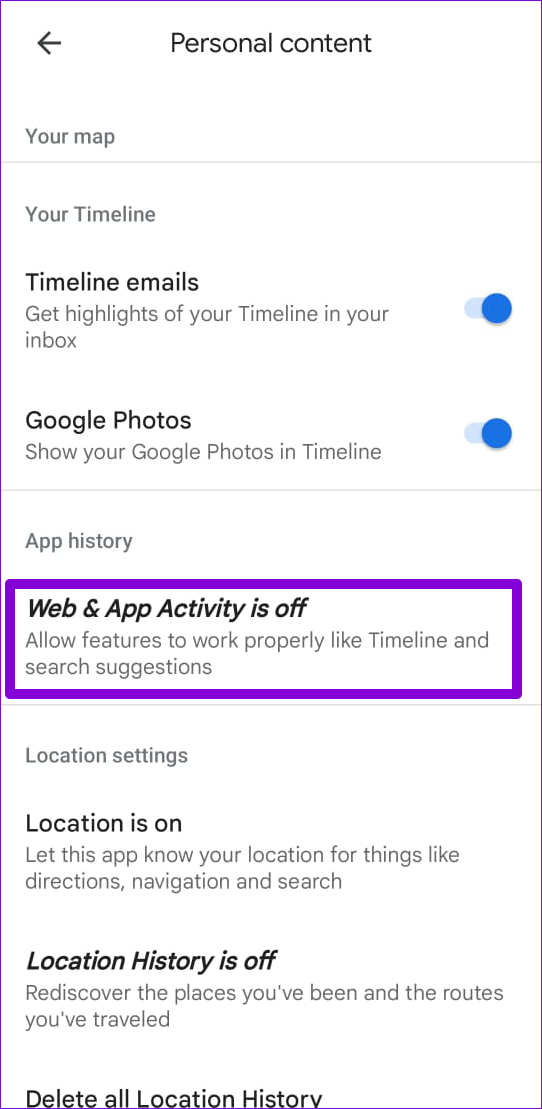
Step 5: Return to the previous menu > tap Web & App Activity is off > hit the Turn on button.

Fix 3: Allow Google Maps to Run in the Background
Limiting Google Maps’ background activity can also cause issues with the timeline feature and prevent it from working correctly. To avoid this, follow the steps below to allow Google Maps to operate in the background.
On Android
Step 1: Long-press on the Google Maps icon > tap the info icon.
Step 2: From the App Info screen, tap on Battery > select Unrestricted from the following screen.
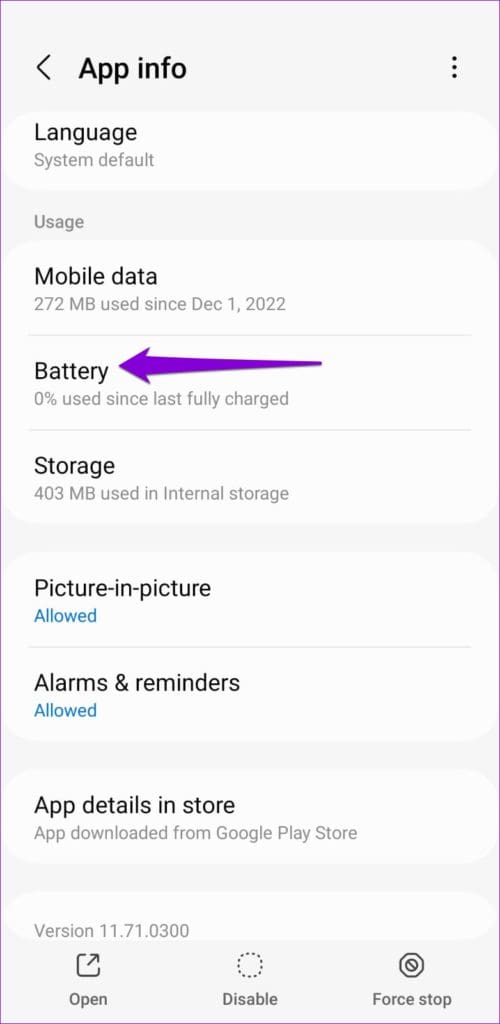

Step 3: Return to the app info page > tap on Mobile data > enable the toggles for Allow background data usage and Allow data usage while Data saver is on.


On iPhone
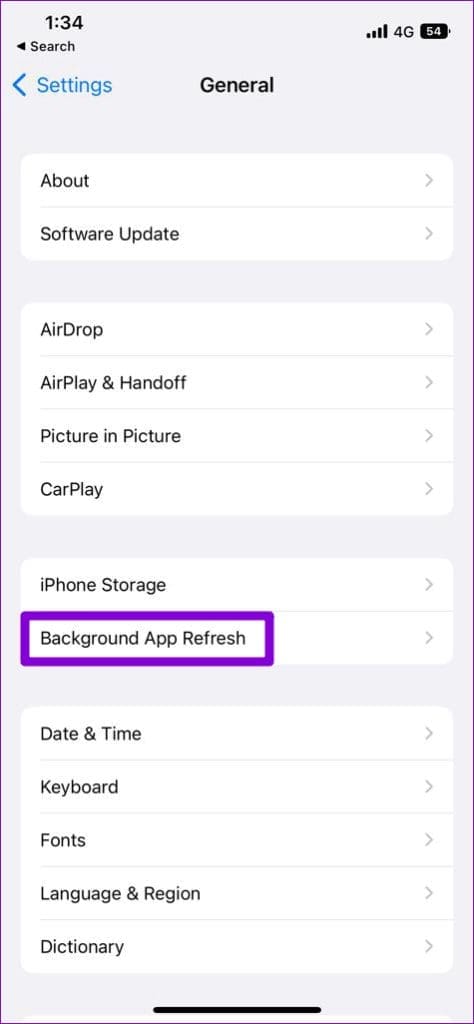
Step 1: Open the Settings app on your iPhone > tap on General.
Step 2: Select Background App Refresh > enable the toggle for Google Maps.

Fix 4: Sign Out of Google Maps and Back In
Authentication issues with your account can also prevent Google Maps from saving your timeline. Usually, you can resolve such issues by signing out and signing back into the Google Maps app.
On Android
Step 1: In the Google Maps app on your phone, tap the profile icon at the top-right corner and select Settings.
Step 2: Scroll to the bottom and select Sign out of Google Maps.


On iPhone
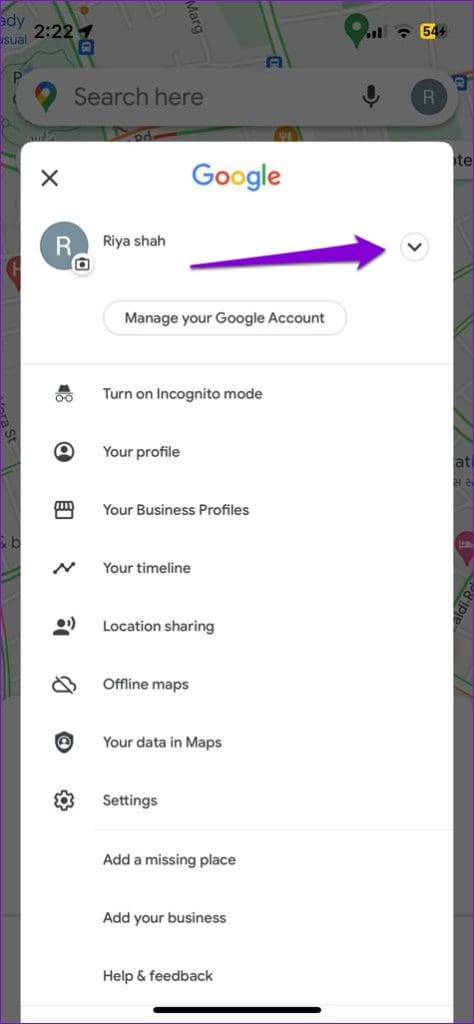
Step 1: Open the Google Maps app on your phone > tap your profile icon at the top right.
Step 2: Tap the downward arrow next to your account and select Use Maps without an account.

Sign back into Google Maps and check if the issue is resolved.
Fix 5: Clear Google Maps Cache (Android)
Clearing Google Maps cache data removes all the temporary app files and forces the app to recreate them from scratch. This can help resolve issues caused by corrupt or inaccessible cache files and get the app working again.
Step 1: Long-press on the Google Maps app icon > tap the info icon from the menu.
Step 2: Go to Storage > tap Clear cache at the bottom.


Was this helpful?
Last updated on 07 August, 2024
1 Comment
Leave a Reply
Read Next
 3 Fixes for Google Maps Voice Navigation Not Working on Android and iPhone
Basic Fixes Check volume: Check the volume level on your smartphone, and ensure it isn't low.
3 Fixes for Google Maps Voice Navigation Not Working on Android and iPhone
Basic Fixes Check volume: Check the volume level on your smartphone, and ensure it isn't low.
 3 Fixes for Google Maps Not Showing Traffic on Android and iPhone
Try Basic Fixes Ensure Google Maps is not in offline mode: While offline mode can help you navigate without an internet connection, no traffic data is available in this mode.
3 Fixes for Google Maps Not Showing Traffic on Android and iPhone
Try Basic Fixes Ensure Google Maps is not in offline mode: While offline mode can help you navigate without an internet connection, no traffic data is available in this mode.
 Google Maps vs Maps Go Comparison: Explaining the Difference
Last year, Google announced the optimized version of Android Oreo operating system, Android Go.
Google Maps vs Maps Go Comparison: Explaining the Difference
Last year, Google announced the optimized version of Android Oreo operating system, Android Go.
 Top 14 Fixes for Google Maps Only Works on Wi-Fi on Android and iPhone
Google Maps requires mobile data or Wi-Fi to work.
Top 14 Fixes for Google Maps Only Works on Wi-Fi on Android and iPhone
Google Maps requires mobile data or Wi-Fi to work.
 How to Switch Between KM and Miles in Google Maps and Apple Maps
How to Change Kilometers to Miles in Apple Maps To change KM to Miles (or vice versa) on iPhone, iPad, and Mac, all you need to do is change your
How to Switch Between KM and Miles in Google Maps and Apple Maps
How to Change Kilometers to Miles in Apple Maps To change KM to Miles (or vice versa) on iPhone, iPad, and Mac, all you need to do is change your
 5 Fixes for “GPS Signal Lost” Problem in Google Maps on Android
Try Basic Fixes Turn off battery saver mode: When you enable battery saver mode, Android restricts certain resource-intensive tasks like GPS tracking to conserve battery life.
5 Fixes for “GPS Signal Lost” Problem in Google Maps on Android
Try Basic Fixes Turn off battery saver mode: When you enable battery saver mode, Android restricts certain resource-intensive tasks like GPS tracking to conserve battery life.
 4 Fixes for Speedometer or Speed Limits Not Showing in Google Maps on Android
Common Fixes Check feature availability - Speedometer or Speed limits may be unavailable in your region.
4 Fixes for Speedometer or Speed Limits Not Showing in Google Maps on Android
Common Fixes Check feature availability - Speedometer or Speed limits may be unavailable in your region.
 4 Ways to Fix Google Maps Draining Battery on Android and iPhone
https://youtu.be/HEEhE2uFRfw Try Basic Fixes Remove the Google Maps widget from home screen: If you use Google Maps' live traffic widget to get traffic information on your home screen, the app’s
4 Ways to Fix Google Maps Draining Battery on Android and iPhone
https://youtu.be/HEEhE2uFRfw Try Basic Fixes Remove the Google Maps widget from home screen: If you use Google Maps' live traffic widget to get traffic information on your home screen, the app’s
The article above may contain affiliate links which help support Guiding Tech. The content remains unbiased and authentic and will never affect our editorial integrity.


Dear Pankil,
I have a Lenovo Legion Y70 smartphone with Chinese ROM. For some reason I can’t get ‘timeline’ to work. I’ve tried changing the settings but where it say location history is off it won’t let me change it. Its not greyed out but I just can’t change this setting. I believe it has something to do with the Google framework and a Chinese ROM. location is on but the history can’t be changed. Also it says ‘This device cannot add to location history’…
Any ideas how to fix this?
Many thanks