

Try Basic Fixes
- Turn off battery saver mode: When you enable battery saver mode, Android restricts certain resource-intensive tasks like GPS tracking to conserve battery life. To avoid this, disable the battery-saver feature.
- Update Google Maps: Using an outdated version of Google Maps can also lead to the “GPS Signal Lost” error on your Android. It’s a good idea to update the Google Maps app via the Play Store.
Fix 1: Check Location Permission for Google Maps
Another thing to do is to ensure that Google Maps has the necessary permission to access your location. Here’s how to check.
Step 1: Long-press on the Google Maps app icon and tap the info icon from the resulting menu.
Step 2: On the app info page, go to Permissions.


Step 3: Tap on Location > select Allow all the time.


Fix 2: Disable Battery and Data Restrictions for Google Maps
Another reason Google Maps may keep showing the “GPS Signal Lost” error is if you have imposed battery or data restrictions on the app. Here’s how to remove them.
Step 1: Long-press on the Google Maps icon > tap the info icon.
Step 2: From the App Info screen, tap on Battery > select Unrestricted from the following screen.
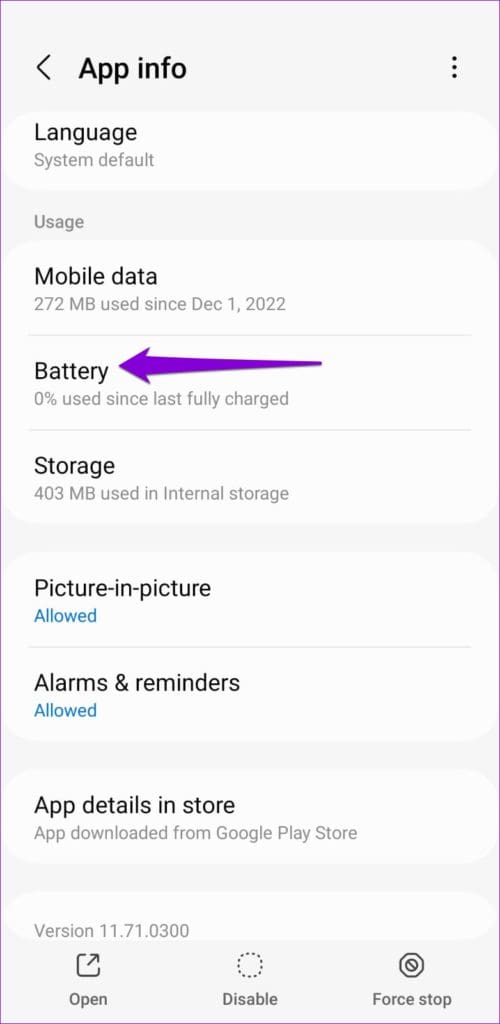

Step 3: Return to the app info page and tap on Mobile data. Then, enable the toggles for Allow background data usage and Allow data usage while Data saver is on.


Fix 3: Enable Google Location Accuracy
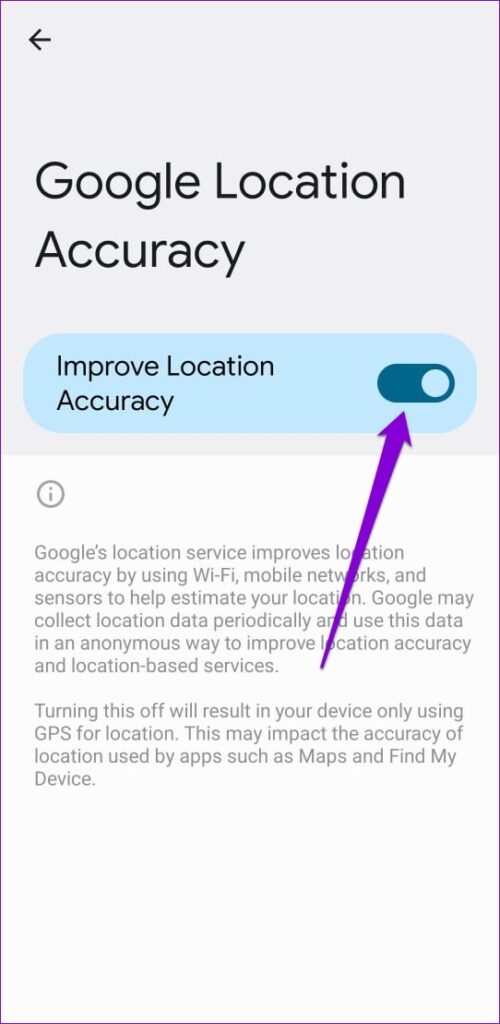
Google Location Accuracy is a nifty feature that uses nearby Wi-Fi networks, cell towers, and sensors on your phone to improve location accuracy. Enabling this feature can help Google Maps detect your location more precisely and fix the “GPS Signal Lost” error on your Android.
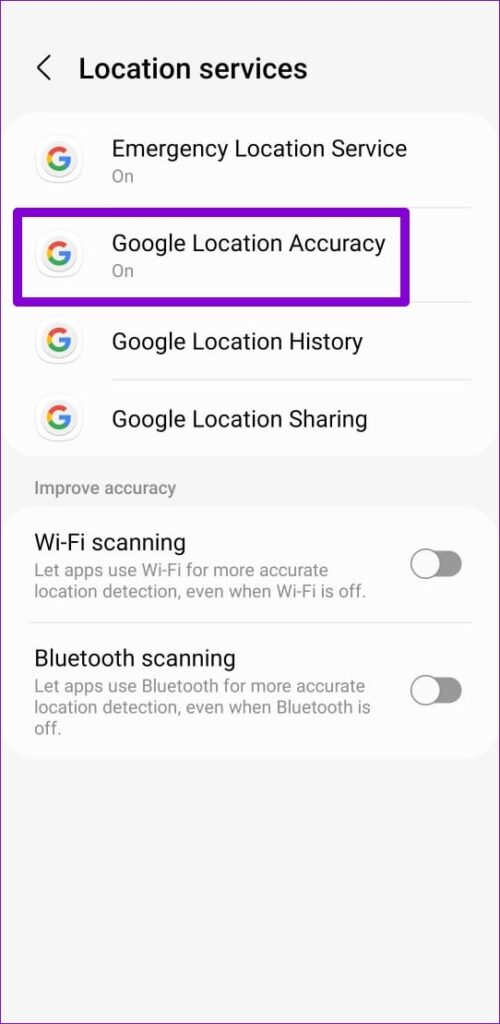
Step 1: Open the Settings app on your phone > head to Location > Location services.

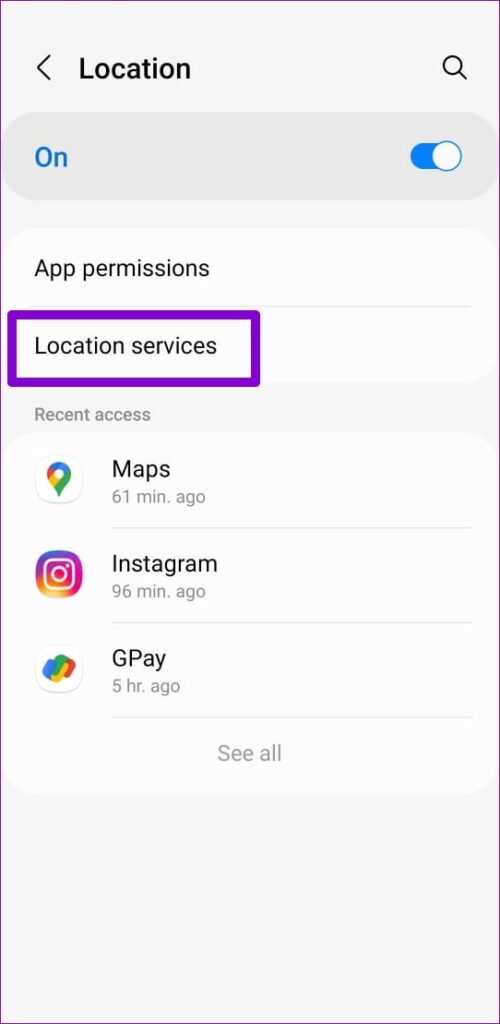
Step 2: Tap on Google Location Accuracy > turn on the toggle for Improve Location Accuracy.
Fix 4: Enable Automatic Date and Time
Google Maps may have trouble tracking your location if the date or time on your phone is incorrect. It’s best to enable the automatic date and time feature on your phone to avoid such issues.
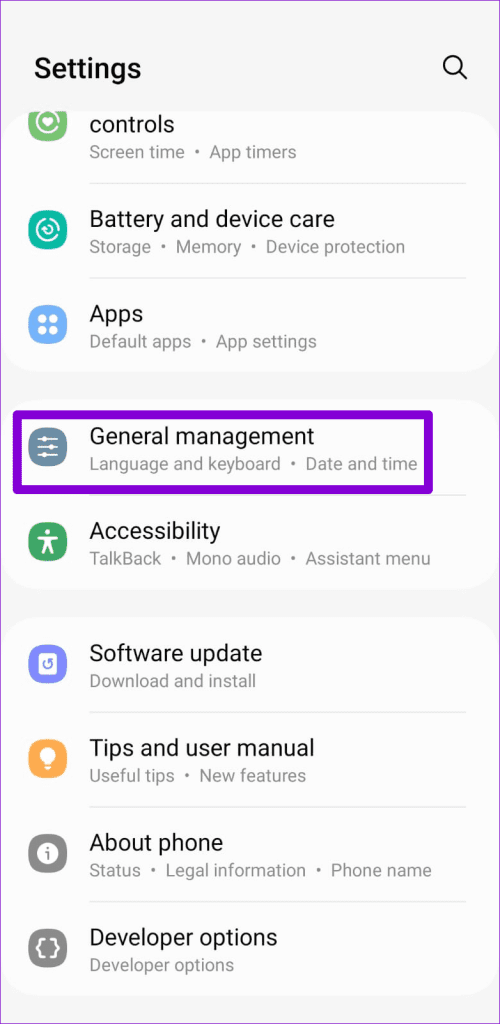
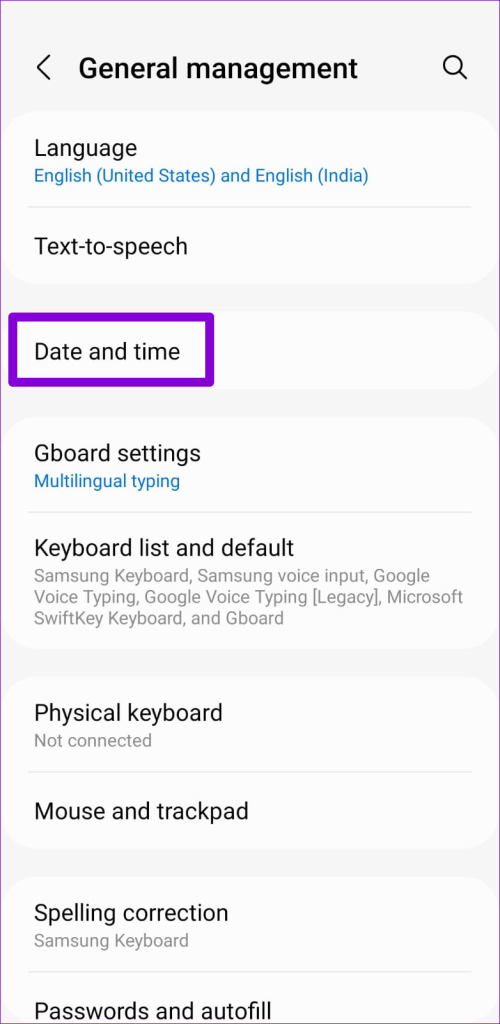
Step 1: Open the Settings app on your phone > go to General management.
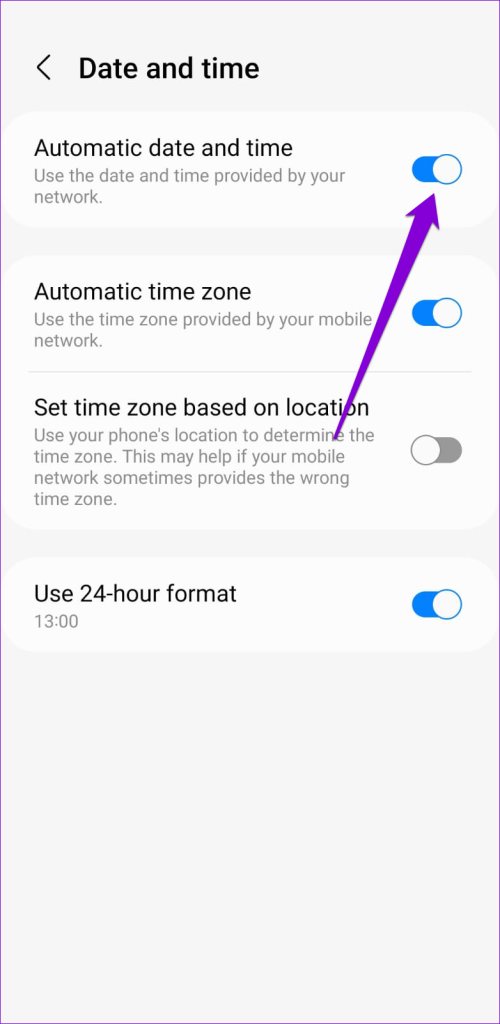
Step 2: Tap on Date and time > enable the toggle for Automatic date and time.
Fix 5: Clear Google Maps Cache
If Google Maps cannot detect the GPS signal due to a corrupt or inaccessible cache, deleting this data should resolve the issue. Here’s how to do it.
Step 1: Long-press on the Google Maps app icon > tap the info icon.
Step 2: Go to Storage > tap Clear cache at the bottom.


Was this helpful?
Last updated on 09 August, 2024
2 Comments
Leave a Reply
Read Next
 3 Ways to Fix GPS Signal Lost on Android Auto
Fix 1: Enable Location Permission for Maps Whether you use Google Maps or Waze for navigation, it's important to enable the right permissions for the navigation app if you want
3 Ways to Fix GPS Signal Lost on Android Auto
Fix 1: Enable Location Permission for Maps Whether you use Google Maps or Waze for navigation, it's important to enable the right permissions for the navigation app if you want
 How to Get GPS Coordinates From Google Maps
How to Find Coordinates of a Place on Google Maps To get longitude and latitude in Google Maps, follow the below steps.
How to Get GPS Coordinates From Google Maps
How to Find Coordinates of a Place on Google Maps To get longitude and latitude in Google Maps, follow the below steps.
 4 Fixes for No Signal on Apple TV
Basic Fixes Plug HDMI into another port: You can also check a few options for a new HDMI 2.1 cable for your Apple TV.
4 Fixes for No Signal on Apple TV
Basic Fixes Plug HDMI into another port: You can also check a few options for a new HDMI 2.1 cable for your Apple TV.
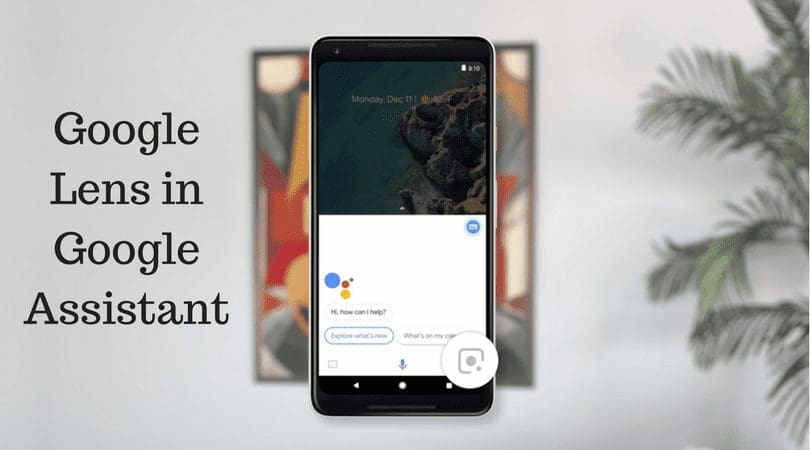 Google Maps vs Maps Go Comparison: Explaining the Difference
Last year, Google announced the optimized version of Android Oreo operating system, Android Go.
Google Maps vs Maps Go Comparison: Explaining the Difference
Last year, Google announced the optimized version of Android Oreo operating system, Android Go.
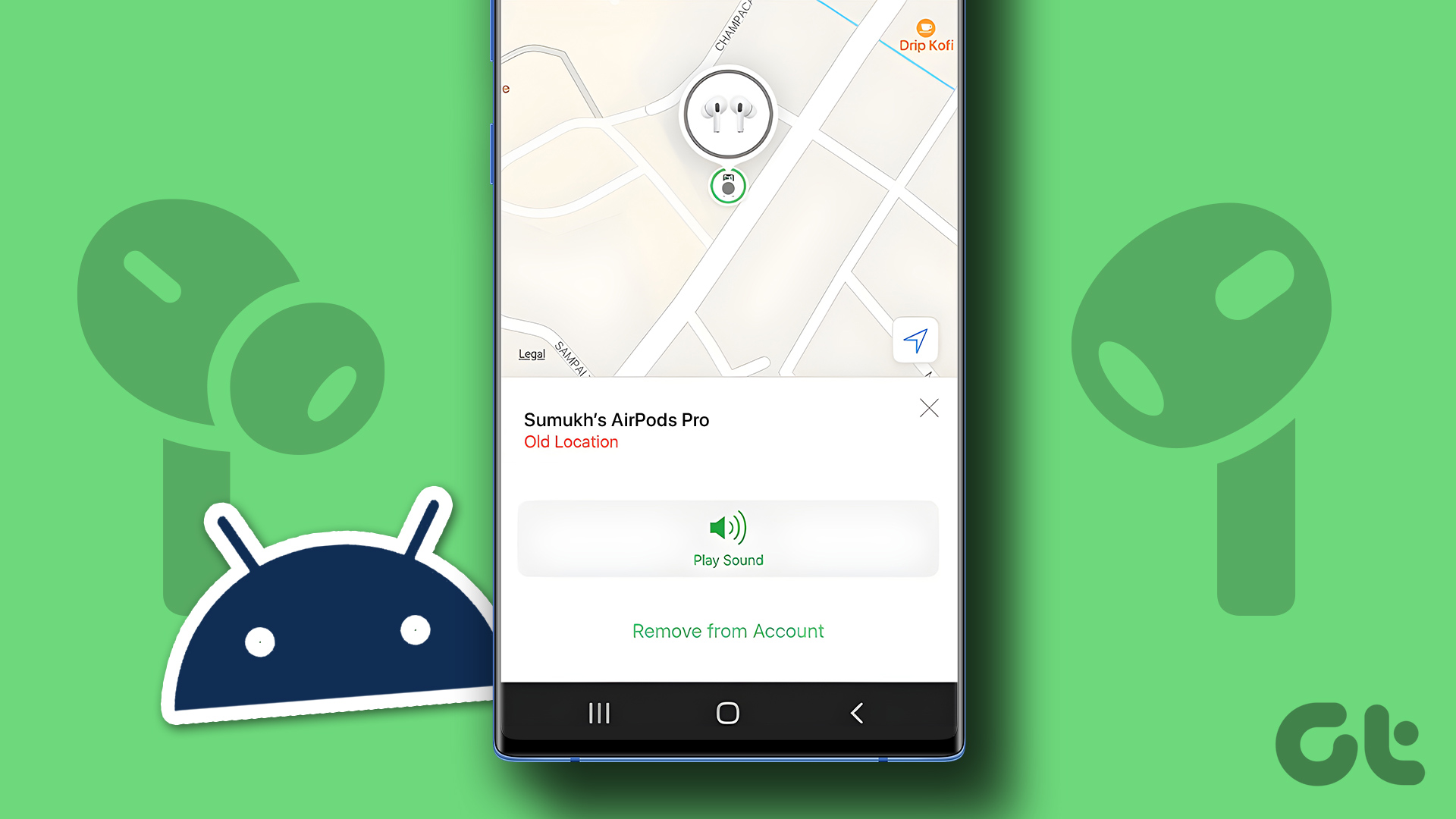 How to Find Lost AirPods on an Android Phone
Losing your AirPods would be one of the worst feelings ever.
How to Find Lost AirPods on an Android Phone
Losing your AirPods would be one of the worst feelings ever.
 5 Best Dash Cam With GPS Tracking
If you are looking to invest in a dashboard camera for your car, getting a dash cam with GPS will prove to be a clever investment.
5 Best Dash Cam With GPS Tracking
If you are looking to invest in a dashboard camera for your car, getting a dash cam with GPS will prove to be a clever investment.
 What Is Dual-Frequency GPS and Why Is Apple Using It
What is Dual Frequency Band GPS The turn-by-turn directions on your navigation app are a result of a GPS signal received from a satellite.
What Is Dual-Frequency GPS and Why Is Apple Using It
What is Dual Frequency Band GPS The turn-by-turn directions on your navigation app are a result of a GPS signal received from a satellite.
 6 Best GPS Car Trackers in the UK in 2024
In today's fast-paced world, car theft is a growing concern for vehicle owners in the UK.
6 Best GPS Car Trackers in the UK in 2024
In today's fast-paced world, car theft is a growing concern for vehicle owners in the UK.
The article above may contain affiliate links which help support Guiding Tech. The content remains unbiased and authentic and will never affect our editorial integrity.


GPS SIGNAL LOST
Plz solution my map gps signal loss