Basic Fixes
- File size is too large: Google Drive supports up to 5TB file size.
- Video is incompatible or corrupted: The file type may be unsupported on Google Drive, or the video file may be damaged.
- Use incognito mode: It is supported by most popular browsers like Chrome and Firefox.
- Try using a different browser: Using a different browser will remove all cookies and preferences stored in your current browser.
Fix 1: Open Video in a New Window
Instead of clicking on the video to open it in a pop-up, open it in a new window.
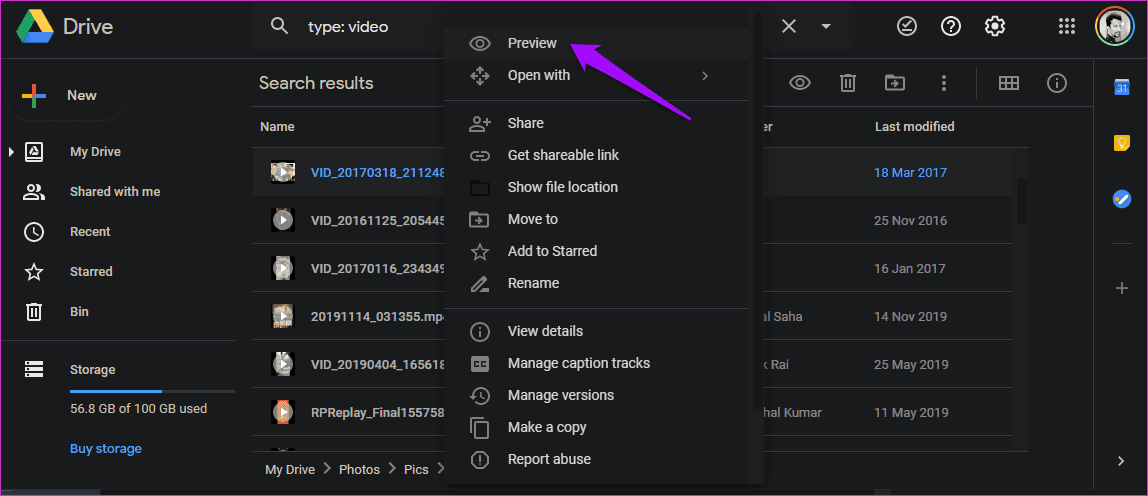
Step 1: Right-click on the video you can’t play and select Preview.
Step 2: Click on the three-dot menu icon and select Open in the new window option.
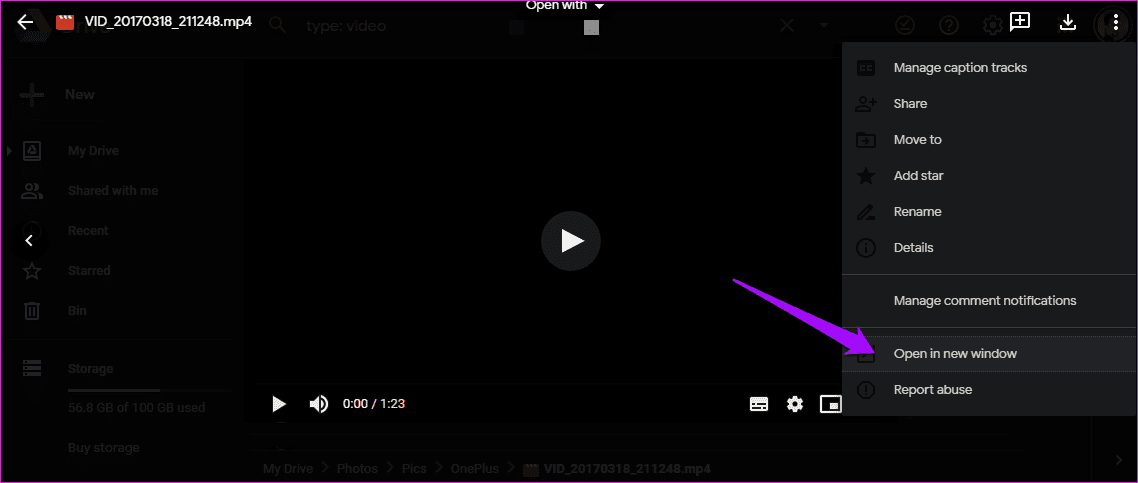
Check if you still get the ‘This video cannot be played’ or ‘Whoops! There was a problem playing this video’ error.
Tip: You can check out our post if Google Drive is not loading in browser.
Fix 2: Allow Third-Party Cookies for Google Drive
Users reported that blocking cookies in their browsers prevented videos from playing in Google Drive.
Step 1: Open Settings and click on Advanced. Click on Site Settings under the Privacy and security heading.

Step 2: Click on Cookies and site data and turn off the toggle for Blocked to ensure Google Drive can use them to play videos stored in your account.

It should now read Allow sites to save and read cookie data (recommended).
Fix 3: Make a Copy and Play
Some users discovered that creating a copy of the original video worked. Google Drive makes the process simpler.
Right-click on the video you want to play and select Make a copy.
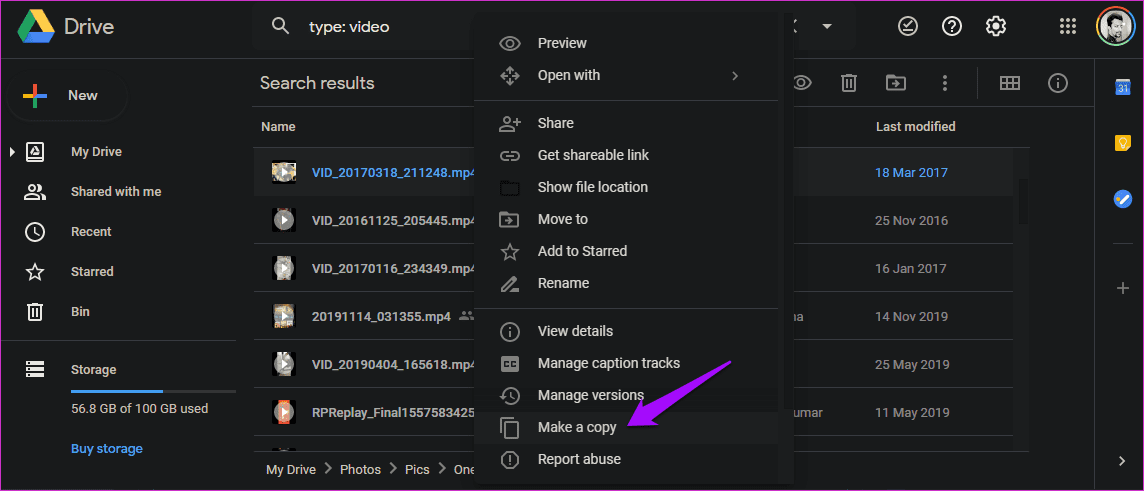
You will name the new file “Copy of X,” with “X” being the name of the old file you copied. Double-click on the video to play it.
Fix 4: Clear Browser and App Cache and Cookies
Clearing your cache will remove all website preferences from your browser. You must then sign in again to your Google Drive account with your password.
On Desktop
Step 1: Open Settings and click on Advanced. Then, select Clear browsing data.
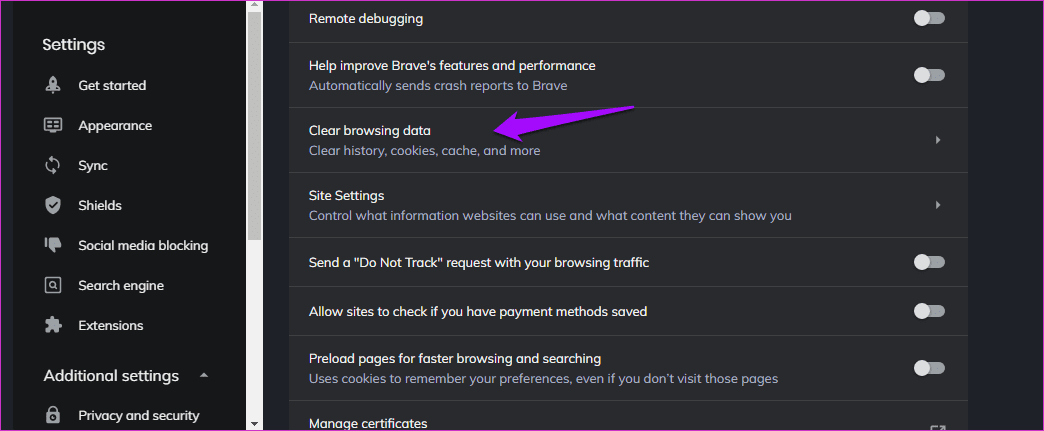
Step 2: Under the Advanced tab, check the box for Cookies and other site data and Cached images and files.

Step 3: Click Clear data.
On Mobile
Step 1: If you use the Google Drive app on Android, open Settings > search for and open Google Drive under app list.
Step 2: Tap on Clear data at the bottom of the screen and select Clear all data and Clear cache.


You may have to sign back into Google Drive. Now, see if the “This video cannot be played” or “Whoops! There was a problem playing this video” error.
Tip: Check out our fixes if Google Drive notifications are not working.
Was this helpful?
Last updated on 02 July, 2024
Read Next
 Apple Pages vs Microsoft Word: Which Word Processing Software Is Better
Every major tech company out there is offering their version of the productivity suite.
Apple Pages vs Microsoft Word: Which Word Processing Software Is Better
Every major tech company out there is offering their version of the productivity suite.
 3 Fixes for Google TV Not Playing 4K Videos
Basic Fixes Ensure your TV supports 4K resolution: This is the first and most obvious solution you must consider.
3 Fixes for Google TV Not Playing 4K Videos
Basic Fixes Ensure your TV supports 4K resolution: This is the first and most obvious solution you must consider.
 5 Fixes When Videos Are Not Playing on Firefox
Basic Fixes: Try Incognito mode: Open the website you're trying to access in an incognito window.
5 Fixes When Videos Are Not Playing on Firefox
Basic Fixes: Try Incognito mode: Open the website you're trying to access in an incognito window.
 5 Fixes for X (Twitter) Videos Not Playing on iPhone and Android
Basic Fixes Check network connection: If there's a problem with your Wi-Fi or cellular connection, X may be unable to play the video.
5 Fixes for X (Twitter) Videos Not Playing on iPhone and Android
Basic Fixes Check network connection: If there's a problem with your Wi-Fi or cellular connection, X may be unable to play the video.
 3 Fixes for HDR Videos Not Playing on Instagram
Basic Fixes Check internet connection: Ensure that you have a stable internet connection on your device.
3 Fixes for HDR Videos Not Playing on Instagram
Basic Fixes Check internet connection: Ensure that you have a stable internet connection on your device.
 4 Fixes When Videos in PowerPoint Are Not Playing
Basic Fixes: Confirm if the video plays outside PowerPoint: You want to ensure the video file isn't corrupt.
4 Fixes When Videos in PowerPoint Are Not Playing
Basic Fixes: Confirm if the video plays outside PowerPoint: You want to ensure the video file isn't corrupt.
 3 Fixes for YouTube Not Playing 4K Videos on Apple TV 4K
Basic Fixes Check your internet connection: YouTube lets you watch 4K content in Dolby Vision and HDR.
3 Fixes for YouTube Not Playing 4K Videos on Apple TV 4K
Basic Fixes Check your internet connection: YouTube lets you watch 4K content in Dolby Vision and HDR.
 Top 5 Ways to Fix Google Photos Not Playing Videos
Basic Fixes Check Network Connection: If you're trying to stream content backed up to the cloud, then you’ll need to use high-speed internet to sync and stream it.
Top 5 Ways to Fix Google Photos Not Playing Videos
Basic Fixes Check Network Connection: If you're trying to stream content backed up to the cloud, then you’ll need to use high-speed internet to sync and stream it.
The article above may contain affiliate links which help support Guiding Tech. The content remains unbiased and authentic and will never affect our editorial integrity.