Common Fixes
- Check your network connection: Unstable internet can halt the Google Drive sync. Test your internet connection online.
- Check the Google Drive server status: Visit Downdetector to check if there’s an active Google Drive server outage.
- Check your Google Drive storage: Open Google Drive and check the Storage meter in the left sidebar to view free space. If it’s exhausted, delete unnecessary files or upgrade your account storage.
- Update or reinstall the Google Drive app: Open the App Store > search Google Drive > tap Update (if available). Alternatively, long-press the Google Drive icon to remove the app and reinstall it from the Apple App Store.
- Disable Low Data Mode: Select Wi-Fi under iPhone settings and tap your connected network. Toggle off the Low Data Mode. If you use cellular data, head to Settings > Mobile Service > Mobile Data Options > toggle off Low Data Mode.
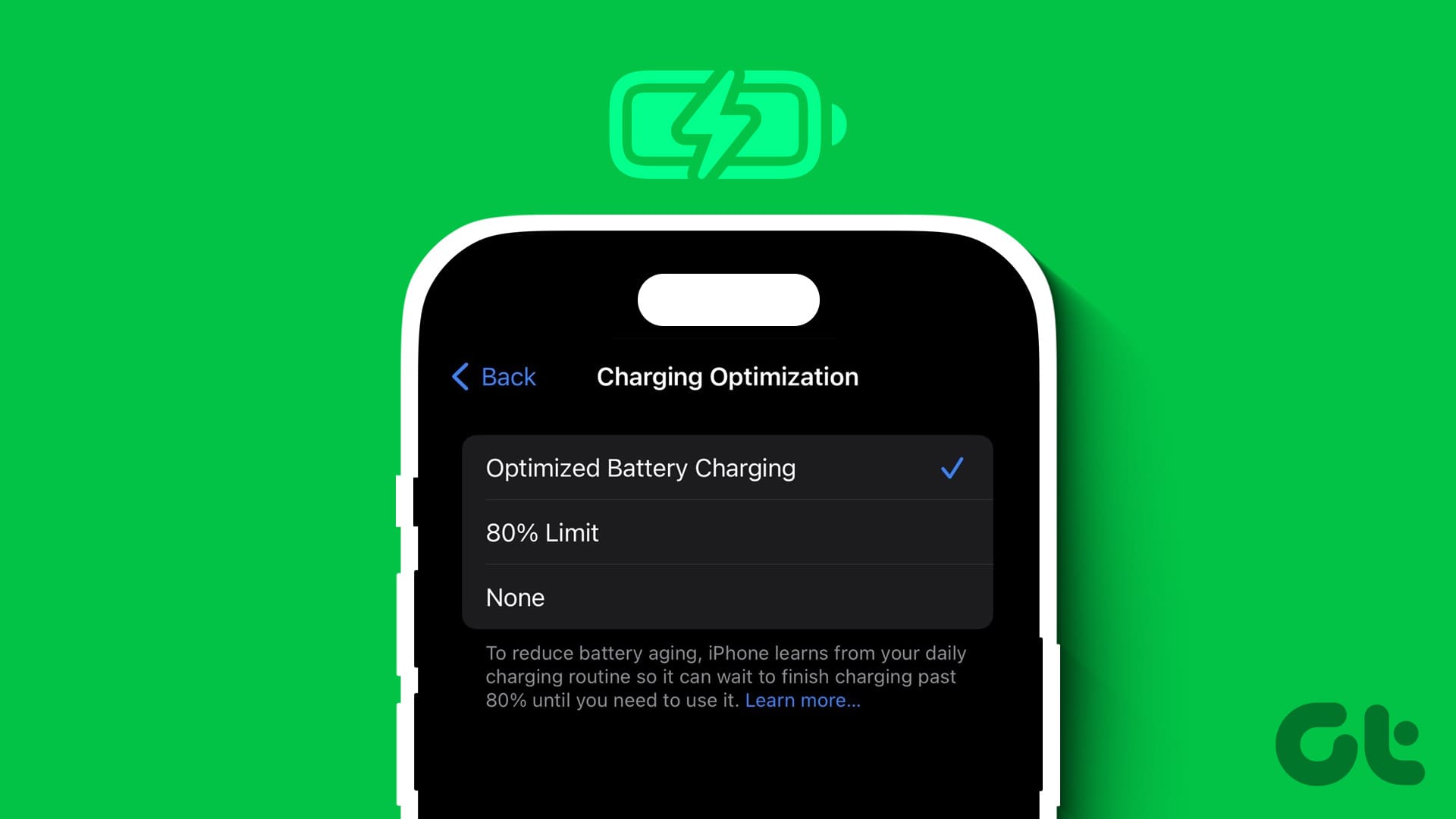
- Turn off the Low Power Mode: Open the Settings app, select Battery, and turn off Low Power Mode.
Fix 1: Enable Google Drive for the Files App
Fix 1: Enable Google Drive for the Files App
If Google Drive isn’t automatically syncing files on your iPhone, it might be due to the missing file sync permission. Head to the Files app to turn it on manually.
Step 1: Open the Files app and tap Browse at the bottom right corner.
Step 2: Select Drive under Locations and tap Turn On when prompted to enable the Google Drive file sync.


Fix 2: Enable Background App Refresh for Google Drive
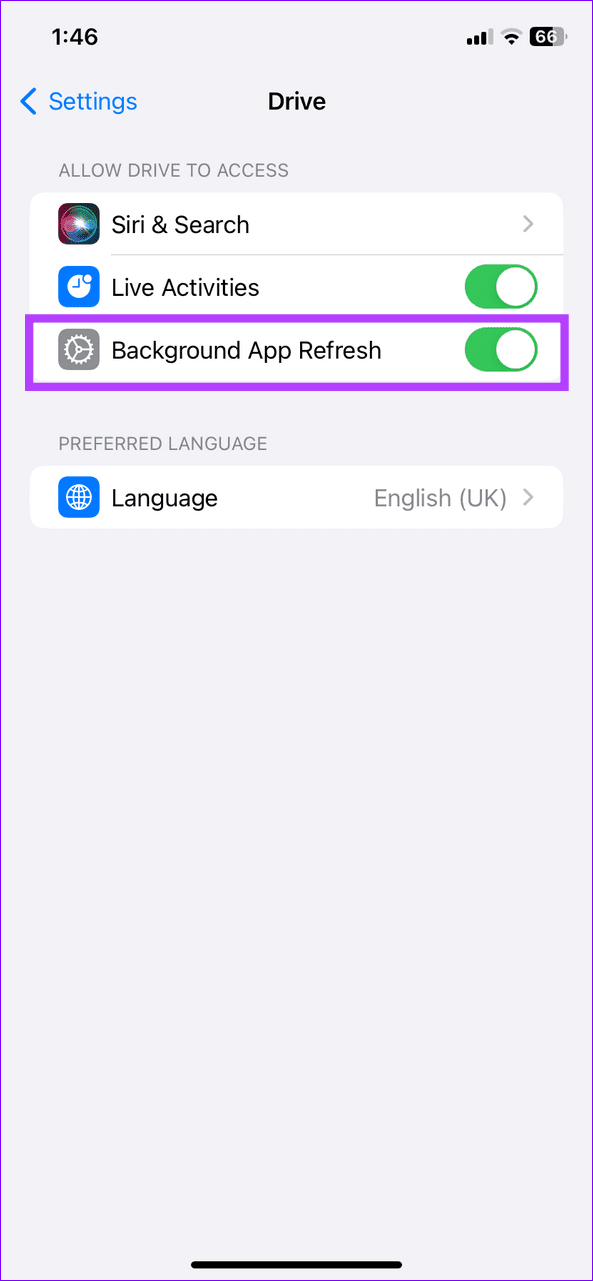
Background App Refresh on iPhone allows apps to update their content when not in use. If it is turned off for Google Drive, it may fail to sync files as soon as you exit the app. Head to iPhone Settings to turn it on.
Step 1: Open iPhone Settings and scroll down to select Drive.
Step 2: Toggle on Background App Refresh.

Fix 3: Remove and Re-Add Your Google Account
Lastly, account configuration issues can prevent Google Drive from syncing files on your iPhone. Remove your Google account from the Drive app and re-add it to troubleshoot the sync issue.
Note: Removing your Google account will delete any unsaved or unsynced data from Google Drive on your iPhone.
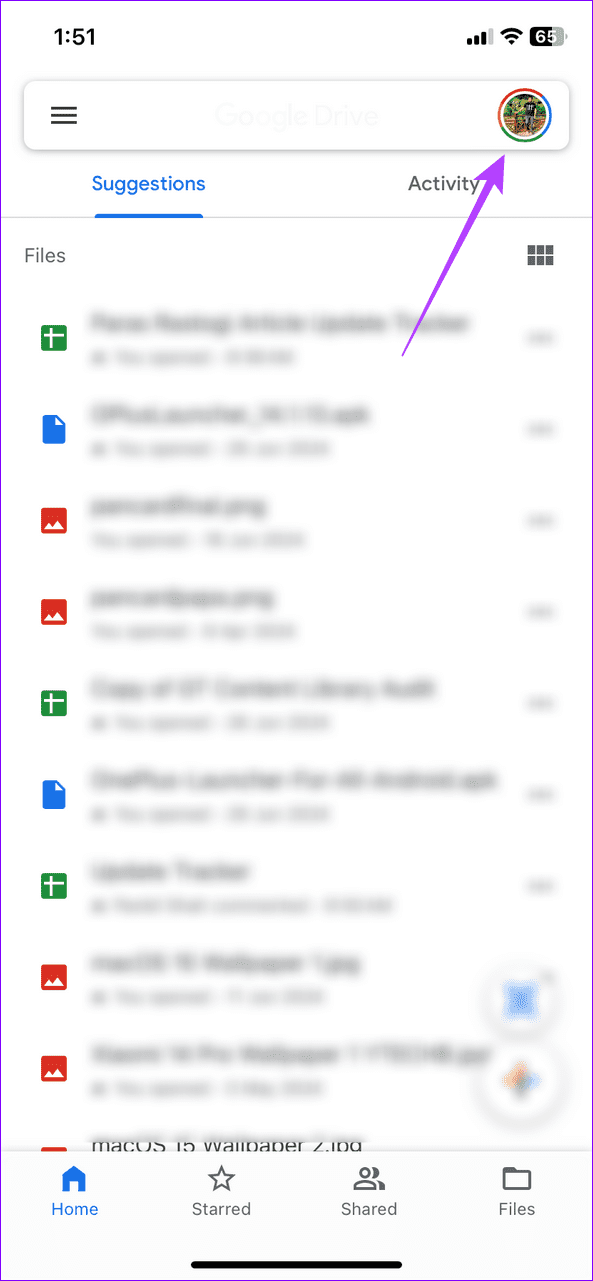
Step 1: Tap your profile icon at the top right in the Drive app and select Manage accounts on this device.
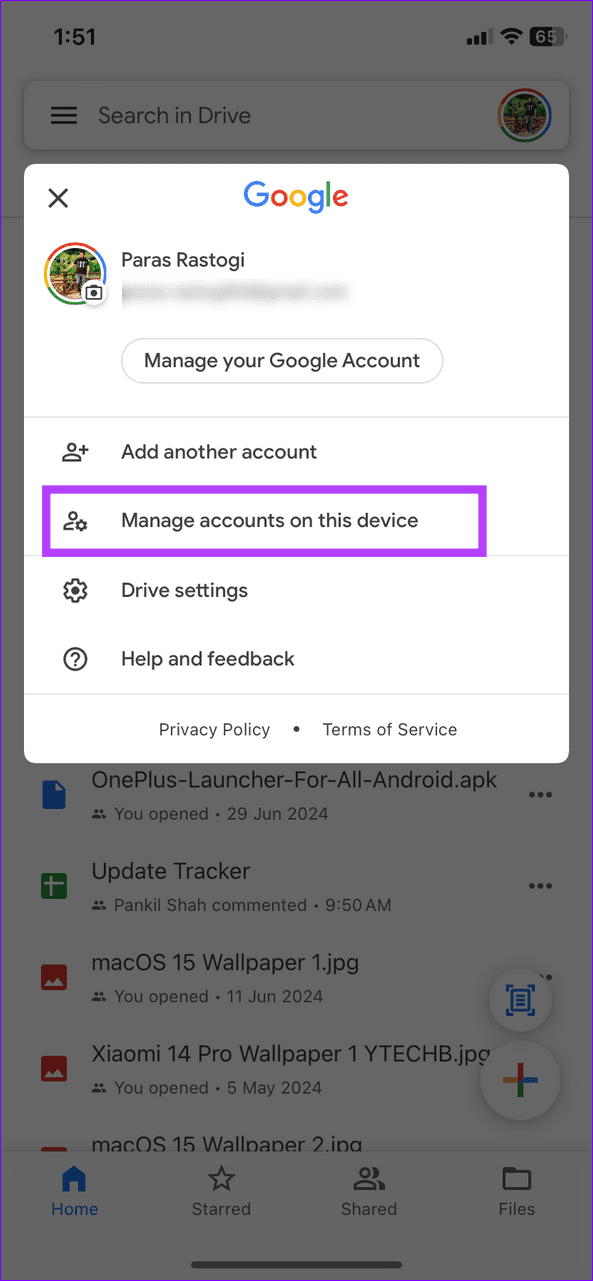
Step 2: Select Remove from this device under your Google account and tap Remove to confirm it.


Step 3: Once logged out, open the Drive app, tap Sign in, and type your Google account credentials to log back into Google Drive and resume the file sync.
Was this helpful?
Last updated on 15 July, 2024
Read Next
 3 Ways to Fix Google Keep Not Syncing on iPhone
Basic Fixes Check internet access: Switch from mobile data to Wi-Fi and try connecting to a 5GHz frequency band if possible.
3 Ways to Fix Google Keep Not Syncing on iPhone
Basic Fixes Check internet access: Switch from mobile data to Wi-Fi and try connecting to a 5GHz frequency band if possible.
 3 Ways to Fix Google Calendar Not Syncing on iPhone
Basic Fixes Switch to Wi-Fi: If you are using mobile data, we suggest switching to Wi-Fi on your iPhone.
3 Ways to Fix Google Calendar Not Syncing on iPhone
Basic Fixes Switch to Wi-Fi: If you are using mobile data, we suggest switching to Wi-Fi on your iPhone.
 Top 7 Ways to Fix iCloud Contacts Not Syncing on iPhone
Most iPhone users sync their data to iCloud, thanks to the free 5GB storage with every Apple account.
Top 7 Ways to Fix iCloud Contacts Not Syncing on iPhone
Most iPhone users sync their data to iCloud, thanks to the free 5GB storage with every Apple account.
 2 Ways to Fix Apple Mail Not Syncing With Gmail on iPhone
https://youtu.be/qe9j2VLn6QY Fix 1: Check Your Gmail Account Settings The Mail app is the default email client app for Apple devices, just like Gmail comes pre-installed for Android.
2 Ways to Fix Apple Mail Not Syncing With Gmail on iPhone
https://youtu.be/qe9j2VLn6QY Fix 1: Check Your Gmail Account Settings The Mail app is the default email client app for Apple devices, just like Gmail comes pre-installed for Android.
 3 Best Ways to Fix Apple Books Not Syncing Between iPhone and iPad
Try Basic Fixes Ensure both devices are connected to Wi-Fi: The syncing of any content between an iPhone and iPad happens via iCloud.
3 Best Ways to Fix Apple Books Not Syncing Between iPhone and iPad
Try Basic Fixes Ensure both devices are connected to Wi-Fi: The syncing of any content between an iPhone and iPad happens via iCloud.
 7 Ways to Fix Outlook App Not Syncing Emails on Android and iPhone
Try Basic Fixes Remove filters: In the Outlook app, tap the filter icon in the top right corner and select All messages to view all your emails.
7 Ways to Fix Outlook App Not Syncing Emails on Android and iPhone
Try Basic Fixes Remove filters: In the Outlook app, tap the filter icon in the top right corner and select All messages to view all your emails.
 7 Best Ways to Fix Mail App Not Syncing With Outlook on iPhone
The default Mail app on your iPhone lets you quickly sign in to your Outlook account.
7 Best Ways to Fix Mail App Not Syncing With Outlook on iPhone
The default Mail app on your iPhone lets you quickly sign in to your Outlook account.
 4 Ways to Fix Messages Not Syncing Between iPhone and iPad
https://youtu.be/L9BxANv4g00 Basic Fixes: Ensure you're using the same Apple account: You need to use the same Apple account on both iPad and iPhone to enable message syncing.
4 Ways to Fix Messages Not Syncing Between iPhone and iPad
https://youtu.be/L9BxANv4g00 Basic Fixes: Ensure you're using the same Apple account: You need to use the same Apple account on both iPad and iPhone to enable message syncing.
The article above may contain affiliate links which help support Guiding Tech. The content remains unbiased and authentic and will never affect our editorial integrity.