Basic Fixes
- Disable Extension: There can be a few extensions in your browser that are actually preventing downloads from Google Docs.
- Try Incognito Mode: Use this method to sign in to your Google Docs account.
- Sign out of other Google accounts: If you are using multiple Google accounts on your browser, we suggest signing out of your other accounts and keep the primary one active.
- Try Removing Emojis or Symbols: Sometime such special characters might not be supported by Google Docs.
- Use a different web browser: Switch to a different browser and then check if the problem gets solved.
Fix 1: Enable Multiple File Downloads
As a security measure, Chrome prevents sites from downloading files one after another. To check if this is the case, load Google Docs in a new tab > click the padlock-shaped icon next to the address bar > Select Site settings > Allow Automatic downloads.

Reload Google Docs, and then try initiating a download. It should likely work.
Fix 2: Clear Google Docs Cache
An outdated web cache can also cause various issues with websites and web apps, and Google Docs is no exception. To rule that out, you must clear cached data related to the web app.
Thankfully, you do not have to clear the entire Chrome cache—check out this guide for detailed instructions on how to clear the Google Docs cache only.
Fix 3: Disable Hardware Acceleration
Forum chatter indicates Chrome’s hardware acceleration functionality as a likely reason for failed downloads.
Open Chrome > Settings > System > Disable Use hardware acceleration when available.
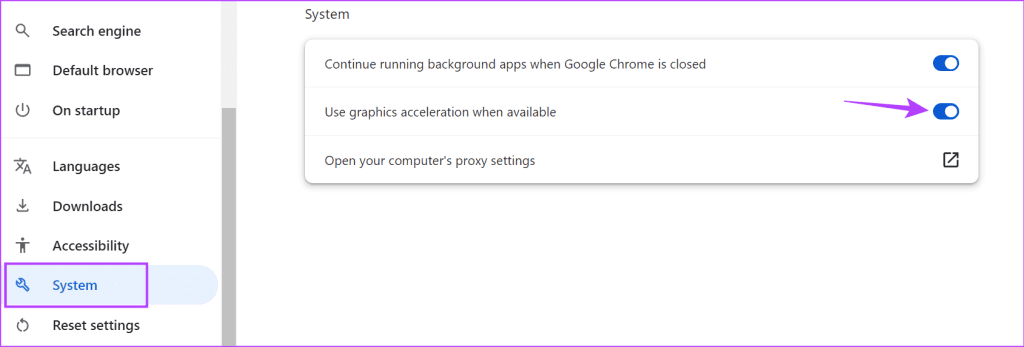
Suppose Google Docs begins downloading documents normally afterward. In that case, you must look into updating Chrome (as a means to resolve any known issues) since keeping hardware acceleration disabled can adversely impact browser performance.
Fix 4: Use Print to PDF
If splitting files into multiple parts sound like a hassle, you can ‘print’ them to PDF instead. Open the File menu in Google Docs > select Print, and then select the Save as PDF option on the Print dialog box. The resulting files would be rather large, however.
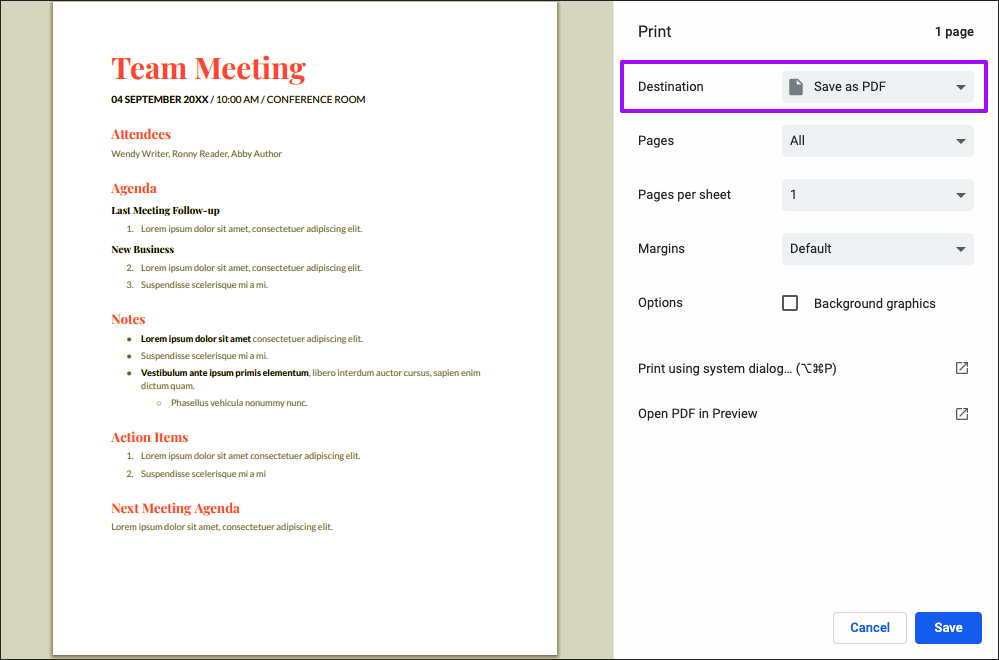
You can also select PDF printers such as Adobe PDF or Microsoft Print to PDF as opposed to Chrome’s built-in Save as PDF option.
Fix 5: Download Google Docs Using Google Drive
Visit your Google Drive account and then download your Google Doc file. You can do this on both mobile and desktop if none of the solutions have worked for you so far.
Was this helpful?
Last updated on 05 July, 2024
Read Next
 4 Fixes for Google Docs Not Downloading as PDF
Basic Fixes Remove browser extensions: You can remove any extensions from your browser that you don't use anymore.
4 Fixes for Google Docs Not Downloading as PDF
Basic Fixes Remove browser extensions: You can remove any extensions from your browser that you don't use anymore.
 Top 3 Ways to Fix Google Chrome Black Screen Issues on Windows 10
Do you often witness a black screen whenever you launch Google Chrome on your Windows PC?
Top 3 Ways to Fix Google Chrome Black Screen Issues on Windows 10
Do you often witness a black screen whenever you launch Google Chrome on your Windows PC?
 4 Ways to Fix Scaling and Zoom Issues in Google Chrome
Basic Fixes Update or reinstall Chrome: Updating Chrome is often an effective way to fix most major issues.
4 Ways to Fix Scaling and Zoom Issues in Google Chrome
Basic Fixes Update or reinstall Chrome: Updating Chrome is often an effective way to fix most major issues.
 4 Best Ways to Fix WhatsApp Reconnecting Issues on iPhone
Basic Fixes Restart iPhone: Restart your iPhone to fix any temporary bugs and glitches.
4 Best Ways to Fix WhatsApp Reconnecting Issues on iPhone
Basic Fixes Restart iPhone: Restart your iPhone to fix any temporary bugs and glitches.
 6 Ways to Fix Sync Issues on Microsoft Edge
Fix 1: Ensure Sync Is Enabled Microsoft Edge may fail to sync your browsing data across devices if sync is disabled.
6 Ways to Fix Sync Issues on Microsoft Edge
Fix 1: Ensure Sync Is Enabled Microsoft Edge may fail to sync your browsing data across devices if sync is disabled.
 7 Ways to Fix Netflix Black Screen With Sound Issues on Mobile and Desktop
Fix 1: Disable Extensions (Windows and macOS) While third-party extensions can help you watch Netflix with friends or enhance your experience in many ways, they can also interfere with Netflix's
7 Ways to Fix Netflix Black Screen With Sound Issues on Mobile and Desktop
Fix 1: Disable Extensions (Windows and macOS) While third-party extensions can help you watch Netflix with friends or enhance your experience in many ways, they can also interfere with Netflix's
 4 Ways to Fix Discord Connection Issues on Android and iPhone
Try These Basic Fixes Check if Discord is down: If its server is having problems, Discord may encounter connection issues.
4 Ways to Fix Discord Connection Issues on Android and iPhone
Try These Basic Fixes Check if Discord is down: If its server is having problems, Discord may encounter connection issues.
 8 Ways to Fix Microsoft Teams Black Screen Issues
Work productivity applications are indispensable in the post-COVID era.
8 Ways to Fix Microsoft Teams Black Screen Issues
Work productivity applications are indispensable in the post-COVID era.
The article above may contain affiliate links which help support Guiding Tech. The content remains unbiased and authentic and will never affect our editorial integrity.