Basic Fixes:
- Restart Chrome from the Task Manager: To open the Task Manager, press Ctrl + Shift + Esc > right-click Google Chrome > select Restart.
- Turn off sync and re-add the Chrome profile: Once you turn off sync and re-add the Chrome profile, you will give the profile a soft reset, which should fix the problem.
- Update the Chrome browser: Updating the browser will fix the error, especially when it’s triggered by outdated components. To start an update, navigate to chrome://settings/help.
Fix 1: Enter the Google Chrome Passphrase
You will get the Chrome profile error when you have not logged into your browser profile correctly. So, you should see a Passphrase option. Follow the steps below.
Step 1: Launch the Chrome browser.
Step 2: Click on the Error > Passphrase or Verify it’s you. This should tell you to sign in.

Step 3: Input your credentials and sign in; the problem should be resolved.
Fix 2: Reset Your Chrome Sync Settings
Resetting the sync data effectively fixes Chrome profile errors. It enables your data to be uniform across all platforms, allowing you to log into the profile without error.
Step 1: Launch the Chrome browser.
Step 2: Type the path below in the address bar and hit Enter.
chrome://settings/syncSetup
Step 3: Click Review your synced data.
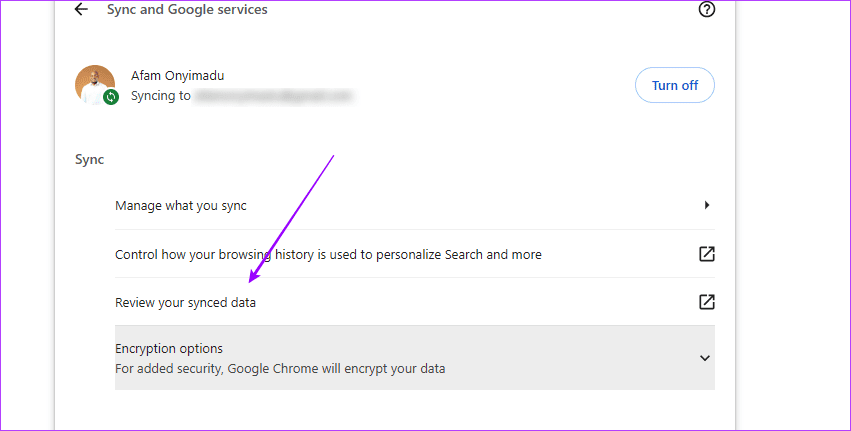
Step 4: scroll down to the bottom and click on Clear data.

Now, log into Chrom again, and the error should disappear. In extreme cases, consider changing the default Google account on your Chrome.
Was this helpful?
Last updated on 29 May, 2024
Read Next
 4 Ways to Fix Profile Error in Microsoft Edge
Fix 1: Delete the Web Data File Such errors in Microsoft Edge can also occur if the "Web Data" file stored on your PC becomes corrupted.
4 Ways to Fix Profile Error in Microsoft Edge
Fix 1: Delete the Web Data File Such errors in Microsoft Edge can also occur if the "Web Data" file stored on your PC becomes corrupted.
 3 Ways to Fix Google Chrome Not Responding Error
Basic Fixes Restart Google Chrome: If Google Chrome isn't responding, restart the browser.
3 Ways to Fix Google Chrome Not Responding Error
Basic Fixes Restart Google Chrome: If Google Chrome isn't responding, restart the browser.
 6 Ways to Fix Google Chrome Error Code: Out of Memory on Windows
Basic Fixes Restart PC: Restart your PC to fix temporary bugs and glitches.
6 Ways to Fix Google Chrome Error Code: Out of Memory on Windows
Basic Fixes Restart PC: Restart your PC to fix temporary bugs and glitches.
 Top 3 Ways to Fix Your Clock Is Ahead/Behind Error in Google Chrome
https://youtu.be/YigbNABjAaw Preliminary Fixes Restart Chrome: A simple restart can sometimes resolve the issue if it's related to temporary glitches.
Top 3 Ways to Fix Your Clock Is Ahead/Behind Error in Google Chrome
https://youtu.be/YigbNABjAaw Preliminary Fixes Restart Chrome: A simple restart can sometimes resolve the issue if it's related to temporary glitches.
 3 Ways to Fix “Virus Scan Failed” Error in Google Chrome
Try Basic Fixes Disable antivirus temporarily: When an antivirus finds any threats with the file you're trying to download, it might block it.
3 Ways to Fix “Virus Scan Failed” Error in Google Chrome
Try Basic Fixes Disable antivirus temporarily: When an antivirus finds any threats with the file you're trying to download, it might block it.
 8 Best Ways to Fix DNS_PROBE_FINISHED_NXDOMAIN Error in Google Chrome in Windows 11
Google Chrome is a go-to browser for several users for convenience and several other reasons.
8 Best Ways to Fix DNS_PROBE_FINISHED_NXDOMAIN Error in Google Chrome in Windows 11
Google Chrome is a go-to browser for several users for convenience and several other reasons.
 How to Fix Windows 10’s User Profile Cannot Be Loaded Error
Logging in to a computer is as easy as typing a password (if any) and tapping the sign-in button.
8 Best Ways to Fix Google Chrome Security Certification Error
Do you frequently get a “Your Connection Is Not Private” message in Chrome?
How to Fix Windows 10’s User Profile Cannot Be Loaded Error
Logging in to a computer is as easy as typing a password (if any) and tapping the sign-in button.
8 Best Ways to Fix Google Chrome Security Certification Error
Do you frequently get a “Your Connection Is Not Private” message in Chrome?
The article above may contain affiliate links which help support Guiding Tech. The content remains unbiased and authentic and will never affect our editorial integrity.