


Basic Fixes
- Unmute your TV and turn up the volume: Press the Mute button on your TV remote to unmute its volume. Further, increase the volume level using the TV remote and Fire Stick remote.
- Check your network connection: Ensure Fire Stick is connected to a good internet connection. I recommend using at least 10Mbps of internet speed to stream videos on the Fire Stick.
- Replug the Fire Stick: Unplug the Fire Stick from your TV, clean its connector thoroughly, and re-insert it.
- Inspect the AV(Audio/Video) Receiver: Check the AV Receiver light indicator to ensure it is powered on.
- Ensure Bluetooth earphones aren’t connected to the Fire Stick: Disconnect all connected Bluetooth earphones/headphones to avoid sound routing to them instead of your TV.
- Ensure HDMI port supports audio: Check your TV product manual to verify its HDMI port supports audio. You can also Google the TV model to verify these details.
Fix 1: Check Audio Settings in the Fire Stick
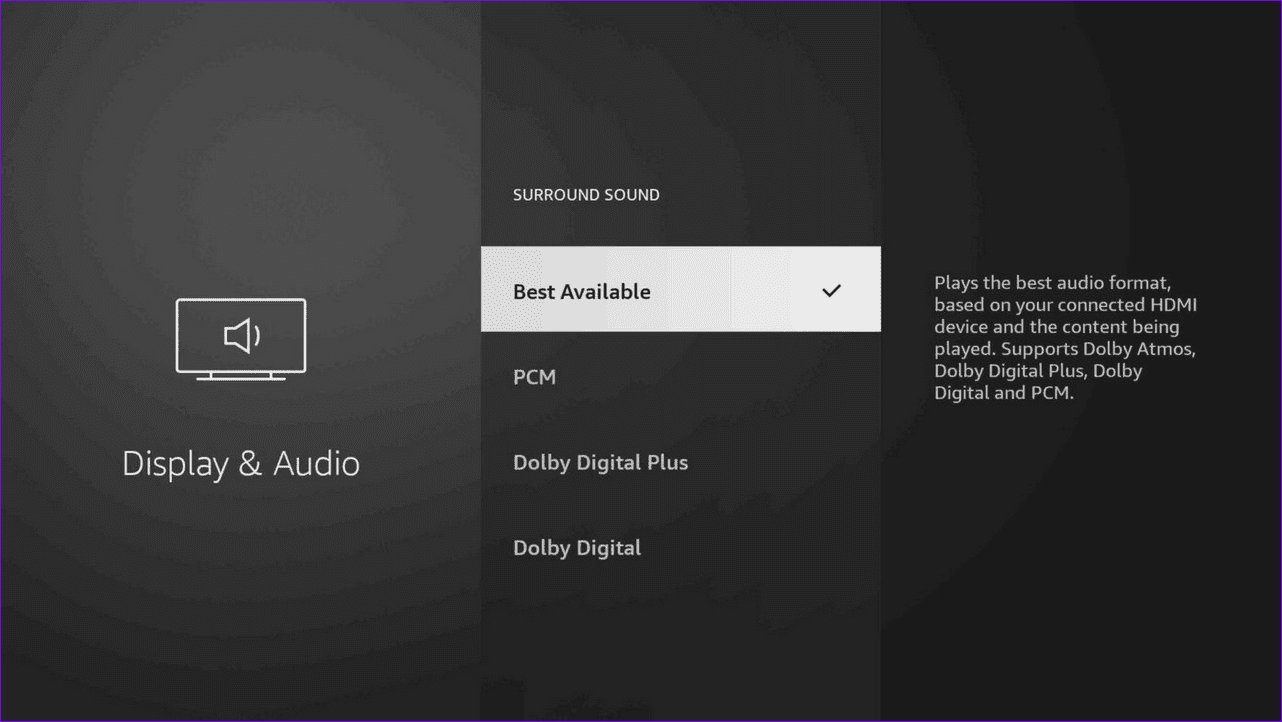
Fire Stick lets you choose the best sound output supported by the playing content (e.g., Dolby Digital, Dolby Atmos). If your TV or connected speaker isn’t compatible, you may not hear any sound. Tweak the Fire Stick audio settings manually to fix it.
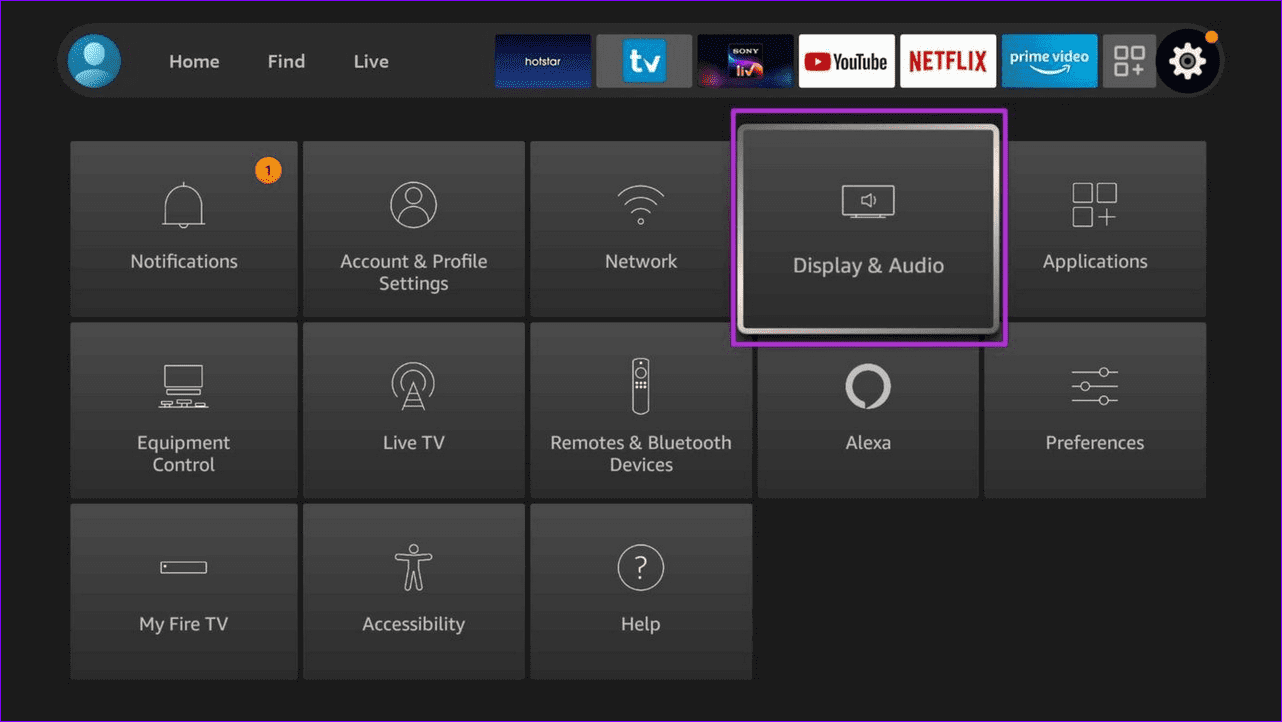
Step 1: Navigate to the Gear icon on the Fire Stick home and select Display & Audio.

Step 2: Select Audio and open Surround Sound.
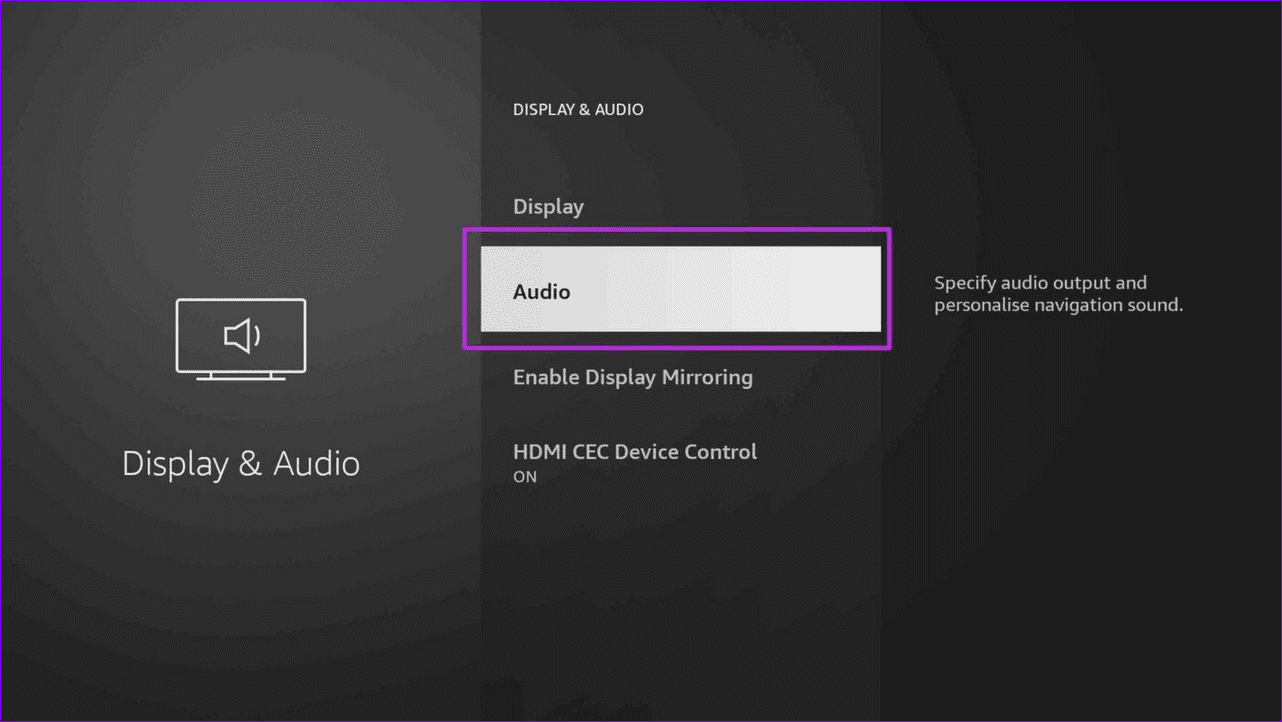
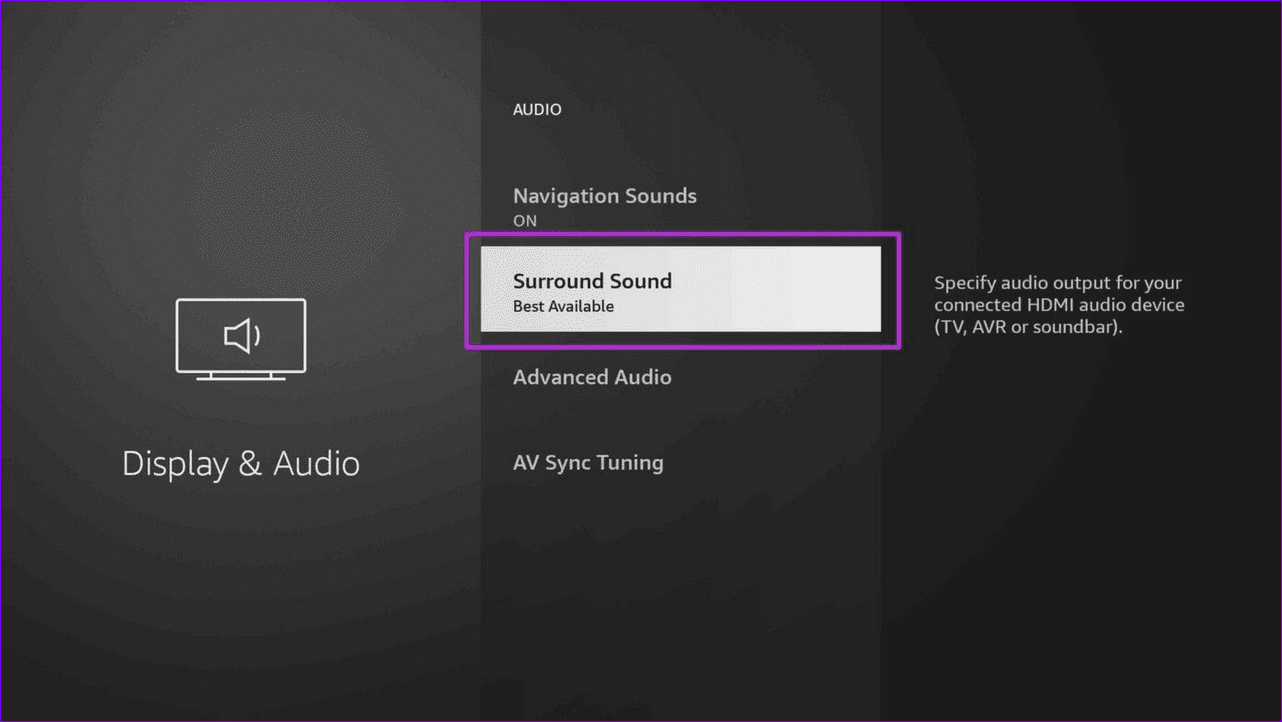
Step 3: Switch it to Best Available and check the sound output. If the sound issue persists, set it to PCM.
Fix 2: Run the AV Sync Tuning
Are you noticing an audio delay in the content you’re watching on the Fire Stick? Fret not; run the AV Sync Tuning in the Fire Stick settings to fix it.
Step 1: Open Display & Audio settings from the Fire Stick home menu.
Step 2: Select Audio and scroll down to launch AV Sync Tuning.

Fix 3: Manually Set up the Soundbar
If your Fire Stick doesn’t recognize the connected third-party soundbar, you may encounter the no sound issue. To fix it, set up your soundbar manually under Fire Stick settings.
Step 1: Open Equipment Control from the Fire Stick home menu.

Step 2: Select Manage Equipment.

Step 3: Click Add Equipment, select Soundbar, pick your brand from the list, and follow the on-screen instructions to complete its setup.

Fix 4: Reset the Fire Stick
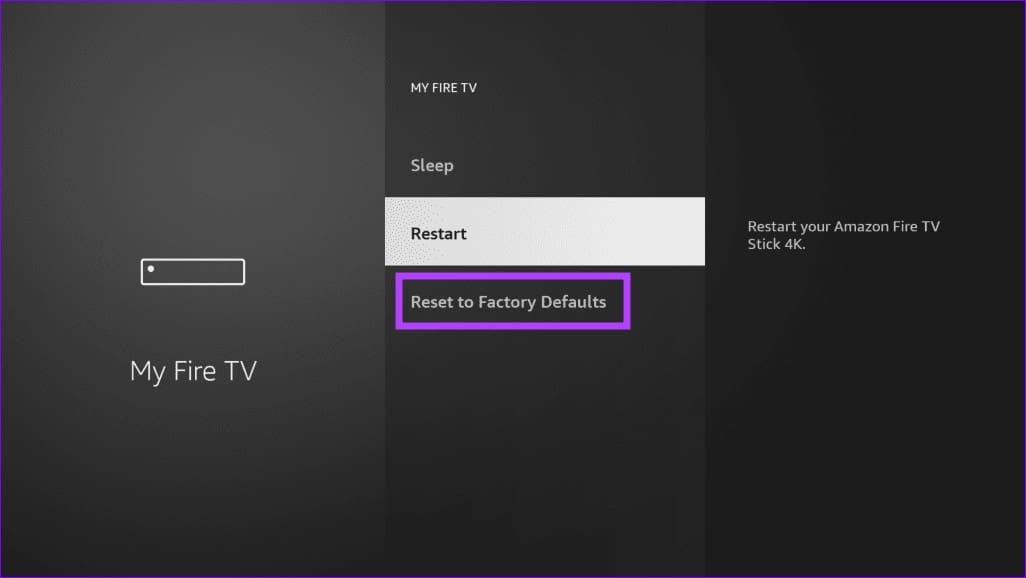
If nothing works, reset the Fire Stick to factory defaults to fix its sound not working issue.
Note: Resetting the Fire Stick removes all downloaded content, including your in-app purchases.
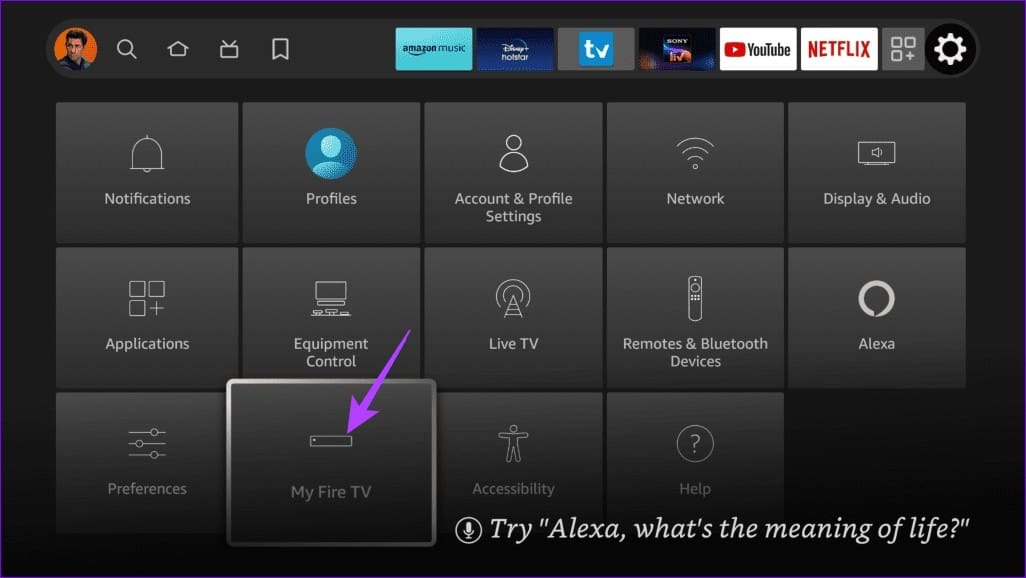
Step 1: Open My Fire TV under Fire Stick settings.
Step 2: Scroll down and select Reset to Factory Defaults.
Was this helpful?
Last updated on 12 July, 2024
1 Comment
Leave a Reply
Read Next
 No Sound on Amazon Fire TV Stick YouTube App? Here’s the Fix
Basic Fixes Check if the audio is muted: The Fire TV 4K remote has a dedicated Mute button to disable audio.
No Sound on Amazon Fire TV Stick YouTube App? Here’s the Fix
Basic Fixes Check if the audio is muted: The Fire TV 4K remote has a dedicated Mute button to disable audio.
 3 Ways to Fix Fire TV Stick Mirroring Not Working or Freezing
Screen Mirroring Requirements and Limitations for Fire TV Stick Before starting, let us look at certain conditions that you might need to meet when screen mirroring your device to your
3 Ways to Fix Fire TV Stick Mirroring Not Working or Freezing
Screen Mirroring Requirements and Limitations for Fire TV Stick Before starting, let us look at certain conditions that you might need to meet when screen mirroring your device to your
 How to Fix Netflix Not Working on Amazon Fire TV Stick
Basic Fixes Check Netflix server status: You can visit DownDetector to see if the Netflix servers are working for your area.
How to Fix Netflix Not Working on Amazon Fire TV Stick
Basic Fixes Check Netflix server status: You can visit DownDetector to see if the Netflix servers are working for your area.
 3 Ways to Fix Apple TV App Not Working on Amazon Fire TV Stick
Basic Fixes Force quit and relaunch Apple TV app: This will give the app a fresh start on your Firestick.
3 Ways to Fix Apple TV App Not Working on Amazon Fire TV Stick
Basic Fixes Force quit and relaunch Apple TV app: This will give the app a fresh start on your Firestick.
 3 Ways to Fix Prime Video App Not Working on Fire TV Stick
Common Fixes Restart the Fire TV Stick: Select the gear icon at the top right of the Fire OS home screen to expand Settings.
3 Ways to Fix Prime Video App Not Working on Fire TV Stick
Common Fixes Restart the Fire TV Stick: Select the gear icon at the top right of the Fire OS home screen to expand Settings.
 3 Ways to Fix Fire TV Stick Remote Volume Not Working
Basic Fixes: Check the remote batteries: Fire TV Stick relies on batteries to work properly.
3 Ways to Fix Fire TV Stick Remote Volume Not Working
Basic Fixes: Check the remote batteries: Fire TV Stick relies on batteries to work properly.
 5 Ways to Fix Amazon Silk Browser Not Working on Fire TV Stick
Basic Fixes Check your network connection: Open Fire OS settings via the Gear icon at the top right.
5 Ways to Fix Amazon Silk Browser Not Working on Fire TV Stick
Basic Fixes Check your network connection: Open Fire OS settings via the Gear icon at the top right.
 3 Ways to Fix YouTube TV Not Working on Amazon Fire TV Stick
Basic Fixes Check the YouTube server status: Visit Downdetector to check an active YouTube TV server outage.
3 Ways to Fix YouTube TV Not Working on Amazon Fire TV Stick
Basic Fixes Check the YouTube server status: Visit Downdetector to check an active YouTube TV server outage.
The article above may contain affiliate links which help support Guiding Tech. The content remains unbiased and authentic and will never affect our editorial integrity.
Hi, im from Mauritius island . i need your help. i have bought an amazon fire cube 3rd genaration i do all updates . i have an issue while playing prime video i didn’t get dolby atmos . on netflix hbo max and disney plus all playing atmos but no atmos on prime video features. By the way i have fire stick 4k max it plays atmos on amzon prime video. could you please help me how to fix this issue ? Thank you in advance.