Basic Fixes:
- Check your internet connection: When your Fire TV Stick is not installing an app, you should first ensure your internet connection is stable and has good speeds to support the app download. If your Fire TV Stick is not connecting to Wi-Fi, move closer to the router, reconnect, and try again.
- Restart Fire TV Stick: You can restart your Fire TV Stick using the settings menu. This will refresh all device services. Then, try downloading the app again.
- Disable VPN: While VPN can help you access apps and features that might not otherwise be available, it can also restrict the ones unavailable in the region your device is currently set to via VPN. In this case, disconnect the VPN on your Fire TV Stick and try again.
- Check device storage: If your Fire TV Stick is running low on storage, it can’t install new apps. So, check and clear the storage on your Fire TV Stick before trying again.
- Check for software updates: Software glitches or bugs can cause your Fire TV Stick to error out when performing certain functions, like installing new apps. In this case, check and install the latest software updates for your Fire TV Stick device.
Fix 1: Uninstall Excess Apps
Over time, you might accumulate apps on your Fire TV Stick that you no longer use. So, uninstall some of these excess apps from your Fire TV Stick device and see if that allows you to install new apps. Here’s how to do it.
Step 1: Open your Fire TV Stick and select Settings. Then, select Applications.
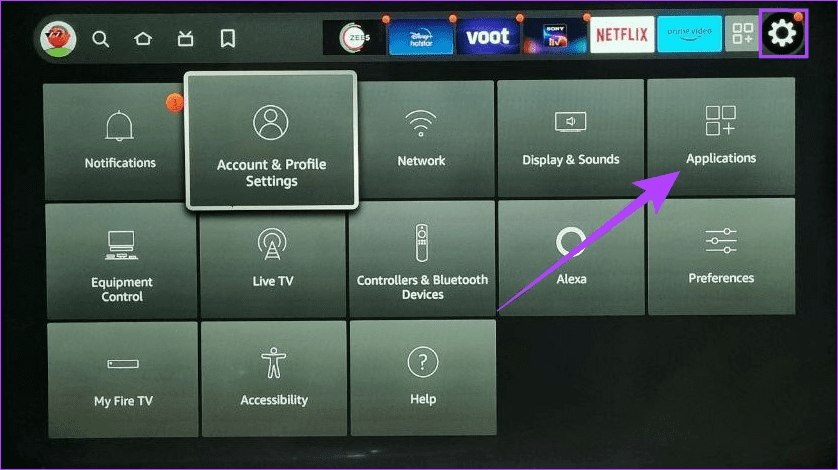
Step 2: Here, select Manage Installed Applications.

Step 3: Now, select the application you wish to uninstall.

Step 4: Select Uninstall.

When prompted, select Uninstall to confirm the action. You can also repeat the above steps to uninstall any other excess apps from your Fire TV Stick.
Also Read: How to fix Fire TV Stick not loading apps
Fix 2: Check Amazon Account Payment Information
If the payment information on your Amazon account is incorrect or outdated, you can’t purchase new apps. As a result, these apps will not be installed on your Fire TV Stick. Here’s how to check and rectify the payment information on your Amazon account.
Step 1: Open Amazon on any web browser and click on Account & Lists > Account.
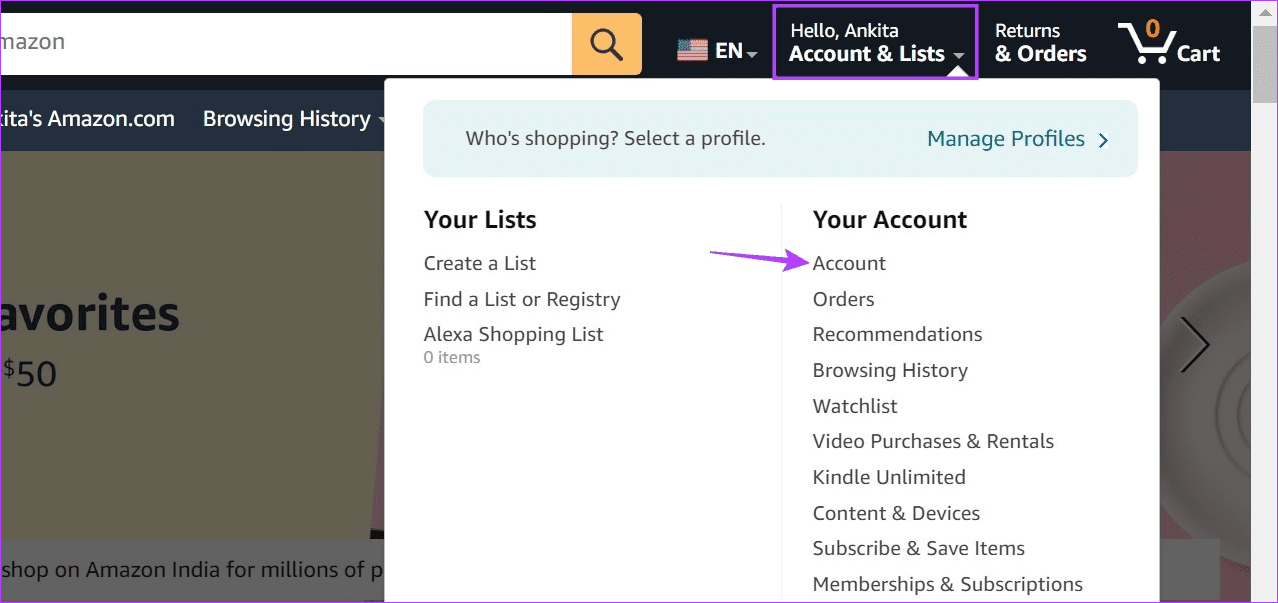
Step 2: Here, click on Your Payments.

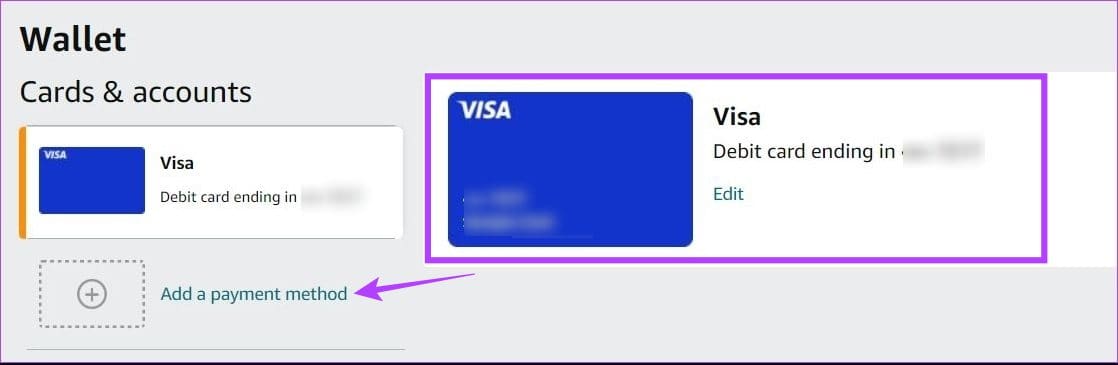
Step 3: Now, check the details for the currently added card. Update the card information if required.
Step 4: Or, click on Add a payment method to add a new card. Then, fill in the relevant information to add the payment method to your Amazon account.
Fix 3: Reset Fire TV Stick
Resetting your Fire TV Stick will deregister your Amazon account and delete all your other Fire TV Stick apps and data. This can help you remove a setting or app preventing you from installing new apps. Follow the below steps to do it.
Step 1: Open your Fire TV Stick and select Settings. Then, select My Fire TV.
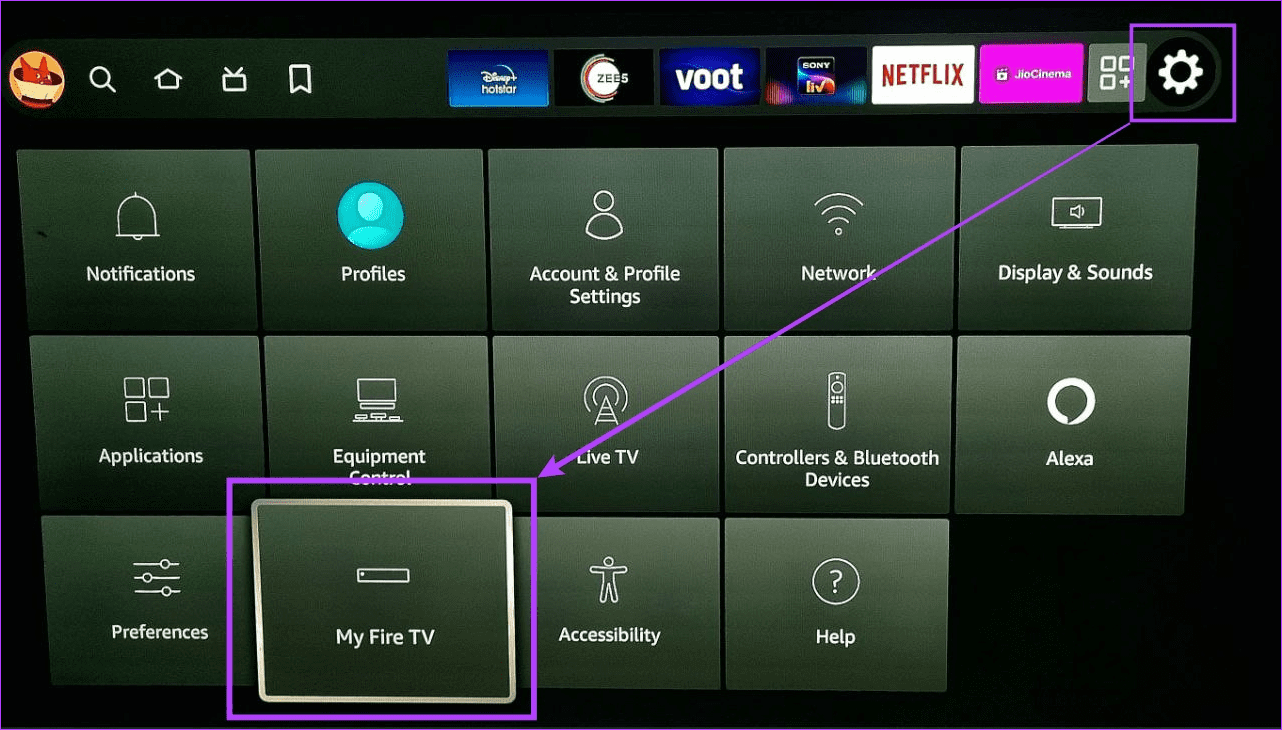
Step 2: Scroll down and select Reset to Factory Defaults.

Step 3: When prompted, select Reset to confirm.
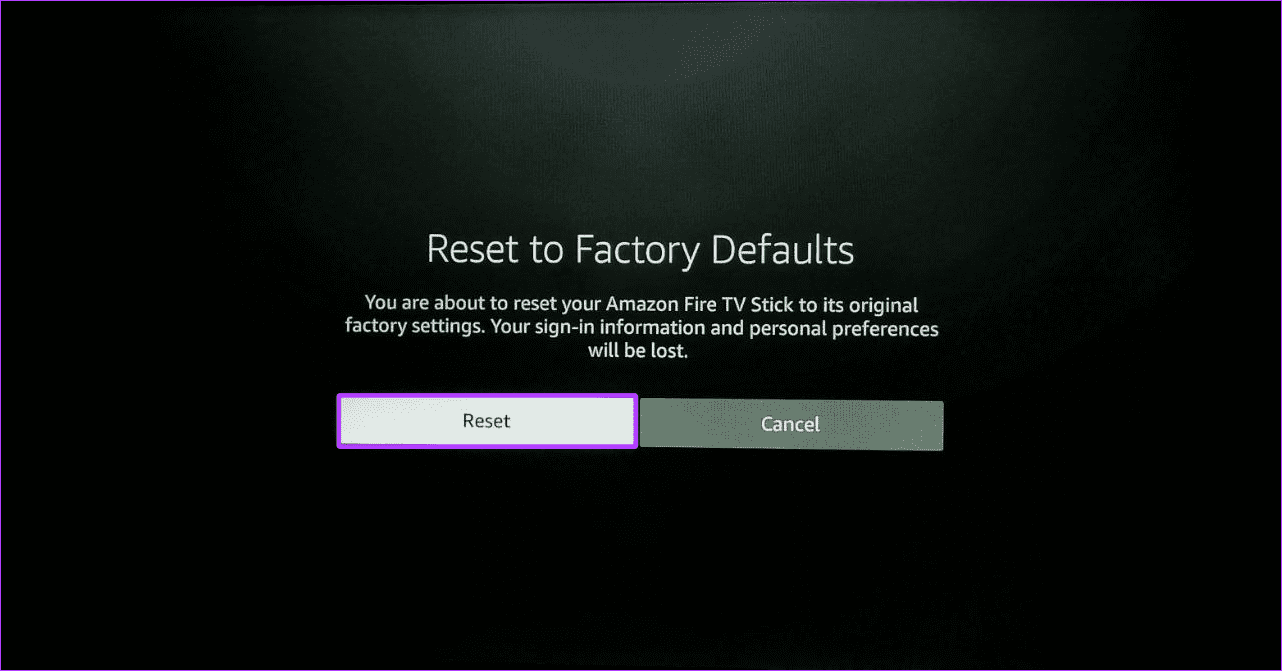
Once done, wait for the reset process to finish. Then, set up your Fire TV Stick and try installing the relevant app again.
Was this helpful?
Last updated on 16 May, 2024
Read Next
 4 Ways to Fix Fire TV Stick Not Loading Apps
Basic Fixes: Check internet connection: If you try opening apps on a Fire TV Stick on a slow network connection, they may not open on the first try.
4 Ways to Fix Fire TV Stick Not Loading Apps
Basic Fixes: Check internet connection: If you try opening apps on a Fire TV Stick on a slow network connection, they may not open on the first try.
 4 Ways to Fix Apps Not Installing on Android
Basic Fixes Restart device: Restart your Android device to fix temporary bugs and glitches.
4 Ways to Fix Apps Not Installing on Android
Basic Fixes Restart device: Restart your Android device to fix temporary bugs and glitches.
 Top 9 Ways to Fix Mac Apps Stuck on Installing
The macOS ecosystem has useful apps and services to elevate your experience.
Top 9 Ways to Fix Mac Apps Stuck on Installing
The macOS ecosystem has useful apps and services to elevate your experience.
 3 Ways to Fix Amazon Fire TV Stick Keeps Restarting
Basic Fixes Use official accessories: If you aren't using the original accessories with your Firestick, you might use an incompatible USB cable or adapter.
3 Ways to Fix Amazon Fire TV Stick Keeps Restarting
Basic Fixes Use official accessories: If you aren't using the original accessories with your Firestick, you might use an incompatible USB cable or adapter.
 3 Ways to Fix Fire TV Stick Remote Not Pairing After Factory Reset
Basic Fixes Replug your Fire TV Stick: Unplug it from the connected device and plug it in again to restart it.
3 Ways to Fix Fire TV Stick Remote Not Pairing After Factory Reset
Basic Fixes Replug your Fire TV Stick: Unplug it from the connected device and plug it in again to restart it.
 3 Ways to Fix Fire TV Stick Stuck on Amazon Logo Screen
Basic Fixes Use the official accessories: Your Fire TV Stick comes with official accessories that help ensure your device gets sufficient power and can work properly.
3 Ways to Fix Fire TV Stick Stuck on Amazon Logo Screen
Basic Fixes Use the official accessories: Your Fire TV Stick comes with official accessories that help ensure your device gets sufficient power and can work properly.
 3 Ways to Fix Prime Video App Not Working on Fire TV Stick
Common Fixes Restart the Fire TV Stick: Select the gear icon at the top right of the Fire OS home screen to expand Settings.
3 Ways to Fix Prime Video App Not Working on Fire TV Stick
Common Fixes Restart the Fire TV Stick: Select the gear icon at the top right of the Fire OS home screen to expand Settings.
 3 Ways to Fix Fire TV Stick Remote Volume Not Working
Basic Fixes: Check the remote batteries: Fire TV Stick relies on batteries to work properly.
3 Ways to Fix Fire TV Stick Remote Volume Not Working
Basic Fixes: Check the remote batteries: Fire TV Stick relies on batteries to work properly.
The article above may contain affiliate links which help support Guiding Tech. The content remains unbiased and authentic and will never affect our editorial integrity.