Basic Fixes:
- Check Facebook’s server status: If the Facebook app is down, it might not work properly. So, go to Downdetector and check Facebook’s server status. If it is down, wait before trying again.
- Restart the router and Facebook app: You can close and restart the Facebook app to remove bugs or glitches. Similarly, power off and on your internet router to refresh your internet connection. Then, check again.
- Ensure Facebook is not banned on your network: Companies, universities, and schools may ban social media apps like Facebook on their Wi-Fi networks. So, check and confirm if you can access Facebook using your current Wi-Fi network.
- Disconnect VPN: Facebook might not work properly if your internet connection is throttled by your VPN. Disconnect your VPN and use Facebook again.
- Update or reinstall the Facebook app: Check and install the latest app updates for Facebook to fix software-related glitches. Or, if an update is unavailable, uninstall and reinstall the Facebook app on your phone. Then, use the app again on your Wi-Fi.
Fix 1: Connect to a Faster Wi-Fi Frequency
The modern Wi-Fi router supports two or three bands. So, if your phone is connected to a 2.4GHz Wi-Fi network, you may face issues loading videos and pictures on Facebook. Connect your device to a 5GHz frequency band offering faster internet speeds, and try using Facebook again.
Fix 2: Switch to Cloudflare or Google DNS
Issues with your DNS server can prevent Facebook from working properly when connected to Wi-Fi. When this happens, switch your current DNS server to Cloudflare or Google DNS and try again. Here’s how to do it.
Tip: Check our article to learn more about switching to Google DNS on your Windows or Mac device
On iPhone
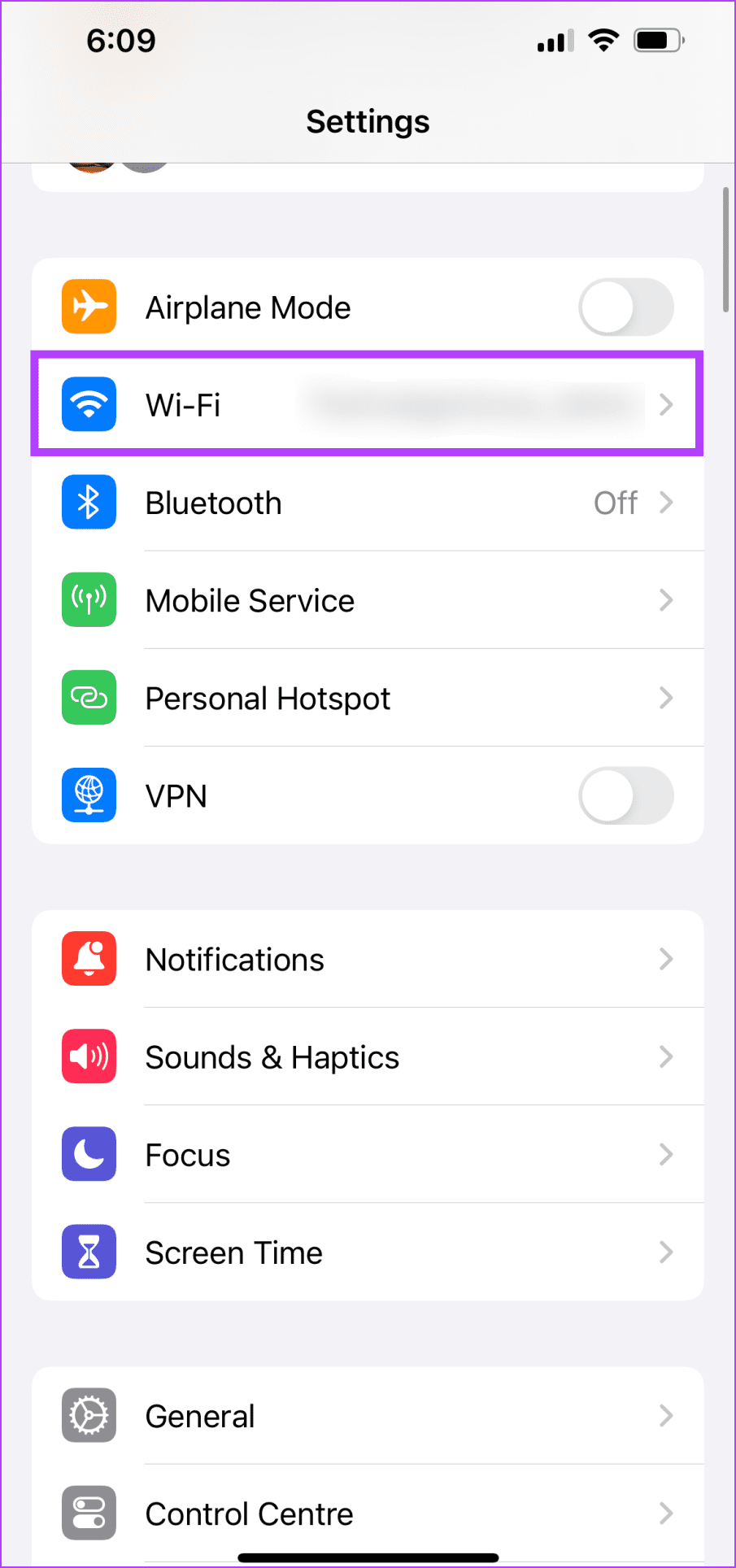
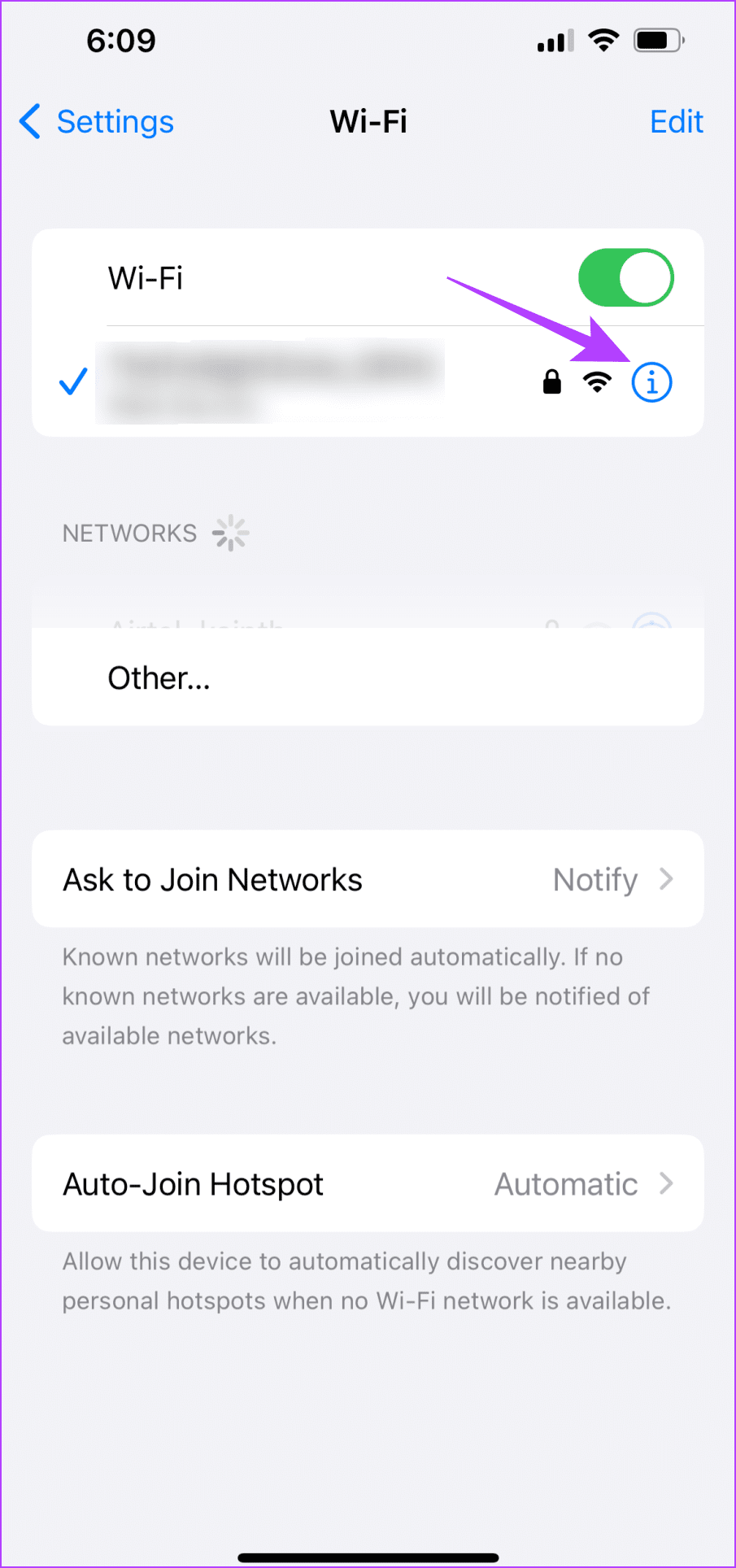
Step 1: Open Settings and tap on Wi-Fi. Here, tap the i icon next to your Wi-Fi.
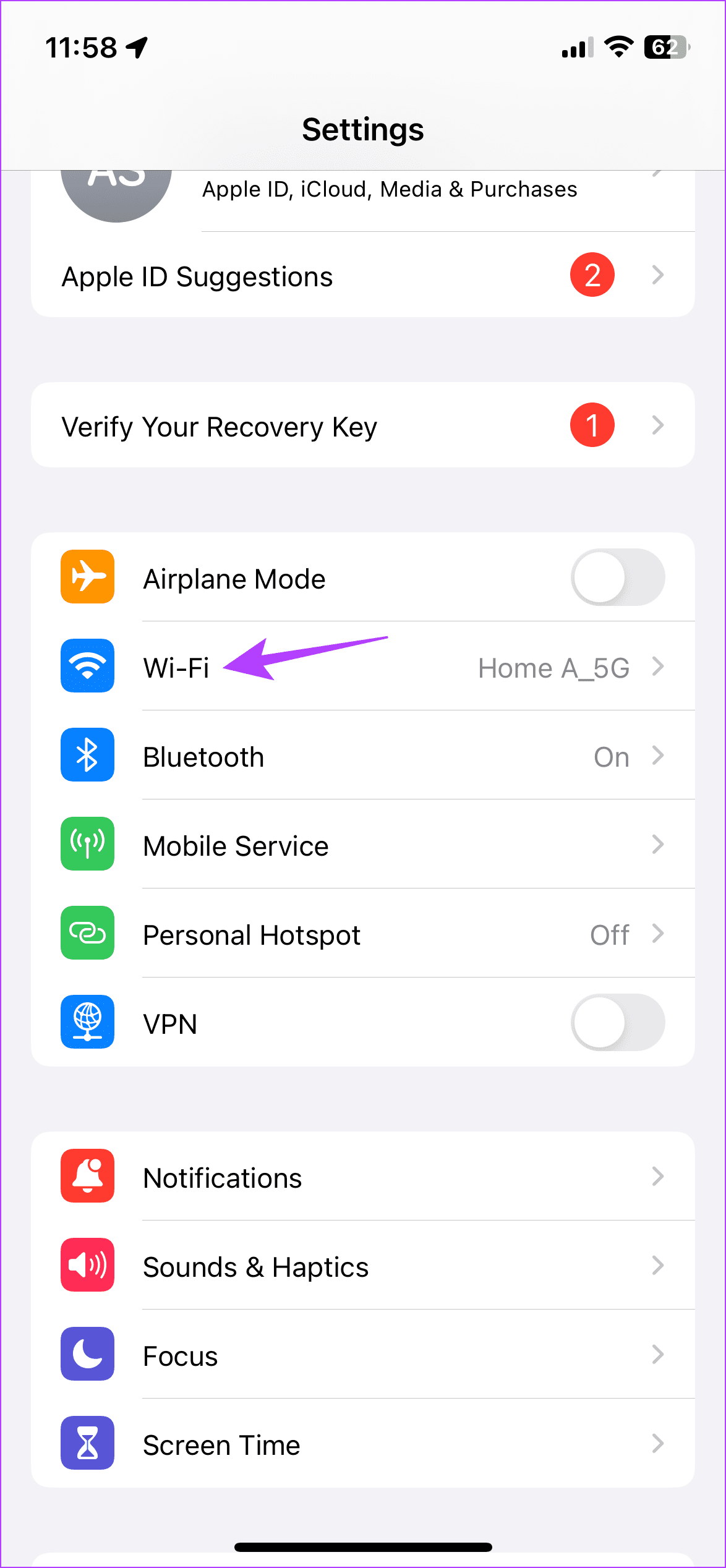

Step 2: Tap on Configure DNS. From the options, select Manual.
Step 3: Then, remove the current DNS servers and tap on Add Server.


Now, add 8.8.8.8 and 8.8.4.4 for Google DNS or 1.1.1.1 for Cloudflare in the given field, tap on Save to save the changes, and close the window.
On Android
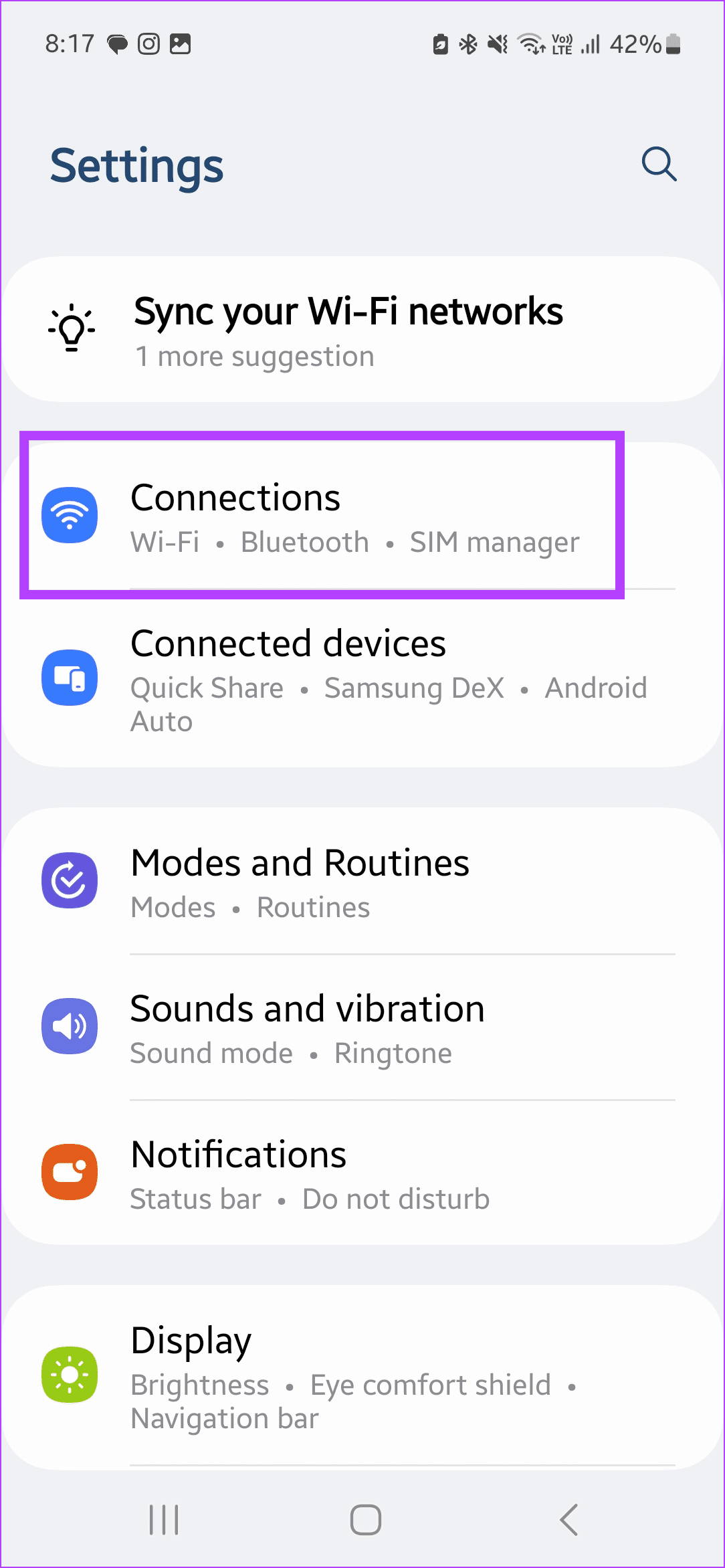
Step 1: Open Settings > tap on Connections > scroll down and tap on More connection settings.

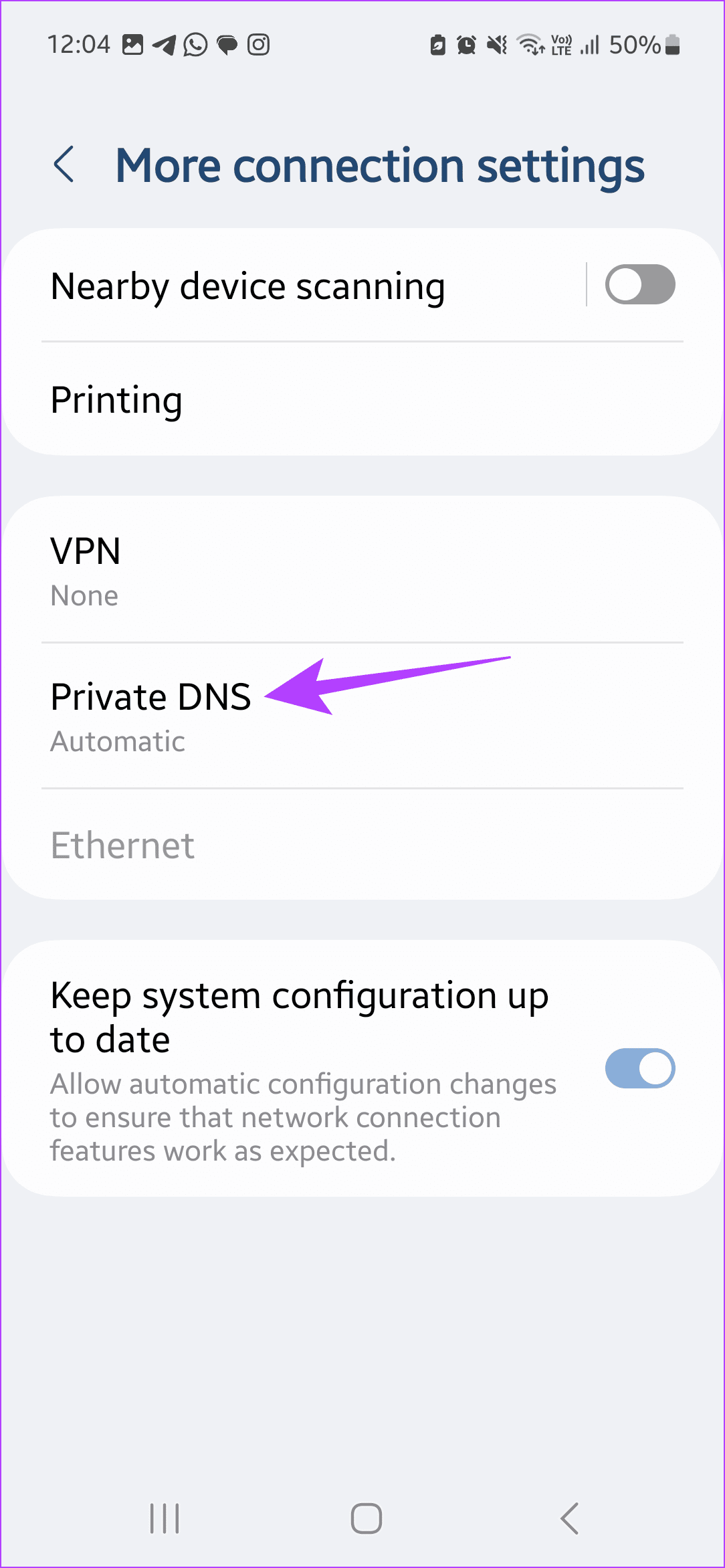
Step 2: Here, tap on Private DNS. From the options, select Private DNS provider hostname.
Step 3: Then, type dns.google and tap on Save. This should connect your Android phone to Google DNS.

Fix 3: Turn off Low Data Mode on Wi-Fi (iPhone)
If you have enabled Low Data Mode for your home or office Wi-Fi network, it may cause issues when accessing data-heavy apps like Facebook. Open Wi-Fi settings and turn off Low Data Mode for your current Wi-Fi connection. Here’s how.
Step 1: Open Settings on your iPhone and tap on Wi-Fi. Then, tap the i button beside your Wi-Fi network.
Step 2: Turn off the toggle for Low Data Mode.

Fix 4: Reset Wi-Fi and Bluetooth Settings (Android)
If you face Wi-Fi glitches while using Facebook and other installed apps on Android, reset your network connection settings. Note that doing this will only reset the Wi-Fi and Bluetooth settings and will not affect your other device data. Here’s how to do it.
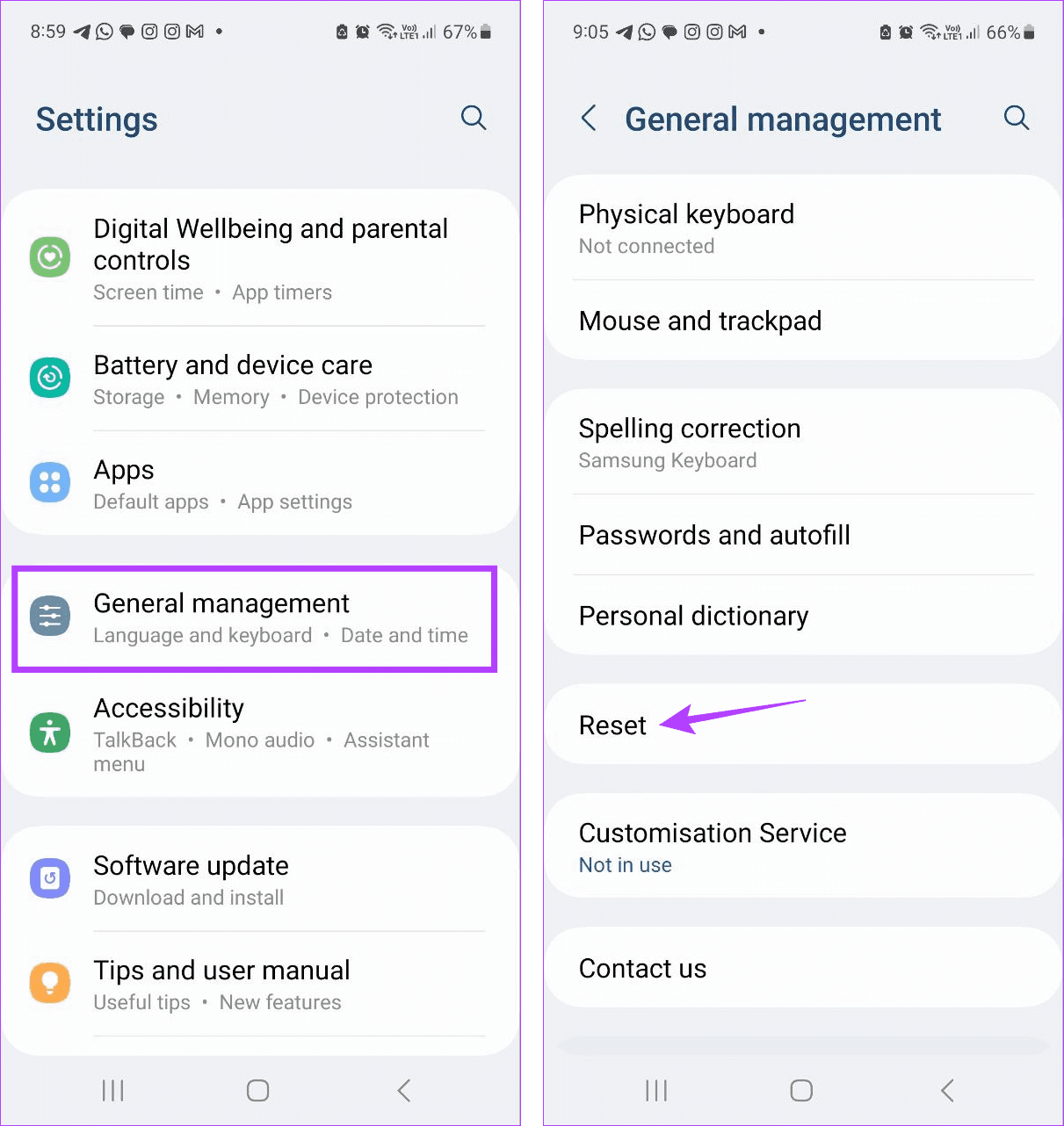
Step 1: Open Settings > tap on General management > Reset.
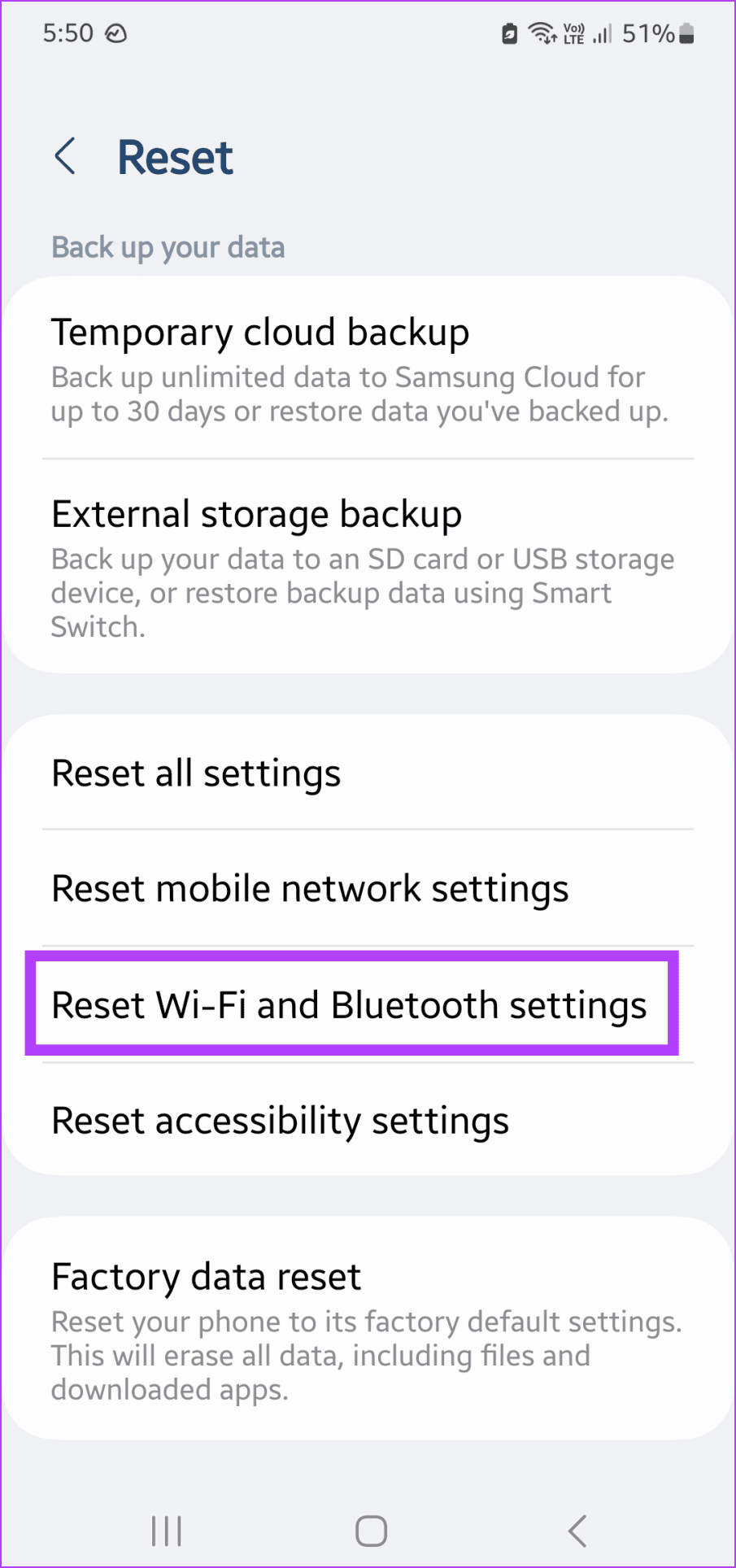
Step 2: From the options, tap on Reset Wi-Fi and Bluetooth settings. When prompted, tap on Reset settings to confirm.

Once done, set up your Wi-Fi network again and see if this fixes the issue. You can also check our article to know more about resettings network settings on Android and iPhone.
Was this helpful?
Last updated on 17 May, 2024
Read Next
 2 Ways to Fix Facebook App Not Working on iPhone
Try Basic Fixes Check if Facebook is down: It's not uncommon for services like Facebook to experience server outages.
2 Ways to Fix Facebook App Not Working on iPhone
Try Basic Fixes Check if Facebook is down: It's not uncommon for services like Facebook to experience server outages.
 4 Ways to Fix Facebook Messenger Not Working on the Desktop
Basic Fixes Run Messenger app as an Admin: Search for the Messenger app on your PC and select Run as Administrator.
4 Ways to Fix Facebook Messenger Not Working on the Desktop
Basic Fixes Run Messenger app as an Admin: Search for the Messenger app on your PC and select Run as Administrator.
 3 Ways to Fix Facebook Messenger Camera Not Working on Android and iPhone
Fix 1: Enable Camera Permission for Messenger Like any other app, Messenger needs permission to access your phone's camera.
3 Ways to Fix Facebook Messenger Camera Not Working on Android and iPhone
Fix 1: Enable Camera Permission for Messenger Like any other app, Messenger needs permission to access your phone's camera.
 4 Ways to Fix Facebook Messenger Notification Sound Not Working
Try Basic Fixes Close the Messenger app on your computer: If you have the Messenger app open on your computer, notifications may appear there instead of on your phone, and
4 Ways to Fix Facebook Messenger Notification Sound Not Working
Try Basic Fixes Close the Messenger app on your computer: If you have the Messenger app open on your computer, notifications may appear there instead of on your phone, and
 9 Ways to Fix Facebook Not Working on Mobile Data
Basic Troubleshooting Check Facebook's status: Maybe Facebook servers are down, visit Downdetector and search for Facebook.
9 Ways to Fix Facebook Not Working on Mobile Data
Basic Troubleshooting Check Facebook's status: Maybe Facebook servers are down, visit Downdetector and search for Facebook.
 Top 9 Ways to Fix Facebook Video or Story Sound Not Working
Although Facebook isn’t as popular as before, it still plays a major role for millions to stay in touch with friends and family.
Top 9 Ways to Fix Facebook Video or Story Sound Not Working
Although Facebook isn’t as popular as before, it still plays a major role for millions to stay in touch with friends and family.
 Top 5 Ways to Fix Facebook Messenger Calls Not Working (iPhone and Android)
Preliminary Fixes Check the Network Connection: A stable internet connection is crucial for Messenger calls.
Top 5 Ways to Fix Facebook Messenger Calls Not Working (iPhone and Android)
Preliminary Fixes Check the Network Connection: A stable internet connection is crucial for Messenger calls.
 How to Fix Facebook Dating Not Working or Showing Up
Find the Facebook Dating Option You can access Facebook Dating on your phone in a couple of ways.
How to Fix Facebook Dating Not Working or Showing Up
Find the Facebook Dating Option You can access Facebook Dating on your phone in a couple of ways.
The article above may contain affiliate links which help support Guiding Tech. The content remains unbiased and authentic and will never affect our editorial integrity.