

Try Basic Fixes
- Turn off Bluetooth: If your phone is connected to any Bluetooth headphones or earbuds, it might redirect the in-call audio to the connected device rather than the ear speaker. To avoid any unwanted connections, turn off Bluetooth on your phone.
- Check if the phone is stuck in headphone mode: Your Android phone may be stuck in headphone mode, which could be why it is not emitting any sound through the ear speaker. In most cases, you can fix this problem by connecting and disconnecting your headphones. If that doesn’t work, you can restart your Android phone.
- Install software updates: It’s always a good idea to update your Android phone with the latest software version available. If the issue is due to a bug within Android, installing newer updates will help.
Fix 1: Check the Accessibility Settings
Your Android phone includes several accessibility settings to aid users with hearing disabilities. If you have unintentionally muted your phone through these accessibility settings or enabled hearing aid compatibility, the earpiece may stop working during calls. Here’s what you can do to fix it.
Step 1: Open the Settings app on your phone. Then, head to Accessibility > Hearing enhancements.
Step 2: Turn off the toggle next to Mute all sounds.

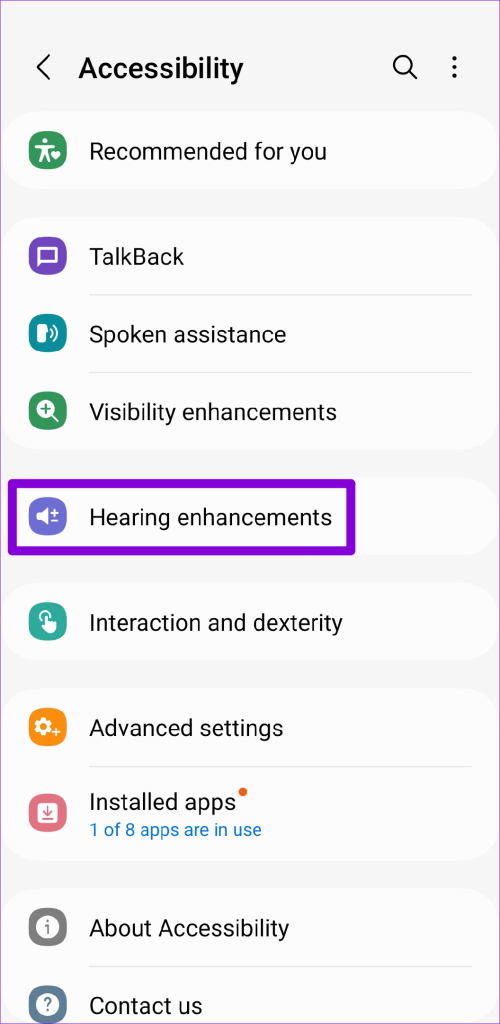
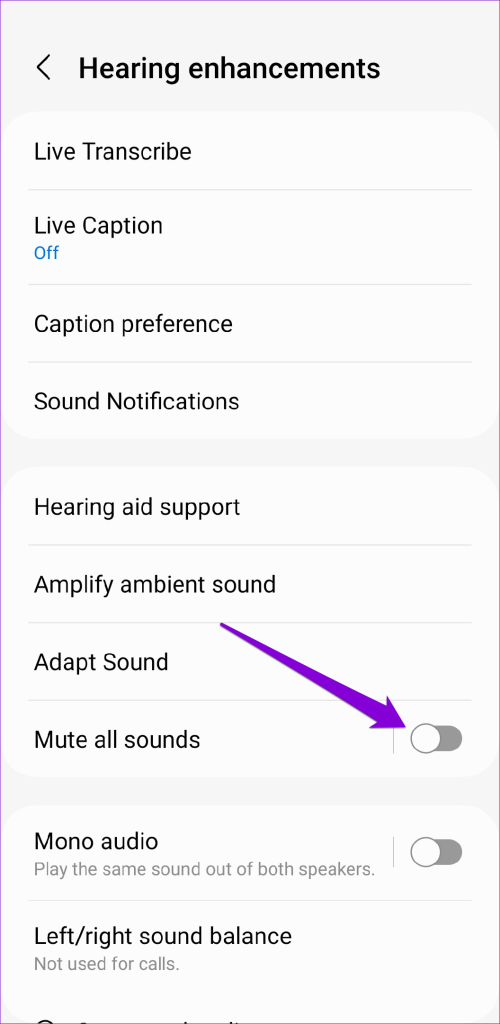
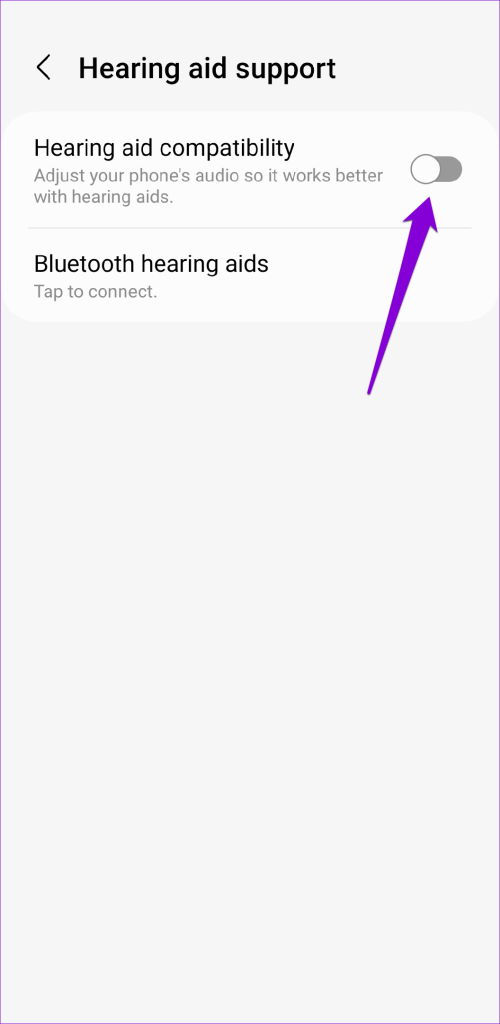
Step 3: Tap on Hearing aid support and disable the toggle next to Hearing aid compatibility.

Fix 2: Clear App Cache
If the ear speaker is not working problem affects only a particular app, there may be an issue with the app itself. In that case, you can try clearing the cache data to fix the problem.
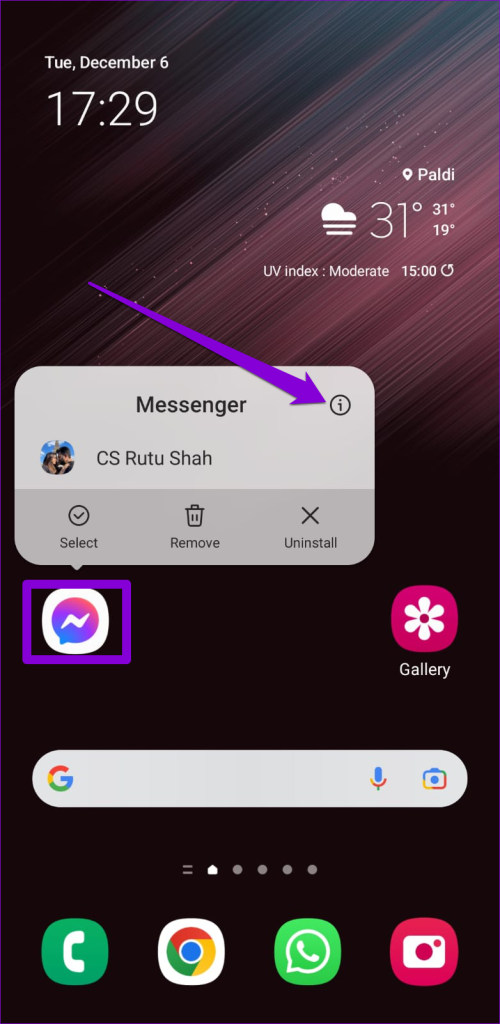
Step 1: Long-press on the problematic app and tap the info icon from the resulting menu.
Step 2: Go to Storage and tap the Clear cache option at the bottom.
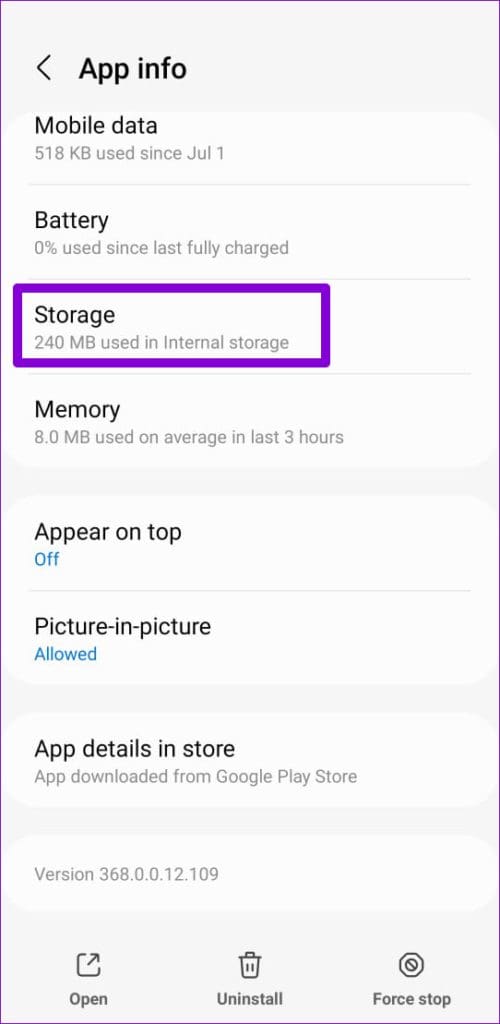

If the issue remains, head to the Play Store and try updating the app to its most recent version.
Fix 3: Reset All Settings on Your Phone
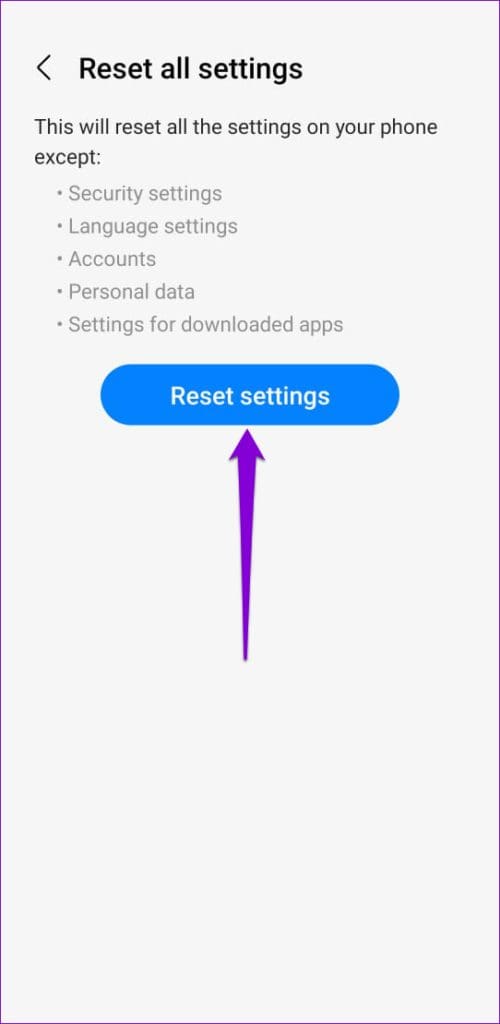
If you still can’t hear through your phone’s ear speaker, your best option is to reset your Android. Don’t worry, this process will not remove your personal data or files.
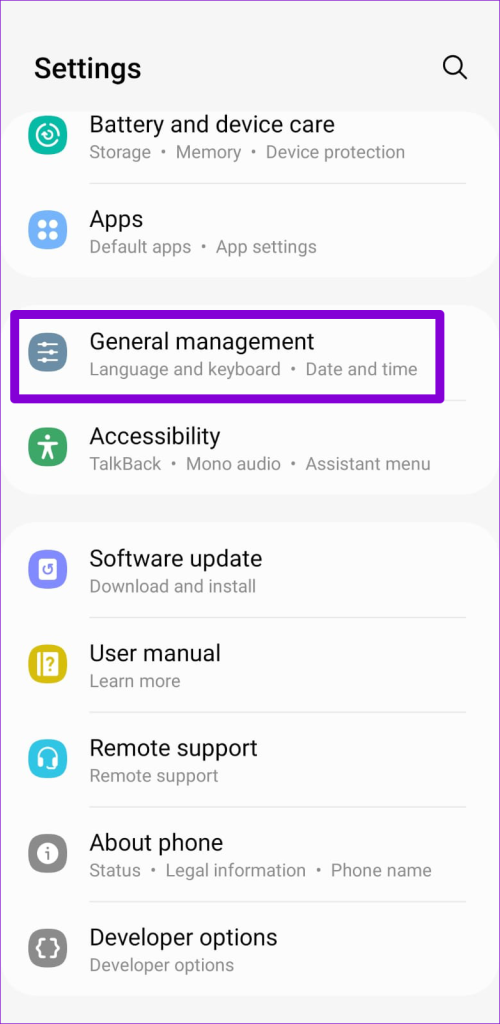
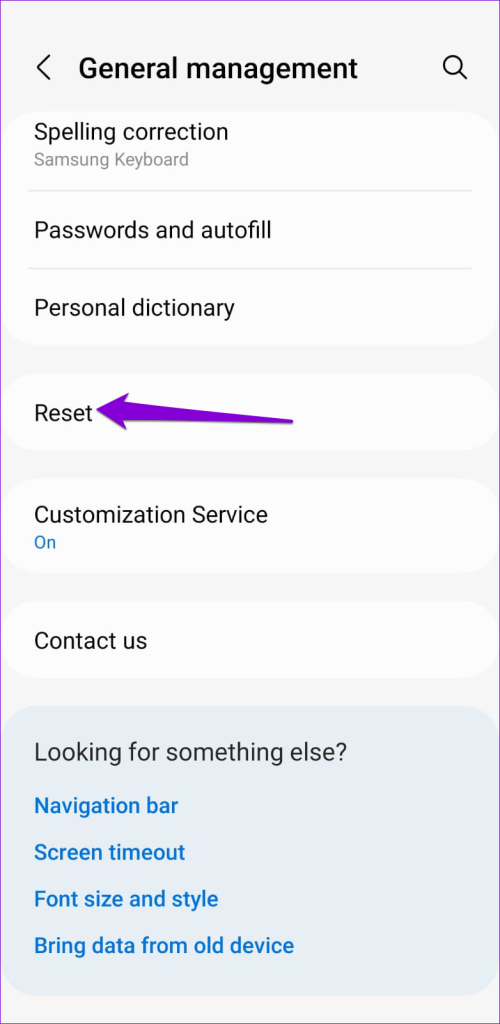
Step 1: Open the Settings app, navigate to General management, and select Reset from the following menu.
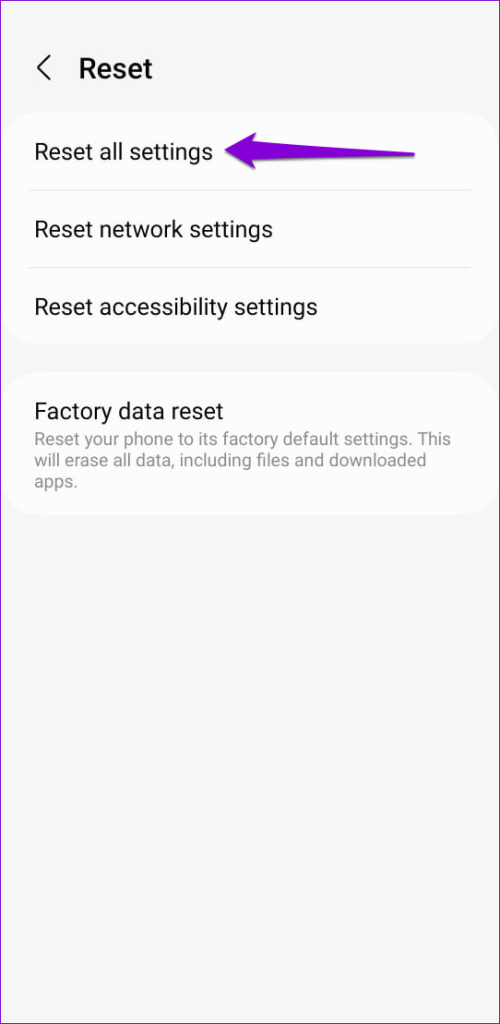
Step 2: Select Reset all settings and tap the Reset settings button to confirm.
Was this helpful?
Last updated on 26 July, 2024
1 Comment
Leave a Reply
Read Next
 4 Ways to Fix Speaker Not Working on Your Android Phone
Basic Fixes: Turn up the volume: You should use the volume button on your Android phone to increase the audio levels manually.
4 Ways to Fix Speaker Not Working on Your Android Phone
Basic Fixes: Turn up the volume: You should use the volume button on your Android phone to increase the audio levels manually.
 4 Common Issues With Nothing Ear (1) and How to Fix Them
1.
4 Common Issues With Nothing Ear (1) and How to Fix Them
1.
 3 Ways to Fix Speaker Not Working on Apple Watch
Basic Fixes Restart Your Mac: The go-to fix for any issue is the good old restart.
3 Ways to Fix Speaker Not Working on Apple Watch
Basic Fixes Restart Your Mac: The go-to fix for any issue is the good old restart.
 5 Best Open-Ear Wireless Headphones
If you find in-ear headphones tedious and unpleasant to use, worry not.
5 Best Open-Ear Wireless Headphones
If you find in-ear headphones tedious and unpleasant to use, worry not.
 5 Best TWS Earbuds with Ear Hooks for Running
TWS earbuds are a godsend for health freaks as they help fuel their workout without cluttering up their personal space.
5 Best TWS Earbuds with Ear Hooks for Running
TWS earbuds are a godsend for health freaks as they help fuel their workout without cluttering up their personal space.
 3 Ways to Fix iPhone Speaker Crackling
Fix 1: Clean the Speaker Grille and Earpiece Using the iPhone daily in different environments could make the speaker grille susceptible to dust particles and grime.
3 Ways to Fix iPhone Speaker Crackling
Fix 1: Clean the Speaker Grille and Earpiece Using the iPhone daily in different environments could make the speaker grille susceptible to dust particles and grime.
 3 Ways to Fix Telegram Calls Not Switching to Speaker on iPhone
Common Fixes Check volume levels - Go to Settings > Sounds & Haptics and maximize the Ringtone and Alerts volume slider.
3 Ways to Fix Telegram Calls Not Switching to Speaker on iPhone
Common Fixes Check volume levels - Go to Settings > Sounds & Haptics and maximize the Ringtone and Alerts volume slider.
 3 Fixes for iPhone Speaker Not Working During Calls
https://youtu.be/dTAtDgY5NPc Basic Fixes Disable Bluetooth devices: Disconnect Bluetooth devices from your iPhone.
3 Fixes for iPhone Speaker Not Working During Calls
https://youtu.be/dTAtDgY5NPc Basic Fixes Disable Bluetooth devices: Disconnect Bluetooth devices from your iPhone.
The article above may contain affiliate links which help support Guiding Tech. The content remains unbiased and authentic and will never affect our editorial integrity.
I have already taken my mobile to the service center but its speaker is not working properly, could it be already damaged? thank you so much “one plus service center in Nagpur.”