Basic Fixes
- Check internal storage: Your iPhone needs more internal storage to store downloaded songs.
- Restart your device: A simple device restart could help restore the order and your downloaded music.
- Add songs to your playlist: We suggest adding at least one song to your playlist on Apple Music.
Fix 1: Sign In to Apple ID
If Apple Music isn’t playing your downloaded songs, we suggest signing in to your device.
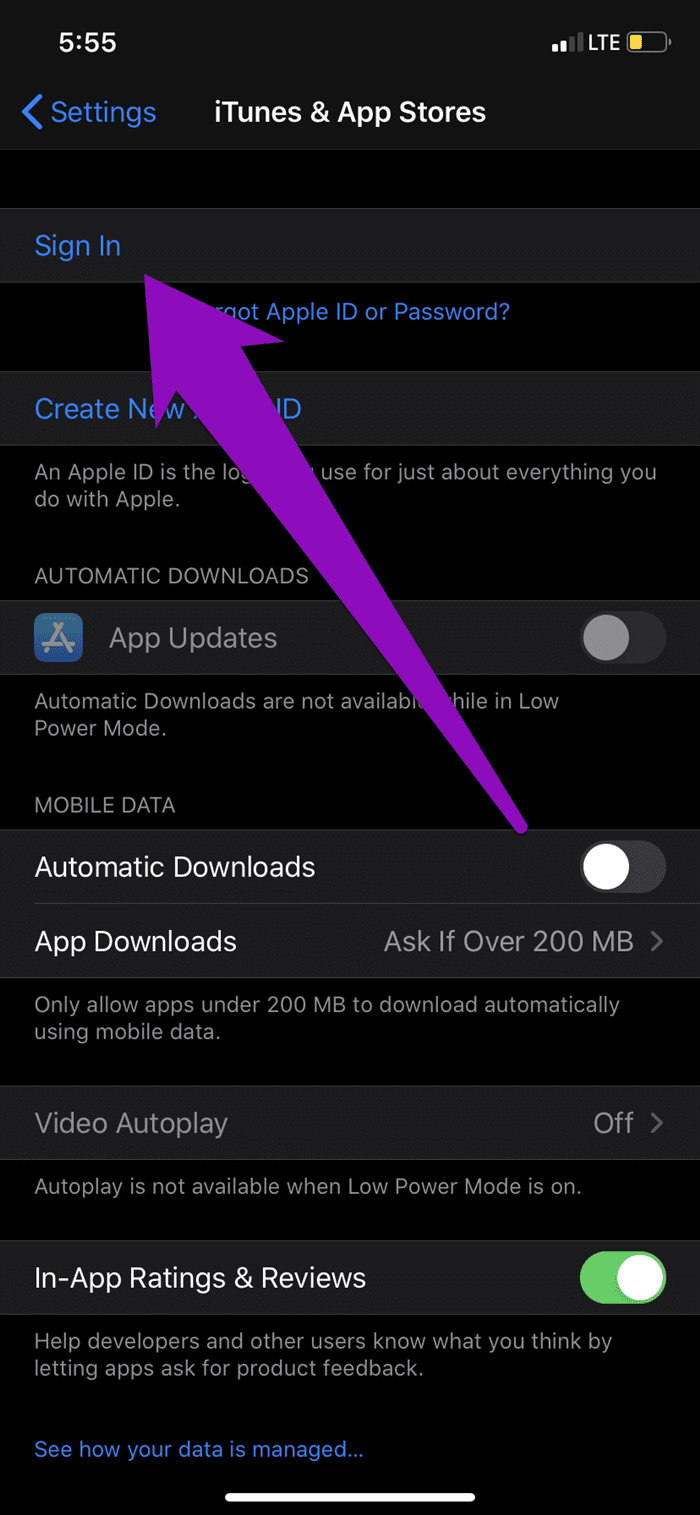
Step 1: Open your device’s Settings menu and then select iTunes and App Store.
Step 2: If you don’t have an Apple ID connected to your device, you should see a Sign In button. Tap on it to sign in to your Apple ID.
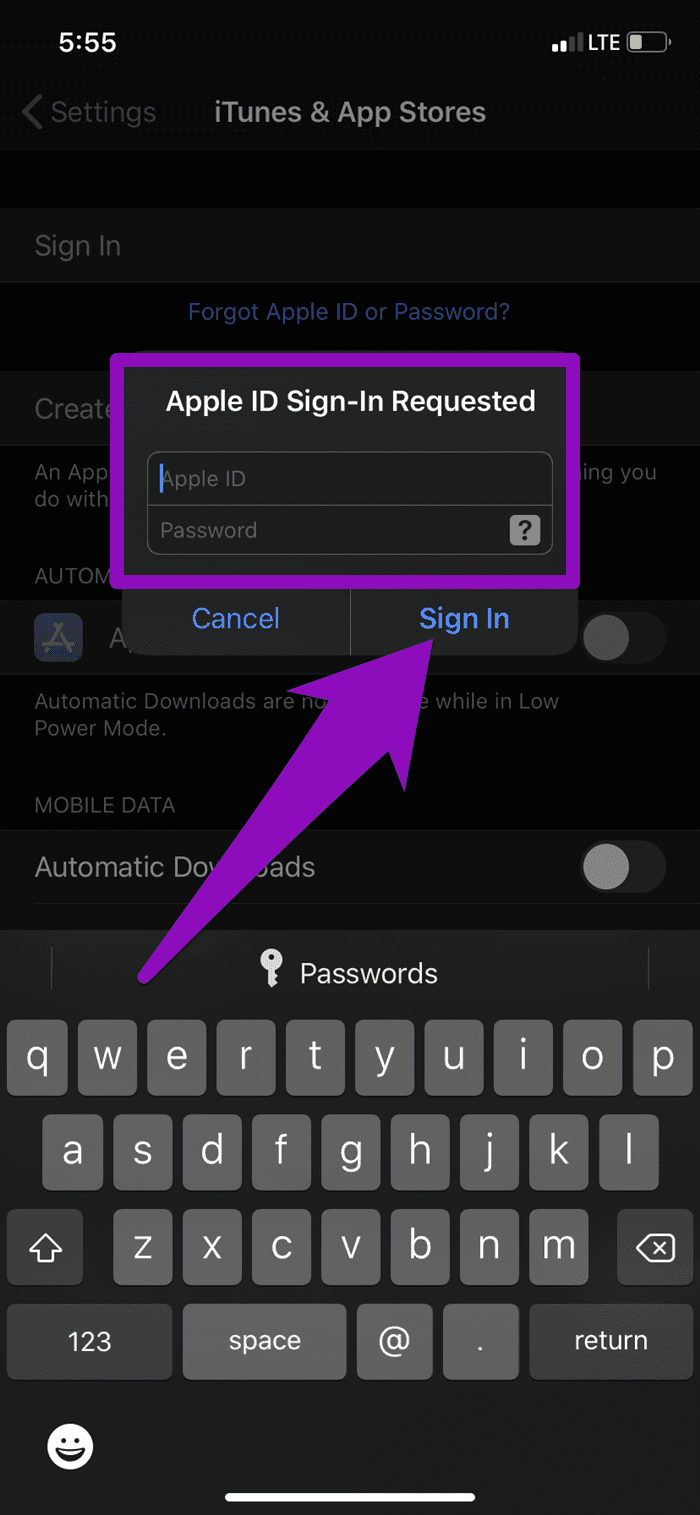
Step 3: Enter your Apple ID credentials and then tap Sign In.
Note: This will only restore songs you’ve saved to your Apple Music, not songs you previously downloaded to your device.
Fix 2: Re-Enable Apple Music & Sync Library
Disabling Apple Music on your device, intentionally or accidentally, will render your downloaded songs inaccessible. If you want your songs restored to your device, re-enable Apple Music and iTunes Library Sync.
Some users who experienced this issue have found this effective in getting downloaded music to reappear in Apple Music. Here’s how to go about it.
Step 1: Launch Settings on your iPhone or iPad and then select Music.
Step 2: Enable Sync Library.
If it is enabled, disable and re-enable it. You can reboot your device to restore your downloaded songs if they have been deleted.
Fix 3: Turn off Optimize Storage
To help you save storage space on your iPhone, Apple designed the ‘Optimized Storage’ feature. This automatically deletes the downloaded songs you barely listen to whenever your device is low on storage space. Turn off Optimized Storage is enabled on your iPhone to prevent songs from deleting on Apple Music. Here’s how.
While this will free up storage on your iPhone, some of your songs on Apple Music might no longer be available for offline play.
Step 1: Launch your phone’s Settings menu and then select Music.
Step 2: Scroll to the Downloads section at the bottom of the page and then tap Optimized Storage.
Step 3: If enabled, turn off the toggle for Optimized Storage.
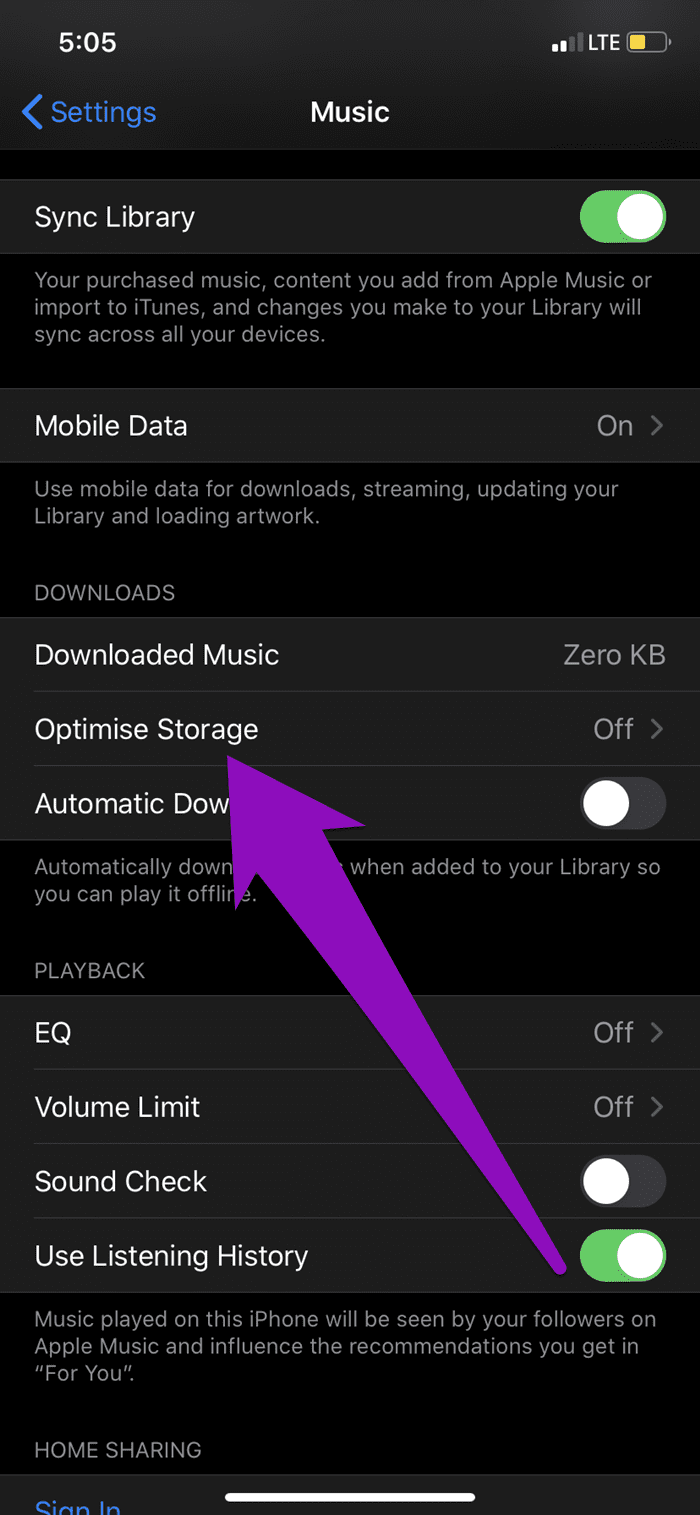
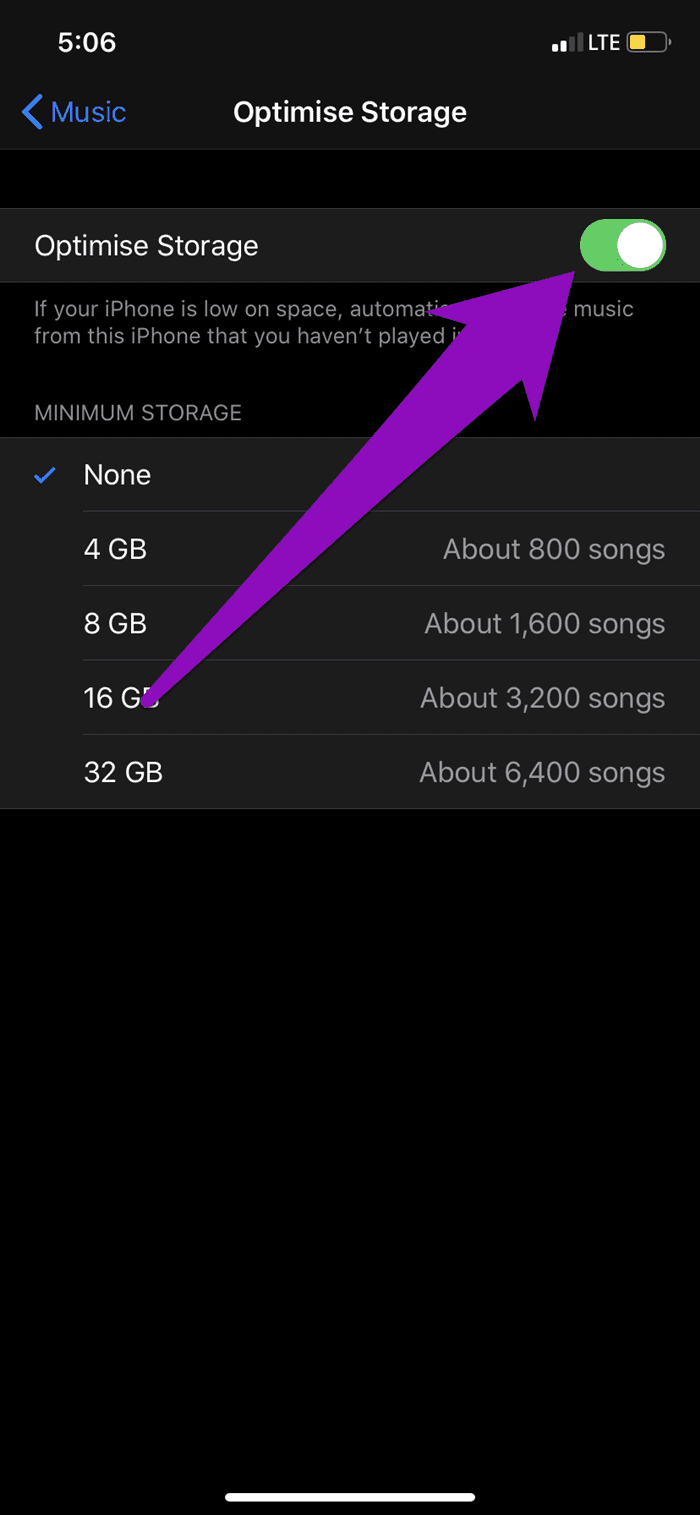
That will disable the automatic deletion of downloaded songs from Apple Music on your device.
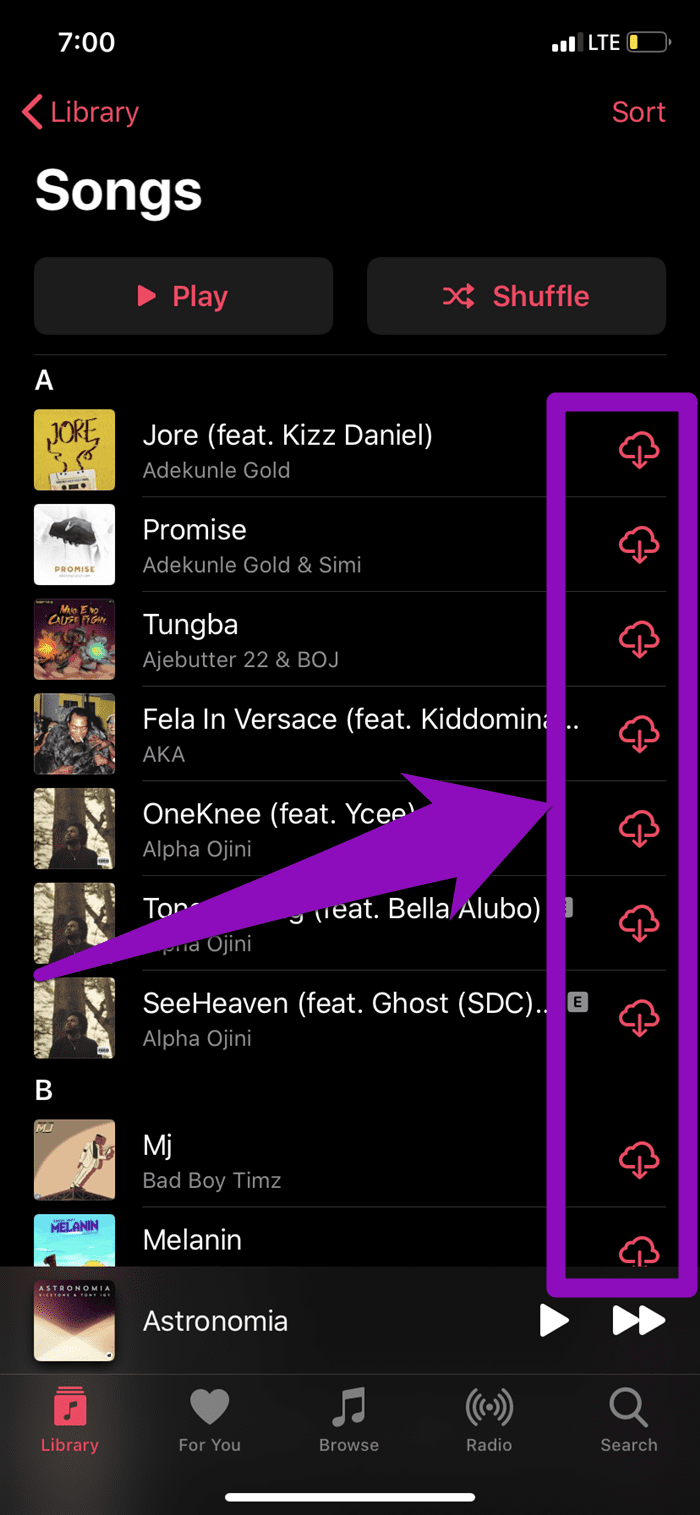
If you can’t restore your downloaded music, you must manually re-download them to your device.
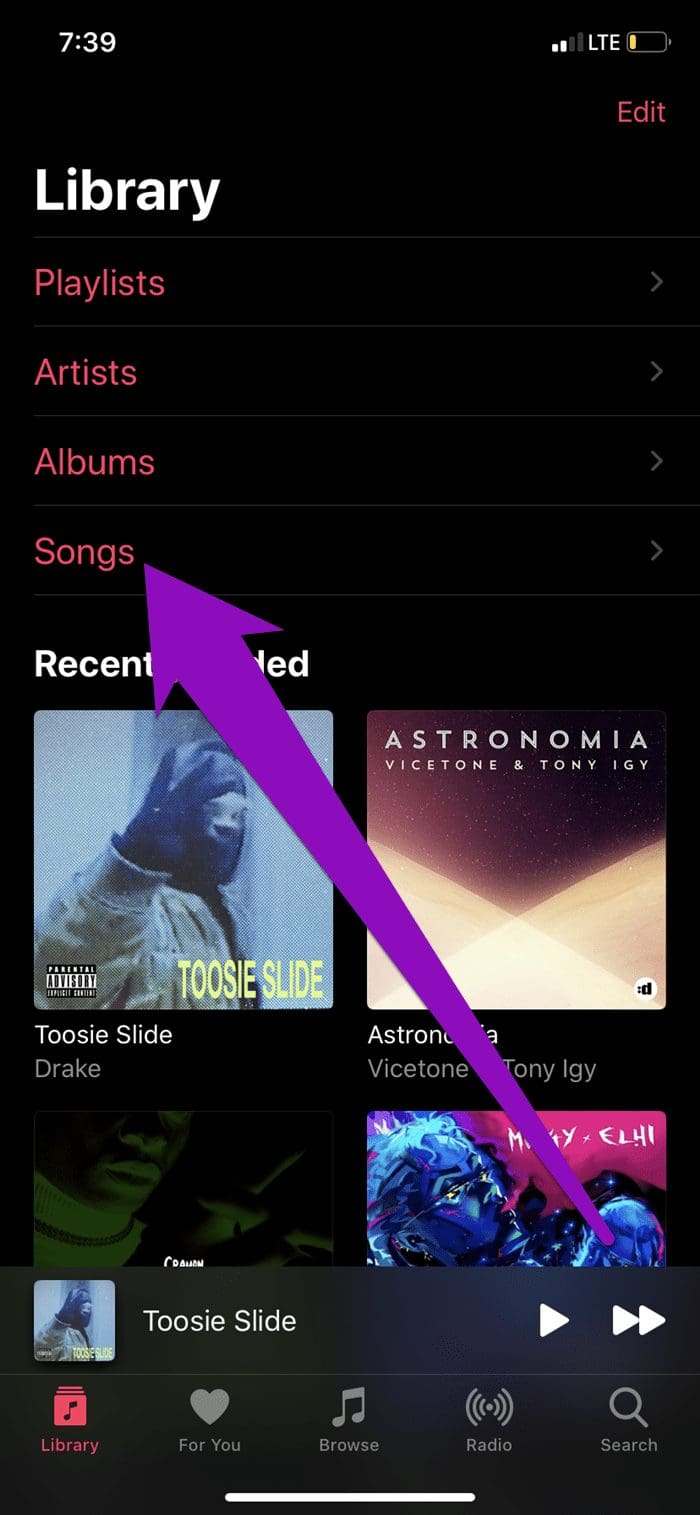
To download your songs back to your device, launch Apple Music > click on the Songs folder and then tap the cloud icon to download each song back to your device.
Was this helpful?
Last updated on 02 July, 2024
Read Next
 How to Fix Apple Music Not Playing Downloaded Songs
Basic Fixes: Check the Apple Music server status: If Apple Music is not working properly, you will have issues playing any song, downloaded or otherwise.
How to Fix Apple Music Not Playing Downloaded Songs
Basic Fixes: Check the Apple Music server status: If Apple Music is not working properly, you will have issues playing any song, downloaded or otherwise.
 How to Add Downloaded Music to Apple Music Library
If you download songs on your iPhone and use the Files app to listen to them, you are doing it wrong.
How to Add Downloaded Music to Apple Music Library
If you download songs on your iPhone and use the Files app to listen to them, you are doing it wrong.
 3 Ways to Fix Apple Music Not Downloading Songs
Basic Fixes Check network: If you can't download songs on Apple Music, there is likely a problem with your internet connectivity.
3 Ways to Fix Apple Music Not Downloading Songs
Basic Fixes Check network: If you can't download songs on Apple Music, there is likely a problem with your internet connectivity.
 Top 2 Ways to Watch Videos Downloaded From Telegram on iPhone
Method 1: Play Videos in the Photos App Step 1: Open the Telegram app and move to the conversation.
Top 2 Ways to Watch Videos Downloaded From Telegram on iPhone
Method 1: Play Videos in the Photos App Step 1: Open the Telegram app and move to the conversation.
 4 Fixes for “This Message Has Not Been Downloaded From the Server” on iPhone
Try These Basic Fixes Free up storage space: A common reason the Mail app may not download emails is due to a lack of free storage space.
4 Fixes for “This Message Has Not Been Downloaded From the Server” on iPhone
Try These Basic Fixes Free up storage space: A common reason the Mail app may not download emails is due to a lack of free storage space.
 Where to Find Downloaded Files on iPhone and iPad
Find Your Downloads Using the Files App The Files app was released with iOS 11.
Where to Find Downloaded Files on iPhone and iPad
Find Your Downloads Using the Files App The Files app was released with iOS 11.
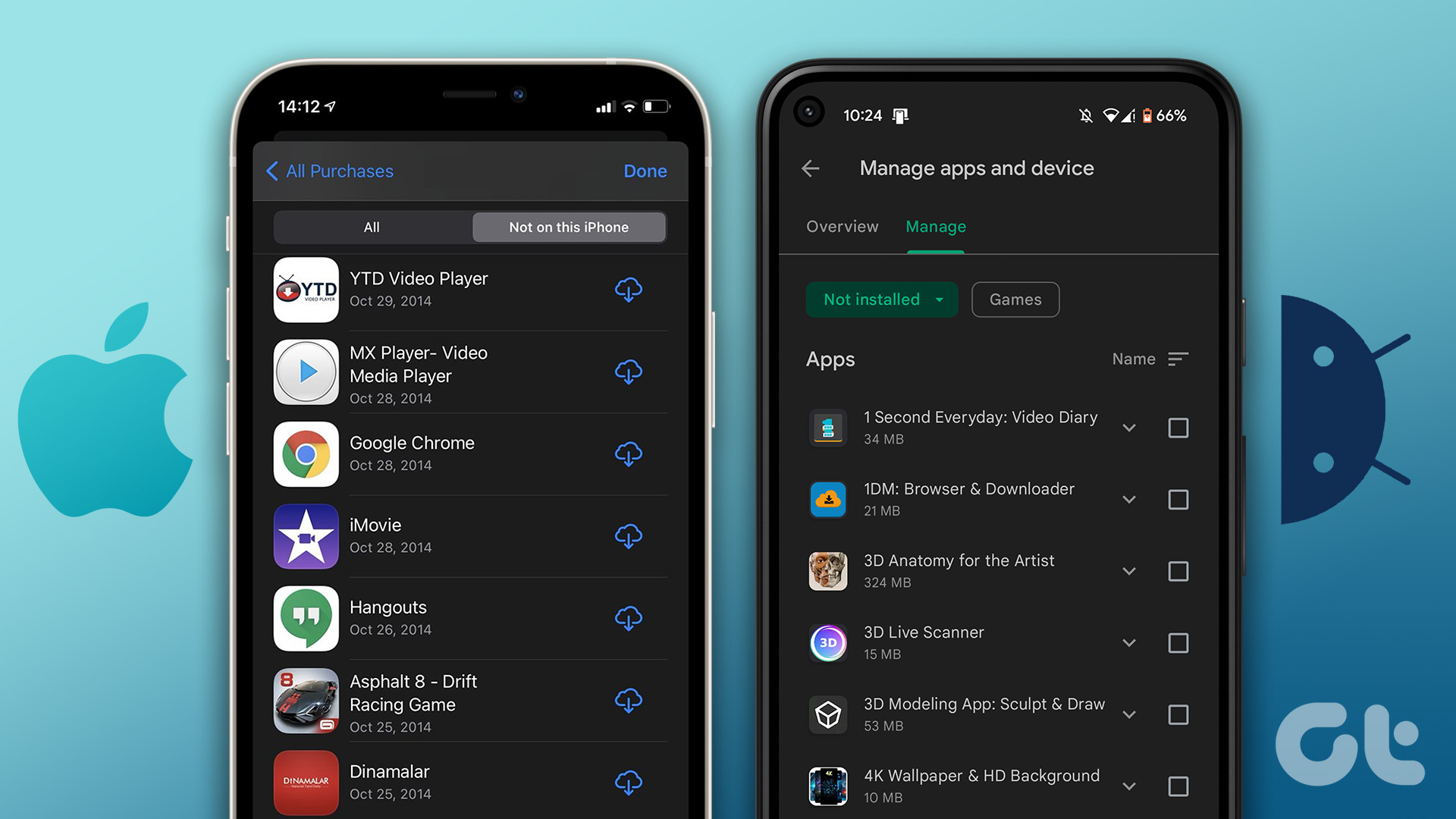 How to View and Manage Your Previously Downloaded Apps on Android and iPhone
How to View Your App Download History on Android Google Play Store makes it easy to access your app download history on Android.
How to View and Manage Your Previously Downloaded Apps on Android and iPhone
How to View Your App Download History on Android Google Play Store makes it easy to access your app download history on Android.
 Top 7 Ways to Fix Siri Not Playing Music from Apple Music
Siri not recognizing your voice and not playing music from Apple Music can lead to an undesirable experience.
Top 7 Ways to Fix Siri Not Playing Music from Apple Music
Siri not recognizing your voice and not playing music from Apple Music can lead to an undesirable experience.
The article above may contain affiliate links which help support Guiding Tech. The content remains unbiased and authentic and will never affect our editorial integrity.