Try Basic Fixes
- Disconnect any Bluetooth devices: Make sure your phone isn’t connected to any Bluetooth devices. Otherwise, Discord may use them as the audio input device, giving you the impression that the mic isn’t working. While you’re at it, double-check the volume levels on your phone to ensure that you didn’t put the microphone on mute.
- Update the Discord app: Discord regularly releases app updates to introduce new features, improve app performance, and address known bugs. If you haven’t checked for Discord updates in a while, go to the Play Store or App Store to update the app.
Fix 1: Allow Discord to Use the Microphone
When you use an app for the first time, it asks for a few permissions to access things like your phone’s camera, microphone, storage, and more. If you’ve previously denied Discord access to your microphone, here’s how to change that.
Android
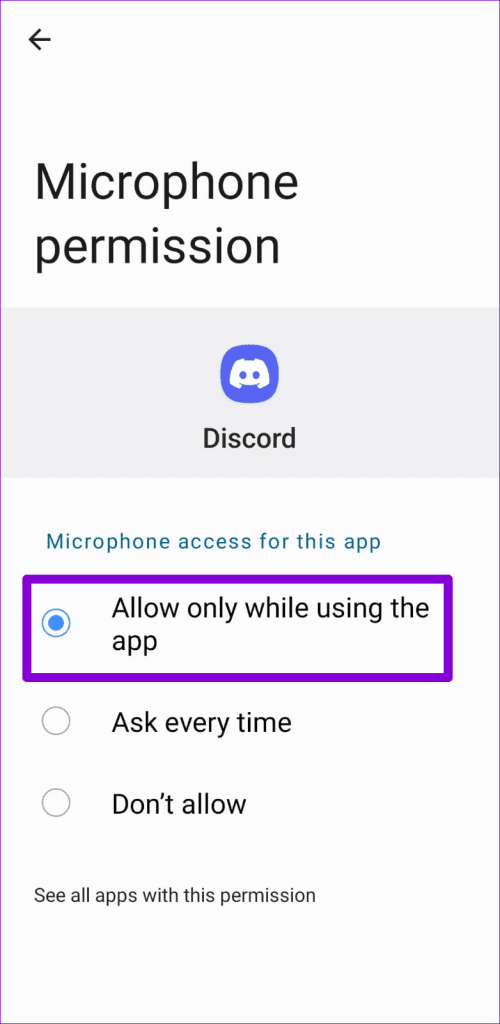
Step 1: Long-press on the Discord app icon and tap the info icon from the menu that appears.


Step 2: Go to Permissions. Tap on Microphone and select Allow only while using the app from the following menu.

iPhone
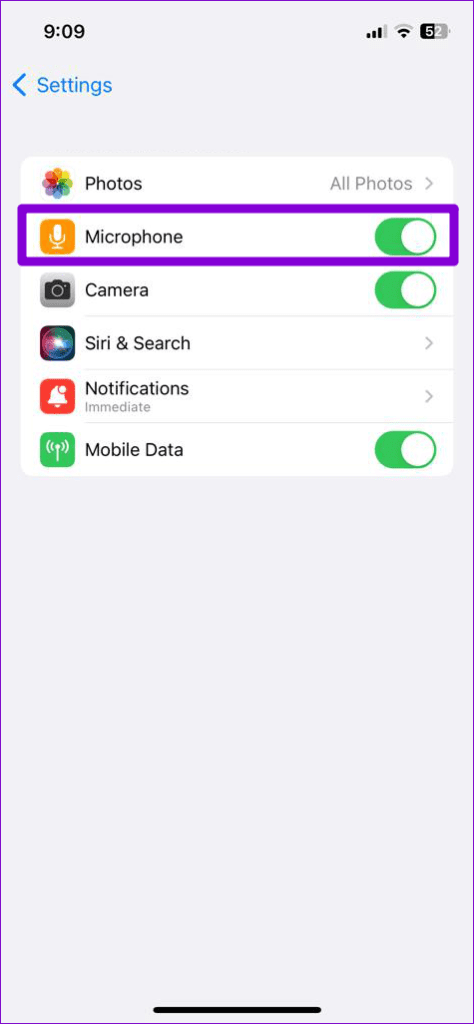
Step 1: Open the Settings app and scroll down to tap on Discord.
Step 2: Enable the toggle for Microphone.

Fix 2: Enable Microphone Access From Privacy Settings (Android)
With Android 12 and later, you can manage microphone permissions for apps and services directly from the Privacy menu. If you’ve disabled microphone access from there, apps on your phone, including Discord, won’t be able to use the mic despite having the required permission.
To enable microphone access on Android:
Step 1: Open the Settings app on your phone and navigate to Privacy.
Step 2: Under Controls and alerts, enable Microphone access.


Fix 3: Check the Voice Input Mode
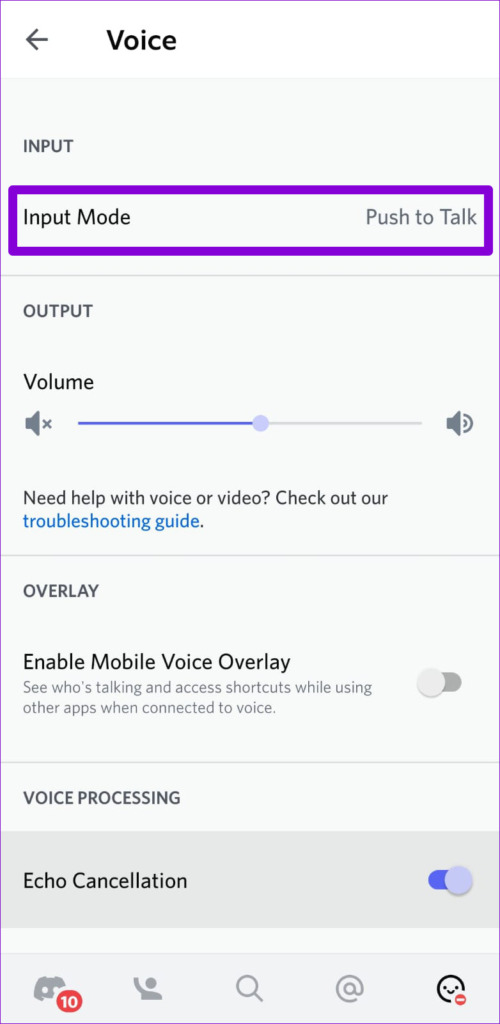
On Discord, you can choose between two voice input methods—Voice Activity and Push to Talk. If you’ve set the input mode to Push to Talk, you’ll have to press the appropriate button whenever you want to speak in a voice channel. If you don’t want that, you can change the voice input mode to Voice Activity by following the steps below.
Step 1: Open the Discord app and tap on your avatar in the bottom right corner.
Step 2: Go to Voice > Input Mode and select Voice Activity.


Fix 4: Disable Voice Processing Features
The Discord app includes several voice processing features, such as echo cancellation, background noise suppression, automatic gain control, and more. Sometimes, these features can also cause the mic to stop working in Discord on Android or iPhone. Hence, it’s best to disable them if others cannot hear you in the Discord app.
Step 1: In the Discord app, tap on your avatar in the bottom-right corner.
Step 2: Go to Voice. Under the Voice Processing section, disable Echo Cancellation and set Noise Suppression to None. Then, disable the toggles for Automatic Gain Control and Advanced Voice Activity.

Fix 5: Clear Discord Cache
Apps like Discord accumulate cache data to improve their performance on your phone. However, if the existing cache data is too old, it may interfere with app functionality and cause problems. For such occasions, Discord lets you clear the cache from the app’s settings menu.
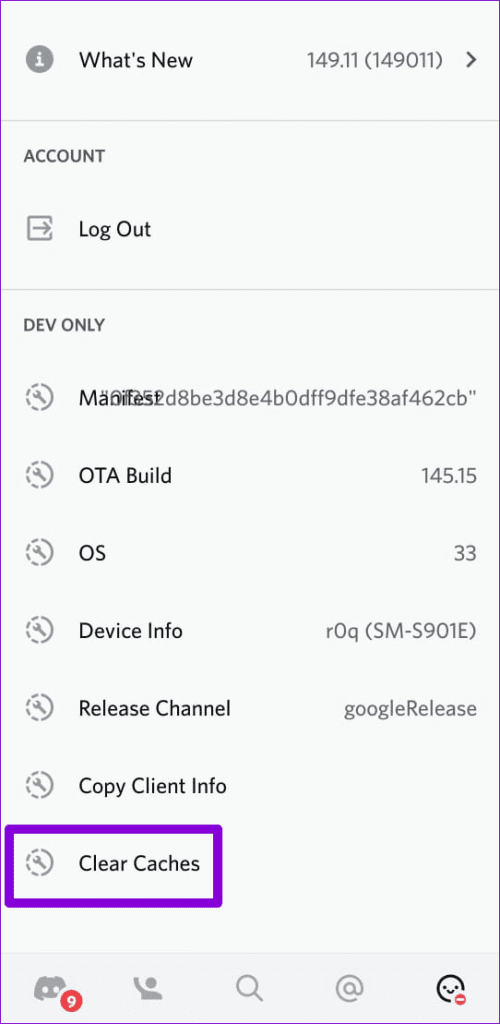
To clear the Discord app cache on your Android or iPhone:
Step 1: Open the Discord app and tap the profile icon at the bottom right corner.
Step 2: Scroll down to the Dev Only section and tap the Clear Caches option.

Was this helpful?
Last updated on 08 July, 2024
Read Next
 How to Fix Bluetooth Headset Mic Not Working in Windows PC
Basic Fixes: Check if it's working with another device: You cannot rule out the possibility that your headset’s mic is the problem.
How to Fix Bluetooth Headset Mic Not Working in Windows PC
Basic Fixes: Check if it's working with another device: You cannot rule out the possibility that your headset’s mic is the problem.
 How to Fix Valorant Voice Chat or Mic Not Working on Windows
Voice communication is important in multiplayer games like Valorant, enable you to effectively communicate and strategize your next move.
How to Fix Valorant Voice Chat or Mic Not Working on Windows
Voice communication is important in multiplayer games like Valorant, enable you to effectively communicate and strategize your next move.
 How to Use an Android Device as Mic for Bluetooth Speakers
1.
How to Use an Android Device as Mic for Bluetooth Speakers
1.
 5 Ways to Make Your Mic Sound Better on Windows
Basic Fixes Place the Microphone Properly: One of the first things to ensure is that your microphone is placed properly.
5 Ways to Make Your Mic Sound Better on Windows
Basic Fixes Place the Microphone Properly: One of the first things to ensure is that your microphone is placed properly.
 How to Perform Live Mic Monitoring on Mac
Method 1: Use QuickTime Player QuickTime Player gives you the option to record your screen and audio on your Mac.
How to Perform Live Mic Monitoring on Mac
Method 1: Use QuickTime Player QuickTime Player gives you the option to record your screen and audio on your Mac.
 6 Ways to Fix Discord Notifications Not Working on Android and iPhone
Close the Discord app on your PC: If you have Discord open on your computer, notifications may appear there first instead of on your phone.
6 Ways to Fix Discord Notifications Not Working on Android and iPhone
Close the Discord app on your PC: If you have Discord open on your computer, notifications may appear there first instead of on your phone.
 How to Play Discord Games Using Discord Activities
What Are Discord Games?
How to Play Discord Games Using Discord Activities
What Are Discord Games?
 4 Ways to Fix Discord Connection Issues on Android and iPhone
Try These Basic Fixes Check if Discord is down: If its server is having problems, Discord may encounter connection issues.
4 Ways to Fix Discord Connection Issues on Android and iPhone
Try These Basic Fixes Check if Discord is down: If its server is having problems, Discord may encounter connection issues.
The article above may contain affiliate links which help support Guiding Tech. The content remains unbiased and authentic and will never affect our editorial integrity.