Fix 1: Check the Default Audio Output Device on Your System
To start, check the default audio output device on your Windows or Mac computer and ensure that audio is set to come from your headset. Here’s how:
On Windows
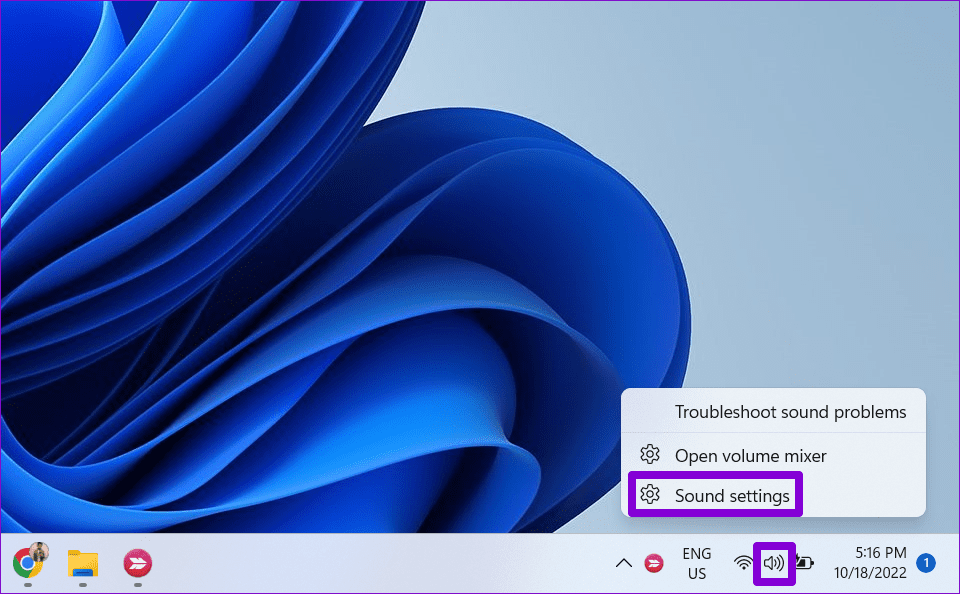
Step 1: Right-click on the speaker icon on the taskbar and select Sound settings.
Step 2: Under the Output section, select your headset as default.

Step 3: Scroll to the Advanced section and click Volume mixer.

Step 4: Use the slider next to Discord to increase app volume.

On Mac
Step 1: Click the Apple menu at the top left > select System Settings from the list.

Step 2: In the System Settings window, click the Sound tab on the sidebar.
Step 3: Switch to the Output tab and select your headset instead of the built-in speakers. Also, check the Output volume from the same menu.

Fix 2: Check the Audio Output Device in Discord
Discord lets you change the audio input and output device via its in-app settings menu. So, you must also check that.
Step 1: Open the Discord app and click the gear-shaped icon at the bottom left.

Step 2: Switch to the Voice & Video tab and use the drop-down menu to select your headset. Then, use the slider to increase the Output Volume to your liking.

Fix 3: Enable Legacy Audio Subsystem
Another reason the audio may not come through your headset is if it is incompatible with Discord’s latest audio subsystem. Fortunately, Discord includes an option to use the Legacy Audio Subsystem, which can help fix the issue.
Step 1: In the Discord app, click the gear icon at the bottom left.
Step 2: Switch to the Voice & Video tab and scroll to Audio Subsystem. Click the drop-down menu to select Legacy.

Fix 4: Change the Server Region
Are you experiencing audio issues on a specific Discord server? If so, try changing the server region to fix the problem. Note that you can only do this if you are the server owner or have permission to manage channels.
Step 1: Open the Discord app and click on your server on the left. Right-click on a voice channel > select Edit channel.

Step 2: Click the Region Override drop-down menu > select a different nearby region.

Fix 5: Reset Discord Voice Settings
Incorrect audio settings in Discord can also cause these issues. Instead of going through each voice setting one by one, consider resetting them all and starting over. Here’s how to do that.
Step 1: Open the Discord app settings menu.
Step 2: Select Voice & Video from the sidebar. Scroll down to click the Reset Voice Settings button.

Fix 6: Restart the Audio Service (Windows)
If you still can’t hear Discord audio through your headset, there might be a problem with your Windows computer. Try restarting the Windows Audio service to see if that fixes the issue.
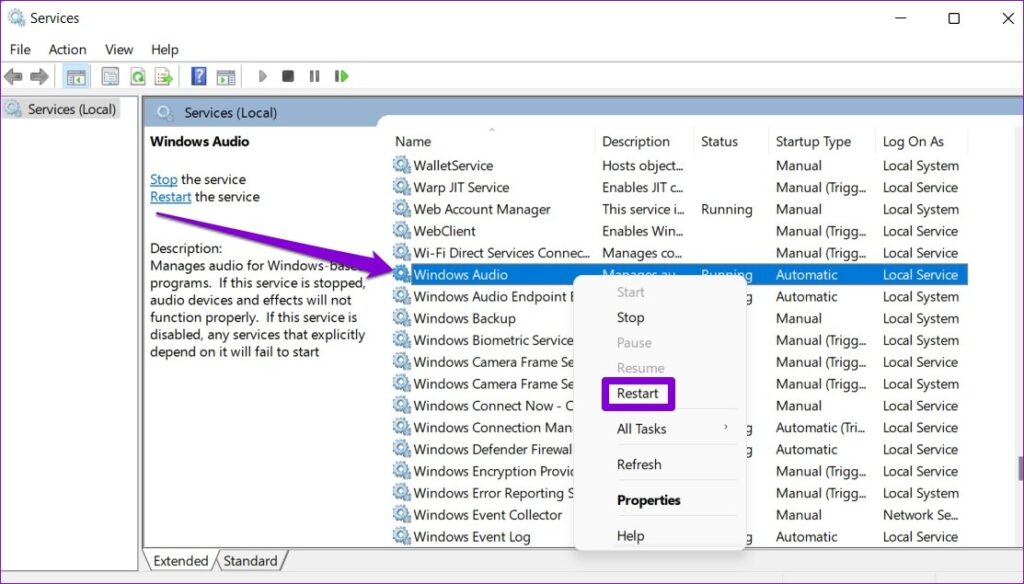
Step 1: Press the Windows key + R to open the Run dialog box. Type services.msc in the box and press Enter.
Step 2: Locate the Windows Audio service on the list. Right-click on it and select Restart.
Fix 7: Disable Any Headset Software
Many modern headphones include software that enables users to personalize their sound quality and performance. However, using such software might sometimes cause audio issues with apps like Discord. For instance, one Reddit user reported having audio issues while using their Corsair headset with the iCUE software.
If your wired or Bluetooth headphones are not producing any sound, try disabling any headset software and see if that fixes the problem.
Was this helpful?
Last updated on 06 August, 2024
Read Next
 6 Ways to Fix Windows Not Detecting Microphone in Headset
Basic Fixes Check cable and Bluetooth connection: Check the microphone and its wire for significant damage on either side.
6 Ways to Fix Windows Not Detecting Microphone in Headset
Basic Fixes Check cable and Bluetooth connection: Check the microphone and its wire for significant damage on either side.
 3 Fixes to Stop Deleted Photos From Coming Back on iPhone
Basic Fixes Restart your iPhone: A simple restart can sometimes fix issues like this one.
3 Fixes to Stop Deleted Photos From Coming Back on iPhone
Basic Fixes Restart your iPhone: A simple restart can sometimes fix issues like this one.
 How to Fix Bluetooth Headset Mic Not Working in Windows PC
Basic Fixes: Check if it's working with another device: You cannot rule out the possibility that your headset’s mic is the problem.
How to Fix Bluetooth Headset Mic Not Working in Windows PC
Basic Fixes: Check if it's working with another device: You cannot rule out the possibility that your headset’s mic is the problem.
 5 Ways to Fix Audio Not Working on Discord
Basic Fixes Unmute yourself on Discord: Ensure you haven't accidentally muted yourself on Discord.
5 Ways to Fix Audio Not Working on Discord
Basic Fixes Unmute yourself on Discord: Ensure you haven't accidentally muted yourself on Discord.
 How to Play Discord Games Using Discord Activities
What Are Discord Games?
How to Play Discord Games Using Discord Activities
What Are Discord Games?
 5 Fixes When Discord Is Picking Up Game Audio in Windows 11
Before going into the fixes, ensure the USB connector is connected to the motherboard USB port.
5 Fixes When Discord Is Picking Up Game Audio in Windows 11
Before going into the fixes, ensure the USB connector is connected to the motherboard USB port.
 Top 7 Ways to Fix Google Meet Audio Not Working
Major IT companies, such as Twitter and Spotify, are encouraging employees to work from home.
Top 7 Ways to Fix Google Meet Audio Not Working
Major IT companies, such as Twitter and Spotify, are encouraging employees to work from home.
 4 Ways to Fix Zoom Audio Delay on Windows 11
Basic Fixes Check your network connection: Ensure your PC has a good internet connection.
4 Ways to Fix Zoom Audio Delay on Windows 11
Basic Fixes Check your network connection: Ensure your PC has a good internet connection.
The article above may contain affiliate links which help support Guiding Tech. The content remains unbiased and authentic and will never affect our editorial integrity.